
01Who this is for
- Any user of the HighLevel web dialer can keep call controls accessible while reviewing records.
- Agents and support staff can minimize the dialer to free screen space without ending calls.
02Dialer autominimize, pin & drag, explained
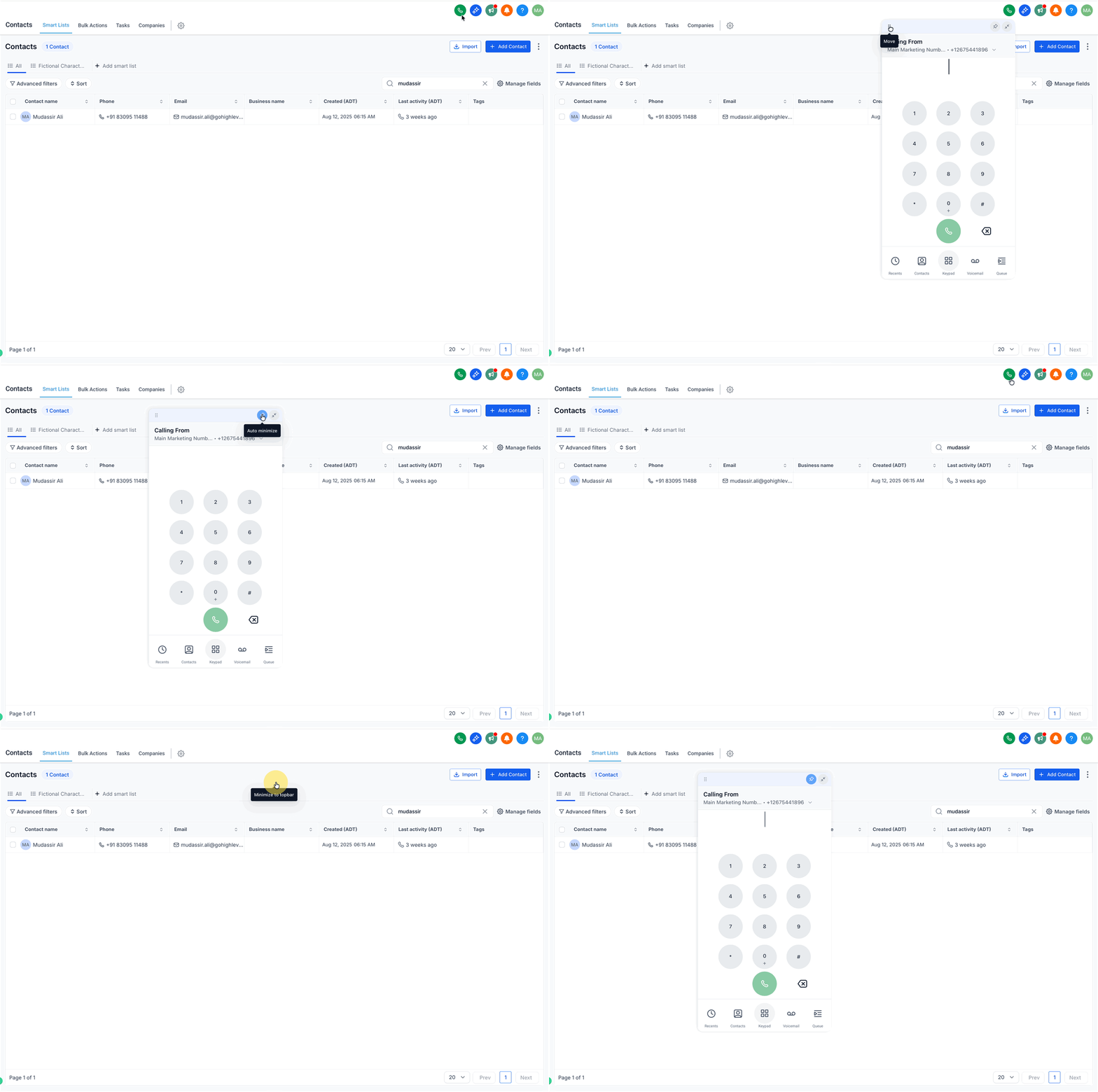
The feature adds three behaviours to the HighLevel web dialer: it automatically minimizes when you click outside the window, it can be pinned so it stays open regardless of where you click, and it can be dragged to any spot on the screen. When pinned, the dialer remembers the last place you dropped it and reopens there.
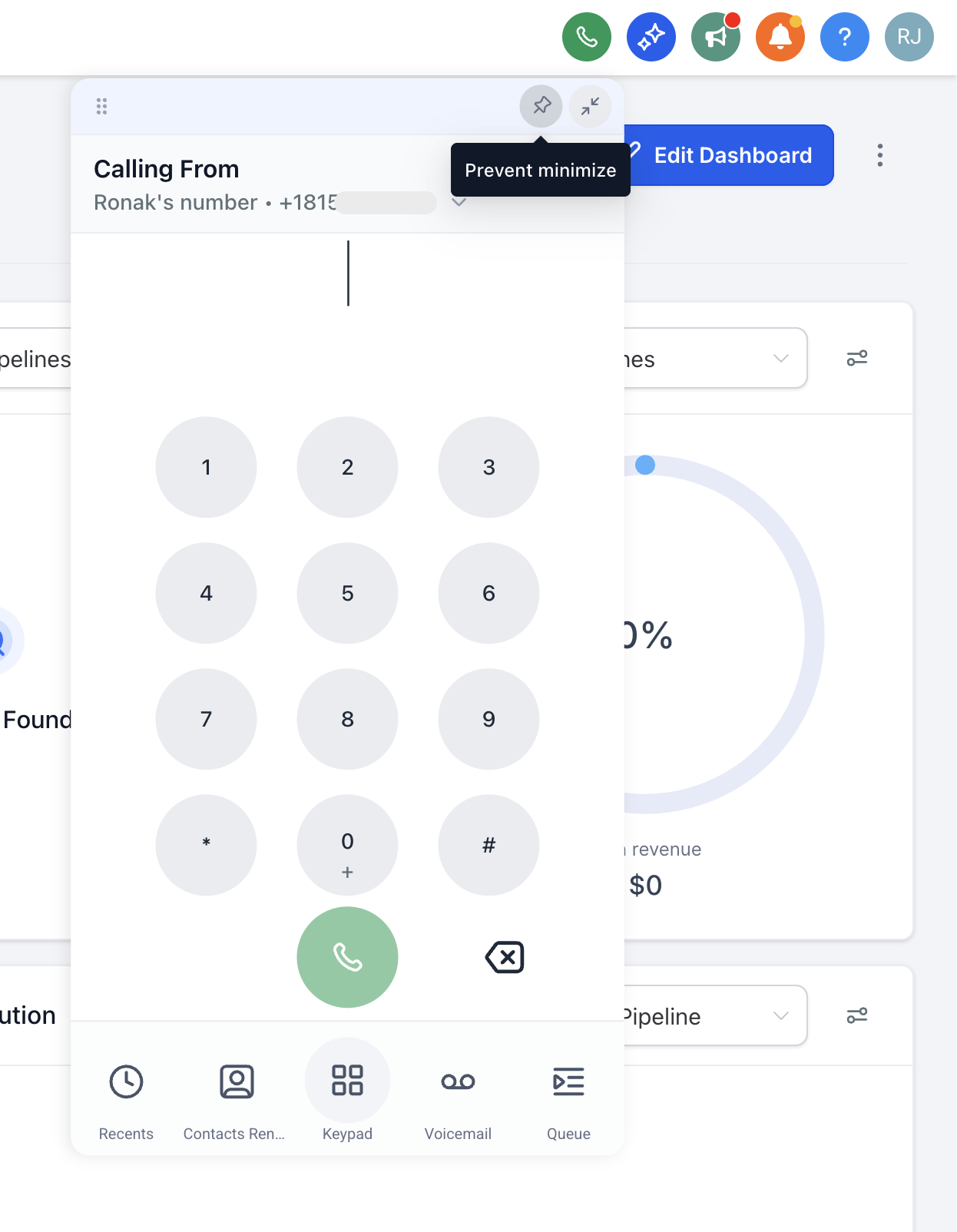
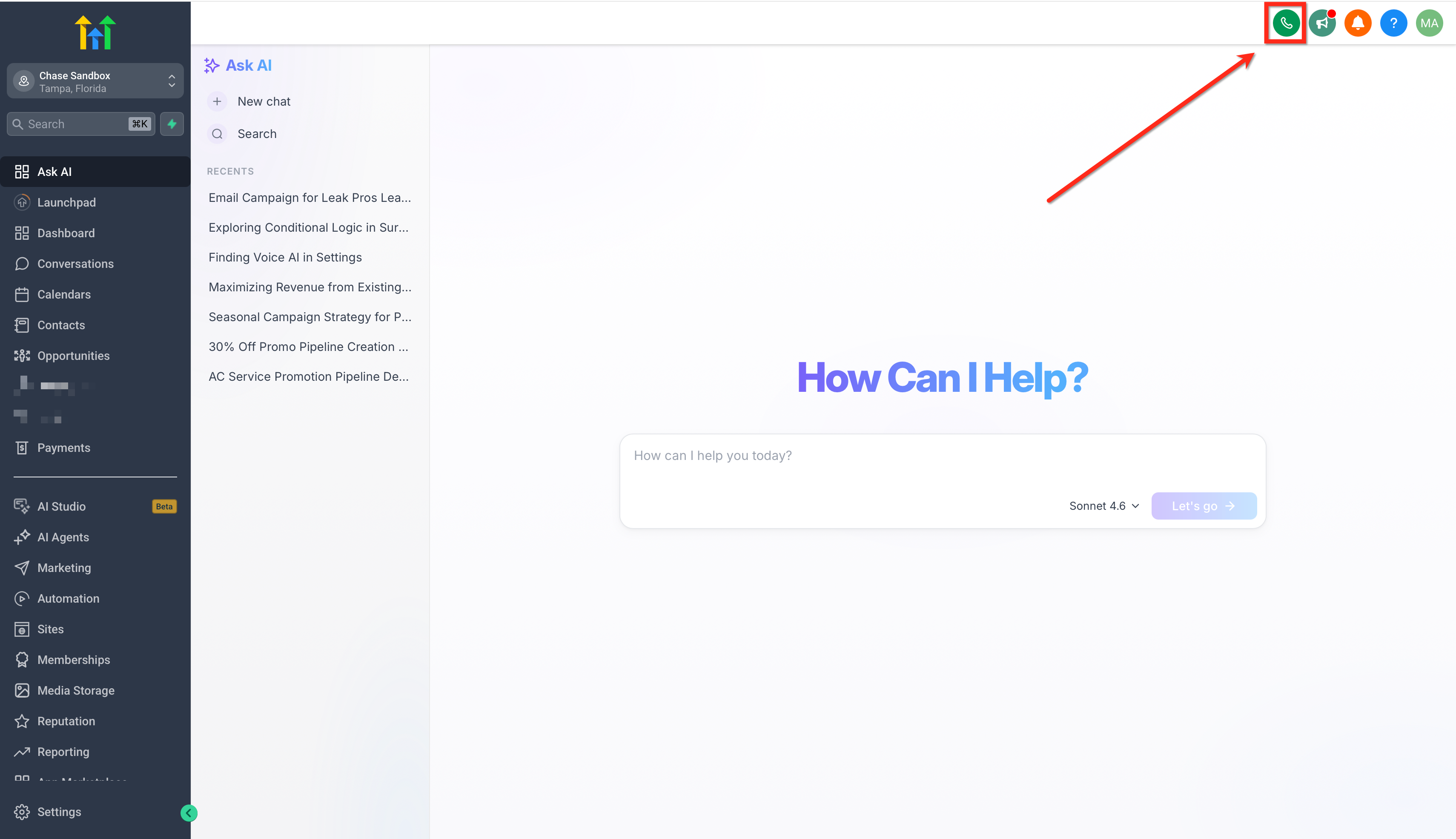
These controls are built into the dialer itself and appear in the top navigation bar of the HighLevel web app. You open the dialer by clicking the green phone icon, then use the pin icon, the phone icon, and the dialer header to manage visibility and placement while a call is in progress.
03How businesses use dialer autominimize, pin & drag
- Real estate brokerage. Agents pin the dialer so it remains visible while they browse property listings and client notes. The pinned dialer stays open, letting agents adjust details without ending the call.
- Dental practice. Staff let the dialer auto minimize by clicking away while they view patient records. The call stays active and the dialer can be re opened from the phone icon when needed.
- SaaS startup. Users drag the dialer next to their sales pipeline view. After pinning, the dialer reopens in that same spot, providing quick access to call controls while managing leads.
04How to set up and use dialer autominimize, pin & drag in HighLevel
Use dialer auto minimize, pin & drag
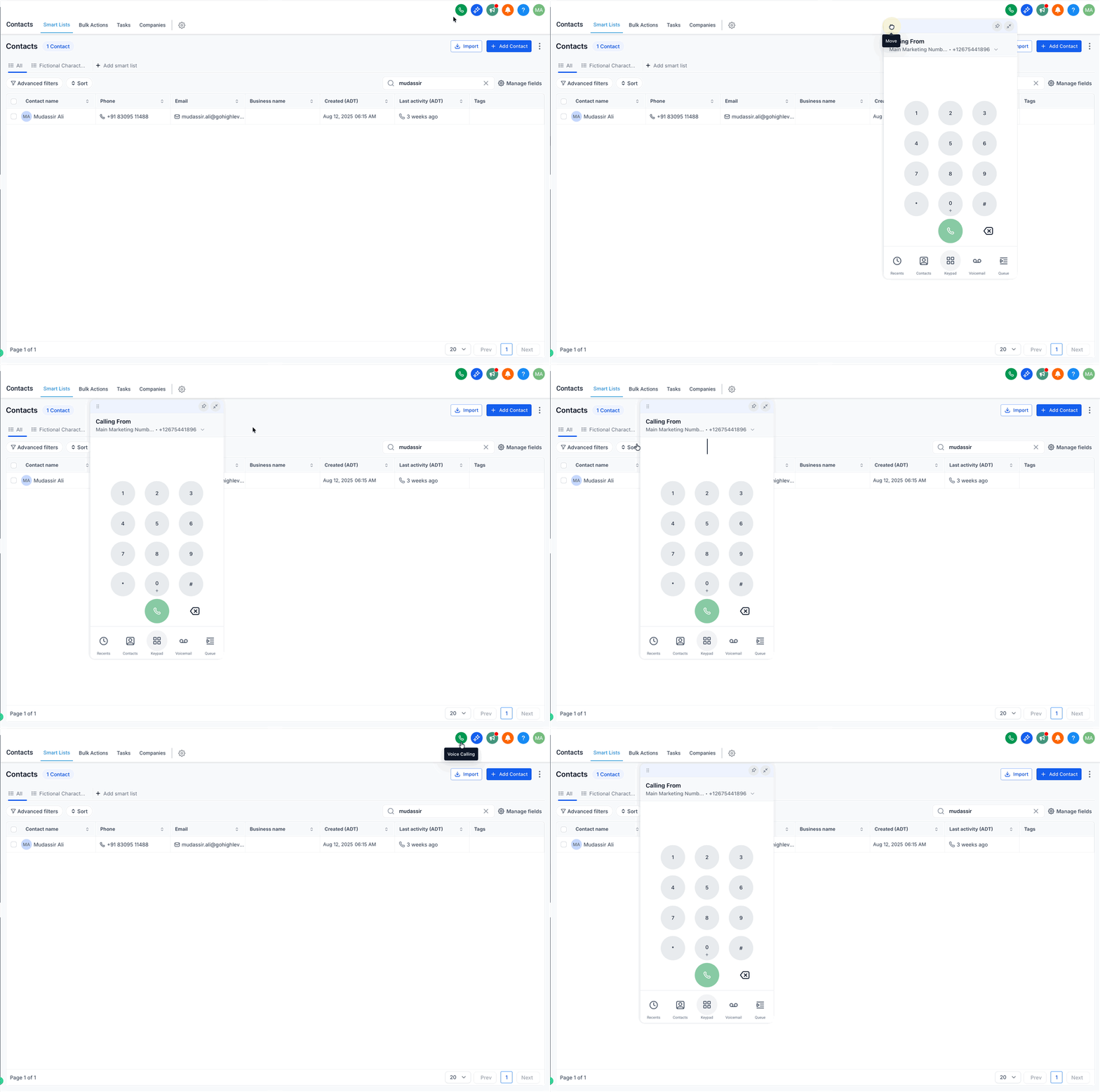
- Click the green phone icon in the top navigation bar to open the web dialer.
- Leave the dialer unpinned and click anywhere outside it to watch it auto minimize.
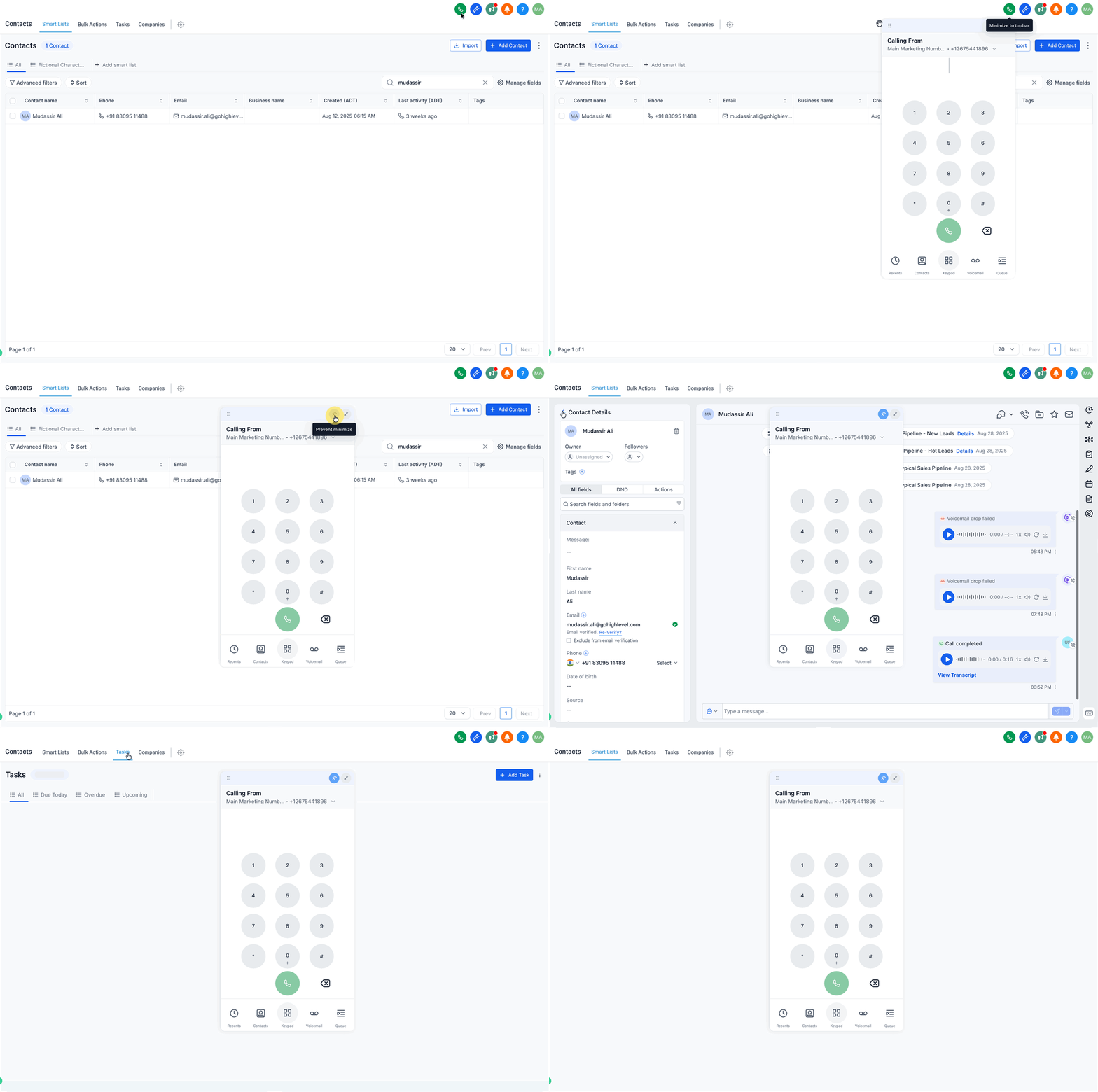
- Press the pin icon to keep the dialer open while you navigate other parts of the platform.
- Click and hold the dialer header, then move it to a preferred spot on the screen.
- If the dialer is pinned, reopen it to confirm it appears in the same saved location.
- To restore a minimized dialer, click the phone icon in the top navigation.
05What it looks like in HighLevel
06Settings that matter
- pin icon. Controls whether the dialer stays visible (pinned) or can auto minimize when you click elsewhere.
- phone icon. Opens the web dialer from the top navigation bar of the HighLevel platform.
- dialer header or drag area. Provides the grip used to move the dialer to a different on screen location.
07Things to know before you rely on it
- Position memory is only stored when the dialer is pinned; without pinning, the location is not saved.
08How it connects to the rest of HighLevel
- See how to place outbound calls using the web dialer. Outbound dialer guide
- Review phone system pricing and rebilling options. Pricing guide
- Start a free trial to explore the dialer and other features. 30 day trial
Michael's take

Dialer autominimize, pin & drag helps keep calls active while allowing you to edit records, run scripts, or pull up pipeline data without juggling windows. Forgetting to pin the dialer when you need continuous access to call controls can force you to keep reopening it and disrupt workflow.