
01Who this is for
- Agency owners who run many client subaccounts need automatic invoice transfer to keep each client’s bookkeeping up to date.
- Service based businesses that issue frequent invoices benefit from real time tax mapping and currency handling without duplicate data entry.
02Xero integrations, explained
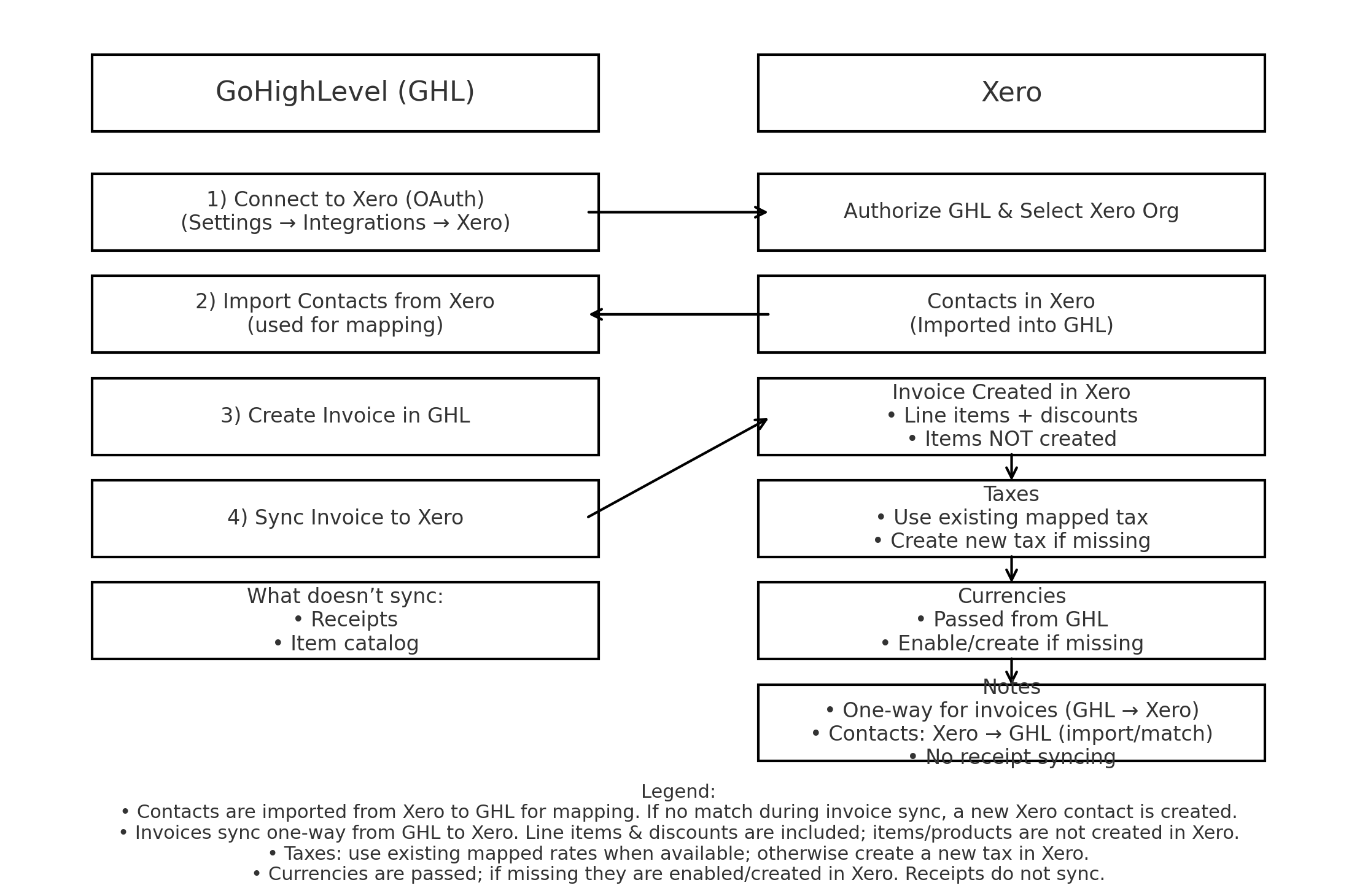
The integration imports active Xero contacts into HighLevel so every new invoice can be linked to the correct contact. When an invoice is created in HighLevel and the Sync to Xero option is used, the invoice, its line items, discounts, tax rates and currency are posted to the connected Xero organization. Tax rates that do not yet exist in Xero are created on the fly. Currency codes are added to Xero if the plan supports multi currency. Invoice status changes, sent, partially paid, void, are synced into Xero as they occur. Contacts are only imported from Xero; receipts, expense entries and product/item catalogs are not part of this sync. The connection is managed under Settings > Integrations > Xero inside the HighLevel platform.
03How businesses use Xero integration
- Marketing agency. The agency connects each client subaccount to its own Xero organization. When the agency creates an invoice for a client in HighLevel, the invoice is automatically sent to the client’s Xero ledger with correct tax rates and currency, eliminating duplicate entry.
- Consulting firm. The firm enables payments on the Prepayments account in Xero, then selects that account in the HighLevel Xero settings. Invoices generated in HighLevel appear under the Prepayments account in Xero, allowing the firm to track prepaid work accurately.
- Online tutoring service. The service imports its student contacts from Xero into HighLevel. When a session invoice is created in HighLevel, the contact matches automatically, and the invoice, including discounts and tax, syncs to Xero without manual contact creation.
04Before you start
- A Xero organization must have multi currency enabled if you plan to invoice in more than one currency.
- You must be logged into a HighLevel subaccount to configure the integration.
05How to set up and use Xero integration in HighLevel
Set up Xero integration
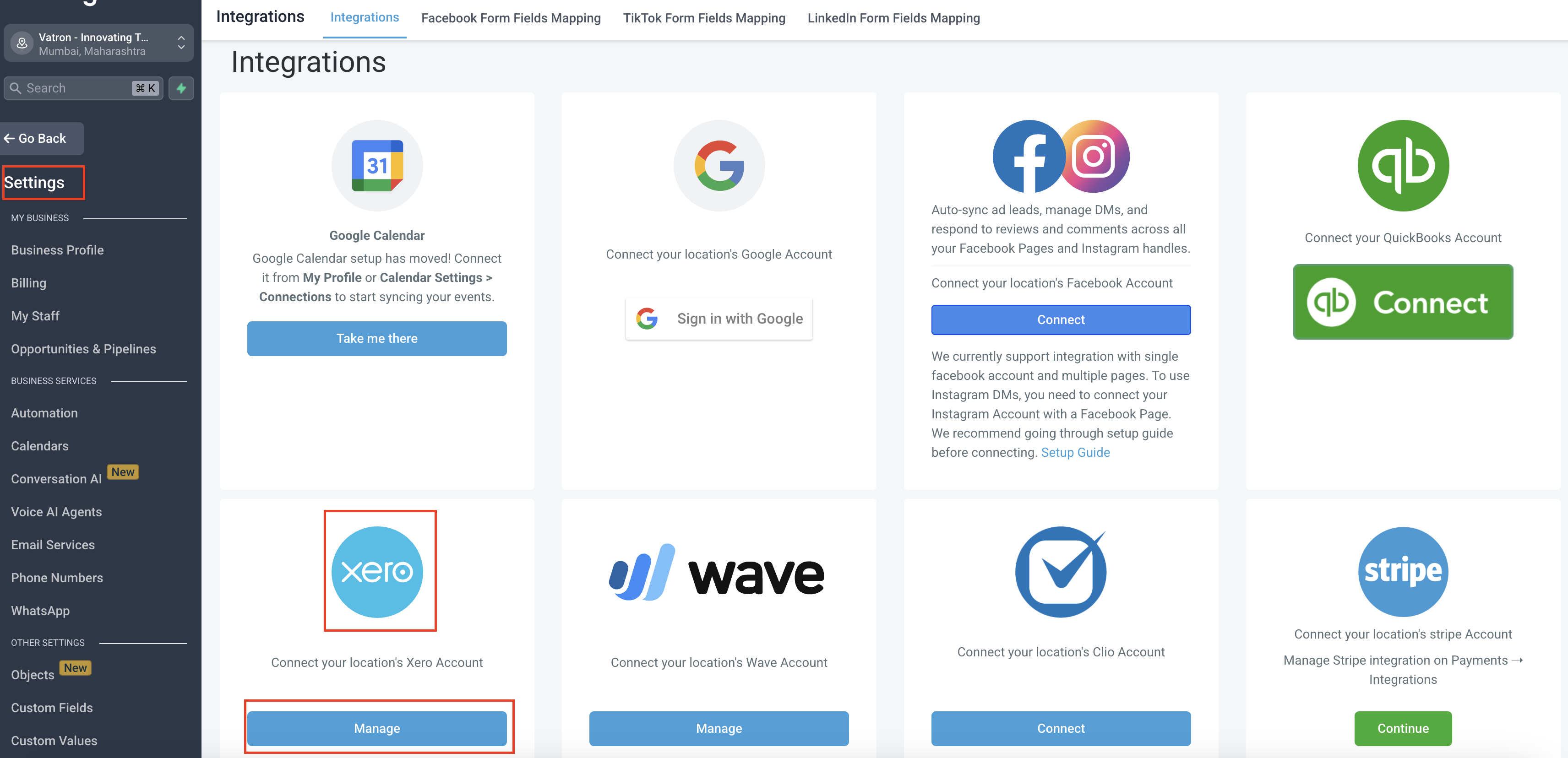
- Open Settings, choose Integrations, then select Xero from the left navigation.
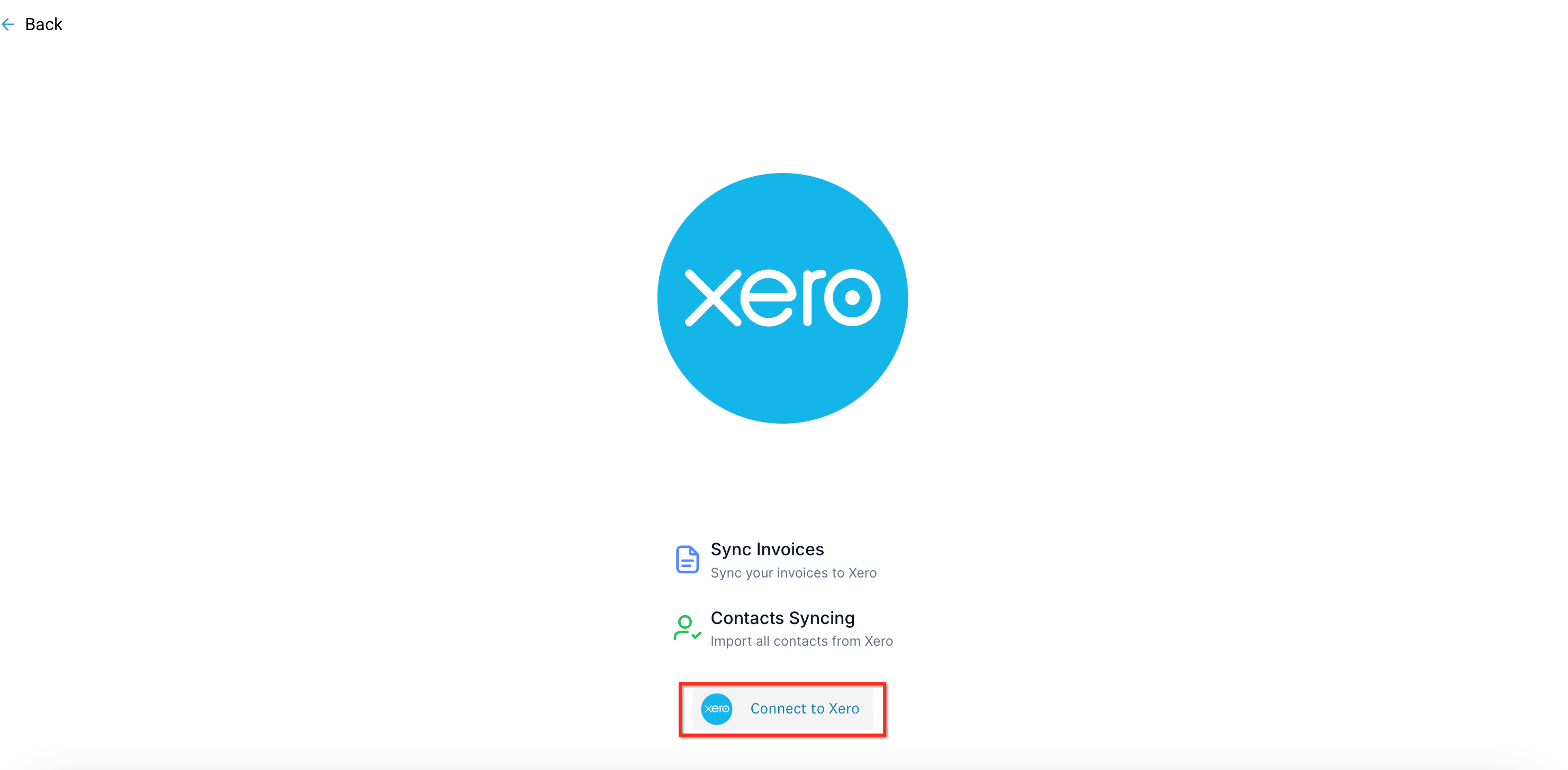
- In the Integrations list, click the Xero tile and press Connect to open the Xero authorization window.
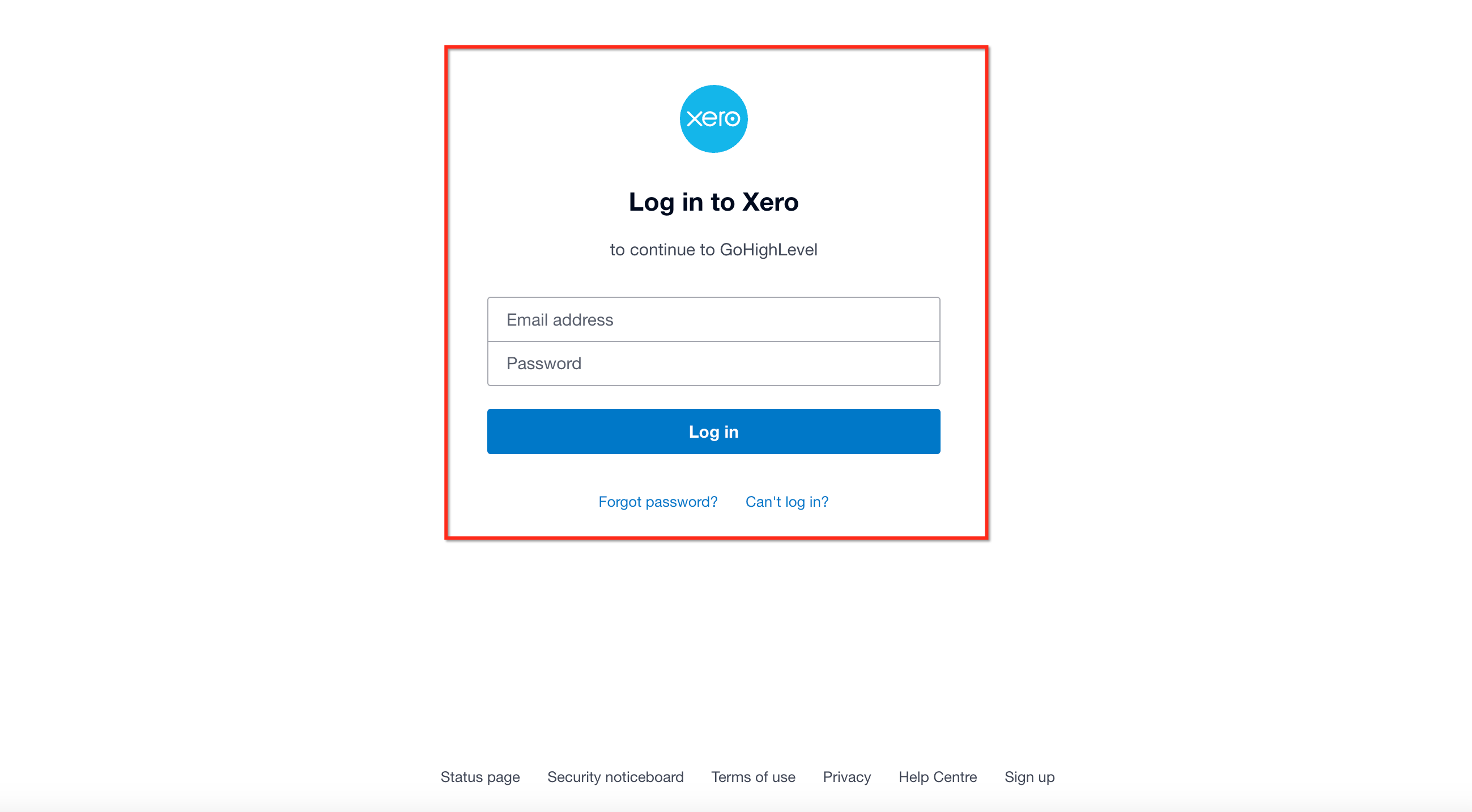
- Log in to Xero, pick the organization to link, and click Allow access to grant required scopes.
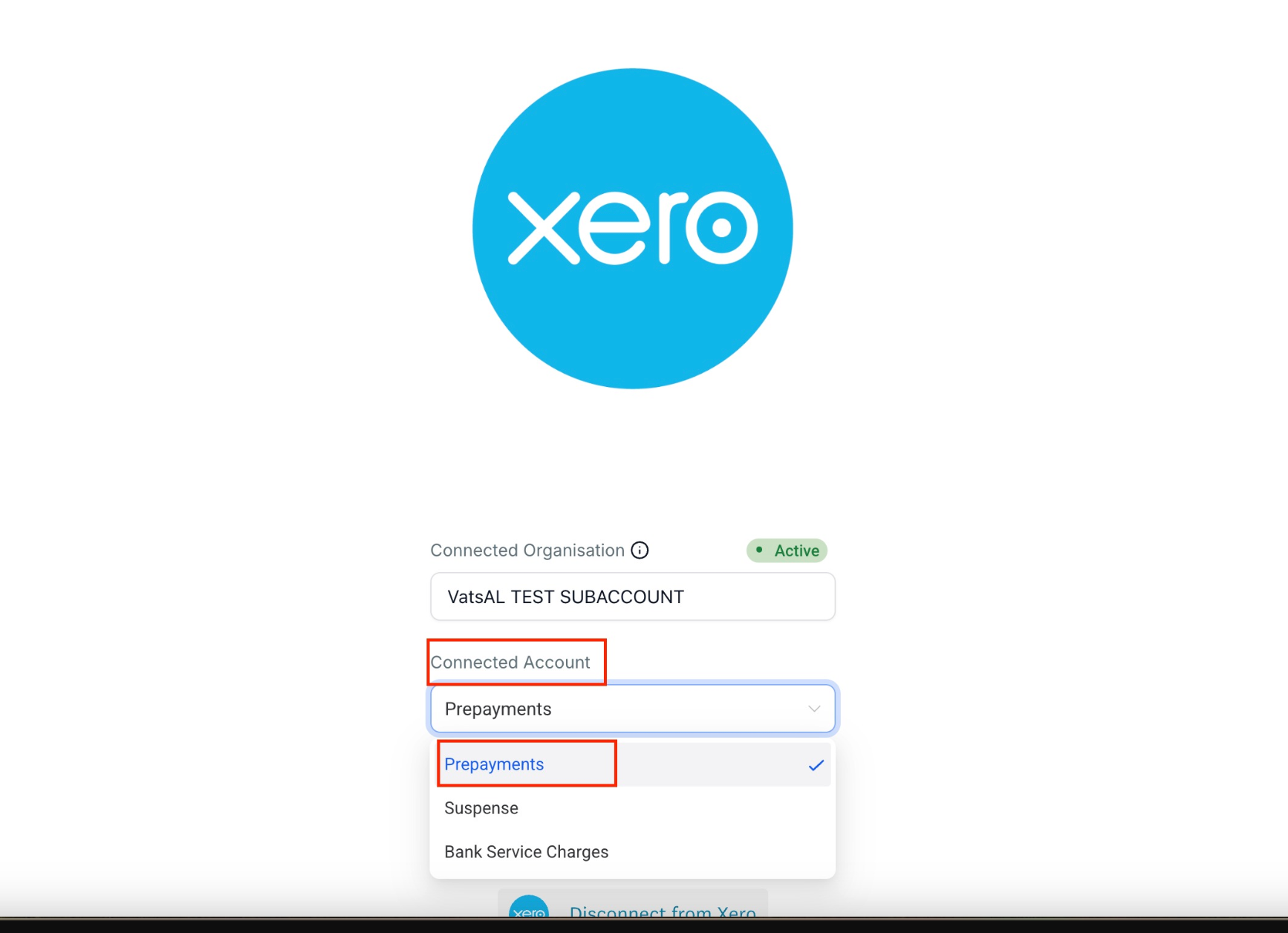
- Return to HighLevel and verify the connected organization name and status under Settings > Integrations > Xero.
- In the Xero settings pane inside HighLevel, pick the default account to use when posting invoices.
Enable chart of accounts for payments
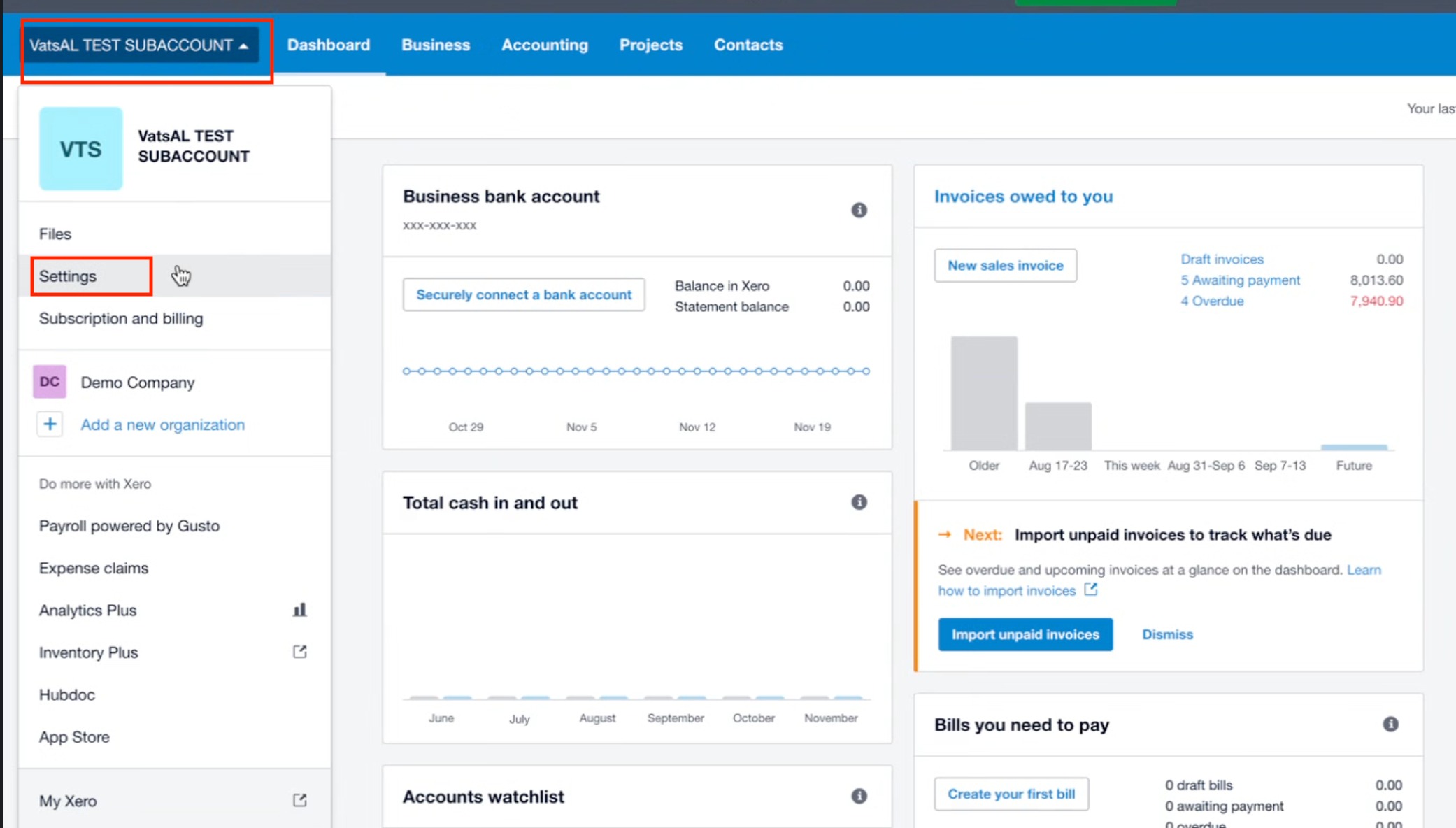
- Log into Xero and select your organization from the dashboard.
- From the dropdown menu, click Settings.
- Scroll down in Organization settings and choose Looking for advanced settings?.
- Under Advanced Accounting, select Chart of accounts.
- Find the account you want (for example Prepayments) and open its edit popup.
- Check the Enable payments to this account box and click Save.
- Go back to the HighLevel Xero integration. Under Connected Account, select the account you just enabled.
06What it looks like in HighLevel
07Settings that matter
- Default account for invoices. Determines which Xero account receives invoices posted from HighLevel.
- Enable payments to this account. Allows the selected Xero account to appear in HighLevel for payment enabled invoicing.
08Things to know before you rely on it
- Sync direction is one way: contacts flow from Xero to HighLevel, invoices flow from HighLevel to Xero.
- Only one Xero organization can be connected to a single HighLevel account at a time.
- Receipt and expense entries are not synchronized by this integration.
- Products or items are not created in Xero; only line item details are sent on the invoice.
- Multi currency support depends on your Xero plan; unsupported currencies will cause an error.
09If something goes wrong
- Organisation is not subscribed to currency XXX.. Enable multi currency in Xero or add the required currency to the organization, then retry the invoice sync.
10How it connects to the rest of HighLevel
- Learn how to set up QuickBooks integration as an alternative to Xero. QuickBooks integration
- See the complete workflow for creating, editing, and sending invoices in HighLevel. Invoice workflow
- Review HighLevel pricing and plan options before enabling integrations. Pricing
Michael's take

Xero integration feels like a small convenience that can become a real shift for firms that already use Xero for accounting.
It removes the copy and paste steps between your HighLevel account and ledger, so you spend more time serving clients and less time reconciling data.
A boutique marketing agency that bills clients monthly will love this. They can generate invoices in HighLevel, watch the status update in Xero, and have the tax and currency details handled automatically. If I were setting it up, I’d first test a single invoice to confirm the contact mapping works before rolling it out to every client.