
01Who this is for
- Retail owners who want to shorten checkout by using the phone instead of a separate card reader.
- Service providers who already process payments through Square and need a quick in person option on their iPhone.
- Fitness studio managers who accept Apple Pay or Google Pay from members during class sign ups.
02Tap to Pay on Square, explained
Tap to Pay on Square extends the payment methods that HighLevel’s mobile point of sale can handle. When a supported iPhone is used, the device itself becomes the reader, allowing customers to tap a contactless card or hold a digital wallet near the screen. The feature lives inside the mobile POS flow and works with the Square account linked to the active subaccount.
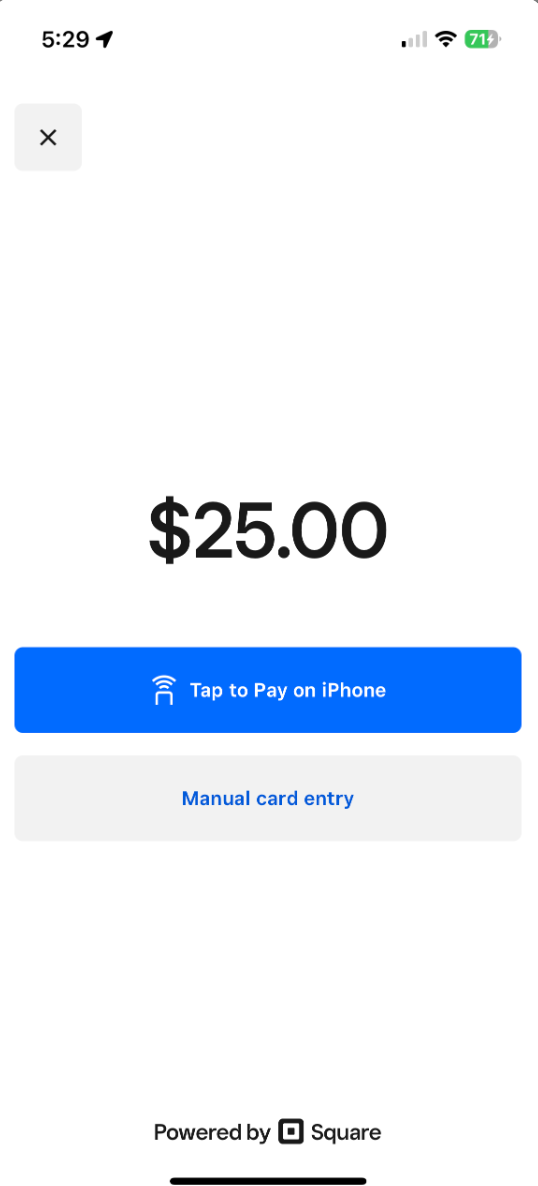
During a sale, after the amount is entered, the user selects Square Payments, then chooses the Tap to Pay option. The Square payment screen then prompts the customer to present their contactless method. Once the transaction is approved, the sale is completed without leaving the HighLevel interface.
03How businesses use tap to Pay on Square
- Retail boutique. The boutique links its Square account, opens the HighLevel POS on an iPhone XS or newer, enters the sale amount, selects Square Payments and chooses Tap to Pay. The customer taps a contactless card and the sale is recorded right away.
- Fitness studio. A studio signs into the mobile app with the subaccount that has its Square location attached, starts a new class registration sale, taps Choose Payment Instrument, picks Square Payments and then Tap to Pay. Members present Apple Pay on their phones to complete the checkout.
- Home repair contractor. The contractor opens the HighLevel mobile app, creates a service invoice, selects Square Payments, and activates Tap to Pay. The homeowner holds a contactless debit card near the contractor’s iPhone, and the payment is processed through Square.
04The numbers and rules that matter
- IOS 16.4 or later required.
- HighLevel v3.98.1 or LeadConnector v3.98.1 required.
05Before you start
- A Square account with processing ability must be connected to the target subaccount.
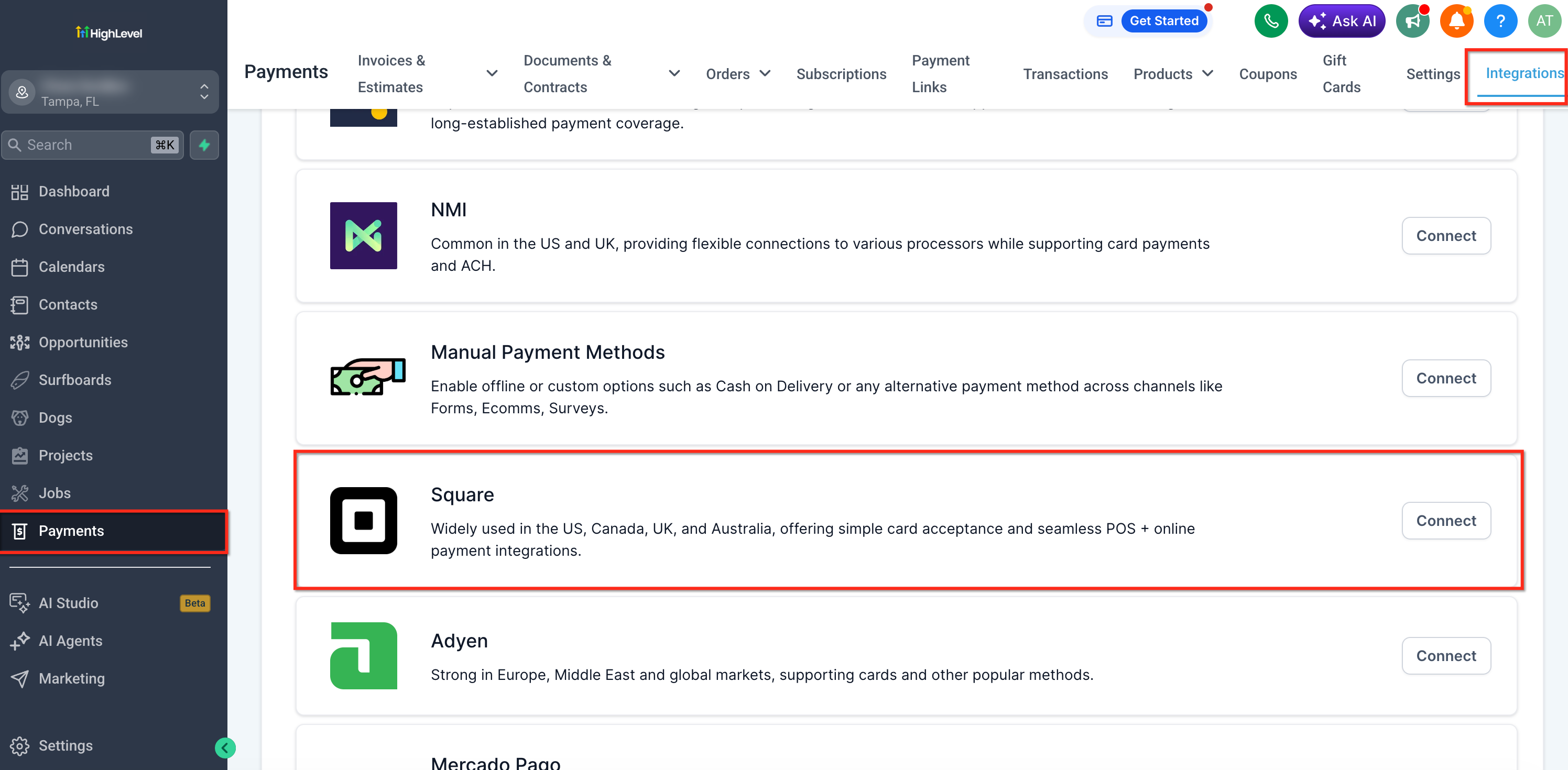
- An active Square location has to be chosen under Square Live Mode in Payments > Integrations.
- The user must be signed into the HighLevel mobile app and have the same subaccount open.
- The iPhone must be an XS or newer running iOS 16.4 or later, and the app version must be v3.98.1 or higher.
06How to set up and use tap to Pay on Square in HighLevel
Set up and accept a Tap to Pay transaction
- Link the Square account inside HighLevel.
- Navigate to Payments > Integrations on the web dashboard.
- Connect your Square account.
- Select the active Square location in the Square Live Mode section.
- Reconnect the Square account if it was linked before mobile payments were enabled.
- Launch the mobile app and open the appropriate subaccount.
- Log into the HighLevel or LeadConnector mobile application.
- Open the subaccount that has the Square account and location connected.
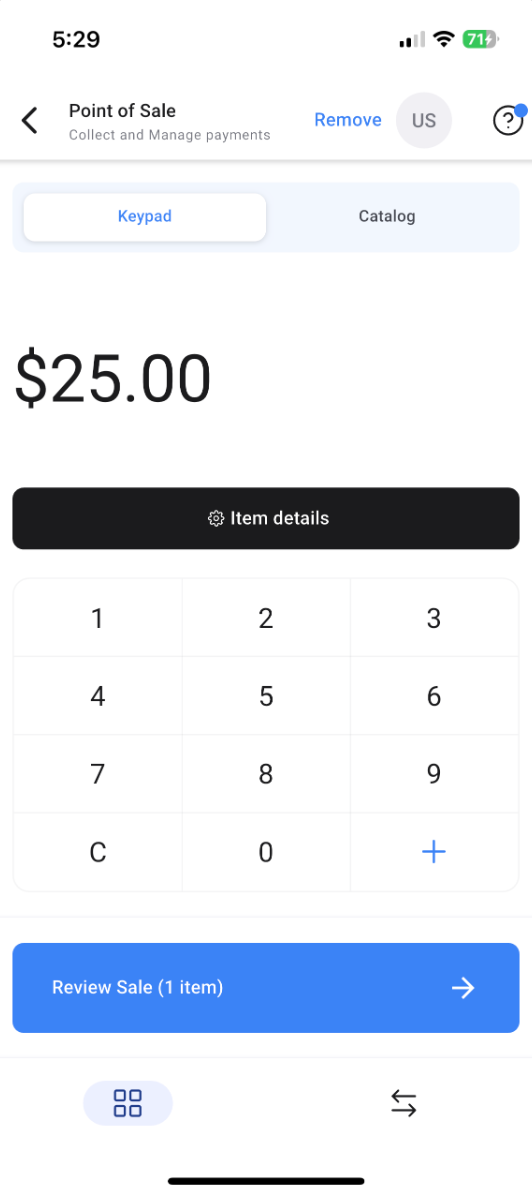
- Begin a point of sale operation.
- Open the POS module.
- Start a new sale.
- Enter the amount via the keypad or add items from the catalog.
- Attach any needed item details, customer info, taxes, or discounts.
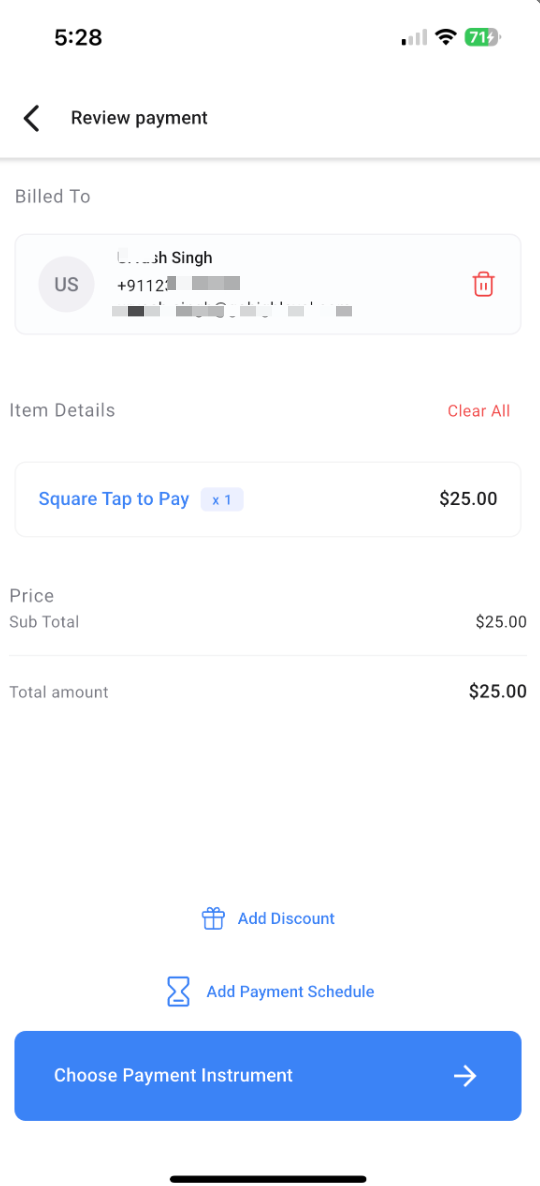
- Check the sale summary for accuracy.
- Tap the button to review the sale.
- Verify the customer, line items, subtotal, total and any discounts.
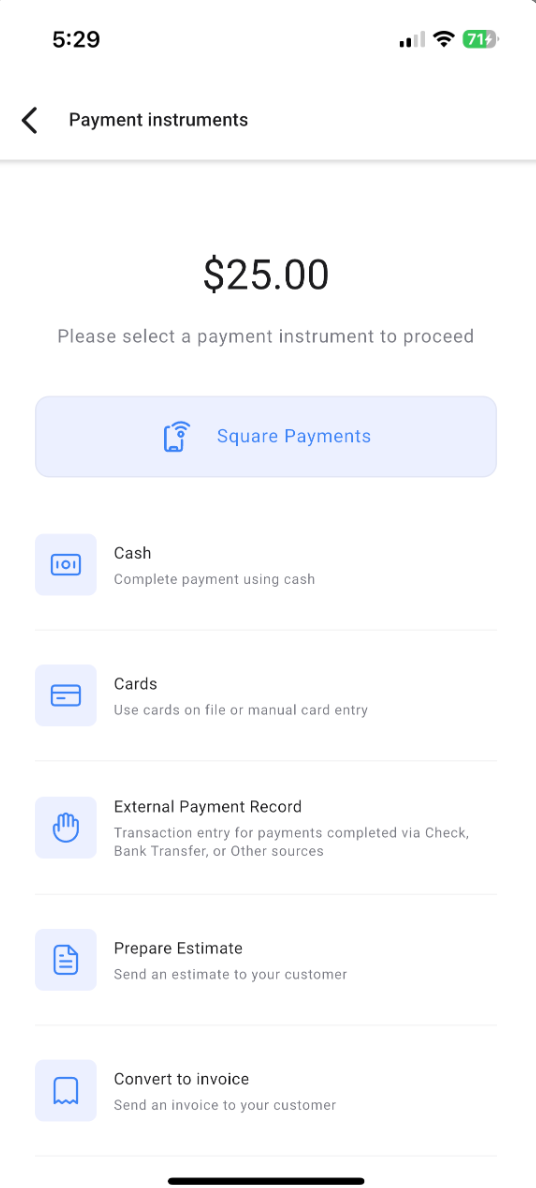
- Press Choose Payment Instrument when ready to collect payment.
- Select Square Payments as the payment method.
- On the following screen, pick Square Payments again.
- Choose the Tap to Pay option.
- From the Square interface, select Tap to Pay on iPhone.
- If offered, note that Manual Card Entry is also available.
- Initiate payment acceptance.
- Follow the on screen prompts for Tap to Pay.
- Have the shopper present a supported contactless card or digital wallet to the iPhone.
- Wait until the payment confirmation appears before finishing the transaction.
07What it looks like in HighLevel
08Settings that matter
- Square Live Mode. Specifies which active Square location the subaccount will use when processing payments.
- Tap to Pay. Enables the iPhone to act as a contactless card reader within the Square payment flow.
09Things to know before you rely on it
- Only iOS devices are supported; Android devices cannot use Tap to Pay at this time.
- The phone must be an iPhone XS or newer and run iOS 16.4 or later.
- HighLevel version must be v3.98.1 or newer for both standard and LeadConnector apps.
- White labeled mobile apps need a separate update and configuration before Tap to Pay can be used.
- Each subaccount requires its own active Square integration and location.
10How it connects to the rest of HighLevel
- All Payments features overview Payments overview
- HighLevel pricing and plans Pricing
- Start a 30 day HighLevel trial Free trial
Michael's take

Tap to Pay on Square feels like a convenient shortcut for any business that already uses HighLevel’s mobile POS. It eliminates the need for a separate card reader and lets you finish a sale with a quick tap, which can speed up the checkout line and keep the experience fully in app.