
01Who this is for
- Users who need to deliver contracts quickly via text messages.
- Businesses that want higher visibility for client documents through instant SMS notifications.
02Documents and contracts via SMS, explained
The feature adds an SMS channel to the existing document delivery system. When a contract or proposal is sent, HighLevel can send a short text with a secure link instead of, or in addition to, an email. The message content comes from snippets you create.
Global defaults let you decide whether the Document Received and Document Signed notifications use email, SMS, or both. These settings apply to all documents unless you override the Document Received option for a specific send. Recipients’ phone numbers appear when you add them, helping you pick the right contact for SMS.
The SMS option works inside the standard document workflow. You can send a single document manually or automate the send inside a workflow. In both cases you choose the channel and pick the snippet that forms the text body.
03How businesses use documents and contracts via SMS
- Real estate agency. Agents create a snippet with a brief message and a link to the purchase agreement. When a client signs, the agent sends the document via SMS to ensure the client sees it immediately on their phone.
- Fitness studio. The studio builds a snippet reminding members to review a membership contract. The staff selects the SMS channel when sending the contract from the Documents dashboard, delivering the link directly to the member’s mobile.
- Legal firm. Lawyers set the global defaults to send both email and SMS for signed documents. When a client completes a legal brief, the firm’s workflow automatically triggers the send, using the default SMS template for instant notification.
04The numbers and rules that matter
- Character limit: Standard SMS character limits apply (160 characters per message).
05How to set up and use documents and contracts via SMS in HighLevel
Set global defaults for document notifications
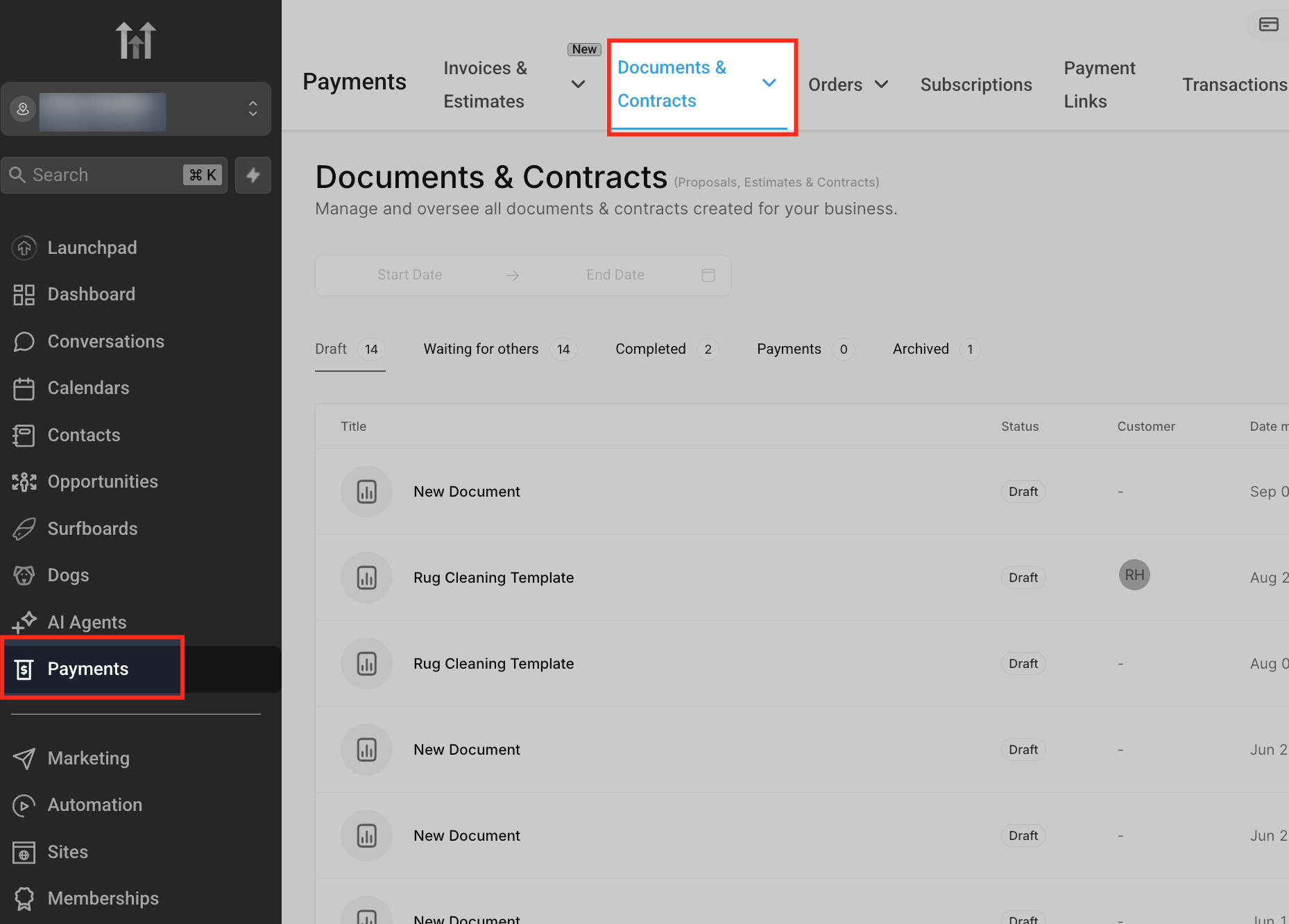
- Click Payments in the left hand menu and then select the Documents & Contracts tab.
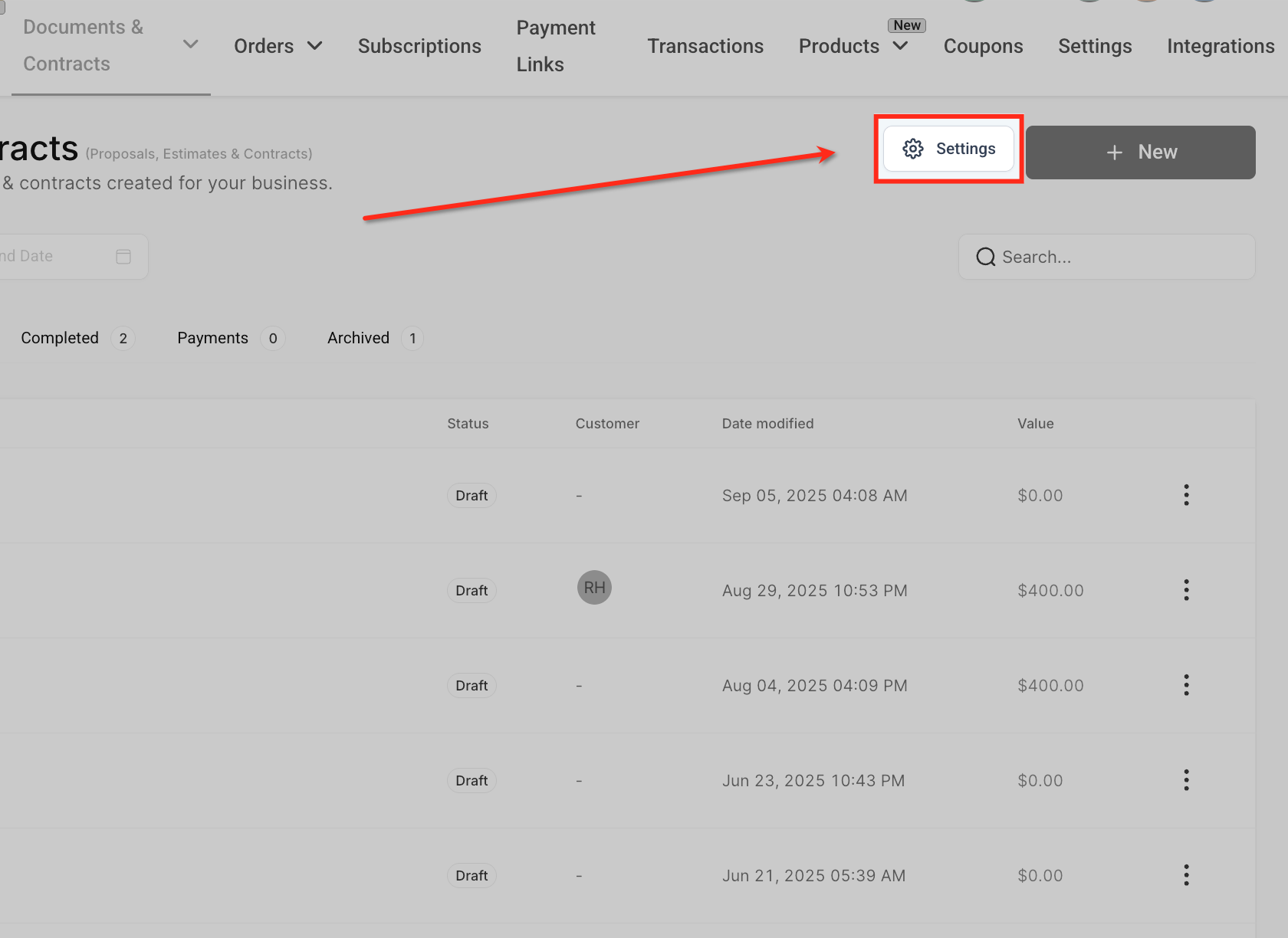
- Press the Settings gear icon in the upper right corner of the Documents & Contracts screen.
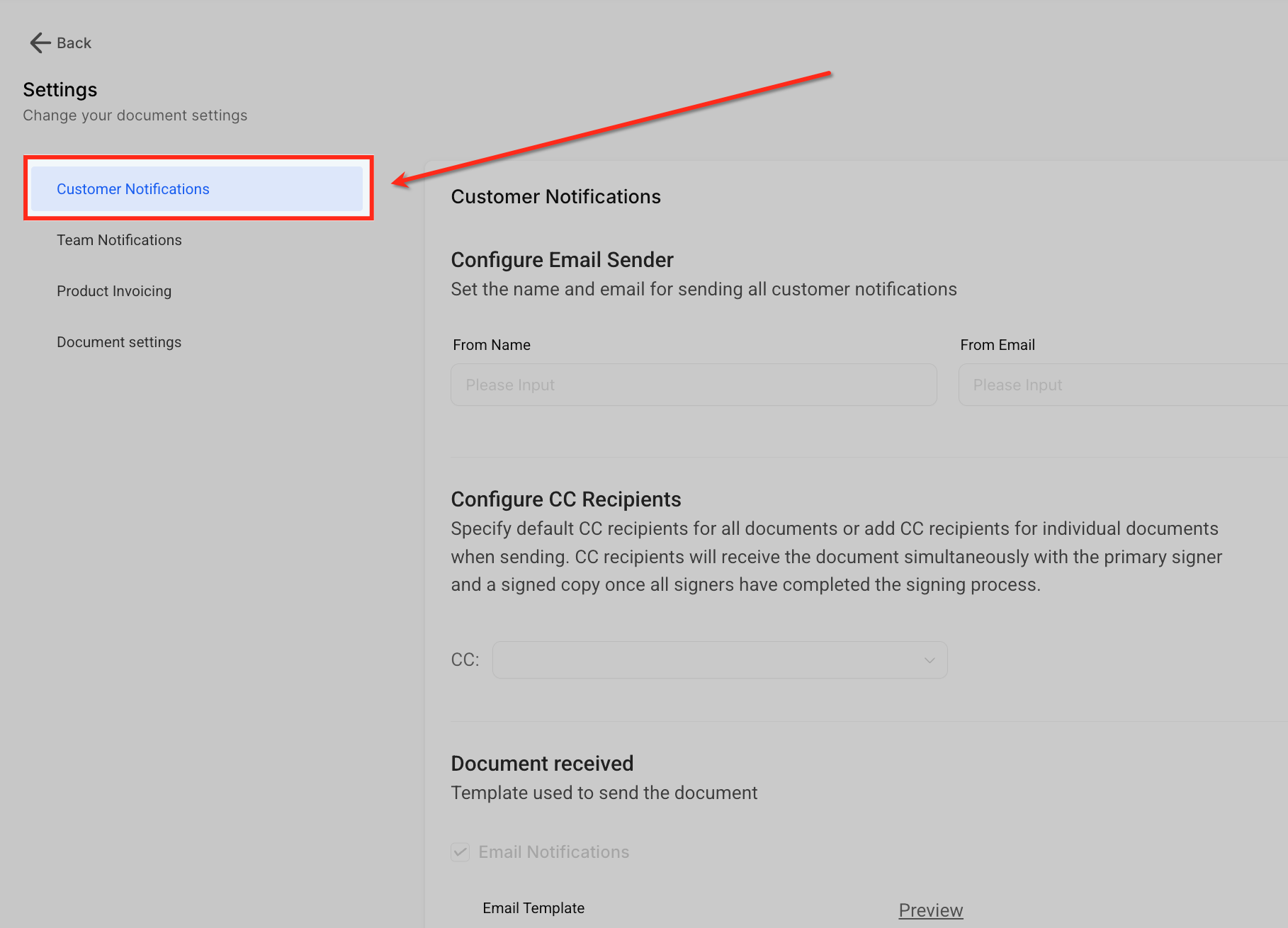
- Choose Customer Notifications from the left hand navigation inside Settings.
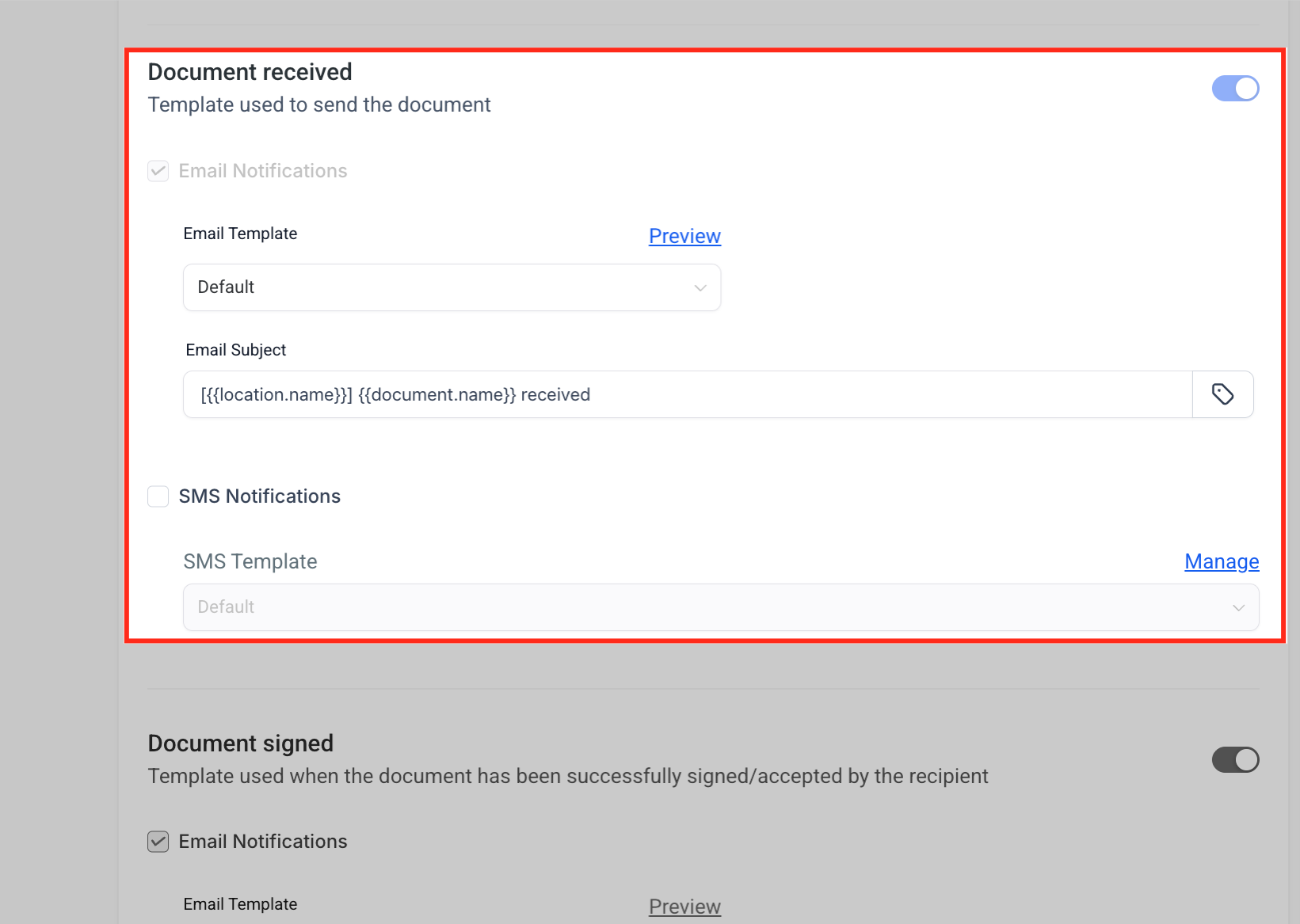
- In the Document received area, enable Email notifications, pick a template, enable SMS notifications and pick a snippet via Manage.
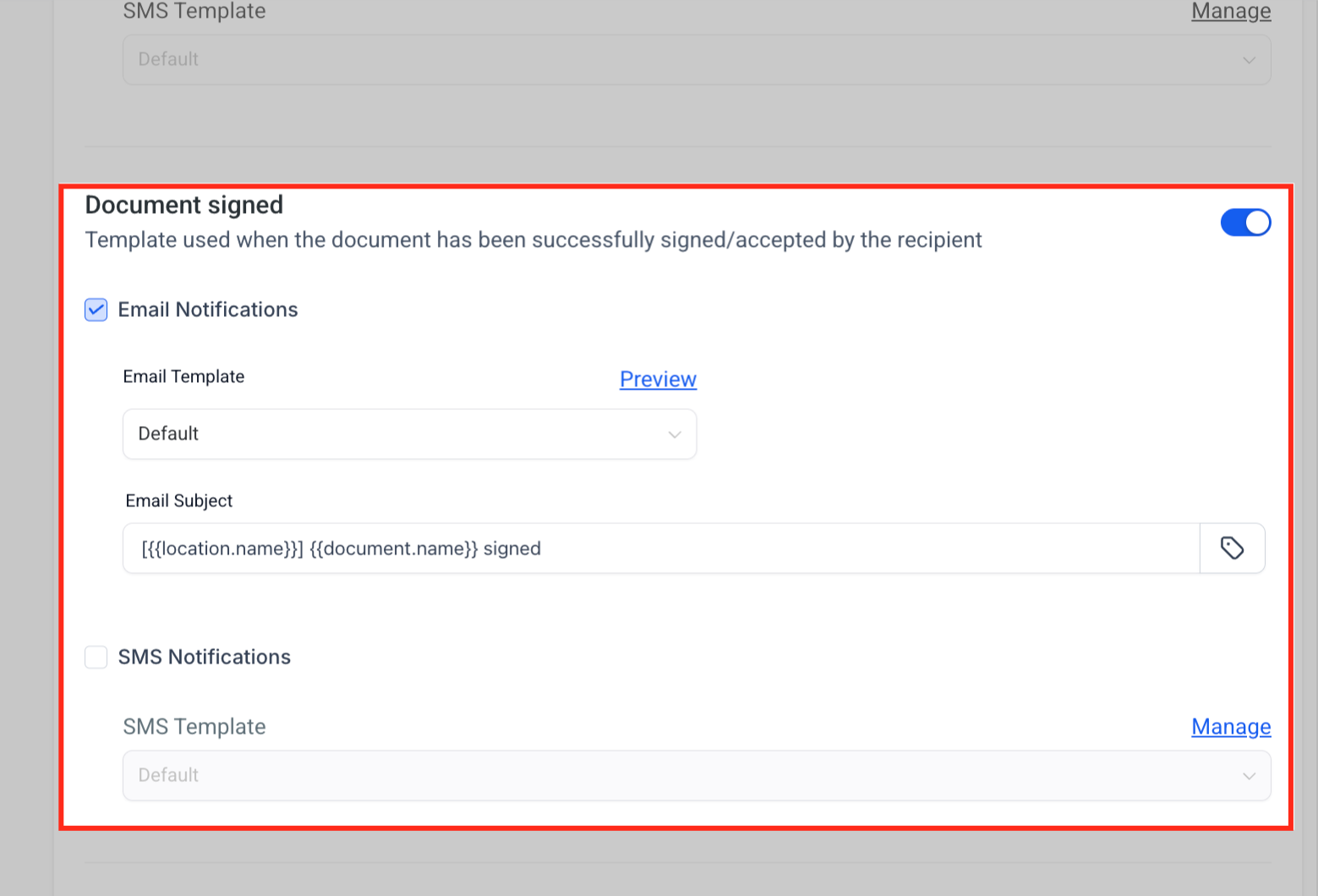
- In the Document signed area, enable Email notifications, select a template, enable SMS notifications and pick a snippet via Manage.
- Confirm that the Document Received setting can be overridden later while Document Signed will always follow this global configuration.
Create an SMS snippet
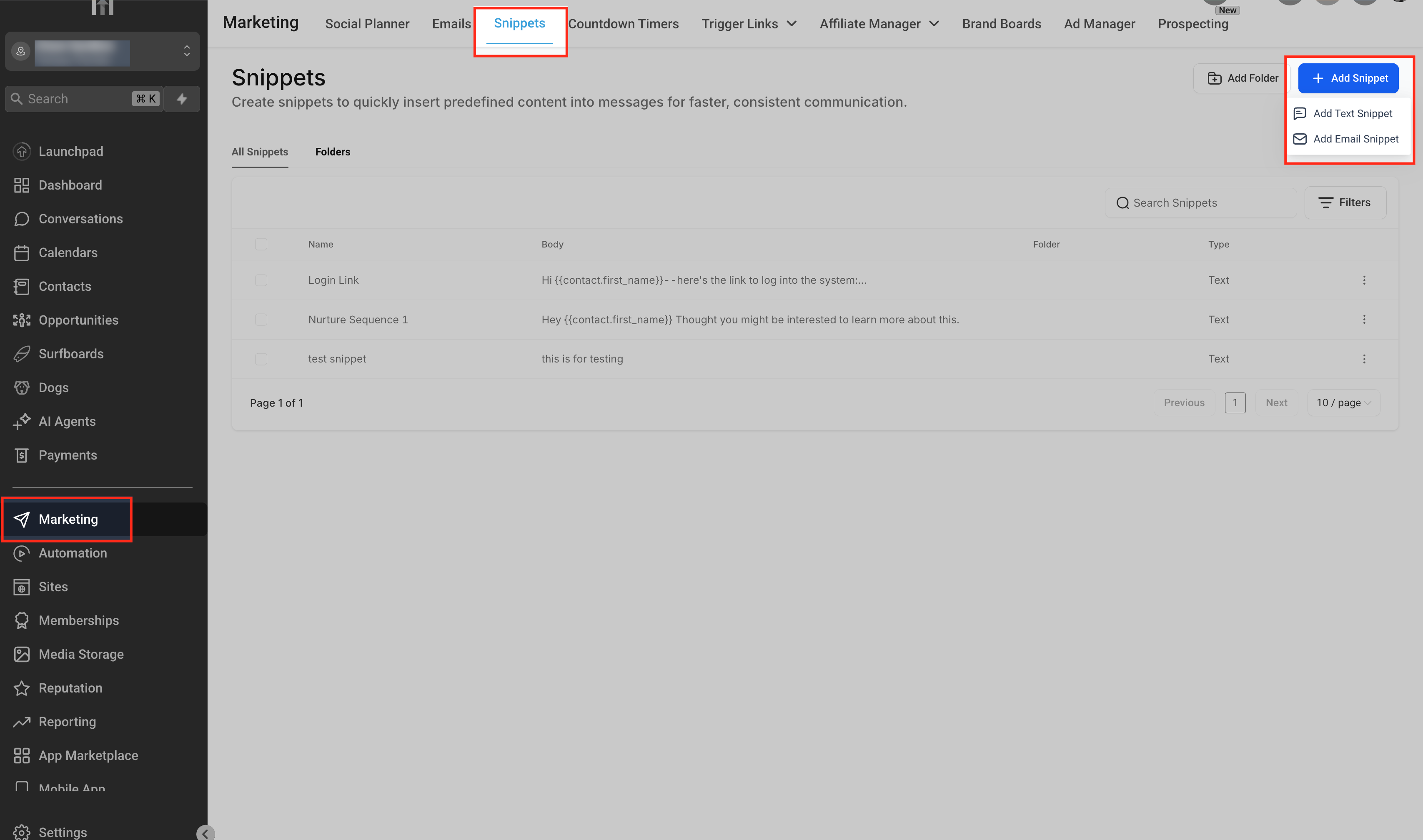
- Open the Marketing section from the left navigation.
- Click the Snippets tab at the top of the page.
- Press the + Add Snippet button in the top right corner.
- Select Add Text Snippet to start a new SMS snippet.
- Type the desired message content for the SMS.
- Save the snippet so it appears in the list of available SMS templates.
Send a document individually
- From the Documents & Contracts dashboard, create a new document or open an existing one.
- Complete all required information in the document.
- Click the Send button.
- Choose the Send Document option from the menu.
- Select the delivery channel: Email, SMS, or Email + SMS.
- If SMS is selected, pick the desired SMS template from your snippets, review, and send.
Send a document via a workflow
- Go to Automation then Workflows in the main navigation.
- Add a Send Document action to the workflow.
- Choose the delivery channel: Email, SMS, or both.
- Save the workflow; the system will use the default SMS content/template.
06What it looks like in HighLevel
07Settings that matter
- Document received, Email Notifications. Controls whether an email is sent when a document is delivered to a client.
- Document received, SMS Notifications. Determines if a text message is sent with a link when a document is delivered.
- Document signed, Email Notifications. Specifies if an email is sent after the client signs or accepts the document.
- Document signed, SMS Notifications. Specifies if a text message is sent after the client signs or accepts the document.
08Things to know before you rely on it
- Standard SMS length is limited to 160 characters; longer messages may be split.
- Document Received notifications can be overridden per send, but Document Signed always follows the global setting.
- SMS delivery depends on carrier coverage and regional restrictions.
09If something goes wrong
- Invalid phone number or SMS delivery failure. Correct the contact’s phone number and resend, or choose to resend the document via email.
10How it connects to the rest of HighLevel
- Explore all payments related capabilities in HighLevel. Payments features
- View pricing options and plan details for HighLevel. Pricing
- Learn about the Founder Plan for advanced automation features. Founder Plan
- Start a free 30 day trial of HighLevel. 30 day trial
Michael's take

SMS document delivery is a fast way to get contracts in front of clients.
If you rely solely on email or don’t need instant visibility, you can skip this feature.