
01Who this is for
- Sales Representatives, can generate invoices or estimates tied directly to a deal while on the go.
- Customer Support Agents, can charge customers or review payment activity without switching screens.
- Field Service Teams, can collect payments and verify card details while visiting a client.
02Payments tabs in contacts and opportunities, explained
The Payments tab appears inside individual Contact and Opportunity records on the HighLevel mobile app. In a Contact view it lets users charge a customer, create an invoice or estimate, and manage any cards saved for that customer. In an Opportunity view the same tab lets users generate invoices or estimates that are automatically linked to the deal.
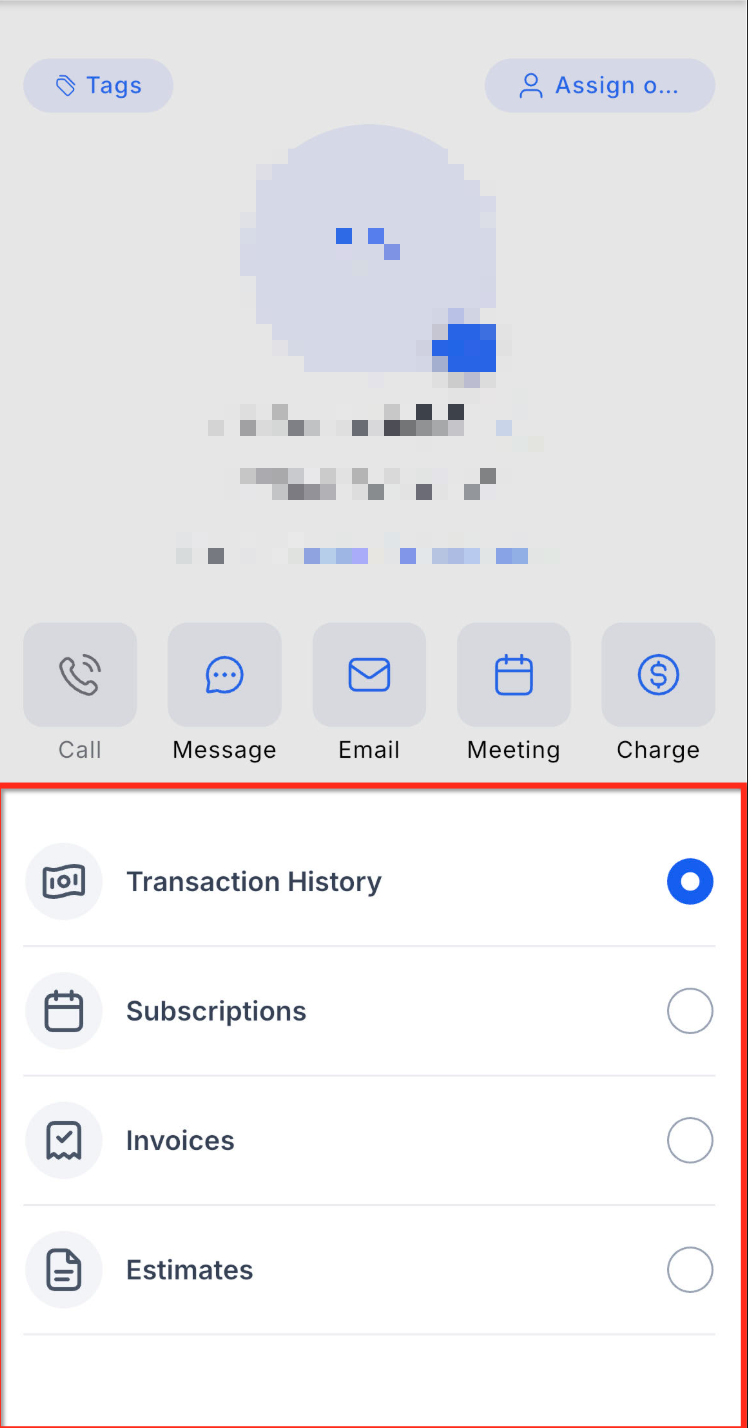
Both tabs show recent payment activity and provide filter chips to narrow the view to Transactions, Invoices, Estimates, or Subscriptions where those records exist. The actions available depend on the account’s payment provider, configuration, app version, and the user’s permissions.
03How businesses use payments tab in contacts and opportunities
- Real estate agency. An agent opens a client’s contact record on the mobile app, taps the Payments tab, and creates an invoice for a property showing fee. The invoice is sent directly from the contact view, keeping the client’s payment history visible alongside their contact details.
- Dental practice. During a patient visit, the front desk staff accesses the patient’s contact record, uses the Payments tab to charge the patient’s saved card for a treatment, and then filters the view to see the transaction right away, confirming payment without leaving the chart.
- Software SaaS company. A sales rep works on an opportunity in the mobile app, opens the Payments tab, creates a new estimate for the prospective subscription, and reviews the linked payment activity to confirm the prospect’s billing status before closing the deal.
04The numbers and rules that matter
- Filter chips may include Transactions, Invoices, Estimates, Subscriptions where applicable.
05Before you start
- Payments must be configured on the HighLevel account.
- A connected payment provider must be set up.
- User permissions must allow payment actions.
- The mobile app version must support the Payments tab.
06How to set up and use payments tab in contacts and opportunities in HighLevel
Manage payments from a contact
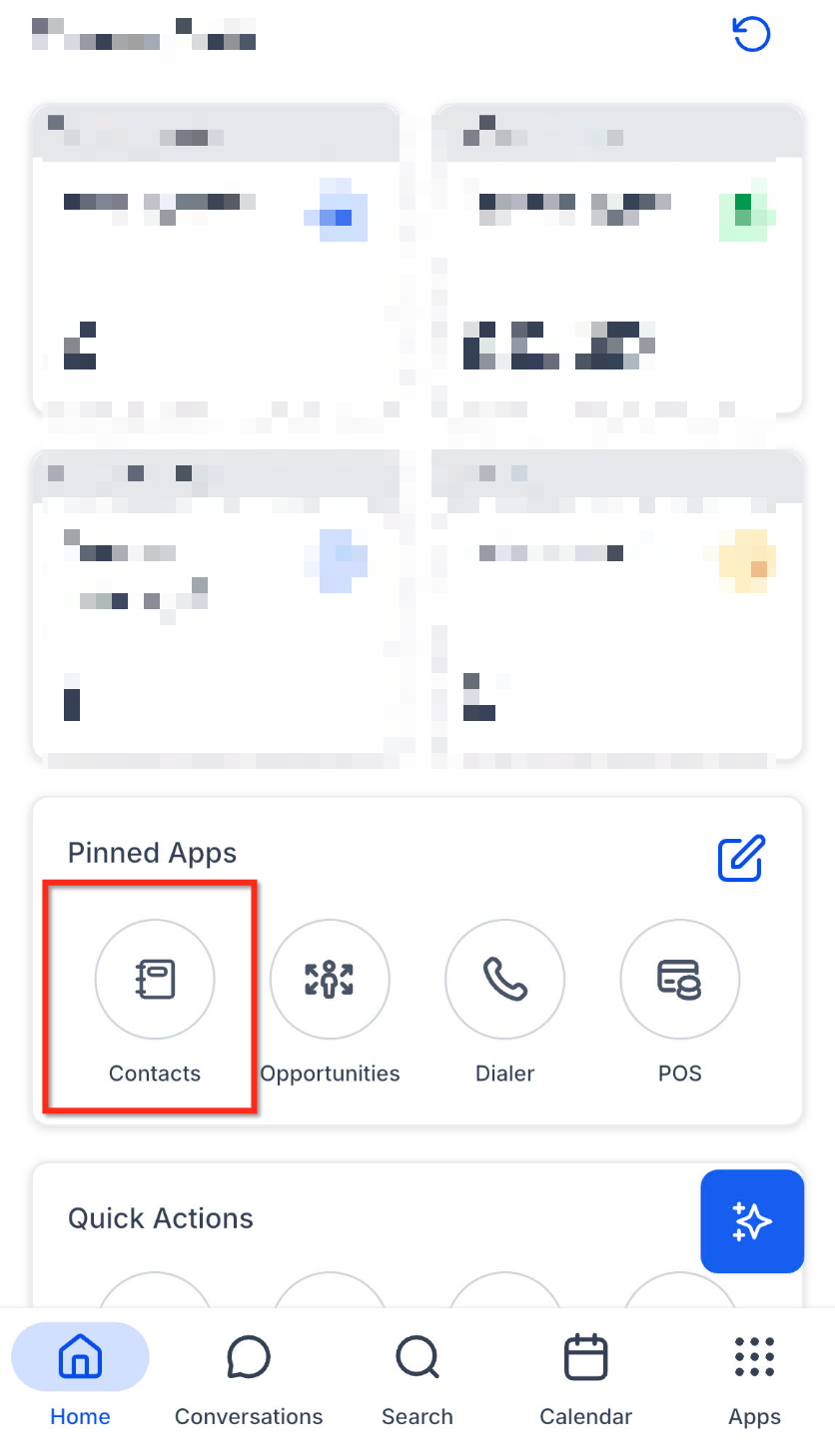
- Open the HighLevel mobile app.
- Navigate to Contacts.
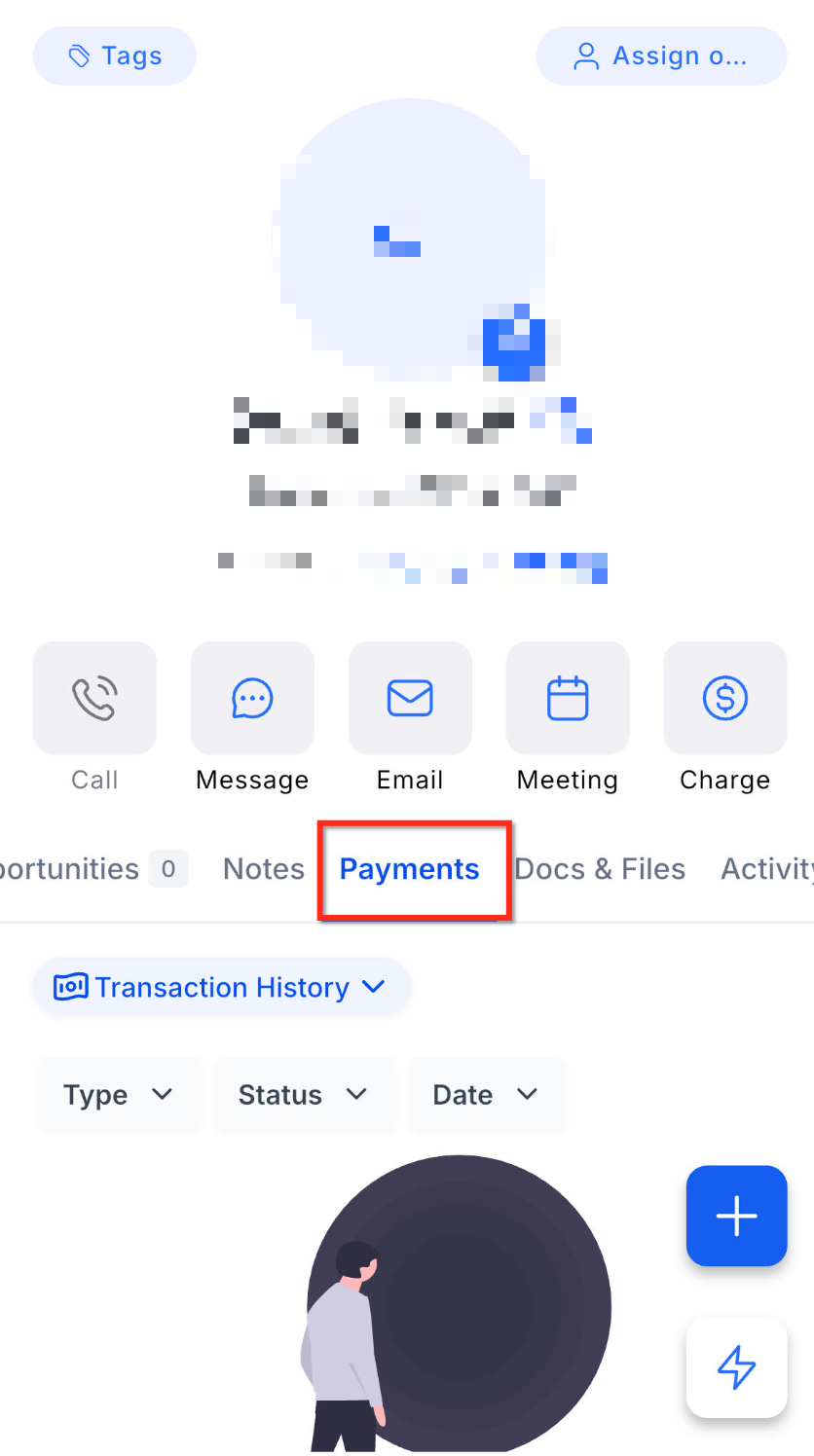
- Open the contact you want to manage.
- Tap the Payments tab.
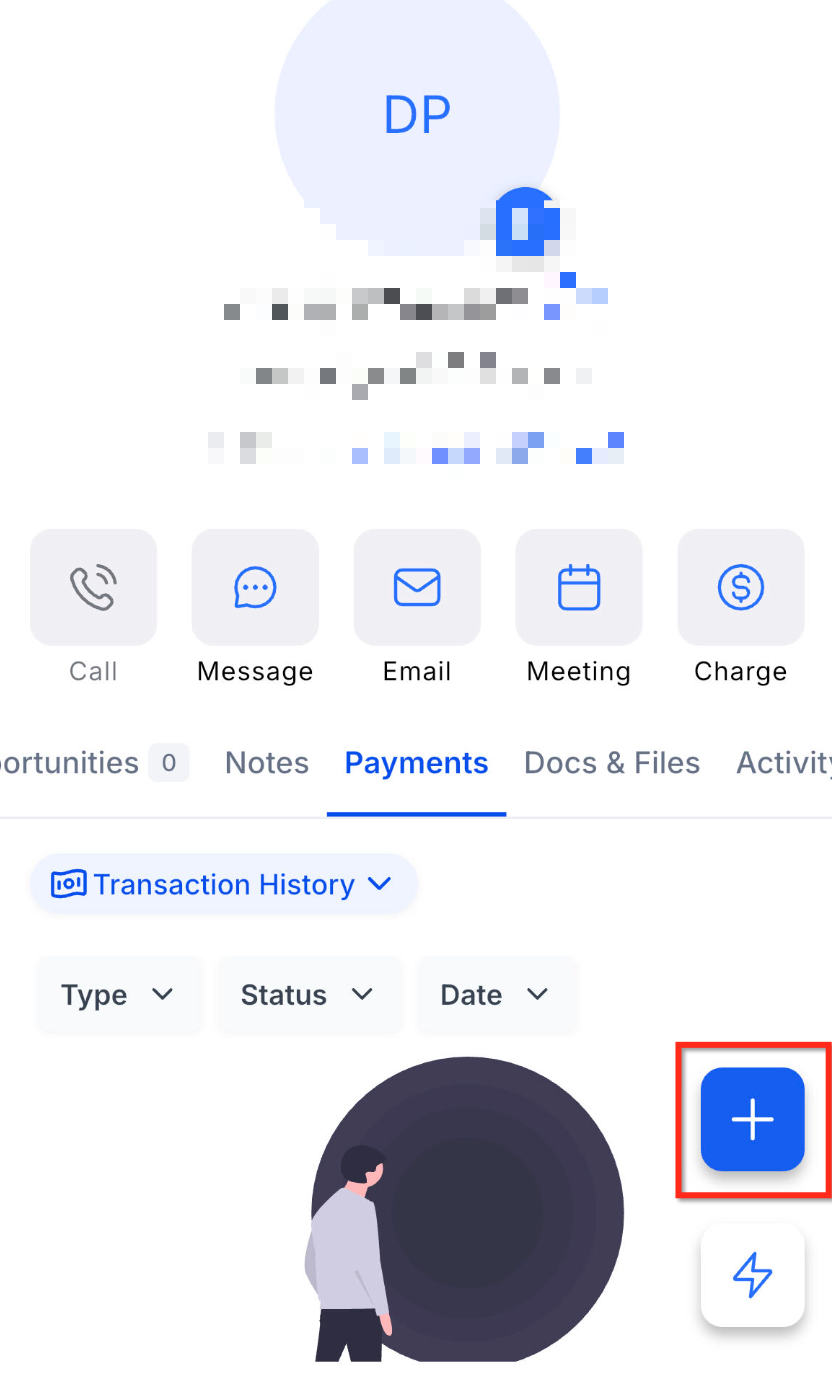
- Tap the Add icon at the bottom of the screen.
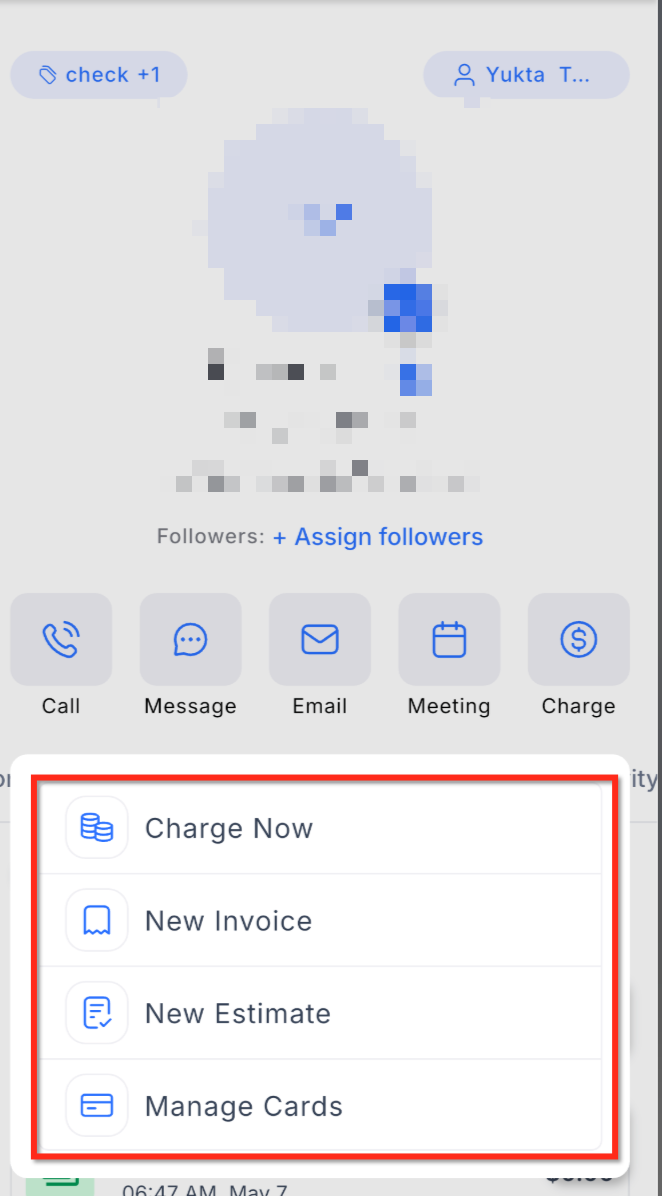
- Choose one of the available actions such as Charge Now, New Invoice, or Manage Cards on File.
- Use the filter chips to browse payment activity by type, for example Transactions, Invoices, Estimates, or Subscriptions where applicable.
Manage payments from an opportunity
- Open the HighLevel mobile app.
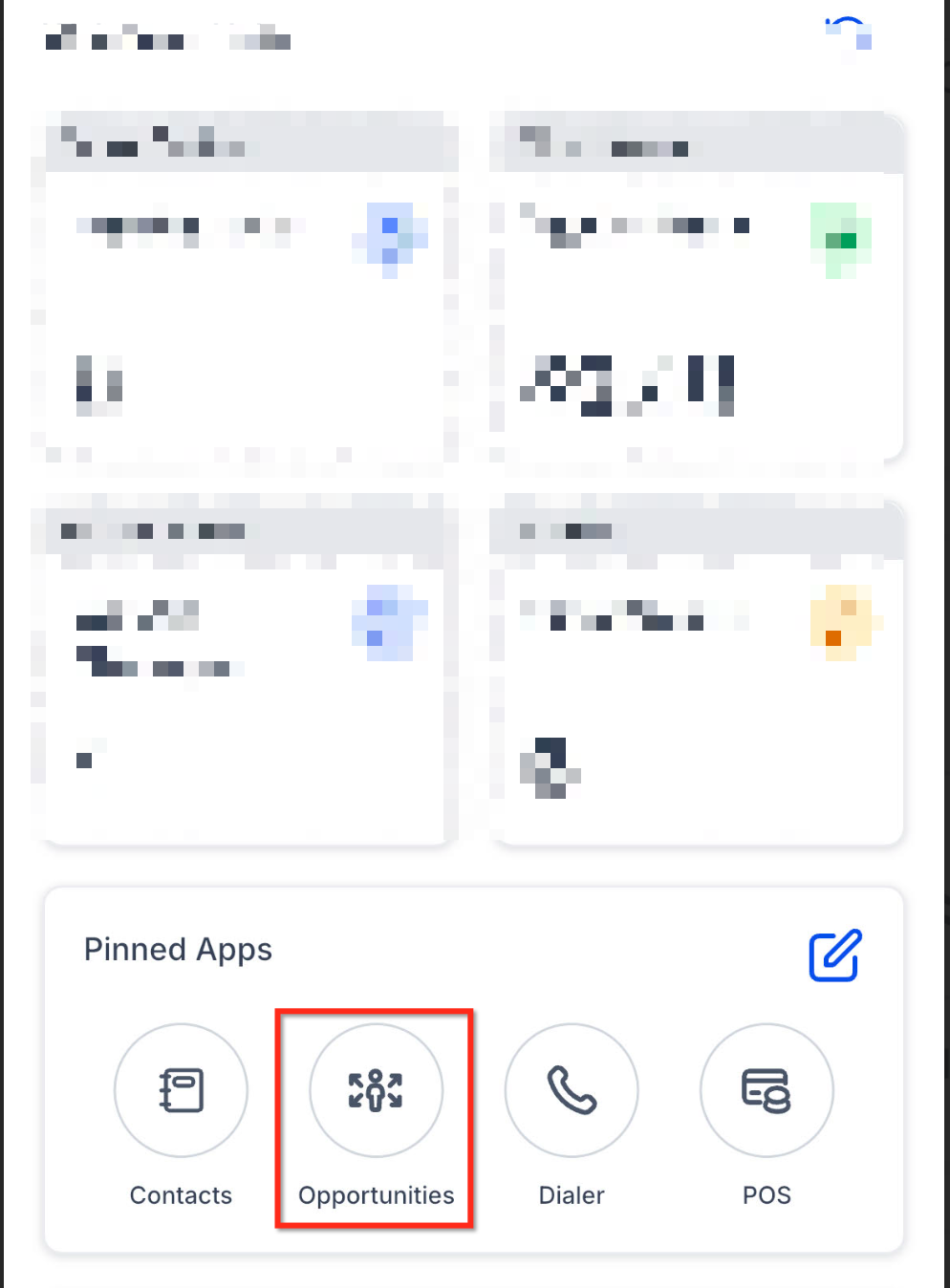
- Navigate to Opportunities.
- Open the opportunity you want to manage.
- Tap the Payments tab.
- Click the Add icon at the bottom to create a New Invoice or New Estimate.
- Complete the invoice or estimate details and use the filter to choose the fields.
- Review linked payment activity and statuses from the Opportunity Payments tab.
07What it looks like in HighLevel
08Things to know before you rely on it
- Available actions may depend on your connected payment provider, payment configuration, app version, and user permissions.
- The Subscriptions filter appears only when subscription activity is present for the record.
09If something goes wrong
- Payments actions are missing from the tab. Verify that payments are configured, a payment provider is connected, the app is updated, and the user has the correct permissions.
- Subscriptions filter does not show. Confirm that there is subscription activity linked to the contact or opportunity.
- Cannot manage cards on file from an Opportunity. Use the Contact Payments tab to manage saved cards for the customer.
- Unexpected actions are not visible. Check payment setup, connected provider, app version, and user permission settings.
10How it connects to the rest of HighLevel
- Set up and manage Stripe payment methods for contacts Stripe payment methods
- Configure automatic sales receipts for invoices and order forms Sales receipts
- Review HighLevel pricing and plan options Pricing
Michael's take

Many people try to open the main Payments hub first, then hunt for the right contact or deal. That adds extra clicks and separates the payment from the customer context you already have open. Instead, I go straight to the contact or opportunity record and tap the Payments tab. All the actions I need. New invoice, charge now, card management. Are right there.
If I were setting this up for a new field team, I’d make sure the payment provider is connected and the team has the proper permissions before they start. Then I’d walk them through opening a contact, using the Add icon and testing each filter chip. It’s a quick way to keep billing tied to the right record and avoid later confusion.