
01Who this is for
- Founders of subscription businesses who need hands free collection on each billing date.
- Operations managers in service firms that issue recurring invoices via POS and want to reduce admin effort.
- Finance teams of small retailers that capture cards at checkout and wish to charge the same card for future cycles.
02Mobile autopayments, explained
Auto Payment is a feature in the HighLevel mobile app that automatically charges a customer's card for every occurrence of a recurring invoice. When you enable it, the platform uses either a Saved Card on the contact record or a Customer Card captured at checkout.
The feature lives in the Send/Schedule sheet of a recurring invoice created from the Invoices or POS module. You toggle a switch, pick the payment source, confirm the card, and then send or schedule the invoice. After that, the system processes the payments on each scheduled billing date without further action.
Auto Payment works only with card payments. Cash, manual entry, or bank transfers cannot be used with this mobile function.
03How businesses use mobile autopayment for recurring invoices
- Gym membership service. The owner creates a recurring invoice for the member in the mobile app, enables Auto Payment, selects the member’s saved card, and sends the schedule. The system then charges the card on each monthly due date.
- Online coaching business. After a client pays for the first session via online checkout, the coach captures the card as a Customer Card, enables Auto Payment on the recurring invoice, and schedules weekly sessions. Future sessions are billed automatically to the same card.
- Retail store with subscription boxes. The cashier uses Tap to Pay at the point of sale, captures the card as a Customer Card, creates a recurring invoice for the subscription, turns on Auto Payment, and schedules delivery. Each delivery date triggers an automatic card charge.
04Before you start
- A recurring invoice must be created in the Invoices or POS module.
- The customer must have a card on file, either as a Saved Card or a captured Customer Card.
- Payments must be processed via card; cash or manual entry are not supported.
05How to set up and use mobile autopayment for recurring invoices in HighLevel
Set up Auto Payment for a recurring invoice from mobile
- Create a recurring invoice in the Invoices or POS module, selecting the customer, items, and billing frequency (refer to the guide on creating recurring invoices).
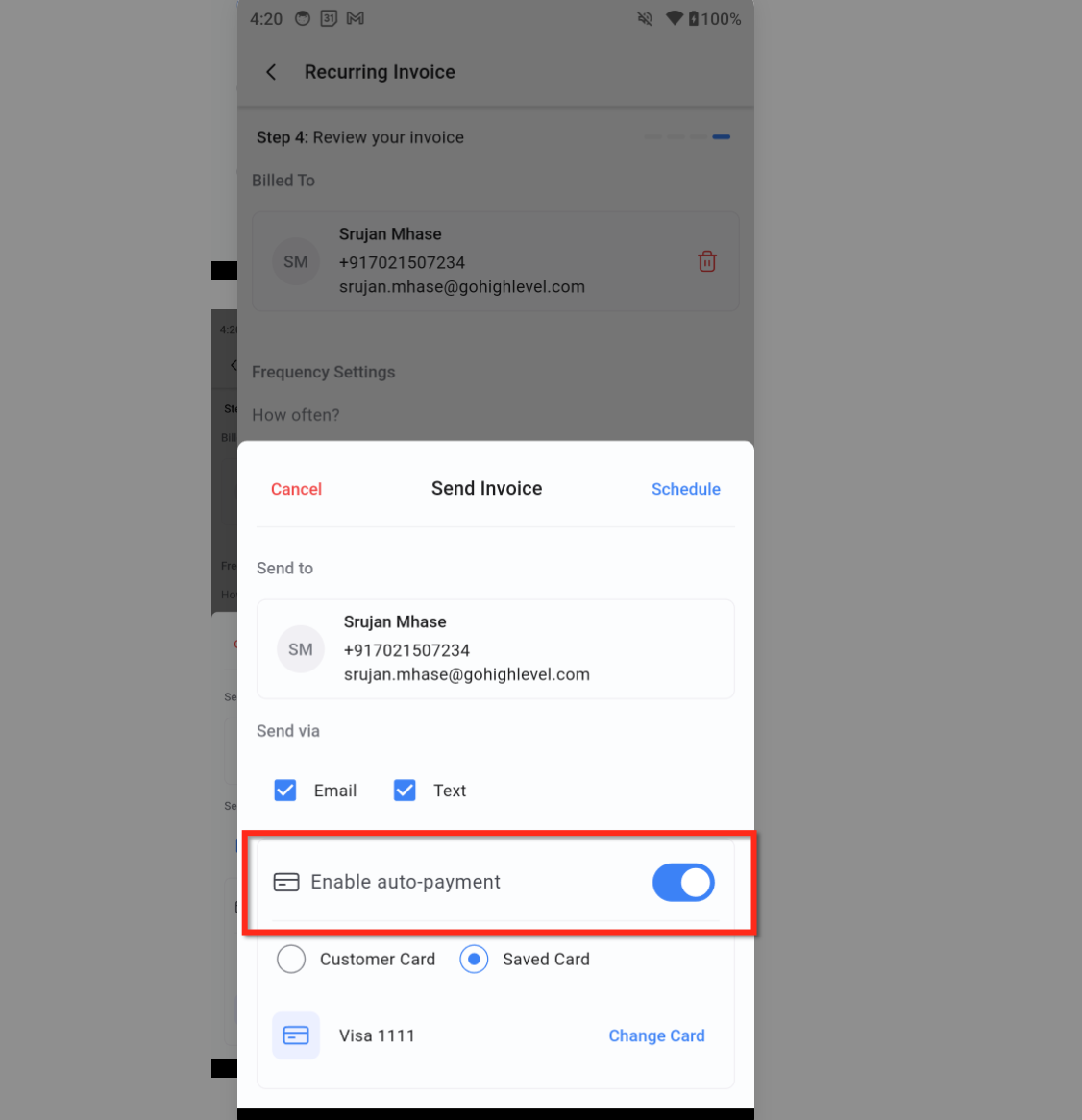
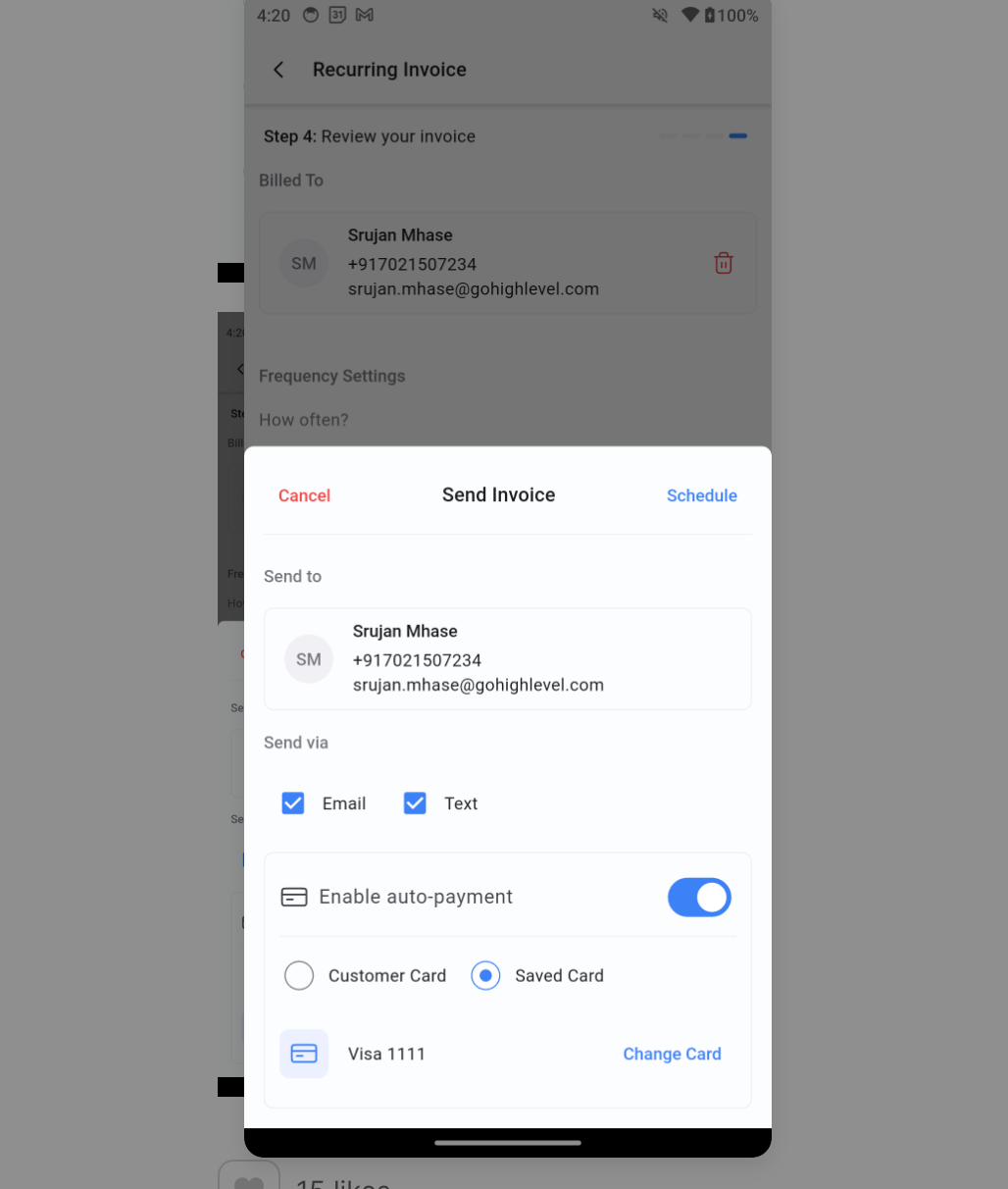
- Open the scheduling sheet for the invoice and toggle the Enable Auto Payment switch.
- Select the payment source: choose a Saved Card or use the Customer Card captured at checkout.
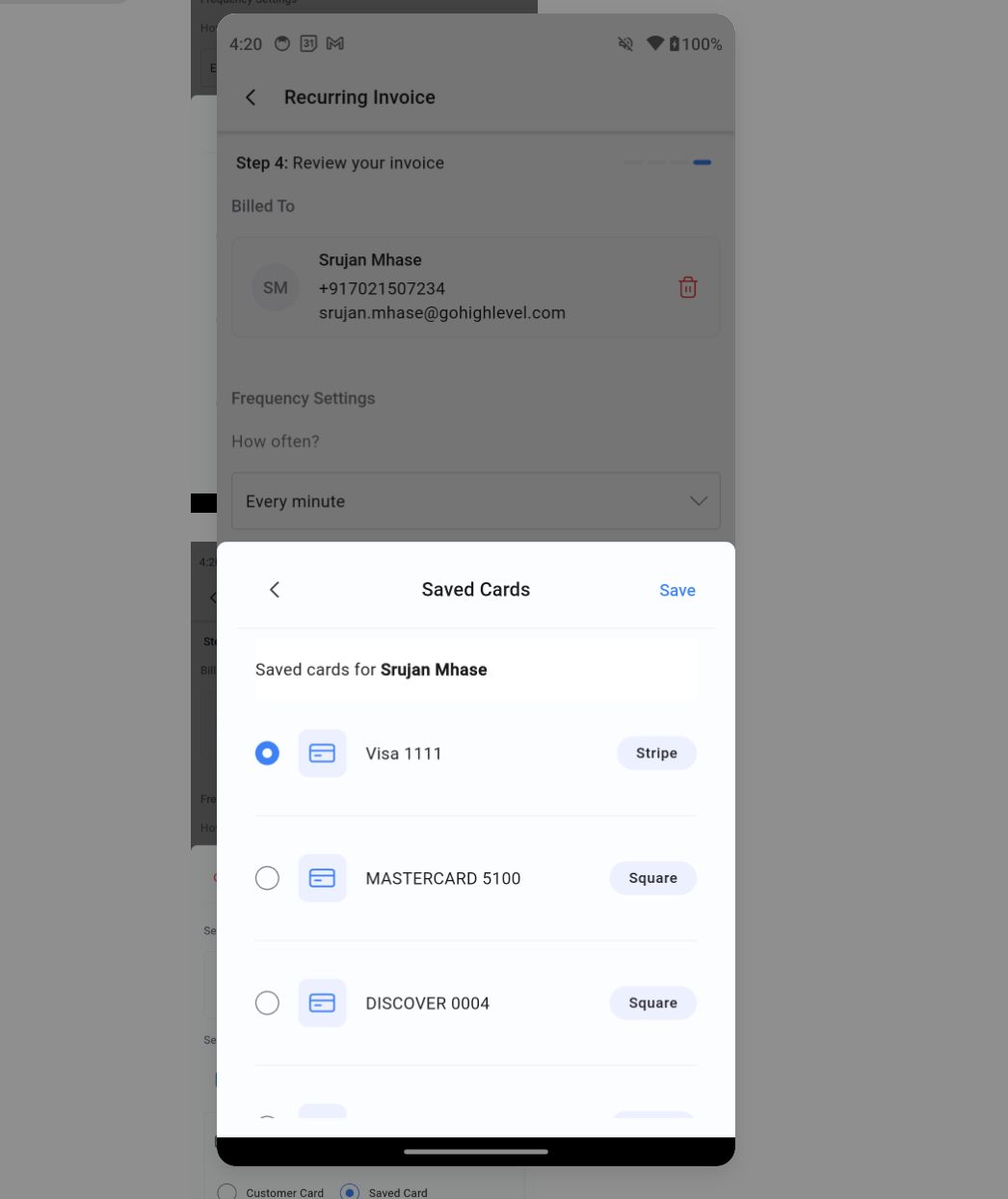
- Review the card summary showing the last four digits and tap Change Card if a different card is needed.
- Tap Send or Schedule to launch the recurring invoice with Auto Payment enabled.
06What it looks like in HighLevel
07Settings that matter
- Enable Auto, Payment. This toggle turns on automatic card charging for each cycle of a recurring invoice.
- Manage Auto Payment. Found in the three dot menu of the invoice editor, this screen lets you enable, disable, or change the saved card used for future auto debits.
08Things to know before you rely on it
- Auto Payment on mobile works only with card payments; cash, manual entry, and bank transfers are not supported.
09If something goes wrong
- A scheduled charge fails. Update the card on file with the customer, select the new card in the invoice editor, and keep the schedule active.
10How it connects to the rest of HighLevel
- How to use HighLevel auto payments in recurring invoices Auto payments guide
- How to set up recurring invoices in HighLevel Recurring invoice setup
- HighLevel invoice workflow: create, edit, tax, discount, send Invoice workflow
Michael's take

I find the feature useful for handling recurring billing.