
01Who this is for
- Founders of ecommerce brands benefit because the system handles multi country tax rates without manual calculations.
- Finance teams in SaaS companies gain accuracy by automatically including VAT on subscription invoices across regions.
02International automatic taxes, explained
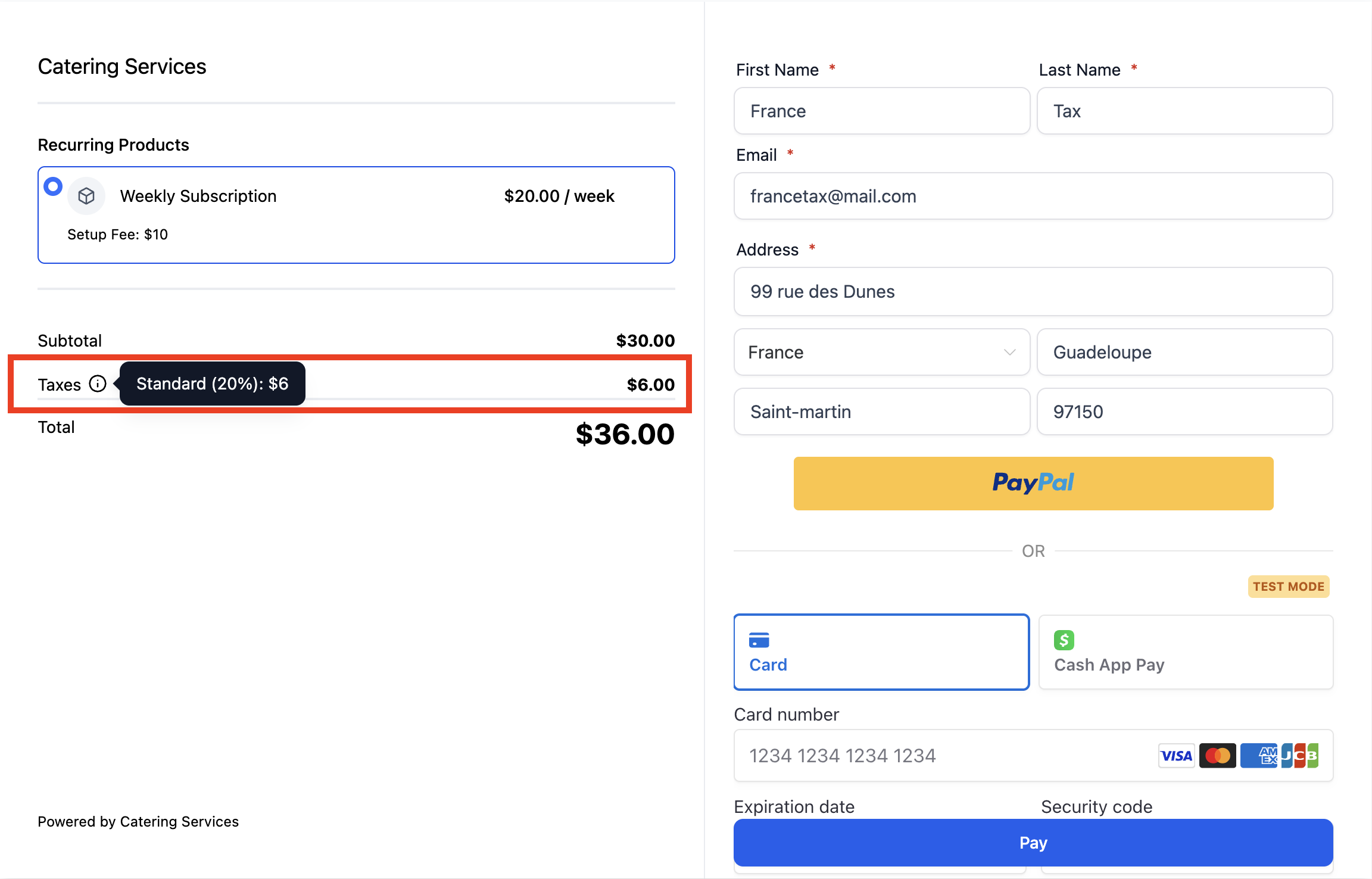
The feature evaluates a buyer’s billing or shipping address, matches it against the nexus locations you entered, and applies the appropriate tax rate. Taxes show as a separate line item on the checkout summary or invoice payment.
International Automatic Taxes works for all checkout types in HighLevel, including funnels, payment links, invoices, estimates and ecommerce stores, and it operates with any supported payment provider.
03How businesses use international automatic taxes
- Ecommerce retailer. The retailer adds nexus addresses for each country where it has tax obligations, selects the default tax category and enables automatic tax calculation. At checkout, the platform computes and displays the correct VAT for the shopper’s location.
- SaaS subscription business. The business configures a global setting to include taxes in product prices, then overrides specific subscription plans with a different tax category if needed. Customers see the final price with tax already incorporated.
- Digital agency selling services. The agency creates individual products for each service, assigns a tax code per product, and chooses whether tax is included in the price or added on top. Invoices generated for clients automatically reflect the correct tax line.
04The numbers and rules that matter
- Old US only tax system will be deprecated before 1st September 2025.
05How to set up and use international automatic taxes in HighLevel
Set up international automatic taxes
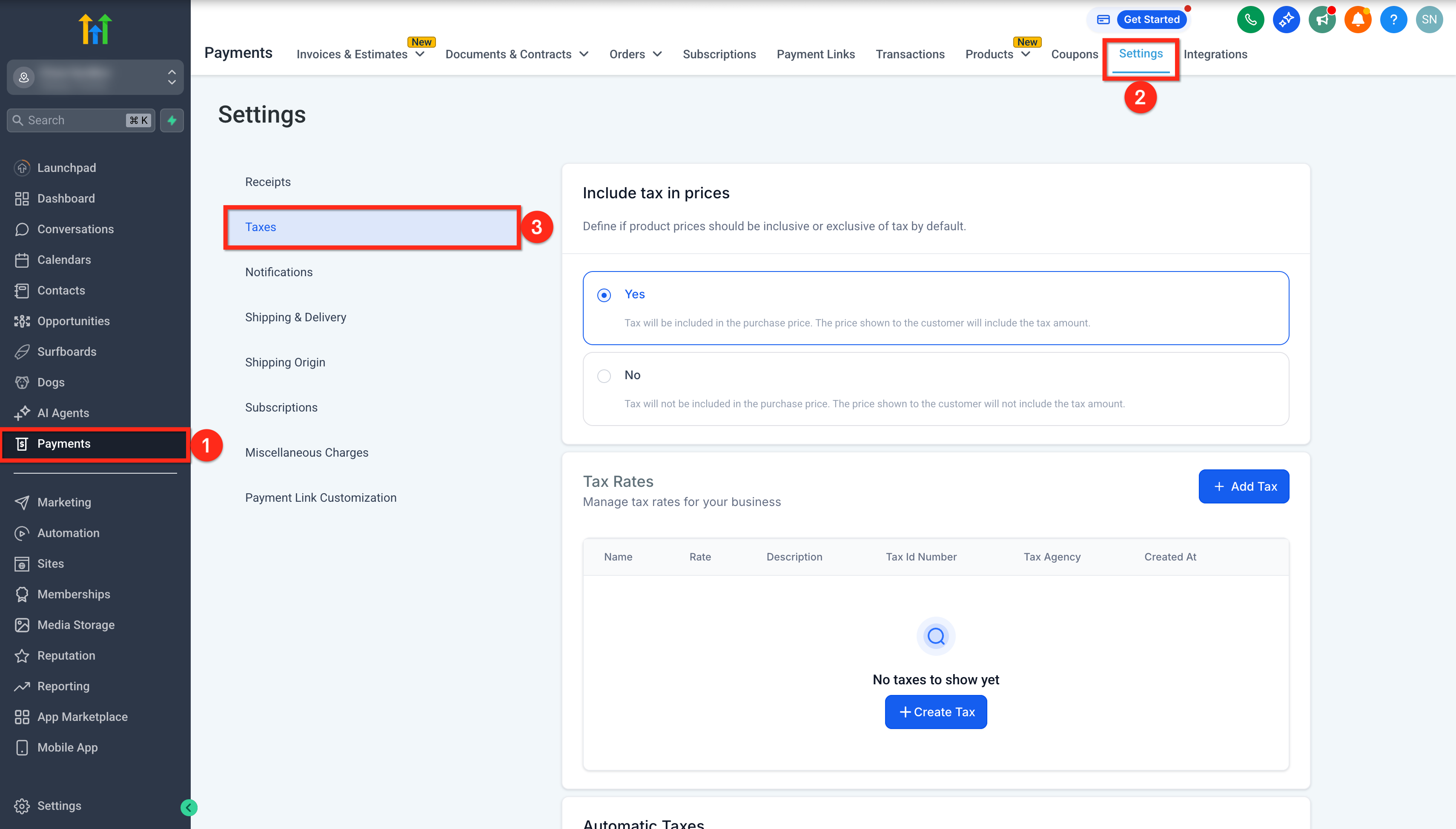
- Open Payments from the left hand menu, go to the Settings tab, and select the Taxes sub tab.
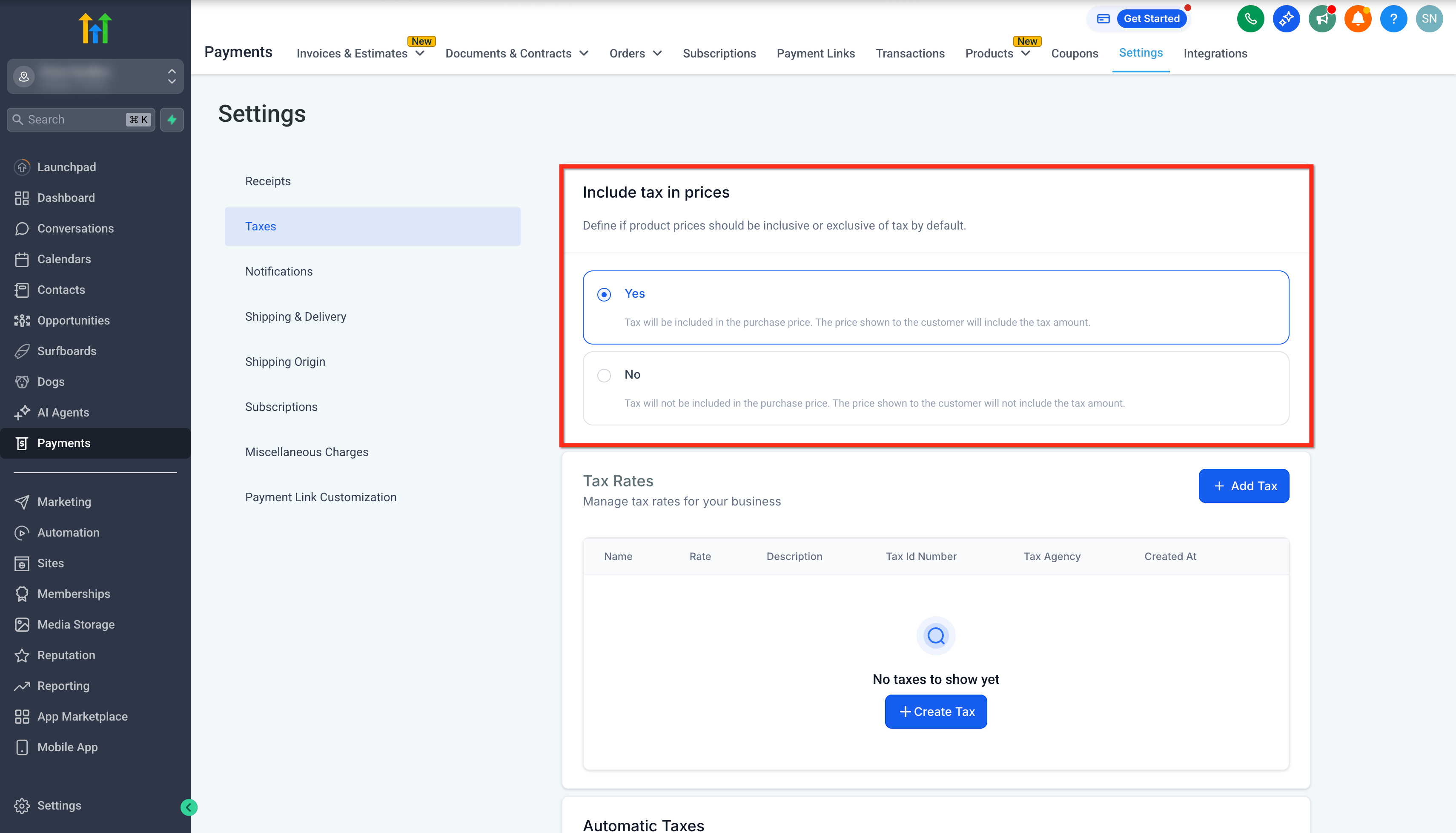
- Choose Yes or No for Include Tax in Prices to set price inclusive or price exclusive tax behavior.
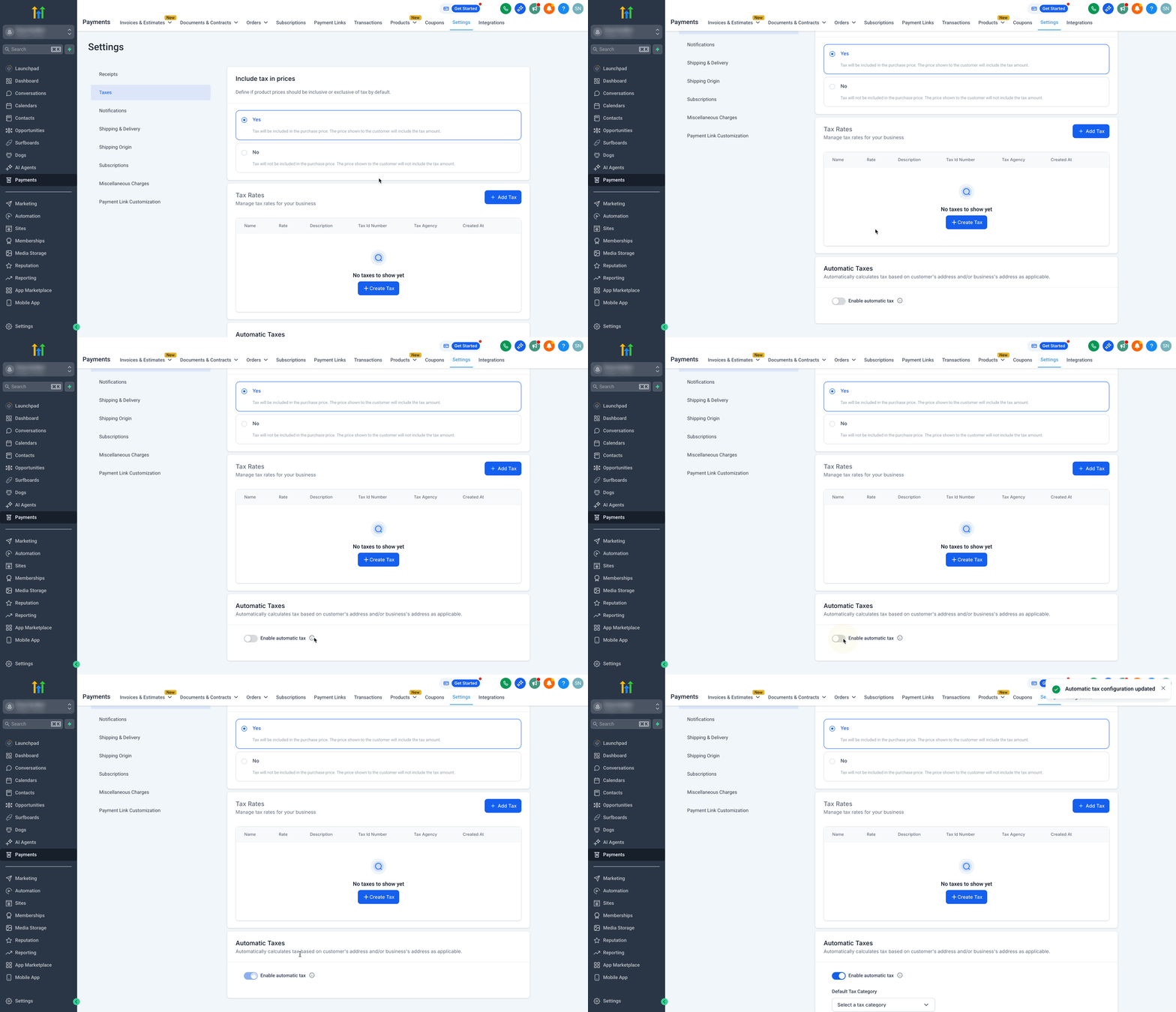
- Toggle Enable automatic tax to ON in the Automatic Taxes section.
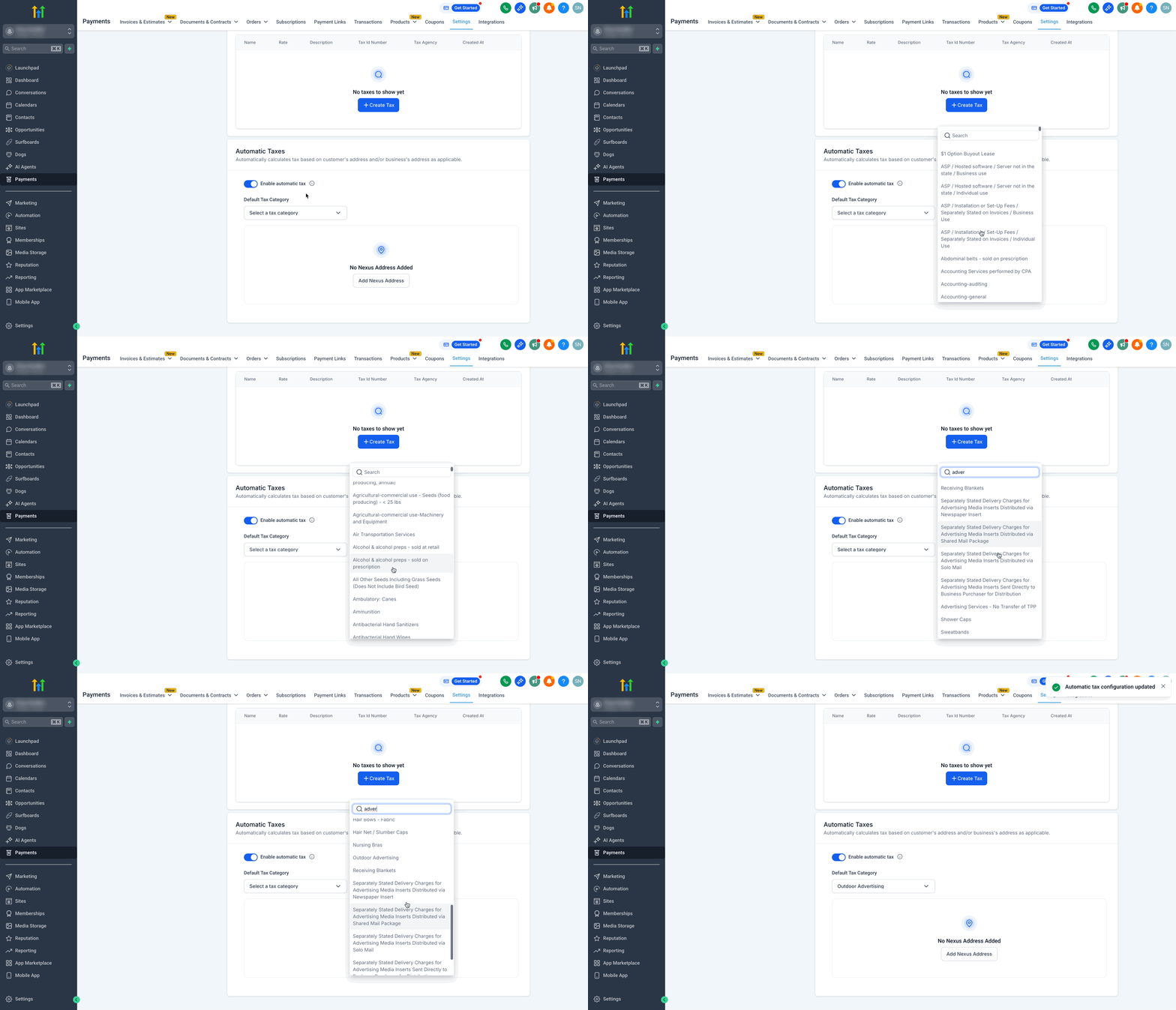
- If desired, select a Default Tax Category from the dropdown.
- Click Add Nexus Address, choose a country (or state/province), optionally enter a Tax ID, and save the entry.
- Verify that taxes appear as separate line items during checkout and on invoice payments.
- Note: You remain responsible for complying with all tax regulations in each jurisdiction where taxes are collected.
- Warning: Deleting a country that has individually added states (e.g., Canada) also removes those states; countries must be deleted one at a time.
Configure product level tax
- Navigate to Payments > Products.
- Create a new product or edit an existing one.
- In the Product Tax Code section, choose a tax category for the product.
- Set the Include taxes in prices option to inherit global settings, Yes, or No.
- Save the product to apply the tax configuration.
Migrate from the old US auto tax system
- Open Payments, go to Settings, and select the Taxes tab.
- In the Automatic Taxes section, click the Reconfigure button.
- Read the migration guidelines and click Confirm to complete the transition.
- Important: The legacy US only tax system is deprecated before 1 September 2025; accounts that do not migrate will have automatic tax disabled until reconnected.
06What it looks like in HighLevel
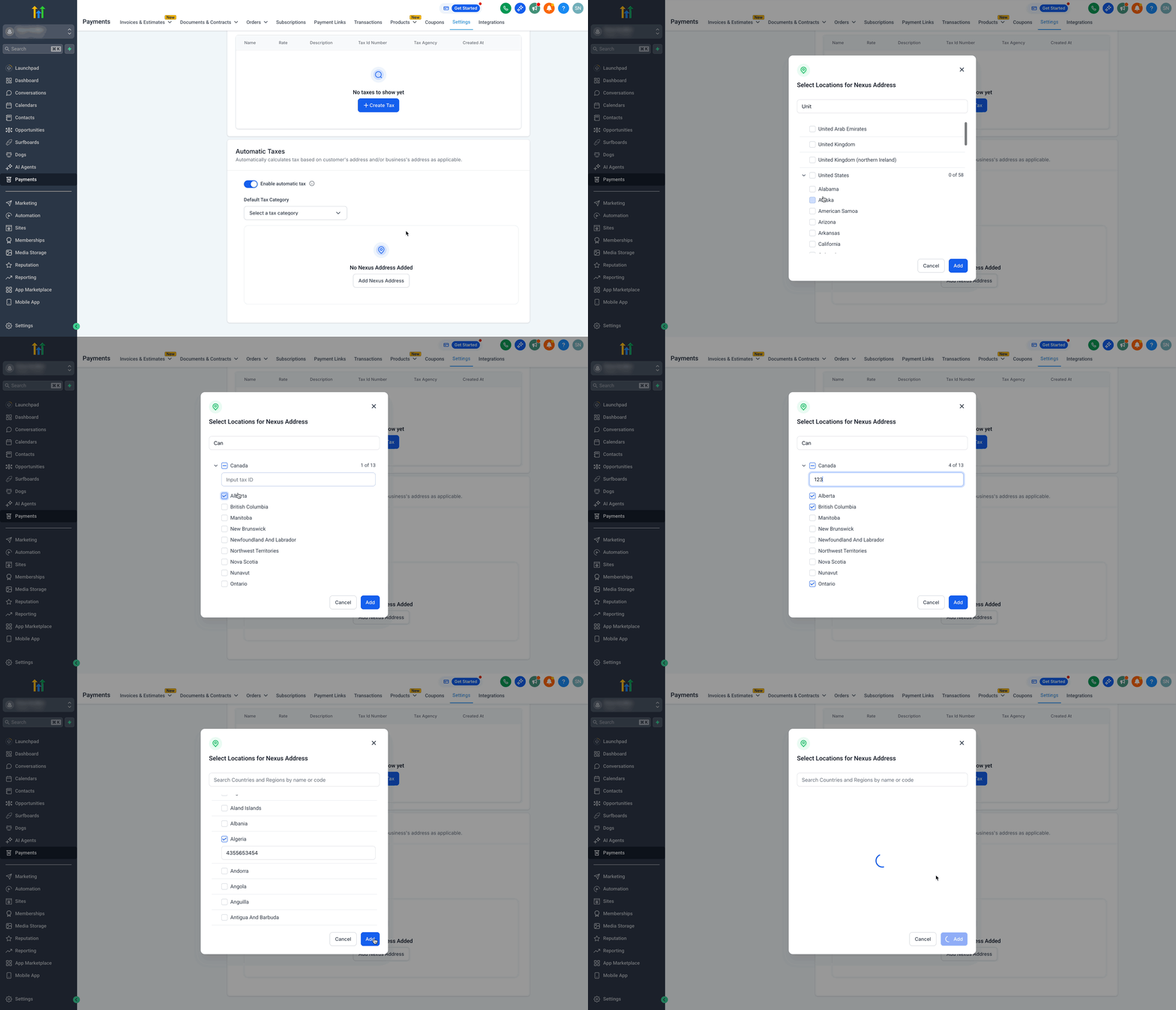
07Settings that matter
- Include Tax in Prices. Determines whether taxes are built into the product price (Yes) or added on top of the listed price (No).
- Enable automatic tax. Activates the automatic calculation of taxes based on customer address and nexus locations.
- Default Tax Category. Provides a fallback tax category applied to products that do not have an individual tax code set.
- Include taxes in prices. For each product, chooses whether to follow the global setting, always include tax, or never include tax.
- Tax ID. An optional identifier entered for a nexus address that may be required by local tax regulations during calculation.
08Things to know before you rely on it
- Automatic tax calculation is not supported for transactions in India; those must be handled manually.
- The legacy US only tax system will be deprecated before 1 September 2025; accounts that do not migrate will have automatic tax disabled.
- When a country with individually added states (e.g., Canada) is removed, all its states are also removed, and countries must be deleted one at a time.
- Each jurisdiction where you have a tax obligation must be entered (countries or US/Canadian states) to ensure correct calculation.
09How it connects to the rest of HighLevel
- See the full tax settings overview for creating and managing taxes. Tax settings overview
- Learn how automatic sales receipts display tax line items on invoices. Manage sales receipts
- Review HighLevel pricing and plan options that include tax features. HighLevel pricing
Michael's take

The feature removes the need to manually calculate VAT or local taxes for each transaction, which can help reduce manual effort.
If you only sell within a single country or your volumes are low, the overhead of maintaining nexus addresses and tax categories may outweigh the benefit. In markets like India where the feature isn’t supported, you’ll still need a manual process, which can make the automation feel less useful.