
01Who this is for
- Founders of SaaS firms with high ticket contracts who need to control how large invoices are collected over time.
- Finance managers at service agencies that bill clients for projects and want to define exact installment amounts.
- Small business owners offering premium products who want to set clear payment schedules and automate reminders.
02Flexible payment plans, explained
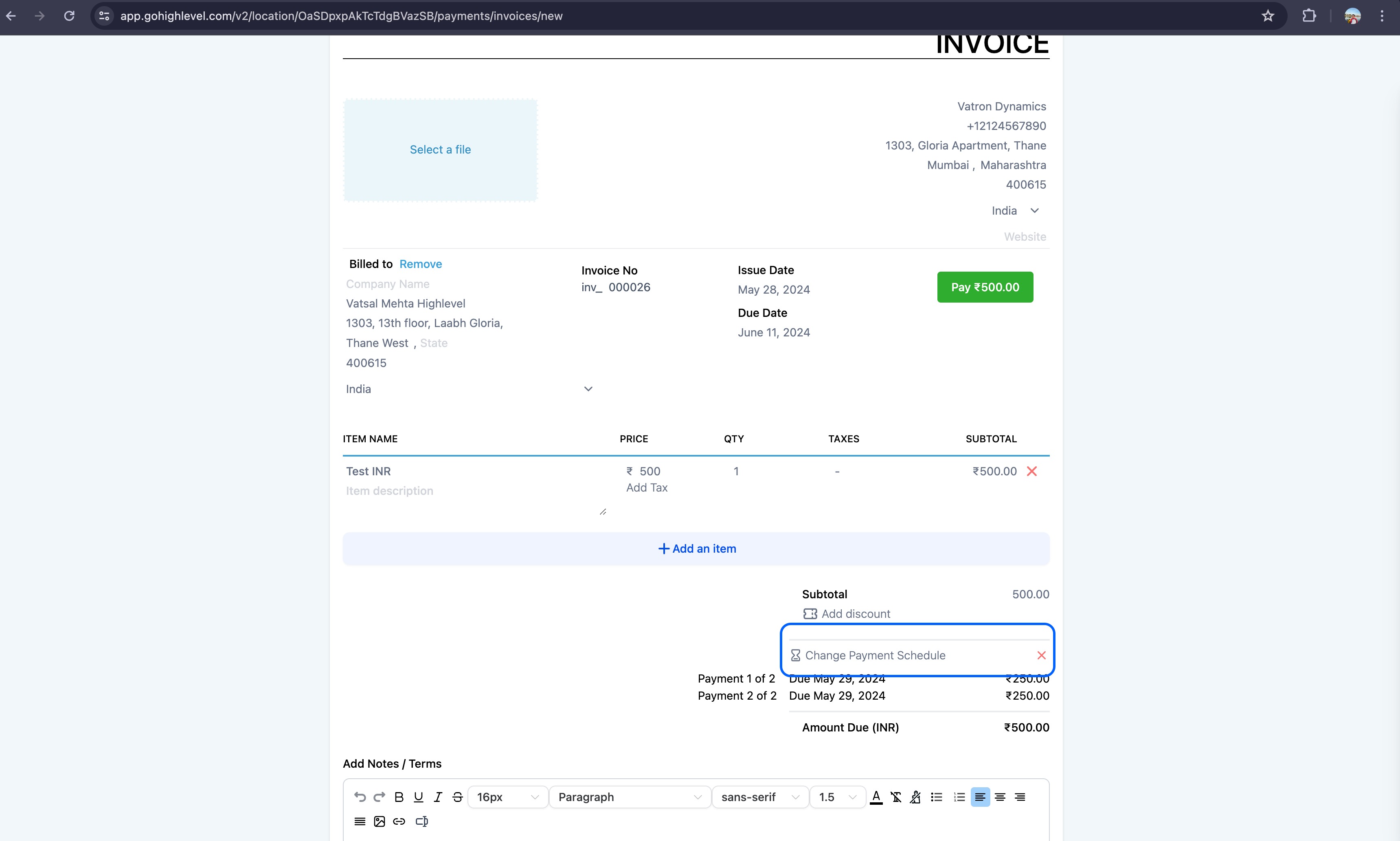
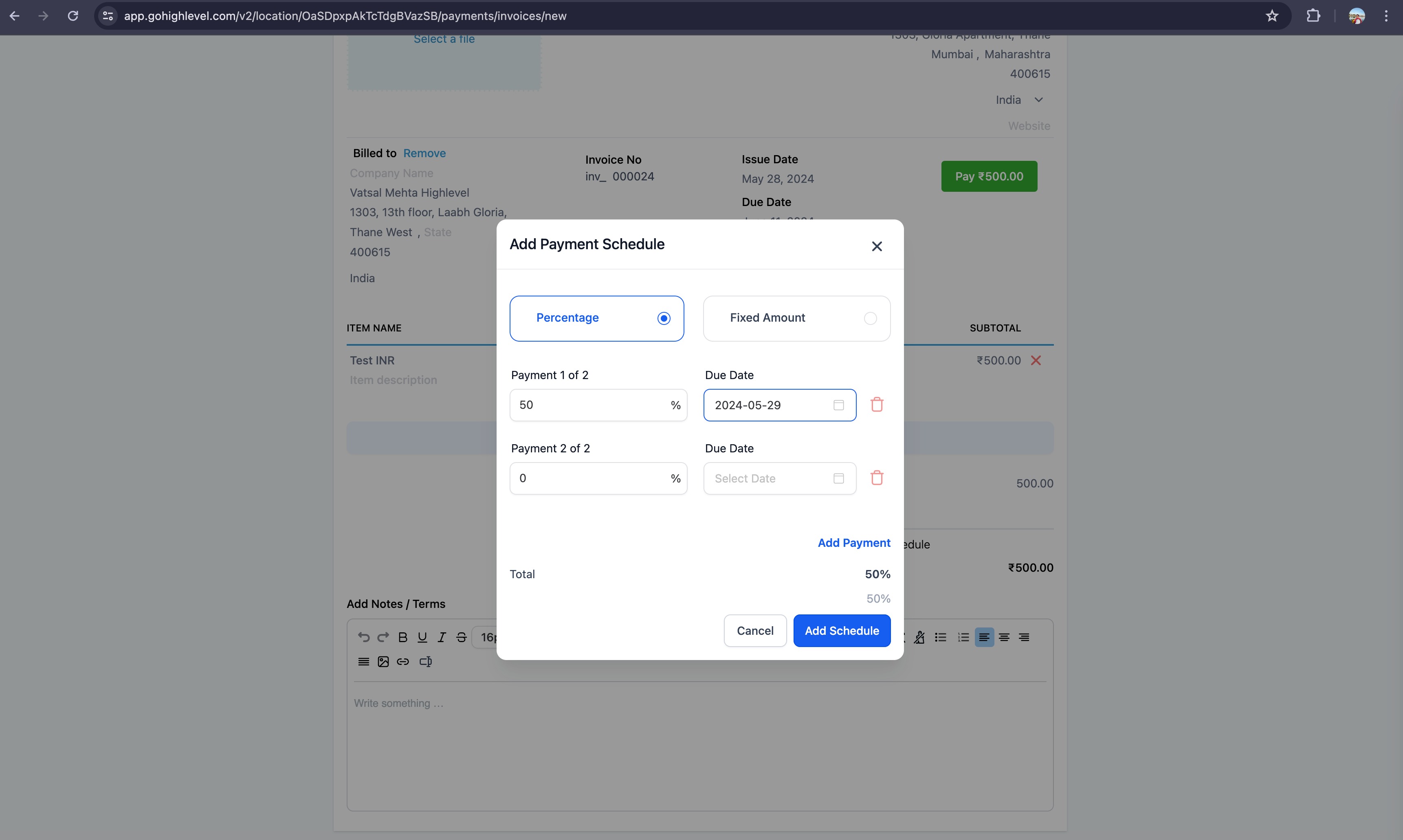
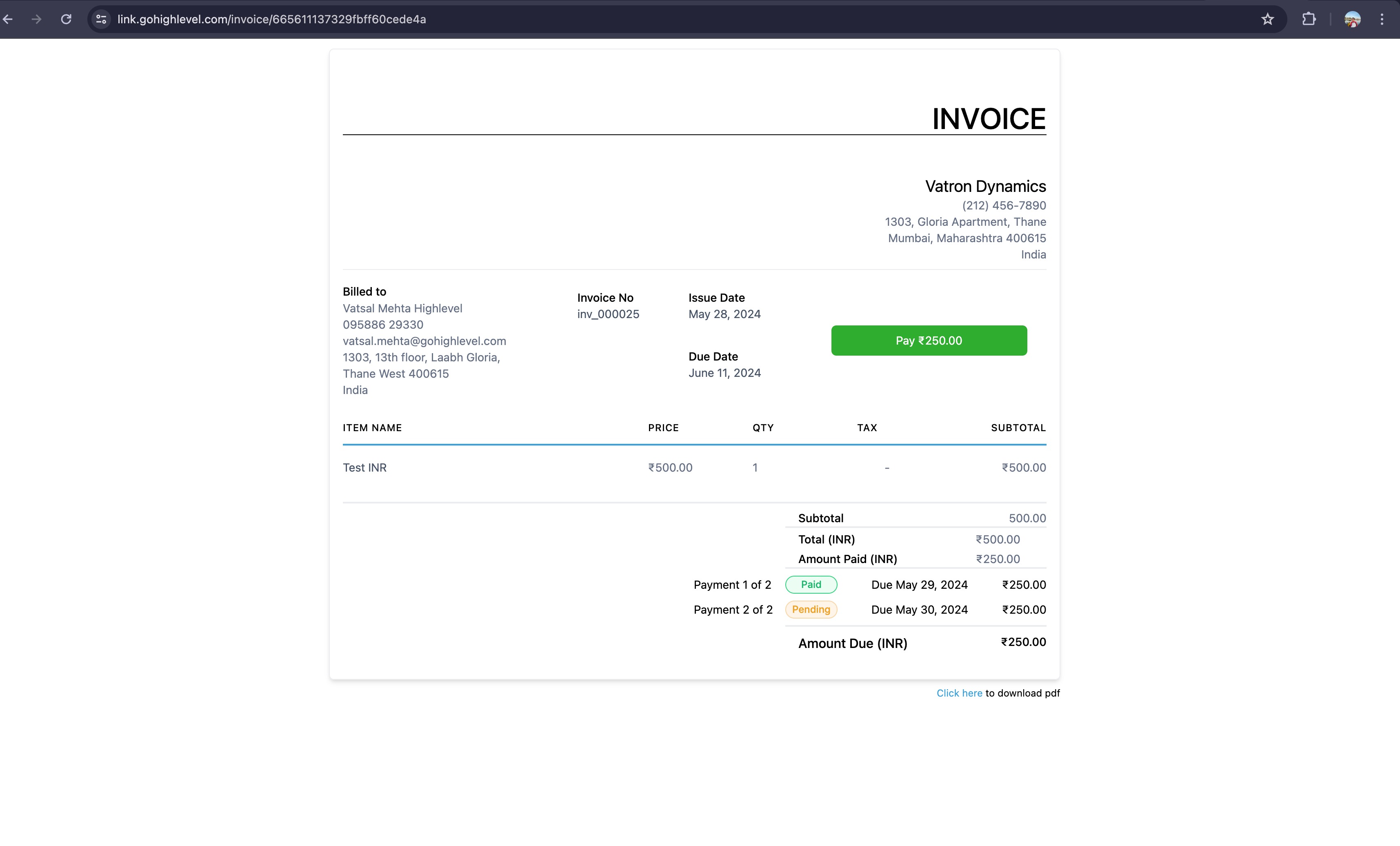
The feature adds a payment schedule option to HighLevel invoices. Payees can divide the total amount into several installments, choosing either a percentage of the total or a fixed amount for each split. Every split includes its own due date and payment status.
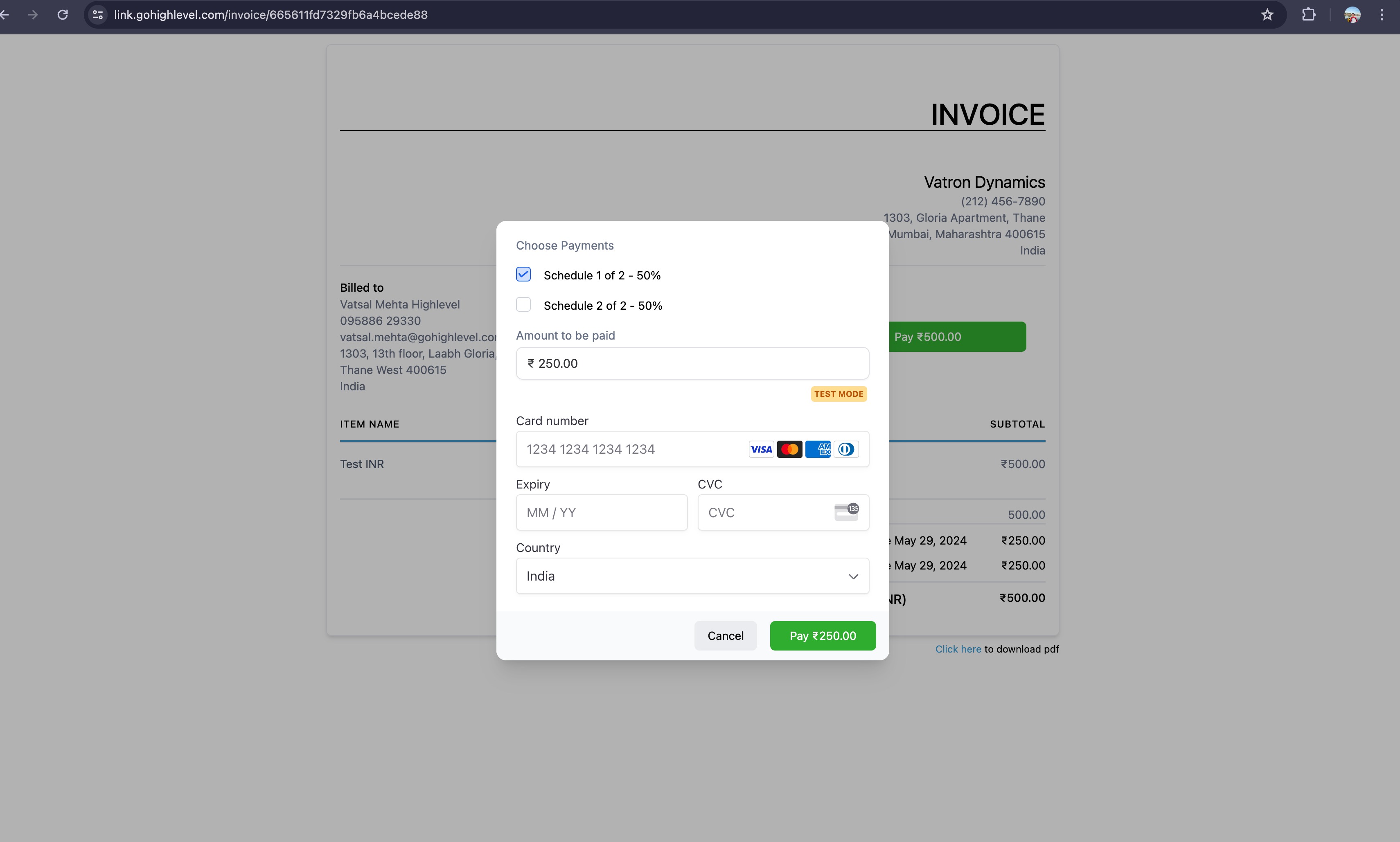
When an invoice contains a schedule, the platform sends a notification on each split’s due date if the installment remains unpaid. Payers may select one or more scheduled installments at checkout, but they can only pay amounts defined in the schedule. The invoice reaches a paid state only after all installments are settled.
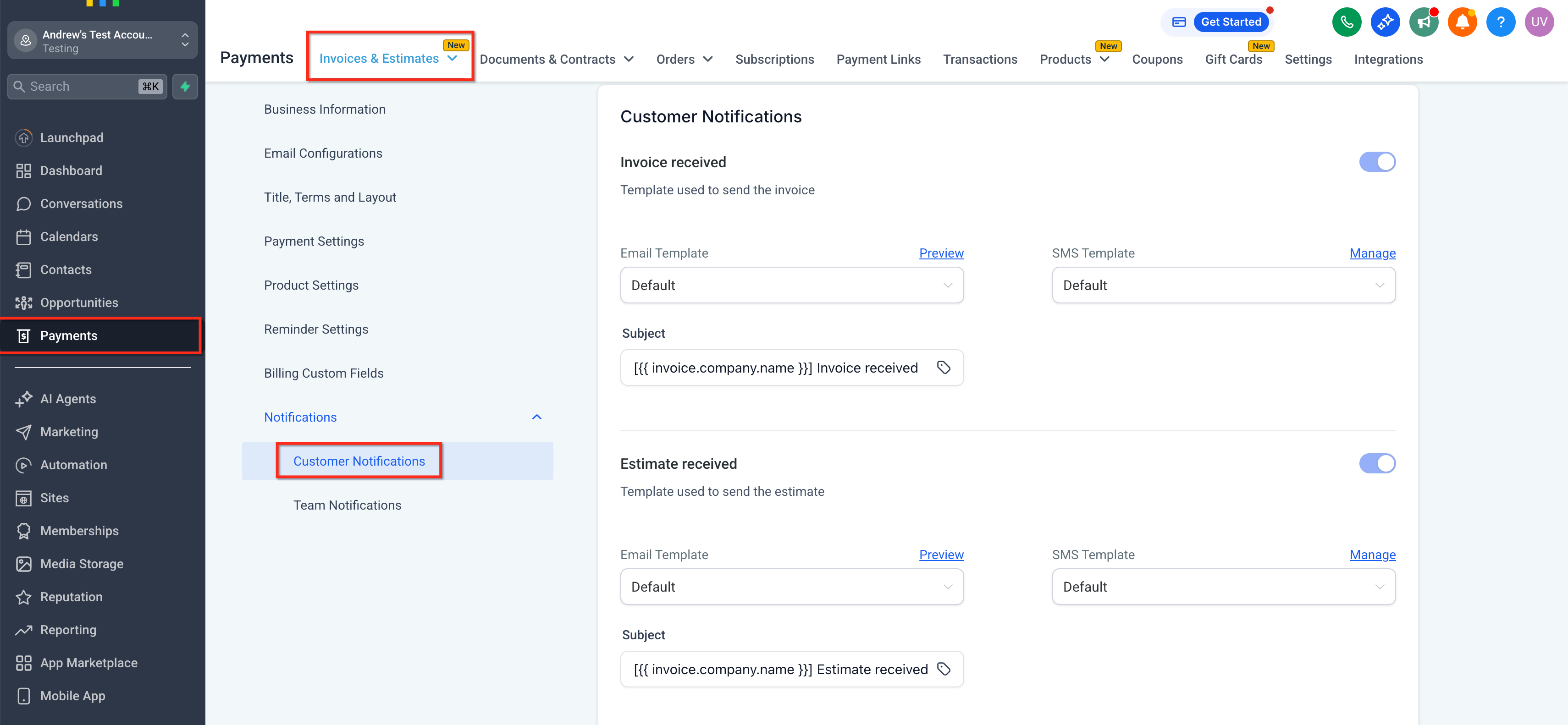
All controls for creating and editing a payment schedule reside within the invoice view. Notification settings for the schedule are managed through the Customer Notifications section of the Payments settings.
03How businesses use flexible payment plans
- Digital marketing agency. The agency adds a payment schedule to a large campaign invoice, specifying a percentage upfront and subsequent percentages due in the following months. Clients receive reminder emails on each due date and can pay any pending installment from the invoice screen.
- Online education platform. The platform creates course enrollment invoices with fixed amount splits, such as an initial amount and a later amount. Learners see the schedule on the invoice, receive scheduled reminders, and can settle one or both installments at checkout.
- Custom software development firm. The firm defines percentage based milestones on a project invoice, each with its own due date. As milestones are reached, the client receives a notification and pays the corresponding percentage from the invoice view.
04How to set up and use flexible payment plans in HighLevel
Add payment schedule to an invoice
- Open the invoice that will include a payment plan.
- Click the Add payment schedule button.
- Enter each installment as either a percentage or a fixed amount and assign a due date.
- Save the schedule and send the invoice to the client.
Customize reminder emails
- Navigate to Payments > Invoices & Estimates > Settings > Notifications > Customer Notifications.
- Find the Payment Schedule Received entry in the list.
- Edit the email or SMS template, or toggle the notification off.
05What it looks like in HighLevel
06Settings that matter
- Payment Schedule Received. Controls the content and activation of the notification sent when a scheduled invoice installment is due.
07Things to know before you rely on it
- Merge fields in the Payment Schedule Received template are empty if the invoice does not contain a payment schedule.
- Payments can only be made for amounts defined in the schedule; users cannot pay arbitrary values.
- An invoice is marked as paid only after every scheduled installment has been paid.
08How it connects to the rest of HighLevel
- Learn how to create and edit invoices in HighLevel. Invoice workflow
- Set up recurring invoices that can also use payment schedules. Recurring invoices
- Review HighLevel pricing to ensure your plan includes payment schedule features. Pricing page