
01Who this is for
- Ecommerce retailers benefit by storing shopper cards and charging repeat purchases without asking for details each time.
- Fitness studios and other service based firms can charge saved cards for recurring class fees, streamlining payment collection.
- Consulting agencies can invoice clients and then settle the invoice by selecting a saved payment method, speeding up cash receipt.
02Saved payment methods, explained
Saved payment methods let a business keep a customer’s payment information, such as a credit card, when a custom payment provider supports that capability. The data is stored securely on the platform and can be reused for future transactions without requiring the customer to type the details again.
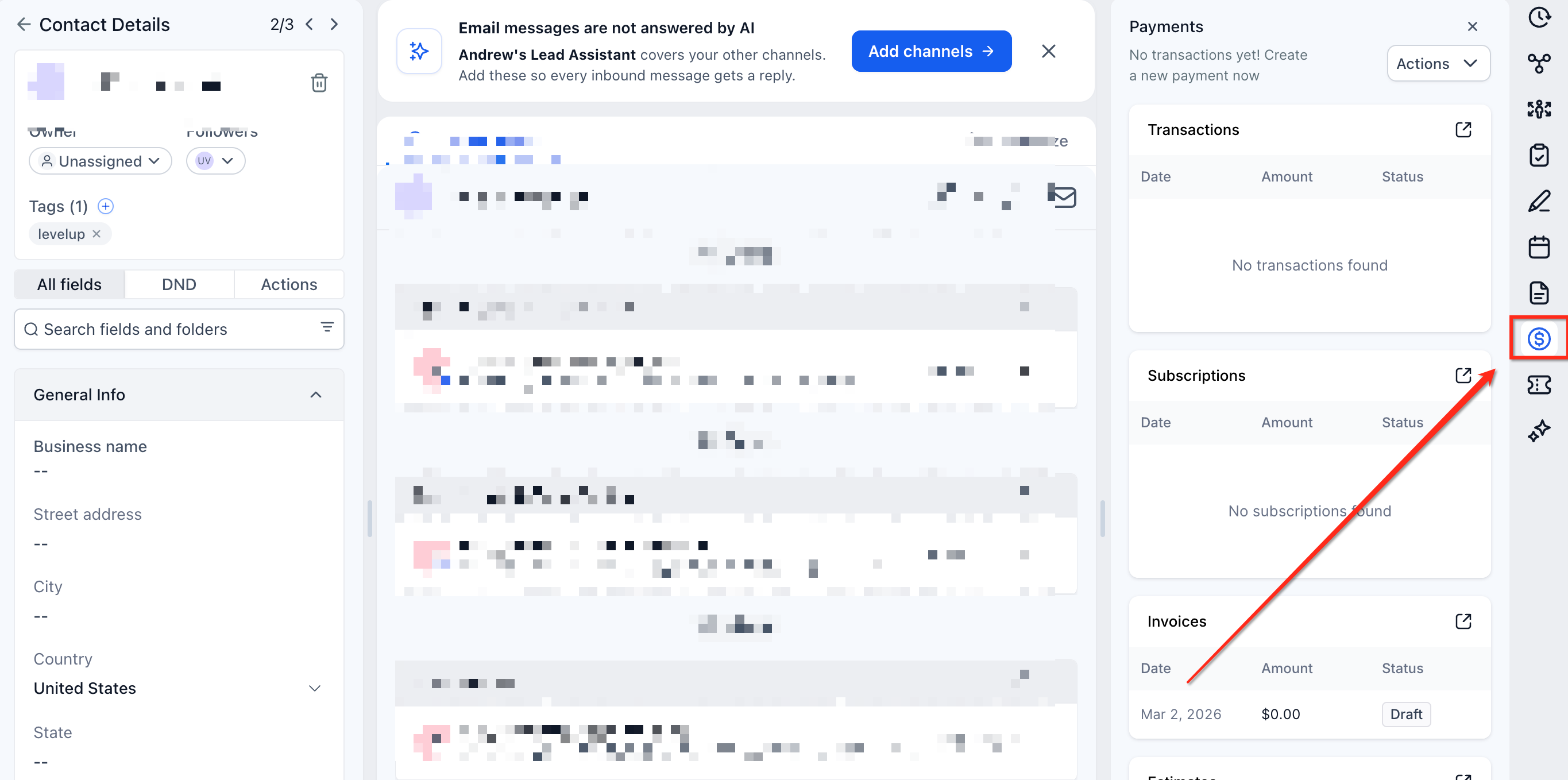
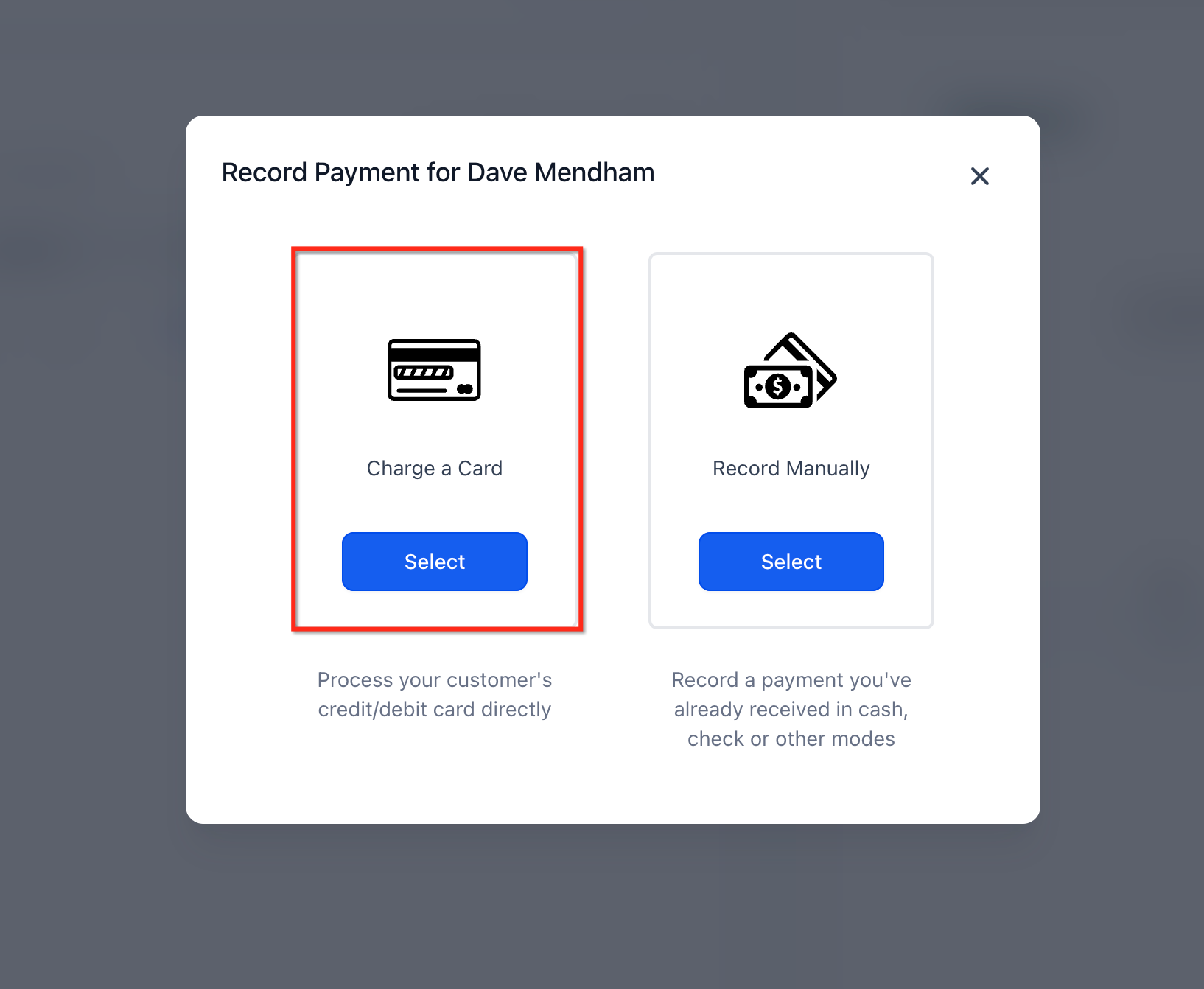
The saved methods appear in the contact’s payment workflow and in the invoice payment flow. From a contact record, users click the $ (Payments) icon and choose the appropriate action to charge the stored method. From the invoice list, users select Record Payment then Charge a Card. Off session charging is possible only if the provider supports it, and it is not yet available for subscription or one time products.
These options live under the $ (Payments) icon on a contact page and within Payments > Invoices for invoice based collections. They rely on a custom payment provider that offers saving, retrieving, and optionally off session capabilities.
03How businesses use saved payment methods
- Dental practice. When a patient pays for a procedure, the staff adds the card on file using the Add Card on File action. Later, for follow up appointments, the practice charges the saved payment method directly from the patient’s contact record.
- Online retailer. A shopper’s card is stored at checkout via Add Card on File. For subsequent orders, the retailer opens the customer’s contact and selects Charge Now, picking the saved method to complete the purchase without re entering card data.
- Marketing agency. The agency creates an invoice for a client, then opens the invoice, chooses Record Payment > Charge a Card, selects the client’s saved payment method, and confirms the payment, eliminating the need to request payment details again.
04Before you start
- A custom payment provider that supports saving and retrieving payment methods must be integrated with HighLevel.
- If off session charging is required, the provider must also support that capability and proper customer authorization must be in place.
05How to set up and use saved payment methods in HighLevel
Add a payment method
- Open the contact record you want to attach a payment method to.
- Click the $ (Payments) icon on the contact page.
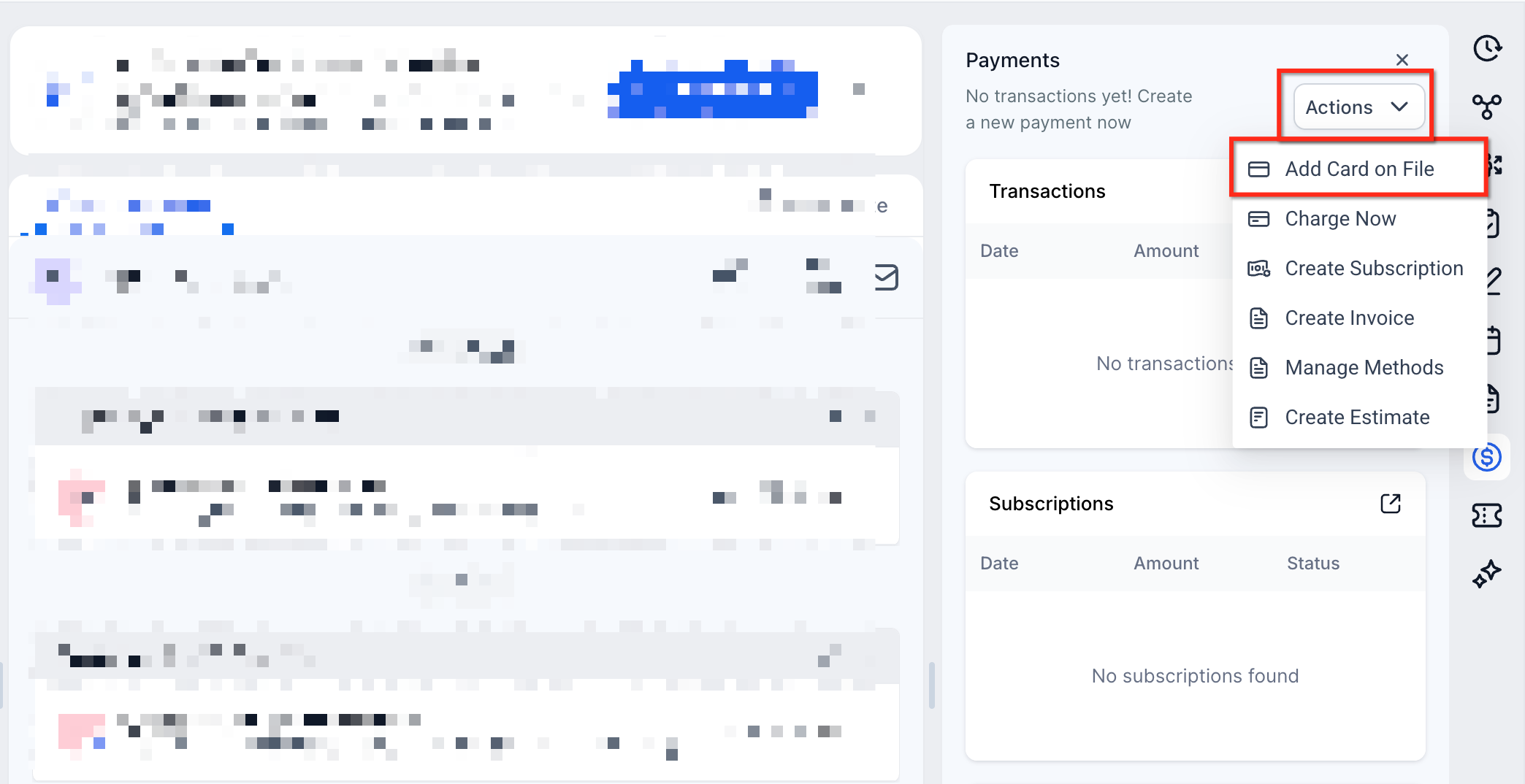
- Choose Actions and select Add Card on File.
- Pick one of the payment methods offered by your custom provider.
- Enter the required payment details and save the card.
Charge a saved payment method
- Open the customer’s contact record.
- Click the $ (Payments) icon.
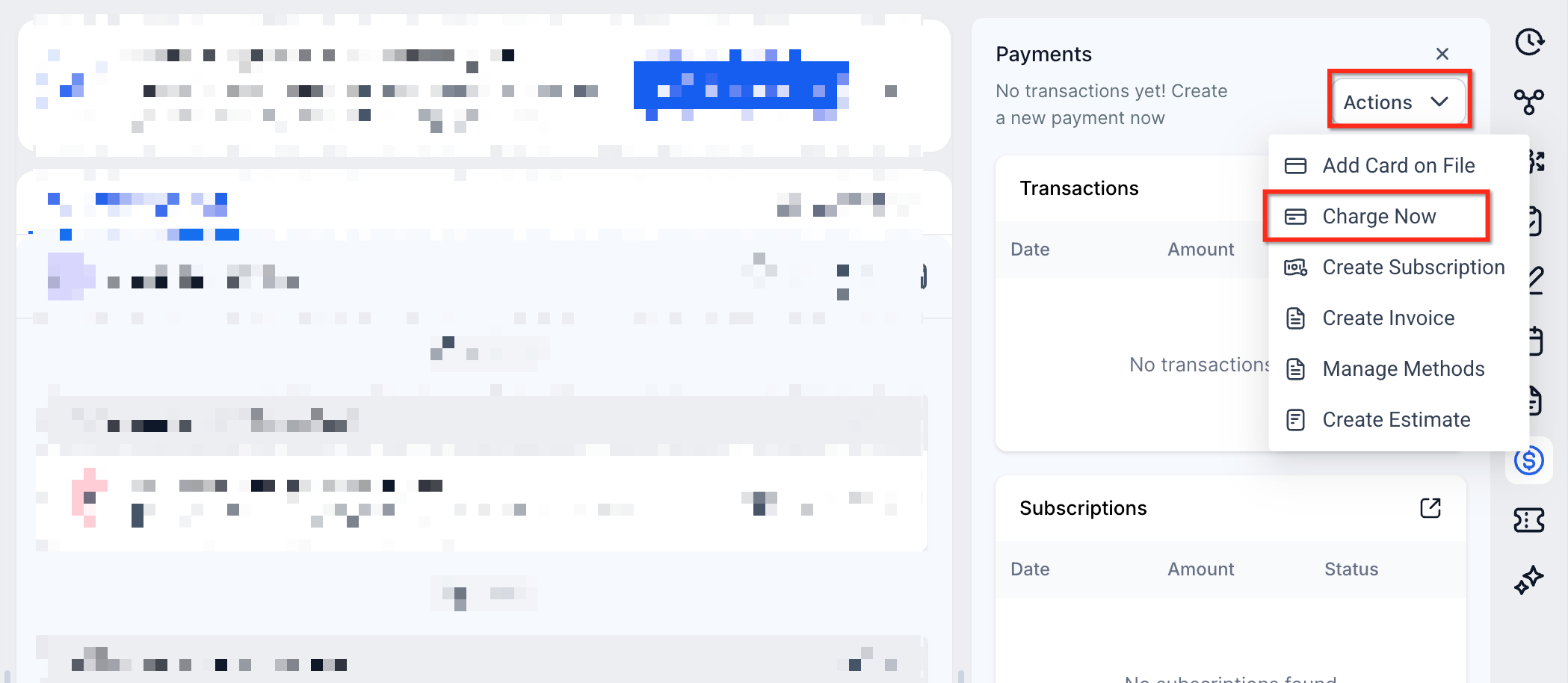
- Select Actions and choose Charge Now.
- Enter the amount you wish to collect.
- Choose an available saved payment method.
- Confirm the charge and review the transaction status.
Charge a saved payment method from an invoice
- Navigate to Payments > Invoices.
- Open the invoice you need to collect payment for.
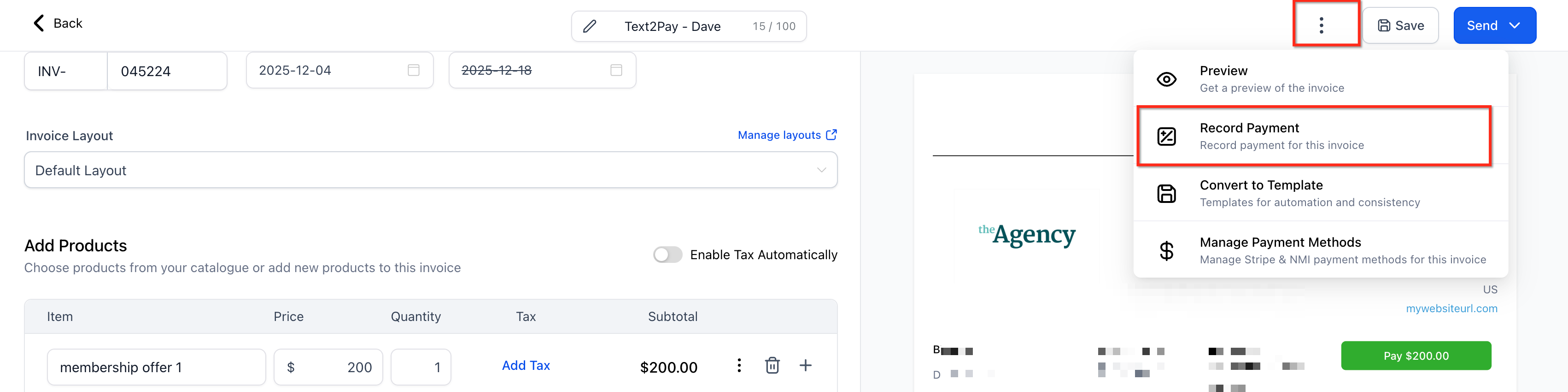
- Click Record Payment and select Charge a Card.
- Choose an available saved payment method linked to the contact.
- Confirm the payment and review its status.
06What it looks like in HighLevel
07Settings that matter
- Add Card on File. Allows a user to store a customer’s payment details provided by a custom payment provider for later use.
- Charge Now. Initiates a one time charge using a previously saved payment method directly from a contact record.
- Charge a Card. Records a payment on an invoice by charging a saved payment method linked to the associated contact.
08Things to know before you rely on it
- Not all custom payment providers support saving, retrieving, or off session charging of payment methods.
- Off session charging for defined subscription and one time products is a planned enhancement and is not currently available.
- Saved methods may not appear in the standard Manage Cards interface even when they can be used in supported payment flows.
- A payment method that works at checkout does not guarantee it can be saved or used for off session transactions.
09If something goes wrong
- Cannot see a saved payment method. Check whether the custom provider supports retrieving saved methods and ensure the method is associated with the selected contact.
- Provider does not allow saving cards. Confirm that the integrated custom payment provider includes saving and retrieving capabilities.
- Off session charge fails. Verify that the provider supports off session transactions and that proper customer authorization has been obtained.
- Saved method missing from Manage Cards screen. Understand that custom provider saved methods may only appear during supported payment flows and not in the Manage Cards interface.
10How it connects to the rest of HighLevel
- Learn how to manage Stripe payment methods that can be saved and retrieved. Stripe payment methods
- See how automatic sales receipts are generated for payments collected from saved cards. Automatic sales receipts
- Explore selling products on order forms using payment providers that may also support saved methods. Order form payments
- Find details on enabling Apple Pay and Google Pay, alternative options that can coexist with saved cards. Apple Pay & Google Pay
Michael's take

Saved payment methods feel like a small convenience that can add a real shift in how smoothly a business handles repeat billing. When the provider lets you keep a card on file, you cut out the friction of retyping details and can even pull a charge without the customer in front of the screen.
A subscription based fitness studio that bills members monthly can store each member’s card once and let the system collect the next month’s payment automatically, as long as their payment gateway supports off session charges.