
01Who this is for
- Sales managers benefit because they can see every invoice linked to the deal they are tracking.
- Accountants appreciate the complete financial history attached to each opportunity, reducing duplicate entry.
02Linking opportunities with invoices and estimates, explained
The feature allows a billing document, either an invoice or an estimate, to be attached to a specific opportunity record. When the link is created, the opportunity shows the document in its Payments tab, and the document records the opportunity ID.
Linking can be performed manually from the opportunity view, from the central Payments area, or automatically via a workflow that creates and sends the document. The automatic method requires an opportunity based trigger and a Send Invoice or Send Estimate action.
All linking actions occur within the HighLevel platform. The opportunity record, the Payments tab, and the Workflow Builder are the three places where the feature lives.
03How businesses use linking opportunities with invoices and estimates
- Marketing agency. A marketer opens an opportunity for a new client, selects the Payments tab, and creates an estimate directly from the deal. The estimate is saved with the opportunity link, so the team can review proposal history without leaving the sales view.
- Real estate brokerage. An agent goes to the Payments area, switches to Invoices, creates a commission invoice, selects the client contact, and picks the related property deal under “Link Opportunity.” The invoice appears in the property’s opportunity record.
- Healthcare clinic. The clinic builds a workflow that triggers when an appointment stage changes to Completed. The workflow adds a Send Invoice action, which generates and emails the bill while automatically attaching it to the patient’s opportunity.
04How to set up and use linking opportunities with invoices and estimates in HighLevel
Link invoice or estimate directly from an opportunity
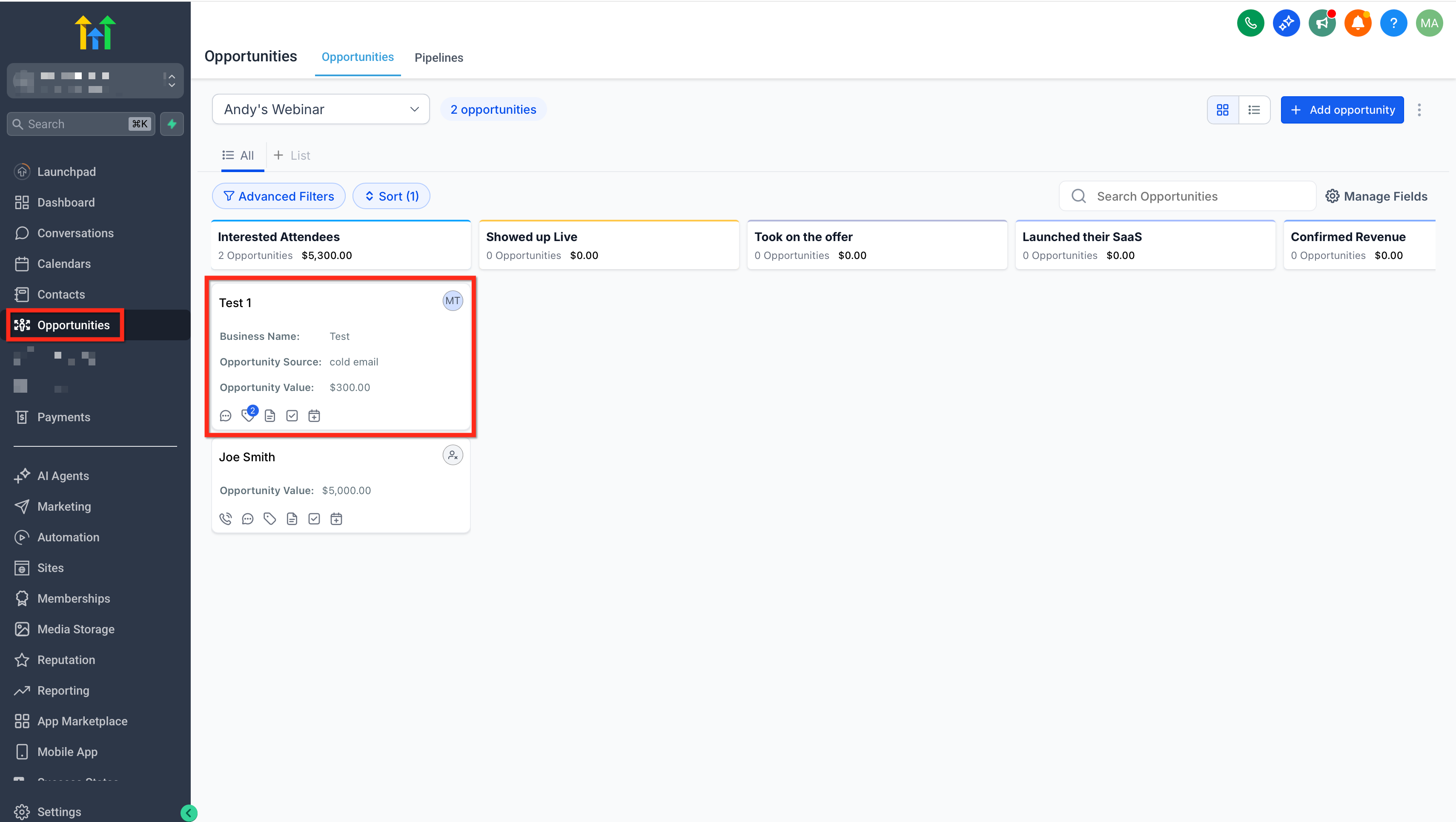
- Open the Opportunities list and select the desired deal.
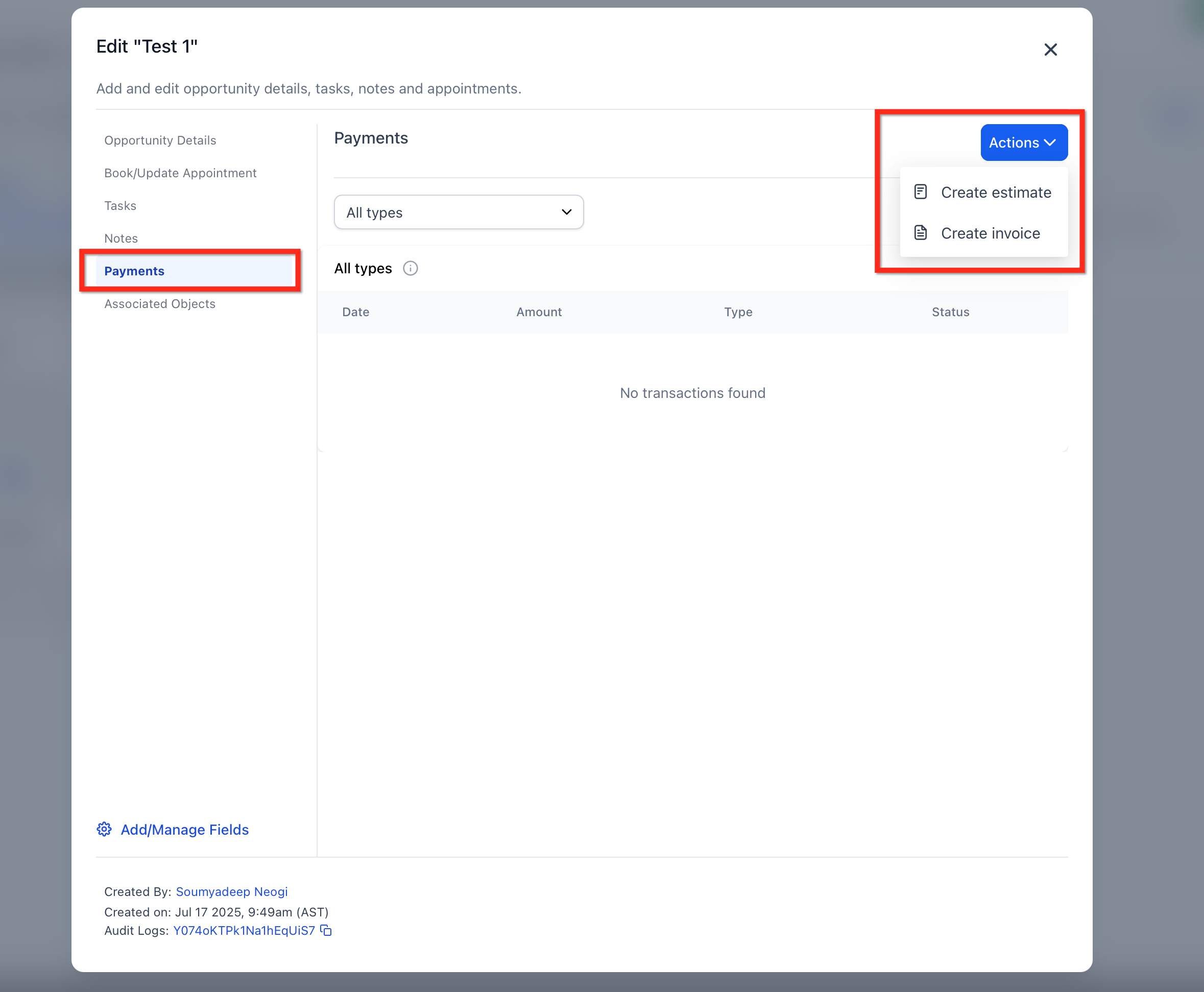
- Open the Payments tab on the opportunity record.
- From the Actions dropdown, pick Create Invoice or Create Estimate.
- Fill in the document details and send when ready.
Link an invoice or estimate using the Payments area
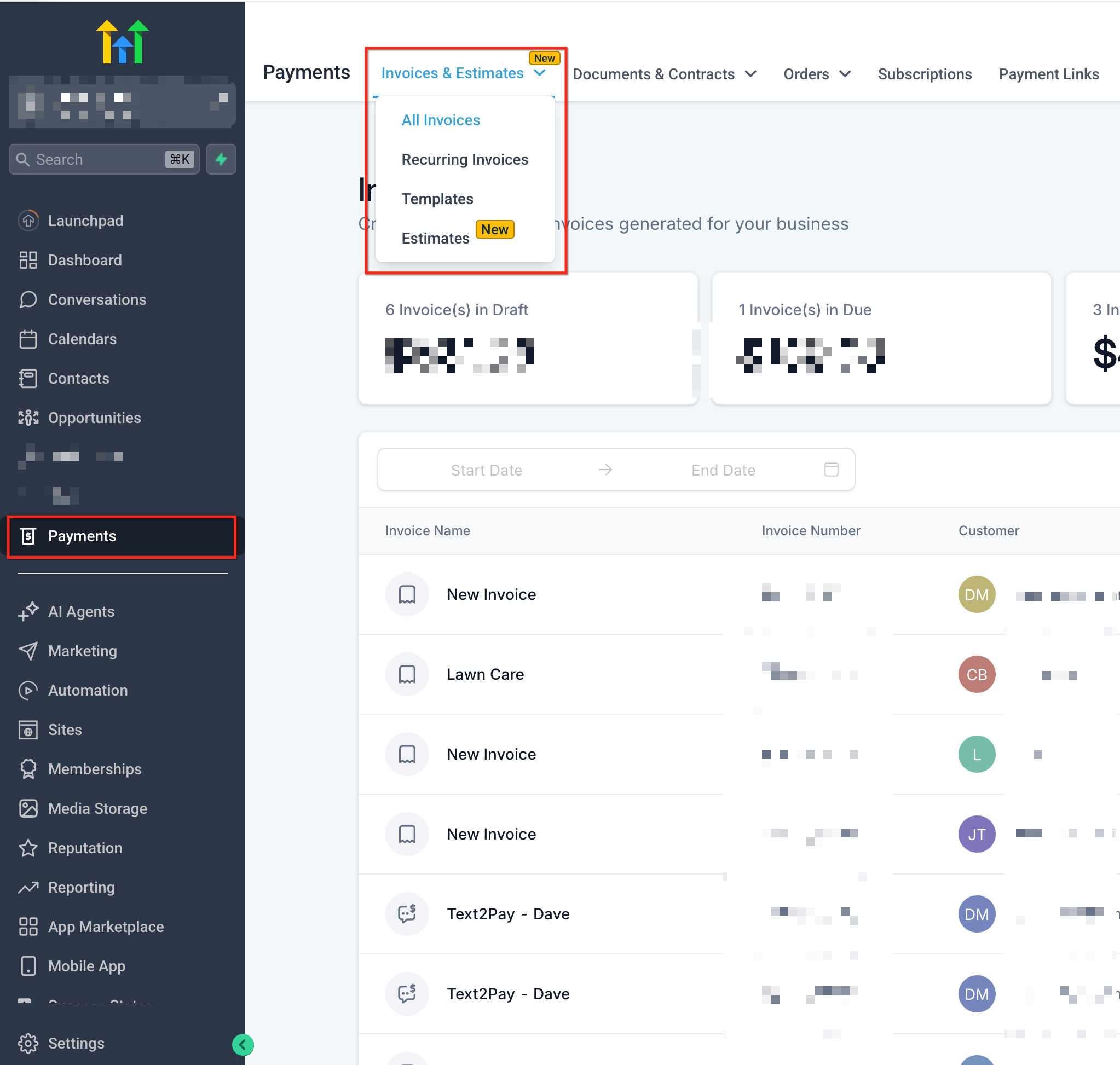
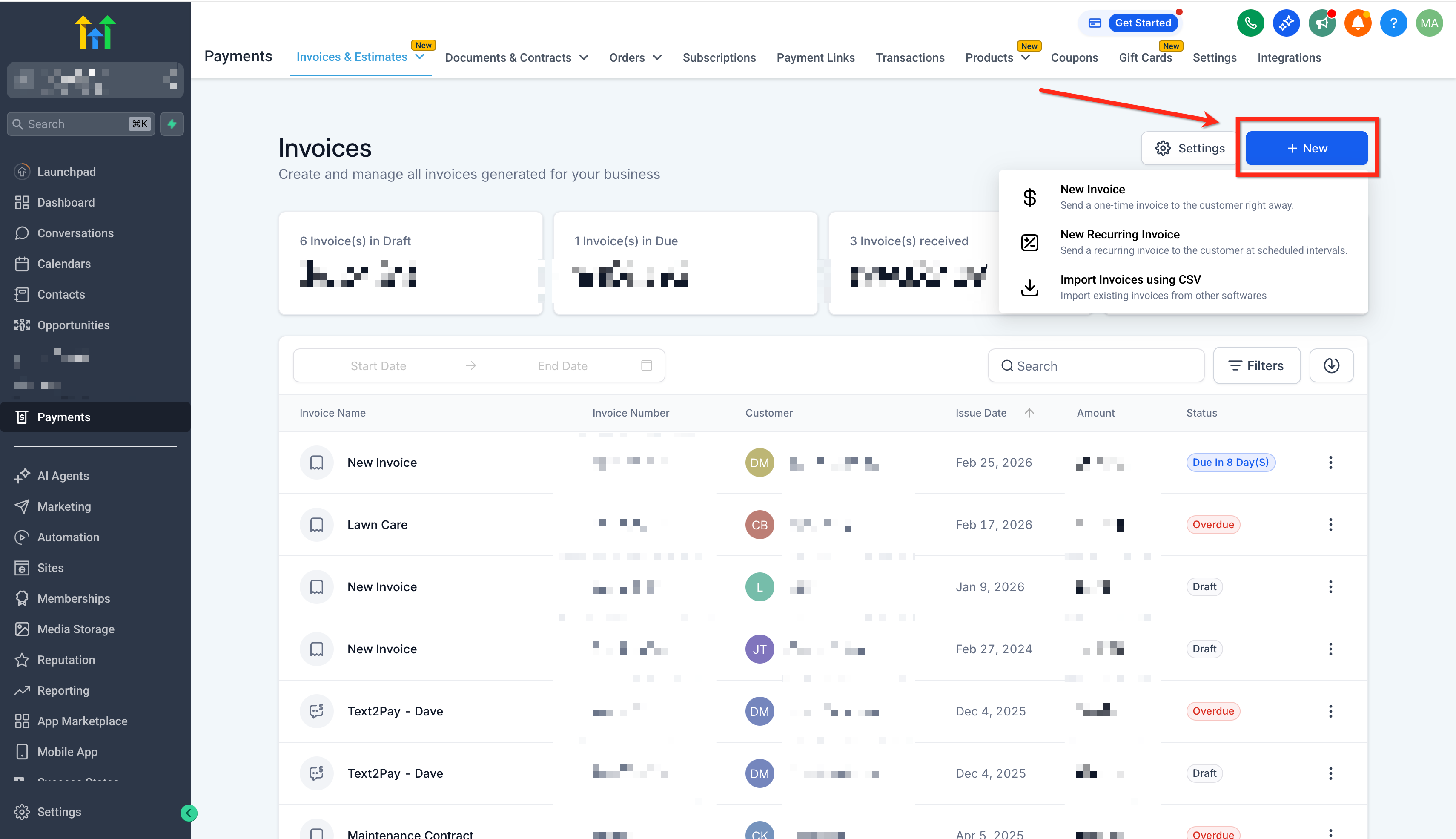
- Select Payments from the main navigation menu.
- Choose Invoices or Estimates from the view dropdown.
- Click the Create Invoice or Create Estimate button.
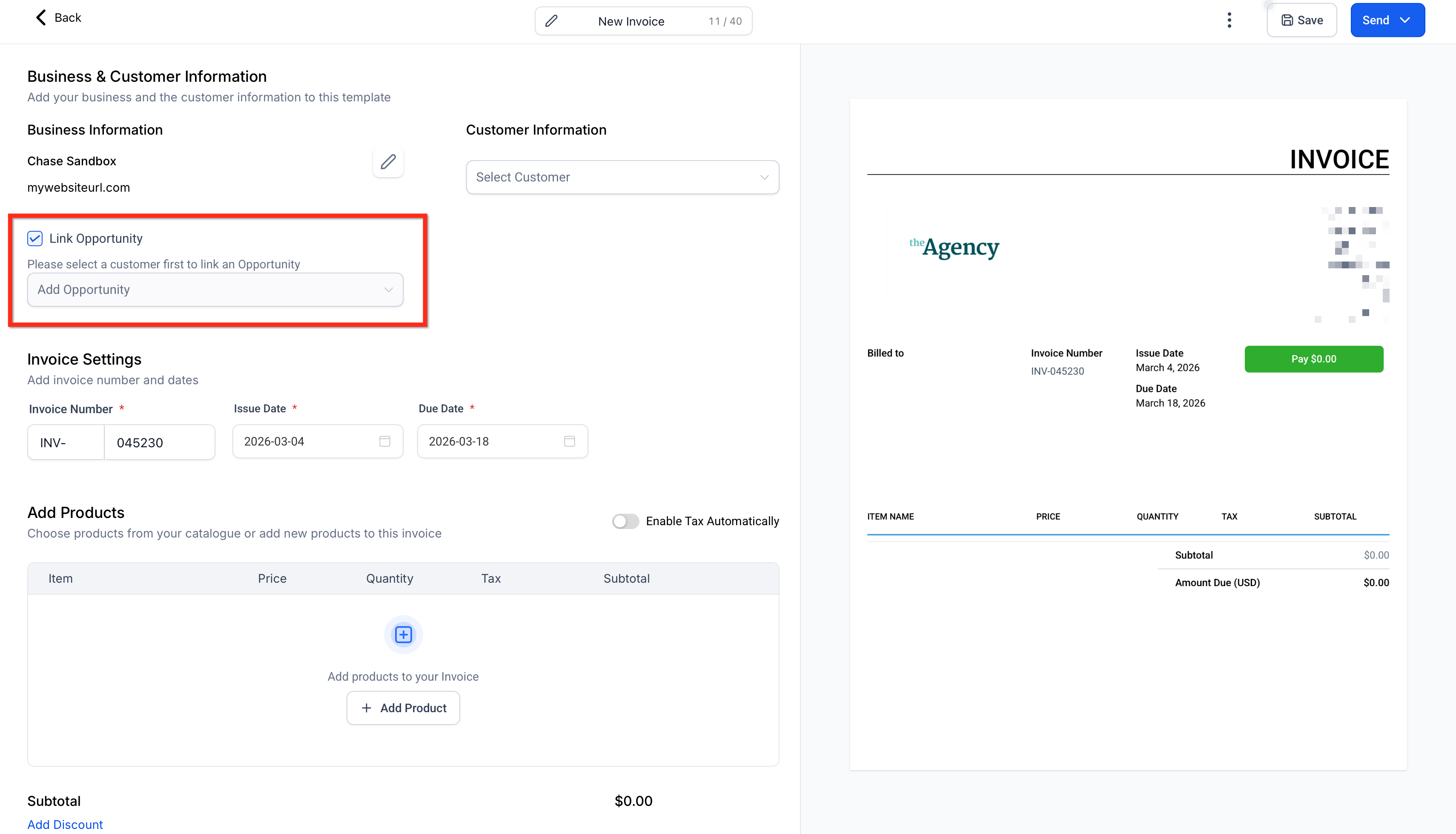
- Choose the contact that will receive the document.
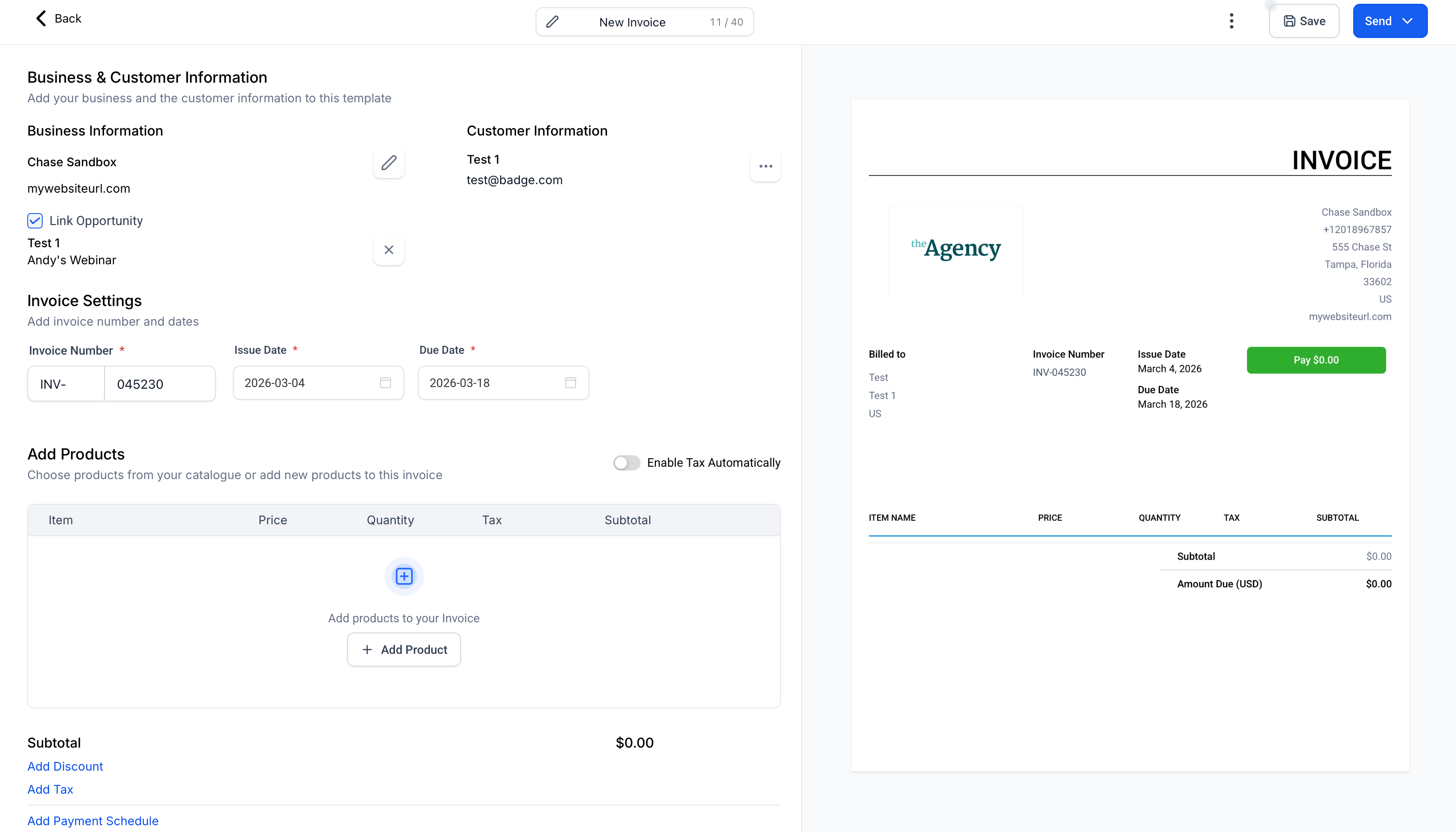
- In the editor, select the appropriate opportunity under the Link Opportunity field.
Automatically generate and link documents through a workflow
- Open Workflows and start a new workflow or edit an existing one.
- Add an opportunity based trigger such as a stage change.
- Insert a Send Invoice or Send Estimate action.
- Save the workflow; when it runs, the system creates, sends, and links the document to the opportunity.
05What it looks like in HighLevel
06Things to know before you rely on it
- Unlinking a finalized invoice or estimate from an opportunity is not supported.
- The Find Opportunity action selects an opportunity for later steps but does not create a link to the document.
07How it connects to the rest of HighLevel
- Learn how to create and edit invoices before linking them. Create invoices
- Read common payment scenarios to see where linking fits best. Payment use cases
- Set up recurring invoices that can also be linked to opportunities. Recurring invoices
Michael's take

The answer is yes. When invoices and estimates live alongside the opportunity, you get a clear financial trail without hunting through separate records.
If I were setting this up, I’d start by mapping my sales stages to billing milestones and then let a simple workflow do the heavy lifting. Test a single stage first, watch the document appear in the Opportunity view.