
01Who this is for
- Account managers can keep client billing aligned with contract changes without issuing new invoices.
- Subscription based businesses can adjust service periods or pricing tiers as customers upgrade or downgrade.
- Finance teams can ensure invoice line items match current offerings, reducing manual re entry.
02Recurring invoices, explained
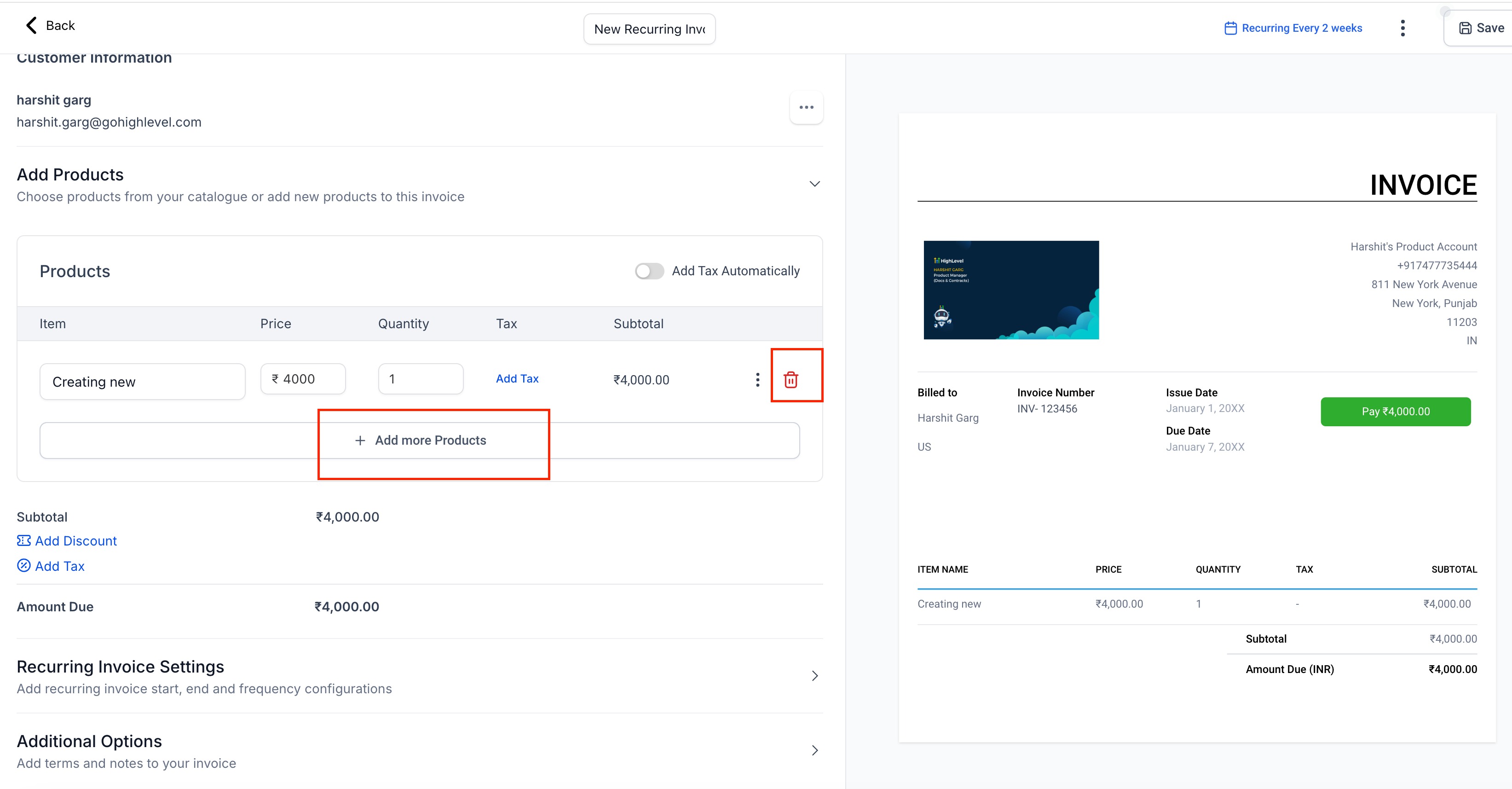
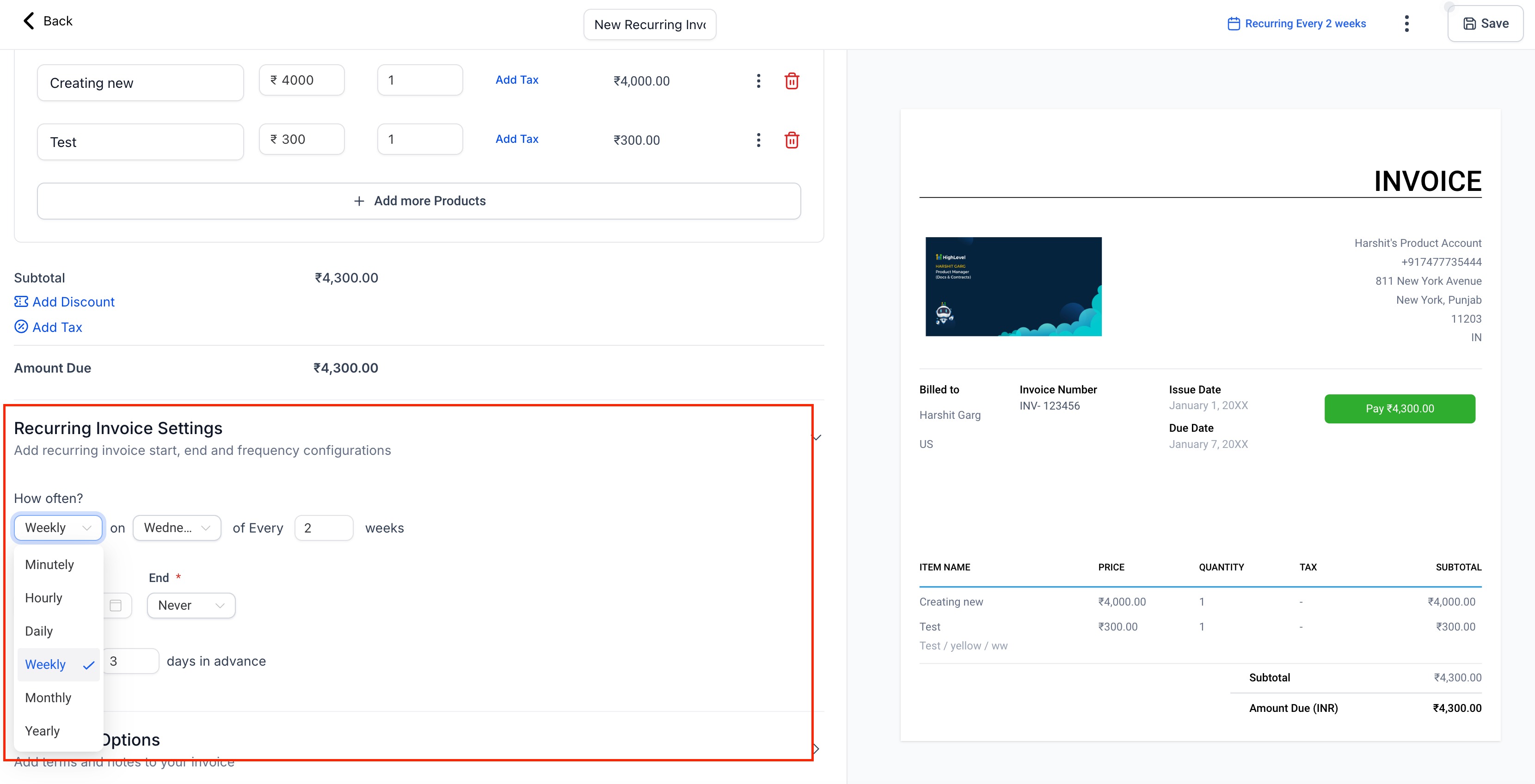
The feature lets users alter an existing recurring invoice. Frequency can be switched between options such as weekly, monthly, or annually. Start and end dates are editable, allowing the schedule to reflect new service windows or contract terms. Products and services listed on the invoice can be added, removed, or changed.
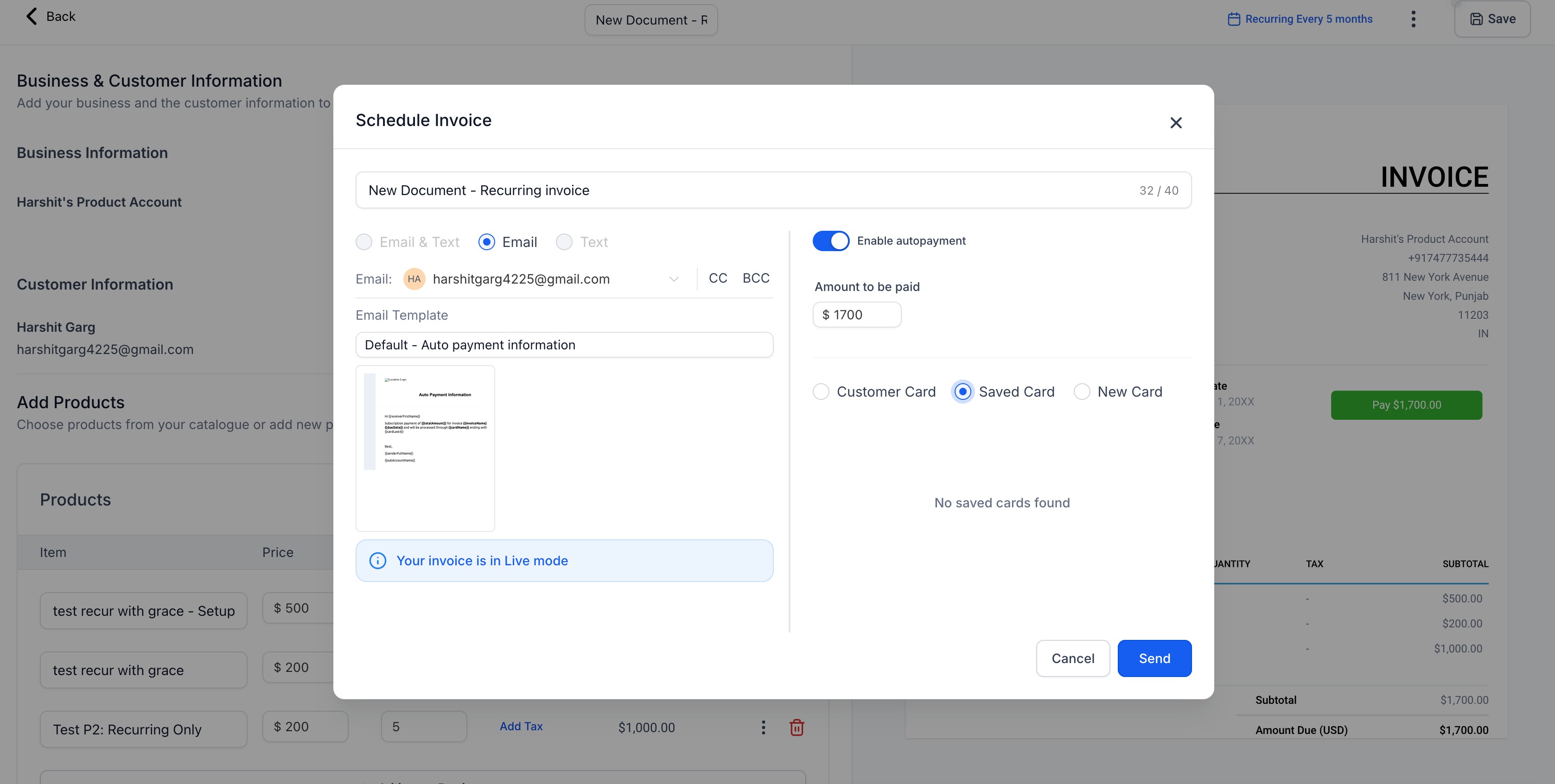
When auto payment is turned on for the edited invoice, the platform automatically generates an email alert. The content of that alert can be personalized through the invoice notification settings, letting businesses match the tone and branding of their communications. All changes are saved to the original invoice record, preserving its history.
The editing tools are located in the Invoicing area of the HighLevel dashboard. Users select Recurring Invoices, choose the specific invoice, make the desired changes, and then save. Email notification customization is found under Invoice Settings in the customer notifications section.
03How businesses use recurring invoices
- Digital marketing agency. The agency updates the billing frequency of a client’s recurring invoice from monthly to quarterly when the client signs a longer term contract. It also tweaks the listed services to add new campaign packages.
- Fitness studio. The studio changes the start date of a member’s recurring invoice to match a delayed membership start, and removes a dropped class from the line items. An auto payment email is edited to reflect the new schedule.
- Software as a Service provider. The SaaS company revises the end date of a subscription invoice when a client extends their agreement, updates the product tier, and personalizes the auto payment change notification to include branding.
04How to set up and use recurring invoices in HighLevel
Edit a recurring invoice
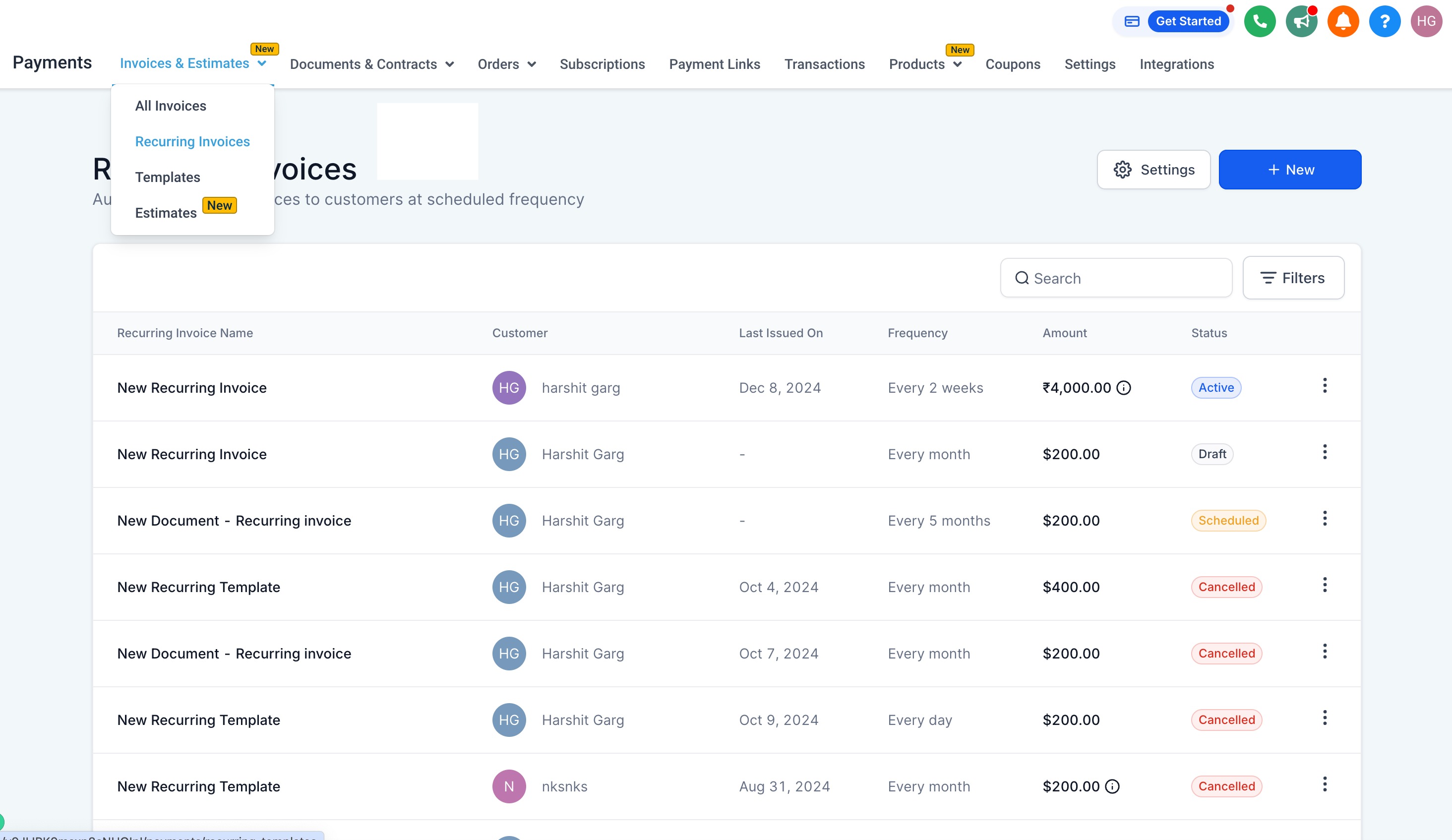
- Open the Invoicing section in the HighLevel dashboard and click Recurring Invoices.
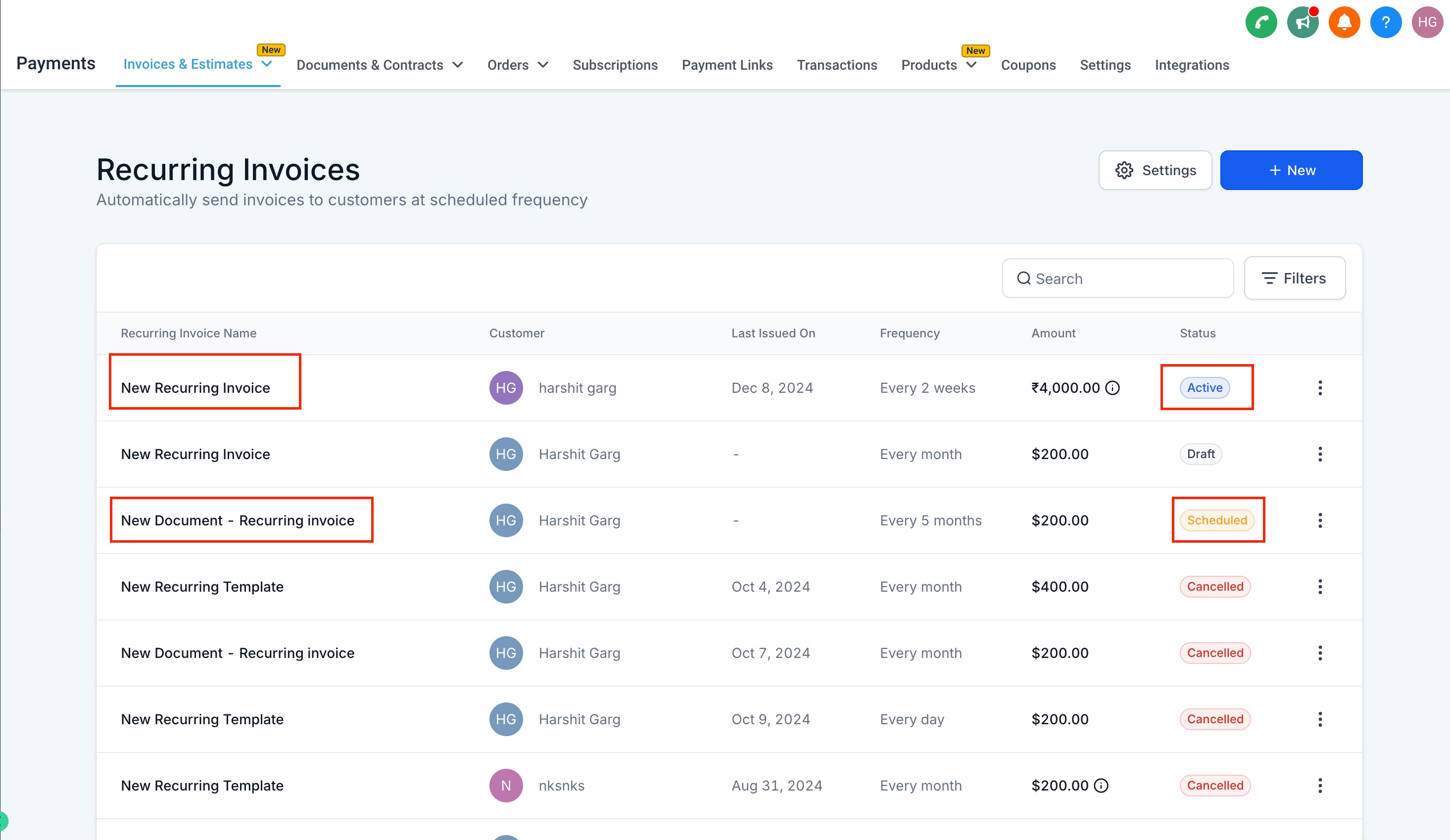
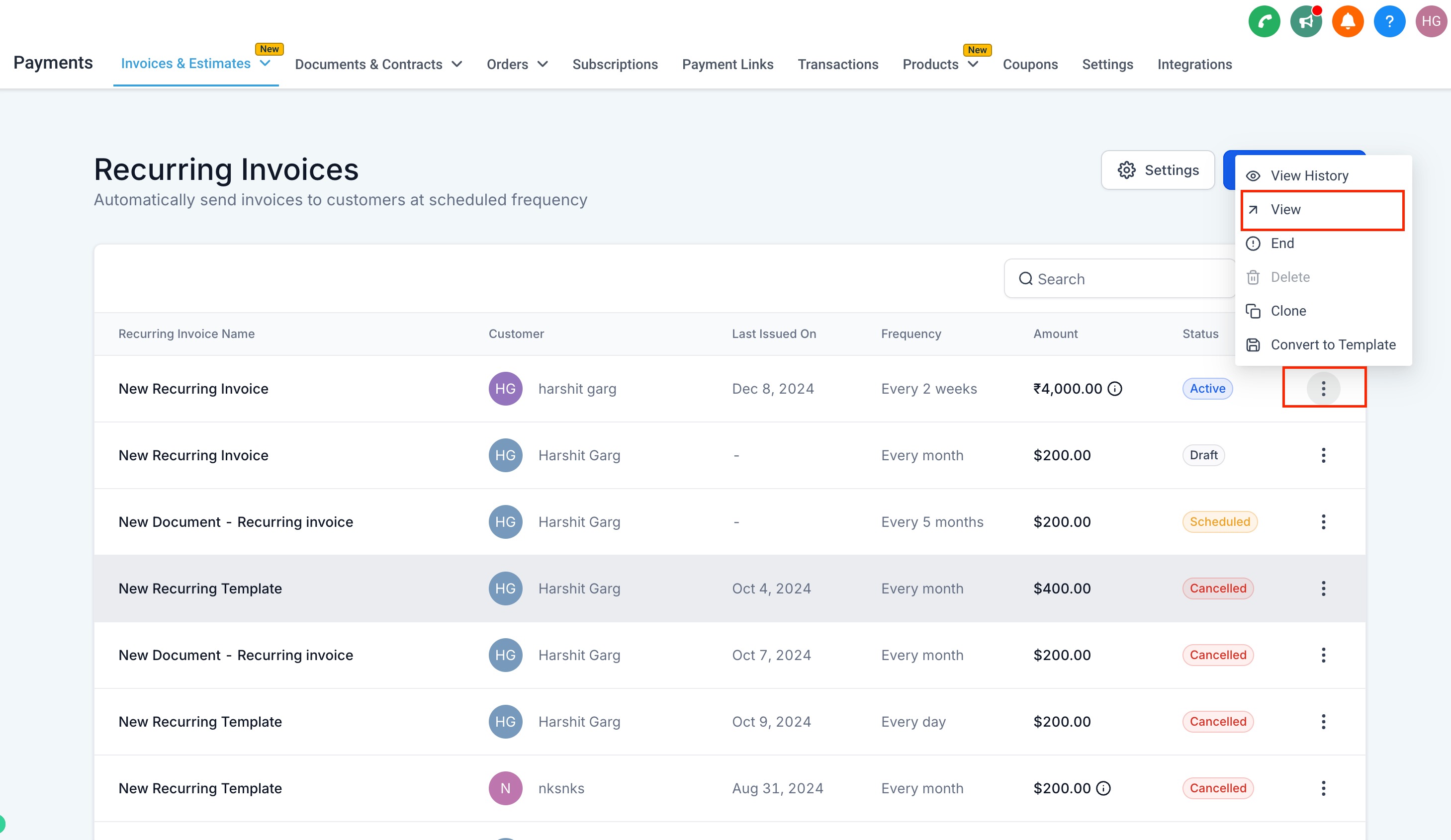
- Select the active or scheduled recurring invoice you want to modify.
- Adjust the frequency, start/end dates, or the products/services listed as needed.
- Click Save to store the changes to the invoice schedule.
- Go to Invoice Settings, open customer notifications, and edit the Auto payment amount changed notification to customize subject and message.
05What it looks like in HighLevel
06Settings that matter
- Invoice Settings. Controls where notification options for invoices are managed, including email templates.
- Auto payment amount changed notification. Defines the email content sent when an edited recurring invoice has auto payment enabled.
07How it connects to the rest of HighLevel
- Set up recurring invoices in HighLevel Recurring invoice setup
- View HighLevel pricing and plan options Pricing
Michael's take

Changing an invoice after it’s been sent can feel risky. A slip in dates or pricing could confuse a client, so double check every field before you hit save.
The new editing tools give you flexibility without having to rebuild an entire invoice series.