
01Who this is for
- Online retailers can combine several states into a single zone, simplifying tax rate management across regional markets.
- Service based businesses that charge taxes on appointments can assign a zone to cover multiple provinces, avoiding separate tax entries.
- Digital product sellers can use zones to apply the same manual tax to customers in several countries without creating individual tax rules.
02Manual tax zones, explained
Manual Tax Zones are geographic groups that determine which manual tax rates apply based on a customer’s country or state. Each zone can contain chosen countries or states and hold up to ten manual tax rates. A location can belong to only one zone at a time.
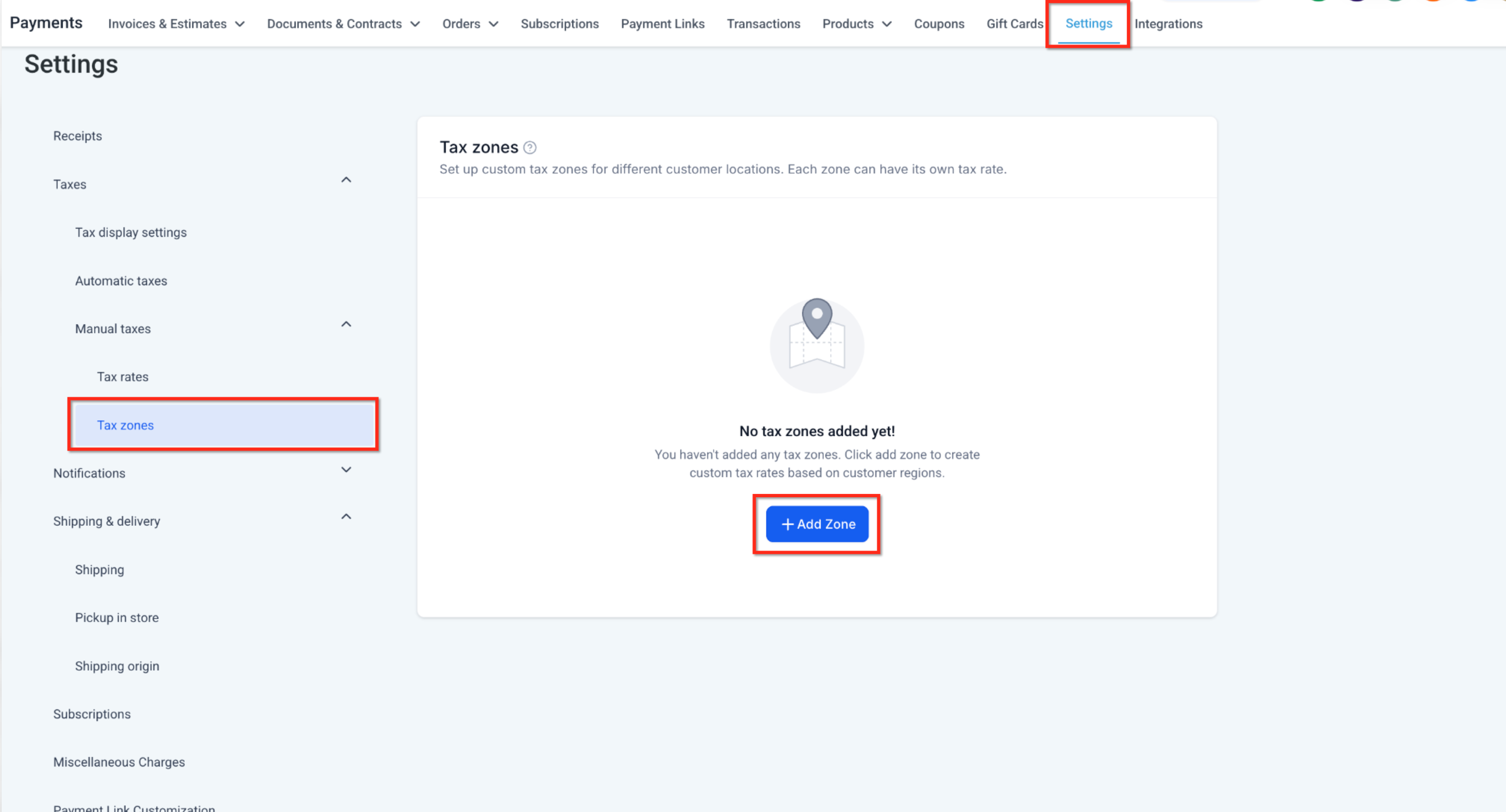
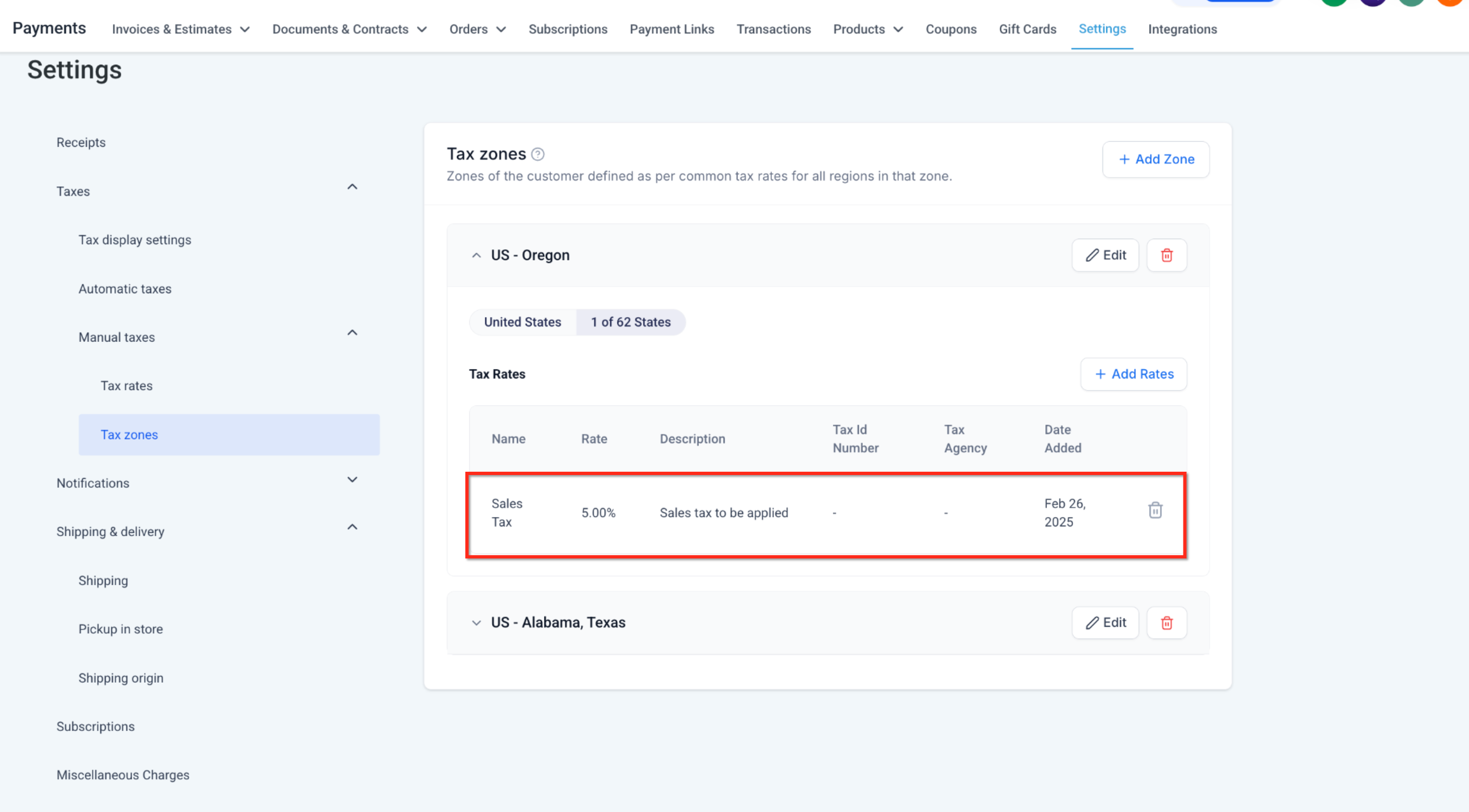
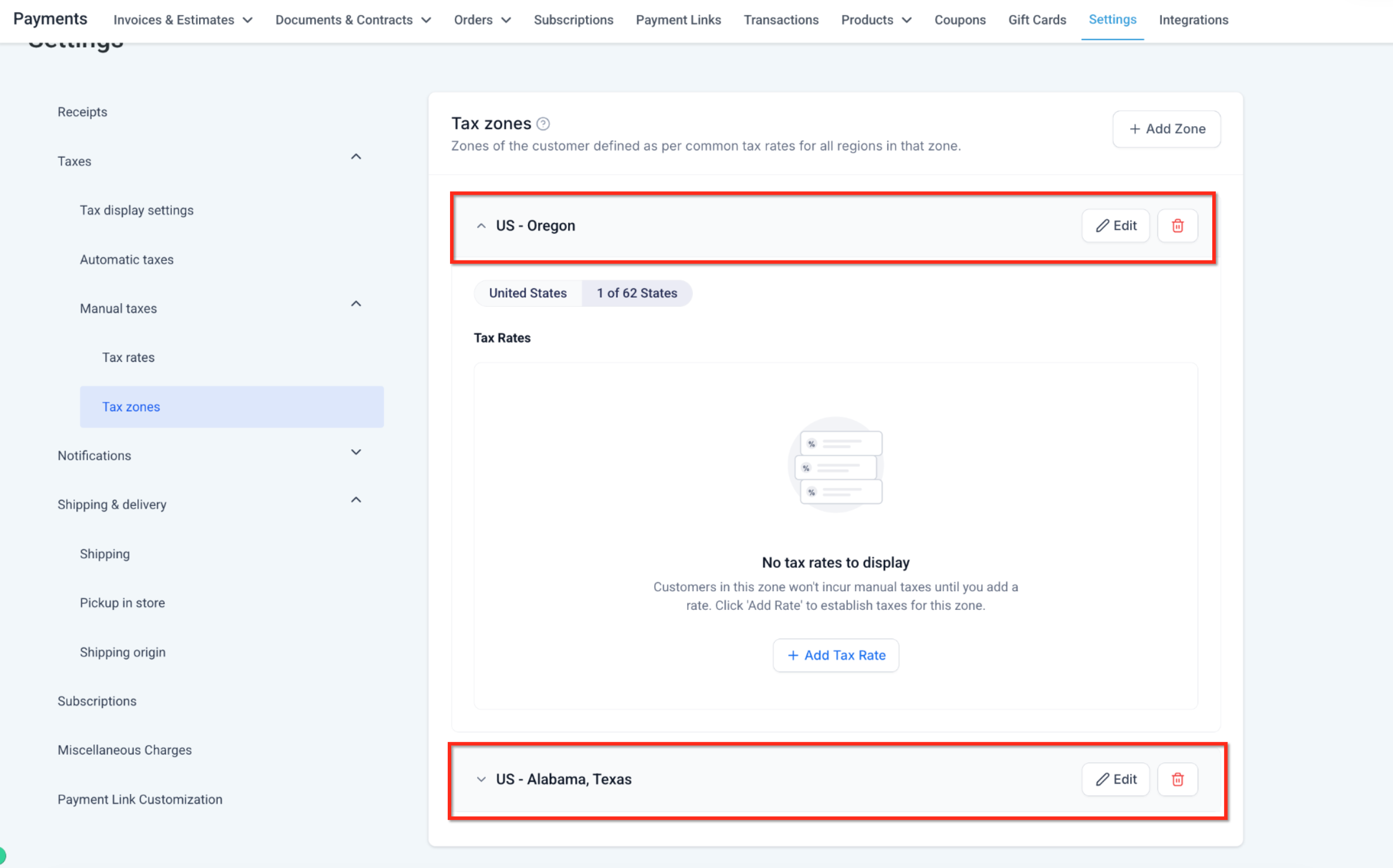
The zones are found under Payments > Settings > Taxes > Manual taxes > Tax zones. When a customer’s address matches a zone, the platform checks that the same manual tax rate is attached to both the zone and the product before applying it. If Automatic Taxes are available they take priority; otherwise the zone rules act as a fallback.
03How businesses use manual tax zones
- Clothing ecommerce store. Create a zone that includes all states where the store ships, attach the sales tax rate to that zone, and then link the same rate to each product. Customers in those states are charged the manual tax when Automatic Taxes are unavailable.
- Online software subscription provider. Define a zone for the countries where the service is taxable, add the subscription tax rate to the zone, and attach that rate to each subscription product. The tax applies only when the subscriber’s address falls inside the selected countries.
- Local home service company. Group the neighboring counties into one zone, assign the local service tax to the zone, and attach the tax to each service offering. When a client’s address matches the zone, the manual tax is applied if Automatic Taxes are disabled.
04The numbers and rules that matter
- Each zone can contain up to 10 manual tax rates.
05Before you start
- Manual tax rates must be created before they can be attached to a zone.
- Products that need to use a manual tax must have the matching rate attached in the product’s tax settings.
06How to set up and use manual tax zones in HighLevel
Create a tax zone
- Open Payments > Settings.
- Expand Taxes > Manual taxes.
- Select Tax zones.
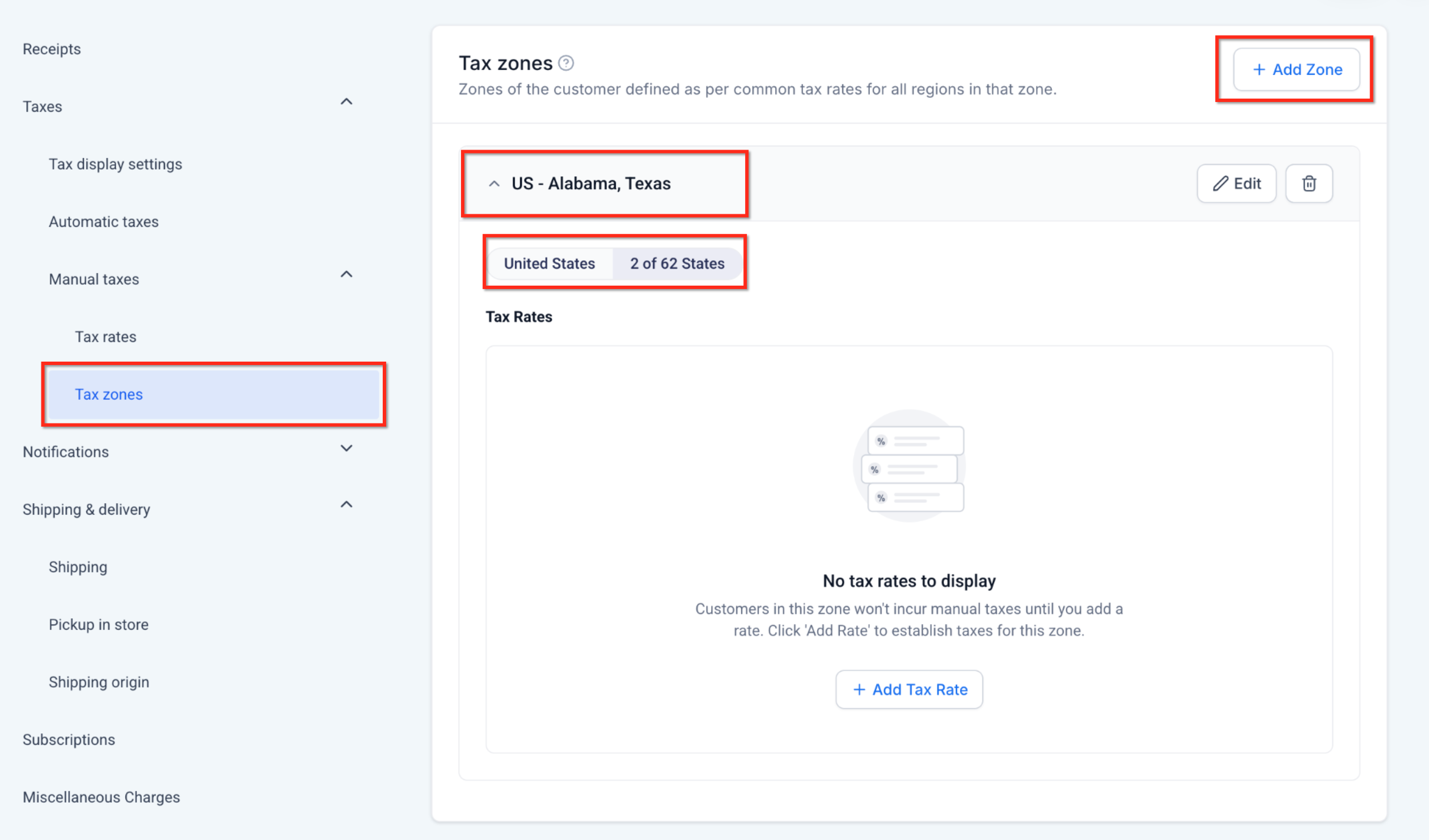
- Click Add Zone.
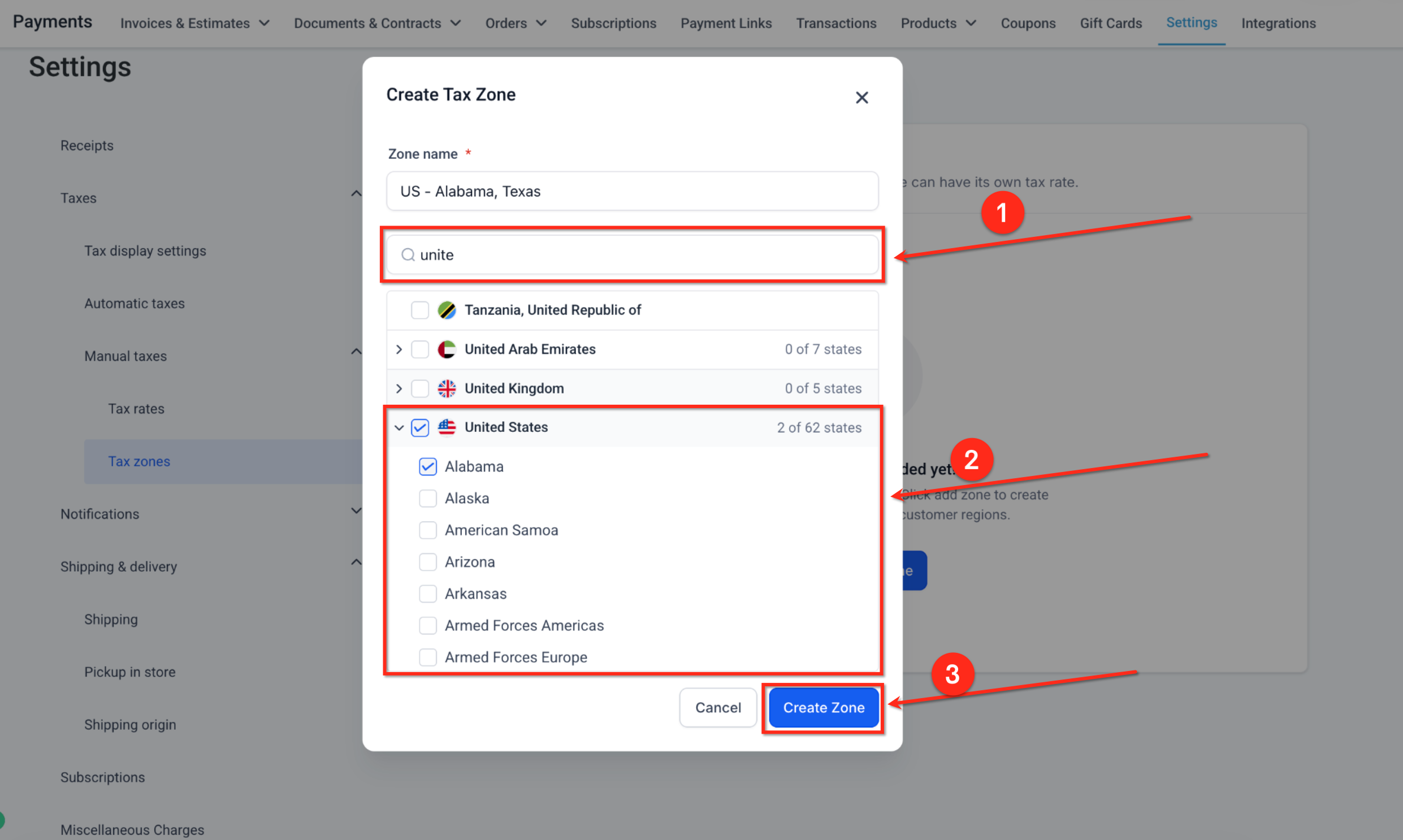
- Enter a zone name, such as US: Alabama, Texas.
- Search for a country.
- Expand the country and select the desired states or regions.
- Click Create Zone.
Add tax rates to a zone
- Expand the zone you want to modify.
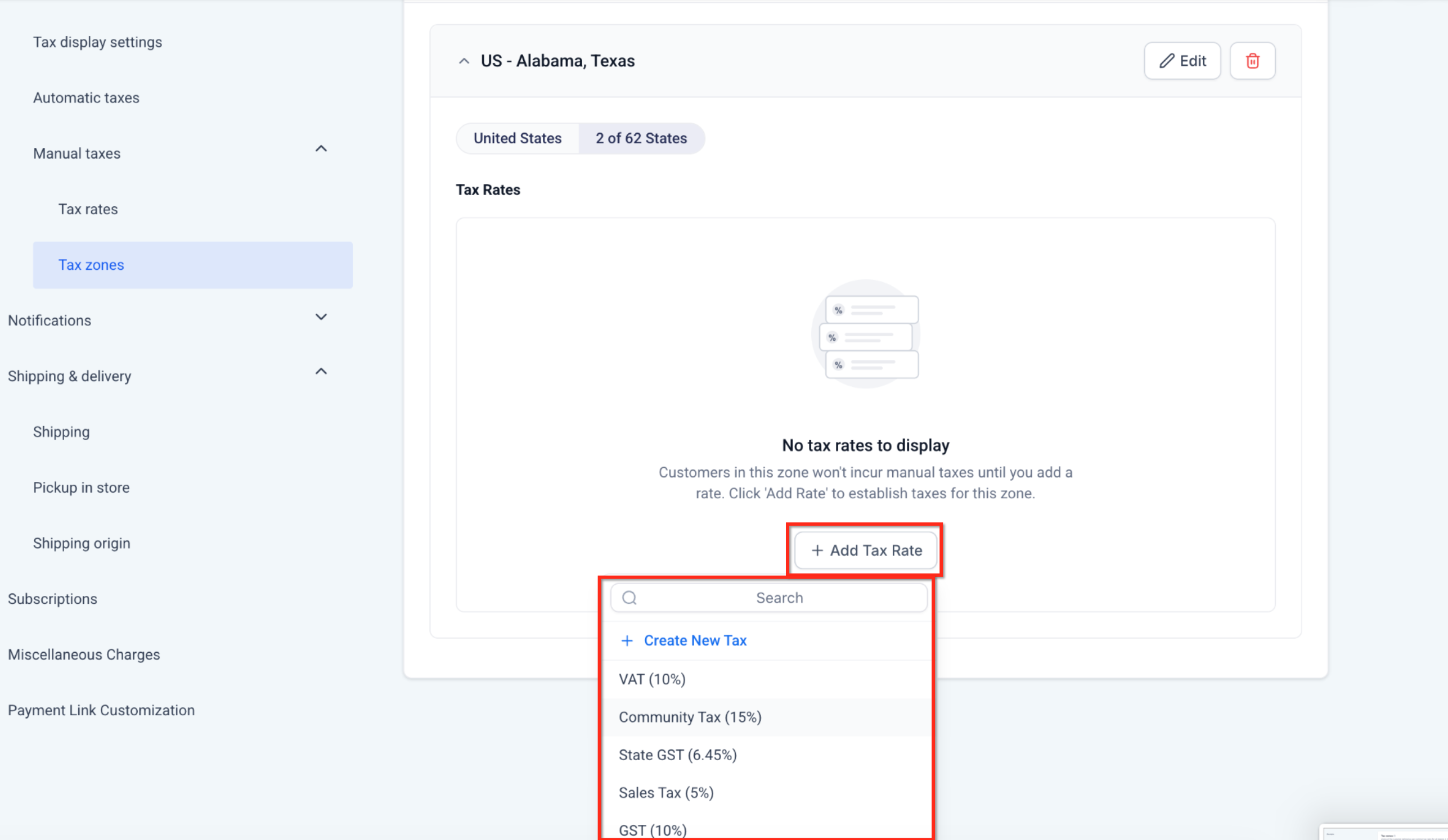
- Click Add Tax Rate.
- Choose an existing manual tax rate or create a new one.
- Attach the selected rate to the zone.
- Repeat until up to ten rates are attached.
Edit a tax zone
- Locate the zone you want to change.
- Click Edit.
- Update the zone name or adjust the selected locations.
- Save the changes.
Delete a tax zone
- Open Tax zones.
- Find the zone you wish to remove.
- Click the Delete icon for that zone.
- Review the confirmation message.
- Select Yes, Delete to confirm removal.
07What it looks like in HighLevel
08Settings that matter
- Zone name. Defines the label for the geographic group and is used to identify the zone when assigning tax rates.
09Things to know before you rely on it
- A zone can hold a maximum of ten manual tax rates.
- Each country or state may belong to only one Manual Tax Zone at any time.
- Calendars checkout does not support Manual Tax Zones at launch; support is planned for a future release.
- Automatic Taxes override Manual Tax Zones whenever they are available for the customer’s location.
- The behavior of selecting an entire country when individual states are already assigned to other zones needs verification.
- Deleting a zone removes its geographic tax configuration, and the exact impact on existing product rate assignments requires verification.
10How it connects to the rest of HighLevel
- Learn how to create and manage taxes overall HighLevel tax settings overview
- See how sales receipts work with manual taxes Automatic sales receipts
- Review pricing and plan options for tax features HighLevel pricing and plans
Michael's take

Manual tax zones can quickly become a source of confusion if you overlook the one zone per location rule. Assigning a state to two zones or forgetting to attach the rate to both the product and the zone will leave customers either overtaxed or undertaxed.
When set up correctly, the feature lets you bundle several states or countries under a single name and reuse the same tax rates across products. It’s a tidy way to keep regional tax logic in one place and provides a reliable fallback when automatic calculations aren’t available.