
01Who this is for
- Consulting firms that charge an onboarding fee plus a monthly retainer, because they can bill both items on the first invoice.
- Digital marketing agencies that need to collect a campaign start fee together with ongoing service fees.
- SaaS platforms that require an activation charge before the regular subscription billing begins.
02Set up fees on recurring invoices, explained
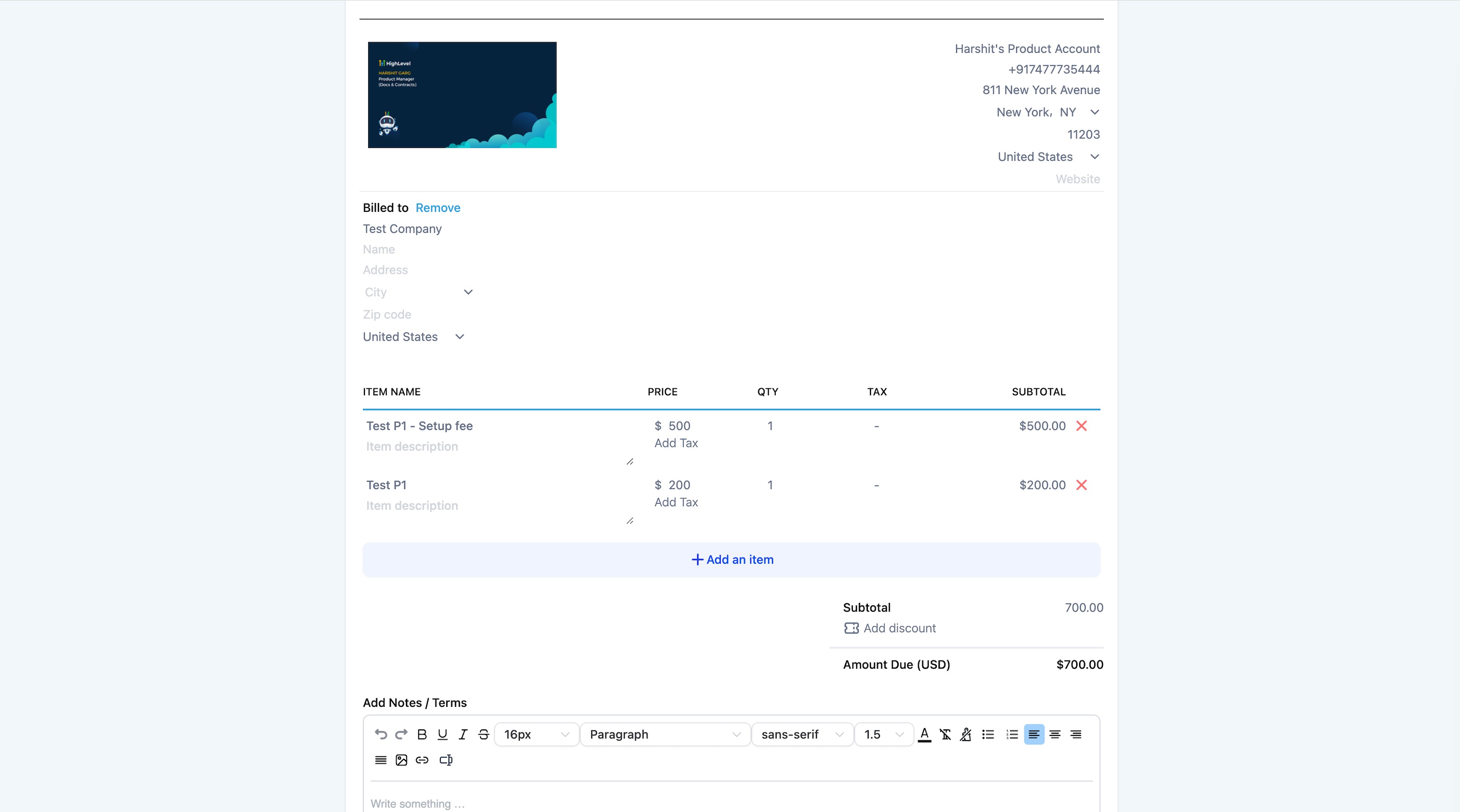
The feature allows a product to carry a one time setup charge alongside its recurring price. When the product is added to a recurring invoice, the invoice shows two separate line items, one marked with the suffix “Setup Fee”. After the first billing cycle, only the recurring line remains for each auto generated invoice.
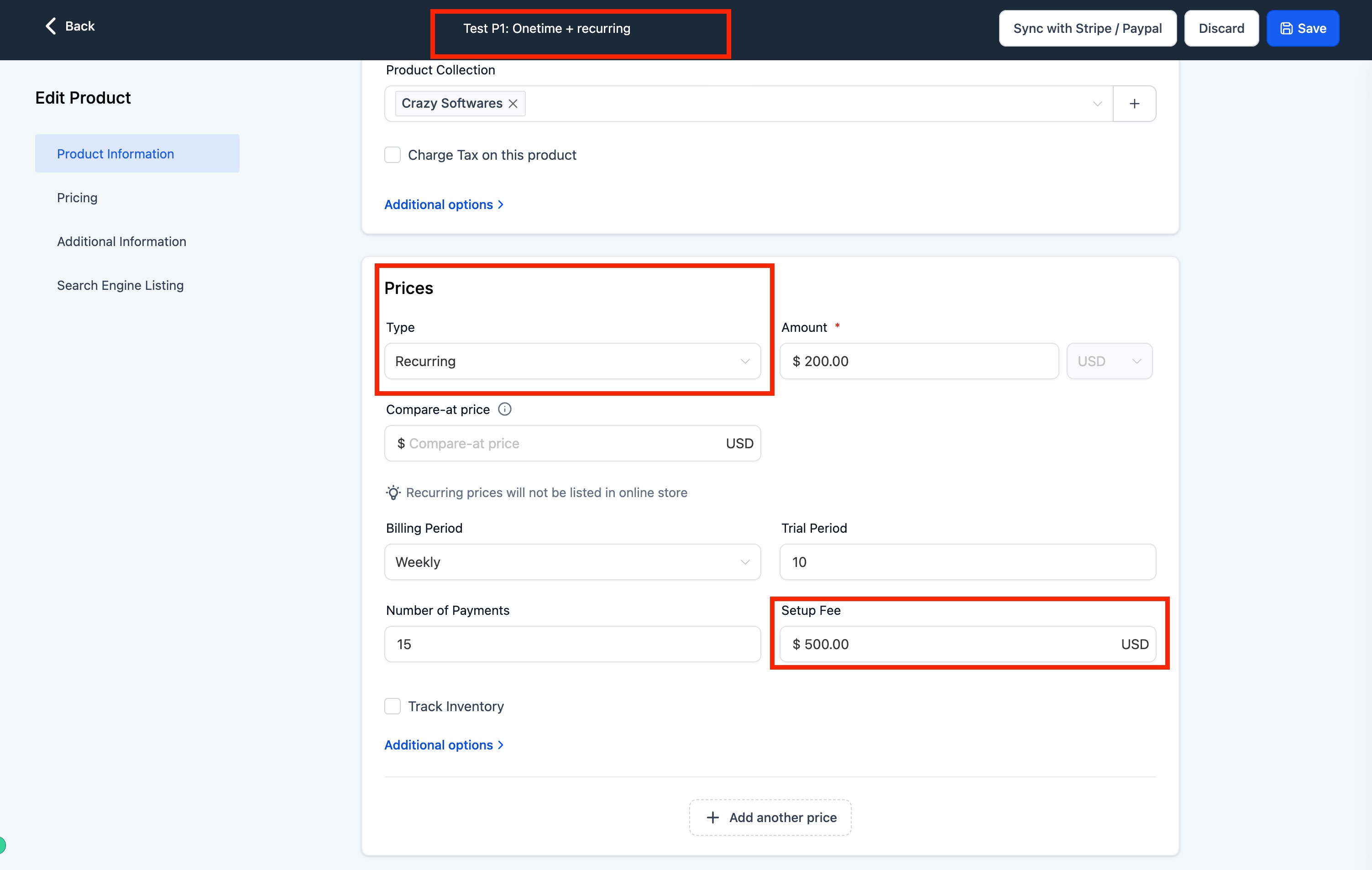
The product is created in the Product section where the price type is set to recurring and a setup fee amount is entered. The recurring invoice is built from the Invoices section, and the product is added just like any other line item. The platform automatically adds the second line for the setup fee on the initial invoice.
03How businesses use setup fees on recurring invoices
- Consulting firm. Create a consulting service product, set the price type to recurring, and add a setup fee for new client onboarding. Add this product to the first recurring invoice to bill the client for both the onboarding fee and the monthly charge in one invoice.
- Digital marketing agency. Define a campaign package as a recurring product and include a one time setup fee for initial ad creation. When the agency generates a recurring invoice, the system shows the setup fee line and the monthly management fee together.
- SaaS platform. Set up a subscription product with a recurring price and a setup fee for account activation. Adding the product to the recurring invoice creates two line items, and future invoices automatically drop the activation fee.
04How to set up and use setup fees on recurring invoices in HighLevel
Add a setup fee to a recurring product and invoice it
- Navigate to the Product section and create a new product, choosing price type as recurring and entering a setup fee amount.
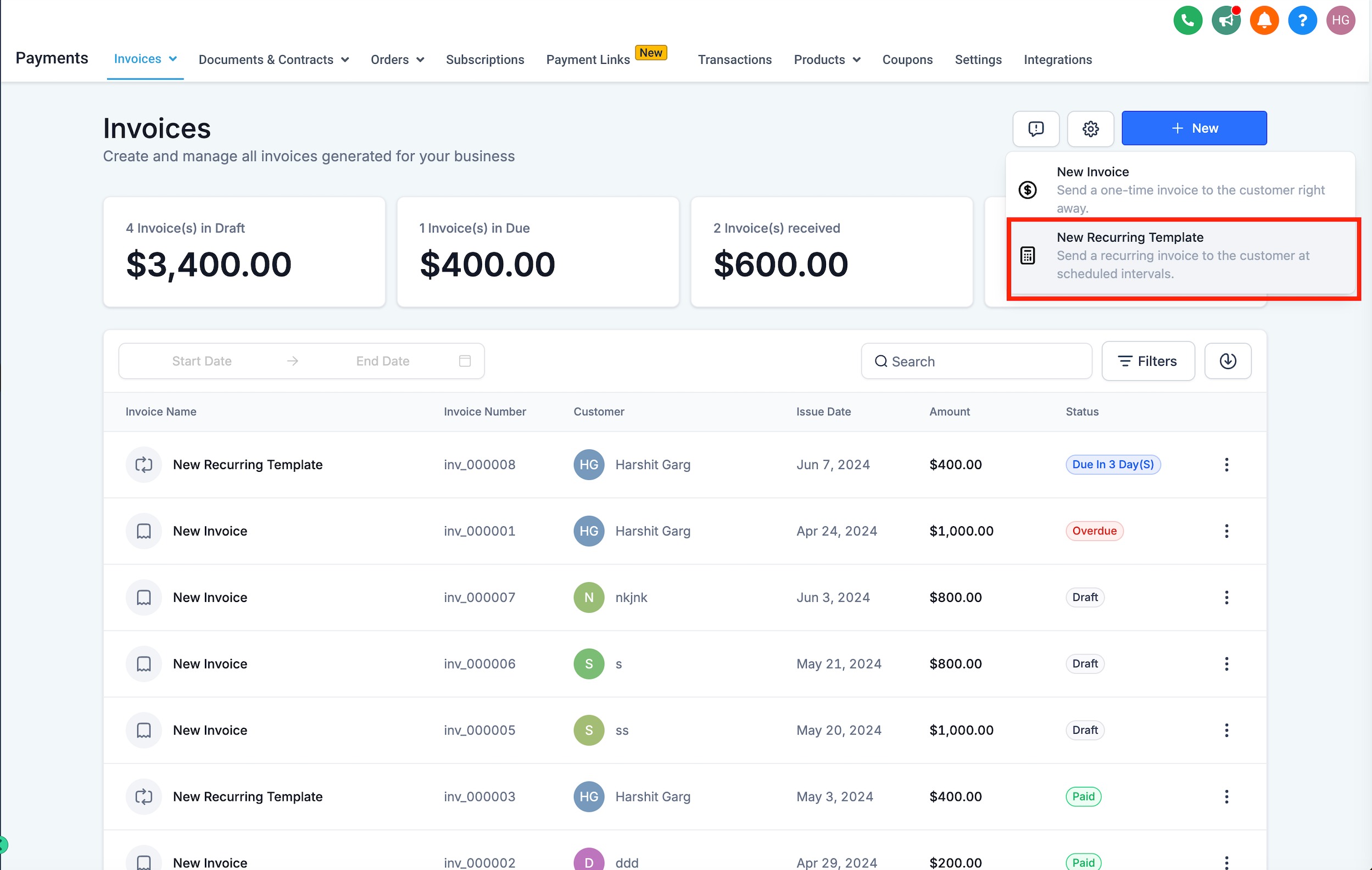
- Open the Invoices section and start a new recurring invoice.
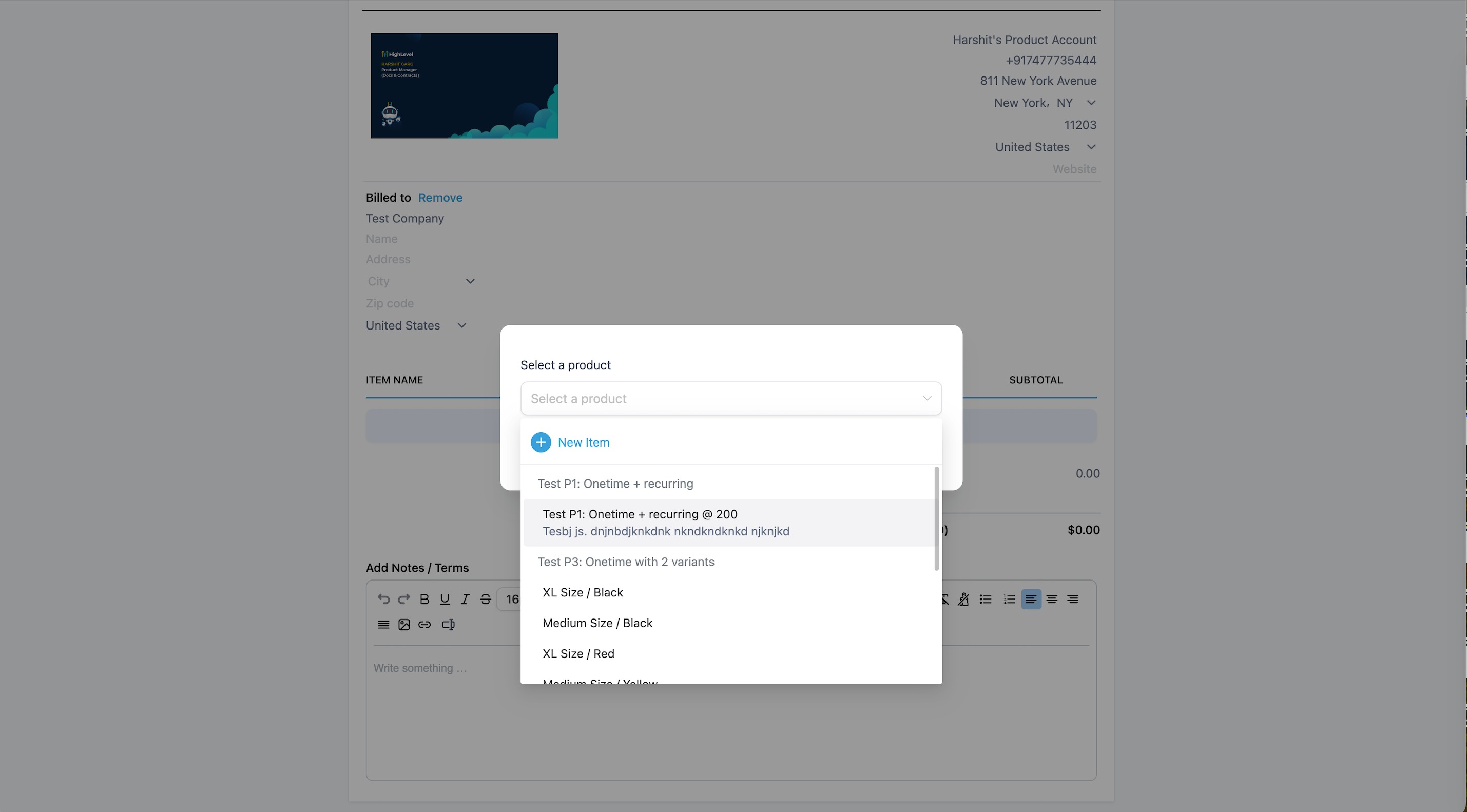
- Select the product that includes the setup fee and add it to the invoice.
- Verify that the invoice displays two line items, with the one for the setup fee labeled with the suffix “Setup Fee”.
- For all subsequent auto generated invoices, confirm that only the recurring price line appears.
05What it looks like in HighLevel
06Settings that matter
- price type. Determines whether a product’s price repeats on a schedule; set to recurring for this feature.
- setup fee. Specifies the one time amount that is charged the first time the product appears on an invoice.
07Things to know before you rely on it
- The first invoice includes both the setup fee and recurring amount; subsequent invoices only contain the recurring charge.
- The feature is newly introduced and replaces the need for separate invoices for setup and recurring fees.
08How it connects to the rest of HighLevel
- How to set up recurring invoices in HighLevel Recurring invoice setup
- HighLevel invoice workflow: create, edit, tax, discount, send Invoice workflow
- HighLevel pricing and plans Pricing
Michael's take

Don’t forget to set the product’s price type to recurring; otherwise the setup fee won’t attach correctly.