
01Who this is for
- Small business owners who need flexible billing options for their clients and want to collect payments over time.
- Subscription service managers who want to break a subscription fee into agreed installments and track each payment.
- Freelancers who wish to offer clients a payment schedule rather than a single large invoice.
02Payment plans, explained
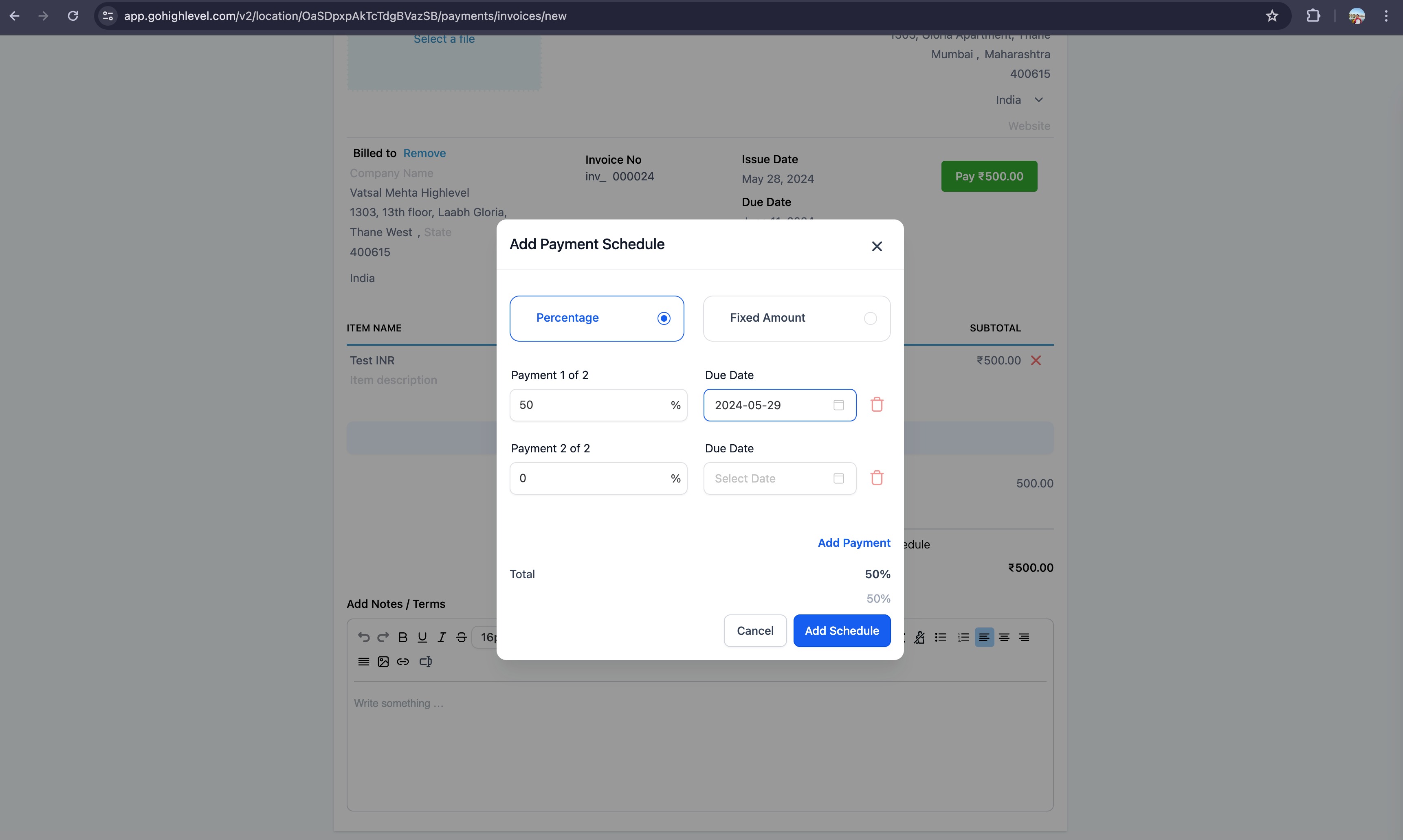
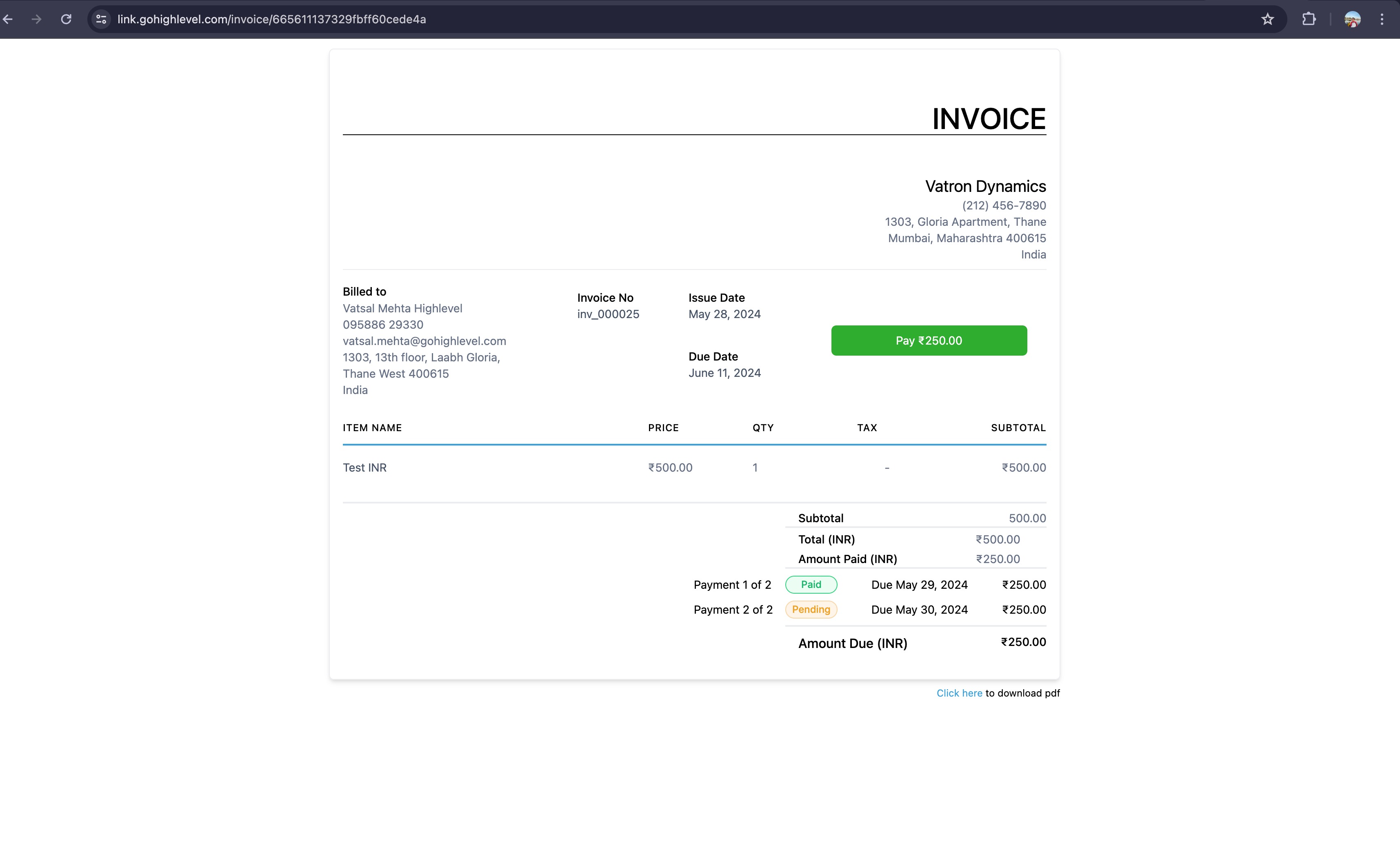
The payment plan feature allows you to divide a HighLevel invoice into several installments. You can define each installment as a percentage of the total amount or as a fixed amount. Every installment receives its own due date and payment status, and the platform sends reminders on the due date if a payment is still pending.
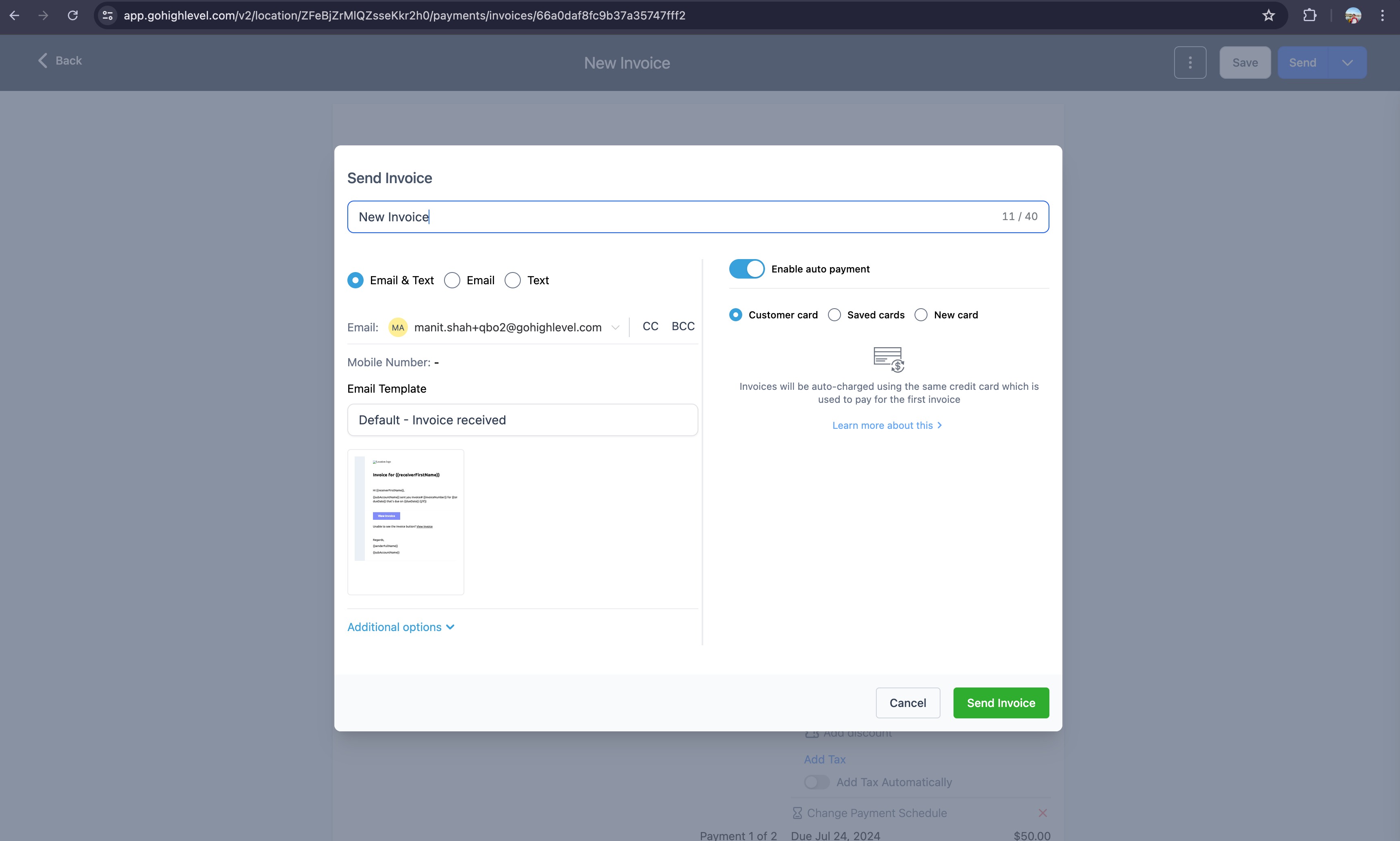
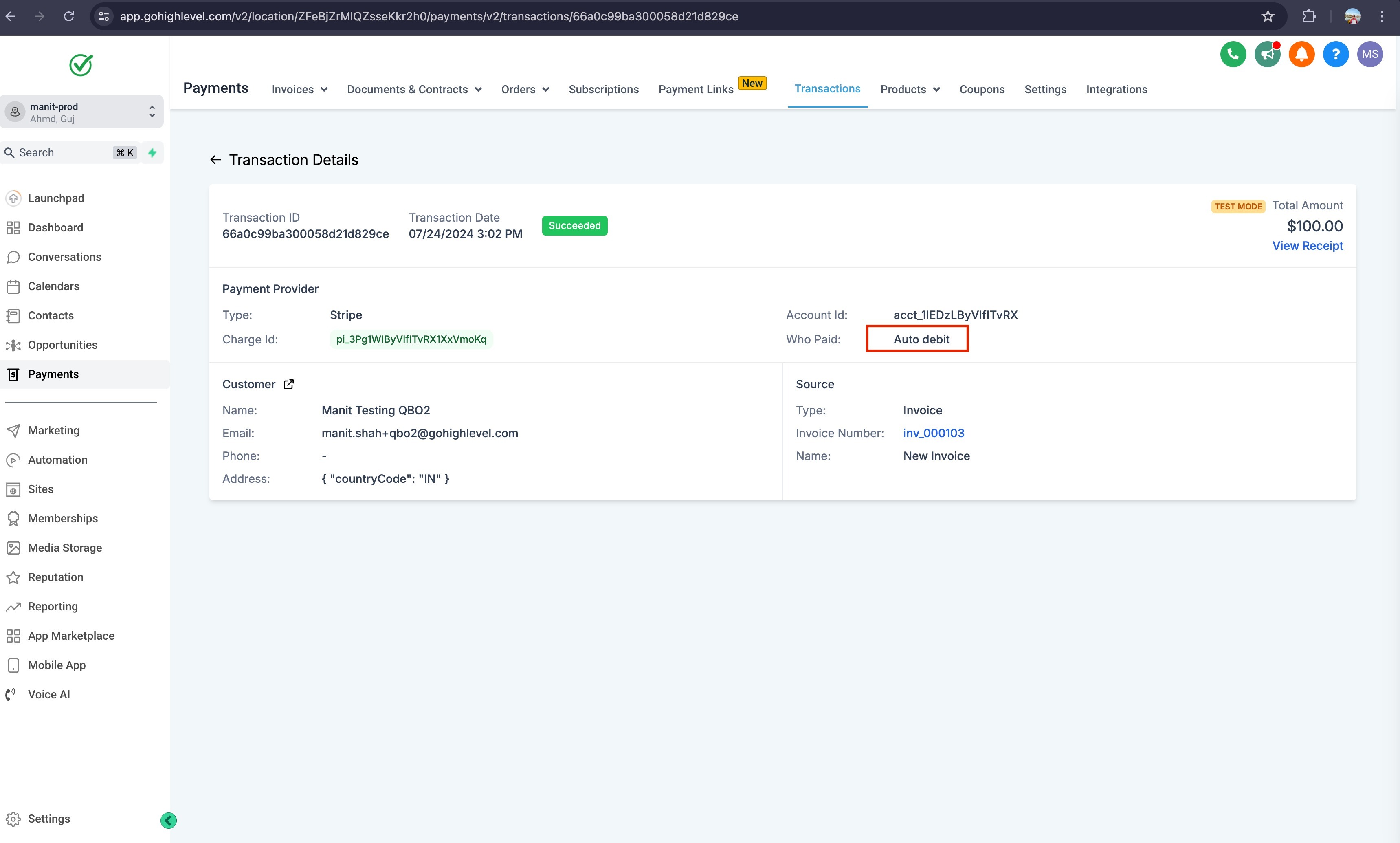
When you send an invoice that contains a payment schedule, you can also turn on auto pay. Once auto pay is enabled, the system will automatically charge the selected payment method on each scheduled due date until the invoice is fully paid. Auto payments can use the card used for the first payment, a previously saved card, or a new card entered at send time.
03How businesses use payment plans
- Dental practice. The practice creates an invoice for a patient’s treatment plan and adds a payment schedule split by percentage. The patient receives the invoice, sees the installments, and can pay each part on its due date. The practice can enable auto pay so the patient’s card is charged automatically for each installment.
- Online course provider. The provider builds a course enrollment invoice and sets fixed amount payment splits. Learners see the schedule on the invoice and can choose to pay one or more installments at a time. Auto pay can be turned on to charge the learner’s card on each due date without further action.
- Home renovation contractor. The contractor drafts a project invoice, adds a payment plan based on percentages of total project cost, and sends it to the homeowner. The homeowner can view the plan, pay installments as they become due, and the contractor can enable auto pay to have the homeowner’s saved card billed automatically.
04How to set up and use payment plans in HighLevel
Add payment schedule to an invoice
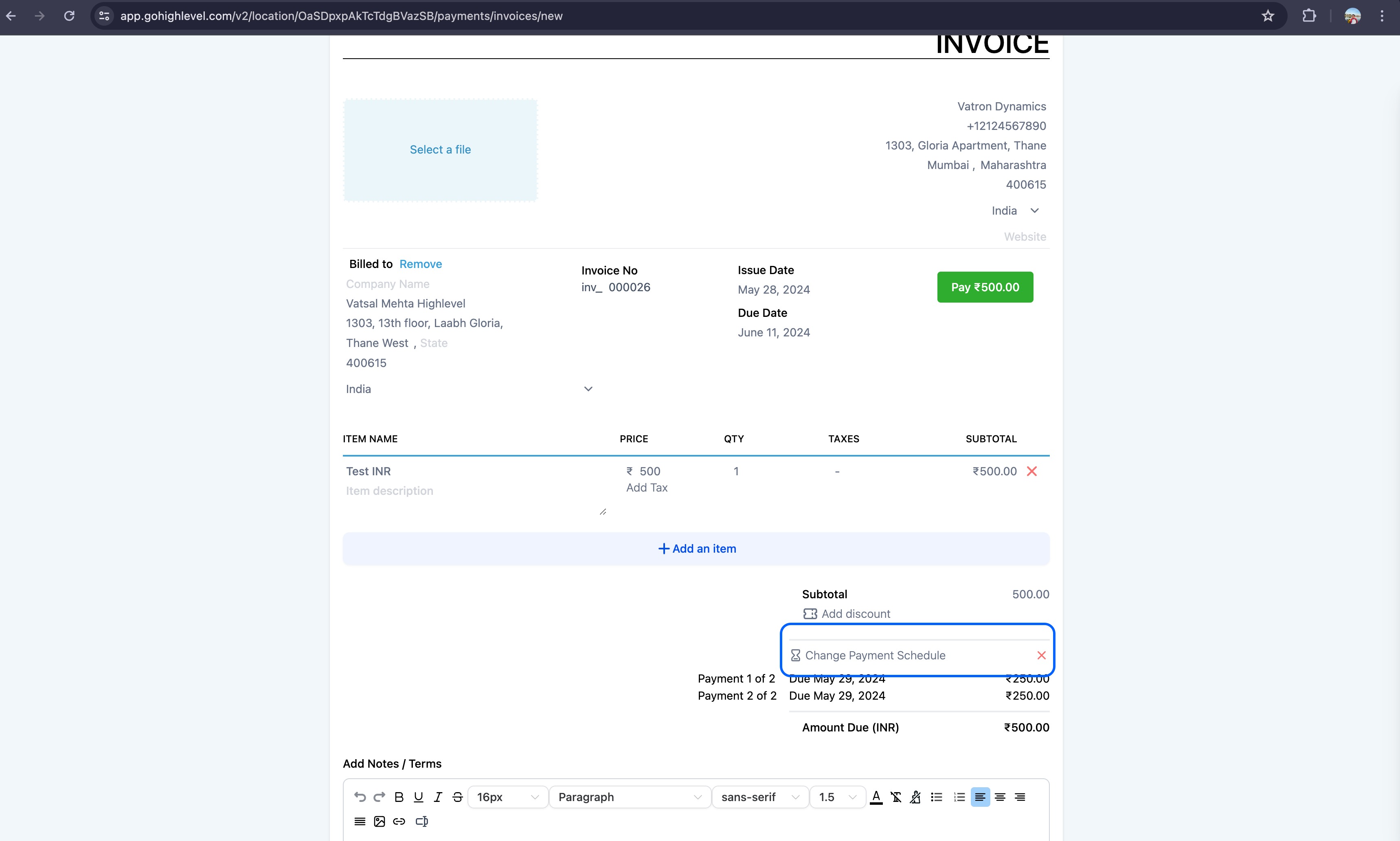
- Open the invoice and click Add payment schedule.
- Enter the payment terms by choosing a percentage or a fixed amount for each installment.
- Send the invoice so the customer can view the schedule on the invoice.
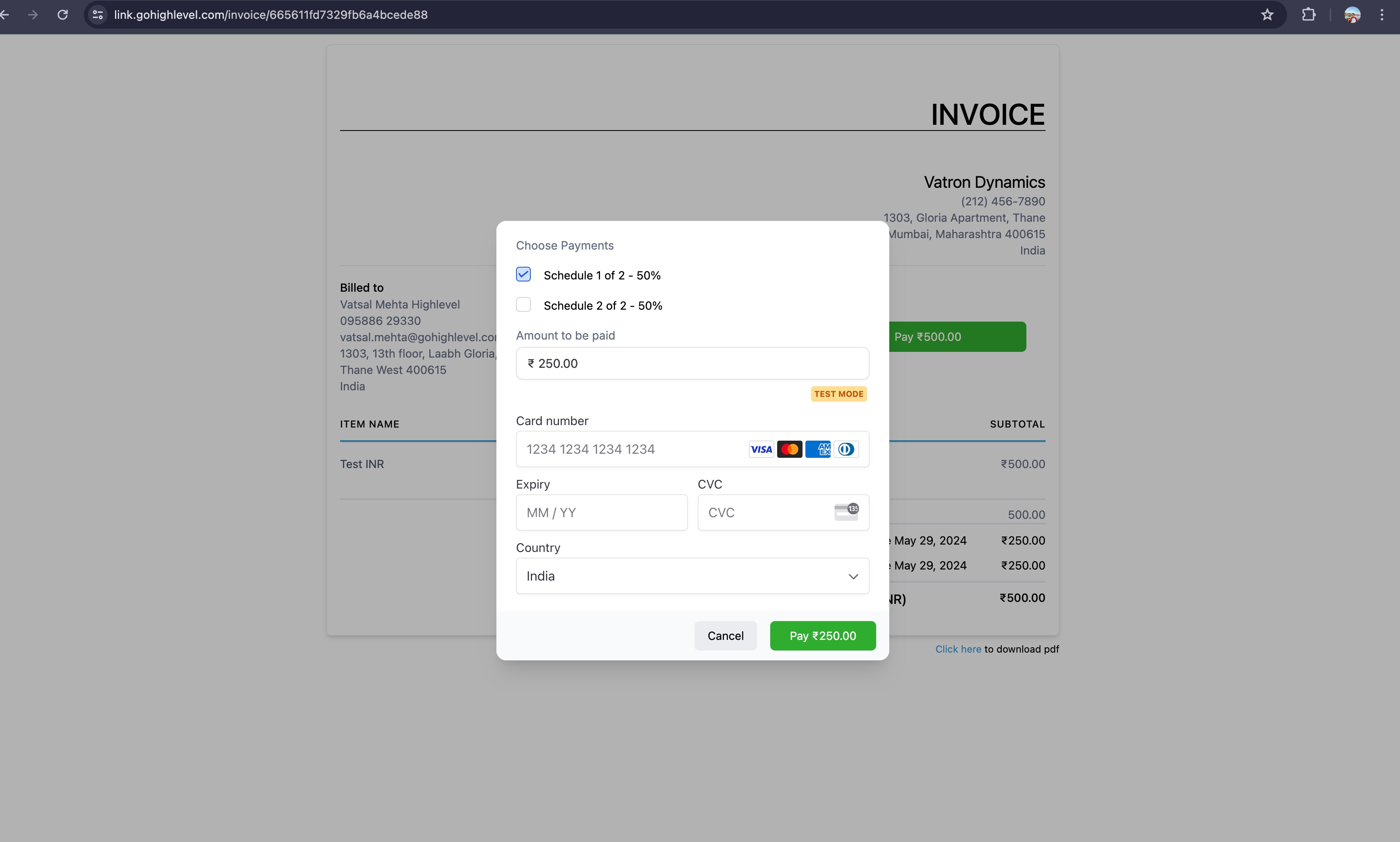
- When the customer pays, they may select the scheduled amount or add other schedules by checking the appropriate box.
Enable auto payments on a single invoice with a payment plan
- Click Send on the invoice that contains a payment schedule.
- In the send modal, turn on auto payments by clicking the blue toggle.
- Select the payment method: the card used for the first payment, a saved card, or enter a new card.
- Confirm and send the invoice to start automatic charging on each due date.
05What it looks like in HighLevel
06Settings that matter
- Auto payments. Controls whether the platform will automatically charge the chosen card on each scheduled installment date.
07Things to know before you rely on it
- Payments can only be made for the predefined splits; the invoice is fully paid only after all installments are settled.
- Auto payments are only available when the invoice includes a payment schedule.
08How it connects to the rest of HighLevel
- Create and edit invoices in HighLevel Invoice workflow
- Set up auto payments for recurring invoices Auto payments in recurring invoices
- View HighLevel pricing and plans Pricing
Michael's take

Payment plans are useful but not every business needs them.
If you only bill in full once, the feature adds unnecessary steps.