
01Who this is for
- Founders of subscription businesses who need a fast way to produce branded invoice designs for recurring billing.
- Small agencies that want separate invoice styles for different clients without recreating each from scratch.
- Finance managers in service firms who must adjust invoice layouts to match contract terms or regulatory formats.
02Custom invoice layouts, explained
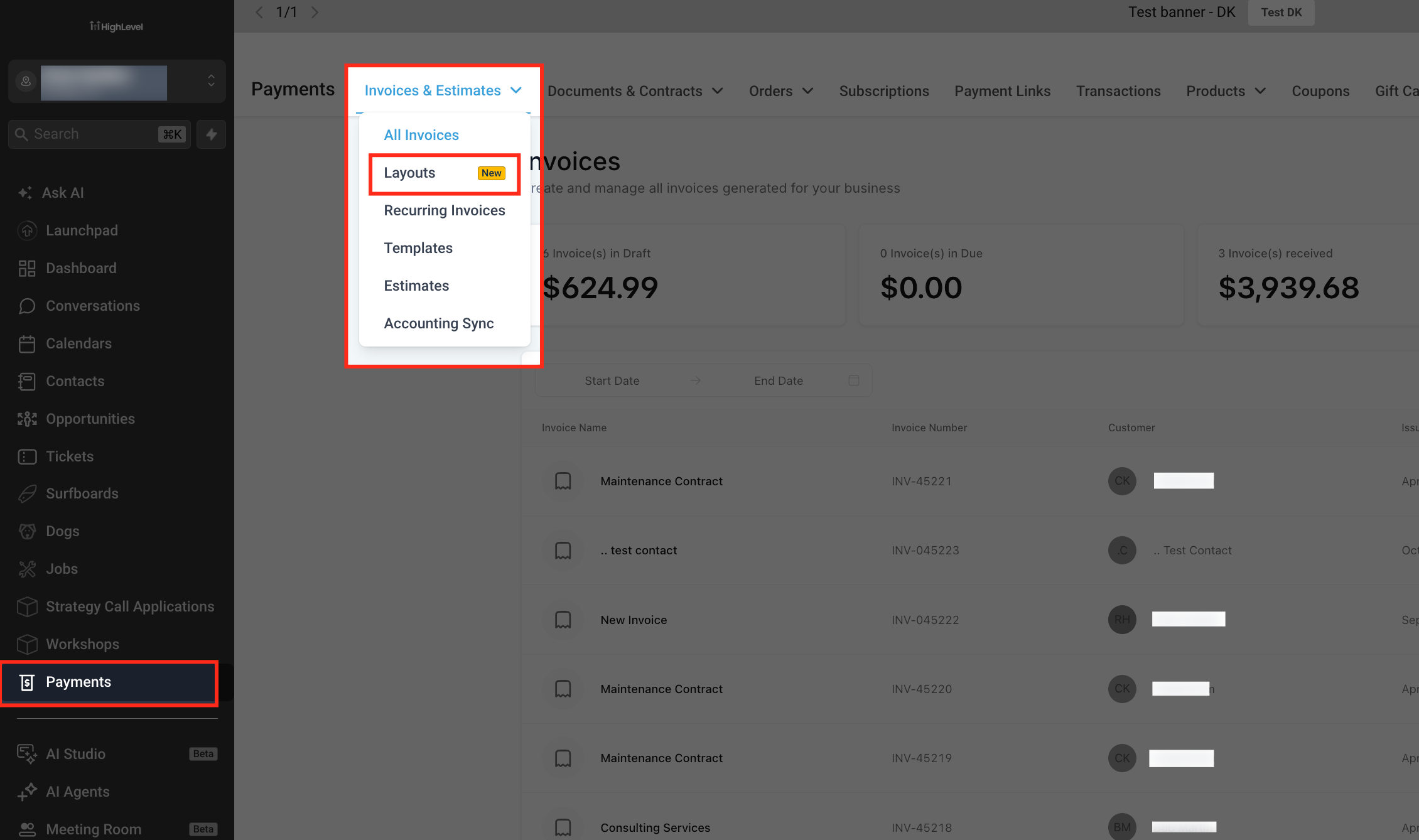
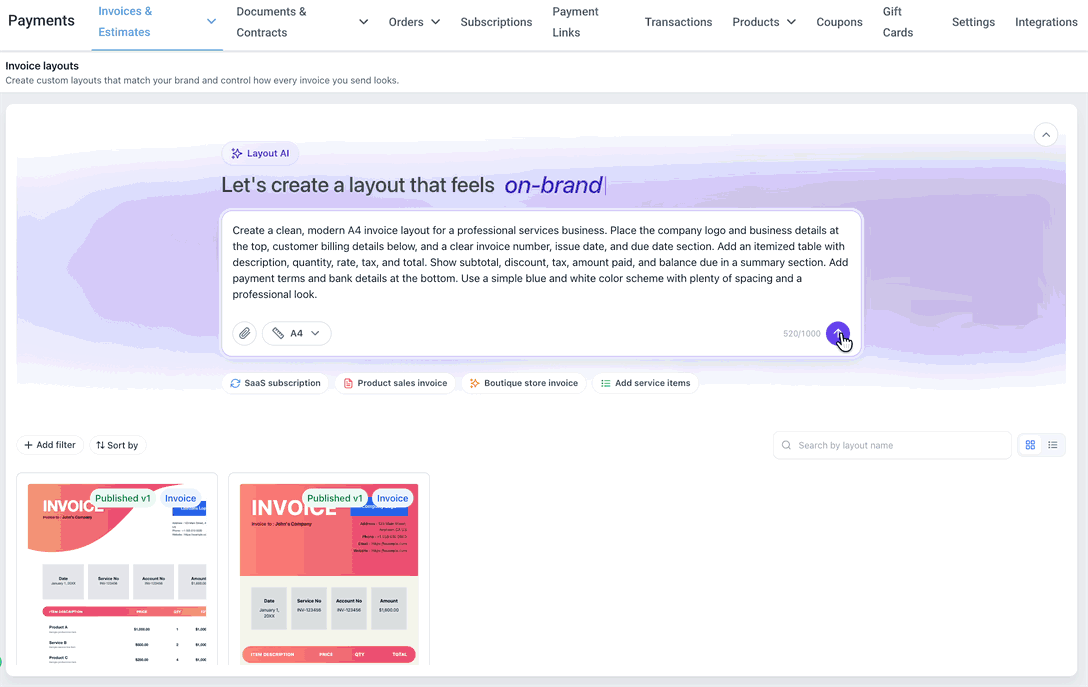
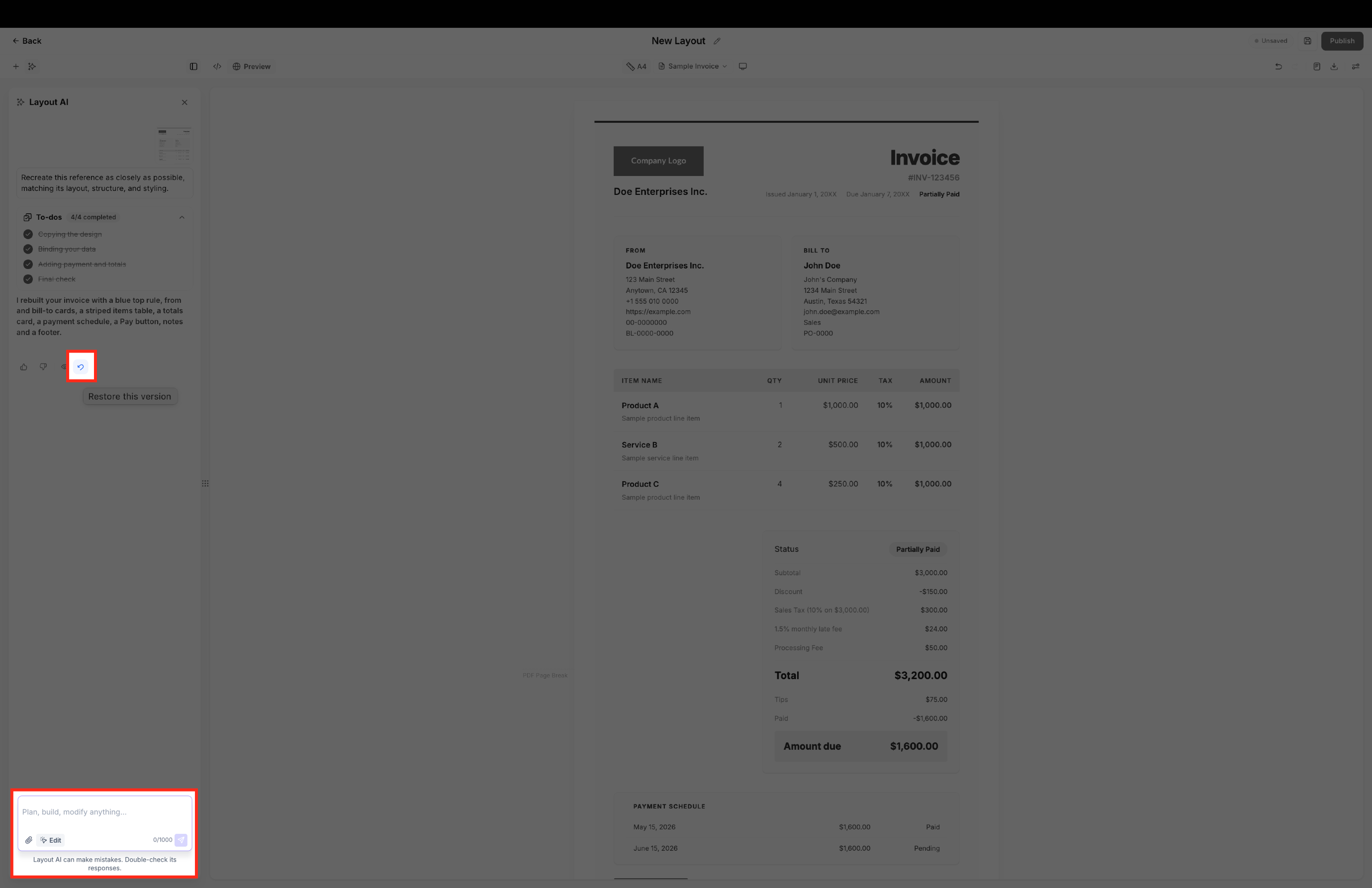
Layout AI Builder lives inside the Labs area of HighLevel and appears under Payments > Invoices & Estimates > Layouts. It offers an AI prompt where you type a description or attach an existing invoice. The AI produces an editable layout that you can further shape with a visual builder, HTML/CSS editor, or additional AI prompts.
Each AI change creates a restore point, and you can undo manual edits using the toolbar. Once a layout meets your needs, you publish it. Published layouts become selectable in the invoice editor, but they are not set as the platform's default layout. The layout applied to an invoice locks after the invoice is sent or partially paid, preserving the design for that record.
03How businesses use custom invoice layouts
- SaaS startup. The team describes their recurring subscription invoice in natural language, lets Layout AI Builder generate a draft, refines the placement of plan details, publishes the layout, and then selects it for each new subscription invoice.
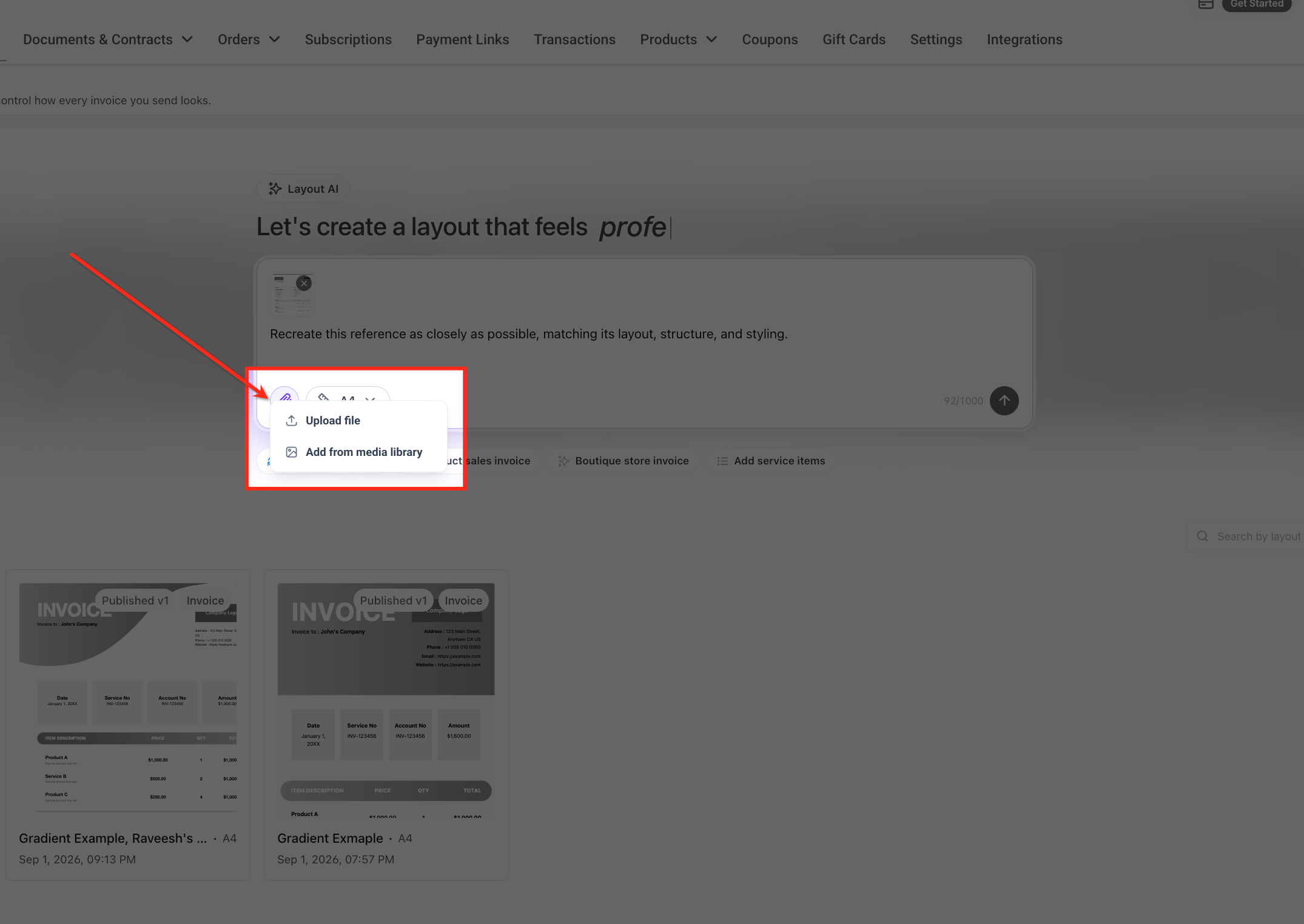
- Boutique retail shop. The owner uploads a sample PDF of their current receipt, asks the AI to recreate it with updated branding colors, adjusts a few elements in the visual builder, publishes the new layout, and applies it when creating one time sales invoices.
- Consulting firm. The firm uses the visual builder to add custom service line items and tax sections to an AI generated layout, saves the version, and selects that custom design for each client specific invoice before sending.
04The numbers and rules that matter
- Prompt supports up to 1,000 characters.
- Supported upload types: PNG, JPG, WEBP, SVG, PDF up to 3 MB.
05Before you start
- Activate the AI Powered Custom Invoice Layouts feature in Settings > Labs > Subaccount.
06How to set up and use custom invoice layouts in HighLevel
Activate Layout AI Builder
- Open Settings > Labs > Subaccount.
- Search for AI Powered Custom Invoice Layouts.
- Click Activate Feature.
Create an invoice layout with AI
- Open Payments > Invoices & Estimates > Layouts.
- Enter a natural language description of the invoice in the Layout AI prompt field.
- Select a page size such as A4 if needed.
- Submit the prompt to start generation.
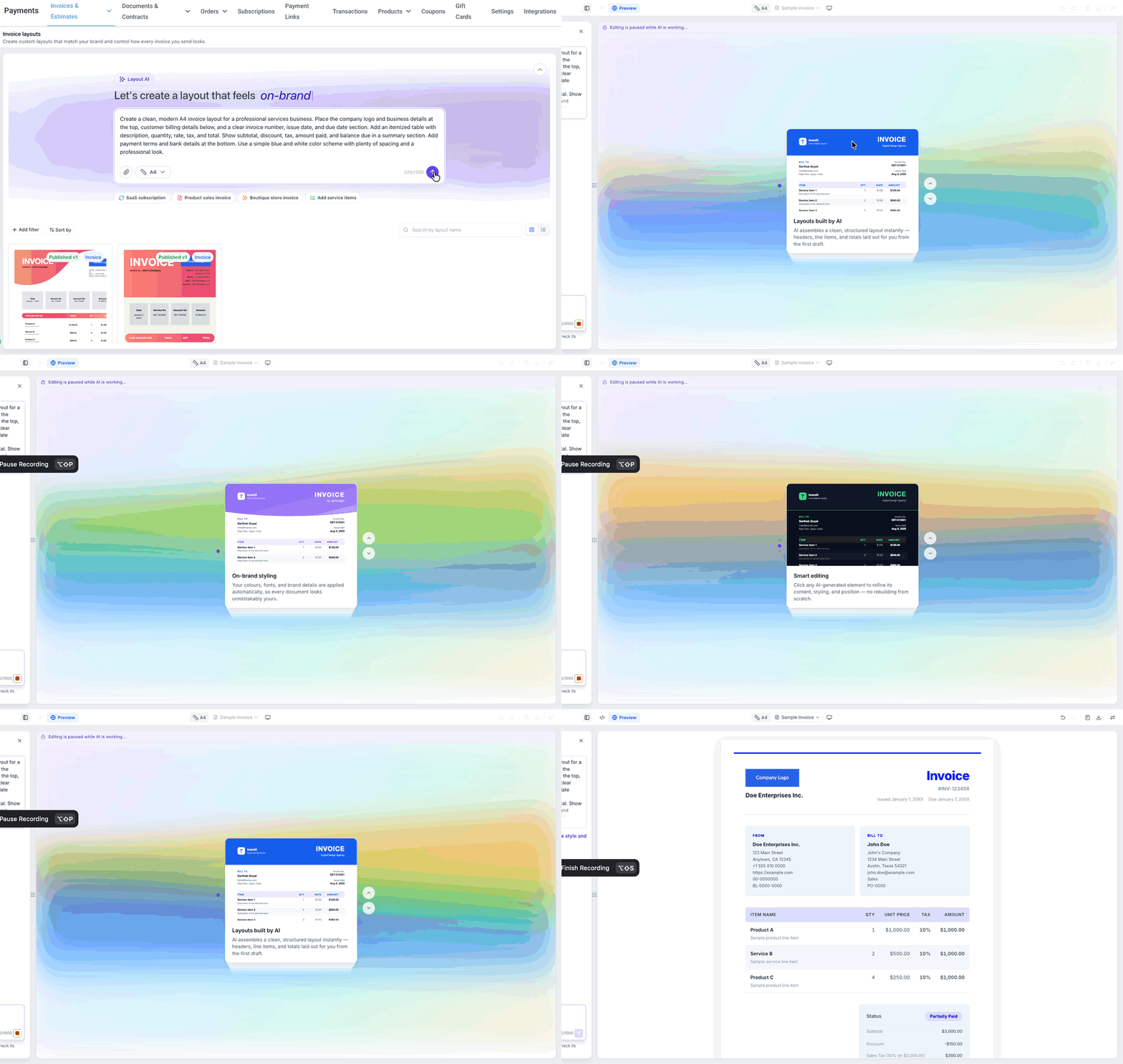
- Wait while Layout AI builds the design.
- Review the generated layout in the editor.
Recreate an existing invoice layout
- Open Payments > Invoices & Estimates > Layouts.
- Click the attachment icon next to the Layout AI prompt.
- Upload a PNG, JPG, WEBP, SVG, or PDF file up to 3 MB.
- Add written instructions describing how the invoice should be recreated or altered.
- Submit the request to Layout AI.
- Review the newly generated layout.
Refine and preview an invoice layout
- Open the generated layout in the editor.
- In the AI field, describe the additional change you want.
- Submit the AI request.
- Review the updated layout produced by AI.
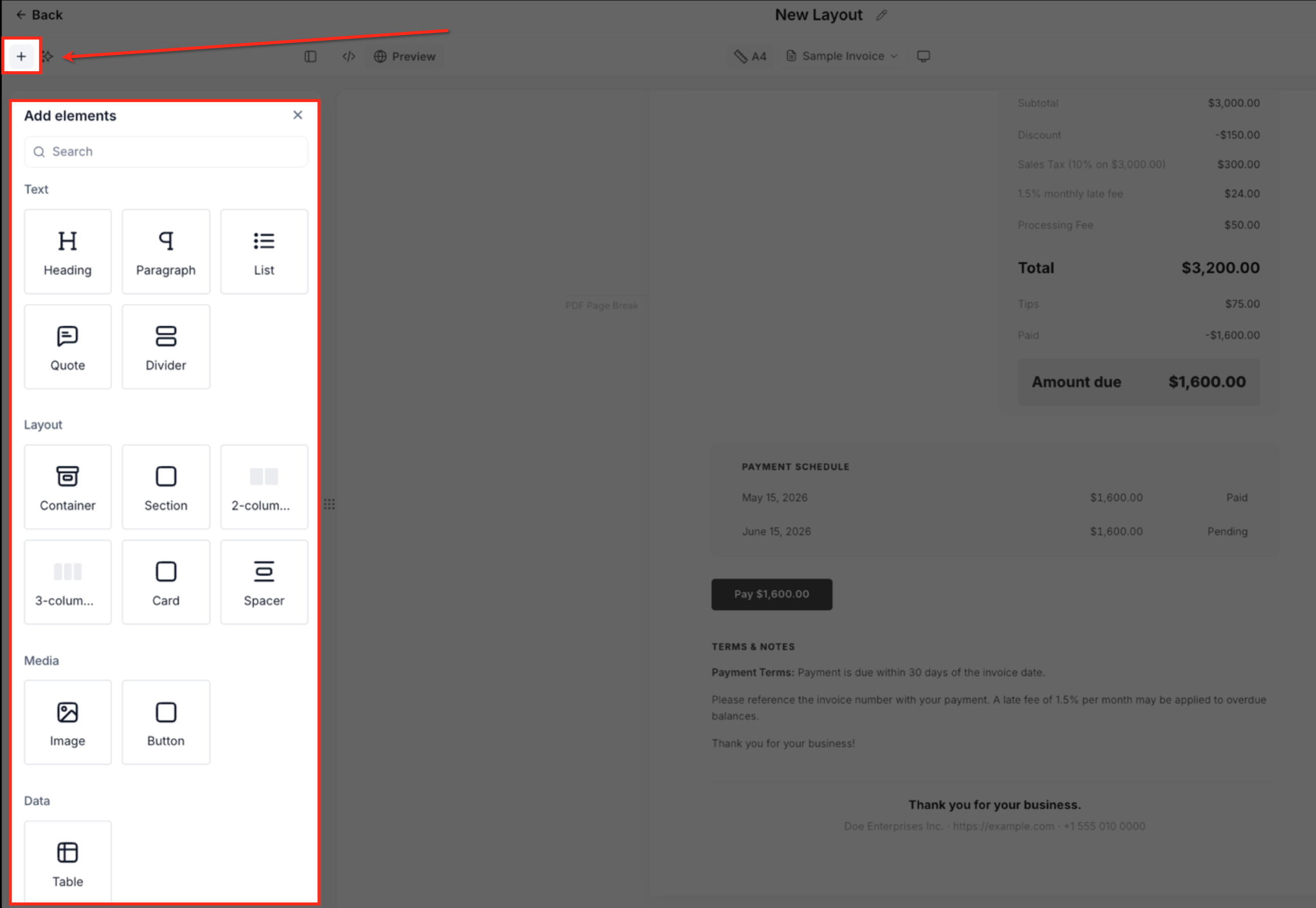
- Use the visual builder’s + control to add or adjust elements as needed.
- Open the Preview mode and choose a Sample Invoice to see data applied.
- Confirm the layout looks correct before publishing.
Undo manual changes
- While editing the layout, locate the Undo icon in the top toolbar.
- Click the Undo control to reverse the most recent manual edit.
- Repeat if you need to step back further.
Publish an invoice layout
- Review the completed layout for final approval.
- Click the Publish button in the top right corner.
- In the Publish layout dialog, optionally add a note under What changed?.
- Confirm by clicking Publish layout.
Apply a published layout to an invoice
- Navigate to Payments > Invoices & Estimates > All Invoices.
- Create a new invoice or open an existing draft.
- In the Invoice Settings panel, locate the Invoice Layout field.
- Open the Invoice Layout dropdown menu.
- Select the desired published custom layout.
- Review the invoice appearance before sending.
07What it looks like in HighLevel
08Settings that matter
- Layout AI prompt. Accepts a natural language description or file attachment that guides the AI in generating a new invoice design.
- Page size. Determines the dimensions of the generated invoice, such as A4, for printing or PDF output.
- What changed?. An optional note entered during publishing that records what modifications were made in that version.
- Invoice Layout. A dropdown selector in the invoice editor that lets you choose a published custom layout for the current invoice.
09Things to know before you rely on it
- Layout AI Builder works only with invoices; it does not support quotes, estimates, or other document types.
- Brand Board colors are not automatically applied; you must specify colors in the prompt or adjust them in the Style tab.
- Prompt text is limited to 1,000 characters.
- File uploads for recreating layouts accept only PNG, JPG, WEBP, SVG, or PDF formats up to 3 MB each.
- Custom layouts cannot be set as the default invoice layout; they must be chosen per invoice.
- After an invoice is sent or partially paid, its selected layout becomes locked and cannot be changed.
- Deleting a layout removes it from draft invoices but does not affect invoices that have already been sent.
10If something goes wrong
- Layouts option does not appear under Invoices & Estimates. Activate the AI Powered Custom Invoice Layouts feature in Settings > Labs > Subaccount.
- Brand Board colors are not reflected in the generated design. Include your preferred color details in the AI prompt or modify them later in the Style section of the visual builder.
- Invoice reference file fails to upload. Confirm the file is PNG, JPG, WEBP, SVG, or PDF and does not exceed 3 MB.
11How it connects to the rest of HighLevel
- How to create invoices in HighLevel Create invoices guide
- HighLevel invoice workflow: create, edit, tax, discount, send Invoice workflow
- How to set up recurring invoices in HighLevel Recurring invoices
Michael's take

Invoices that look like a generic template can make a business feel impersonal and cause confusion for clients. Getting a layout that matches your brand language solves that problem. The first thing I would get right is the color scheme. Describe the exact colors you want in the Layout AI prompt or fine tune them in the Style tab before you publish.
Once the colors are set, you can experiment with AI generated drafts and keep a restore point for each change. That way you have a safety net and can move quickly between ideas without losing earlier versions.