
01Who this is for
- Any business that has a Stripe account linked to HighLevel and accepts or plans to accept ACH Direct Debit payments must update the classification setting.
- Subaccounts or clients using Stripe with HighLevel also need to make this change.
02Nacha compliance, explained
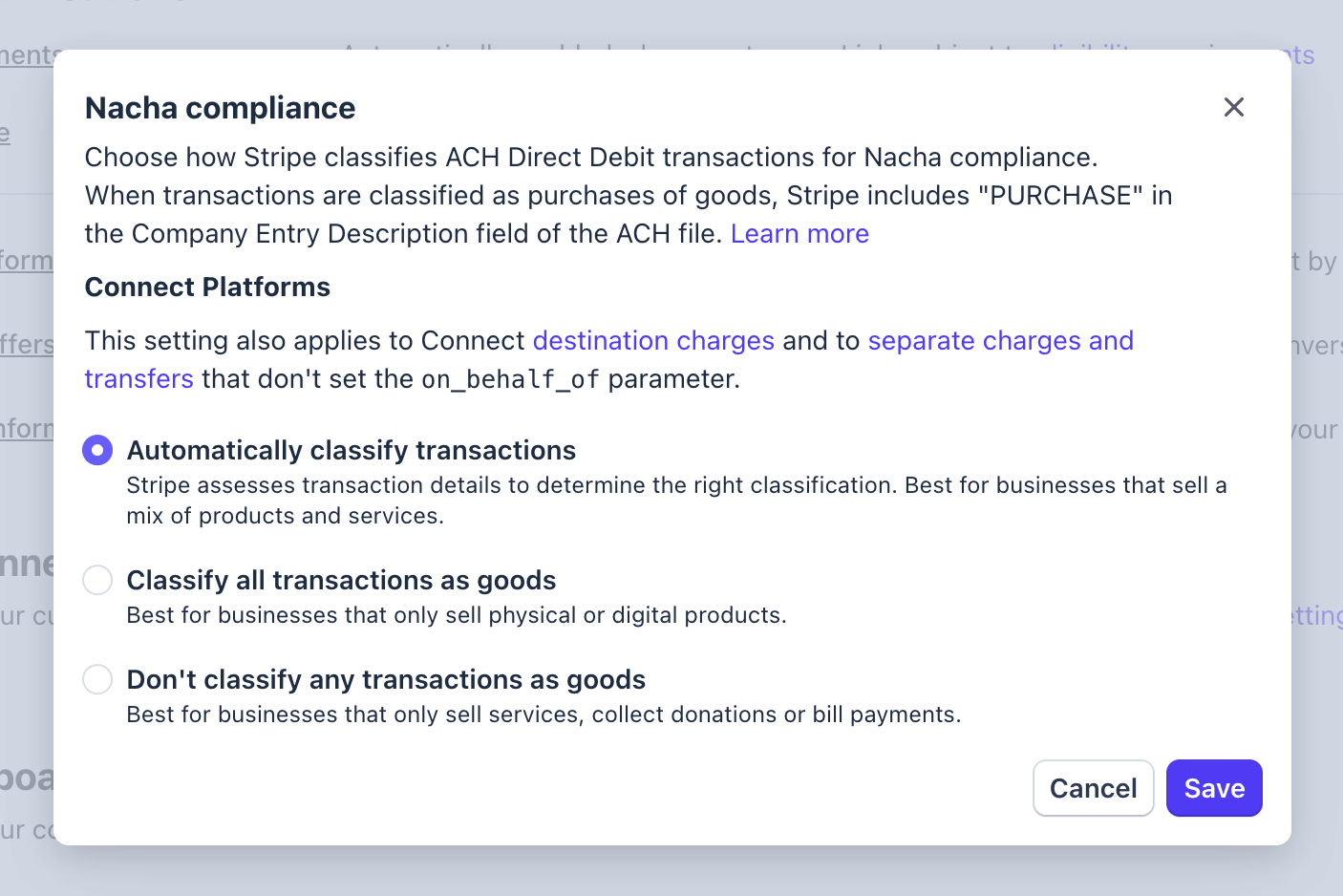
The setting lets you tell Stripe how to label ACH Direct Debit transactions that flow through HighLevel, with three options: automatic classification, classify all as goods, or classify none as goods.
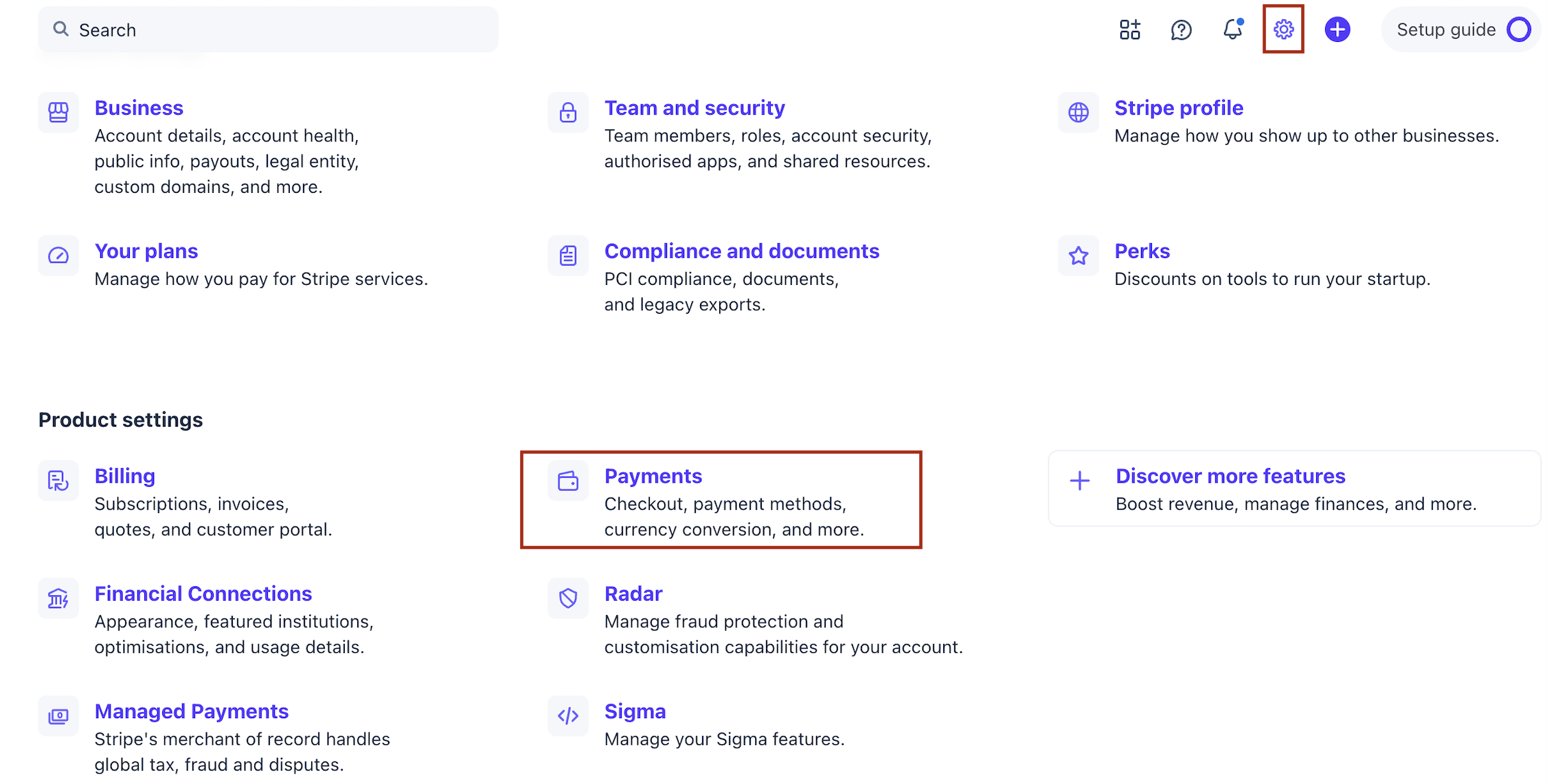
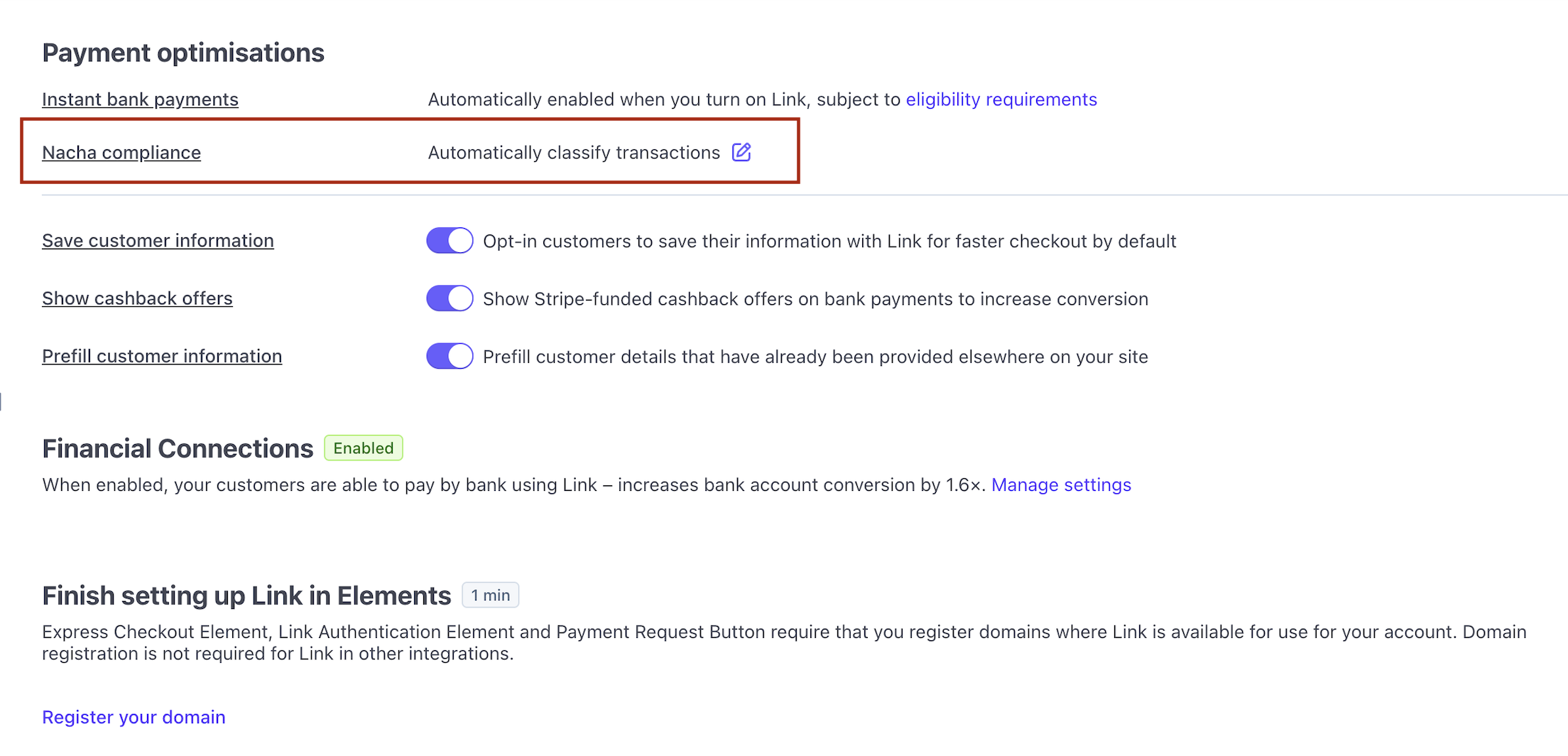
Find the option in the Stripe Dashboard under Settings > Payments > Link, locate the Nacha compliance section, select a classification, and save.
These changes apply only to U.S. bank account payments processed via ACH Direct Debit and become mandatory on 20 March 2026.
03How businesses use nacha compliance
- Ecommerce store. Select the option to classify all ACH transactions as goods so every ACH payment appears as a purchase.
- Consulting firm. Choose the option to not classify any transactions as goods so ACH payments appear as service or bill payments.
- Marketplace. Leave the setting on automatic classification, allowing Stripe to decide for each payment.
04The numbers and rules that matter
- Effective 20 March 2026.
05Before you start
- A Stripe account must be linked to HighLevel.
- The account must be set up to accept ACH Direct Debit or be planning to do so.
06How to set up and use nacha compliance in HighLevel
Configure transaction classification in Stripe
- Open your Stripe Dashboard.
- Navigate to Settings, then Payments, then Link.
- Find the Nacha compliance section.
- Pick one of the three classification options.
- Save the changes.
07What it looks like in HighLevel

08Settings that matter
- Nacha compliance section. Shows the three classification choices for ACH transactions and stores the option you select.
09Things to know before you rely on it
- The requirement becomes mandatory on 20 March 2026.
- It only applies to ACH Direct Debit payments made with U.S. bank accounts.
- Exactly three classification options are available; no custom options exist.
10How it connects to the rest of HighLevel
- Manage Stripe payment methods displayed in HighLevel Stripe payment methods
- Add and apply taxes to invoices in HighLevel HighLevel tax settings
- Set up a 30 day trial for HighLevel Start trial
Michael's take

Michael ReimerFounder of CRM Pros, HighLevel Commander and Certified Admin
I find that setting a clear statement descriptor helps customers recognize the charge on their bank statements.
Get More InformationOpens on HighLevelPublished November 2, 2026 · Updated November 17, 2026