
01Who this is for
- Founder of an ecommerce brand, because they can route payments through the provider with the lowest fees for each store.
- Marketing manager handling multiple funnel campaigns, since each funnel can use the optimal provider without changing account wide settings.
- Service based business owner using calendars and payment links, as they can test new providers in sandbox mode without impacting live bookings.
02Payment providers by channel, explained
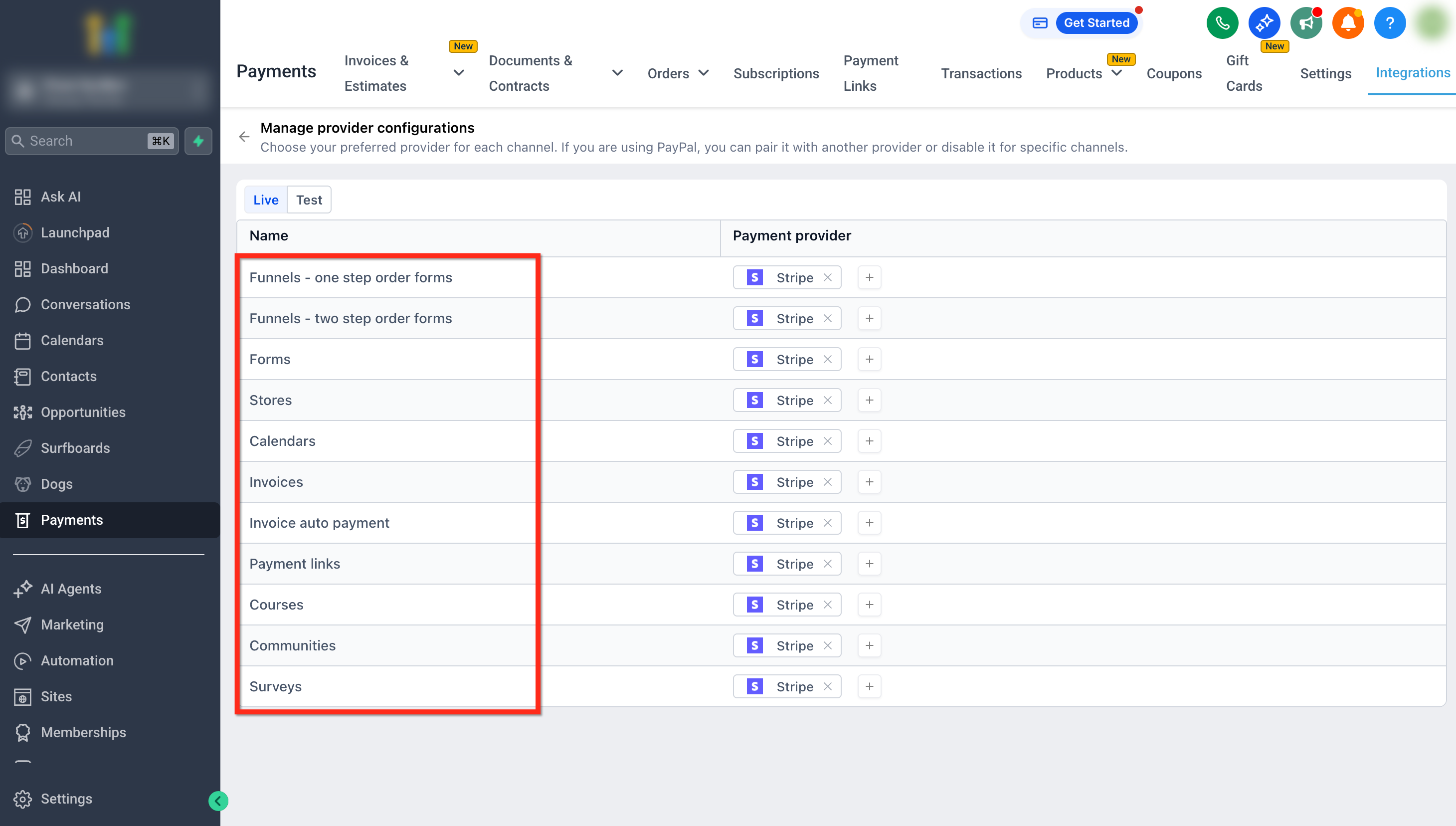
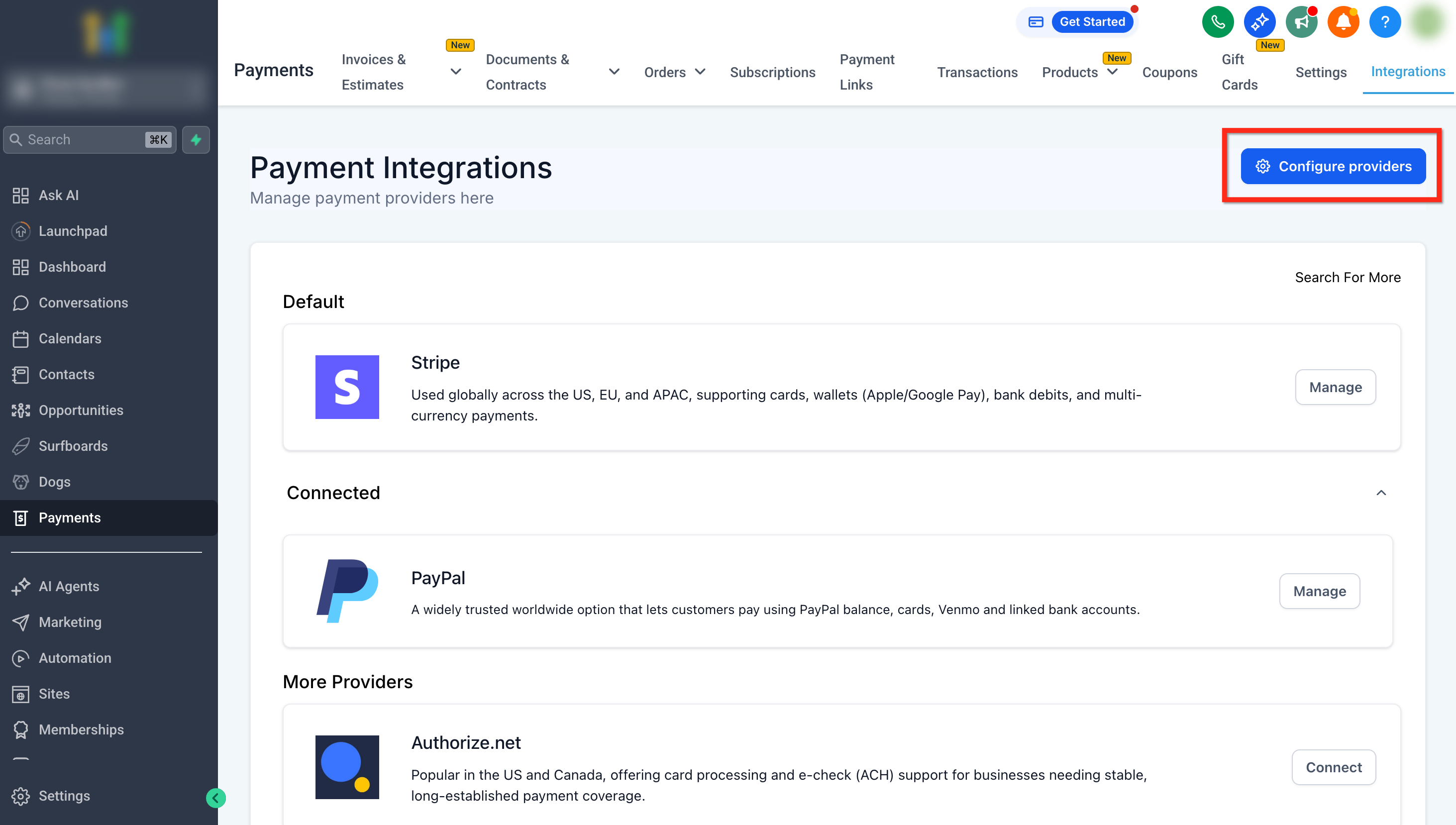
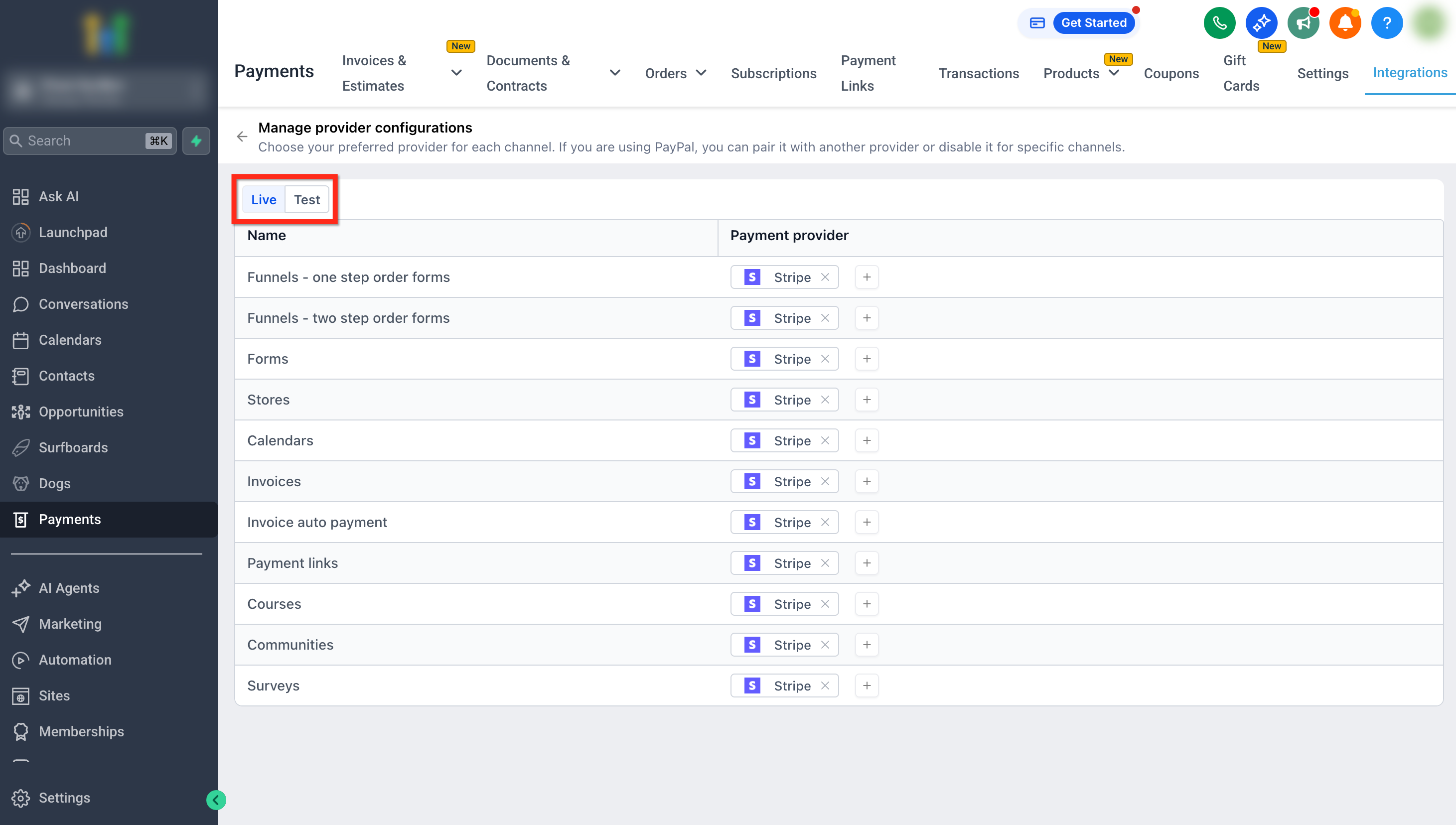
The feature is located under the Payments section of HighLevel. Within Payments, the Integrations tab contains a Configure Providers button where you manage channel level assignments. Each channel, one step order forms, two step order forms, forms, stores, calendars, invoices, auto payment, payment links, courses, communities and surveys, can have its own provider list.
Provider selection follows a hierarchy: a channel setting overrides the global default, and only providers that are already connected to the account appear for selection. PayPal may be paired with one additional provider such as Stripe or NMI. You can add, remove or reset a provider for a channel, and the changes take effect immediately. Live and Test modes are independent, allowing safe experimentation.
If a selected provider becomes disconnected, HighLevel automatically falls back to the default provider. Removing all providers from a channel also reverts to the default to keep payment functionality available.
03How businesses use payment providers by channel
- Ecommerce store. In the Configure Providers screen, the owner selects Stripe for the store channel while keeping PayPal as an extra option. At checkout, customers see both Stripe and PayPal choices, matching the store’s payment strategy.
- Online course platform. The course manager toggles to Test mode, adds a new NMI provider to the Courses channel, and runs a test purchase. Because the provider is only in Test mode, real customers continue to use the existing live provider.
- Consulting service using calendars. The service Founder sets the default provider to PayPal, then configures the Calendars channel to also include Stripe. When a client books a meeting, the checkout shows both PayPal and Stripe options.
04The numbers and rules that matter
- Supported channels: Funnels, One Step Order Forms, Funnels, Two Step Order Forms, Forms, Stores, Calendars, Invoices, Invoice Auto Payment, Payment Links, Courses, Communities and Surveys.
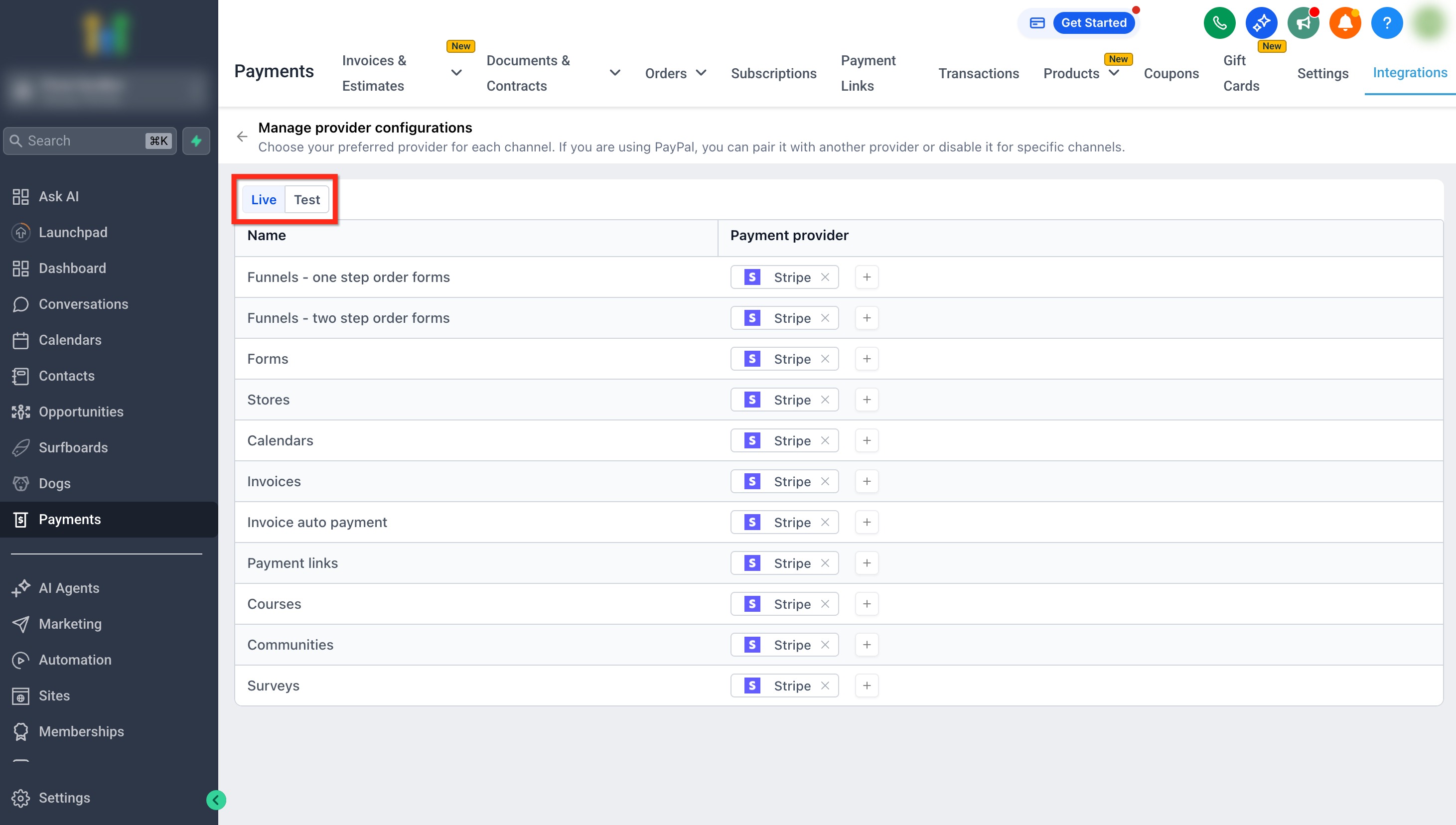
- Each mode (Live or Test) can have different providers assigned per channel.
05Before you start
- At least one payment provider must be connected in the Integrations area.
06How to set up and use payment providers by channel in HighLevel
Configure payment providers by channel
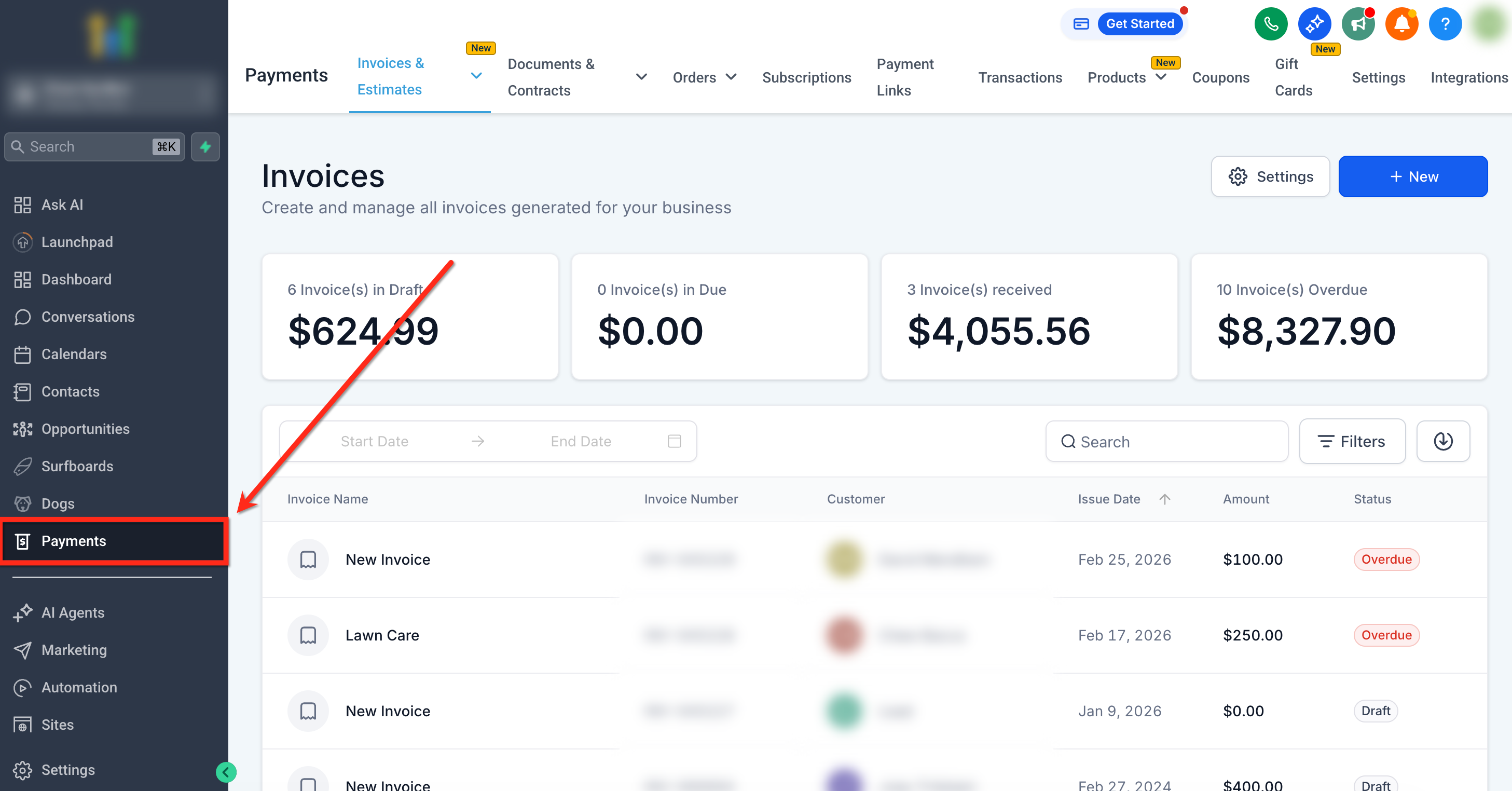
- Open the Payments section in the HighLevel dashboard.
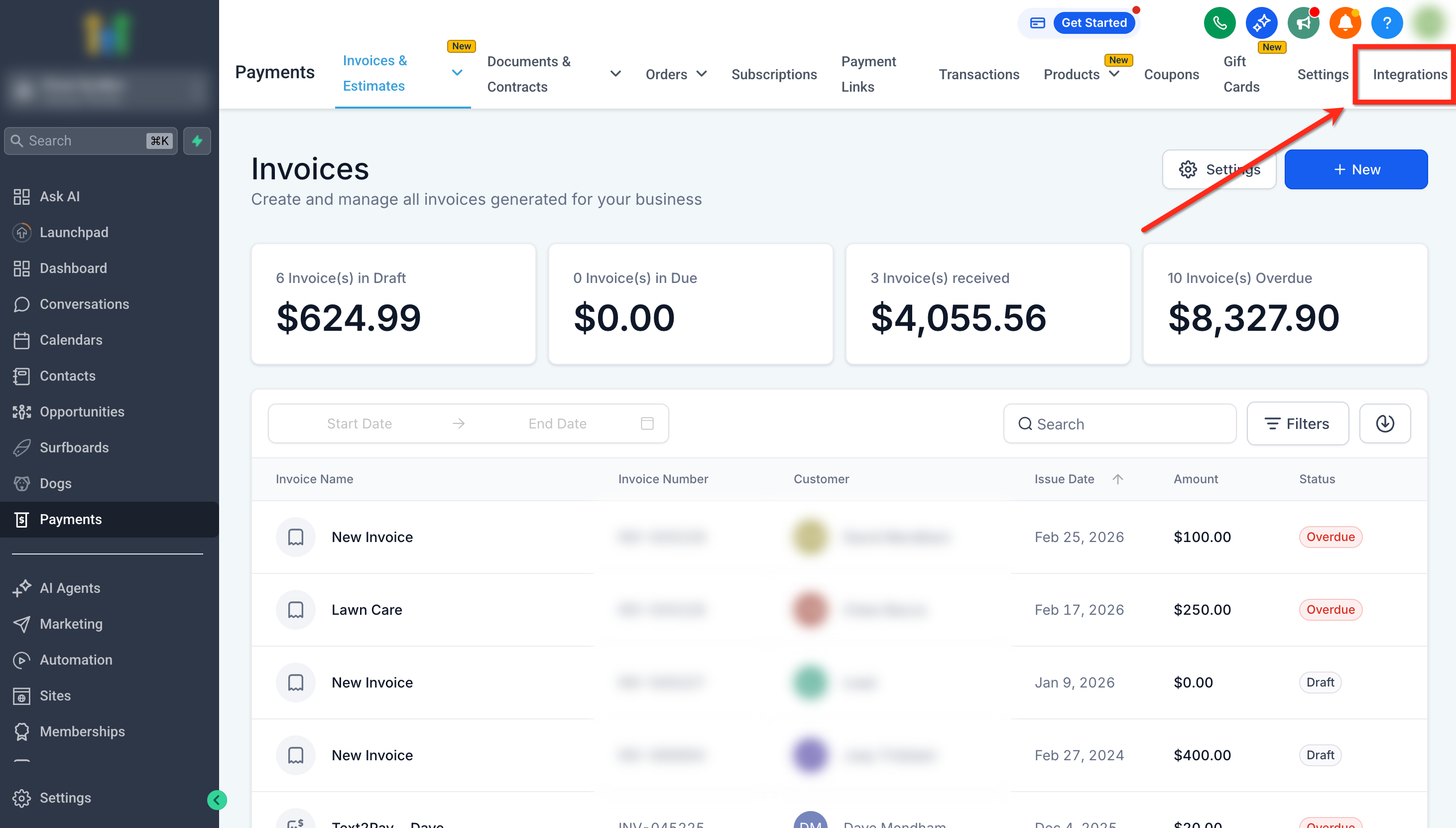
- Select the Integrations tab.
- Click the Configure Providers button.
- Use the Live or Test mode toggle to choose the environment you are editing.
- For each channel, click the plus sign to add a provider from the dropdown of connected providers.
- If you need to remove a provider, click the X next to the provider and confirm the removal when prompted.
- To reset a channel to the global default, use the Reset option for that channel.
07What it looks like in HighLevel
08Settings that matter
- Live or Test mode toggle. Determines whether the selected providers are used for real transactions or for sandbox testing.
- Preferred provider. The provider chosen for a specific channel that overrides the global default.
- Default provider. Acts as a fallback when no channel level provider is set or when a selected provider becomes disconnected.
09Things to know before you rely on it
- Only PayPal plus one additional provider (such as Stripe or NMI) can be combined on a checkout.
- Multiple non PayPal providers together are not supported.
- Channel level configuration is the most granular option available today; per store or per funnel settings are planned for future updates.
- If all providers are removed from a channel, the channel automatically reverts to the global default provider.
- A disconnected preferred provider causes the system to fall back to the default provider until it is re selected.
10If something goes wrong
- Preferred provider is disconnected. The checkout will automatically use the default provider; reconnect the provider and re select it as the preferred option for the channel.
- All providers removed from a channel. The channel reverts to the global default provider to ensure payment functionality remains active.
11How it connects to the rest of HighLevel
- Sell products on order forms with available payment providers Order form payment options
- Enable Apple Pay and Google Pay on order forms Apple and Google Pay
- HighLevel pricing and plans Pricing page
Michael's take

Setting up payment providers by channel is a convenient way to manage different payment processors for separate parts of a business. It allows you to assign different providers without changing the global default.
For example, a boutique fitness studio could assign Stripe to its class checkout and PayPal to its merchandise store, then test the configuration in Test mode before moving to Live.