
01Who this is for
- Founders who sell products across multiple jurisdictions benefit from reduced manual tax entry and compliance assurance.
- Small retail businesses can rely on real time tax calculation to avoid errors when creating invoices on the go.
02Automatic taxes, explained
Automatic Taxes automatically computes tax amounts when you create invoices, point of sale transactions, or estimates from the HighLevel mobile app. The calculation uses the customer's address, your configured nexus locations, tax IDs, and the tax codes assigned to each product.
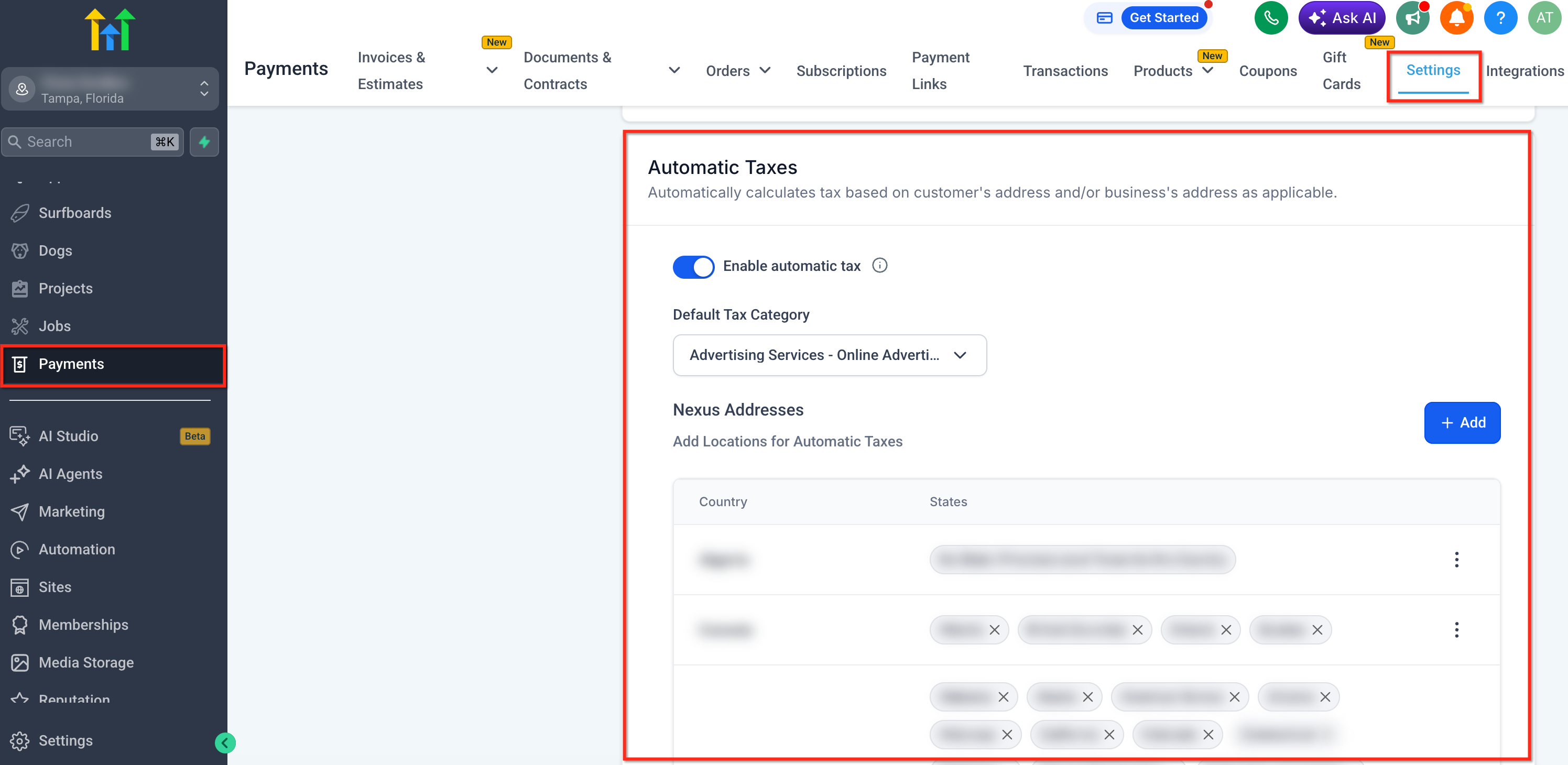
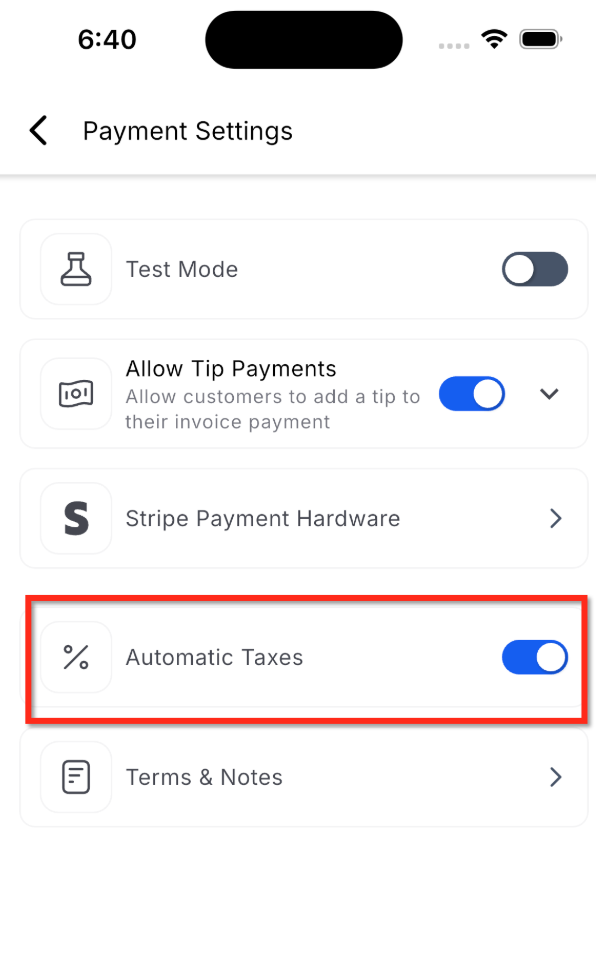
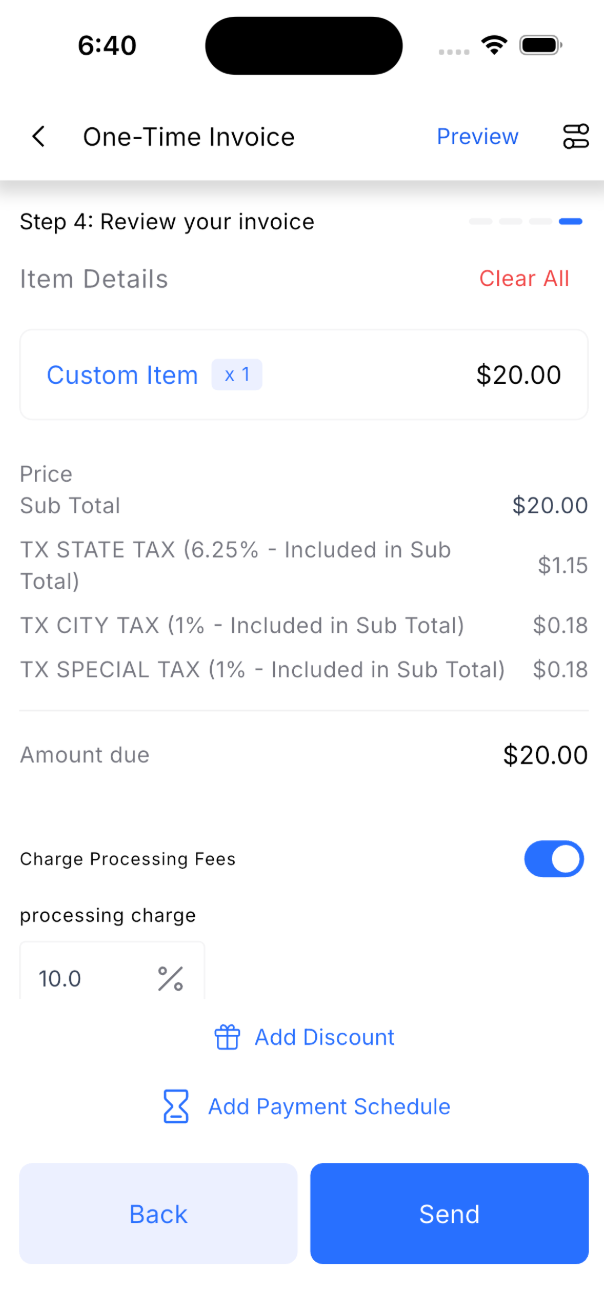
You first set up tax rules on the web under Payments > Settings > Taxes > Automatic Taxes. After saving the nexus locations and tax IDs, you enable the feature on the mobile app via a toggle in the invoice or POS settings. Once active, each new invoice shows a tax breakdown in the summary.
The feature works for invoices, POS sales, and estimate documents. If a product lacks a tax code, the system may fall back to a default configuration, and missing or incorrect address details can prevent tax calculation.
03How businesses use automatic taxes
- Retail boutique. The boutique adds its clothing items, each with a specific tax code, then creates a mobile invoice. The app calculates state and city taxes based on the shopper's address, so the clerk does not need to determine rates manually.
- Consulting firm. The firm assigns a service tax code to its consulting packages, enters the client’s business address on a mobile estimate, and the platform applies the appropriate regional tax automatically before sending the estimate.
- Online subscription SaaS. The SaaS company defines tax codes for its subscription plans, activates Automatic Taxes on mobile, and generates invoices for customers worldwide. The correct tax is calculated for each jurisdiction without additional steps.
04The numbers and rules that matter
- Available in HighLevel v3.108.4 and above.
- Available in LeadConnector v3.108.4 and above.
05Before you start
- Configure tax settings on the web, including nexus locations and tax IDs.
- Use HighLevel version v3.108.4 or later (and LeadConnector v3.108.4 or later).
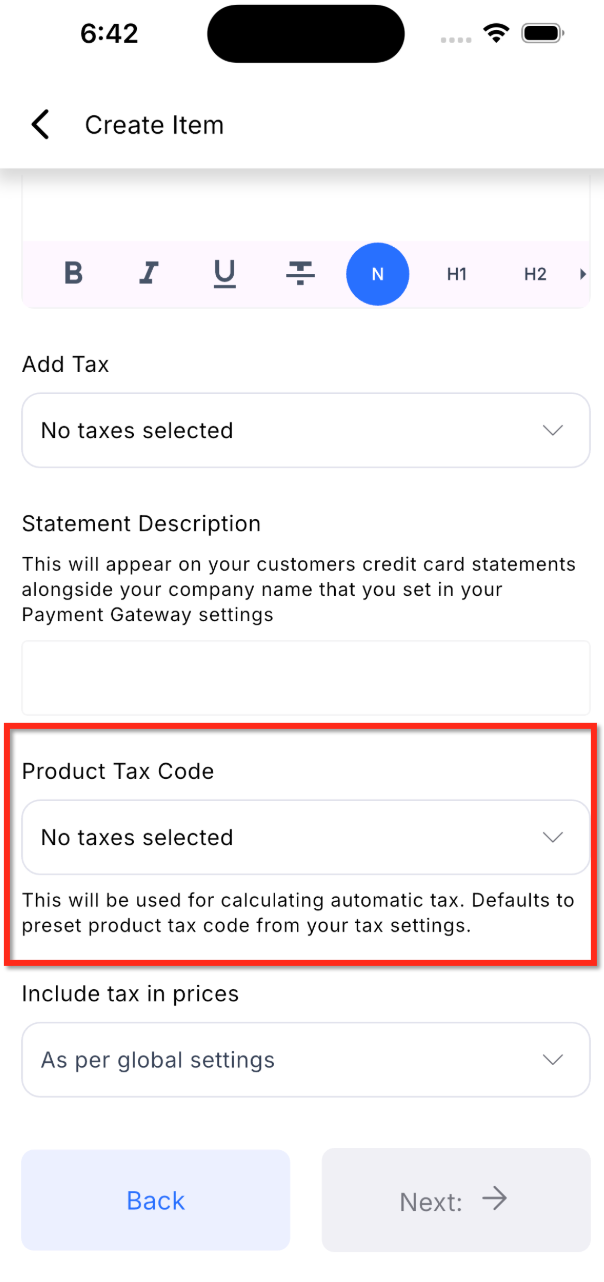
- Ensure products have tax codes assigned for precise tax handling.
06How to set up and use automatic taxes in HighLevel
Configure automatic taxes on the web
- Navigate to Payments > Settings > Taxes > Automatic Taxes.
- Add the countries or states where you collect tax as nexus locations.
- Enter the tax identification numbers for each applicable region.
- Save the configuration.
Enable automatic taxes on mobile
- Open the HighLevel mobile app.
- Go to the Invoices or POS section.
- Tap the “+” (Create) button to start a new invoice.
- Tap the settings icon in the top right corner.
- Toggle Automatic Taxes to ON.
Create an invoice with automatic taxes
- Add products or custom items to the invoice.
- Confirm that each product has a tax code assigned.
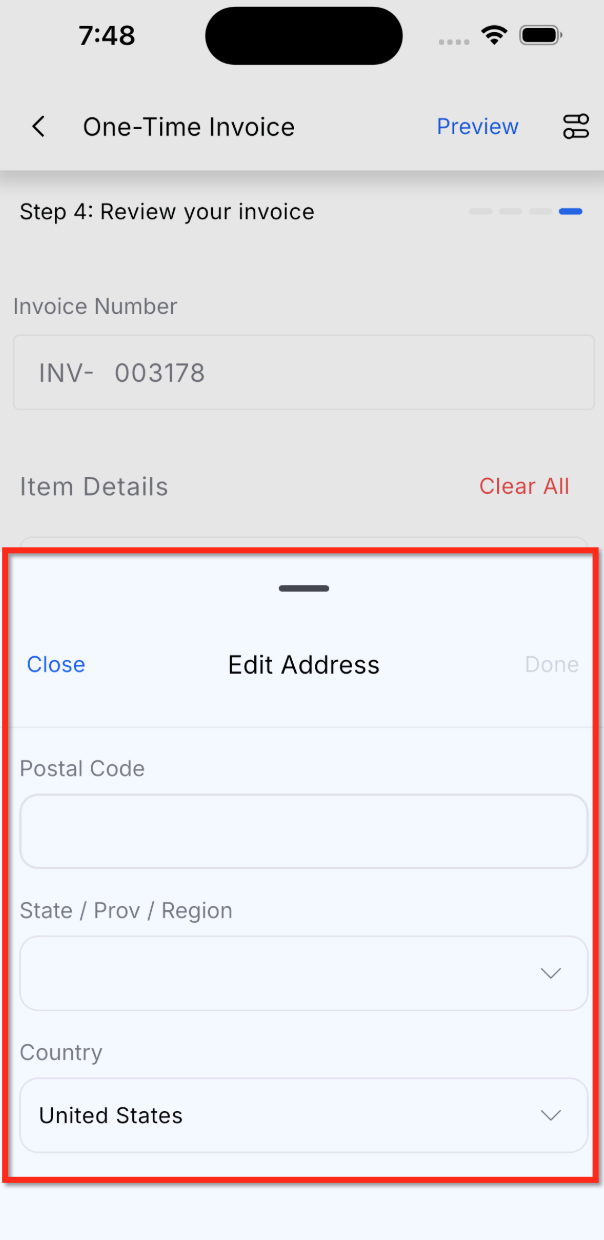
- Enter or verify the customer’s address.
- Review the invoice summary for tax details.
- Ensure taxes are calculated automatically.
- Tap Send to issue the invoice.
07What it looks like in HighLevel
08Settings that matter
- Automatic Taxes. Activates real time tax calculation for invoices, POS transactions, and estimates based on the tax setup created on the web.
09Things to know before you rely on it
- Requires HighLevel v3.108.4 or newer and LeadConnector v3.108.4 or newer.
- Available on white label self serve mobile apps.
- Taxes will not calculate if the customer address is missing or incorrect.
- If a product lacks an assigned tax code, the system may use a default tax configuration.
10If something goes wrong
- Taxes are not showing on an invoice.. Check that the customer's address is complete, verify the Automatic Taxes toggle is enabled, and confirm that web tax settings with nexus locations and tax IDs have been saved.
11How it connects to the rest of HighLevel
- Explore all payment related features in HighLevel. All Payments features
- Learn how to create and edit invoices, including tax settings. Invoice workflow
- Review HighLevel pricing and plan options. Pricing and plans
Michael's take

Ever wonder if the tax math on your mobile sales is reliable? The short answer is that Automatic Taxes takes the guesswork out of the equation. It pulls the address you entered, matches it to the locations you set up on the web, and then adds the right tax amount to each line item. You get a clear breakdown before you hit send, which saves time and cuts down on errors.
If I were rolling out this feature, I’d start by confirming my web tax settings are solid. Nexus locations and tax IDs need to be in place. Then I’d flip the toggle on the phone, run a quick test invoice, and make sure the numbers line up. That way you know the system is doing its job before you rely on it for every sale.