
01Who this is for
- Founders of SaaS startups need accurate tax on each new subscription without manual rate updates.
- Agency owners selling SaaS V1 services can apply consistent tax rules across client plans.
- Finance managers of digital product providers can reduce billing errors by letting Stripe handle tax.
02Automatic tax calculation with Stripe, explained
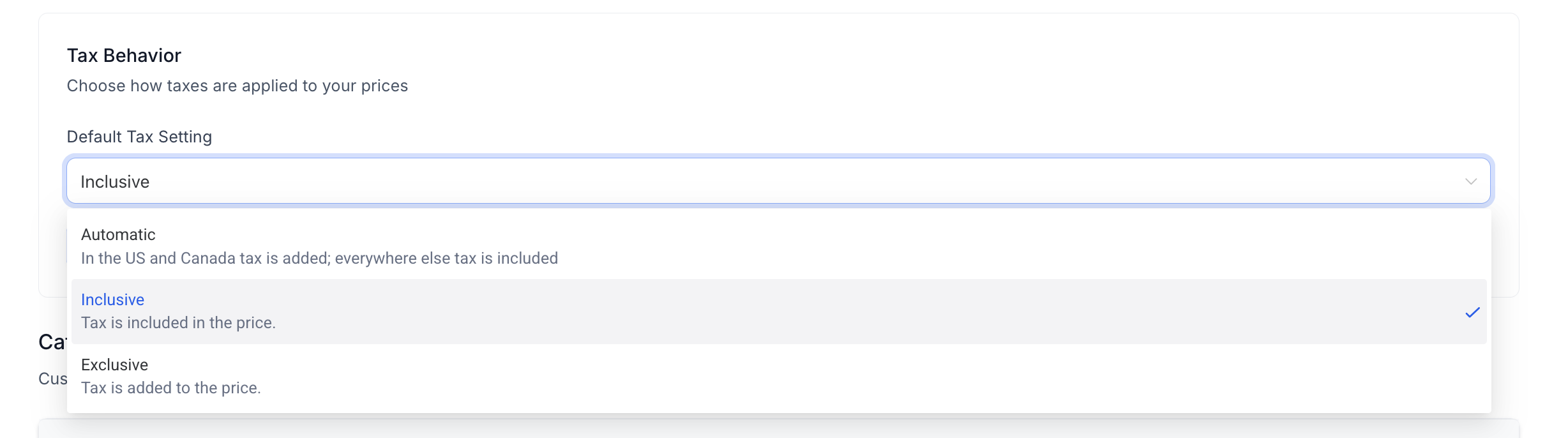
The feature integrates HighLevel's SaaS Configurator with Stripe Tax. When Automatic Tax is enabled, the platform provides subscription data, the customer billing address and the product tax code to Stripe, which returns the applicable tax amount. Tax behavior can be set to Automatic, Inclusive or Exclusive. Automatic applies exclusive pricing in the United States and Canada and inclusive pricing elsewhere. Inclusive folds tax into the displayed price, while Exclusive adds tax on top. The configuration lives under SaaS Configurator > Automatic Tax. Global settings apply to all SaaS categories unless a Category Level Override is defined, which takes precedence for that specific category.
03How businesses use automatic tax calculation with Stripe
- SaaS startup. The startup enables Automatic Tax, adds its Stripe tax registrations, selects the appropriate product tax code and chooses Inclusive behavior. New subscriber checkouts then show the correct tax amount automatically.
- Digital marketing agency. The agency creates a Category Level Override for its premium analytics package, setting Exclusive tax behavior. When clients upgrade, the platform recalculates tax based on the updated plan price.
- Online education platform. The platform configures Automatic Tax and selects a product tax code for its course subscriptions. It tests the checkout with a test customer in a target jurisdiction to verify the tax total before going live.
04The numbers and rules that matter
- Automatic Tax Calculation with Stripe is available for Stripe based SaaS V1.
- Not supported for SaaS V2 or non Stripe SaaS payment providers.
05Before you start
- A Stripe based SaaS V1 subscription product must be set up in HighLevel.
- The connected Stripe account must have the required tax registrations configured.
06How to set up and use automatic tax calculation with Stripe in HighLevel
Configure automatic tax calculation for Stripe SaaS subscriptions
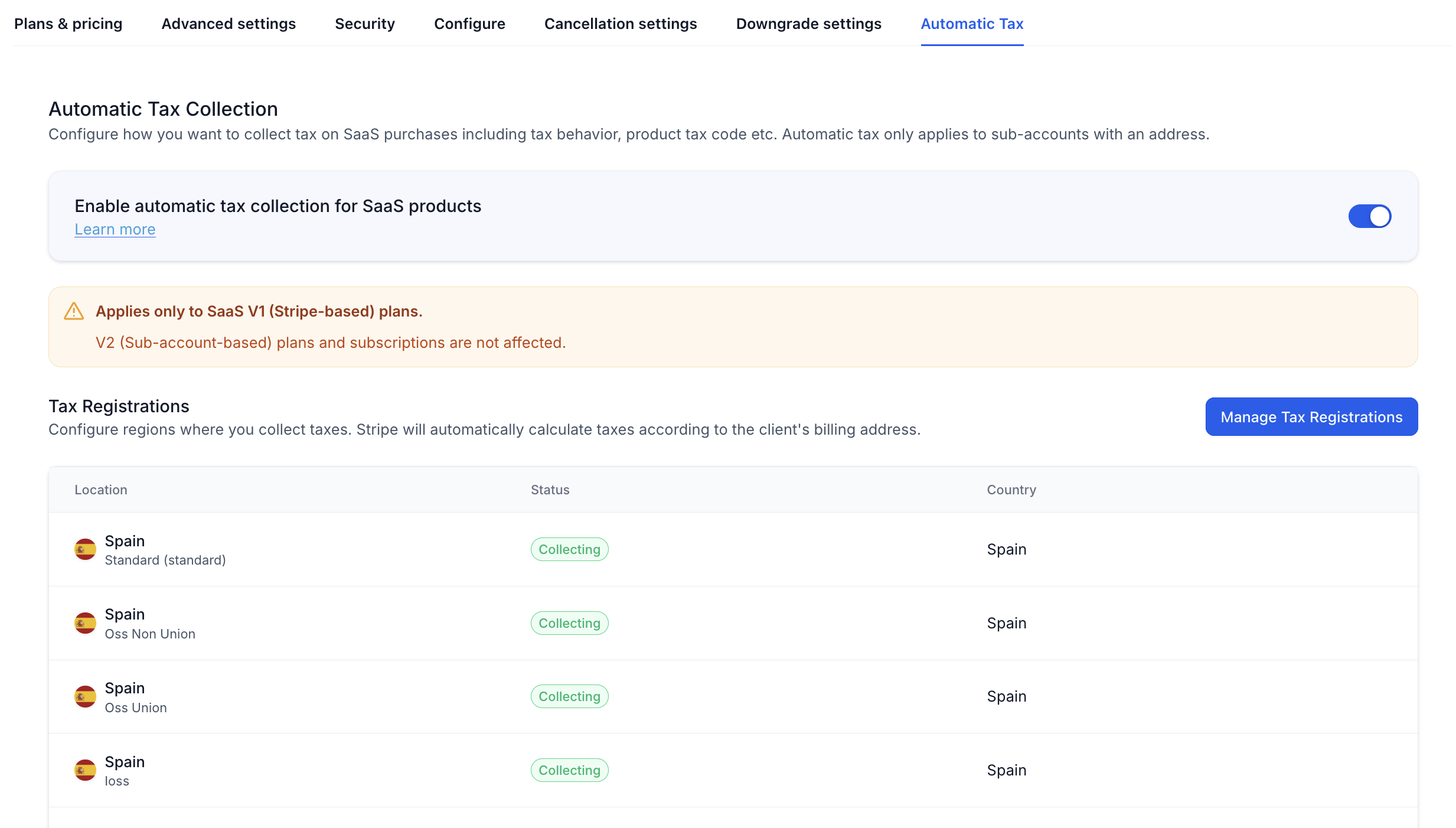
- From Agency View, open SaaS Configurator > Automatic Tax and switch on Enable automatic tax collection for SaaS products.
- In the Tax Registrations section, click Manage Tax Registrations and complete or update registrations in the linked Stripe account.
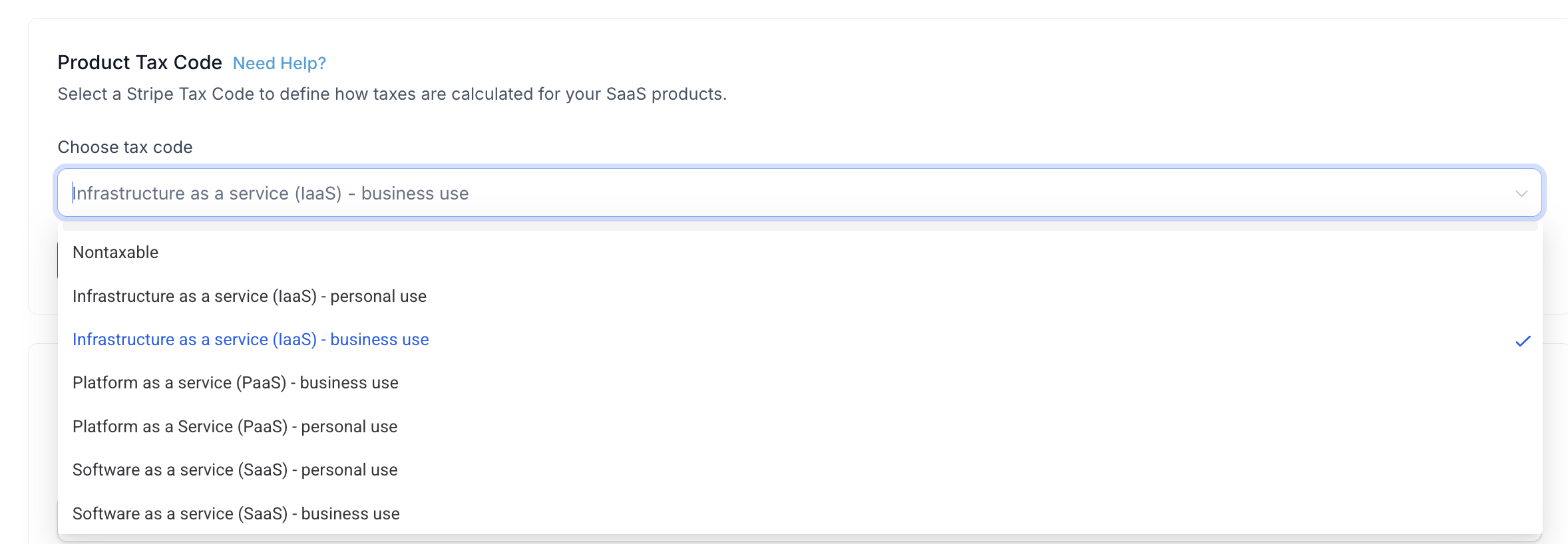
- Back in the Automatic Tax settings, locate Product Tax Code and pick the code that matches the SaaS offering, then save.
- Find Tax Behaviour, choose Automatic, Inclusive or Exclusive as needed, and save the selection.
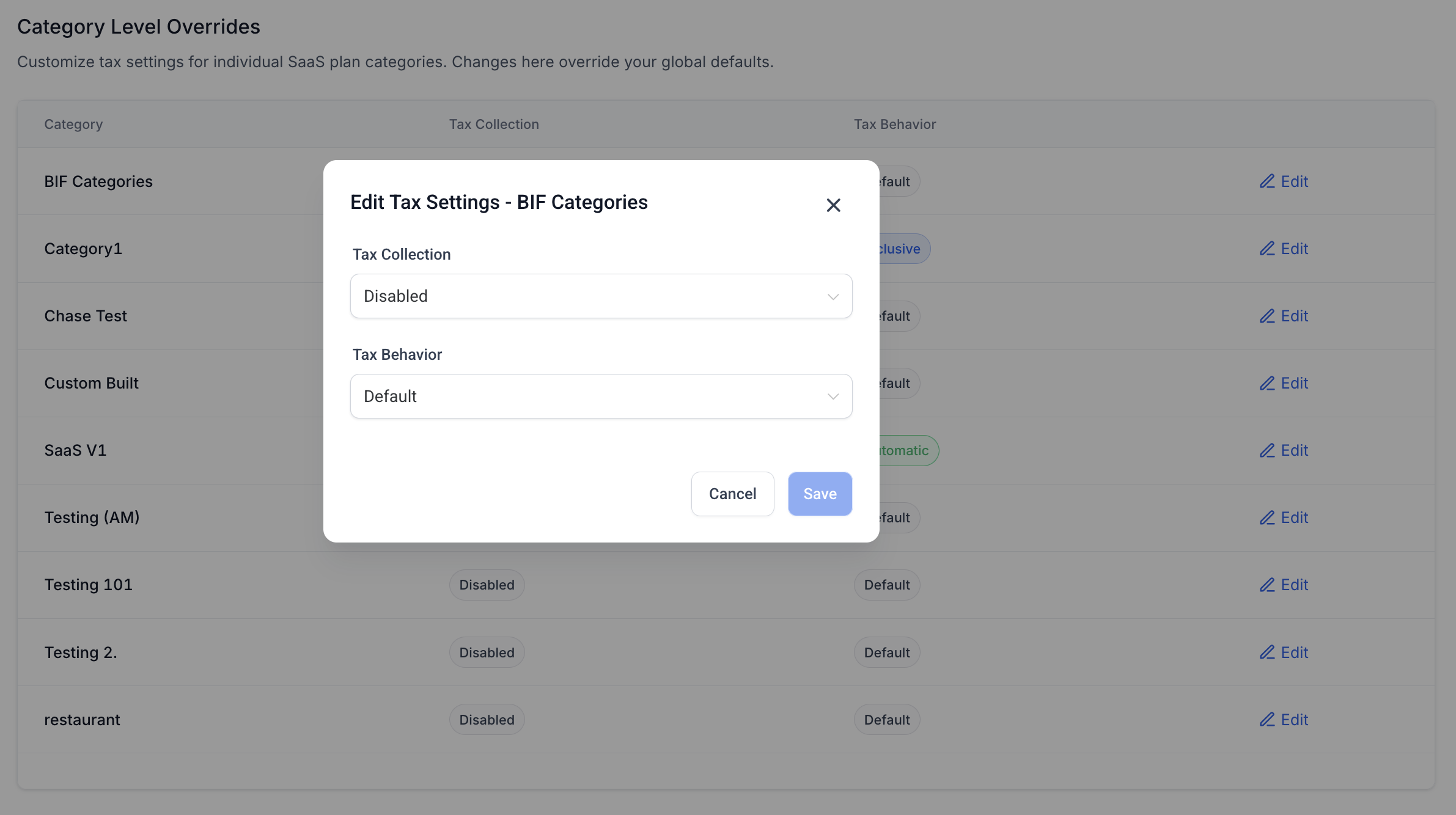
- Scroll to Category Level Overrides, edit the desired category, enable or disable tax collection, set its tax behaviour, and save.
- Create a test subscription using the intended SaaS offer, entering customer details for the jurisdiction you want to validate.
- Review the tax amount and final total displayed; confirm it aligns with the selected Inclusive, Exclusive or Automatic behavior.
- Leaving existing active subscriptions unchanged; the new tax settings apply only to future subscription events.
07What it looks like in HighLevel
08Settings that matter
- Enable automatic tax collection for SaaS products. Turns on the automatic tax feature for new or eligible SaaS V1 subscription flows.
- Tax Registrations. Identifies the jurisdictions where the agency collects tax, managed through Stripe.
- Product Tax Code. Classifies the SaaS product so Stripe Tax can apply the correct treatment.
- Tax Behaviour. Determines whether tax is included in the price, added on top, or applied automatically based on location.
- Category Level Overrides. Allows a specific SaaS category to use a different tax collection setting or behavior than the global default.
09Things to know before you rely on it
- Only works with Stripe based SaaS V1; not available for SaaS V2 or non Stripe providers.
- Enabling or changing tax settings does not retroactively update existing active subscriptions.
- Tax recalculation after a plan change applies only to subscriptions already configured for applicable tax.
- Category overrides replace the global tax configuration for the selected category.
10How it connects to the rest of HighLevel
- Learn how to manage Stripe payment methods in HighLevel. Stripe payment methods
- Read the overview of creating and applying taxes in HighLevel. HighLevel tax settings
- Export your Stripe subscription products into HighLevel. Import Stripe products
- View HighLevel pricing and plan options. HighLevel pricing
- Start a 30 day trial of HighLevel. 30 day trial
Michael's take

I thought turning on Automatic Tax would fix all mismatches, but it only applies to new or eligible subscriptions.
I’d start by enabling the feature, then create test subscriptions in the jurisdictions I sell to, and verify the checkout totals match the configured tax behavior before going live.