
01Who this is for
- Freelance designers can send design mockups together with a quote, reducing follow up requests.
- Construction contractors can include blueprints when presenting a project estimate.
- Consultants can attach detailed proposals or terms of service with their estimates.
02Attachments in estimates and invoices, explained
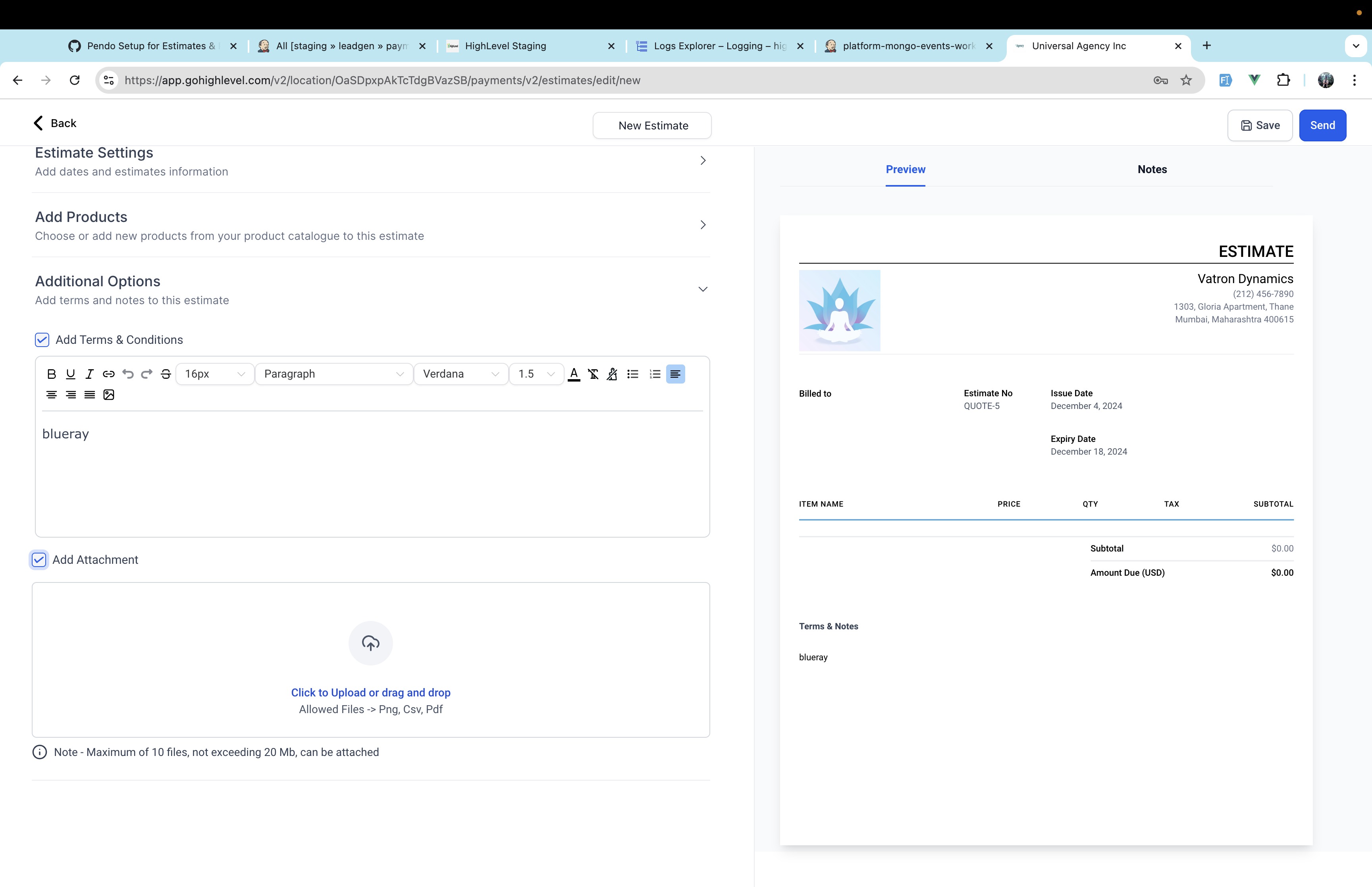
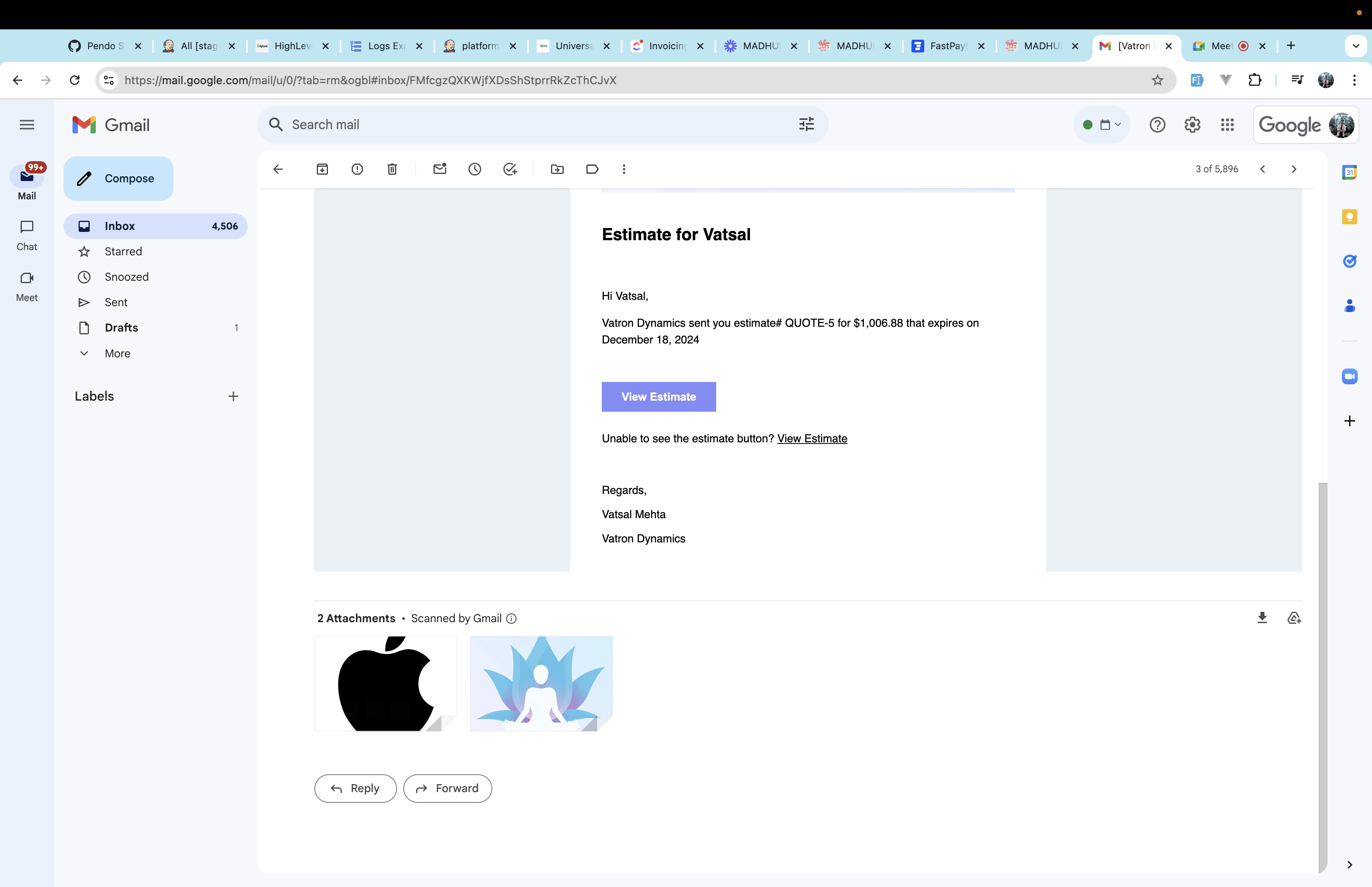
The attachment feature lets you add files to estimates, invoices, recurring invoices and estimate templates. You can upload up to ten files per document, but the combined size must stay under 20 MB. The files travel with the first email that is sent from HighLevel.
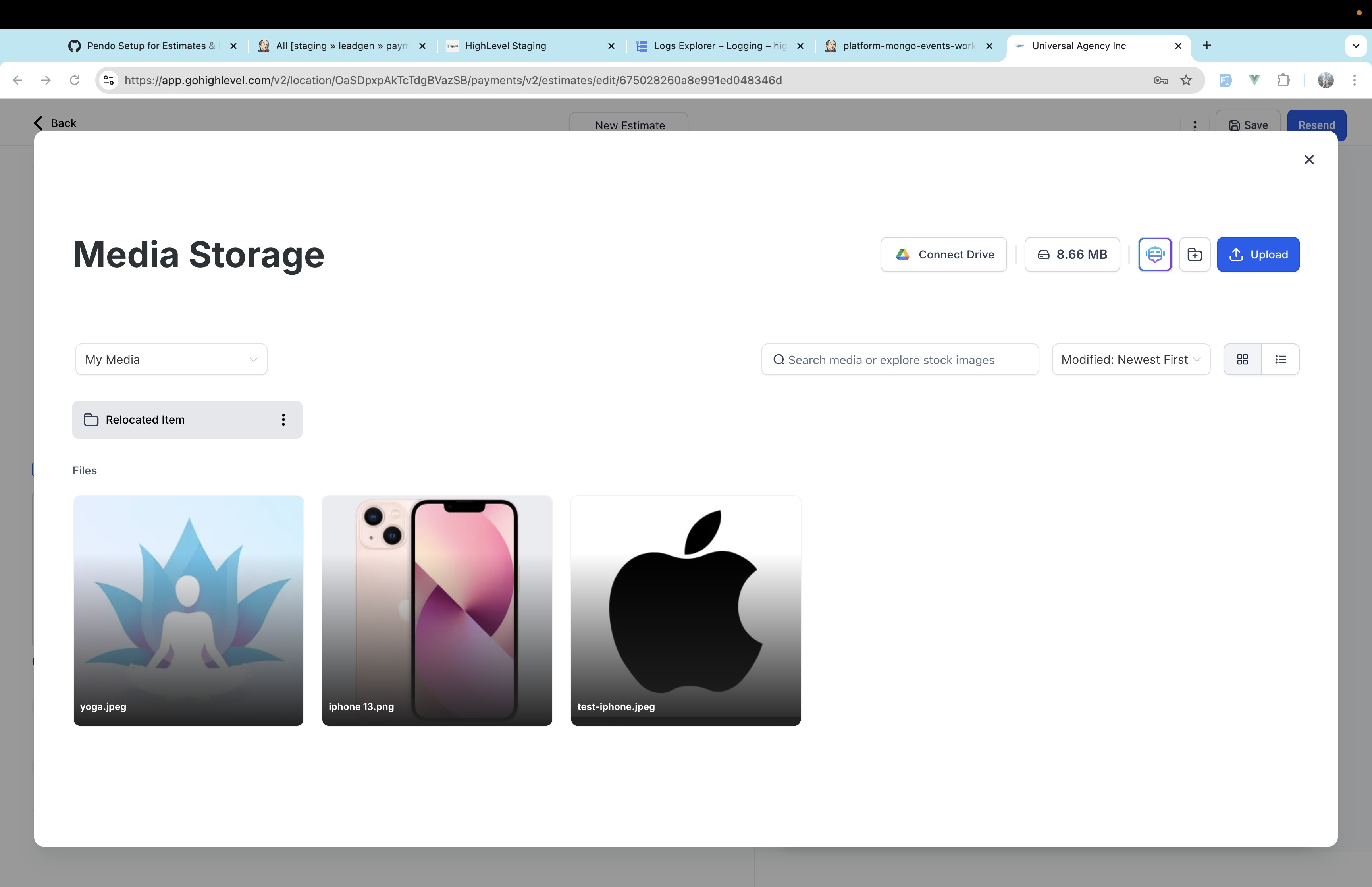
To use the feature, open the Estimates area under the Payments tab. While you create a new estimate or edit an existing one, click the paperclip icon to choose files from your computer. After uploading, the platform checks the total size and prevents you from exceeding the limit. When the estimate is emailed for the first time, the attached files appear in the recipient’s email.
Attachments are not included in later scheduled emails for the same document. The same limits and behavior apply to invoices, recurring invoices and estimate templates.
03How businesses use attachments in estimates and invoices
- Construction contractor. The contractor opens the Estimates section, creates a new estimate, clicks the attachment icon and uploads the project blueprint PDF. The blueprint is sent with the estimate email.
- Graphic design studio. The studio edits an estimate, selects the attachment icon, adds a set of mockup images, and sends the estimate. The client receives the mockups attached to the email.
- Legal consultancy. The consultancy prepares an estimate, uses the attachment icon to upload a terms of service document, and delivers the estimate. The client gets the terms file with the first email.
04The numbers and rules that matter
- Up to 10 files can be attached per estimate, invoice, recurring invoice, or estimate template.
- Total file size limit is 20 MB per estimate, invoice, recurring invoice, or estimate template.
05How to set up and use attachments in estimates and invoices in HighLevel
Add attachments to an estimate
- Navigate to the Estimates section under the Payments tab.
- Start a new estimate or open an existing one for editing.
- Find the attachment icon on the estimate screen.
- Click the icon and select files from your device.
- Make sure the total size of all selected files is under 20 MB.
06What it looks like in HighLevel
07Things to know before you rely on it
- Maximum of ten files per estimate, invoice, recurring invoice or estimate template.
- Combined file size cannot exceed 20 MB for each document.
- Attachments are sent only with the first email for the document.
08How it connects to the rest of HighLevel
- Create and send invoices in HighLevel Invoice workflow
- Set up recurring invoices in HighLevel Recurring invoices
- All Payments features overview Payments features
Michael's take

Attachments are a handy way to bundle details, but they add little value if you rarely send PDFs or specs.
Businesses that rely on simple price quotes without extra documentation can skip this feature.