
01Who this is for
- Agency owners can limit team members from issuing refunds or altering subscription details.
- SaaS Founders can allow product managers to create and bulk manage items without exposing payment configuration settings.
- Accounting teams can view and export transaction records while preventing changes to order collection processes.
02Payment permissions, explained
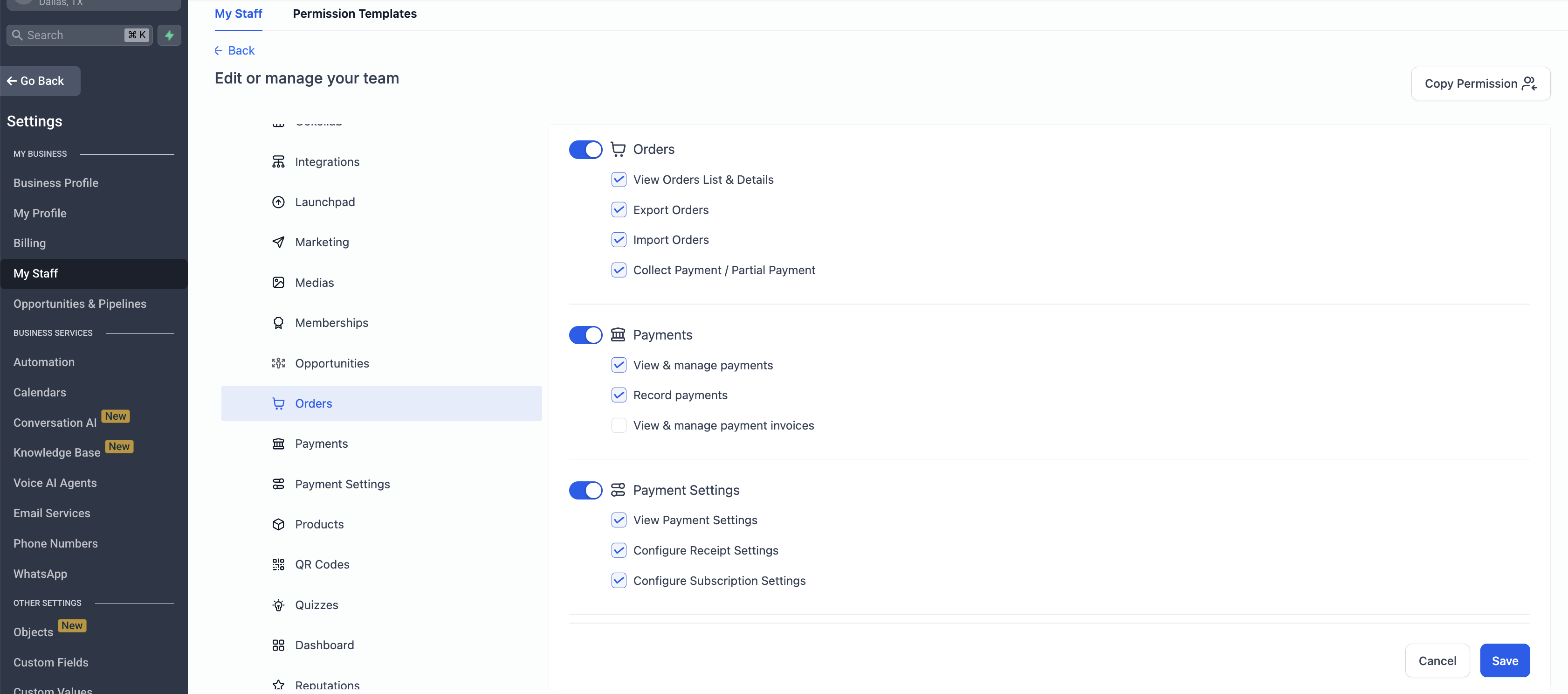
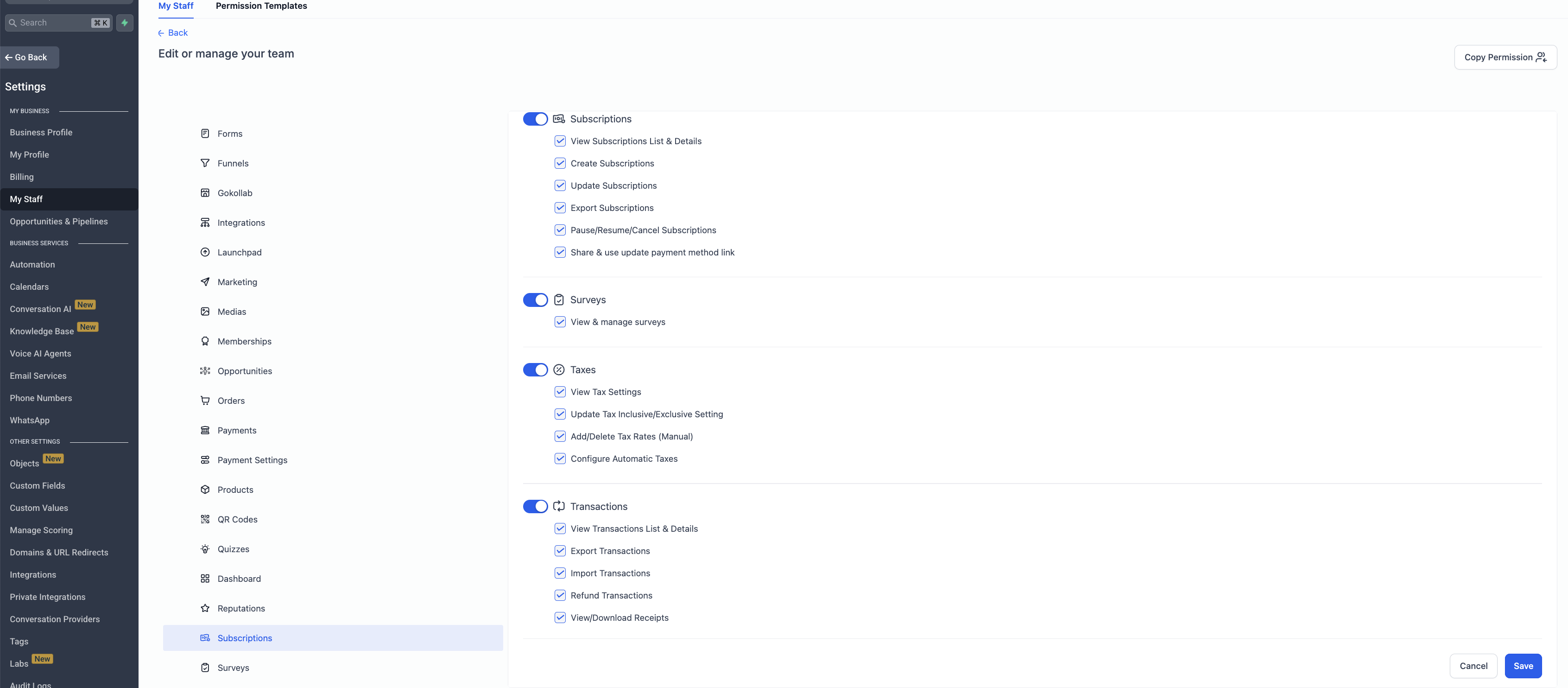
The permission system splits payment related rights into six distinct sections. For each section, admins can turn on or off actions such as view, create, update, delete, export and configure. This granularity replaces the previous single Payments block.
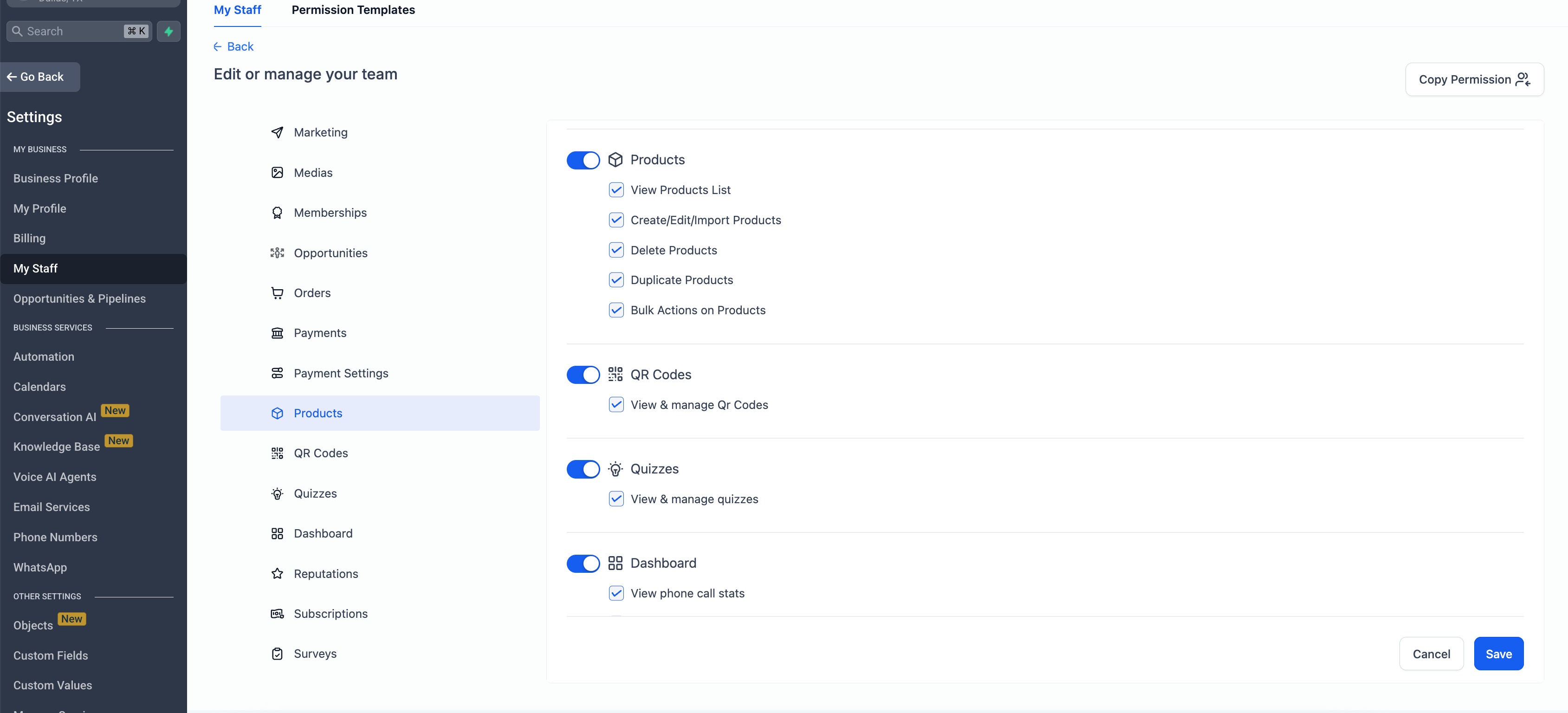
When a permission that another action relies on is missing, the platform automatically disables the dependent option. For example, bulk product actions are unavailable unless the Create/Edit toggle is active. The new layout works together with any existing generic Payments permissions.
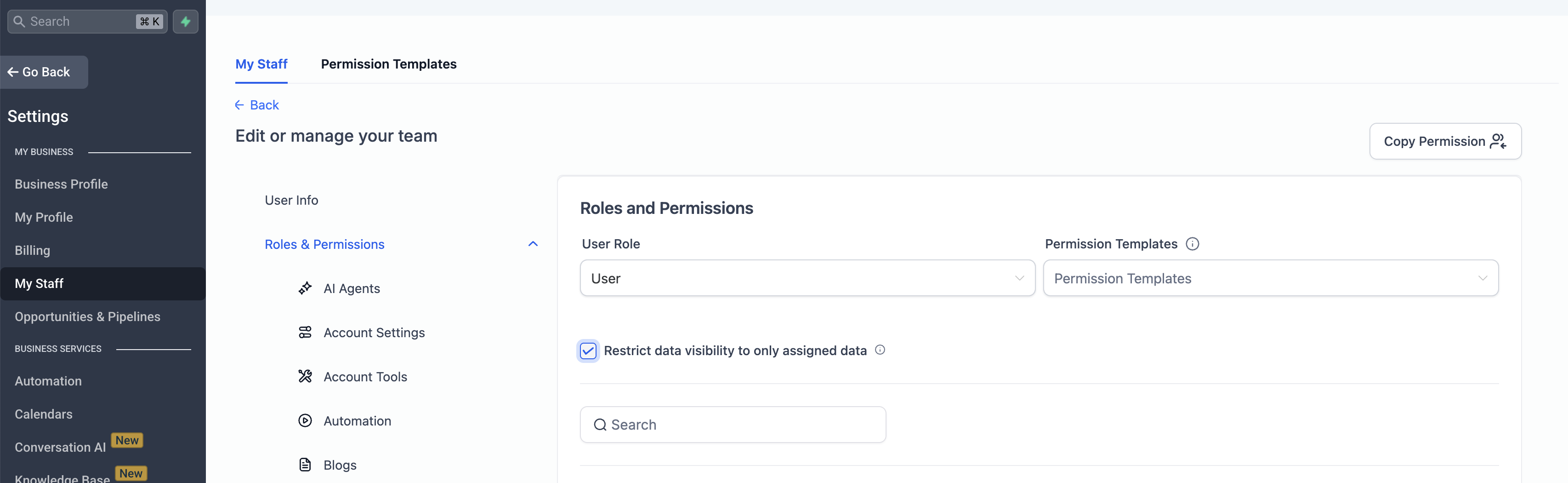
All settings are located under Settings > My Staff. After choosing a staff member and clicking the Edit icon, the Roles & Permissions screen displays the six payment modules where the toggles can be adjusted.
03How businesses use payment permissions
- Digital marketing agency. The agency can give media buyers permission to collect payments on orders while restricting them from editing tax settings or processing refunds. This is done by enabling view and collect actions in the Orders module and leaving other modules unchecked.
- Online retailer. A retailer can let inventory staff create and edit products, duplicate listings and run bulk updates, but only after granting the Create/Edit permission in the Products module. The staff member’s access is set by checking the appropriate boxes in the Products section.
- Subscription based service. The service can assign support agents the ability to pause, resume or cancel subscriptions without allowing them to change payment gateway settings. Agents receive the needed rights by selecting the relevant actions in the Subscriptions module while leaving Payment Settings untouched.
04Before you start
- Permission to edit staff roles in Settings > My Staff must be granted.
- A clear plan for which staff members will handle each payment module is required.
- At least one staff member or role must exist to receive the new permissions.
05How to set up and use payment permissions in HighLevel
Assign payment permissions to a staff member
- Navigate to Settings > My Staff.
- Click the Edit icon beside the staff member you wish to modify.
- Open the Roles & Permissions panel.
- In each payment module, tick the actions the staff member should have.
- Ensure any required base permissions are enabled for bulk actions.
- Click Save to apply the changes.
06What it looks like in HighLevel
07Settings that matter
- Orders. Controls rights to view, export, import and collect payments, including partial payments.
- Subscriptions. Manages abilities to create, modify, pause, resume, cancel, export and update payment methods.
- Transactions. Sets permissions for viewing, refunding, exporting, importing and downloading receipts.
- Taxes. Allows viewing and configuring tax settings, adding or deleting manual rates, and toggling automatic tax calculation.
- Products. Governs viewing, creating, editing, importing, duplicating, bulk managing and deleting product records.
- Payment Settings. Enables configuration of receipts, subscription defaults and other platform payment options.
08Things to know before you rely on it
- Former generic Payments permissions have been reorganized into the six new modules.
- Dependent actions are automatically disabled when required base permissions are missing.
- Bulk product management cannot be used without granting Create/Edit permission.
09If something goes wrong
- Bulk Manage Products remains disabled after being selected.. Enable the Create/Edit permission for the Products module; the bulk option will then become available.
10How it connects to the rest of HighLevel
- Explore all payment related features. All Payments features
- Review plan eligibility for advanced permission controls. HighLevel pricing and plans
- Start a trial to test permission settings. Start a 30 day HighLevel trial
Michael's take

If you are wondering whether splitting payment permissions into six sections makes sense, it lets you keep high risk actions such as refunds, tax tweaks and product changes limited to the right people while allowing sales staff to handle routine work.
I’d start by giving front line team members just Orders view and collect payment rights, and keep Subscriptions and Payment Settings for senior staff, so day to day flow stays smooth and high risk actions stay locked down.