
01Who this is for
- Sales managers who need a quick visual snapshot of deal progress across stages.
- Customer success teams that focus on moving opportunities through defined workflow steps.
- Small business owners who prefer a board layout over a detailed table for daily pipeline checks.
02Kanban view in opportunities, explained
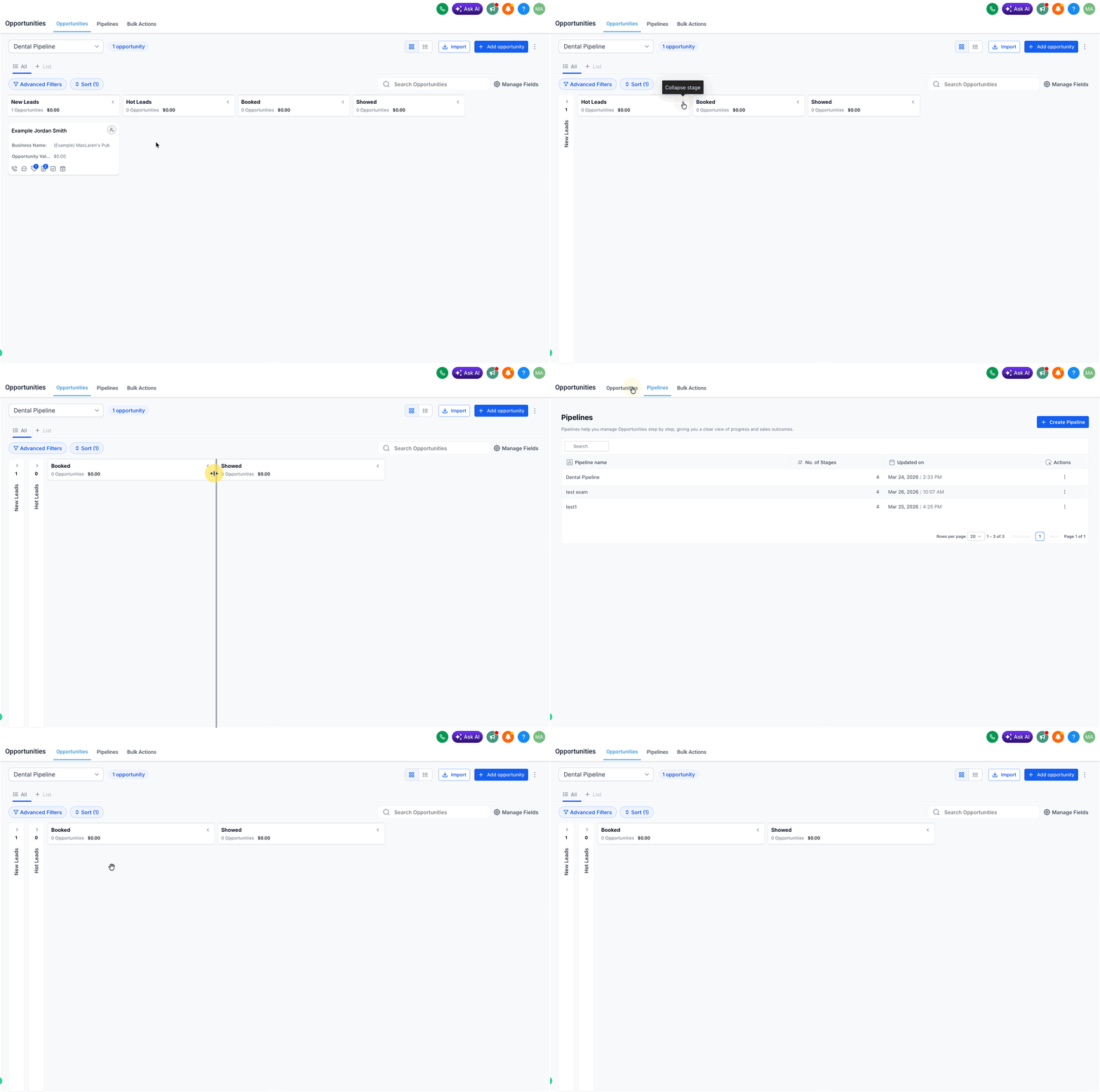
The Kanban view displays each pipeline stage as a vertical column containing opportunity cards. It replaces the tabular List view with a board that mirrors the natural flow of a sales process. Users can interact with the board by collapsing unused stages, resizing columns, and sorting cards.
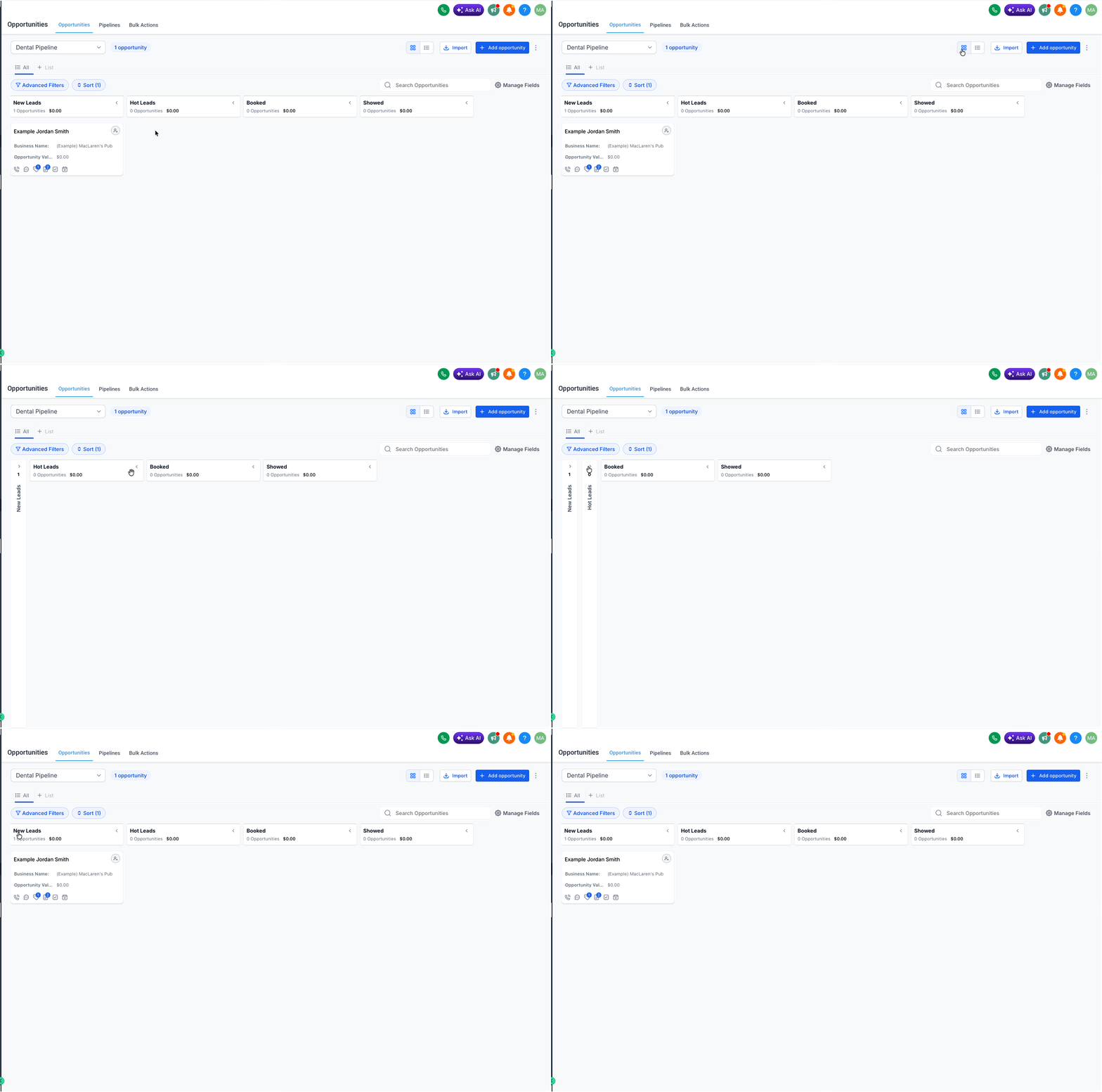
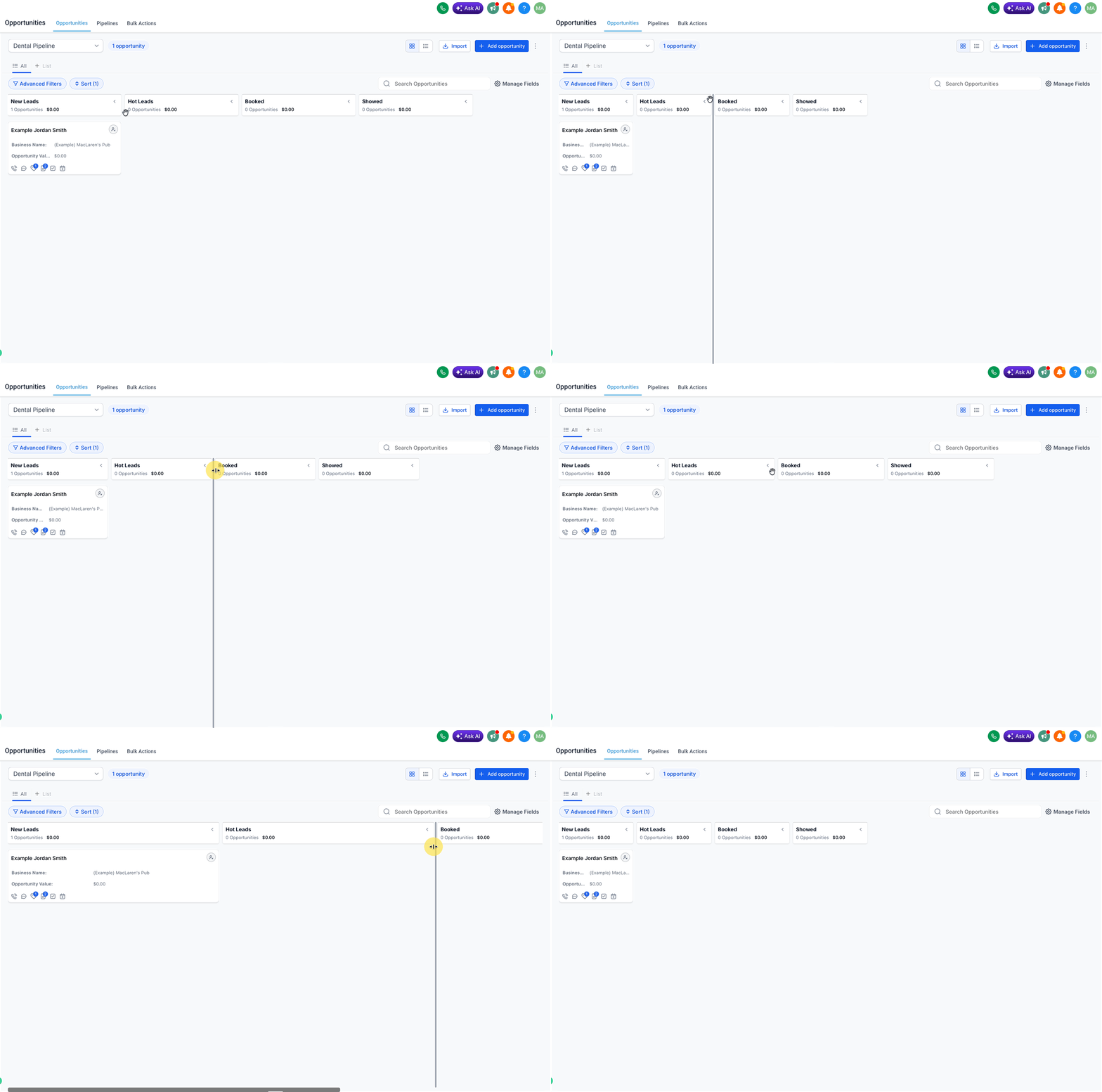
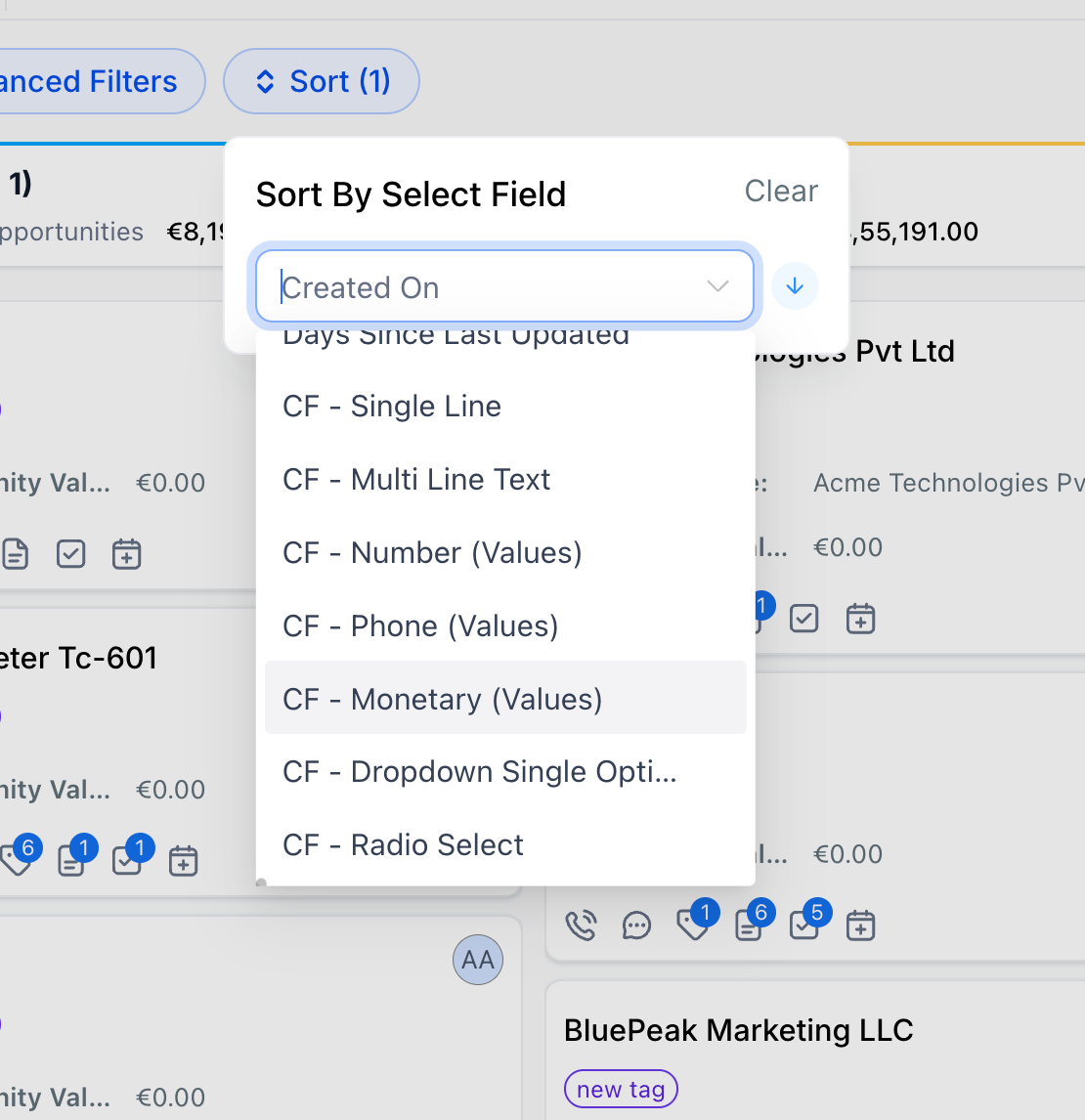
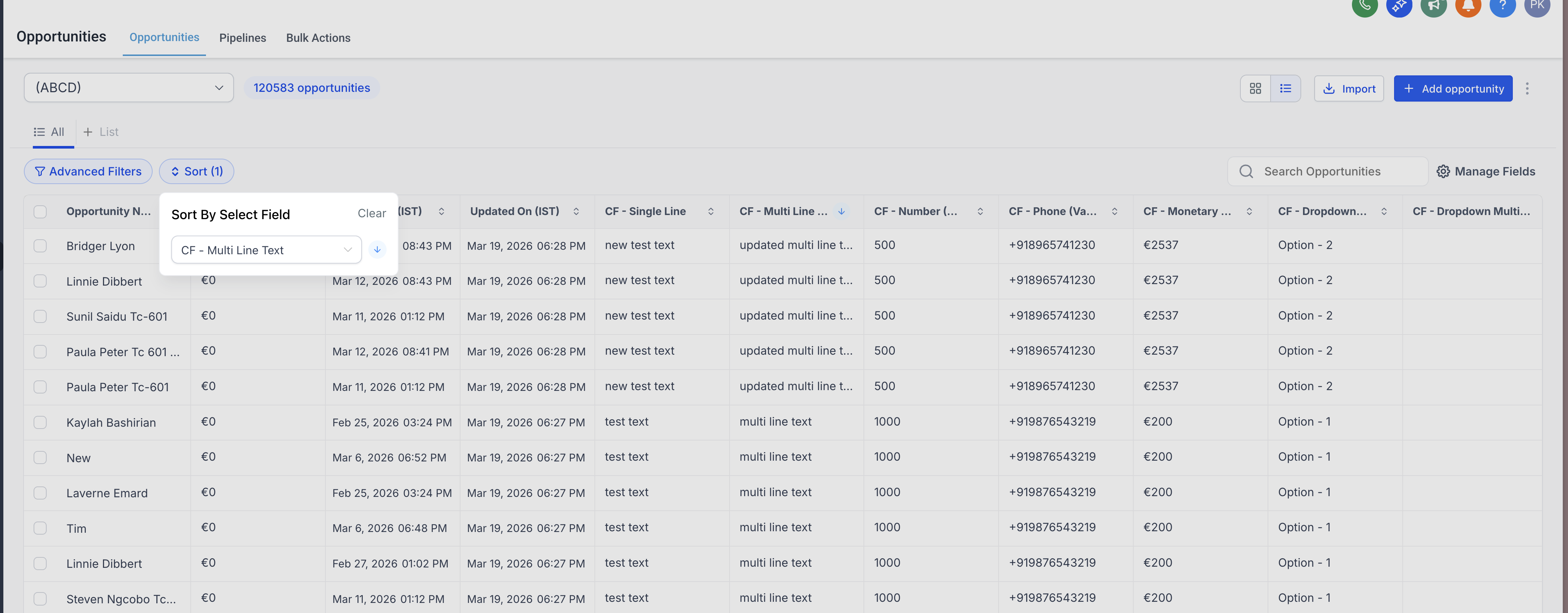
Collapsing a stage hides its cards, reducing on screen clutter. Expanding a stage reveals all cards within that column. Column widths can be stretched or shrunk to give more space to busy stages, and a double click restores the default width. Sorting rearranges all visible cards based on a chosen field, such as creation date or a custom numeric value.
All layout adjustments are saved in the browser for the individual user, so each person sees their preferred arrangement each time they open the Kanban view. These changes do not alter the view for other team members.
03How businesses use kanban view in opportunities
- Consulting firm. The firm opens Opportunities, switches to Kanban view, and collapses stages like "On Hold" to focus on active projects. It then enlarges the "Proposal" column to see client proposals clearly.
- Ecommerce startup. The startup resizes the "Closed Won" column to a wider width, allowing quick access to order details on each card while keeping less active stages narrow.
- Real estate agency. Agents sort opportunity cards by the custom field "Property Price" in descending order, bringing the highest value listings to the top of the board for priority follow up.
04Before you start
- Open the Opportunities section and ensure the view mode is set to Kanban.
05How to set up and use kanban view in opportunities in HighLevel
Collapse or expand a stage column
- Open Opportunities and select the Kanban view.
- Locate the header of the stage you want to modify.
- Click the header control to toggle the stage between collapsed and expanded.
Resize stage columns
- In Kanban view, hover the cursor over the border of a stage column.
- Drag the divider left or right to change the column width.
- Repeat the drag action for any additional columns you wish to adjust.
- Double click a column border to reset that column to its default size.
Sort opportunities in Kanban view
- In Opportunities, click the Sort button at the top of the page.
- Select the field you want to sort by from the provided list.
- Choose either Ascending or Descending order.
- Watch the opportunity cards reorder automatically based on your selection.
06What it looks like in HighLevel
07How it connects to the rest of HighLevel
- Switch between Kanban and List view for opportunities List view
- Sort by custom fields in Kanban view Custom fields
- Learn the basics of opportunities in HighLevel Understanding opportunities
Michael's take

Kanban view provides a visual way to manage deals across pipeline stages.
Don’t forget that layout changes only affect your own view, so assuming the whole team sees the same setup can lead to confusion.