
01Who this is for
- Sales teams can record closing dates or budget details directly on each opportunity.
- Marketing teams can capture campaign sources or lead origins for each opportunity.
02Custom Fields for opportunities, explained
The feature adds user defined data fields to the Opportunity record, expanding beyond the default set. Fields can be of many types, such as text, number, dropdown, date or monetary, and can be grouped in custom folders for easier navigation. A toggle lets you hide any fields that have no entered value, keeping the opportunity form tidy.
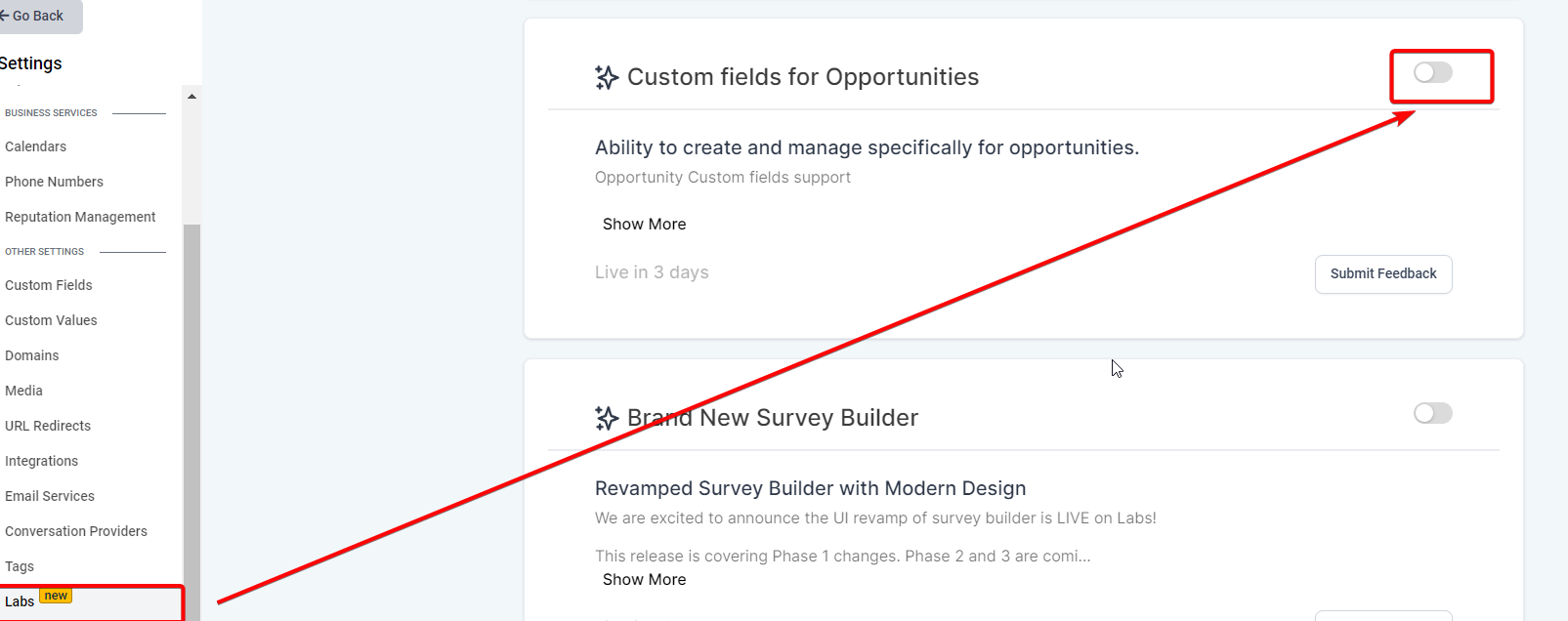
All configuration lives in the Settings area of a subaccount. After creating fields, they appear automatically when you open or edit an opportunity, ready for input. The functionality is currently offered through the Labs section of the platform.
03How businesses use Custom Fields for opportunities
- Sales deadline tracking. Create a custom date field for each opportunity’s closing date so the team can see critical deadlines directly on the deal record.
- Product specification tracking. Add text or dropdown fields to capture product model, SKU, or service type, allowing reps to view detailed specs without leaving HighLevel.
- Lead source attribution. Define a field to record where each lead originated, such as referral, social media, or direct mail, so opportunities can be filtered by source.
04The numbers and rules that matter
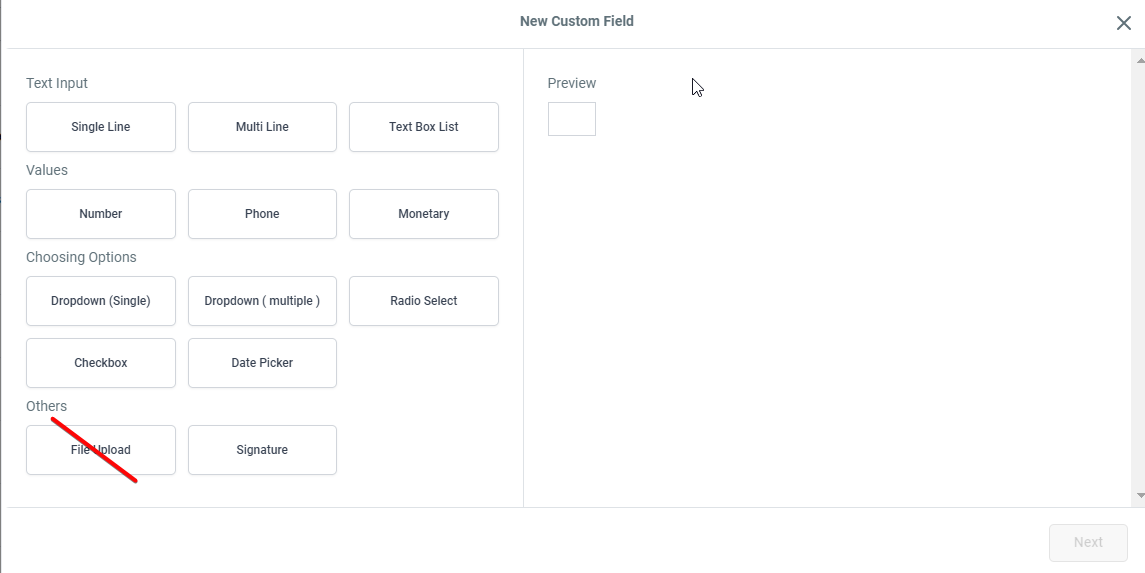
- Field types include: Text Input, Single Line, MultiLine, Text Box List, Values, Number, Phone, Monetary, Choosing Options, Dropdown (Single), Dropdown (Multiple), Radio Select, Checkbox, Date Picker, Signature, Rich text, URL, Date & time, User.
- Date & time field can collect a date, a time or both; limit to future dates, past dates or a specific range; choose available weekdays.
05Before you start
- The Custom Fields for Opportunities feature must be enabled in Labs.
06How to set up and use Custom Fields for opportunities in HighLevel
Set up Custom Fields for opportunities
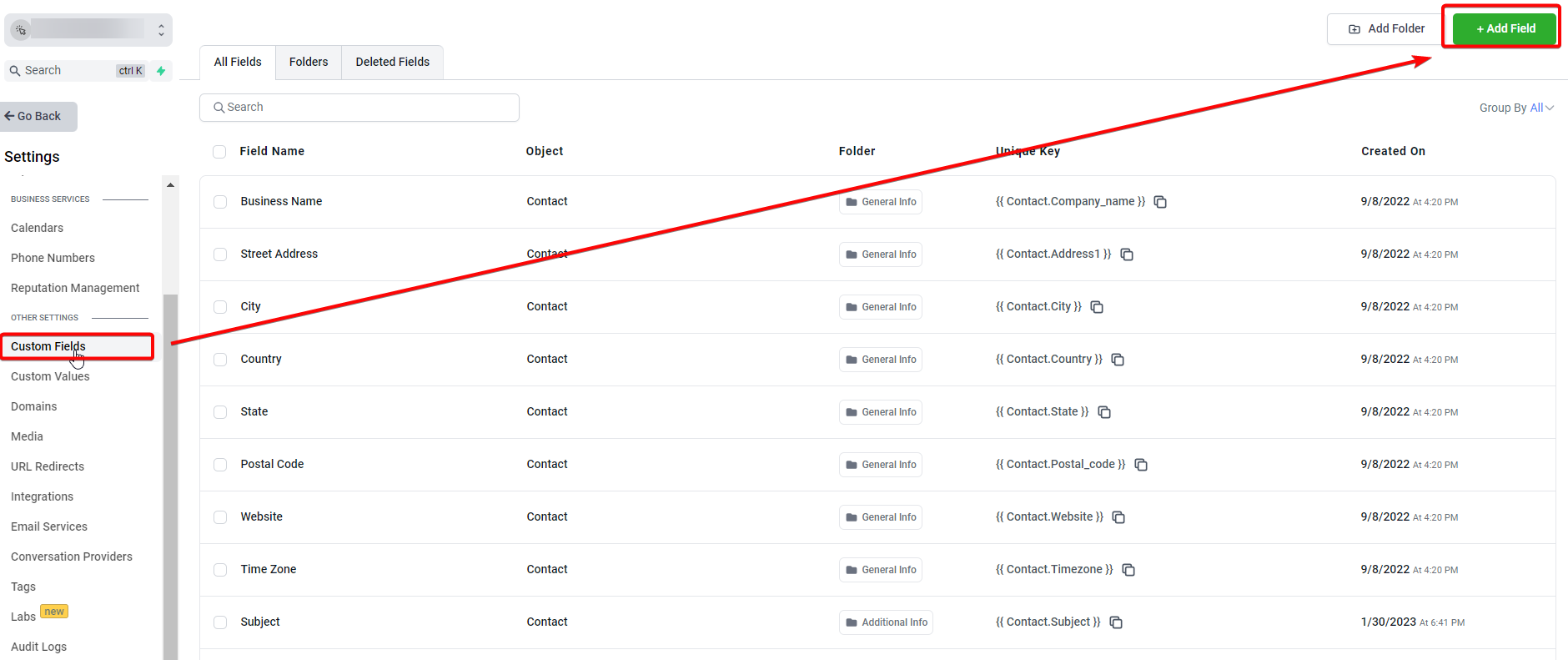
- Open Settings for the subaccount.
- Select the Custom Fields section.
- Press Add Field to start a new field.
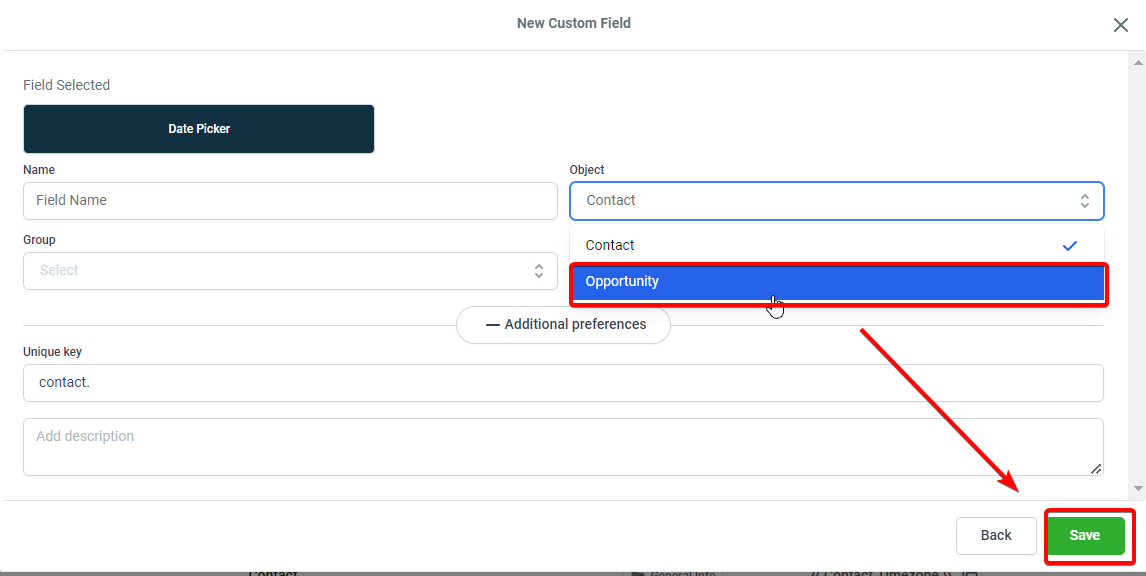
- Pick Opportunity as the object and set the field type and name.
- Enter the required details and save the field.
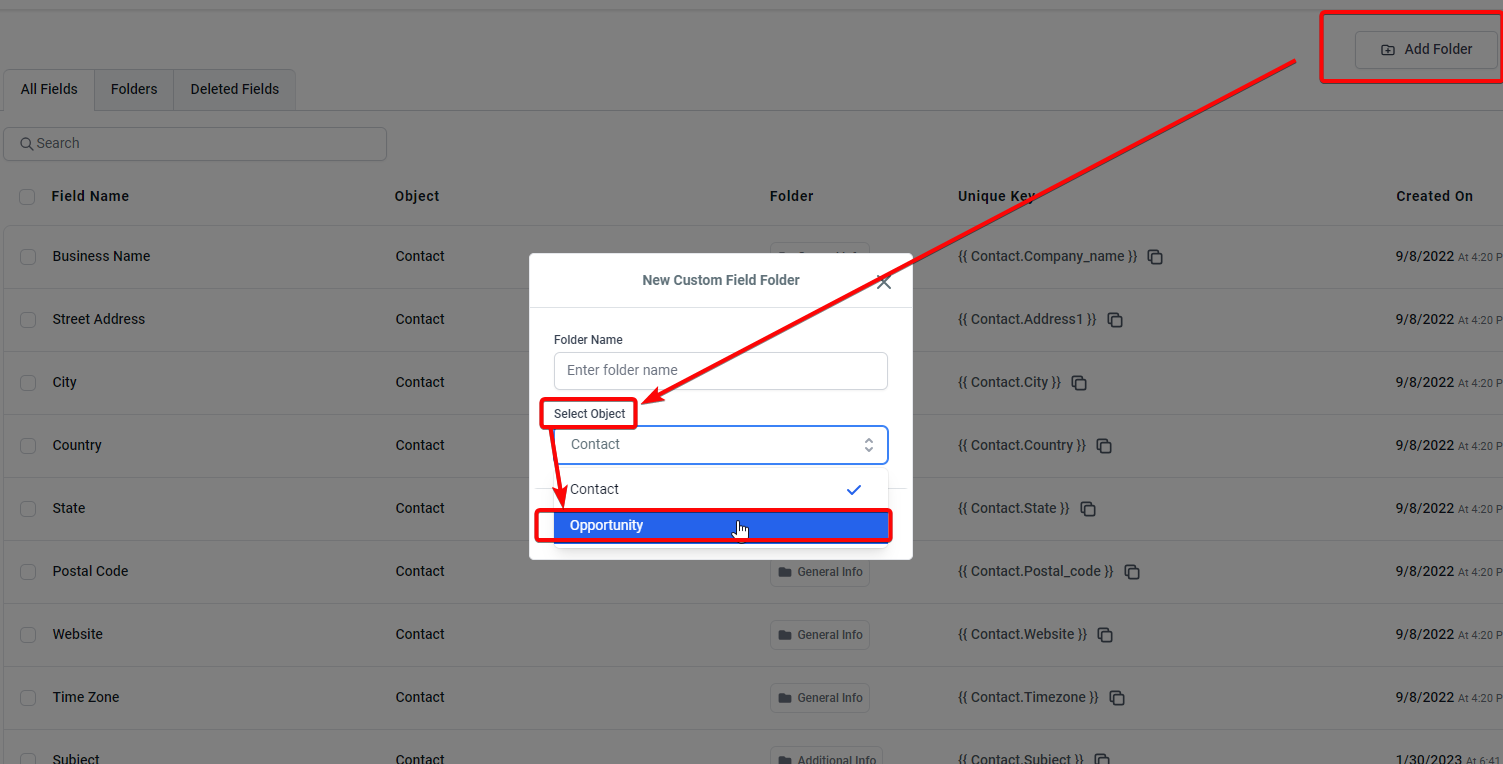
- Create a folder by opening Folders, adding a new folder, naming it, and assigning Opportunity as its object.
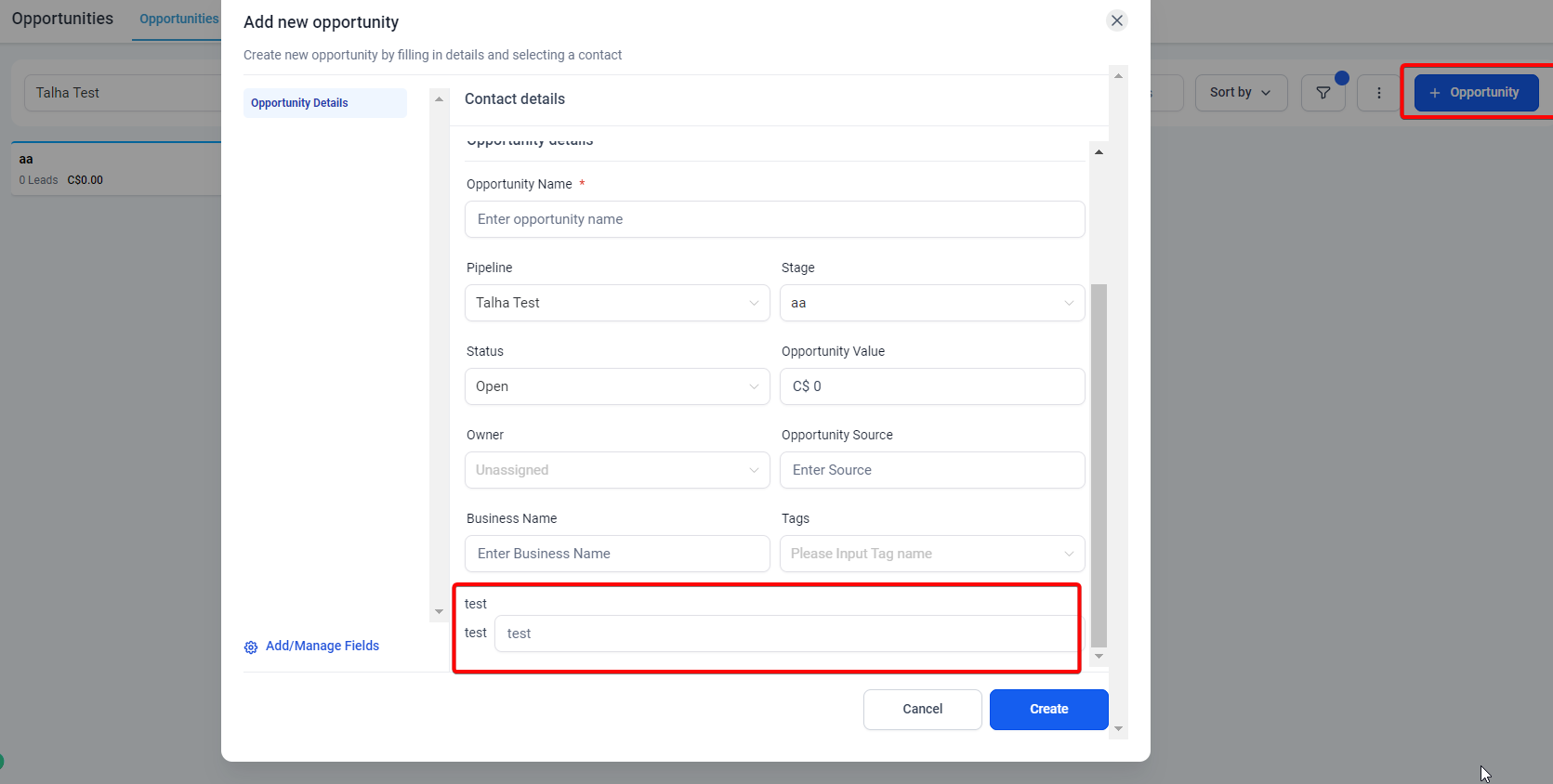
- Open the Opportunities area, create or edit a record, and you will see the new fields ready for data entry.
- Activate the Hide Empty Fields toggle to suppress any fields that have no value.
07What it looks like in HighLevel
08Settings that matter
- Hide Empty Fields. When turned on, any custom fields without a value are removed from the opportunity view, leaving only populated fields visible.
09Things to know before you rely on it
- The feature is only available through Labs and is not part of the standard offering.
- File Upload field type is still under development and cannot be used for opportunities yet.
- The User field type cannot be modified after it is saved; it also grants follower level access to assigned users.
10How it connects to the rest of HighLevel
- Create pipelines to organize opportunities Set up pipelines
- Add new opportunities manually or via CSV Create opportunities
- Edit opportunity statuses for better tracking Edit statuses
Michael's take

Ever wonder how to keep every piece of info about a deal without cluttering your screen? Custom Fields for opportunities let you add exactly the data points you need. Deadlines, budgets, product specs. And hide the blanks so the view stays clean.
If I were setting up a new pipeline, I’d start by adding a field for the next follow up date and another for the client’s budget, then group them into a folder called "Deal Details." That way the team sees only the most relevant info while the rest stays out of sight until needed.