
01Who this is for
- Sales managers benefit because they can enforce URL domains and date restrictions on deal records.
- Marketing teams use rich text fields to store formatted campaign briefs directly on opportunities.
02Expanded custom field types, explained
Custom fields store information that is unique to your business and record type. The expanded types add controls that shape how users input data, such as limiting URLs to certain domains or restricting date selections. Visual enhancements let you attach images to checkbox or radio options, making selections clearer.
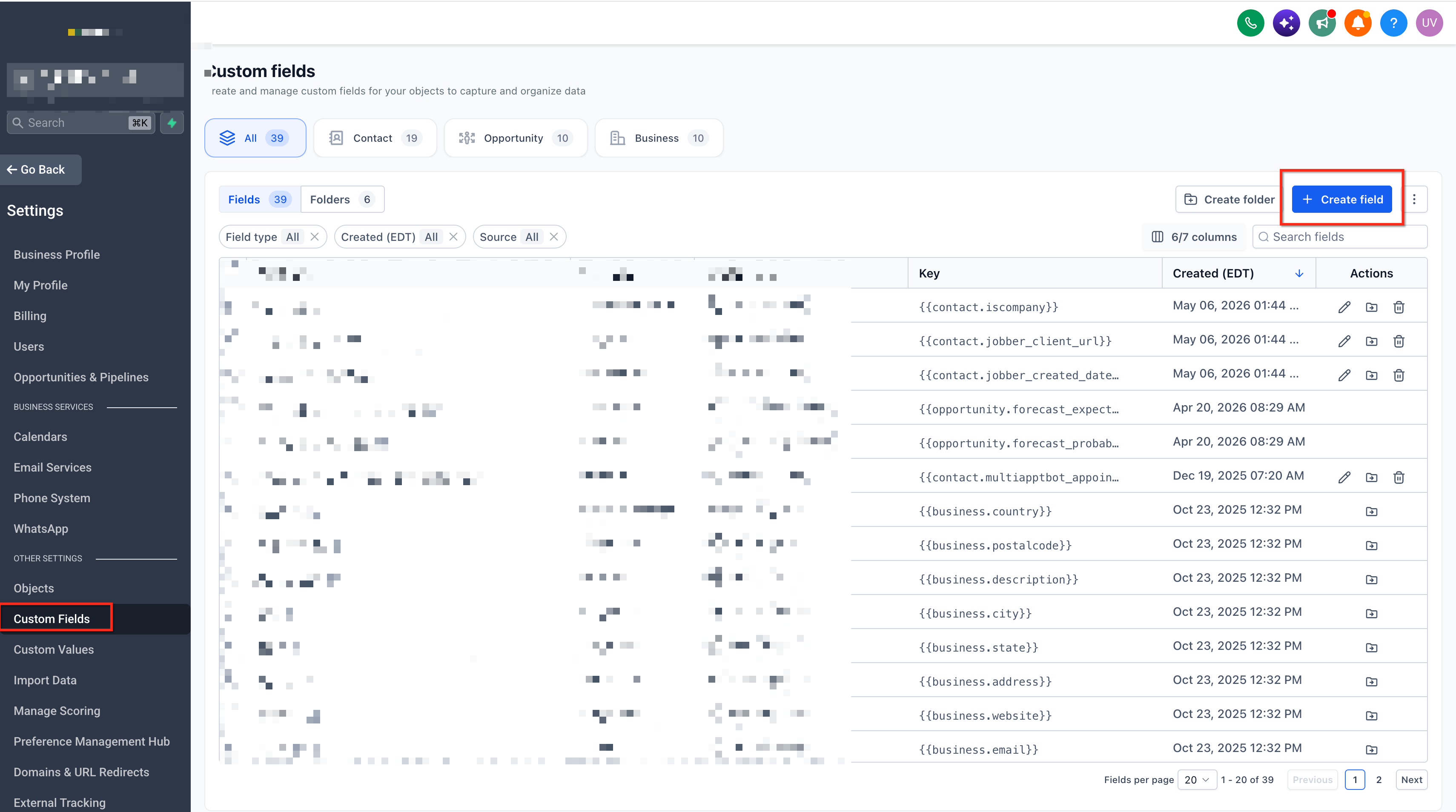
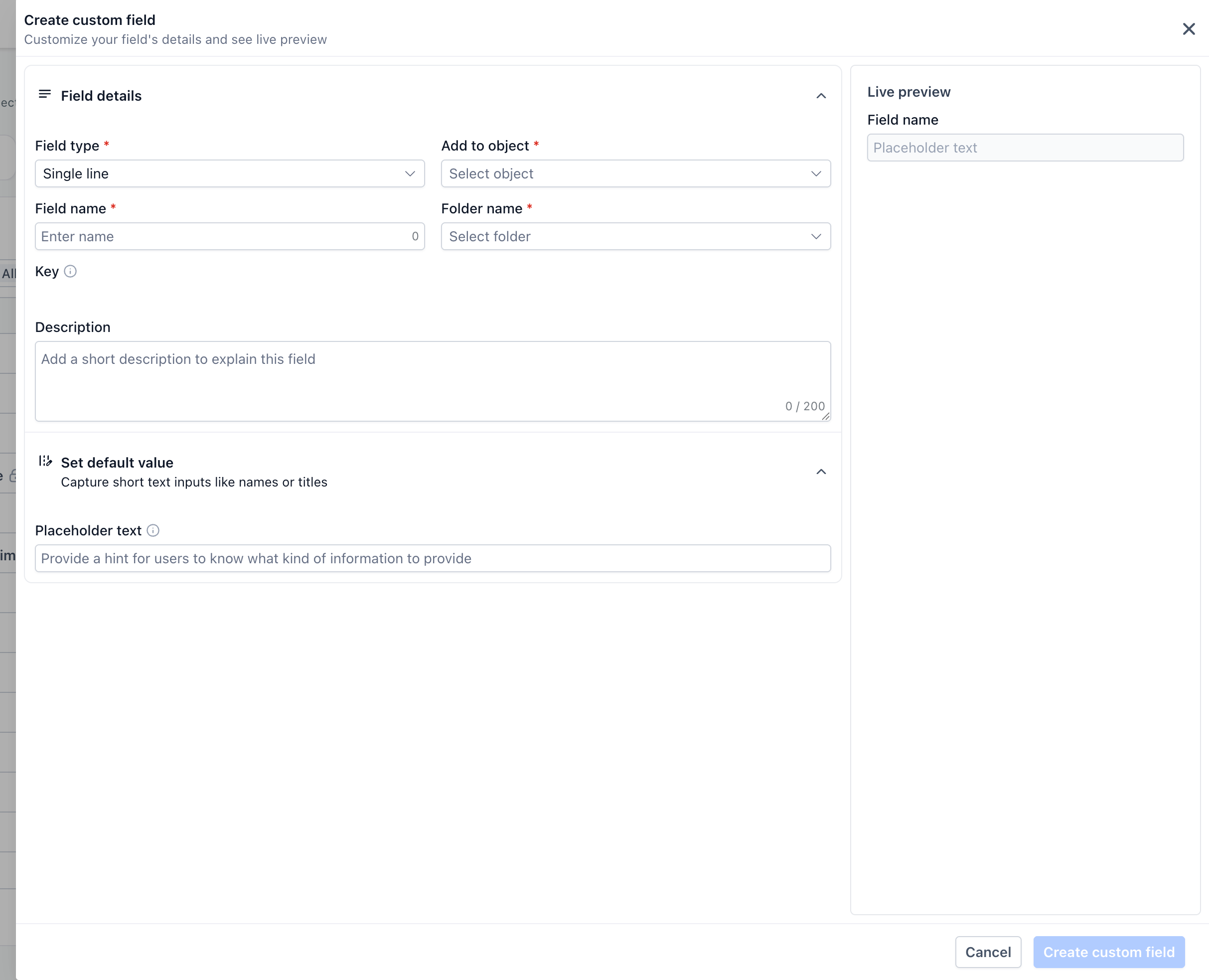
These fields are created in the Custom Fields section of HighLevel. After choosing the object, like Opportunities, you select a field type, set its name, and configure any type specific options. Once saved, the field appears on records of that object and follows the rules you defined.
03How businesses use expanded custom field types
- Real estate brokerage. The brokerage adds a URL field to each property listing to store the MLS link and restricts entries to the official MLS domain. Agents also use a date only field with a future date restriction to record upcoming open house dates.
- IT consulting firm. The firm creates a Rich Text field on project opportunities to outline detailed scope statements with headings and bullet points. A Users field assigns multiple consultants to each opportunity, granting them follower level access.
- Ecommerce retailer. The retailer configures a Checkbox field with images for product categories, allowing sales reps to select multiple categories visually when logging a new lead.
04The numbers and rules that matter
- Rich Text formatting: Bold, italics, headings, lists, additional supported text formatting.
05Before you start
- You must have access to a HighLevel subaccount.
- Confirm that the chosen field type is available for the target object.
06How to set up and use expanded custom field types in HighLevel
Set up expanded custom fields
- Open Settings in your HighLevel subaccount.
- Select Custom Fields.
- Choose the object where the field will belong.
- Click Create Field.
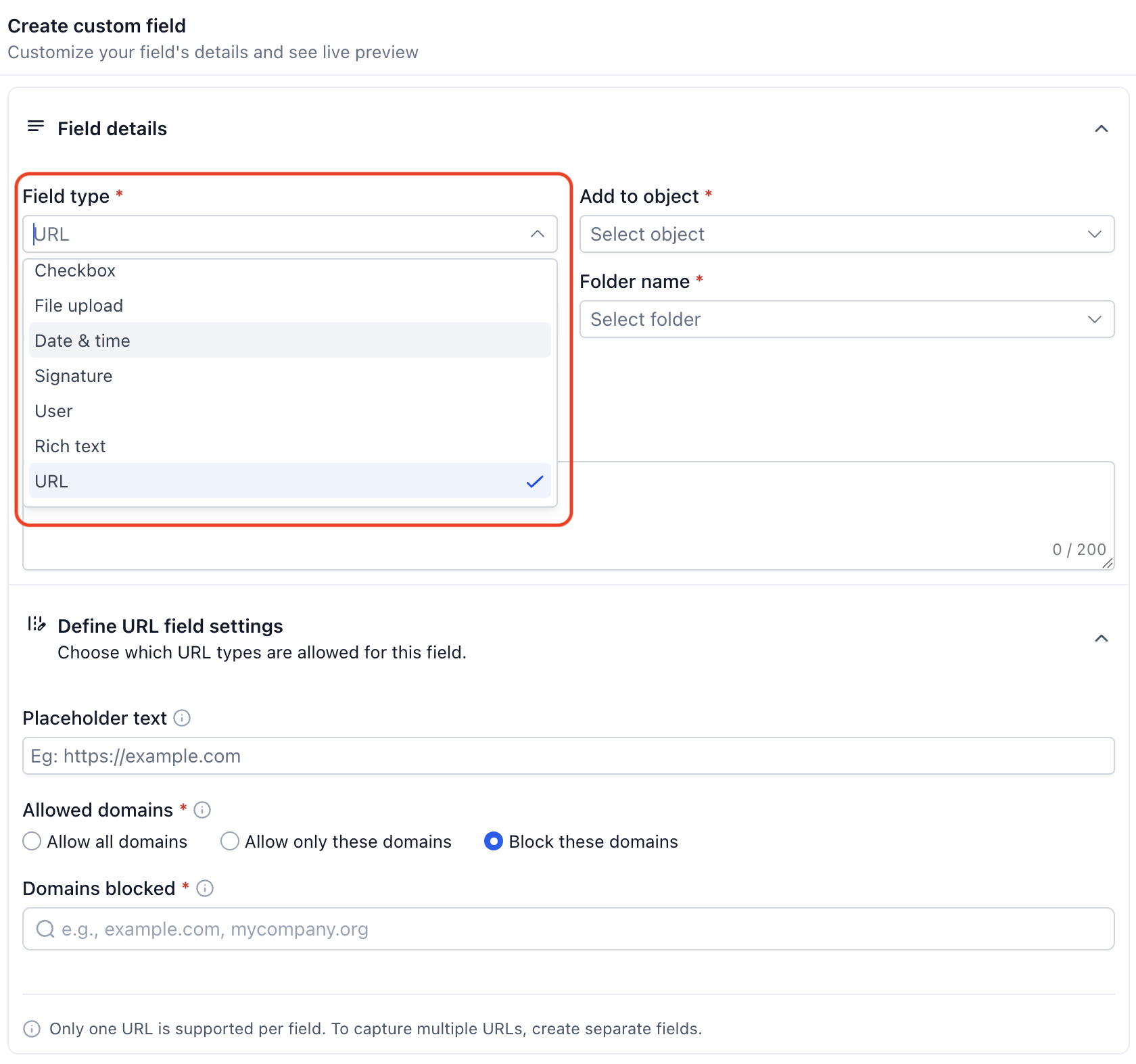
- Pick the appropriate field type for the data you need.
- Enter the field name and configure any general options.
- If the field is a URL type, open Domain controls and set allowed or blocked domains.
- If the field is a Date and Time type, select the desired format, date and time, date only, or time only.
- If the field is a Date and Time type, apply the needed date restriction, future only, past only, or a specific range.
- If the field is a Rich Text type, enable the formatting features you require.
- If the field is a Users type, decide whether one or multiple users can be selected.
- If the field is a Checkbox type, attach an image to each option that needs visual identification.
- If the field is a Radio type, attach an image or icon to each single choice option.
- Confirm that the selected field type is available for the intended object.
- Review the preview to confirm the configuration looks correct.
- Save the custom field.
07What it looks like in HighLevel
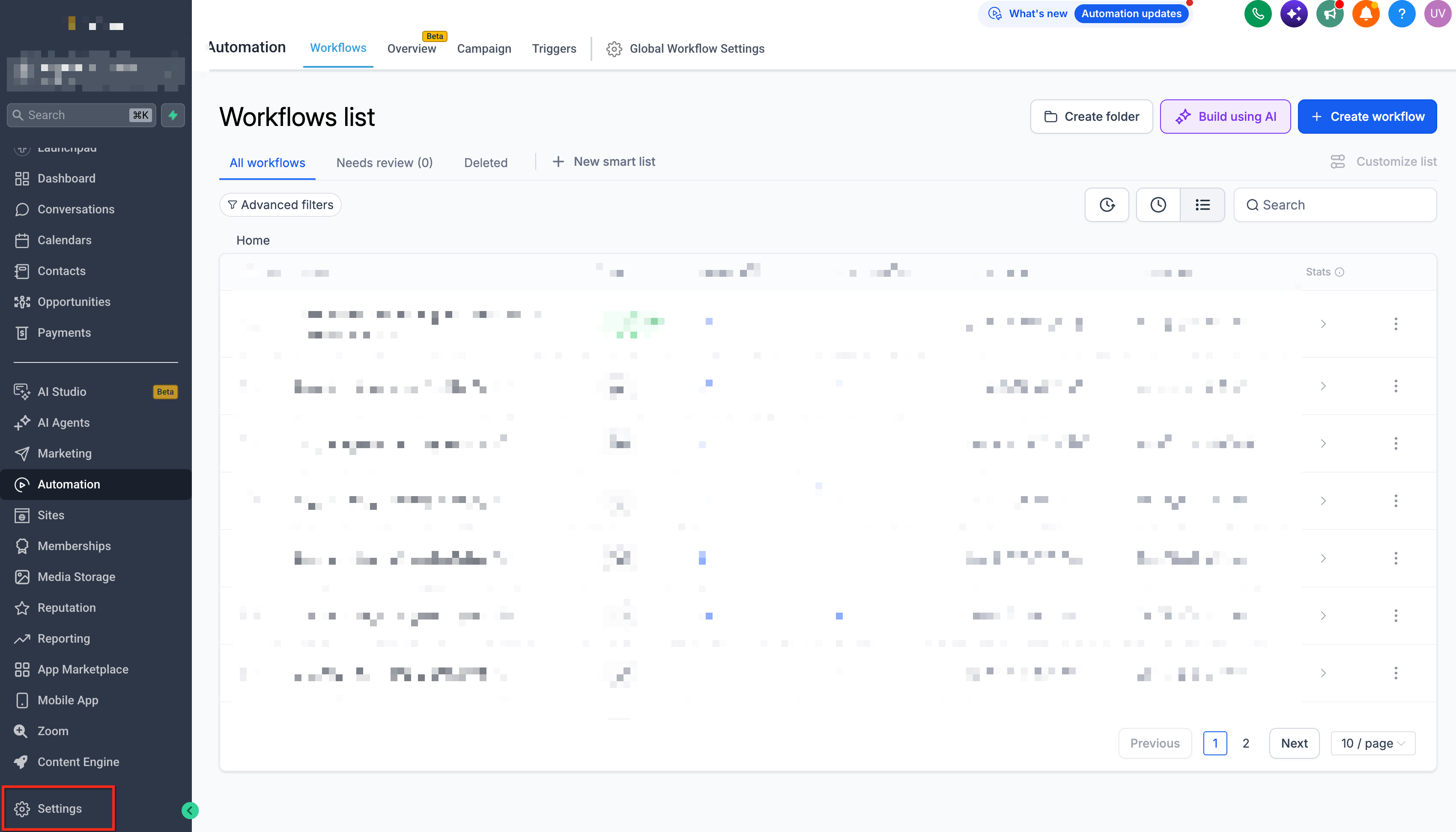
08Settings that matter
- Domain controls. Determines which web domains users may enter in a URL custom field.
- Date/time format. Specifies whether the field captures a full date and time, date only, or time only.
- Date restrictions. Limits selectable dates to future only, past only, or a defined range.
- Rich Text formatting. Enables bold, italics, headings, lists and other text styles within a Rich Text field.
- User selection mode. Sets whether the Users field allows a single user or multiple users to be linked to a record.
- Checkbox option images. Allows an image to be attached to each checkbox choice for visual clarification.
- Radio option images/icons. Allows an image or icon to be attached to each radio button choice for visual clarification.
09Things to know before you rely on it
- Custom field availability may differ depending on the object or area where the field is used.
- Visual images are only supported on Checkbox and Radio option types.
10How it connects to the rest of HighLevel
- Learn how to use custom fields for opportunities. Custom fields for opportunities
- Explore pipeline and stage setup for opportunities. Pipelines and stages
- View HighLevel pricing and plan options. Pricing
Michael's take

This feels like a small convenience that can become a real shift for teams that wrestle with messy data. Adding a visual cue to a checkbox or pinning down which domains can be entered stops a lot of back and forth cleaning later.
A boutique marketing agency that builds client profiles would love the URL field with domain controls and the Rich Text field for campaign briefs. If I were setting it up, I’d start with the URL fields for client sites, then add Rich Text notes to keep the details readable.