
01Who this is for
- Sales representatives can update the stage of many deals at once, keeping pipelines consistent.
- Managers can assign a new owner to multiple opportunities in one step, ensuring proper responsibility.
02Bulk edit opportunities, explained
Bulk Edit Opportunities is a feature inside the Opportunities section of HighLevel. It allows you to update fields such as pipeline, stage, status, value, owner, and others for several records at the same time. The feature works from both Grid/Card View, which shows cards in each stage, and List View, which presents a table of opportunities across all pipelines.
When you open the Bulk Edit window, you select the fields to change, enter the new values, and optionally add more fields before saving. All selected records receive the same updates, helping you keep information uniform and reduce the time spent editing each opportunity individually.
03How businesses use bulk edit opportunities
- Real estate team. Select all active property deals in List View, add the new expected close date field, and save to update the timeline for every listing at once.
- SaaS company. Pick several trial opportunities in Grid/Card View, change the stage to Qualified and assign a new owner, then save the bulk edit.
- Event planning agency. Select event sponsorship opportunities, set the source field to Referral and adjust the value field, applying the changes across all selected records.
04The numbers and rules that matter
- Available fields can include: Pipeline, Stage, Status, Value, Owner, Follower, Source, Expected Close Date, Lost Reason, Other available opportunity fields.
05How to set up and use bulk edit opportunities in HighLevel
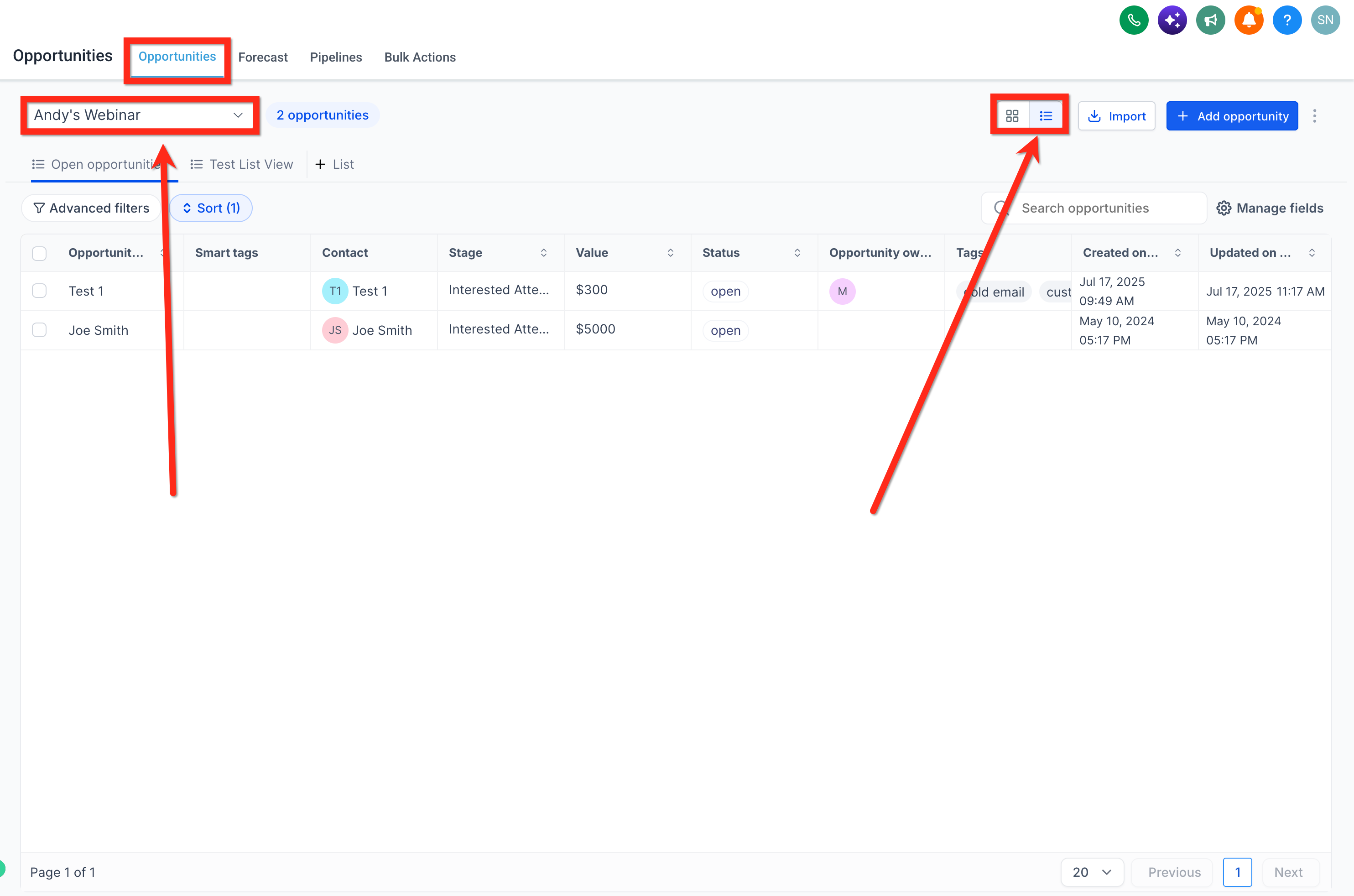
Navigate to opportunities
- Log in to your HighLevel account.
- Click Opportunities in the left navigation menu.
- Select the pipeline that contains the opportunities you want to modify.
- If you need to work across all pipelines, switch to List View.
- Decide which view you will use to select opportunities.
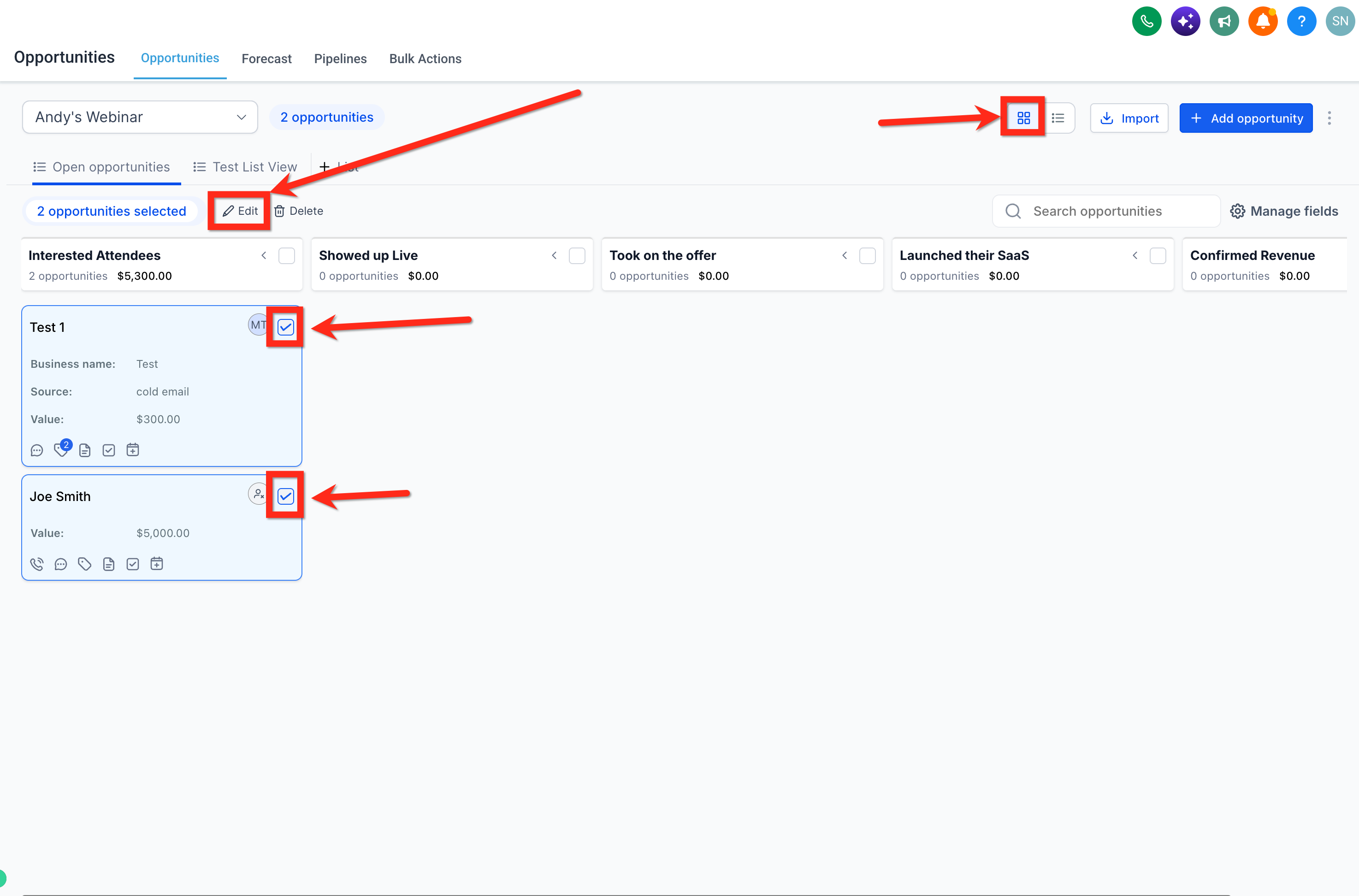
Select opportunities in Grid/Card View
- Remain in Grid/Card View.
- Select the opportunities you want to update from the applicable pipeline stages.
- Click the Edit button.
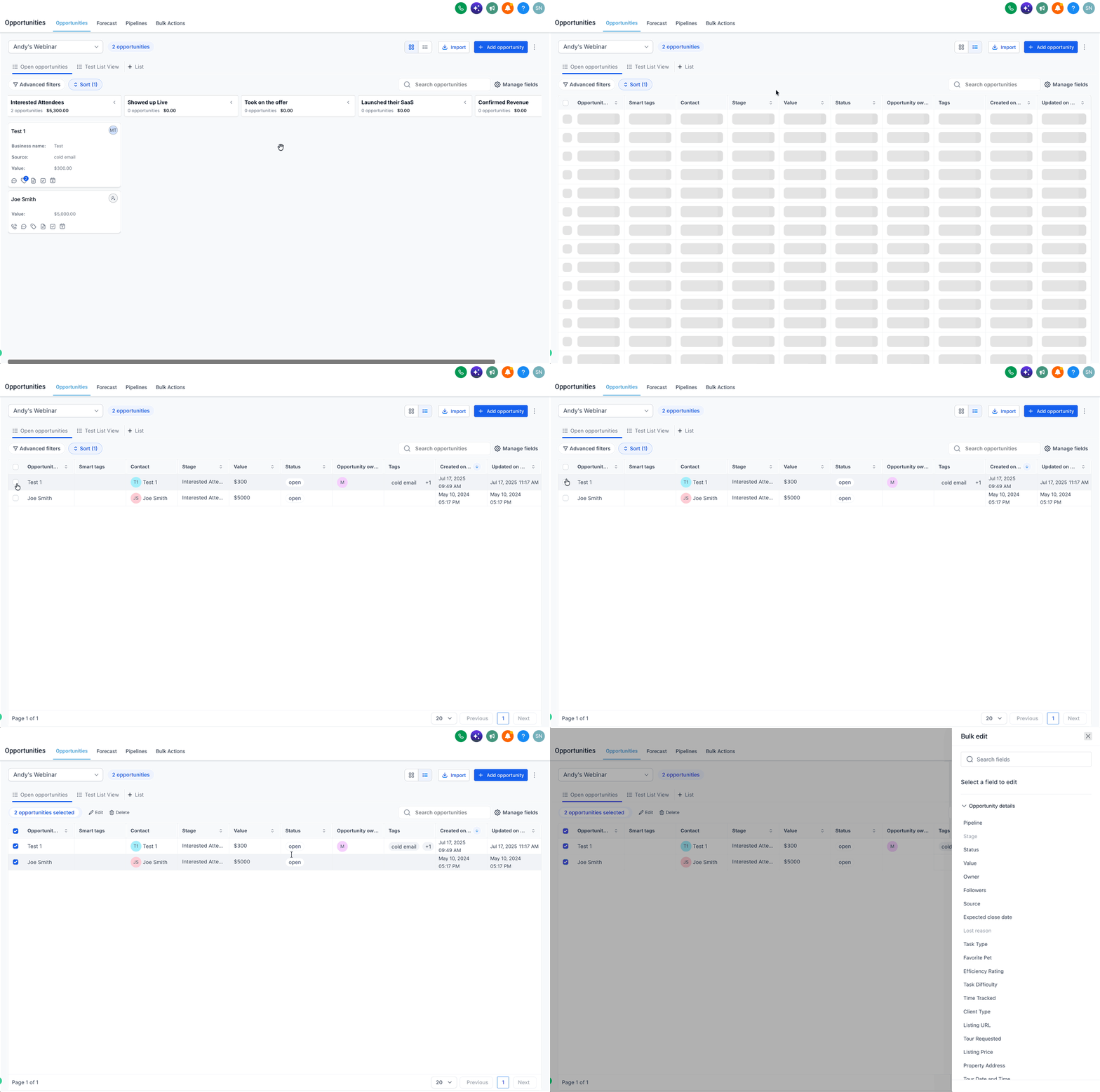
Select opportunities in List View
- Switch the display to List View.
- Tick the checkbox beside each opportunity you want to change.
- Tick the top most Opportunities checkbox to select every item on the screen.
- Click the Edit button.
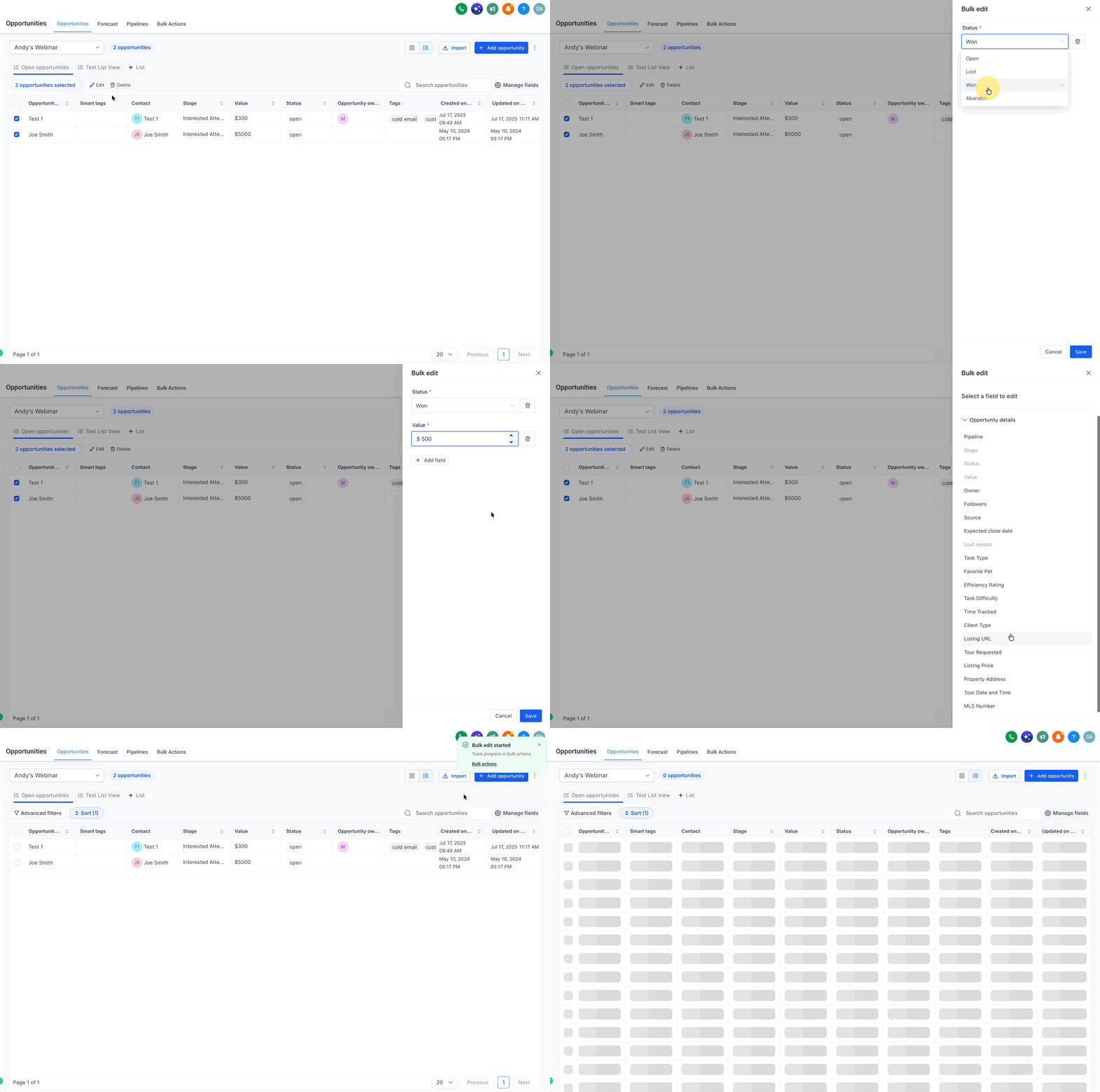
Edit the selected opportunities
- In the Bulk Edit window, open the Opportunity Details section.
- Choose the fields that need updating.
- Enter the new value for each chosen field.
- Use the Add Field option to include additional fields if needed.
- Verify that the selected opportunities and new values are correct.
- Click Save to apply the changes.
06What it looks like in HighLevel
07Things to know before you rely on it
- List View lets you work with opportunities across All Pipelines.
- You can add multiple fields to a single bulk edit.
08How it connects to the rest of HighLevel
- Bulk actions for opportunity cards in HighLevel Bulk actions overview
- Understanding opportunities in HighLevel Opportunities basics
- HighLevel pricing and plans Pricing details
Michael's take

Most people try to edit each opportunity one by one, thinking it’s faster than learning the bulk edit flow. The real win comes when you step back, select the right view, and apply the same change across a whole set of records in seconds.
If I were setting up a new sales pipeline, I’d pull all the deals that need the same stage or owner into List View, grab the checkboxes at the top, add the Owner field in the Bulk Edit window, and hit Save. It gets the job done with minimal clicks and keeps the data tidy.