
01Who this is for
- Sales managers, can update stage or status for many deals quickly, keeping the pipeline accurate.
- Small business owners, can reassign opportunities when team members are on vacation, avoiding manual per card edits.
- Marketing teams, can shift large groups of leads to a new campaign pipeline without leaving the visual board.
02Bulk actions, explained
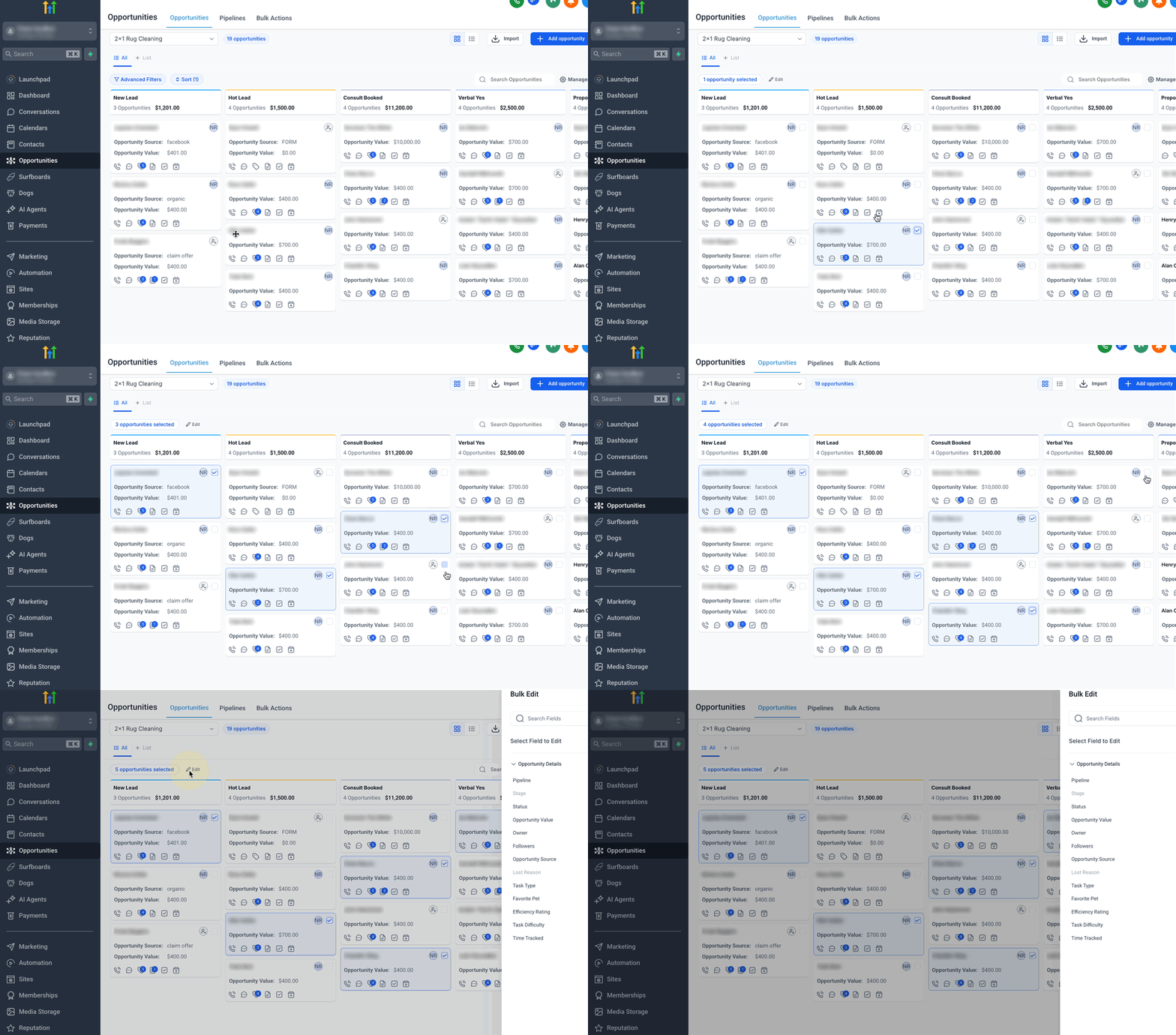
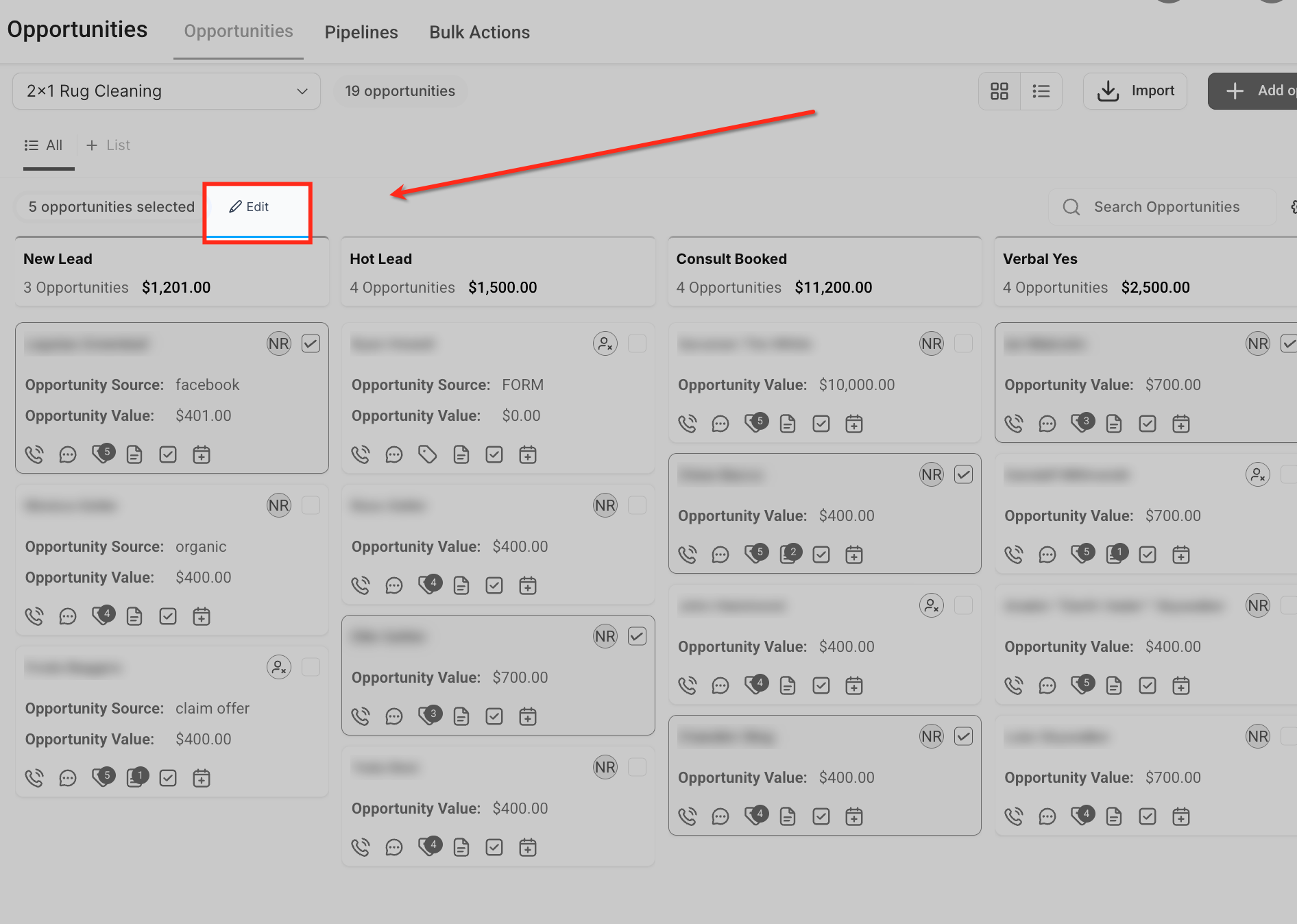
Bulk Actions appear as checkboxes on each opportunity card in the Kanban view. When one or more boxes are checked, a toolbar with an Edit button appears at the top of the screen. The selection mode disables drag and drop and card opening to prevent accidental moves.
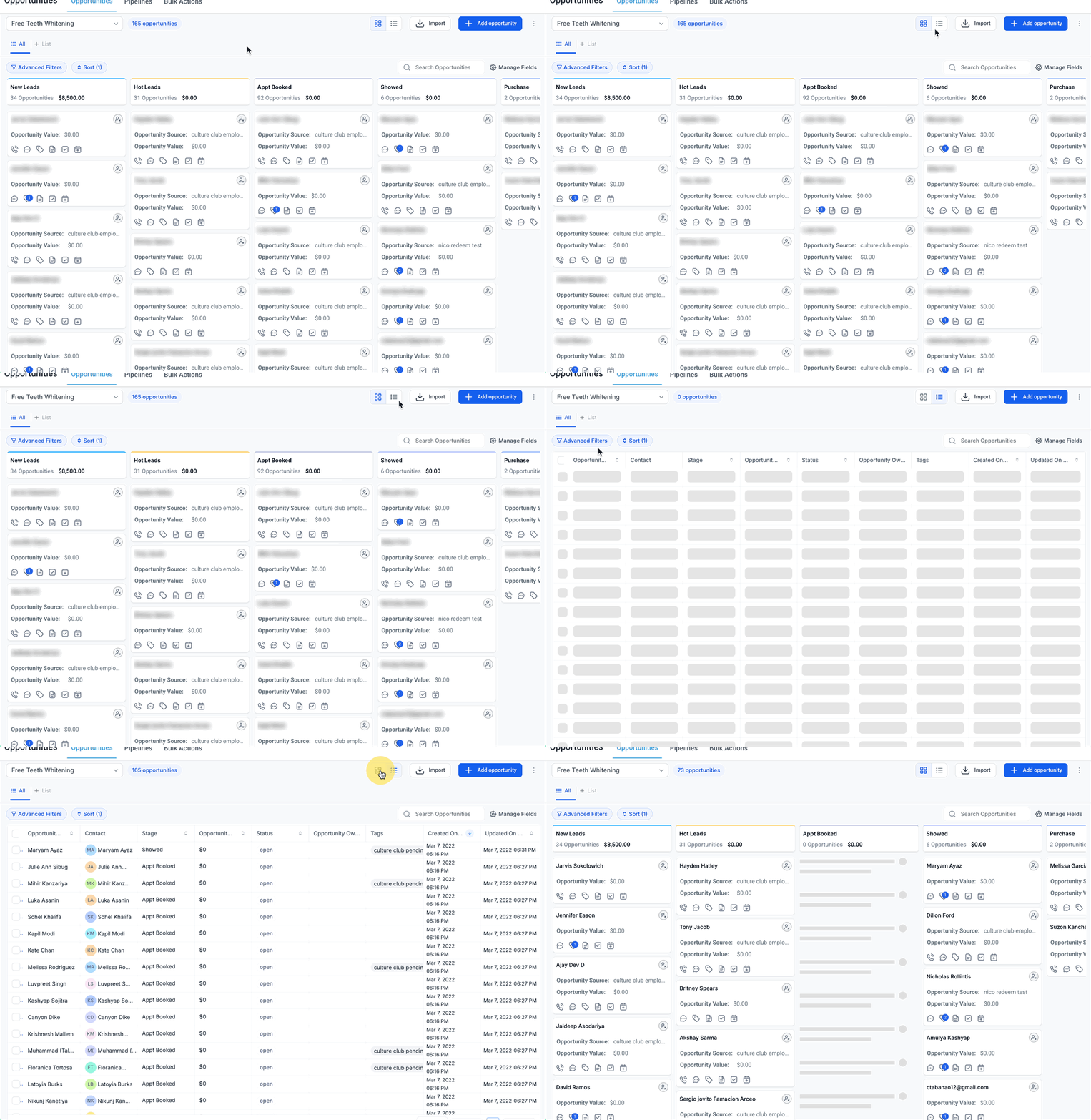
The feature works in both Card and List view modes. In Card view you see opportunities by stage; in List view you can scroll quickly through many records. A Select All button shows up when the page displays twenty or more cards, allowing you to include every visible opportunity in one action.
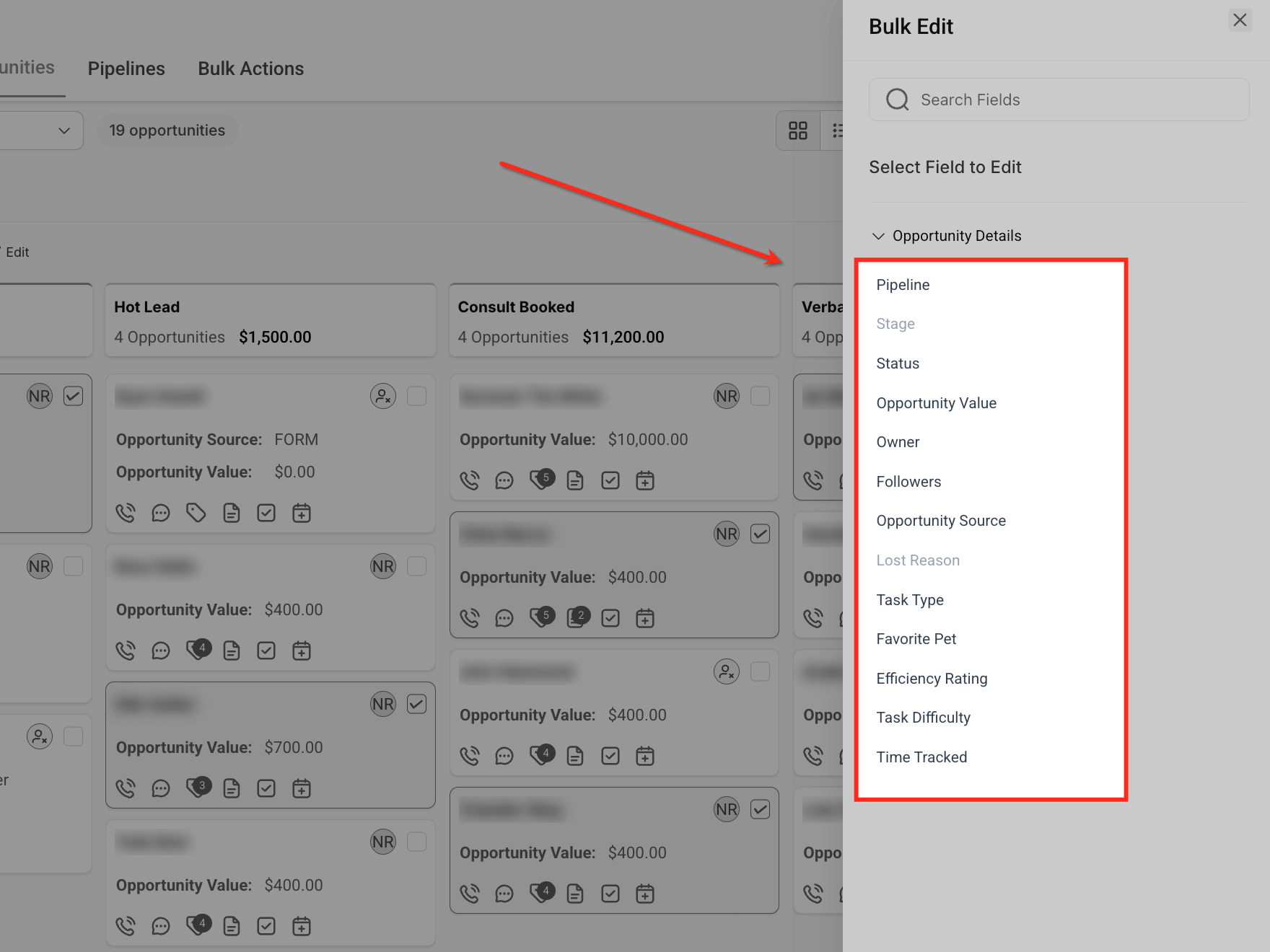
All changes are applied through a Bulk Edit panel where you choose a field, such as Owner, Pipeline, Stage or Status, and set the new value. The update is then applied to every selected card.
03How businesses use bulk actions in opportunities cards view
- Reassign owners. Select multiple opportunity cards and use the Bulk Edit panel to change the Owner field, assigning a new team member to all selected records.
- Change pipeline and stage. Select cards and update the Pipeline and Stage fields in the Bulk Edit panel to move the opportunities to a different workflow.
- Update status. Select cards and set the Status field to Open, Won, Lost or Abandoned to reflect the current outcome of each opportunity.
04The numbers and rules that matter
- Select All option appears automatically when 20+ opportunities are on the current page.
05Before you start
- A pipeline with opportunities must already exist.
- User role must include permission to edit opportunities.
06How to set up and use bulk actions in opportunities cards view in HighLevel
Bulk edit opportunities
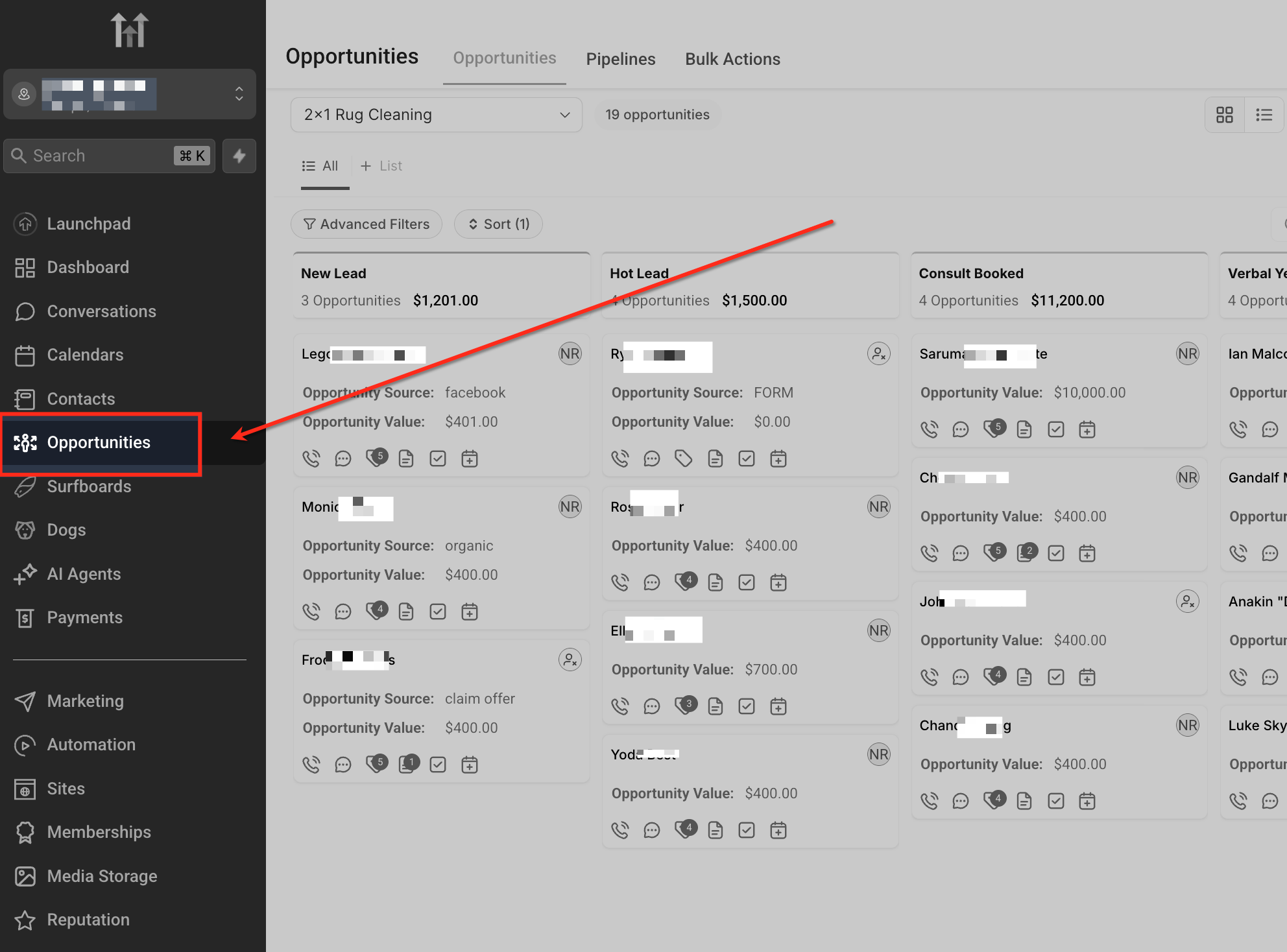
- Open the Opportunities tab from the left hand menu.
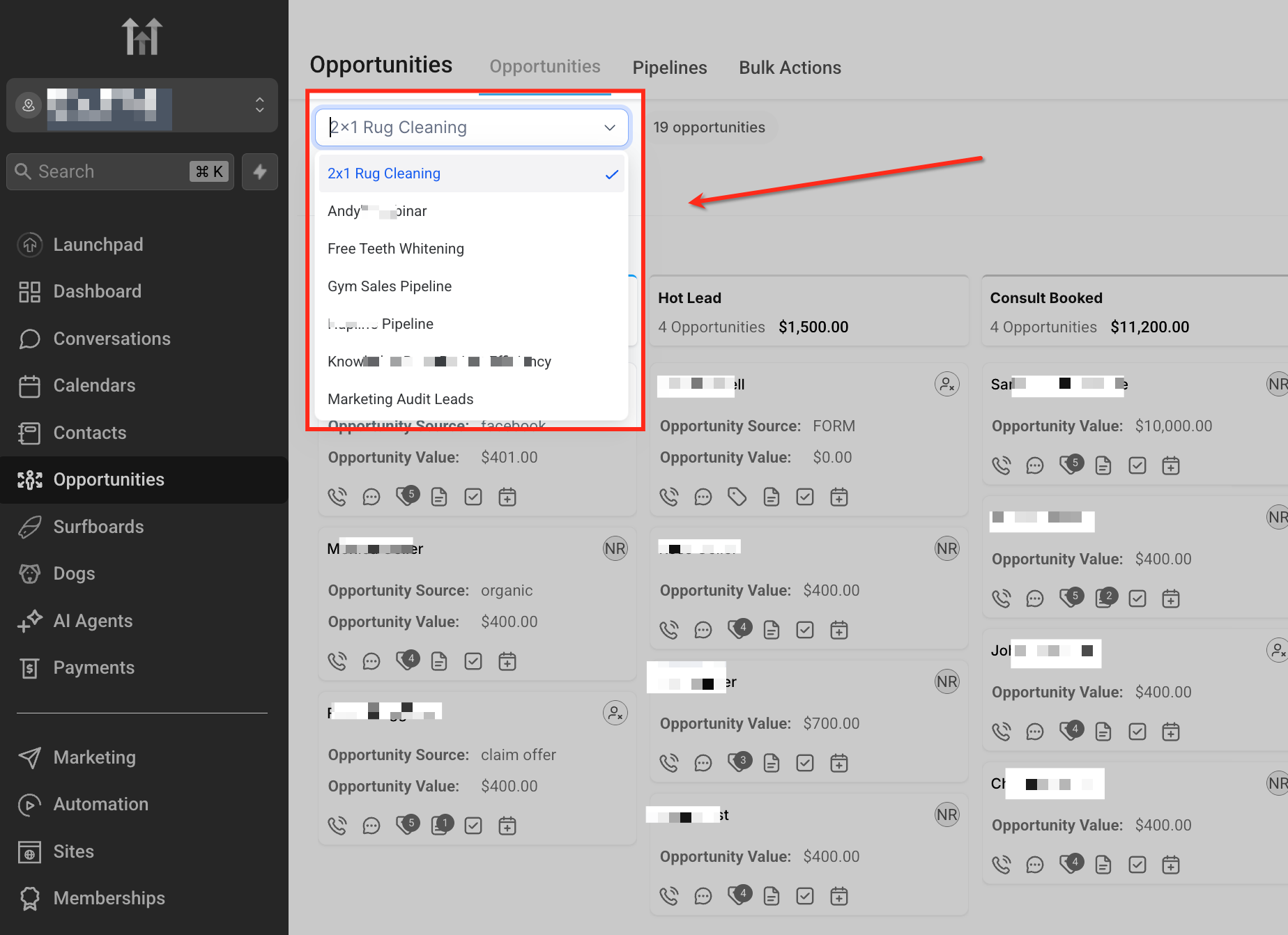
- Choose the desired pipeline from the dropdown at the top.
- Switch to Card view or List view using the toggle icon in the top right corner.
- Hover over each opportunity and click the checkbox that appears at the top right of the card.
- Click the Edit button that appears at the top of the screen.
- In the Bulk Edit panel, select the field you want to change, such as Owner, Pipeline, Stage, or Status.
- Set the new value for the chosen field and confirm the update to apply it to all selected cards.
07What it looks like in HighLevel
08Settings that matter
- Owner. Controls which team member is assigned to the selected opportunities.
- Pipeline. Specifies the workflow that the selected opportunities will belong to after the bulk move.
- Stage. Defines the stage within the chosen pipeline where the opportunities will be placed.
- Status. Sets the overall status of the selected opportunities, such as Open, Won, Lost or Abandoned.
09Things to know before you rely on it
- Select All only picks cards on the current page; it does not span multiple pages.
- During selection mode, dragging cards or opening them is disabled to avoid accidental changes.
- The Select All button appears only when twenty or more opportunities are shown on a page.
- Available actions depend on the user’s role and permissions.
10If something goes wrong
- Cannot select cards across multiple pages using “Select All on Page”.. Use the checkbox on each card to manually select additional records beyond the current page.
- Selected the wrong cards.. Click the checkbox again to deselect the individual card, or click Deselect All to exit selection mode.
- Drag and drop or opening cards is disabled while selecting.. Finish the bulk action or exit selection mode to restore normal card interaction.
- Need to undo a bulk move.. Some actions can be reversed; verify the option before confirming the bulk edit.
11How it connects to the rest of HighLevel
- Bulk edit opportunities guide Bulk edit opportunities
- Set up custom fields for opportunities Custom fields
- Create and manage pipelines and stages Pipelines guide
- HighLevel pricing and plans Pricing
- Start a 30 day HighLevel trial 30 day trial
Michael's take

Bulk actions let small teams make the same change across many deals quickly.
Don’t forget to double check which cards are ticked before you hit Apply.