
01Who this is for
- Founders of agencies that white label apps need to ensure builds are ready, so they can meet store requirements and avoid upload blockers.
- Agency managers responsible for app publishing use these checks to confirm version alignment and unique build numbers.
- Developers maintaining client apps rely on the warnings to know when a mismatch may attach a build to the wrong version.
02Upload to store issues, explained
The Upload to Store stage in Agency App Manager runs a checklist that looks for a build file, an open draft version in the store, and a unique build number. It runs after a build finishes and before the app is submitted to the App Store or Google Play.
If the checklist finds a problem it returns either a BLOCKER or a WARNING. BLOCKER results stop the upload and must be resolved first. WARNING results let the upload continue, although some may advise you to check version numbers.
The checklist appears under the Upload to store step in Agency App Manager. After all BLOCKERS are cleared you select Continue to start the upload, and you can watch the process in real time.
03How businesses use upload to store issues
- Dental practice. When the iOS build is missing, the practice returns to the build step and starts a new build. It waits for the build to finish, then re runs the Upload to store checklist before continuing.
- Fitness studio. If Google Play publishing access is blocked, the studio opens Play Console > Setup > API access, finds the service account, assigns the Admin role, saves the change, waits 15 to 30 minutes, and then re runs the upload checklist.
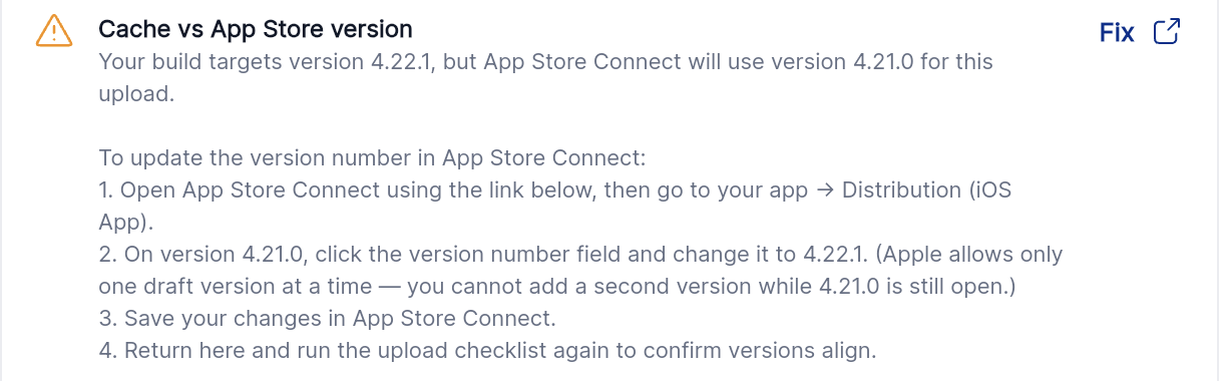
- Real estate brokerage. When a version mismatch warning appears for iOS, the brokerage can either adjust the draft version number in App Store Connect to match the build or create a new build with the correct number. No upload stop occurs.
04How to set up and use upload to store issues in HighLevel
Resolve missing iOS build file
- Return to the build step and start a new iOS build.
- Wait for the new build to finish successfully.
- If builds continue to fail, inspect app customisation settings for invalid values such as an incorrect logo size or colour format.
- Open the Upload to store checklist in Agency App Manager, run it again, and select Continue once it passes.
Grant Google Play publishing access
- In Play Console, navigate to Setup > API access and locate your service account.
- Choose Manage permissions for the account.
- Assign the Admin role to the service account.
- Save the changes and wait 15 to 30 minutes for Google to apply them.
- Return to the Upload to store checklist in Agency App Manager, run it again, and select Continue once it passes.
05What it looks like in HighLevel
06Things to know before you rely on it
- BLOCKER results prevent the upload from starting and must be resolved first.
- WARNING results allow the upload to continue, but may require manual version alignment.
- A build number or version code cannot be reused; duplicate numbers cause a BLOCKER.
- Only one draft version can be open in App Store Connect at a time.
- Permission changes in Google Play may take 15 to 30 minutes to become effective.
07If something goes wrong
- Checklist says my build is missing. Start a new build and wait for it to complete before attempting the upload again.
- Cannot upload the same build after making changes. Create a fresh build; the platform automatically assigns a new build number.
- App is in review and upload is needed. Wait for the review to finish; uploading a new build is not allowed while a version is under review.
- Version mismatch warning appears. Align the version number in App Store Connect with the build, or generate a new build that matches the open draft.
08How it connects to the rest of HighLevel
- How to promote and customize your white label mobile app App customization guide
- Setting up an Apple Developer account for your white label app Apple developer setup
- Register a Google Developer account for HighLevel Android app Google developer setup
Michael's take

Running into upload blockers can feel like a dead end, especially when a simple version mismatch or missing file stops the whole process. The good news is that most of these issues are resolved by starting a fresh build, which the system does for you automatically.
If a warning shows up, it usually means the system can still move forward, but a quick check to make sure the version numbers line up saves you from ending up with a build attached to the wrong draft. A short review in App Store Connect or Play Console after the upload helps confirm everything landed where it should.