
01Who this is for
- Founders of agencies that white label mobile apps need a clear path to get through store review.
- Product managers of SaaS platforms that bundle a custom client app must ensure compliance fields are filled before launch.
02Submit for review issues, explained
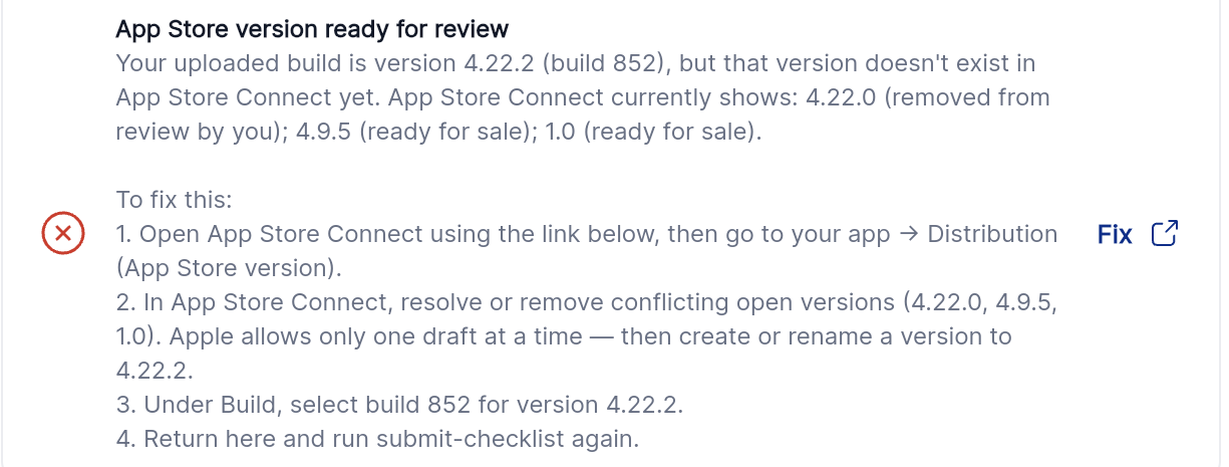
The feature lives in the Submit for Review stage of the app distribution wizard. It runs a series of automated checks after you upload a build. The checks confirm that the build has finished processing, that listing metadata meets store rules, that required screenshots exist, and that compliance information such as age rating and privacy is provided.
When a check fails, the wizard marks the issue as a BLOCKER or a WARNING. BLOCKER items stop the submission; you must resolve them and then click Verify. WARNING items are informational and do not stop the flow, though some Android warnings relate to the first production rollout.
03How businesses use submit for review issues
- Digital marketing agency. After uploading a client’s iOS build, the agency watches the Activity log in App Store Connect, fixes any missing screenshots, and then marks the checklist as fixed. This lets the client’s app move to Apple’s review queue.
- Fitness app startup. The startup corrects a rejected keyword field by editing the App Details in Agency App Manager, saves the change, and verifies the fix so the app can proceed to Apple’s review.
- E learning platform. For its Android release, the platform manually publishes the first production rollout in Play Console, confirms the rollout status after 15 to 30 minutes, and then verifies the checklist to complete submission.
04The numbers and rules that matter
- Apple usually takes 15 to 30 minutes to process a build after upload.
- IOS description limit: 4,000 characters.
- IOS keywords limit: 100 characters total.
- Android short description limit: 80 characters.
- Android full description limit: 4,000 characters.
- IPhone 6.5 inch screenshot size: 1242 × 2688 px (or 2688 × 1242 px landscape).
- IPhone 6.7 inch screenshot size: 1290 × 2796 px (or 2796 × 1290 px landscape).
- Up to ten screenshots may be uploaded for each size.
05How to set up and use submit for review issues in HighLevel
Resolve latest store upload completed blocker (iOS)
- Return to the Upload to store step and perform a successful upload.
- Wait 15 to 30 minutes for Apple to finish processing the build; monitor the Activity section in App Store Connect.
- When the build appears as processed, attempt the submission again.
- If the build never processes, generate a new build and upload it again.
Fix listing metadata rejected by Apple
- Read the error detail on the checklist to identify the exact field that failed.
- Open Agency App Manager, go to Distribution > Profile and select App Details.
- Edit the problematic field, for example shorten the description, correct a URL, or remove competitor keywords.
- Save the updated details.
- Return to the checklist, tick the box and select Verify.
Add required iOS screenshots
- Open the app version in App Store Connect.
- Navigate to App Screenshots and Previews.
- Choose the iPhone 6.5" or iPhone 6.7" size option.
- Upload at least one screenshot that matches the exact pixel dimensions.
- Return to the checklist, tick the box and select Verify.
Publish first Android production release
- Open Play Console and go to the Production section.
- Locate the release that is ready to be published.
- Select Review release and then Start rollout to Production.
- Set the rollout percentage and confirm the rollout.
- After waiting 15 to 30 minutes, return to the Distribution wizard and confirm the status has updated.
06What it looks like in HighLevel

07Settings that matter
- I have fixed all blocking issues. checkbox that indicates you have addressed every blocker before the system re runs the verification step.
08Things to know before you rely on it
- Apple takes 15 to 30 minutes to process an uploaded build before it can be submitted.
- All blockers must be cleared; warnings do not prevent submission and apply only to Android.
- The first Android production release must be published manually in Play Console; later updates can be automated.
- iOS screenshots must match one of the exact pixel dimensions for iPhone 6.5" (1242 × 2688) or 6.7" (1290 × 2796).
- Apple rejects listing fields that exceed 4,000 characters for descriptions, 100 characters for keywords, contain invalid URLs, or include prohibited characters.
09How it connects to the rest of HighLevel
- How to promote and customize a white label mobile app Customize white label app
- Guide to enrolling an Apple Developer account for your white label app Apple Developer enrollment
- HighLevel pricing and plans Pricing
Michael's take

For a small business, getting past the submit for review stage is the real gatekeeper to the stores; without clearing these blockers you won’t see any installs, so the effort is absolutely worth it.
Skipping the 15 to 30 minute wait after uploading a build is the mistake to avoid.