
01Who this is for
- Agency owners, need to ensure each client’s store credentials and listings are correct before publishing the white label app.
- SaaS Founders, must verify app identifiers and agreements so the platform can generate a functional mobile version for users.
- Local service providers, use the checklist to confirm contact and support details are present, avoiding app store rejections.
02App build checklists, explained
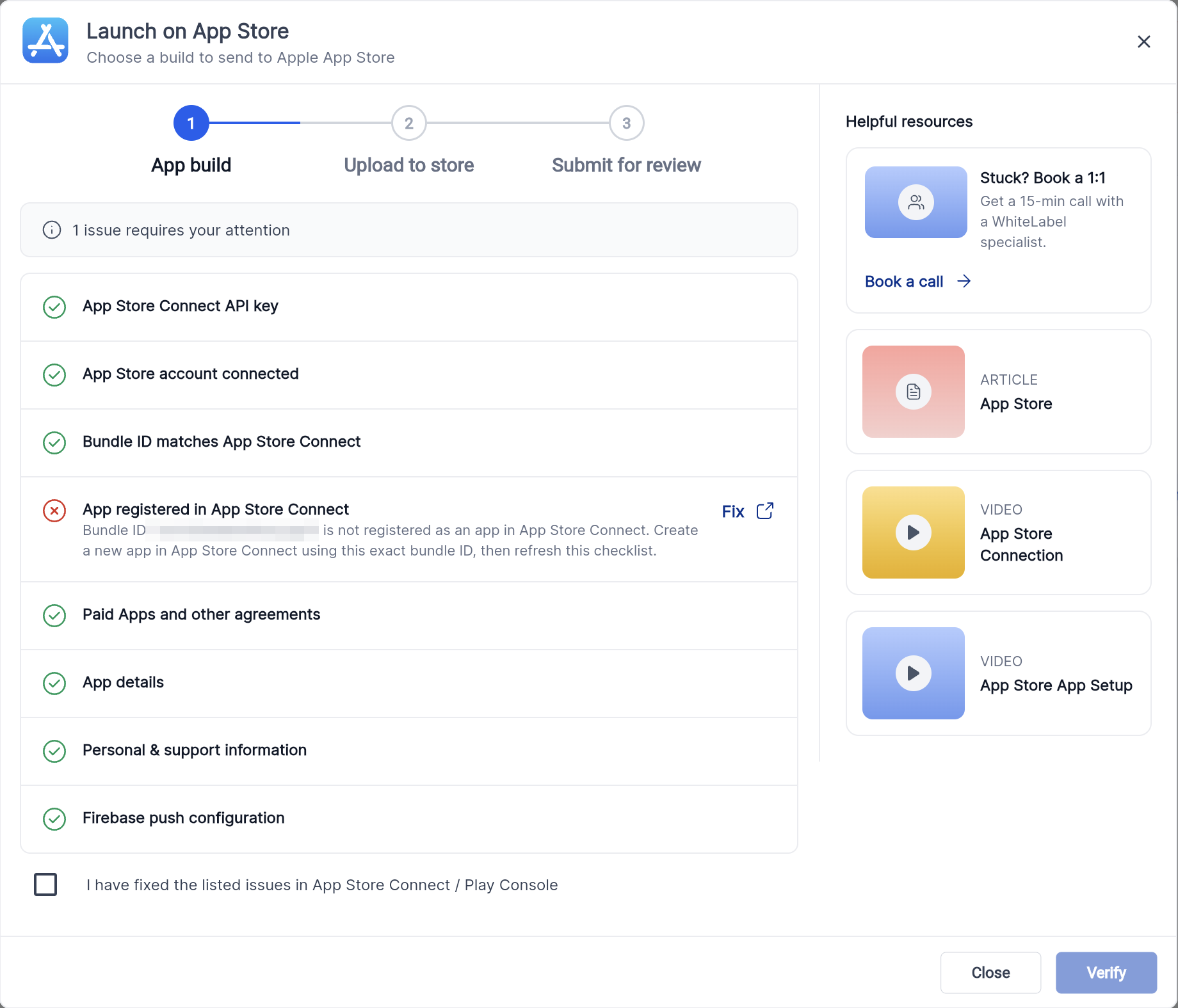
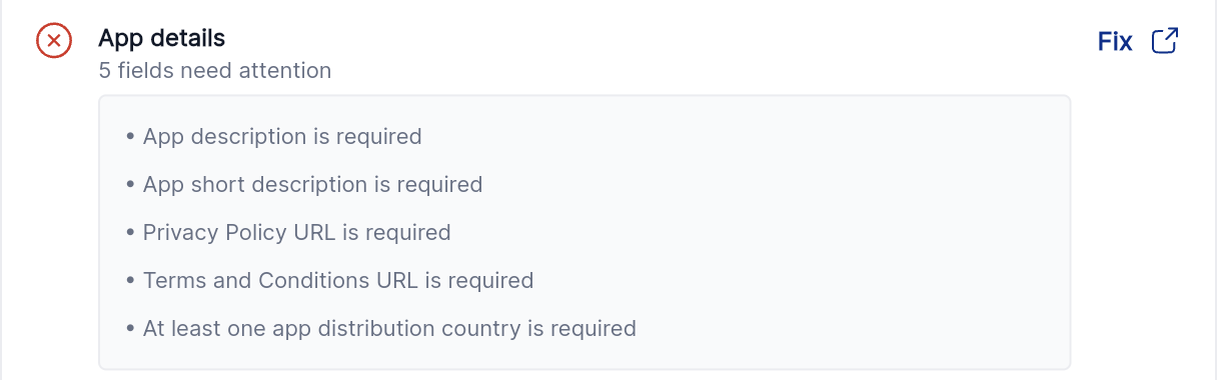
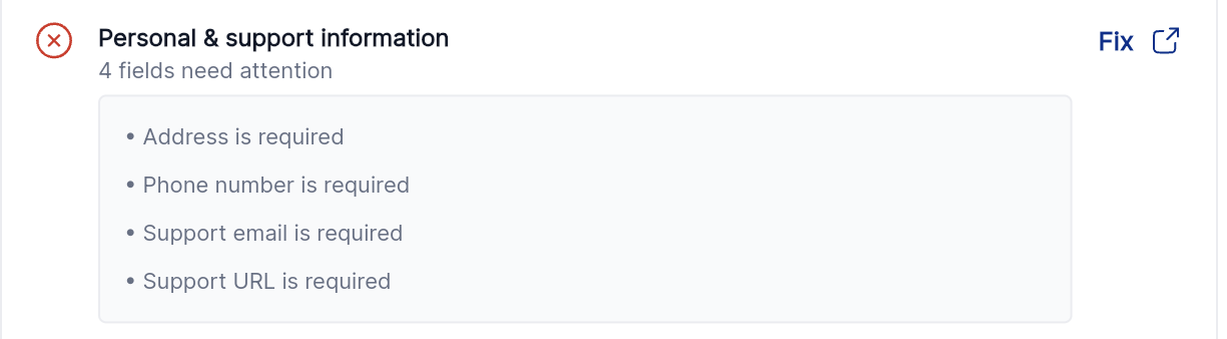
The build checklist is part of Agency App Manager. It appears under Distribution > Channels when you select Launch App for a store. The view shows the number of issues, each with a Fix shortcut that opens the relevant store console.
Two result types appear: BLOCKER, which must be resolved before a build can proceed, and WARNING, which does not prevent the build but indicates optional or incomplete checks. The checklist runs independently for iOS and Android, so an issue on one platform does not affect the other.
After you make the required changes in App Store Connect or Google Play Console, you return to the checklist, tick the confirmation box, and click Verify. The verification must be run each time you modify a setting because results do not refresh automatically.
03How businesses use app build checklist
- Marketing agency. The agency opens the checklist, follows the Fix links to update each client’s App Store Connect or Play Console settings, then confirms the changes in Agency App Manager and clicks Verify until all blockers disappear.
- SaaS startup. The startup uses the checklist to confirm that its bundle identifier, service account JSON, and listing fields are correctly entered before generating the white label app for its customers.
- Fitness studio. The studio ensures its contact information and support URLs are filled in the Personal info section, then re runs verification to clear any blockers that would stop publishing the app.
04Before you start
- Apple App Store or Google Play Store credentials must be entered in Agency App Manager before the build checklist can run.
05How to set up and use app build checklist in HighLevel
Re run checks after fixing an issue
- Click the Fix shortcut beside the listed issue to open the appropriate store console and make the required change.
- Return to the App build checklist inside Agency App Manager.
- Check the box that confirms you have fixed the issue.
- Press Verify to execute the checks again; repeat as needed until the issue clears.
Verify after each change
- Tick the confirmation box.
- Select Verify.
- Wait a few minutes for any Google Play permission changes to apply, then verify again if needed.
06What it looks like in HighLevel


07Settings that matter
- AppStore Connection. Stores the Apple API key, Issuer ID, and Key ID needed for the platform to communicate with App Store Connect.
- App Setup. Holds the Bundle Identifier (Package Name) that must match the identifier registered in the Apple Developer portal.
- PlayStore Connection. Accepts the JSON service account file that grants the platform access to the Google Play Developer API.
- Personal info. Collects required developer contact details such as name, email, phone, and support URLs for the app store listings.
- App Details. Contains the listing fields like app name, description, URLs, categories and distribution countries for each store.
08Things to know before you rely on it
- You can hold up to 50 active Apple API keys at a time.
- Bundle IDs are case sensitive; a mismatch stops the iOS build.
- An Android package name is permanent and cannot be changed after the app is created in Play Console.
- Service account permissions in Play Console may take up to 24 hours to propagate fully.
- Google Play permission changes can require a few minutes before a re run shows the updated result.
- The Firebase warning never blocks a build; it is informational only.
09If something goes wrong
- The checklist still shows the issue after fixing it in App Store Connect.. Tick the confirmation box and select Verify. Wait a few minutes for any Google Play permission changes to apply, then verify again.
- Uncertainty whether a warning stops the build.. Warnings do not block the build. You can continue building; resolve them later if desired.
10How it connects to the rest of HighLevel
- Promote and customize your white label mobile app Customize App
- Enroll an Apple Developer account for your white label app Apple Developer Setup
- Set up a Google Developer account for the Android white label app Google Developer Setup
Michael's take

The app build checklist is essential for getting a White Label Mobile App onto the stores without surprise failures. If you are not publishing a White Label Mobile App, skip it.