
01Who this is for
- Agency admins who design branded mobile apps need to verify appearance before release.
- Agency staff who configure app settings can test changes right away.
02Live preview, explained
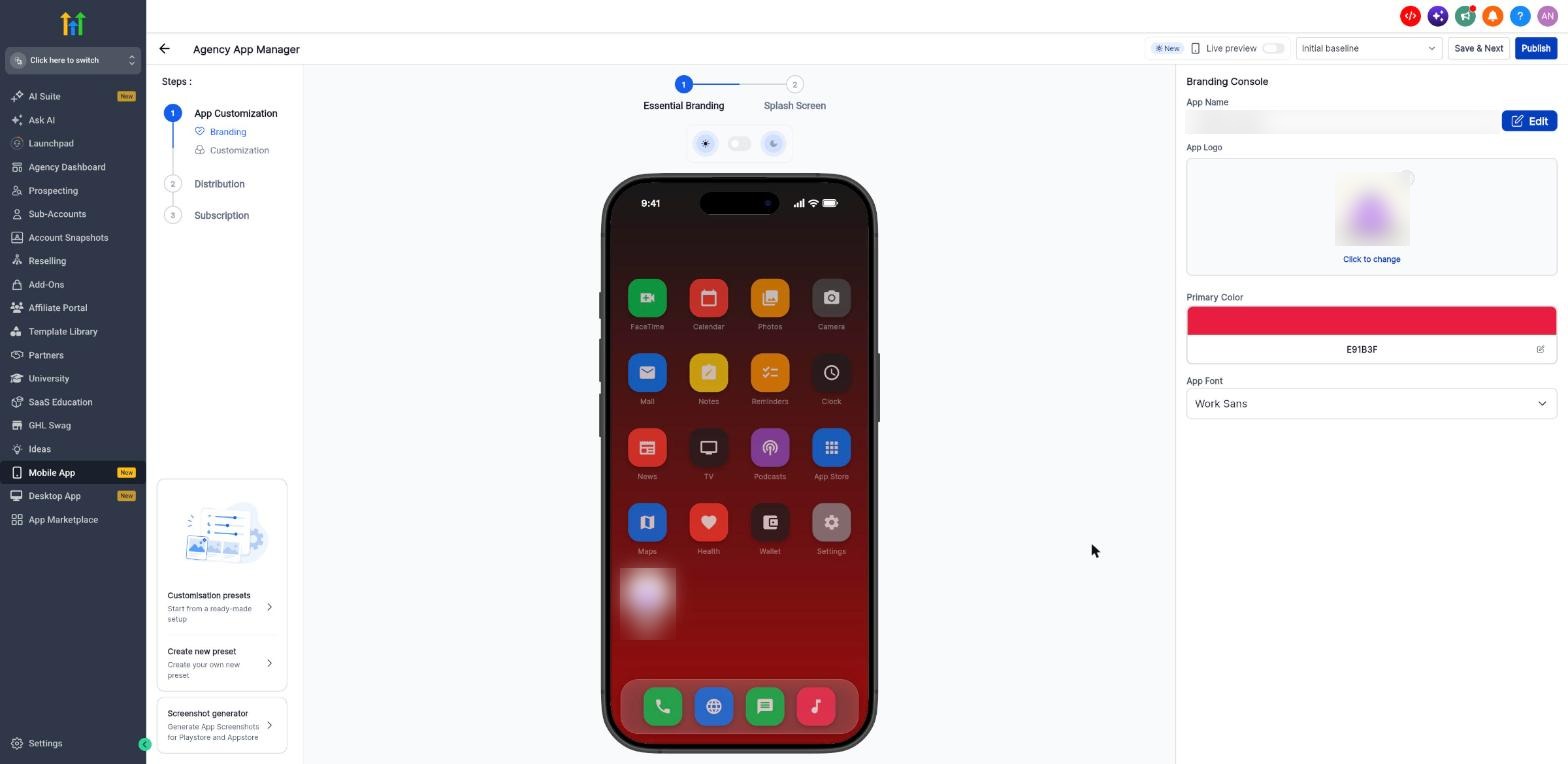
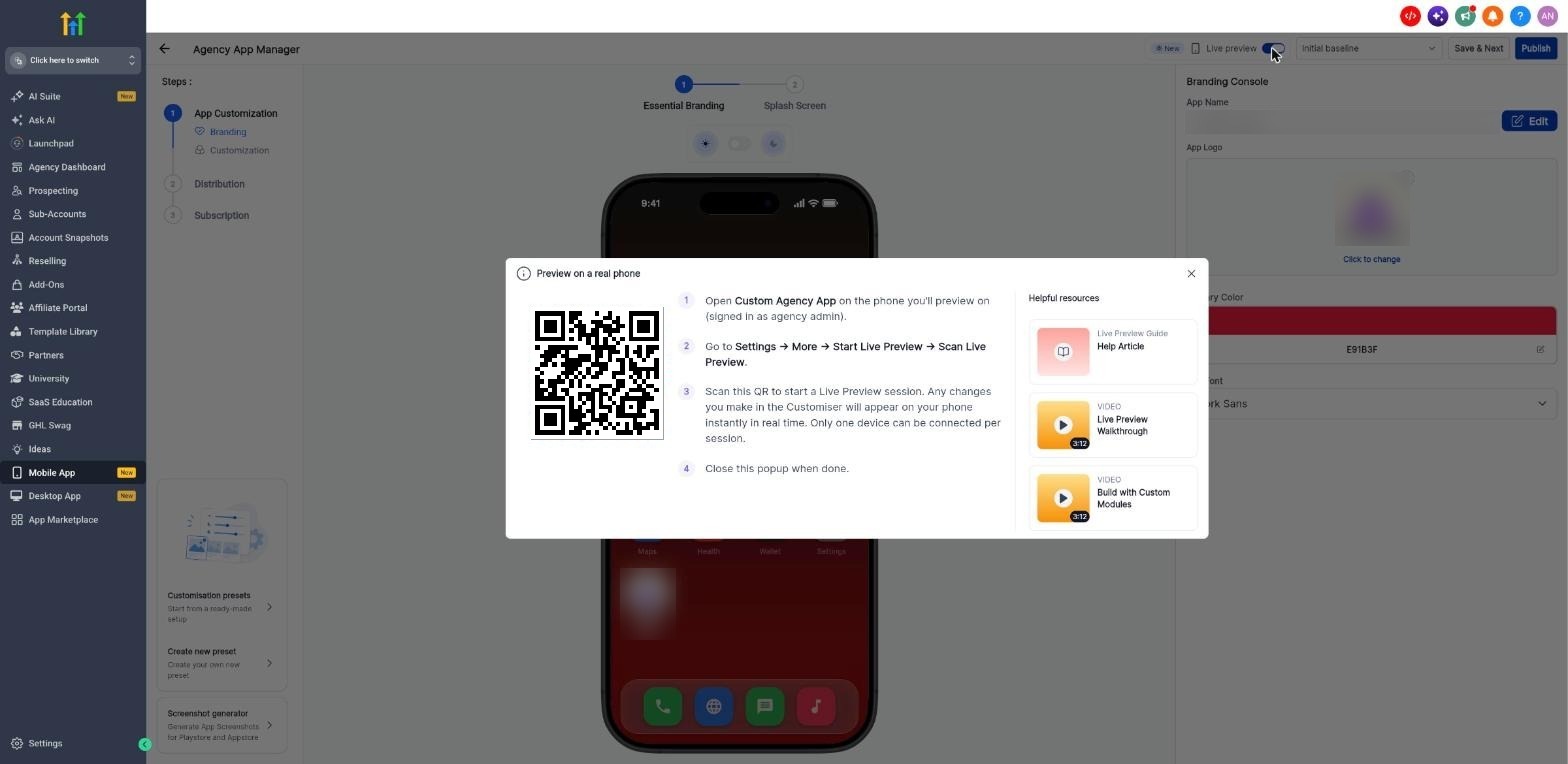
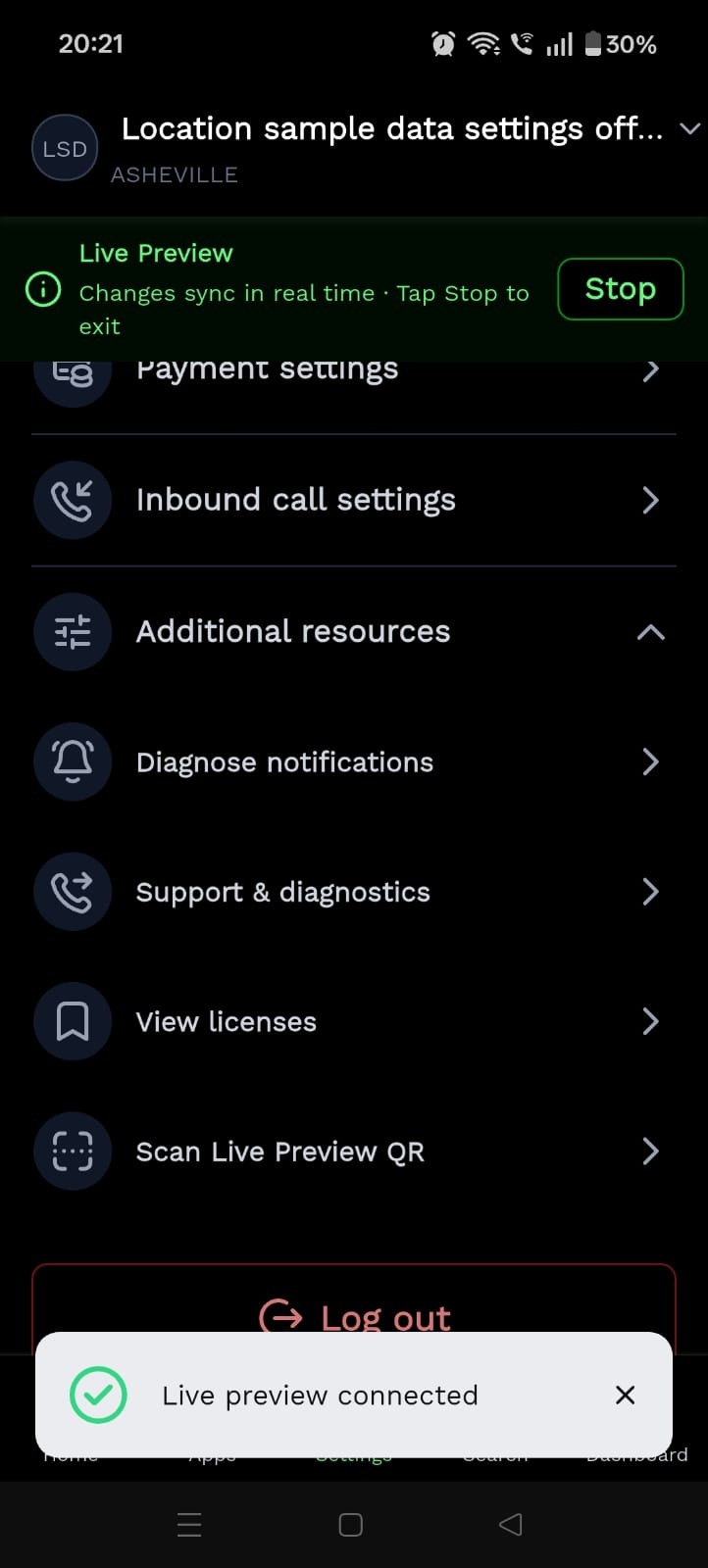
Live Preview creates a real time link between the Whitelabel Mobile App Customizer on a desktop browser and a single mobile device. When the toggle is active, a QR code appears; scanning it with the installed white label app starts a session. All edits made in the Customizer are reflected on the phone immediately, but the changes remain drafts until you publish them. The feature lives inside Mobile App > Customise App, known as the Agency App Manager. The Live preview toggle is in the top bar of the Customizer, and a banner on the phone shows the connection status and a Stop button.
03How businesses use live preview
- Marketing agency. The agency opens the Customizer, turns on Live preview and scans the QR code with a client’s phone. While editing brand colours, the agency watches the phone update right away, confirming the look before any client sees it.
- Dental practice. The practice updates the app drawer module in the Customizer, uses Live preview on a staff phone, and verifies the new layout works on the device before publishing the change for all patients.
- Fitness studio. The studio changes the primary colour of its white label app, watches the change appear on a trainer’s phone via Live preview, and then saves the preset to reuse the branding later.
04The numbers and rules that matter
- Only one device can be connected per session.
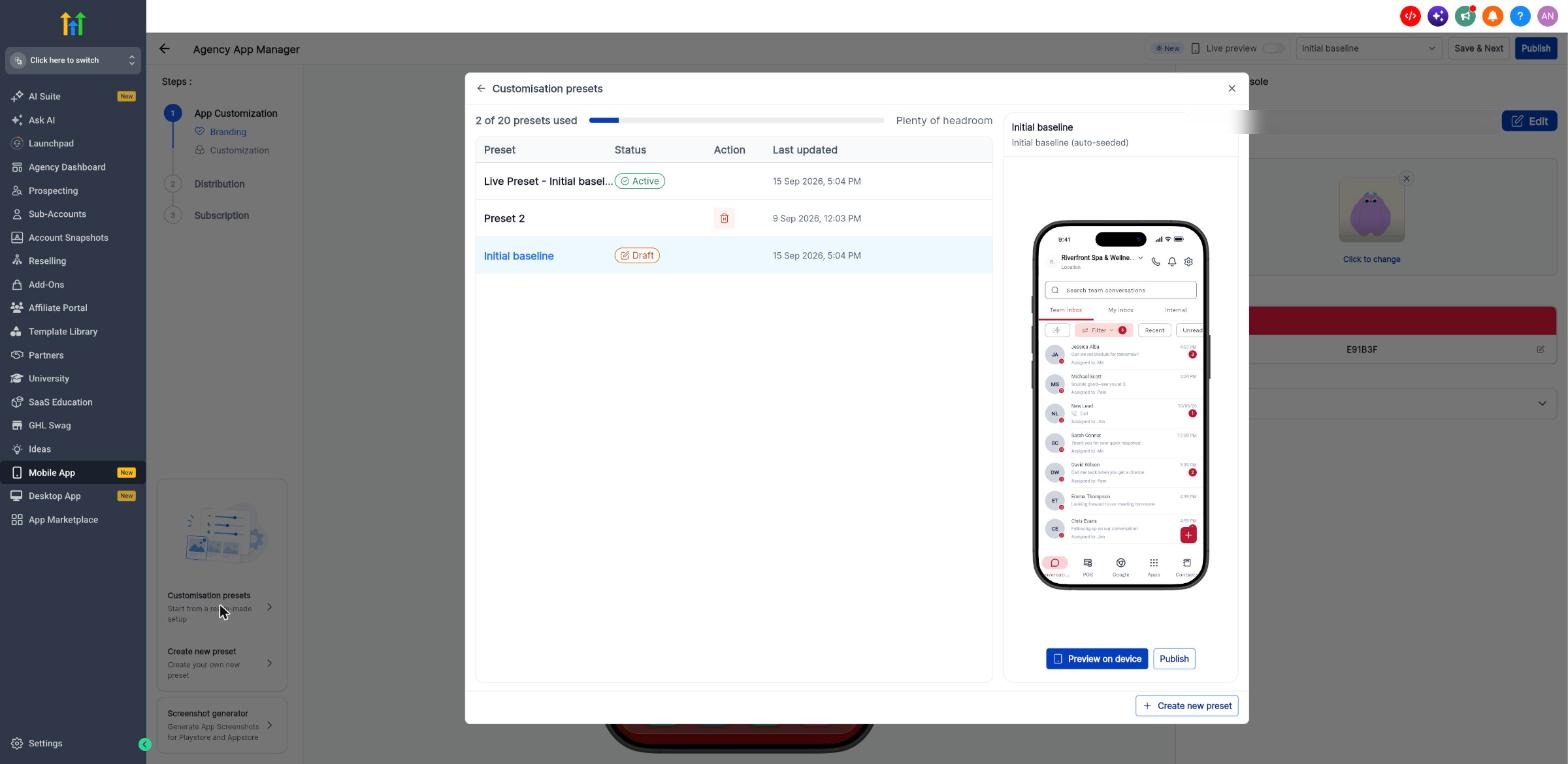
- You can have up to 20 presets.
05Before you start
- Open the Customizer on a desktop browser.
- Install the white label mobile app on the preview phone and sign in as an agency admin.
- Make sure the phone is connected to the internet.
06How to set up and use live preview in HighLevel
Start a Live Preview session
- On the computer, go to Mobile App and select Customise App.
- Turn on the Live preview toggle in the top bar.
- Leave the QR code window open on the computer.
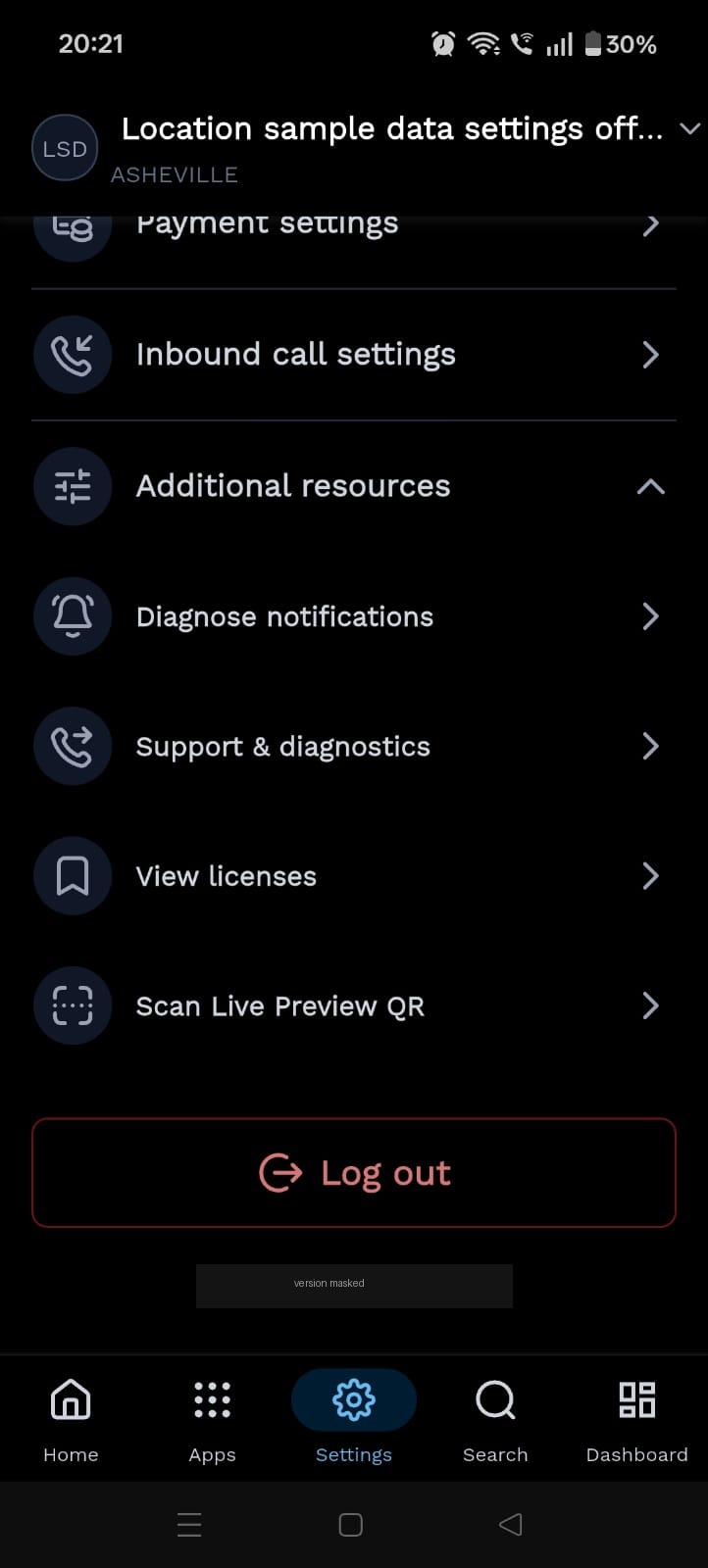
- On the phone, open the white label app and navigate to Settings.
- Tap Scan Live Preview QR under Additional resources.
- Point the phone camera at the QR code displayed on the computer.
- Wait for the banner that confirms changes sync in real time.
Save your customisation as a preset
- Click Save & Next to open the Save customization window.
- Enter a preset name (required, up to 30 characters) and an optional description.
- Choose Save as draft to keep it private, or Save and publish to go live.
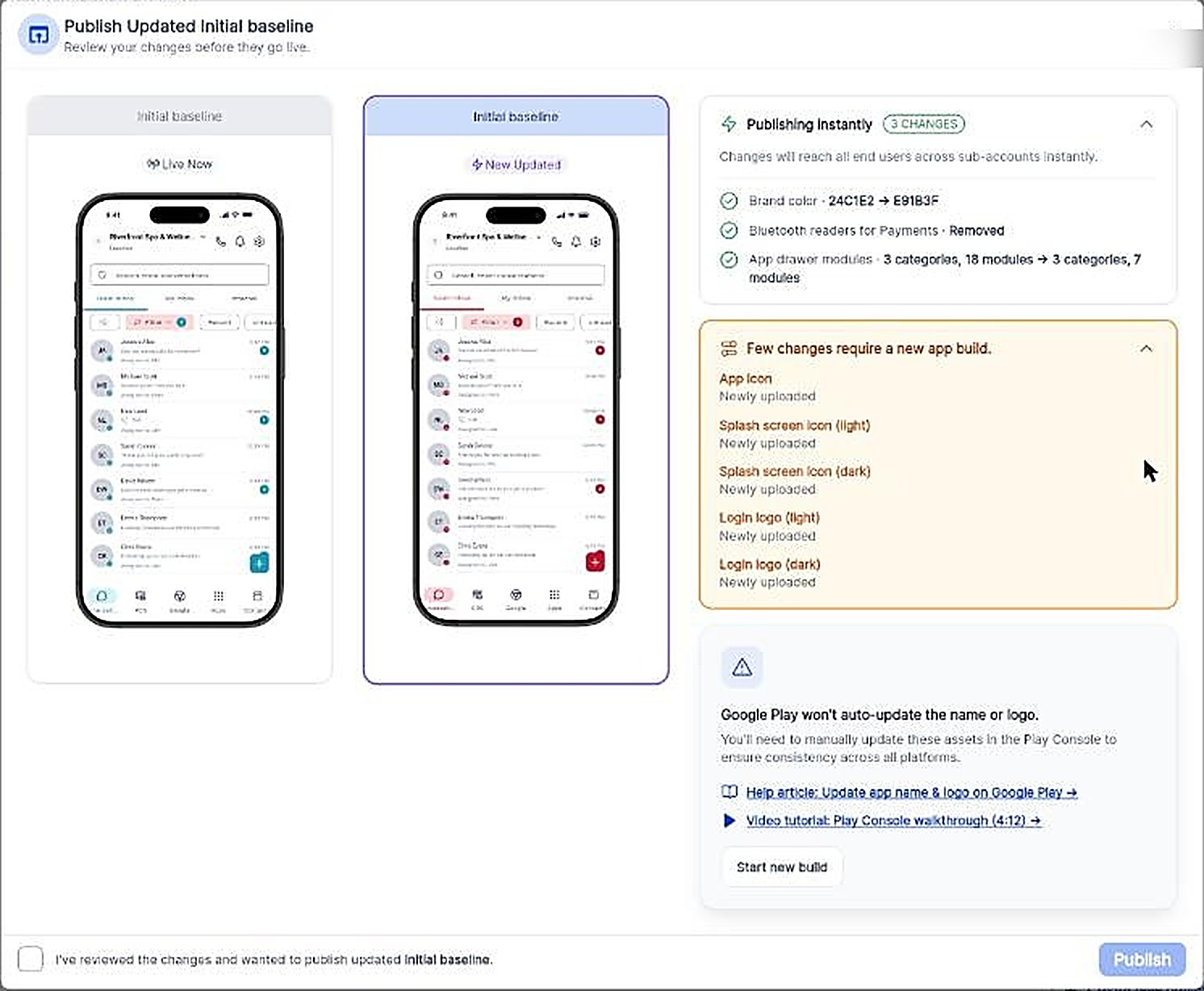
Publish your customisation
- Open the Publish window to compare Live Now with New Updated phones.
- Review the instant changes and any items that need a new app build.
- Tick the checkbox confirming you have reviewed the changes (the Publish button stays disabled until you do).
- Click Publish to make the preset live.
End a Live Preview session
- From the Customizer, turn the Live preview toggle off (a tooltip reminds you that this ends the session on your phone).
- From your phone, tap Stop in the banner.
07What it looks like in HighLevel
08Settings that matter
- Live preview toggle. Enables or disables the real time preview connection between the Customizer and a mobile device.
09Things to know before you rely on it
- Only one device can be connected per Live Preview session.
- You can store up to 20 customisation presets.
- Changes that affect the app icon, splash screen icon, or login logo require a new app build before end users see them.
10If something goes wrong
- Live preview already running. Tap Stop live preview on the phone, then scan the new QR code.
11How it connects to the rest of HighLevel
- Learn the step by step setup for the self service whitelabel app customizer. Self service customizer guide
- Find instructions for publishing an iOS white label app. Publish iOS app
- Read how to publish an Android white label app to Google Play. Publish Android app
- Explore all Mobile & Desktop App features offered by HighLevel. Mobile & Desktop App overview
Michael's take

Live preview feels like a small convenience that saves you from second guessing design tweaks. Seeing a colour swap or a new drawer layout on the actual device as you edit means you can confirm the look before any user ever sees it.
A boutique agency that builds white label apps for local gyms benefits most. You can quickly show a client the updated branding on a phone, get the nod, then hit publish and have the change appear for all members fast.