
01Who this is for
- Digital marketing agencies can manage client Meta campaigns without rebuilding them in HighLevel.
- Local retailers who run Facebook ads can see all campaign data in one dashboard.
02Two way campaign sync, explained
Two way sync connects HighLevel Ad Manager to Meta Ads Manager. When a Meta ad account is linked, HighLevel pulls eligible campaigns, ad sets and ads automatically. Changes made to supported fields in either platform flow to the other in near real time.
The feature lives in the Marketing section under Ad Manager. Sync preferences are set in the Ad Manager settings where you choose which campaigns to import. Imported campaigns appear alongside HighLevel created campaigns and can be opened in the usual campaign builder.
Automatic sync runs in the background. A manual refresh option lets you pull the latest Meta updates on demand. Only objectives and fields supported by HighLevel are synchronized; advanced Meta only settings stay in Meta Ads Manager.
03How businesses use two way campaign sync
- Digital marketing agency. The agency links a client’s Meta ad account in Ad Manager, selects the appropriate import option, and edits supported campaign fields directly in HighLevel while monitoring performance from a single dashboard.
- Local retailer. The retailer connects its Facebook page and Meta ad account, chooses to sync only campaigns updated in the last 14 days, and lets HighLevel import them. Budget and audience changes made in HighLevel flow back to Meta.
- Freelance marketer. The marketer enables sync for an existing Meta account, uses the custom filter to import published campaigns, and manages those campaigns in HighLevel without rebuilding them.
04Before you start
- A Meta ad account must be connected to the HighLevel subaccount.
- The Facebook profile used for connection must have access to the Meta ad account.
05How to set up and use two way campaign sync in HighLevel
Enable sync for a new Meta ad account
- Navigate to Marketing > Ad Manager in the HighLevel subaccount.
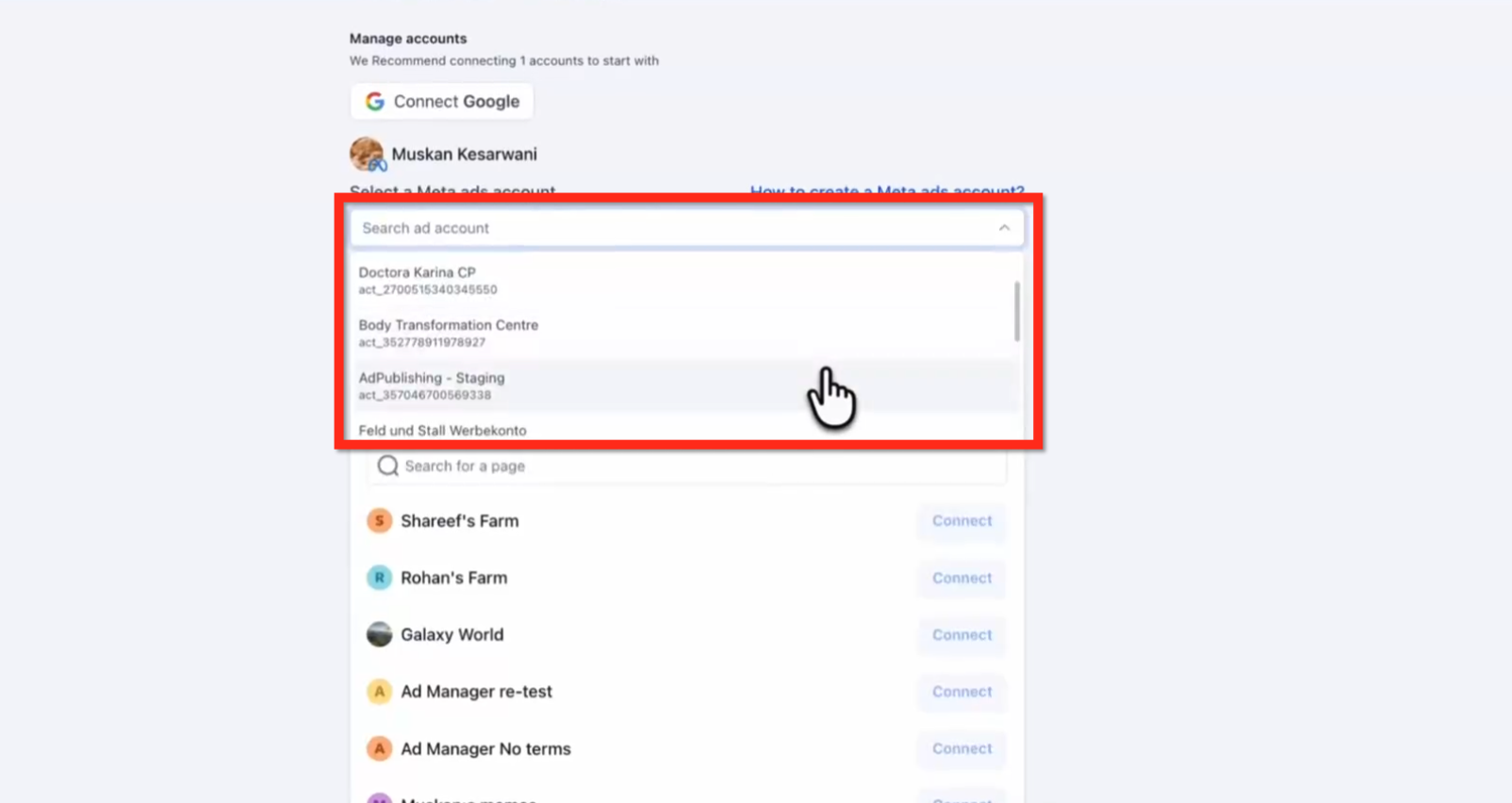
- Follow the prompts to connect the Facebook profile and pick the Meta ad account.
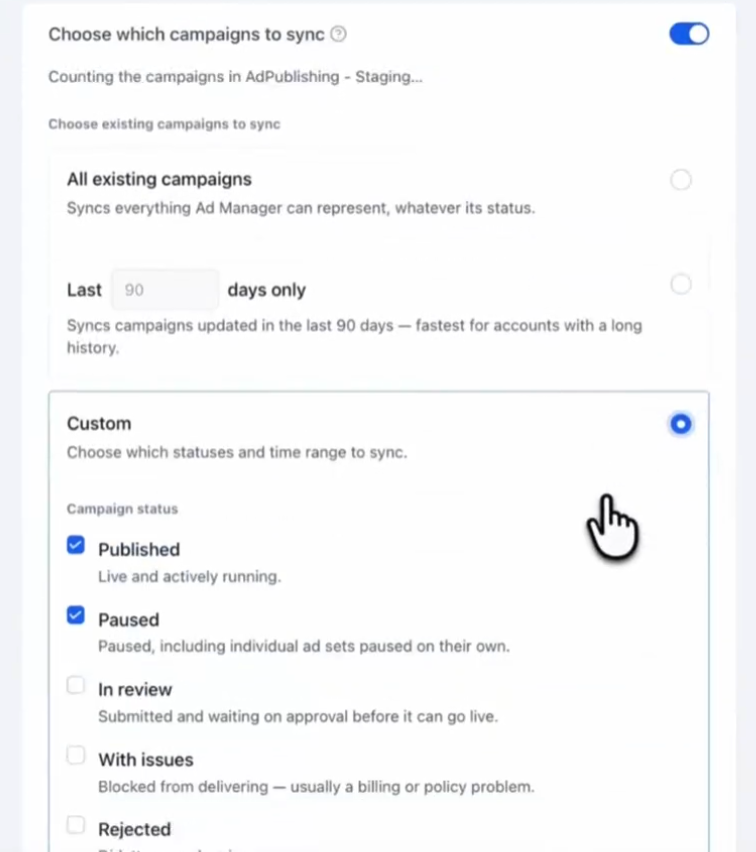
- Enable the option to choose which campaigns to sync.
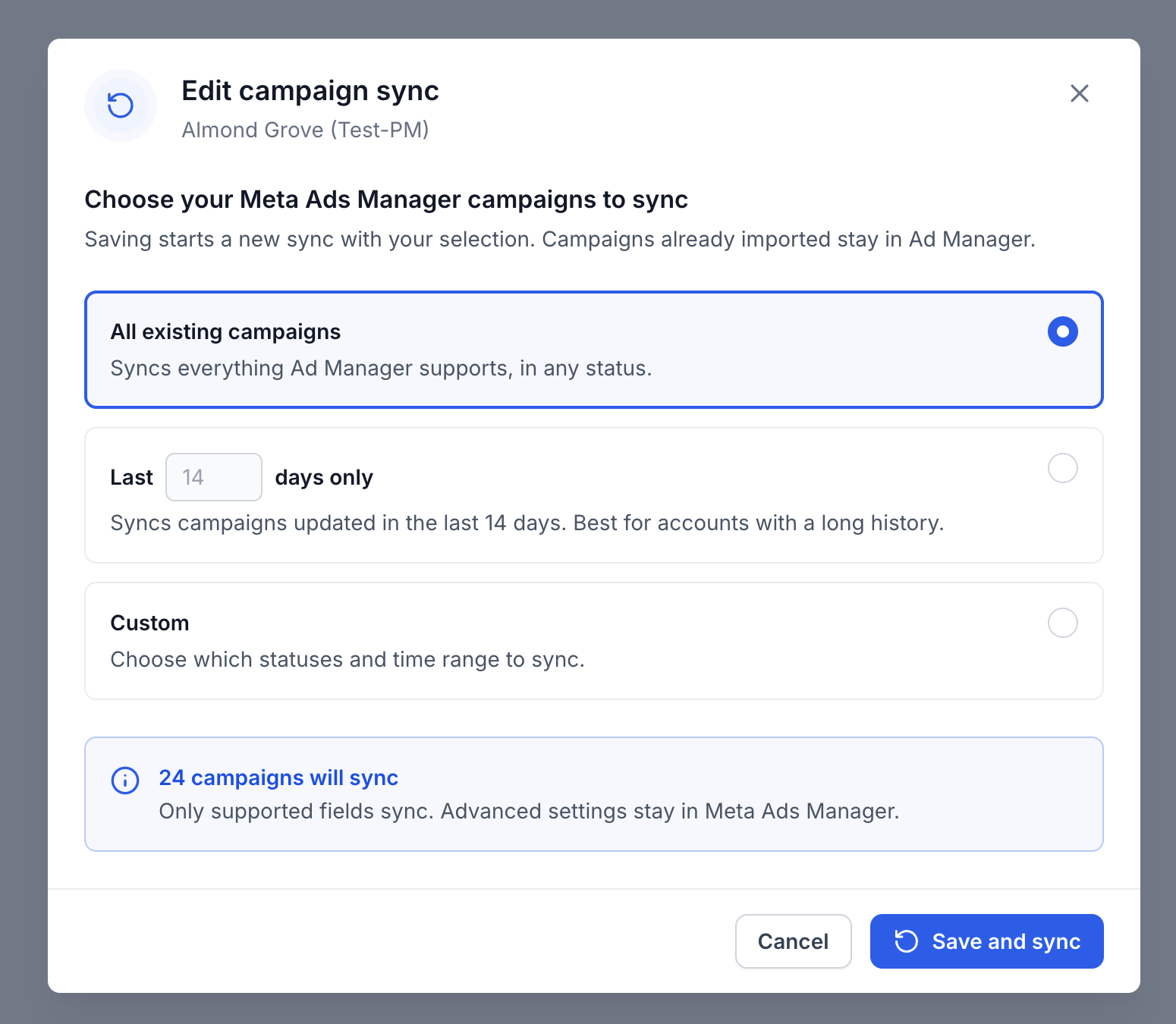
- Select the preferred import option, all existing, last X days, or custom.
- Connect the Facebook Page and finish the account setup.
Enable sync for an already connected Meta ad account
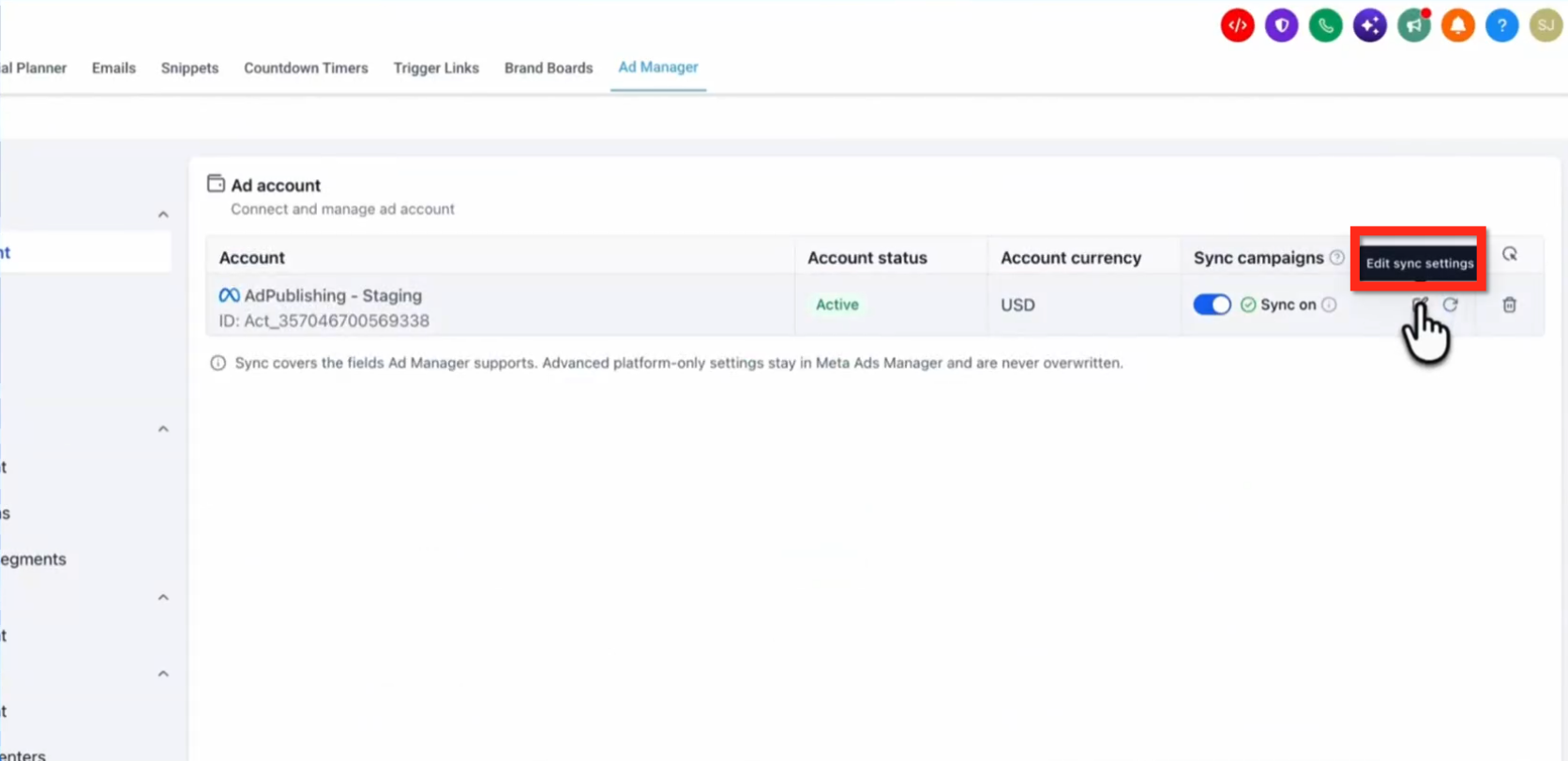
- Open Marketing > Ad Manager > Settings > Platform settings > Meta > Ad account.
- Locate the connected Meta ad account and turn on the Sync campaigns toggle.
- Click the Edit Sync settings button.
- Choose the campaigns you want to sync.
- Click Save and sync to start importing.
Refresh synced campaigns
- Open Marketing > Ad Manager > Campaigns.
- Click the Refresh icon above the campaign list.
06What it looks like in HighLevel
07Settings that matter
- Choose which campaigns to sync. Controls whether all eligible campaigns, only recent ones, or a custom filtered set are imported.
- Sync campaigns toggle. Turns the two way synchronization on or off for a connected Meta ad account.
- Edit Sync settings. Opens the filter configuration where you can adjust status and date range criteria.
08Things to know before you rely on it
- Only campaign objectives and fields supported by HighLevel are synchronized.
- Advanced Meta only settings are not overwritten and remain managed in Meta Ads Manager.
- Unsupported campaign objectives are excluded even if they match the selected filters.
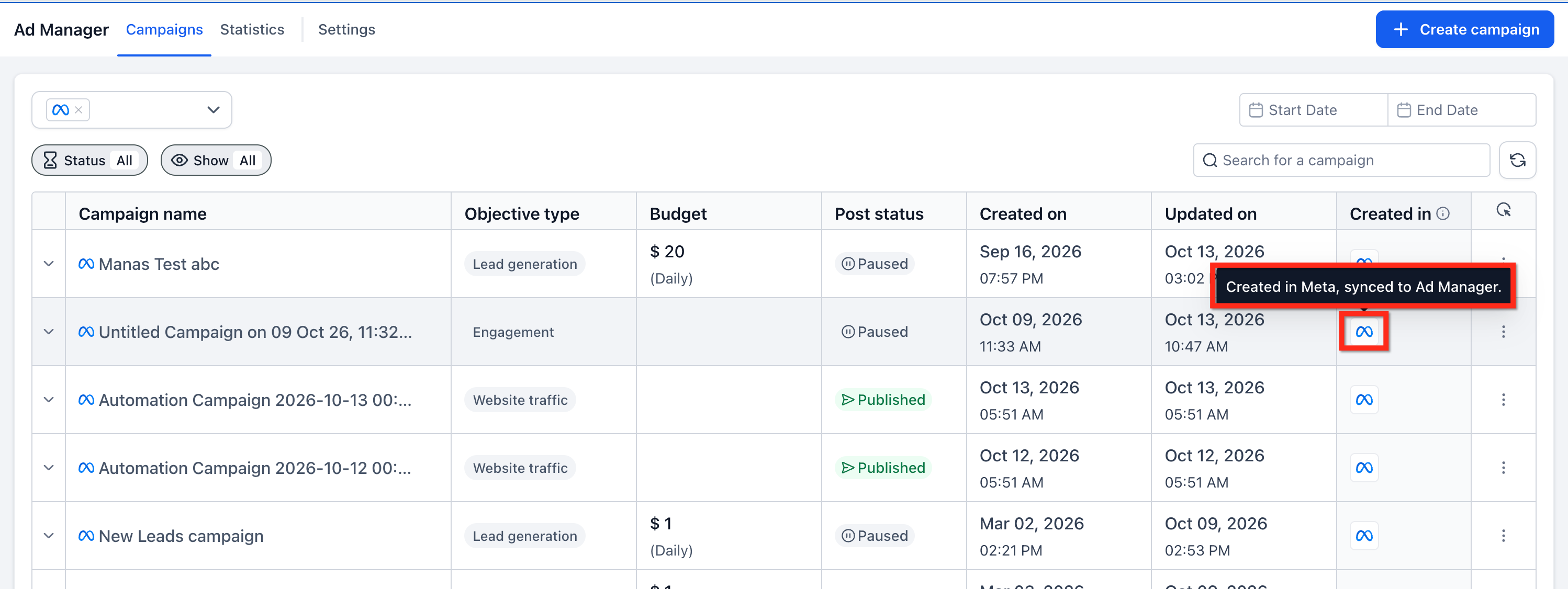
- The origin badge on a campaign does not change after it is edited in either platform.
09If something goes wrong
- A synced Meta campaign does not appear in HighLevel. Verify the correct Meta ad account is connected and that the campaign matches the selected status and date filters. Allow the background sync to finish and use Refresh to check again.
- Some fields are unavailable when editing an imported Meta campaign. Recognize that those fields belong to advanced Meta configurations or are restricted after publication. Manage those settings directly in Meta Ads Manager.
10How it connects to the rest of HighLevel
- Start a 30 day HighLevel trial Free trial
- Review HighLevel pricing and plans Pricing page
Michael's take

Managing ads across two dashboards is a headache for any marketer. Two way campaign sync solves that by letting you import existing Meta campaigns into HighLevel and keep them updated without rebuilding anything.
The first setting I would lock in is the synchronization option. Choose Custom and pick the exact statuses you actually run. That way you only bring in the campaigns you need and avoid clutter.