
01Who this is for
- Marketing teams, they can quickly spin up proven nurture sequences without building each step from scratch.
- Agency owners, they gain a standard set of automation blueprints to share across client accounts.
- Small business Founders, they receive best practice workflows that reduce the learning curve for automation.
02Template Library for Workflows, explained
The Template Library offers a catalog of pre designed workflow structures that can be added to a HighLevel account. Each entry shows a description, any required prerequisites, and a visual canvas of its logic. After selecting a template, it appears in the workflow editor where every element can be edited.
The library is accessed from the Automation section under the Workflows tab. Users filter by category, search keywords, or sort by popularity to find the right recipe. Once a template is imported, it behaves like any other workflow, allowing testing, activation, and further customization.
Existing automations are not altered when the library is turned on, and the feature does not yet support creating new custom templates.
03How businesses use Template Library for Workflows
- Digital marketing agency. The agency opens the Template Library, filters for lead generation workflows, previews a suitable template, and imports it. In the editor they adjust messaging and timing before activating it for a client campaign.
- Ecommerce store. The store owner selects an onboarding workflow template, checks the prerequisites, and loads it. They then replace placeholder emails with their own copy and set delays that match their order fulfillment timeline.
- Coaching business. A coach browses the library for a client welcome sequence, previews the steps, and imports it. They edit the actions to include their calendar link and then run a test with a dummy contact.
04How to set up and use Template Library for Workflows in HighLevel
Set up the Template Library for Workflows
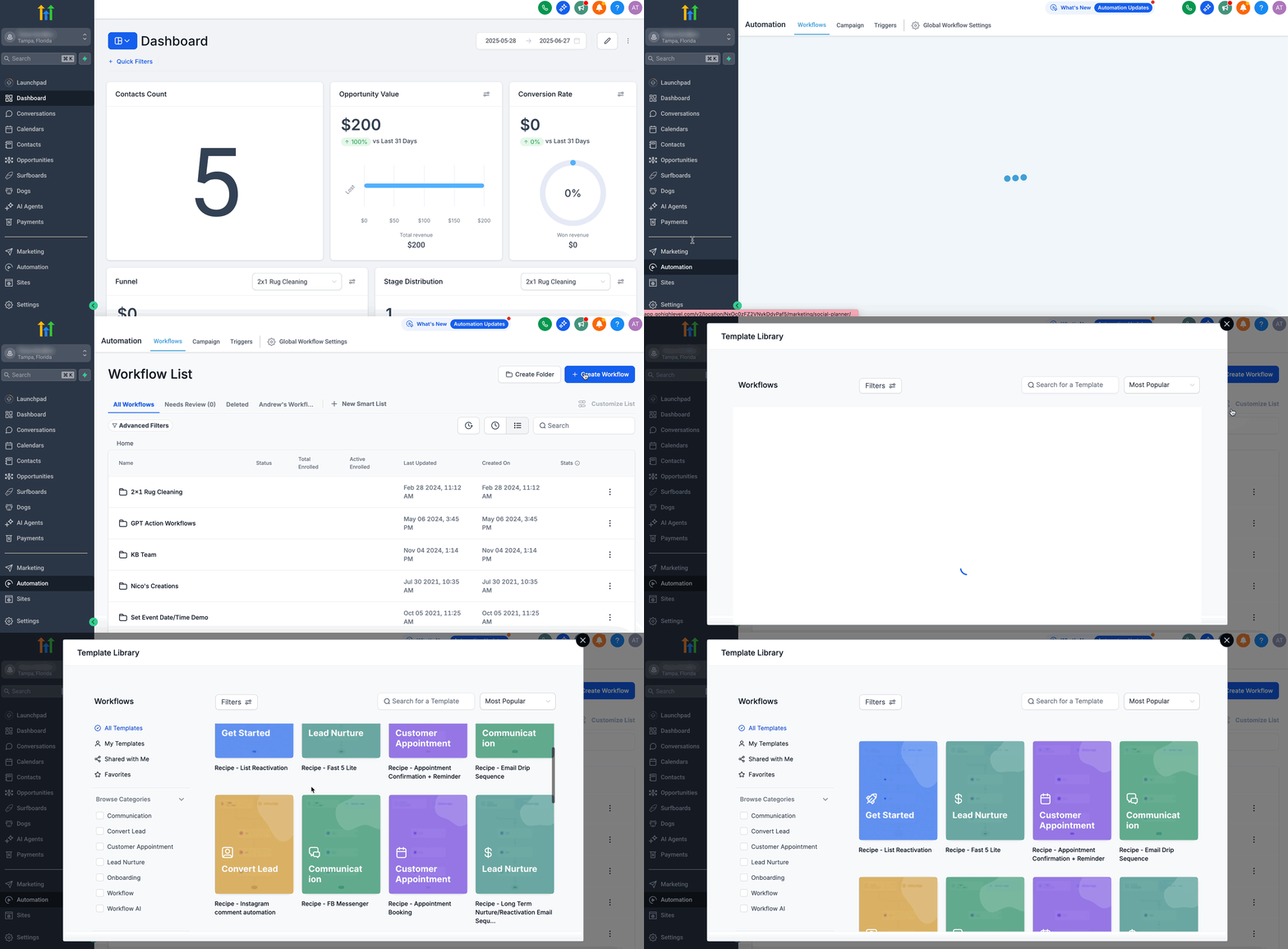
- Click Automation in the left navigation bar.
- Switch to the Workflows view.
- Press the Create Workflow button.
- Choose the option Select from Template.
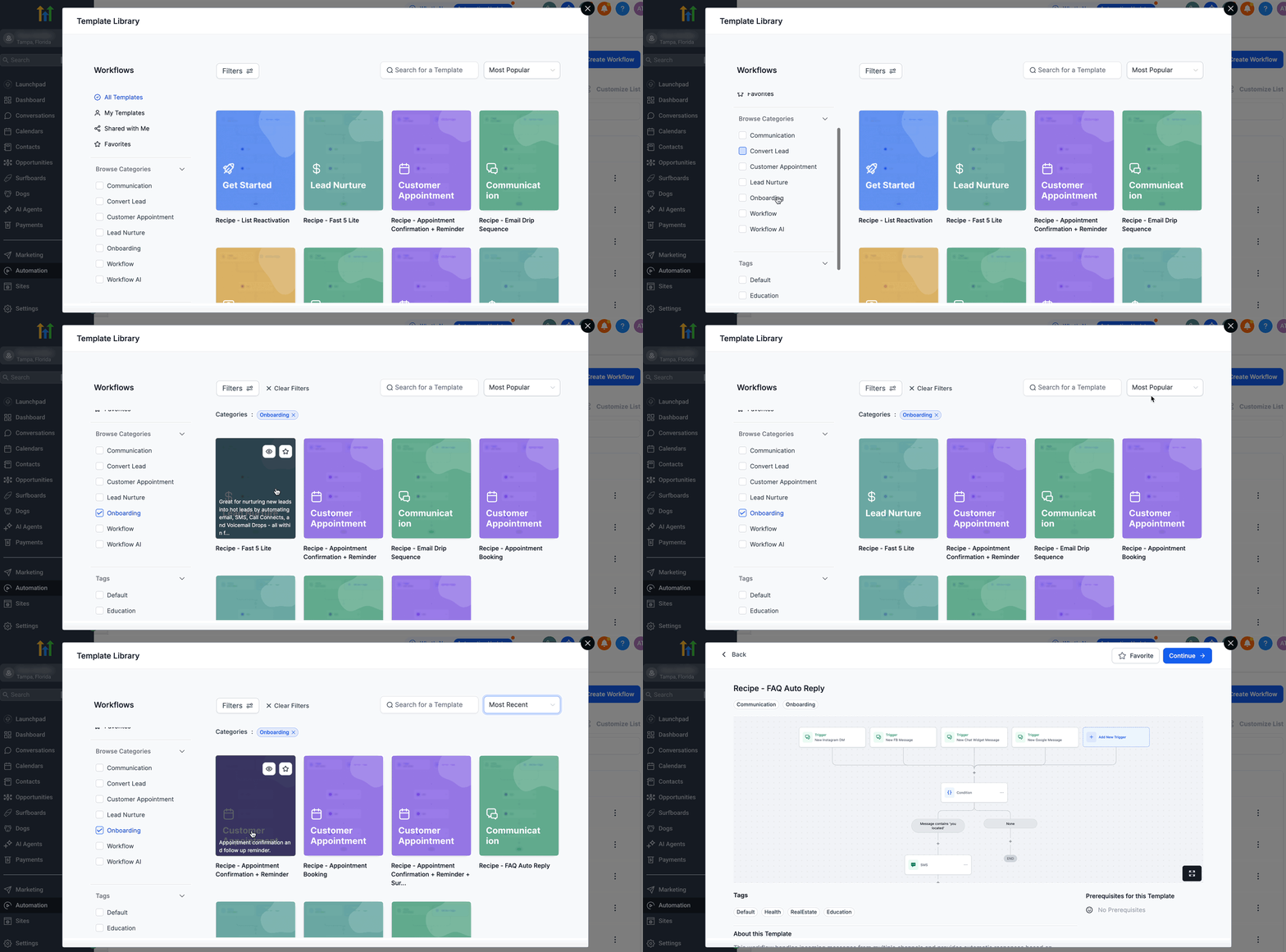
- Open the Filters panel and choose a category that fits your goal.
- Type a keyword in the search field to narrow results.
- Sort the list by popularity if desired.
- Hover over a template card to view its brief description.
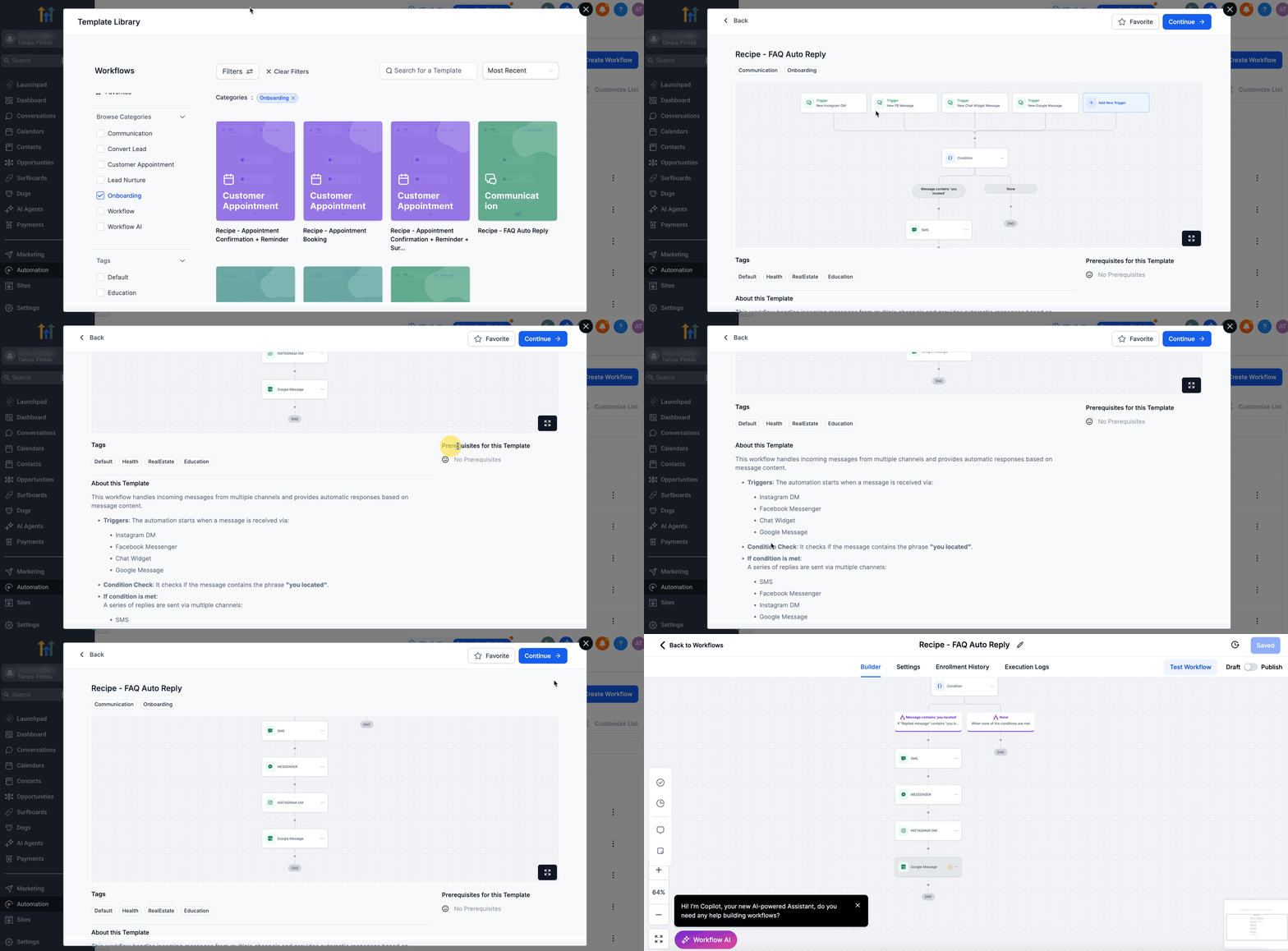
- Click the eye icon or the card to open the template preview.
- Read the About this Template text and verify any listed prerequisites.
- Review the full canvas that shows triggers and actions.
- Hit Continue to import the template into the workflow editor.
- Run a test with a sample contact, then save and activate the workflow.
05What it looks like in HighLevel
06Things to know before you rely on it
- Creating personal templates is not available at this time.
- Enabling the library does not modify any existing workflows.
07How it connects to the rest of HighLevel
- Overview and initial setup of the Template Library Template library overview
- How to add custom templates (future capability) Add custom templates
- Sharing templates between agencies Share templates
Michael's take

Wondering if a template library can really save me time? It does. You pick a ready made workflow, tweak a few details, and you’re running a proven automation without the trial and error of building from zero.
If I were setting up a new lead nurture sequence, I’d grab the appropriate template, test it on a small batch of contacts, and then roll it out. It’s a shortcut that also gives the team a shared best practice playbook.