
01Who this is for
- Agency admins, they can add and manage templates across subaccounts, keeping the agency’s branding consistent.
- Marketing teams, they gain quick access to pre approved templates, reducing the time spent searching for files.
- Small business owners, they can maintain a uniform look for all outgoing emails without needing design expertise.
02Email templates, explained
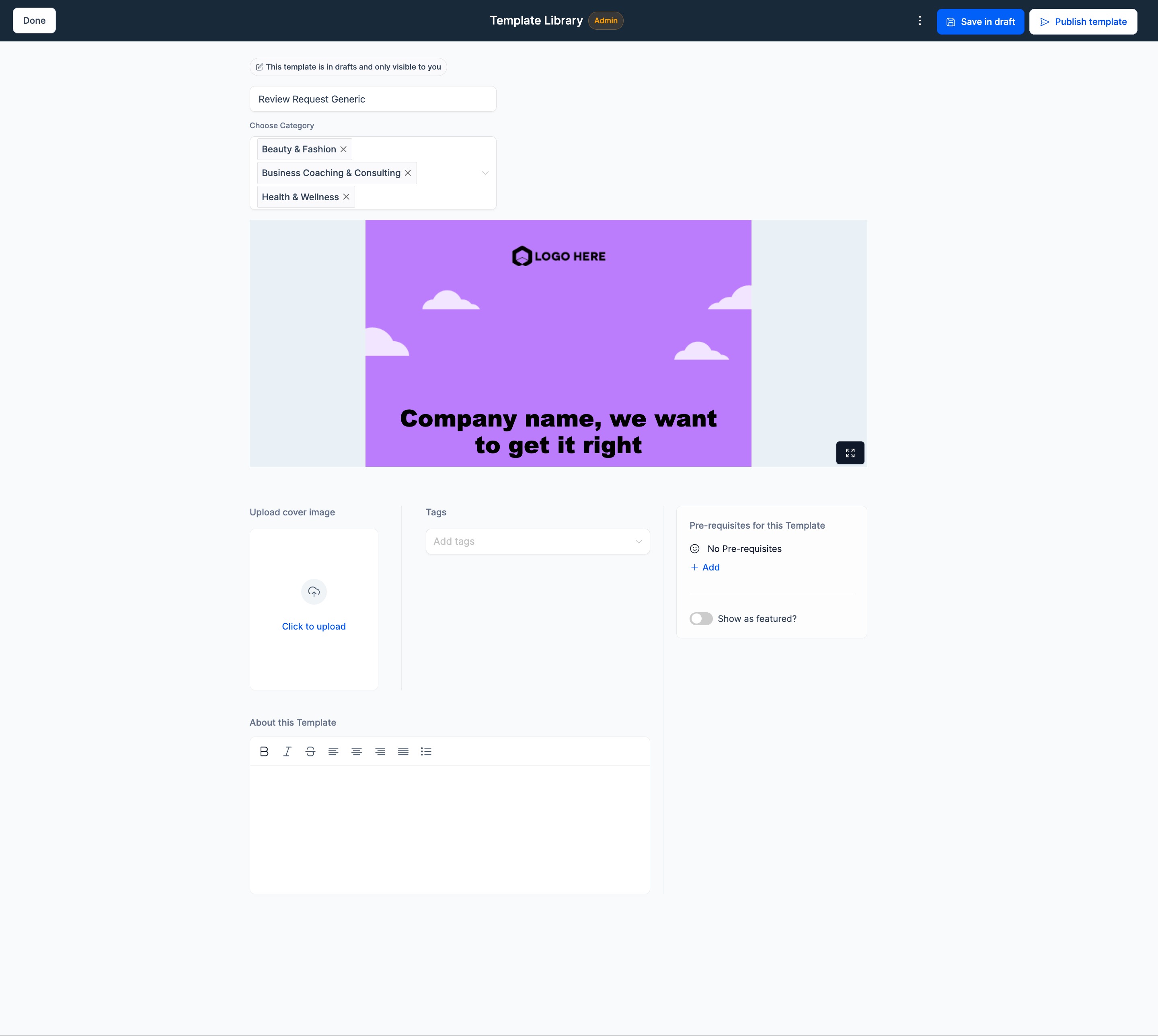
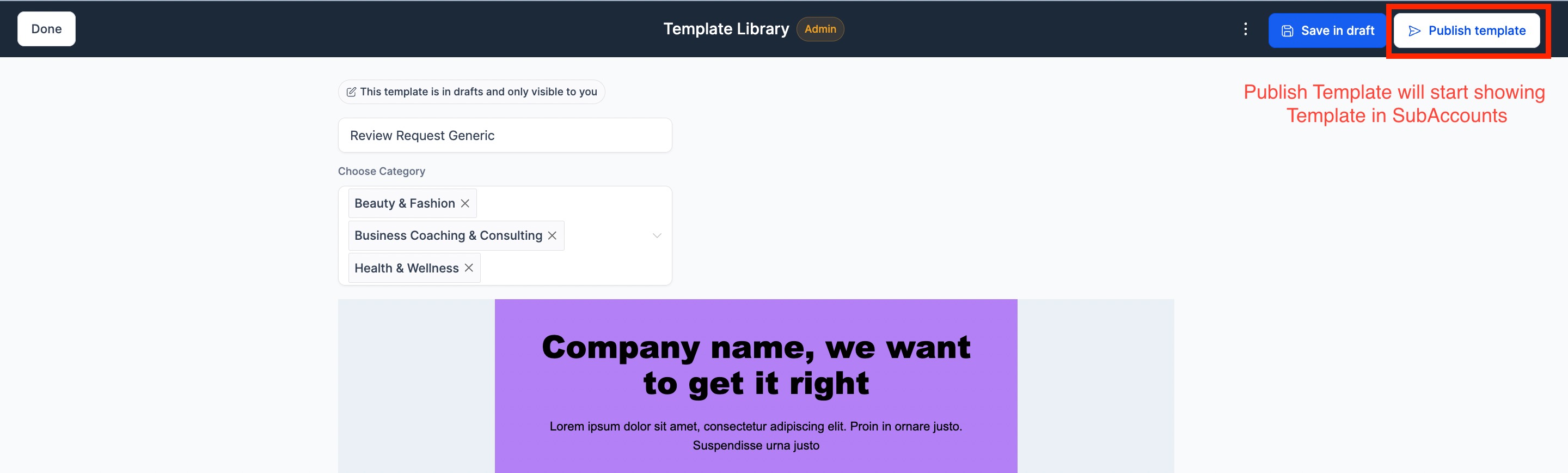
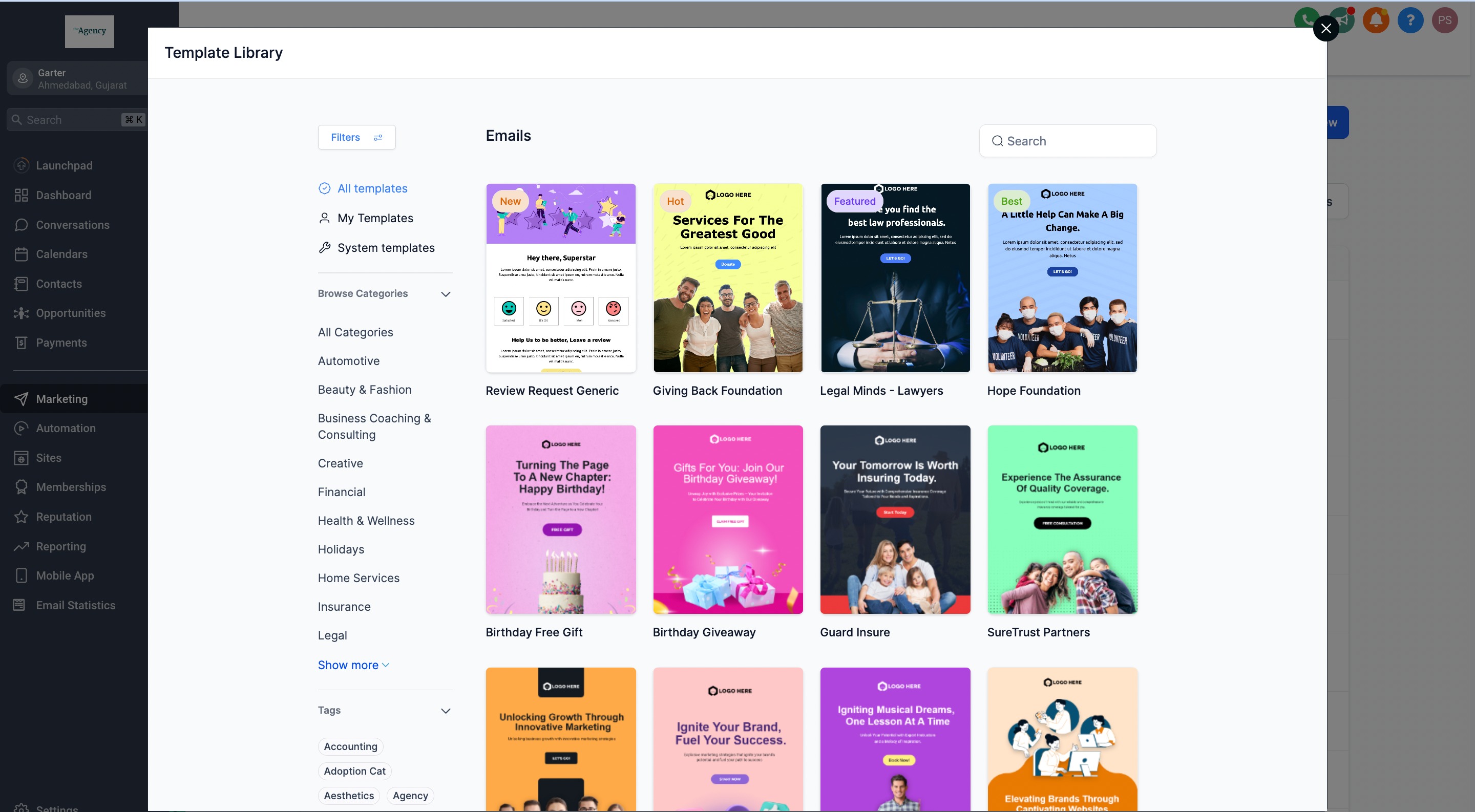
The Template Library stores email templates that the agency creates or imports. When a template is added, the admin supplies a name, selects a category, and can attach a cover photo, tags, a description, predefined requirements, and featured tags. After saving, the template can be set to public, making it visible to subaccount clients, or kept as a draft for further editing.
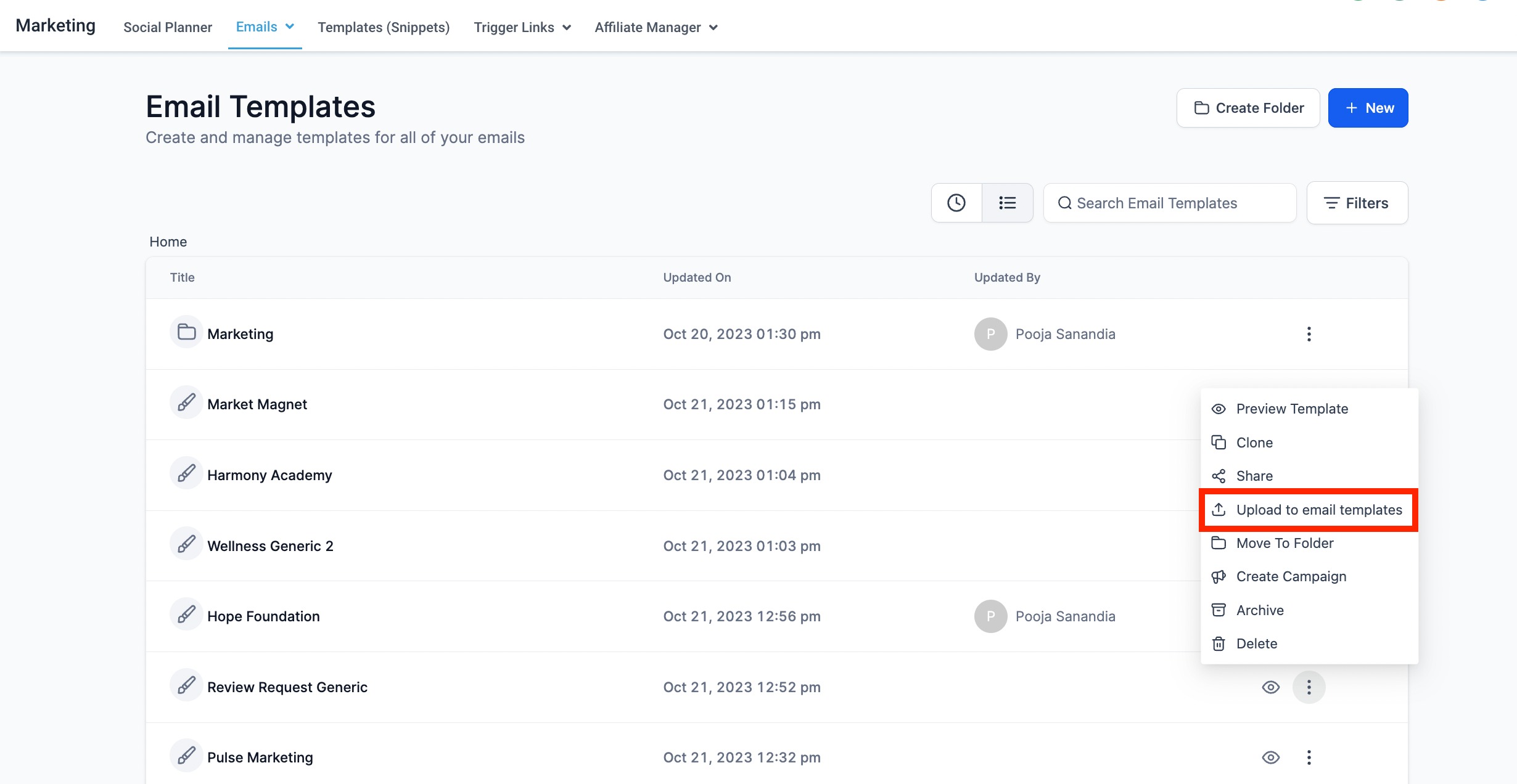
The feature lives under the Email Marketing section of HighLevel. From the list view of an existing email asset, the admin accesses the three dot menu to choose “Add to Template Library.” The system then redirects to the Template Library admin mode where all additional details are entered. Public templates appear in the subaccount view, while drafts remain only in the admin panel.
03How businesses use email templates
- Digital marketing agency. The agency admin uploads a new campaign template, assigns it to the “Lead Nurture” category, adds relevant tags, and marks it public. Subaccount managers can then select the template when building client email sequences.
- Ecommerce store. The store’s marketing lead creates a checkout confirmation template, adds a cover photo, sets the category to “Transactional,” and keeps it as a draft while testing. Once finalized, the template is made public for the sales team to reuse.
- Co working space. The community manager adds a welcome email template, includes a predefined requirement to integrate Stripe for a one step order form, adds featured tags, and publishes it so all location managers can send it to new members.
04The numbers and rules that matter
- $497 Plan and above can add their own templates to Template Library (per HighLevel's help center, checked November 2026).
05Before you start
- You must be on the $497 plan or a higher tier (per HighLevel's help center, checked November 2026).
- You must have Agency admin privileges.
06How to set up and use email templates in HighLevel
Add template to the Template Library
- Navigate to Email Marketing.
- Locate the desired email asset in list view.
- Open the three dot menu and select the option to add to Template Library.
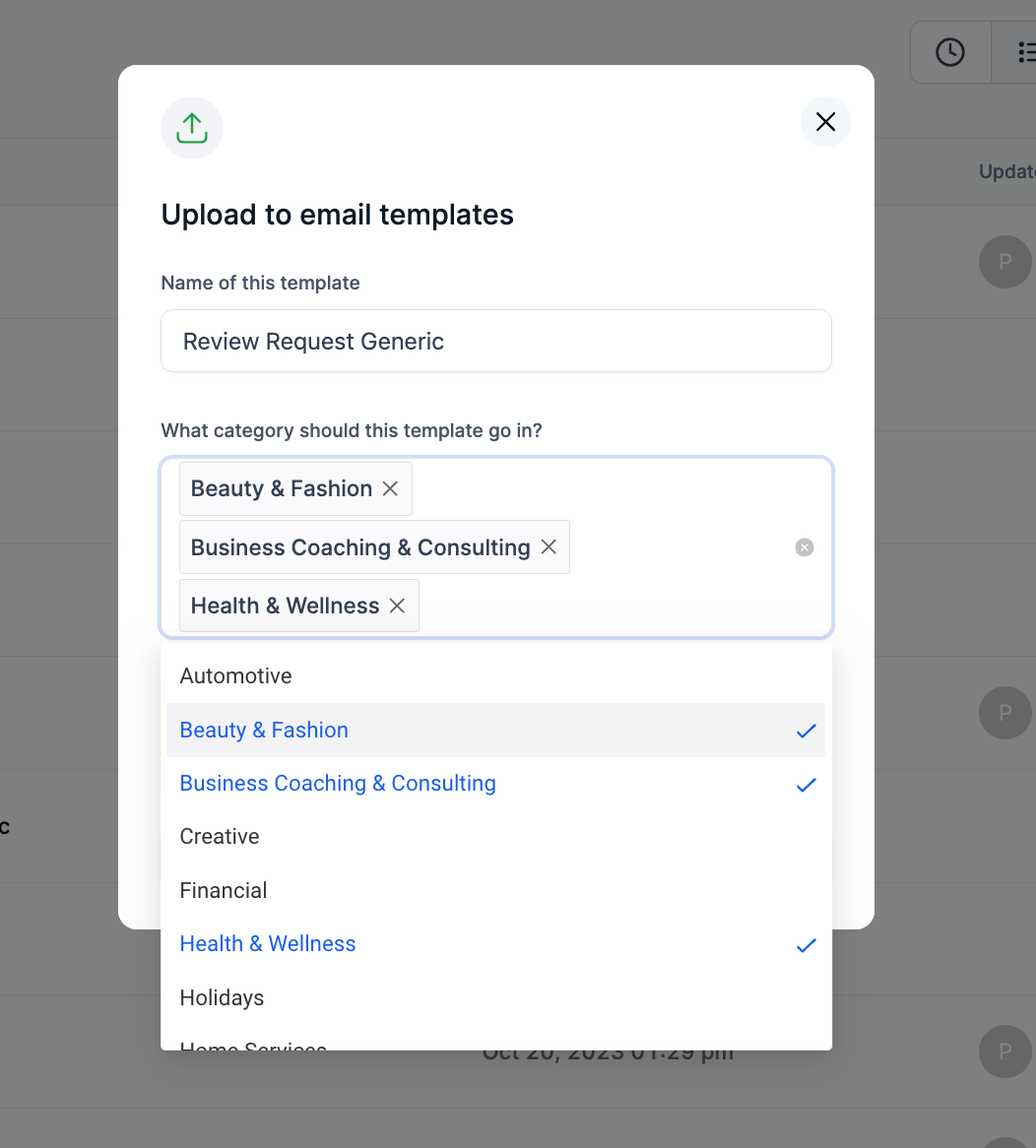
- Enter the template name and choose a category.
- In the admin mode, upload a cover photo, add tags, edit the name, select the category, provide a brief description, set predefined requirements, and add featured tags.
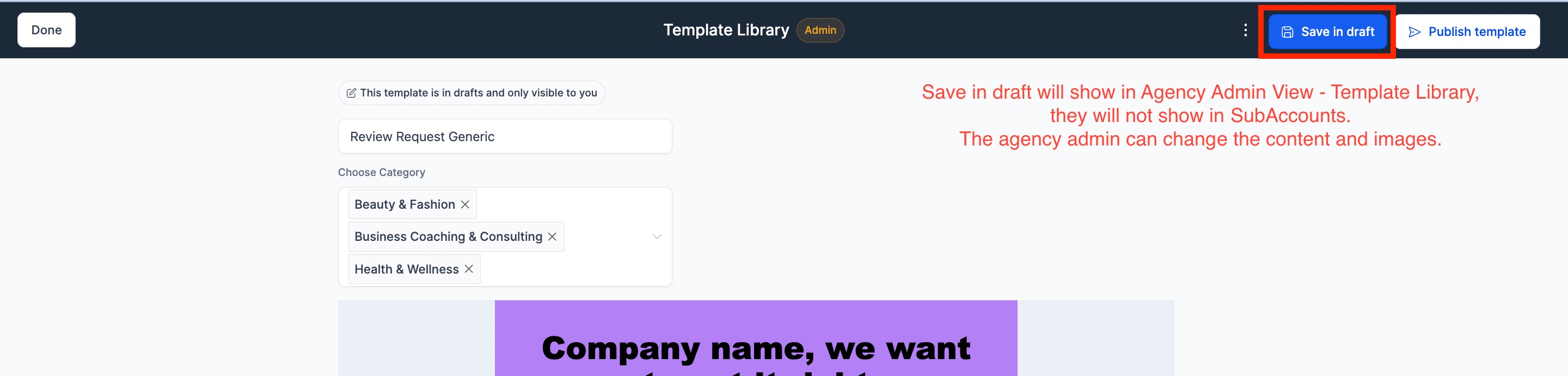
- Choose the template status: set to public to share with subaccounts or set to draft for internal editing.
- Save the changes to complete the addition.
07What it looks like in HighLevel
08Settings that matter
- Template name. Defines the label shown for the template in the library.
- Category. Groups the template with similar types for easier browsing.
- Cover photo. Visual thumbnail that represents the template in the library.
- Tags. Keywords that help filter and locate the template.
- Description. Short text explaining the purpose or content of the template.
- Predefined requirements. Instructions such as integrating Stripe for one step order forms.
- Featured tags. Highlights that make the template stand out in searches.
- Public / Draft status. Controls whether the template is visible to subaccount users (public) or remains editable only in the admin panel (draft).
09Things to know before you rely on it
- Adding templates is only available on the $497 plan and higher (per HighLevel's help center, checked November 2026).
- Only Agency admins can add templates; existing templates cannot be edited directly.
- Existing templates in the library cannot be hidden or edited; they must be cloned to make changes.
- Public templates do not update with new elements; draft templates retain all updates. Future releases may support updating public templates.
10How it connects to the rest of HighLevel
- Overview of the Template Library and how to use it Template Library Overview
- Step by step guide to adding custom templates Add Custom Templates
- Pricing details to confirm plan eligibility HighLevel Pricing
Michael's take

Adding email templates feels like a small convenience that quickly becomes a real shift for agencies. It gives you a single place to store brand consistent designs and lets anyone on the team pull them in seconds.
A boutique marketing agency that creates dozens of outreach campaigns each month will find this especially useful. The admin can upload a template once, tag it, and let each client’s subaccount use it without rebuilding the email every time.