
01Who this is for
- Agency admins can centralize asset creation, ensuring agency approved designs are reusable across client accounts.
- Subaccount users gain quick access to preconfigured email, social or ad assets, reducing time spent rebuilding content.
- Marketing teams within agencies can tag and categorize templates, making it easier to locate the right asset for a campaign.
02Custom templates, explained
A custom template is a reusable asset stored in the HighLevel Template Library. Agencies add templates so that subaccounts can start with approved content instead of building an asset from scratch. The library supports many product areas, each with its own upload option.
Templates can be created from Agency View, where an admin selects a source asset, previews it, renames it, and saves it as a new library entry. Supported products such as Email, Social Planner, Ad Manager and Custom Reports let users upload existing assets directly to the library. After upload, the template appears in Draft status until the admin adds metadata and publishes it.
Draft templates are hidden from normal subaccount use. Publishing a template makes it visible in the Template Library experience for any subaccount that has library access. Visibility can be customized per subaccount, allowing agencies to hide or show specific templates or categories.
03How businesses use custom templates
- Digital marketing agency. The agency creates email templates in Agency View, adds branding and tags, saves them as Draft, then publishes. Sub client accounts can select those templates when building campaigns, ensuring consistent messaging.
- Real estate brokerage. Agents upload a market analysis report as a custom report template. After cleaning client specific data, the admin saves the template as Draft, adds a description, and publishes it so all agents can generate the same report format.
- Fitness studio chain. The corporate team uploads Social Planner content for class promotions. They name the template, assign a category, and publish it, allowing each location to pull the same social post layout from the library.
04The numbers and rules that matter
- $497/month Pro plan is required to create custom templates (per HighLevel's help center, checked November 2026).
05Before you start
- The agency must be on the $497 /month Pro plan (per HighLevel's help center, checked November 2026).
- You must be signed in with an Agency Admin role (per HighLevel's help center, checked November 2026).
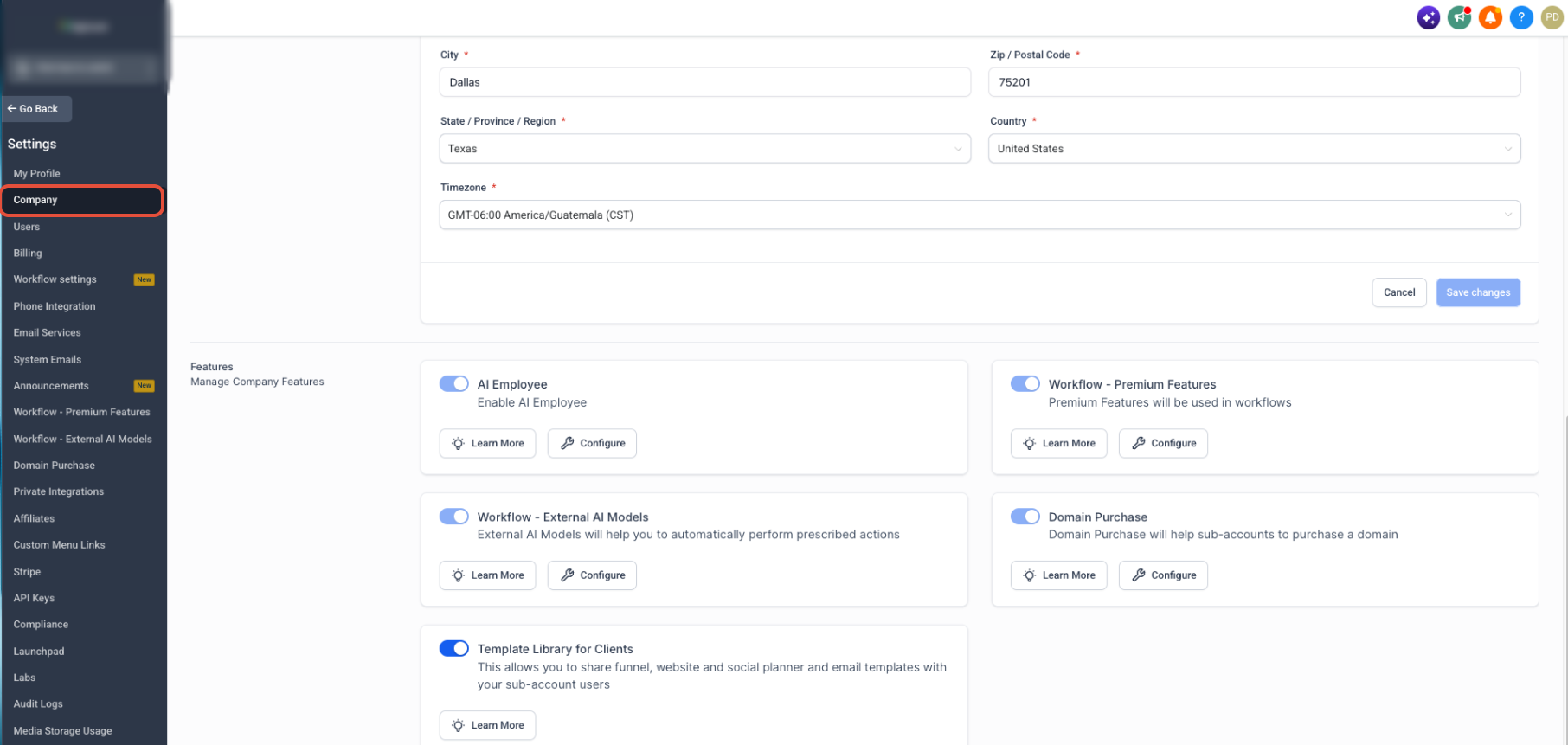
- Template Library access must be enabled for subaccount users (per HighLevel's help center, checked November 2026).
- The source asset must already exist before creating a template (per HighLevel's help center, checked November 2026).
06How to set up and use custom templates in HighLevel
Create a custom template from Agency View
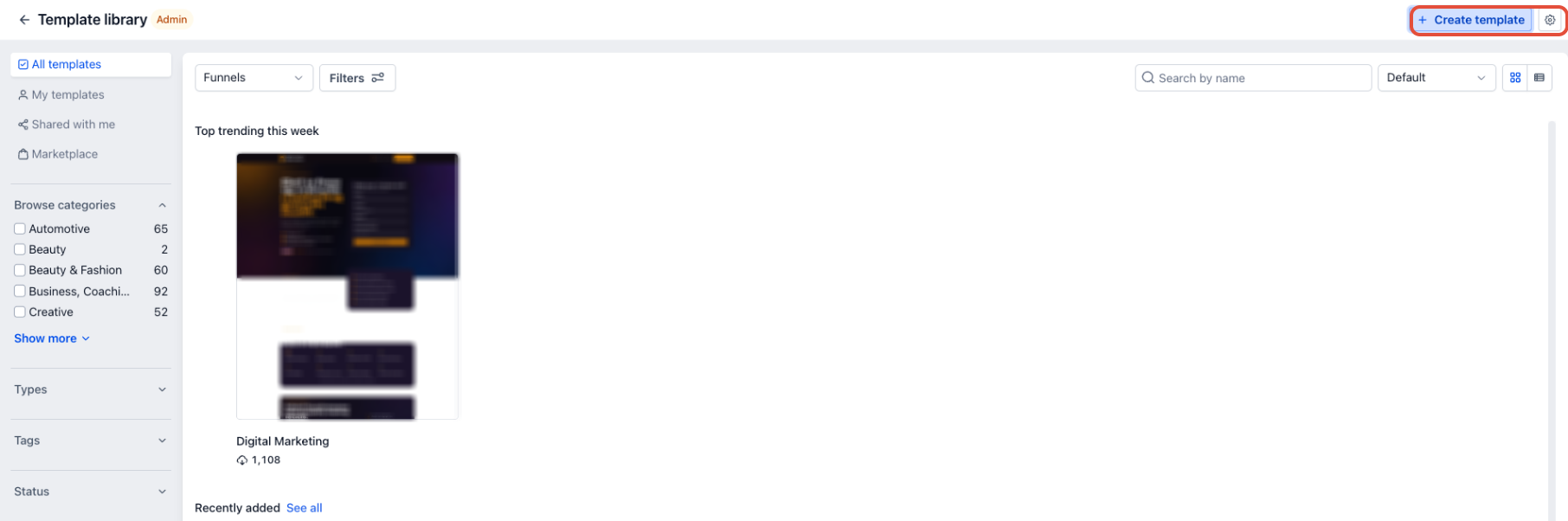
- Open Template Library from Agency View.
- Click the + Create template button.
- Select the subaccount that contains the source asset.
- Choose the product type for the source asset.
- Pick the specific template or asset to reuse.
- Click Continue.
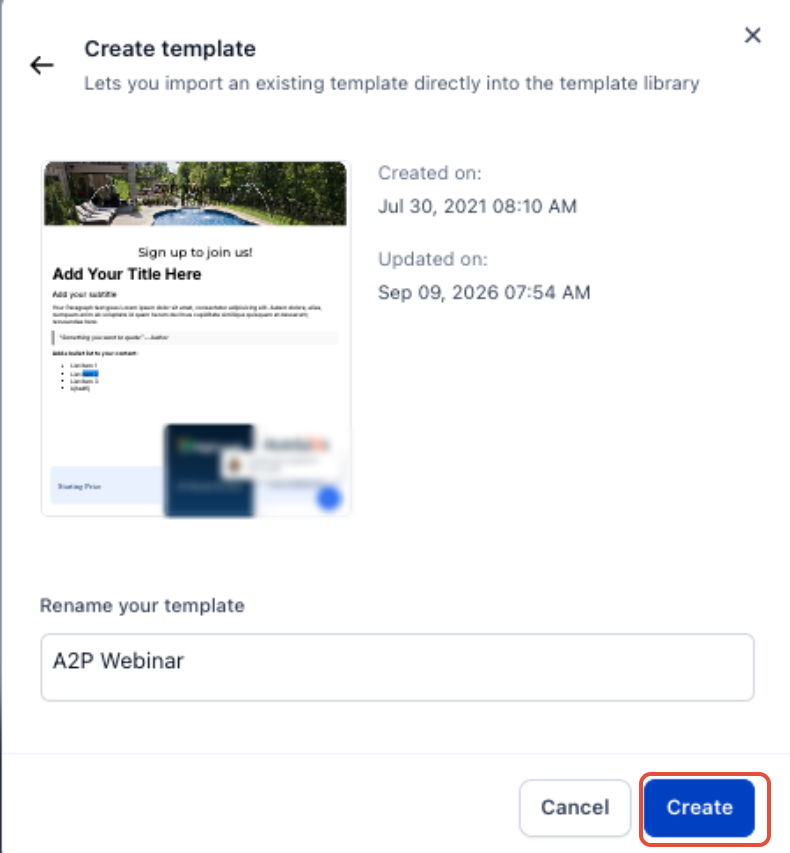
- Review the preview of the selected asset.
- Open the preview for a closer look if needed.
- Rename the template if a different name is desired.
- Click Create to add the new entry to the Template Library.
Upload an email template
- From the subaccount, navigate to Marketing > Emails > Templates.
- Find the email template you want to reuse.
- Open the template’s three dot action menu.
- Select Upload to email templates.
- Enter a display name for the new template.
- Choose a category for the template.
- Click Upload to save it to the Template Library.
Upload Social Planner content
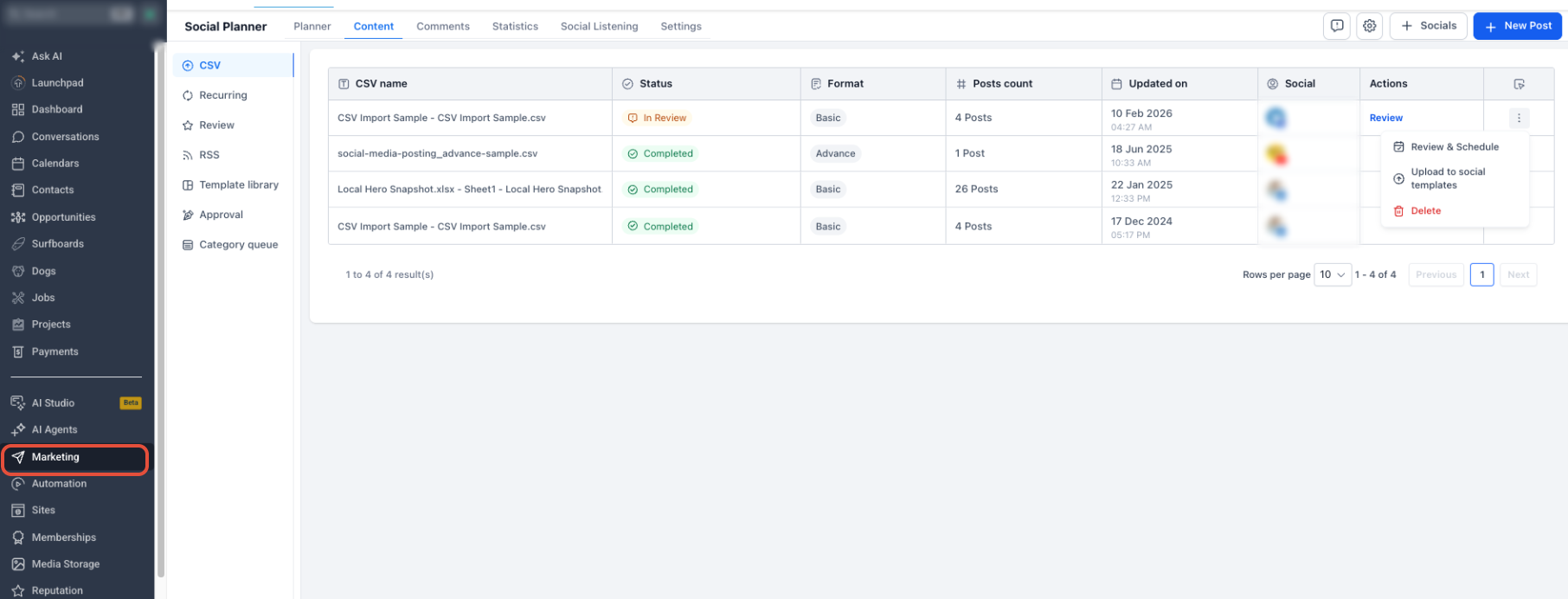
- From the subaccount, go to Marketing > Social Planner.
- Open the Content section.
- Switch to the CSV tab or another supported content area.
- Locate the content you want to reuse.
- Open its three dot action menu.
- Select Upload to social templates.
- Enter the template name and pick a category.
- Continue to Template Library admin mode to finish the template details.
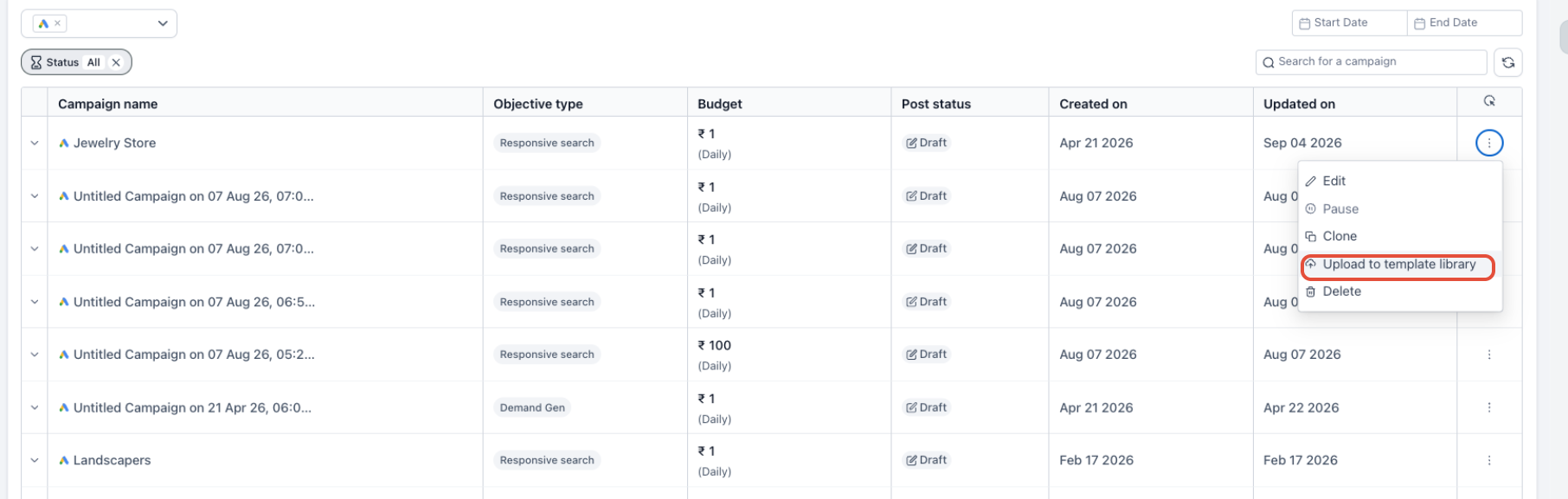
Upload an Ad Manager campaign
- From the subaccount, open Marketing > Ad Manager.
- View the list of campaigns.
- Find the supported campaign you want to reuse.
- Open the campaign’s ellipsis (⋮) menu.
- Select Upload to Template Library.
- Enter the template name.
- Choose a category for the template.
- Click Upload to create the Draft template.
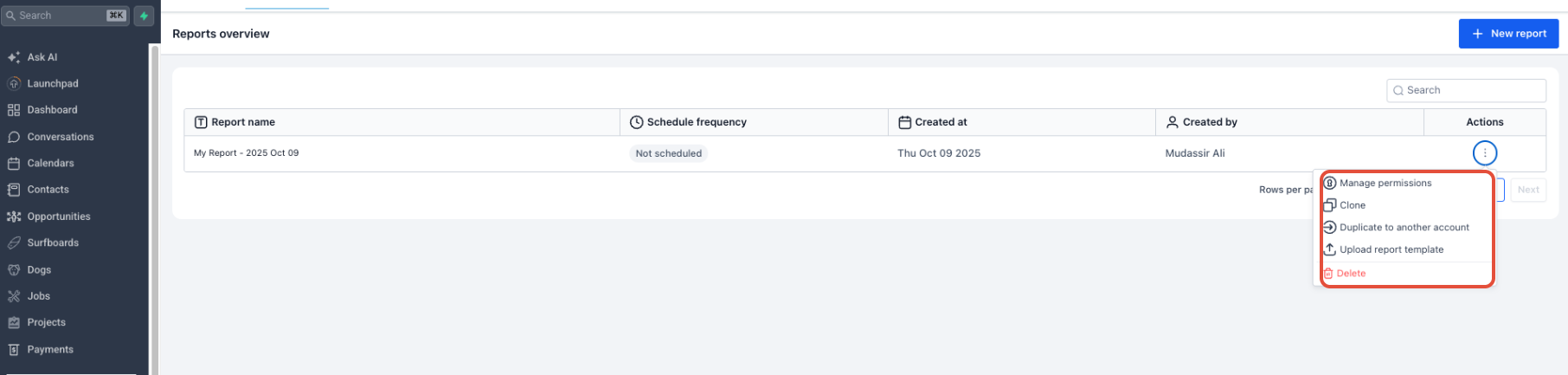
Upload a custom report
- From the subaccount, go to Reporting > Custom Reports.
- Locate the completed report on the Reports Overview page.
- Open the report’s three dot menu.
- Select Manage permissions.
- Grant Read access to Agency User, Account Admin, and Account User.
- Finalize the layout, branding, page order, date ranges, and widget settings.
- Replace any client specific text, screenshots, or data with reusable content.
- Return to the report’s three dot menu.
- Select Upload Report Template to add it to the library.
07What it looks like in HighLevel
08Settings that matter
- Template Library for Clients. A toggle that enables or disables subaccount users’ ability to browse published templates.
- Customize for Subaccounts. Controls which templates and categories are shown or hidden for each individual subaccount.
09Things to know before you rely on it
- Only agencies on the $497 /month Pro plan can create new custom templates; lower plans can only browse (per HighLevel's help center, checked November 2026).
- Published templates do not automatically reflect changes made to the original source asset.
- Uploaded Ad Manager campaigns start as Draft templates and must be published before subaccounts can use them.
- Not every HighLevel product supports custom template creation; available options vary by product.
10How it connects to the rest of HighLevel
- Overview and setup of the Template Library Template Library overview
- How to hide default or HighLevel templates from the library Hide default templates
- Pricing details for agency plans that allow custom template creation Pricing
Michael's take

I think custom templates are a handy way to reuse agency assets across clients.
Don’t forget to publish the template only after you’ve filled in all the metadata and verified the preview.