
01Who this is for
- Agency admins who need to distribute proven marketing templates to partner agencies.
- Agency admins who collaborate with multiple client agencies and want a quick way to share assets.
02Share templates, explained
The new sharing feature creates a distinct URL for a selected template in the Template Library. The URL can be copied and delivered to another agency, granting them the ability to add the same template to their own library.
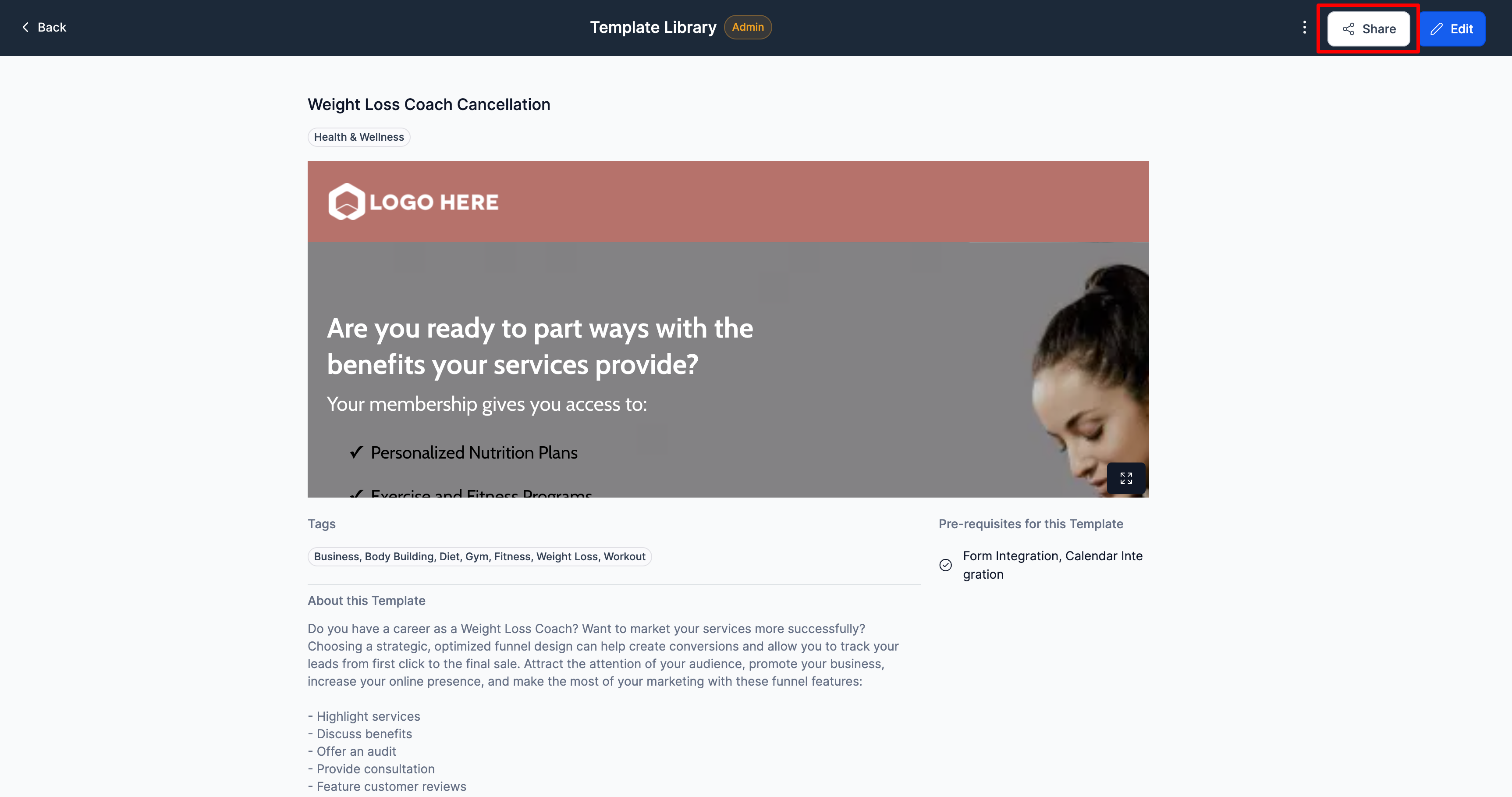
The option is found in the Admin view of the Template Library. After generating the link, the creator can modify access settings before copying the URL. The receiving agency opens the link, accepts the import prompt, and the template appears in their library.
03How businesses use share templates
- Digital marketing agency. An agency admin picks a high performing funnel template, clicks Share, and sends the generated link to a partner agency. The partner opens the link and imports the funnel, adding it right away to their own Template Library.
- Consulting firm. The firm creates a standard email sequence template, generates a shareable URL, and shares it with its subsidiary agencies. Each subsidiary follows the link, confirms the import, and the sequence becomes available for their campaigns.
- Real estate brokerage network. A brokerage admin selects a property listing page template, creates a share link, and distributes it to affiliated offices. The offices use the link to import the listing page template directly into their libraries.
04Before you start
- User must be an Agency Admin.
- Access to the Template Library in Admin view must be available.
05How to set up and use share templates in HighLevel
Share a template from Agency A
- Open the Template Library while in the Admin view.
- Select the template you want to share.
- Click the Share option to generate a unique link.
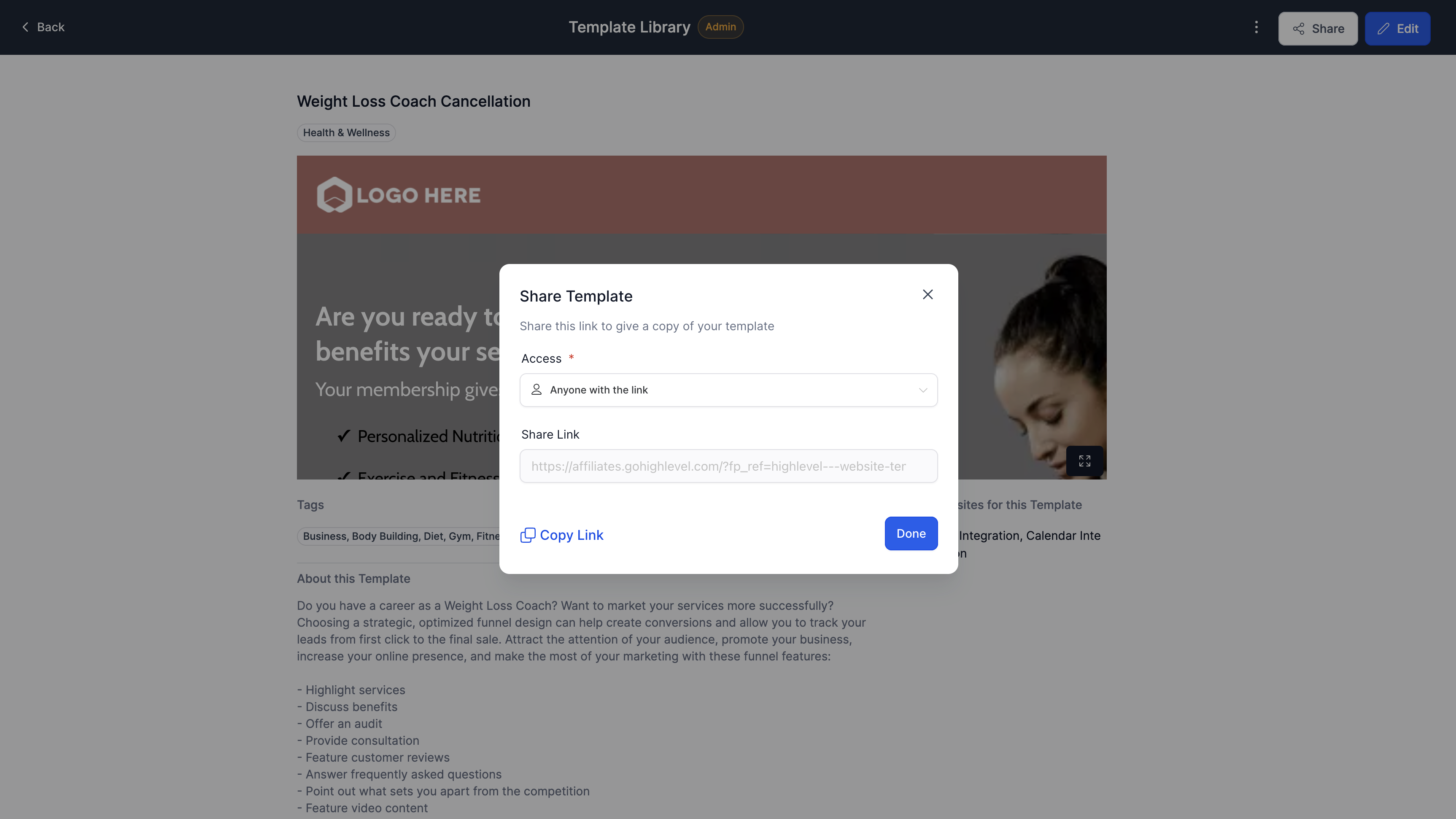
- Edit the access settings to define who can use the link.
- Update access settings via the Share option to keep templates secure and share the link carefully.
- Copy the link and deliver it to Agency B through a secure channel.
Import a template in Agency B
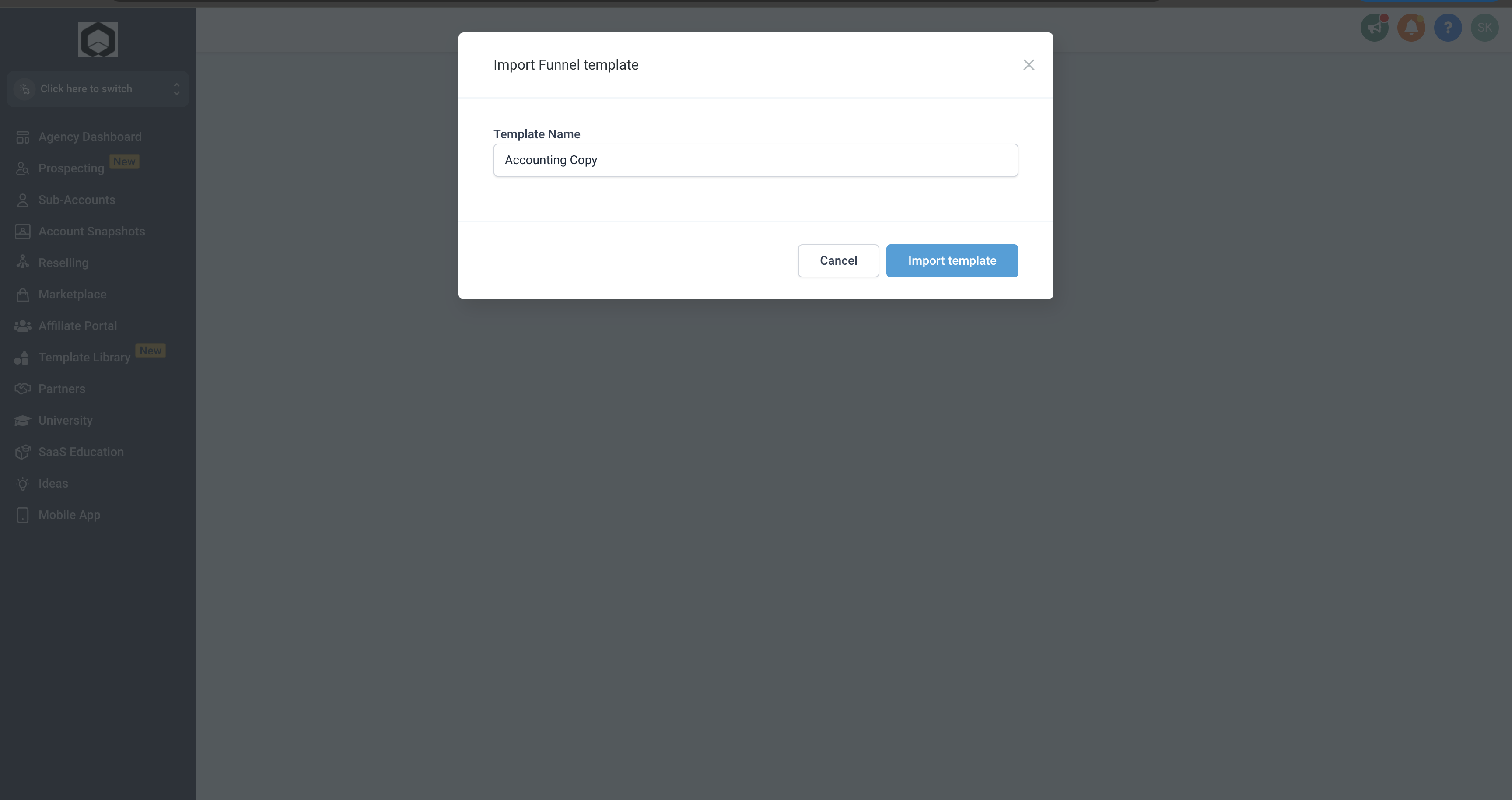
- Open the shareable link received from Agency A.
- Review the import prompt and accept it.
- Click Import Template to add the item to your library.
- Confirm the template now appears in your Template Library.
06What it looks like in HighLevel



07Settings that matter
- Edit Access Settings. Controls which users can view or import the shared template after the link is generated.
08Things to know before you rely on it
- Only Agency Admins can create shareable links.
- The link should be shared carefully to prevent unauthorized imports.
09How it connects to the rest of HighLevel
- Learn how to set up and use the HighLevel template library. Template library overview
- Add your own templates to the library for future sharing. Add custom templates
- Organize shared templates with categories, types, and tags. Manage categories
Michael's take

Michael ReimerFounder of CRM Pros, HighLevel Commander and Certified Admin
I find the shareable link feature useful when I need to move a template between agencies without rebuilding it.
If an agency prefers to keep every asset in house, the extra step of generating and managing share links might feel like unnecessary overhead.
Get More InformationOpens on HighLevelPublished November 2, 2026 · Updated November 16, 2026