
01Who this is for
- Marketers using Social Planner can gain early visibility of emerging topics to plan relevant campaigns.
- Content creators can use fresh trends to produce timely posts that resonate with their audience.
02Social listening, explained
Social Listening delivers live trend information from multiple public sources. It shows what people are searching for, which keywords are rising, and which videos or songs are gaining traction. The data appears as a list with details for each item, and it refreshes automatically when filters change.
The feature lives inside the Social Planner module. Open Social Planner, select the Social Listening tab, then choose a data source such as Google Trends, Pinterest Keywords, Wikipedia Pageviews, TikTok Trends, or YouTube Insights. Use the date filter to narrow the view and explore the results directly in the dashboard.
03How businesses use social listening
- Retail clothing store. Open Social Listening and select TikTok Trends to see breakout fashion hashtags. Filter by the past week, note the rising tags, and then schedule matching product posts in the Planner.
- Local restaurant. Choose Google Trends as the source and search for popular food related queries. Apply a date range for the upcoming weekend, identify the top searches, and create a menu highlight post that aligns with current interest.
- SaaS startup. Select Wikipedia Pageviews and look for emerging technology topics. Narrow the view to the last month, pick a high growth subject, and draft a thought leadership article that can be published through the Social Planner.
04The numbers and rules that matter
- Data source: YouTube Insights. Trending channels, keywords, and videos.
05How to set up and use social listening in HighLevel
Access and explore trends with Social Listening
- Open the Social Planner module and click the Social Listening tab.
- Choose a specific data source such as a hashtag, keyword, song, or channel and scroll through the full list for details.
- Apply date filters to limit the results to a particular time frame.
- Observe the real time statistics refresh automatically whenever the filters are adjusted.
- Use the discovered trends to inform your content calendar, campaign ideas, or immediate posts.
06What it looks like in HighLevel
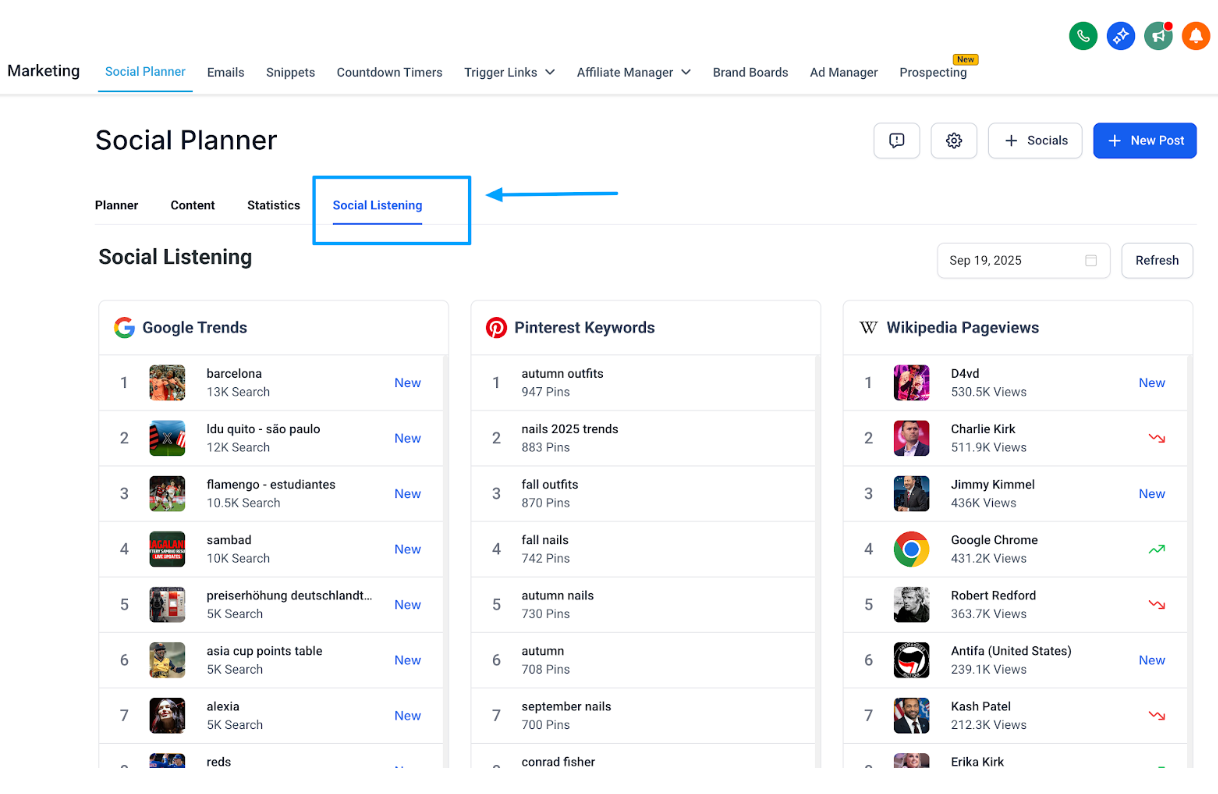
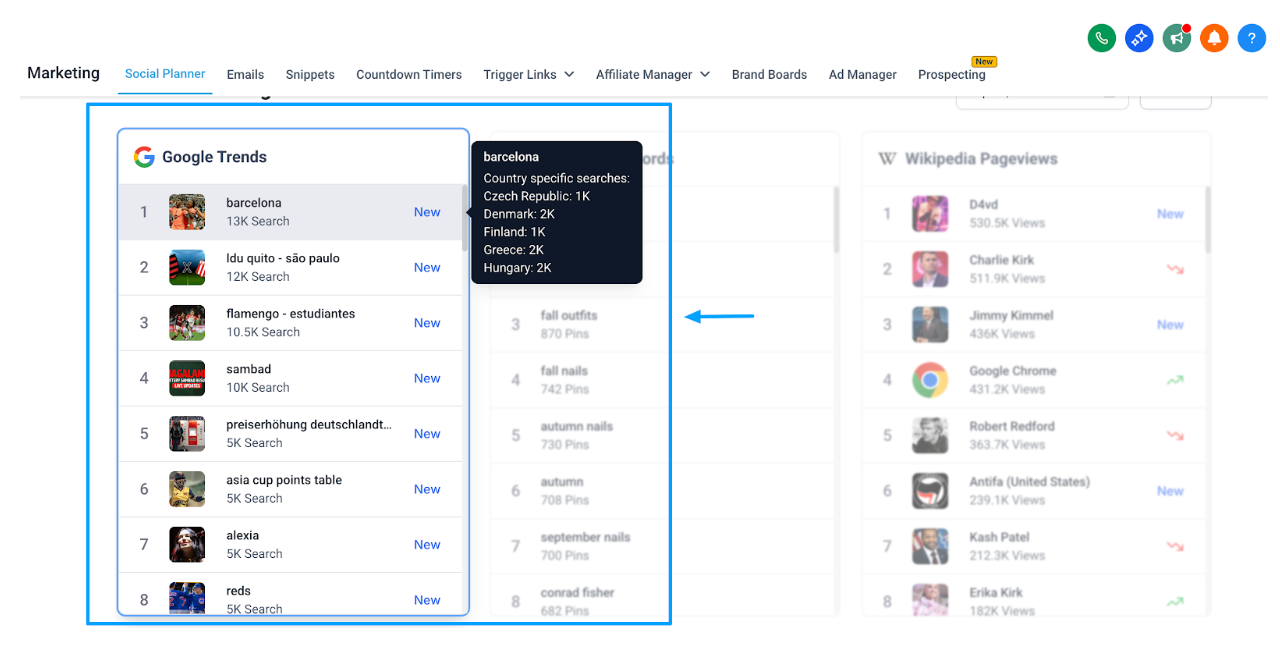
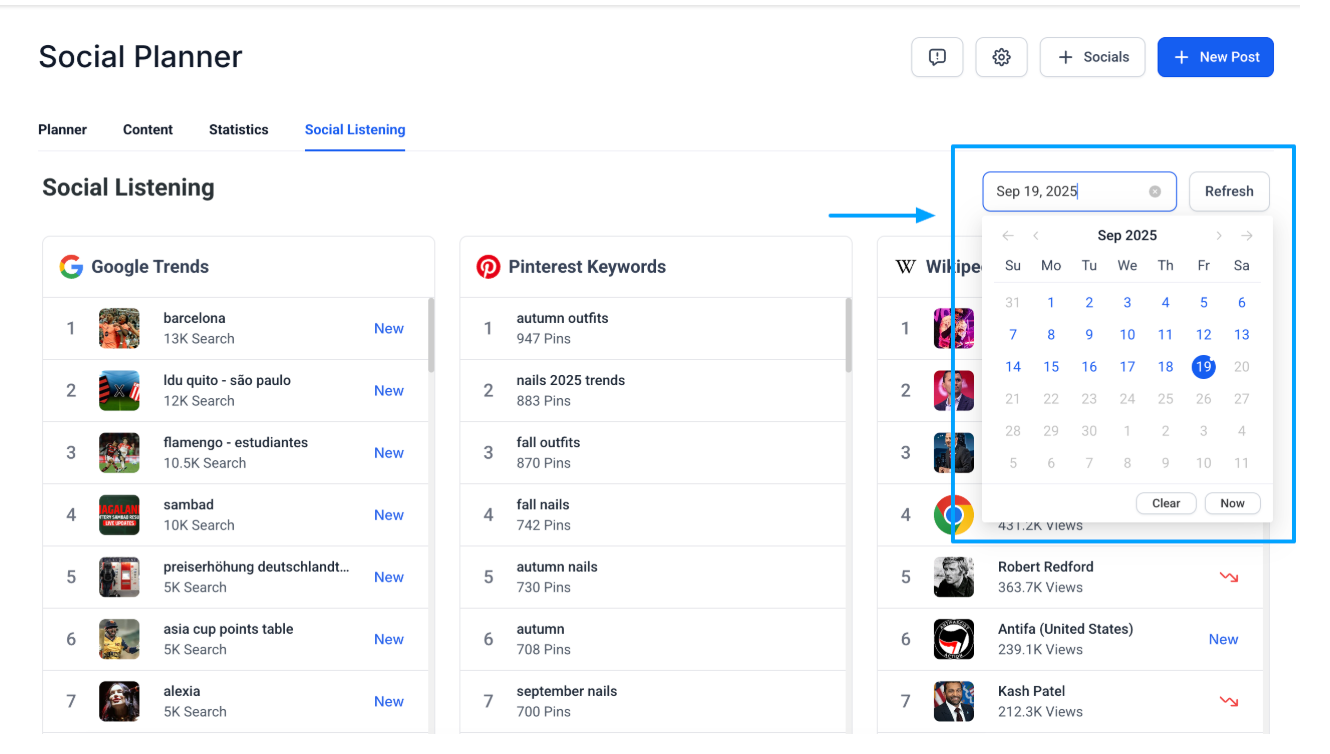
07Things to know before you rely on it
- The feature currently provides view only access; data cannot be downloaded.
- Sentiment analysis, word clouds, competitive analysis, smart alerts and custom dashboards are announced for future releases and are not yet available.
08How it connects to the rest of HighLevel
- Connect your Facebook pages to schedule discovered trends directly from Social Planner. Facebook connection guide
- Link Instagram via Facebook to publish trend based visuals without leaving HighLevel. Instagram connection guide
- Add @mentions in posts created from Social Listening insights to boost engagement. Add mentions guide
Michael's take

I’d schedule a 10 minute daily check, lock in any ‘New’ tags that match my audience, and immediately schedule them in Planner.