
01Who this is for
- Marketing managers who need to publish dozens of posts across several channels without manual entry.
- Social media agencies that manage multiple client accounts and must keep branding consistent with watermarks.
- Founders who want to organize content using tags and categories for later reporting.
02Advanced CSV for bulk scheduling, explained
The Advanced CSV importer resides in the Social Planner section of HighLevel. It accepts .csv and .xlsx files that follow the official template and converts each row into a scheduled post. During import the system applies watermarks, optimizes media, parses dates in many formats and assigns any tags or categories you provide.
When you start a bulk upload you select the advanced format, choose the file, pick the destination social channels and optionally enable an approval workflow. After the file is processed you review any flagged errors, fix them, then schedule and import the posts into the calendar queue.
All of this happens inside the Marketing > Social Planner area, so no external tools are required beyond the Media Library for hosting images and videos.
03How businesses use advanced CSV for bulk scheduling
- Restaurant chain. The chain prepares a spreadsheet with daily specials, images hosted in the Media Library, and publishing times for each location’s Facebook and Instagram feeds. After uploading the CSV, the posts appear on the calendar and are published automatically.
- Real estate agency. Agents list new property videos in a CSV, include a thumbnailUrl column for each video, and set tags for property type. The bulk upload creates video posts on LinkedIn and Google Business Profile without manual re entry.
- Fitness studio. The studio adds class schedule images and first time comments in the CSV, selects the approval box so the manager can review, and then schedules the posts to run on Instagram Stories and TikTok.
04The numbers and rules that matter
- 90 posts per CSV.
- Supported date time formats include YYYY MM DD HH: Mm, YYYY MM DD HH: Mm: Ss, YYYY/MM/DD HH: Mm: Ss, YYYY/MM/DD HH: Mm, MM/DD/YYYY H: Mm: Ss, MM DD YYYY H: Mm: Ss, MM/DD/YYYY H: Mm, MM DD YYYY H: Mm.
- Supported platforms include Facebook, Instagram, Google My Business, LinkedIn, YouTube, TikTok, Pinterest and more.
05Before you start
- Connect the social accounts you intend to publish to in Marketing > Social Planner.
- Download the current Advanced CSV template to keep required column names.
- Upload media to the HighLevel Media Library and use those URLs in the file.
- Format dates using a supported 24 hour format such as 2026 to 11 to 10 14:30.
- Set publishing times at least 10 minutes after the expected import time.
- Verify that captions and media meet each platform’s restrictions.
06How to set up and use advanced CSV for bulk scheduling in HighLevel
Upload advanced CSV for bulk scheduling
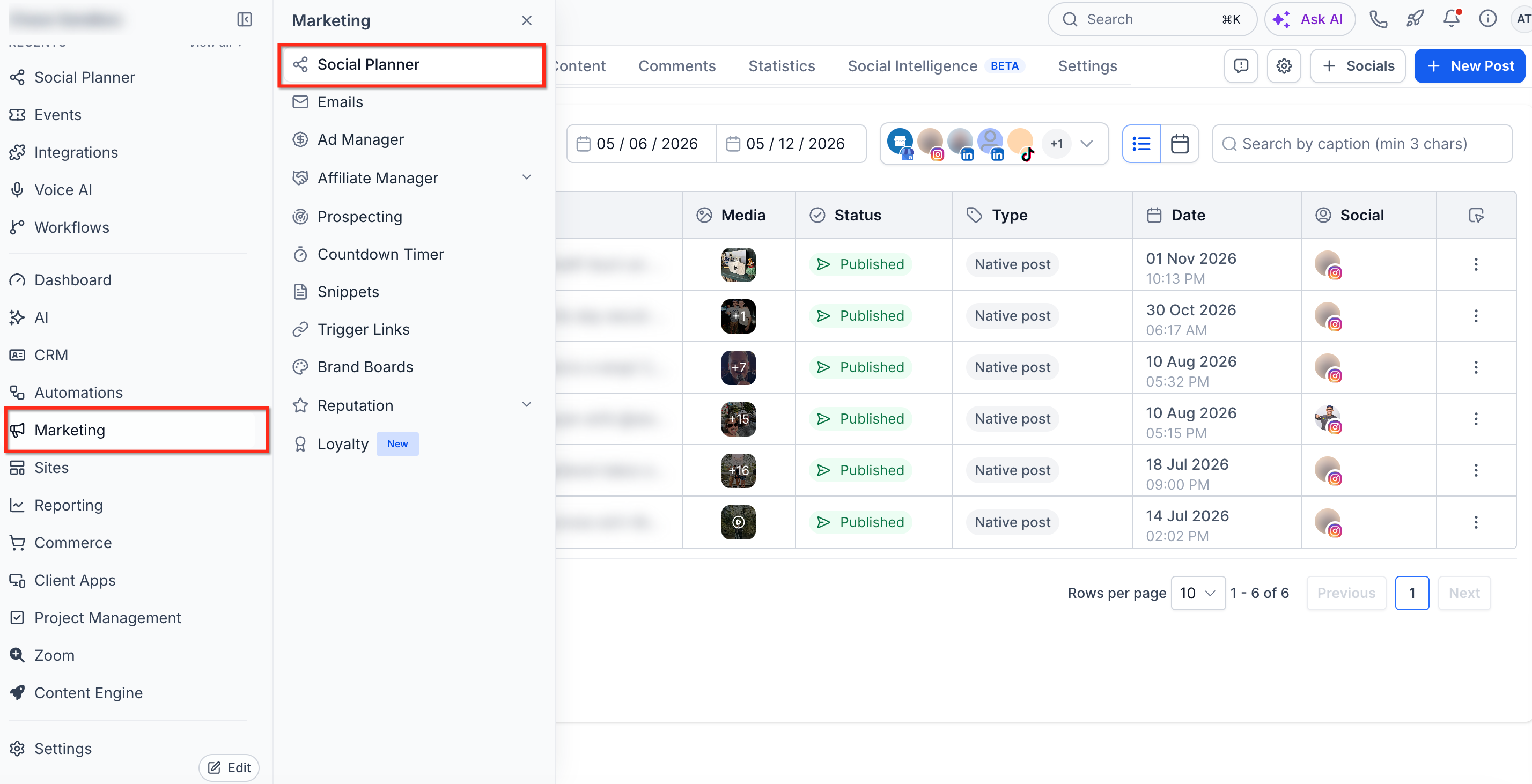
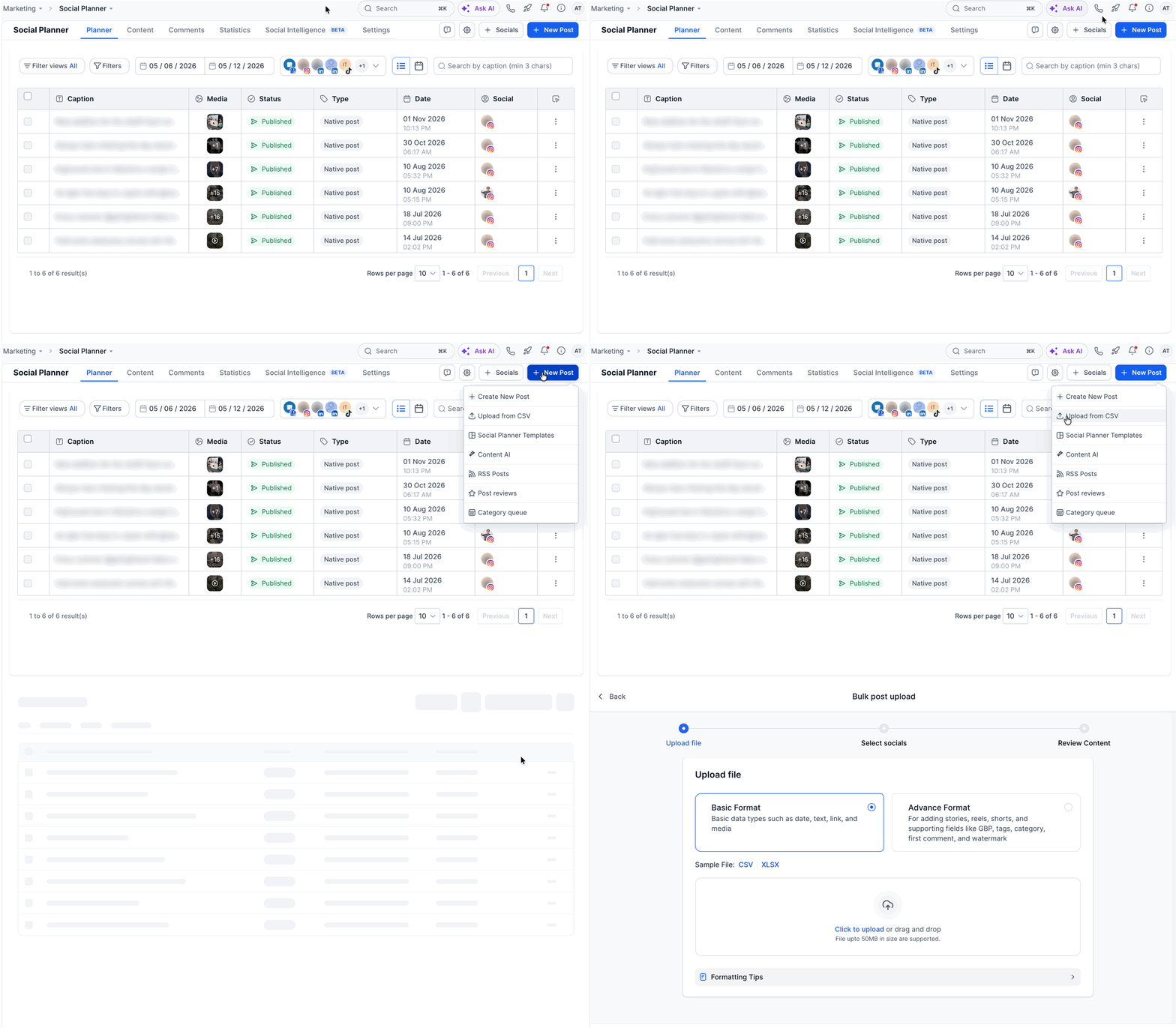
- Go to Marketing from your account.
- Click the Social Planner tab.
- Click the + New Post button.
- Choose Upload from CSV from the dropdown.
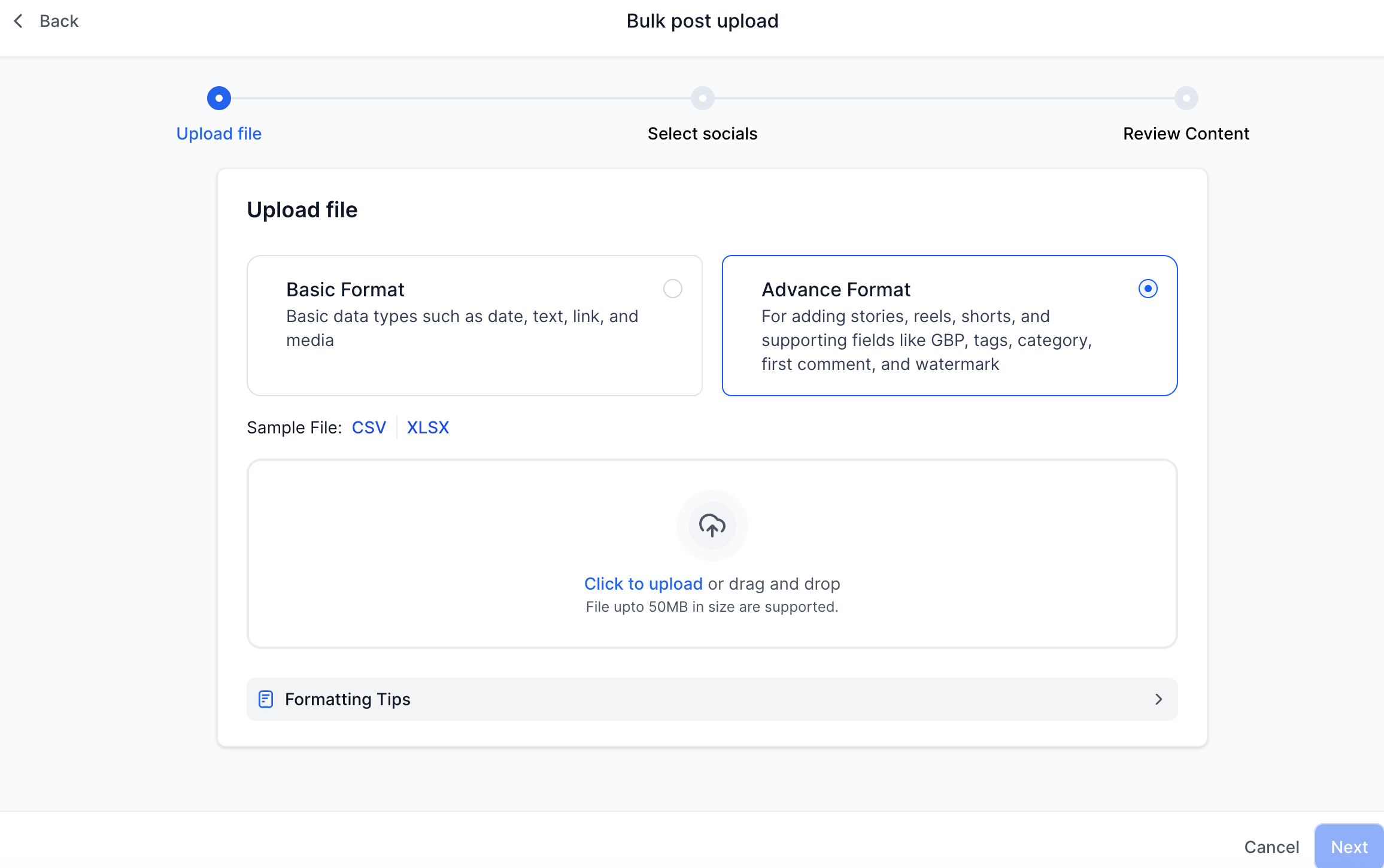
- Select Advance Format and upload your .csv or .xlsx file.
- Click Next.
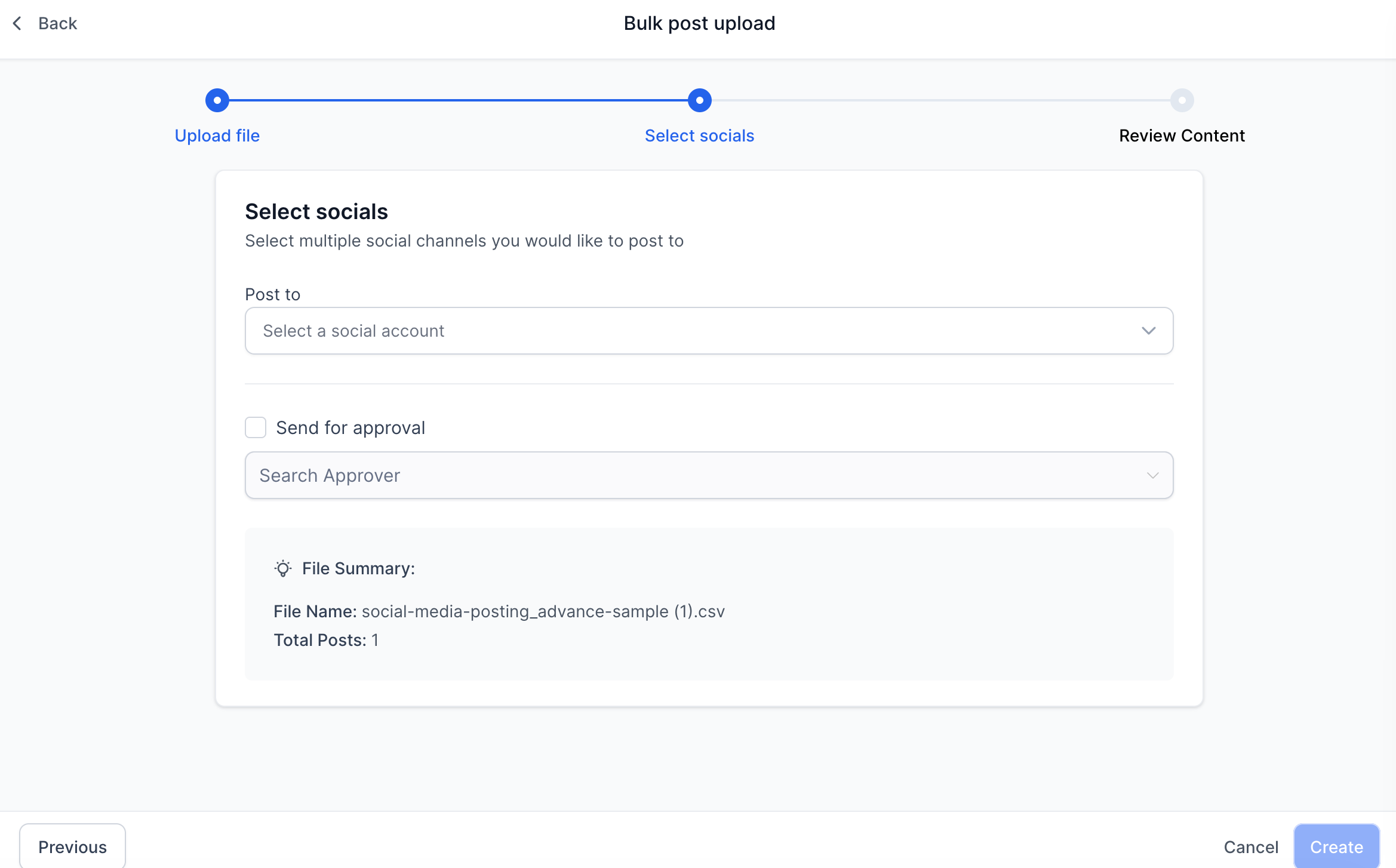
- Select the social channel(s) for posting.
- Turn on Send for approval and pick an approver if needed.
- Click Create.
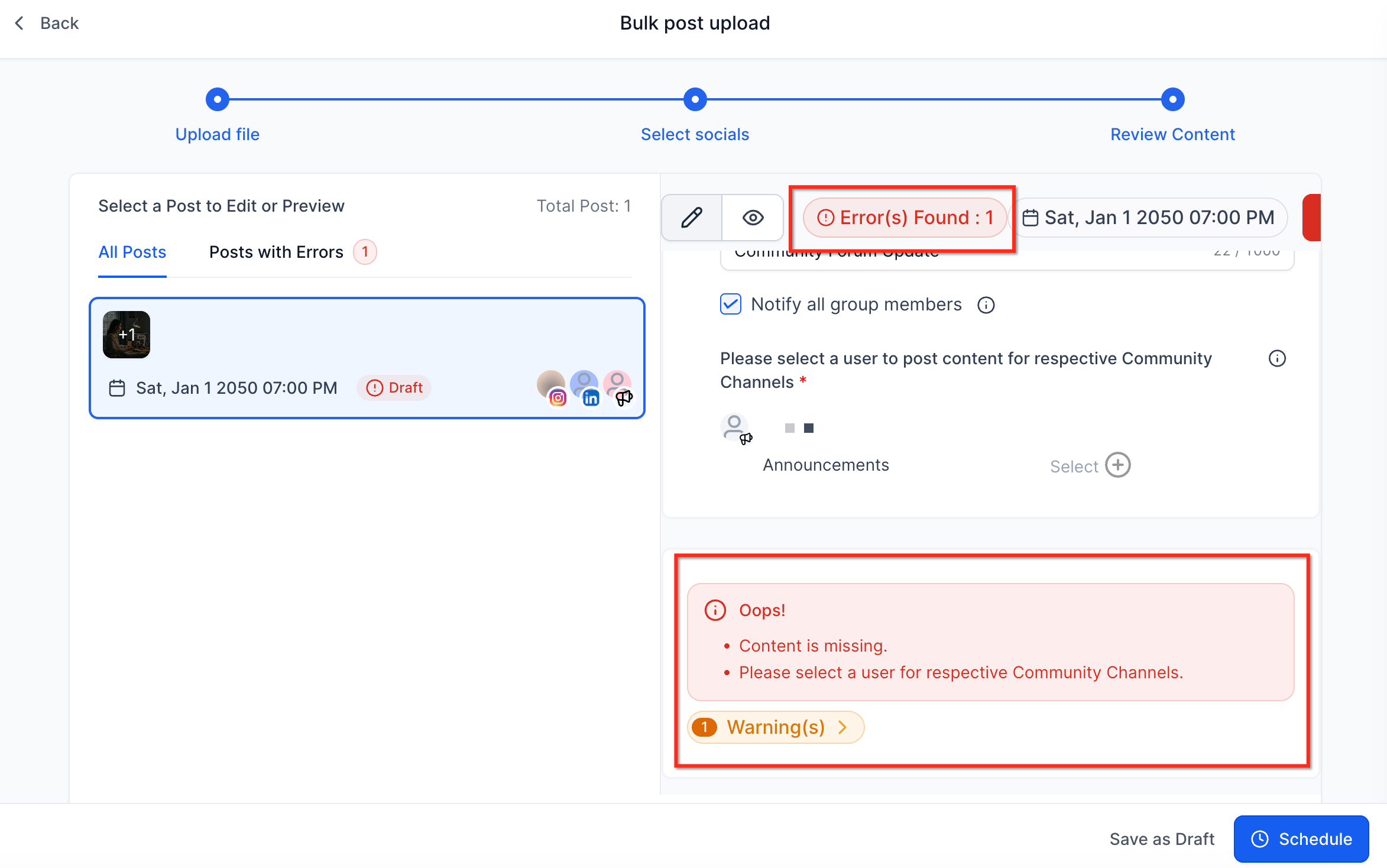
- Review and correct any flagged errors.
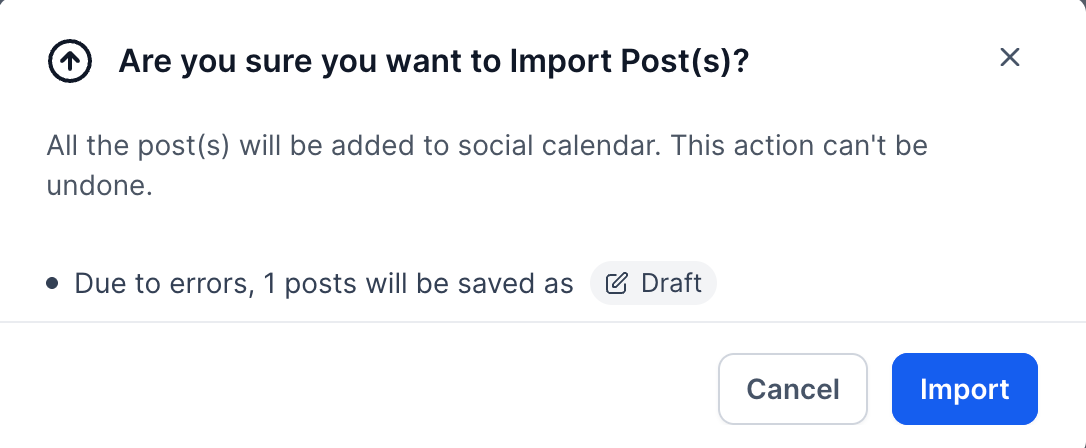
- Click Schedule.
- Click Import to add posts to your calendar queue.
07What it looks like in HighLevel
08Settings that matter
- Post Types. Defines whether a row creates a feed post, Story, Reel or Short for supported platforms.
- Images. Specifies image URLs; multiple URLs are allowed where the platform supports carousels.
- Video Thumbnails. Provides a thumbnailUrl for video posts; the thumbnail is applied to the first video only.
- Media Optimization. Requests automatic resizing, compression or reformatting of images and videos per platform requirements.
- Watermarks. Applies the defined watermark file to supported image and video posts during import.
- Tags and Categories. Adds organizational tags or categories to each post for reporting and automation.
- Follow, Up Comments. Includes a first comment that will be posted on platforms that support it.
- Platform Settings. Enables fields specific to Google Business Profile, YouTube, TikTok, Pinterest and other supported channels.
09Things to know before you rely on it
- A CSV can contain up to 90 posts per file; split across all selected outlets.
- Google Drive links are not accepted for media URLs; use Media Library links instead.
- Tags and categories are not transferred when importing a CSV from a snapshot or template.
- Only one video or reel is supported per post; multiple video URLs will cause the post to fail.
- Extremely large files may take longer to process, and media optimization does not guarantee publication of unsupported formats.
10If something goes wrong
- CSV contains errors or invalid data. During the review step the system flags issues; correct the highlighted fields before proceeding with the import.
11How it connects to the rest of HighLevel
- How to connect Facebook pages for Social Planner Connect Facebook
- Image and video specifications for Social Planner Content guidelines
- Add @mentions and tag profiles in Social Planner posts Mentions and tags
Michael's take

When you have dozens of posts to push across Facebook, Instagram, TikTok and other channels, building each one manually quickly becomes a bottleneck. The Advanced CSV feature lets you batch everything in a spreadsheet so you can focus on strategy instead of repetitive clicks.
The first setting I would get right is the media URLs. Make sure every image or video lives in the HighLevel Media Library and that the links are correct. A clean media library prevents import errors and saves you from chasing broken links after the upload.