
01Who this is for
- Email marketers can embed product details and checkout links to improve cart recovery rates.
- Ecommerce owners can showcase limited time offers directly within newsletters.
- Sales teams can add quick buy buttons for featured items to streamline purchasing.
02Shopping Cart Element, explained
The element adds a structured product grid to any email template. Each product line can include an image, title, description, price, and a button that links to your external checkout page. The block does not handle payment processing; it simply redirects users.
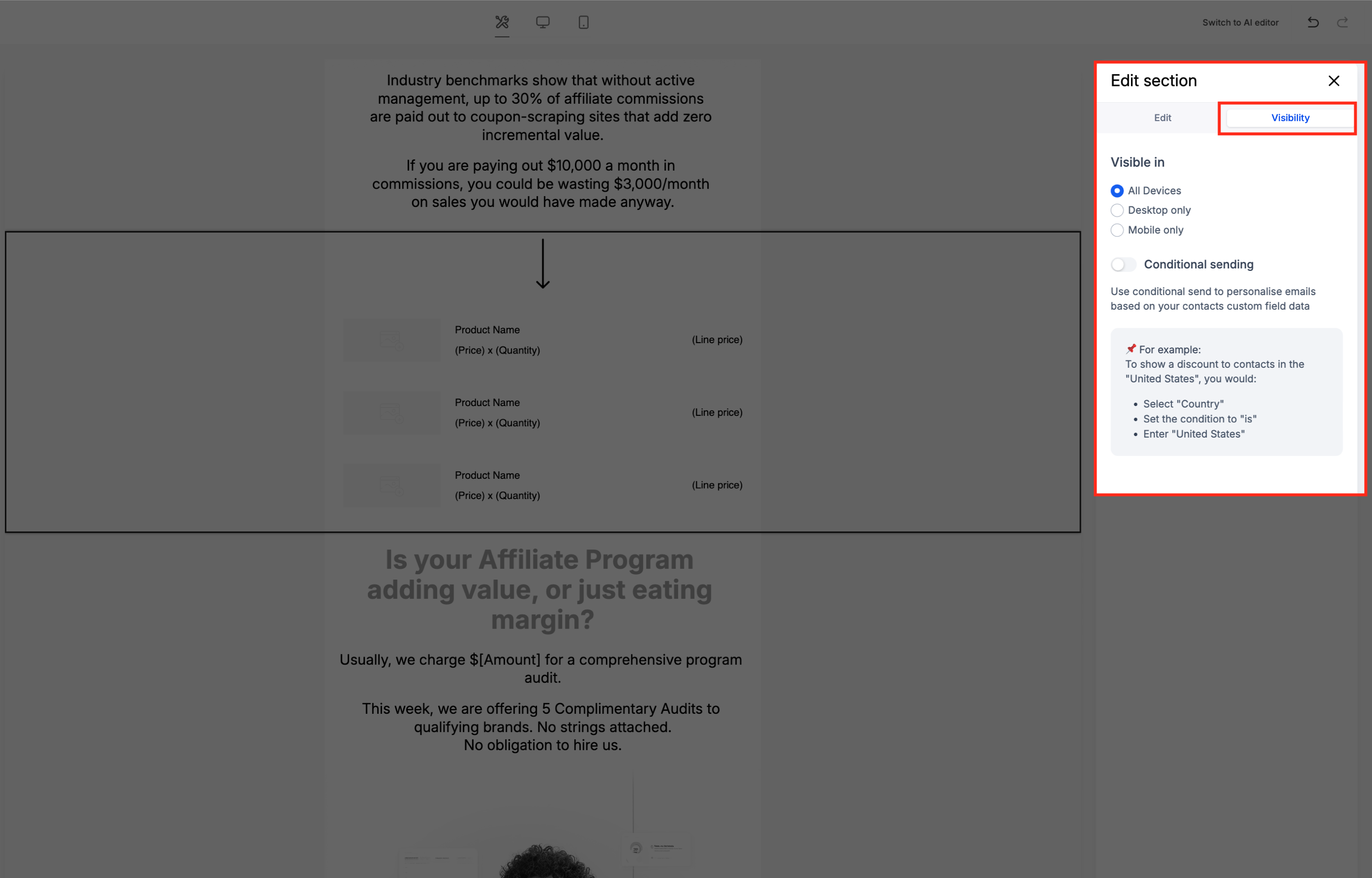
Inside the Email Builder you can control the element’s layout, spacing, colors, and fonts to match your brand. A Visibility tab lets you limit the element to specific devices or apply conditional sending rules. The element is fully responsive, displaying correctly on desktop and mobile screens.
03How businesses use the Shopping Cart Element
- Online clothing retailer. Insert the Shopping Cart Element into a promotional email and upload images of new apparel, set prices, and add "Buy Now" links that direct shoppers to the product page. Adjust margins so the grid aligns with the brand style and preview on mobile to ensure readability.
- Digital course provider. Create an email reminding users of courses left in their cart. Use the element to list each course title, short description, price, and a "Return to Cart" button that links back to the checkout URL. Optionally hide the block on mobile if the layout needs simplification.
- Restaurant with online ordering. Add the element to a newsletter featuring a limited time meal deal. Include the dish image, name, brief description, price, and a "Order Now" button that points to the restaurant’s ordering page. Set the element’s spacing to fit within the email’s layout and preview both desktop and mobile views.
04How to set up and use the Shopping Cart Element in HighLevel
Add and configure the Shopping Cart element
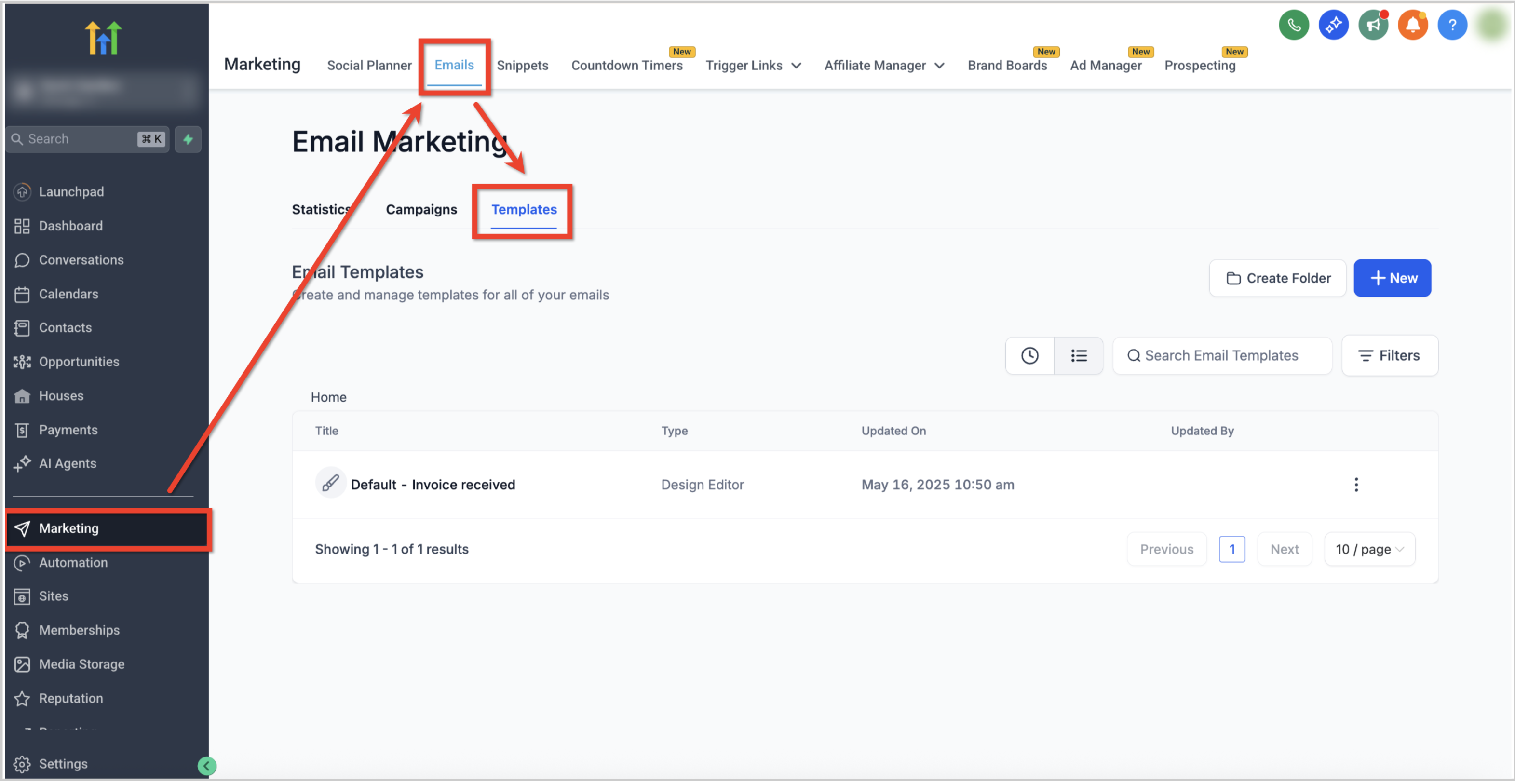
- Go to Marketing > Emails > Templates from the subaccount dashboard.
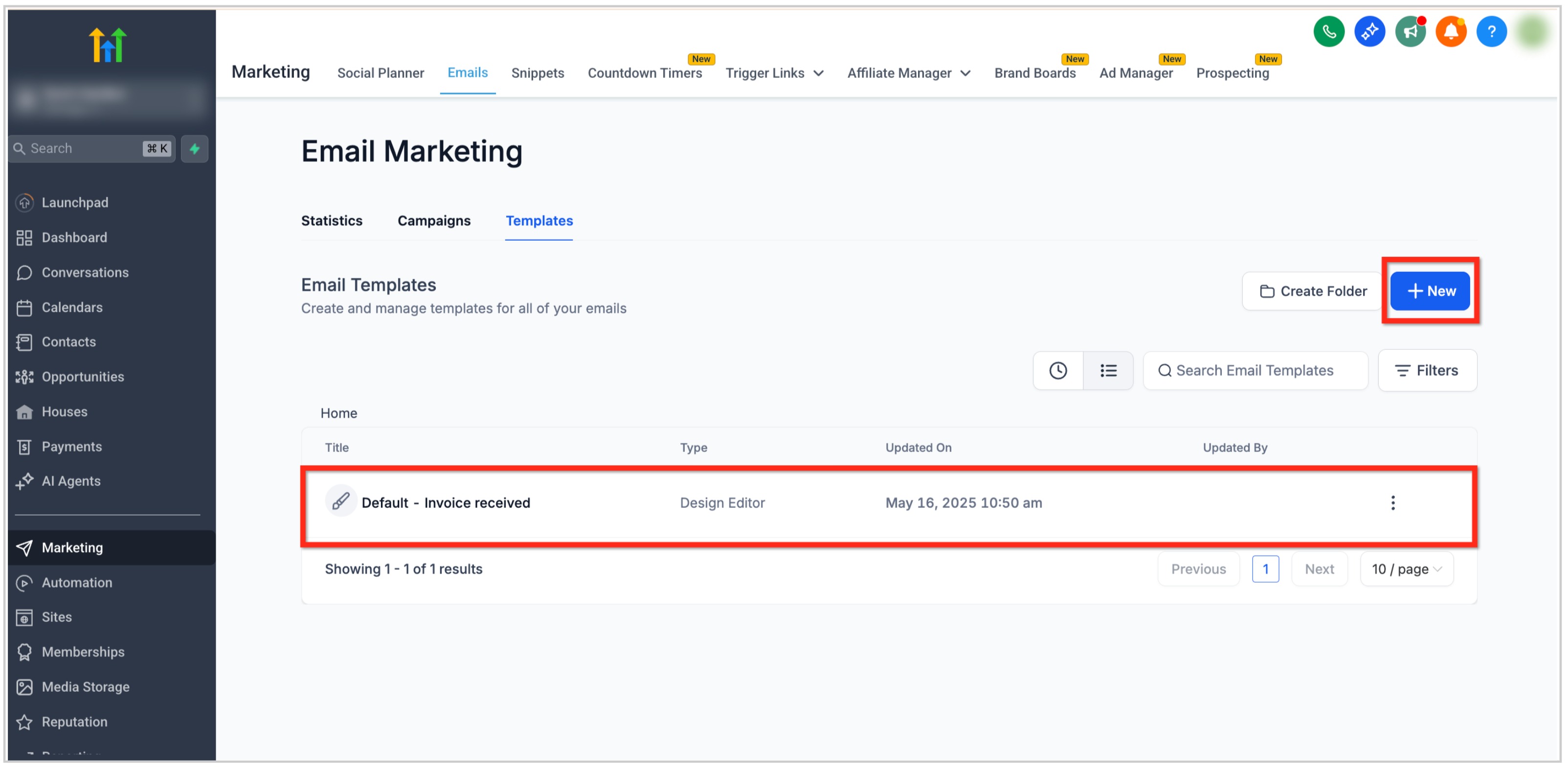
- Open an existing template or click the + New button to start a new one.
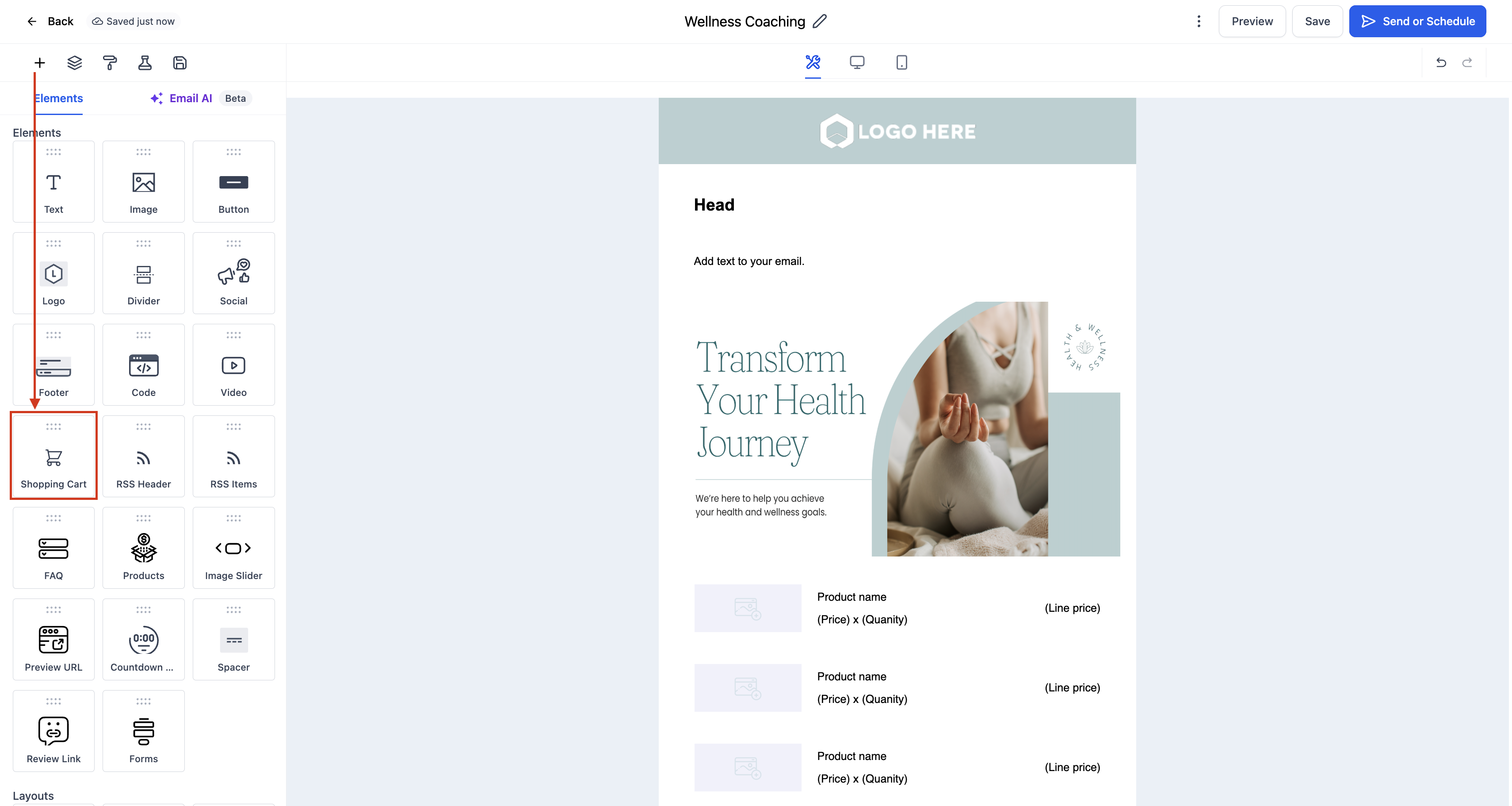
- In the Email Builder, click the Add Elements (+) icon in the left sidebar.
- Find the Shopping Cart Element under the Elements section.
- Drag the Shopping Cart Element into the desired area of the email layout.
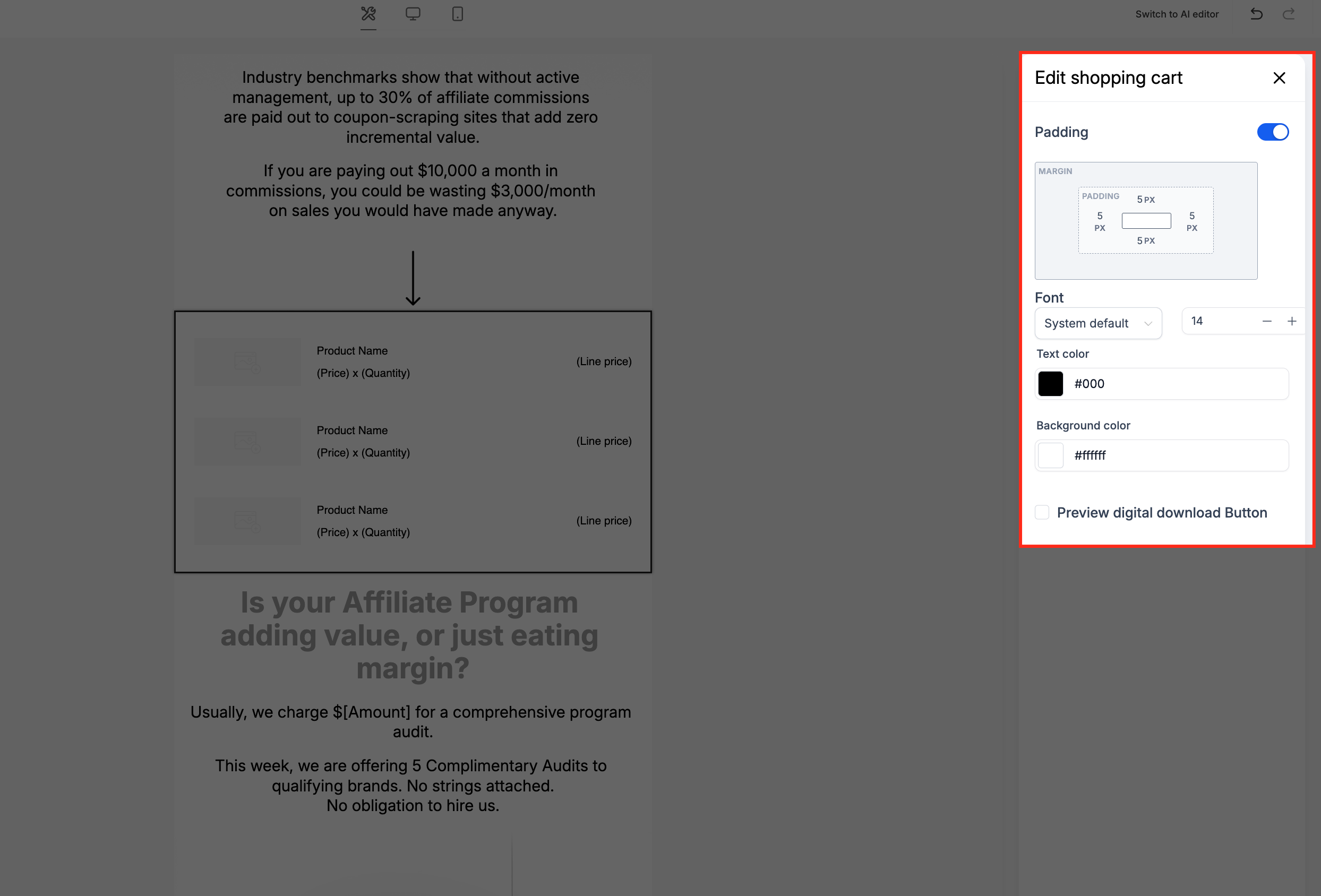
- Click the placed Shopping Cart Element to open its Edit tab on the left panel.
- In the Edit tab, adjust Layout and Spacing by setting padding, margins, and alignment.
- Optionally open the Visibility tab to set device based visibility or conditional sending rules.
- Preview the email on desktop and mobile to verify product display and link functionality.
05What it looks like in HighLevel
06Settings that matter
- Layout and Spacing. Controls the element’s padding, margins, and alignment to shape a clean product grid.
- Visibility. Allows you to restrict the element to certain devices or apply conditional sending criteria.
07Things to know before you rely on it
- The element does not process payments; it only provides a link to an external checkout page.
- All links must point to a functional checkout URL on your website or store.
- Responsiveness is built in, but you should still preview on both desktop and mobile.
08How it connects to the rest of HighLevel
- Add and configure the Video element in HighLevel email builder Video element guide
- Using the Inline Forms/ Surveys Element in email campaign Inline Forms guide
Michael's take

The visual layout keeps the email tidy and the direct link reduces friction, so each reminder has a real chance to close the sale.
If your sales process relies on custom checkout steps or you rarely send cart related emails, the element may add complexity without a clear lift in revenue. In those cases, a plain link or a landing page might be a leaner option.