
01Who this is for
- Social media managers can control YouTube content alongside Facebook and Instagram from a single workspace.
- Content creators can plan release times for videos and Shorts to match marketing calendars.
- Digital marketing agencies can handle multiple client YouTube channels without switching tools.
02YouTube publishing, explained
YouTube Publishing in Social Planner adds YouTube as a supported channel inside the HighLevel Marketing hub. Once a channel is linked, the composer lets you upload a video file, write a description, choose between a standard Video or a Short, and set title, privacy level and optional follow up comment. The post can be published immediately or scheduled for a future date and time.
The feature lives under Marketing > Social Planner. After a successful connection, the channel appears in the Social Accounts list and can be selected when creating a new post. All YouTube specific options appear in the same composer used for other social platforms, keeping the workflow unified.
03How businesses use YouTube publishing
- Fitness studio. The studio links its YouTube channel, uploads weekly workout videos, sets each as a standard Video, adds a title and public privacy, then schedules the posts to align with class schedules.
- Real estate brokerage. Agents connect their brokerage’s YouTube channel, upload short property tours as Shorts, let the platform add #shorts to the title, and schedule them to publish during open house days.
- E learning platform. The platform adds new lesson recordings as standard Videos, selects a custom thumbnail, chooses unlisted privacy for subscriber only access, and schedules release dates to match course modules.
04The numbers and rules that matter
- YouTube videos and Shorts uploaded through Social Planner can be up to 1 GB.
- YouTube Shorts can be up to 3 minutes long.
- Vertical 9:16 aspect ratio is recommended for Shorts.
- Thumbnails can be PNG or JPEG and up to 2 MB.
05Before you start
- The Google account used for authorization must own the YouTube channel.
- The Primary Owner of the channel must perform the connection.
- An active YouTube connection must exist before any scheduling.
06How to set up and use YouTube publishing in HighLevel
Connect your YouTube channel
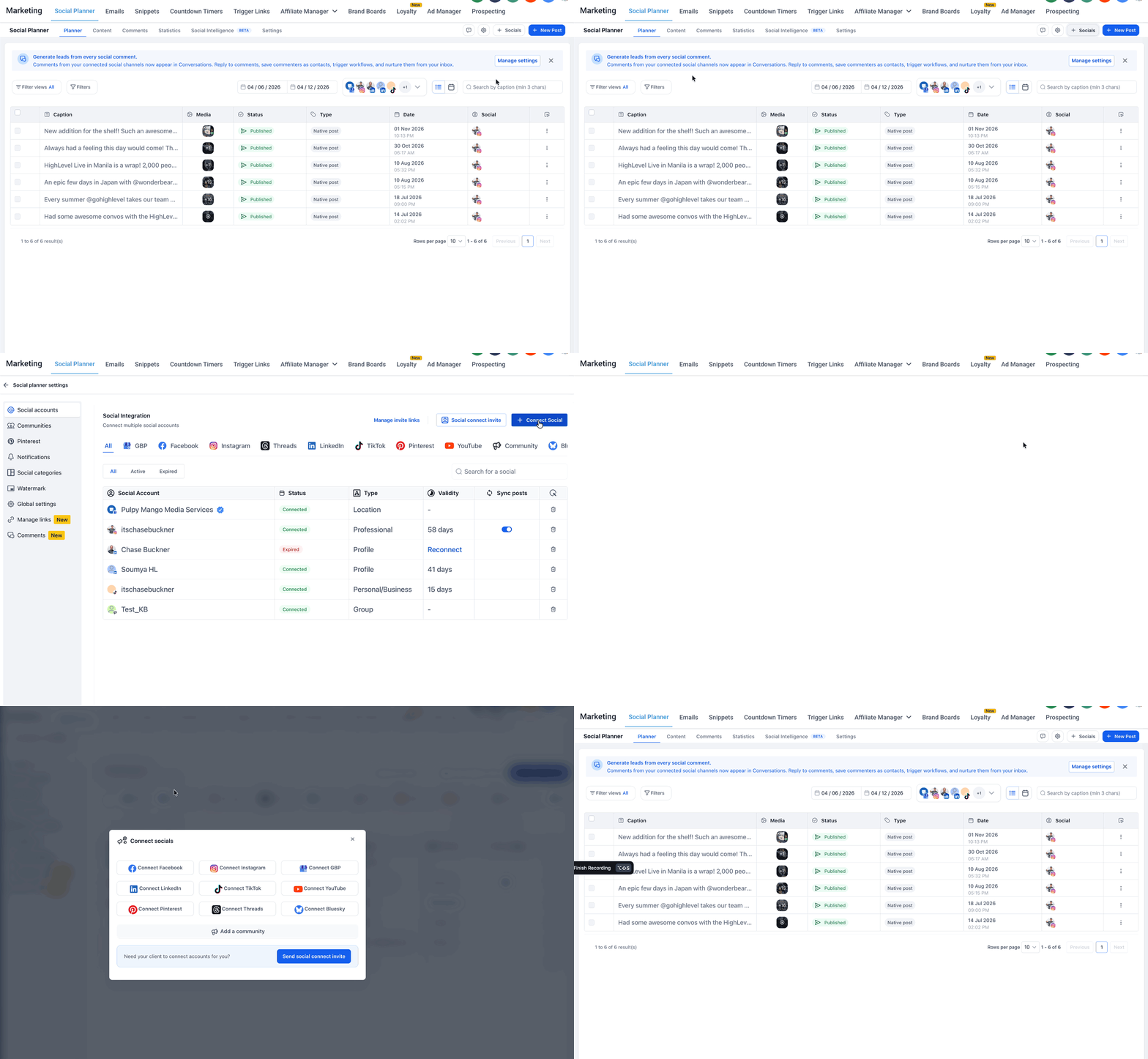
- Navigate from the HighLevel subaccount to Marketing > Social Planner.
- Click the Settings gear icon.
- Open the Social Accounts section.
- Press the + Connect Social button.
- Choose YouTube from the list of platforms.
- Sign in with the Google account that owns the channel.
- Approve the requested Google and YouTube permissions.
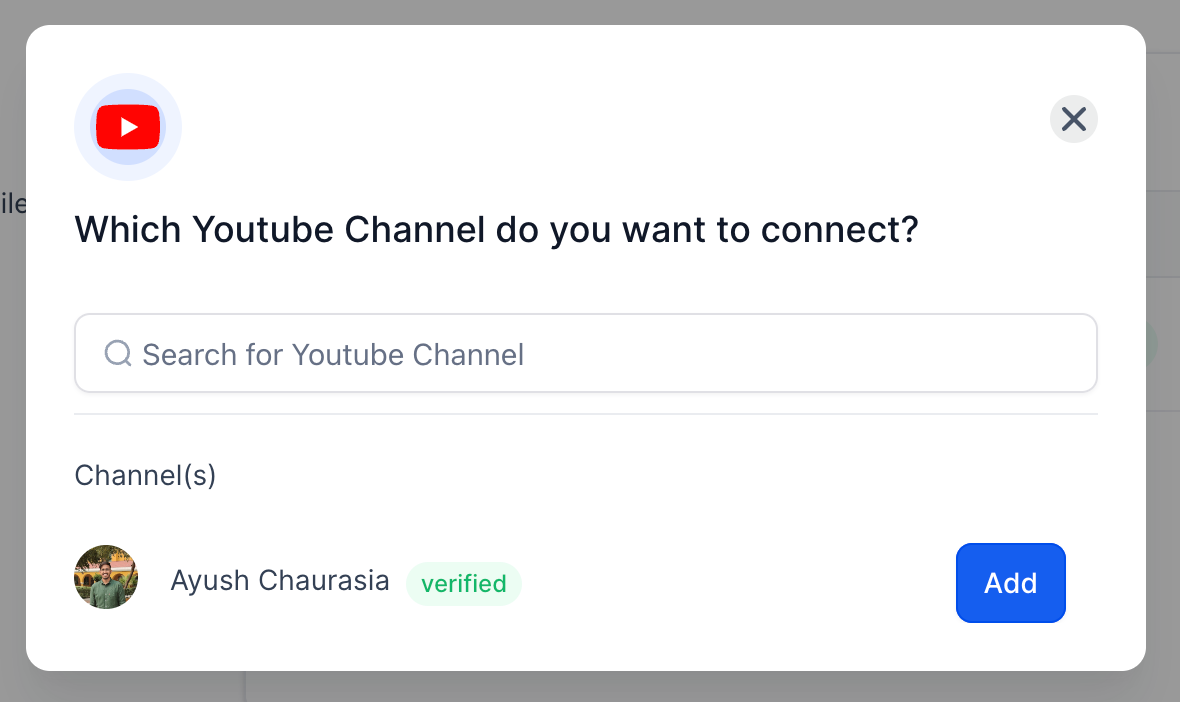
- Select the YouTube channel you wish to connect.
- Finish the authorization process.
- Verify that the channel now appears as a connected account in Social Planner.
Create a new YouTube post
- Go to Marketing > Social Planner.
- Click the + New Post button.
- Select Create New Post.
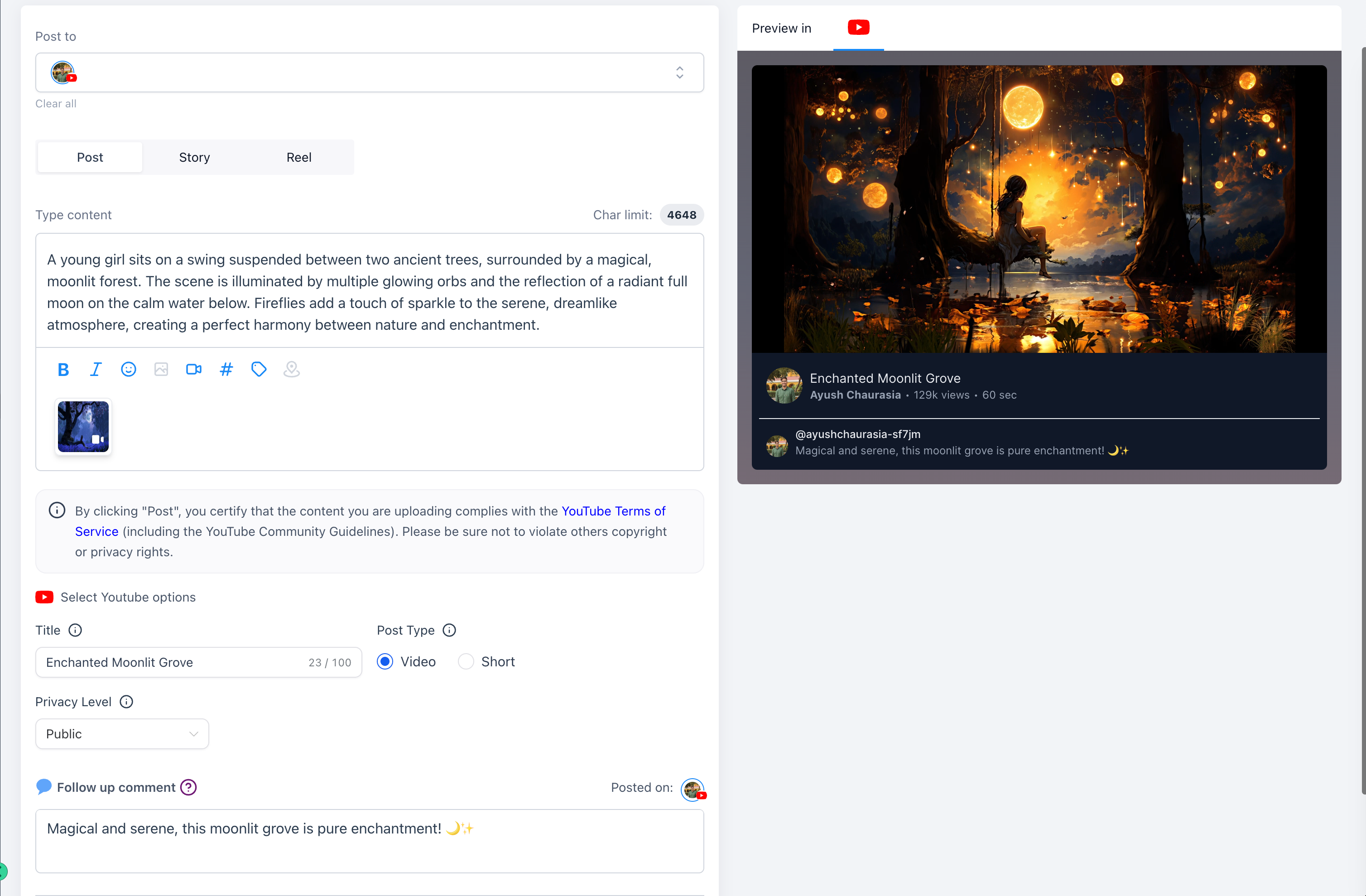
- Choose the previously connected YouTube channel as the destination.
Add your video content
- Upload the video file to the post composer.
- Enter the video description in the caption field.
- Add any supported hashtags or emojis.
- Confirm the video size does not exceed the 1 GB limit.
Choose Video or Shorts
- Select Video for a standard YouTube Video or Shorts for a YouTube Short.
- When Shorts is selected, the platform automatically adds #shorts to the title.
Add the YouTube title
- Enter the title for the Video or Short in the title field.
Choose privacy level
- Select Public, Private, or Unlisted as the desired privacy option.
Add a follow up comment
- Optionally type a follow up comment that will be posted after the video goes live.
Schedule or publish the post
- Review the channel, video, title, description, privacy setting and any other options.
- Choose to publish immediately or set a future date and time for the post.
07What it looks like in HighLevel
08Settings that matter
- YouTube Title. Sets the title that will appear on YouTube for the Video or Short.
- Privacy Level. Determines whether the content is public, private, or unlisted after publishing.
- Follow, Up Comment. Adds an optional comment that is posted after the video goes live.
- Video or Shorts selection. Specifies whether the upload is treated as a standard Video or a Short, affecting default title handling.
- Custom thumbnail. Allows upload of a PNG or JPEG image up to 2 MB for eligible standard Videos.
09Things to know before you rely on it
- Video and Short files can be up to 1 GB.
- Shorts may be no longer than 3 minutes.
- A 9:16 vertical aspect ratio is recommended for Shorts.
- Custom thumbnails are only available for eligible standard Videos, not for Shorts.
- Thumbnail files must be PNG or JPEG and no larger than 2 MB.
10How it connects to the rest of HighLevel
- Review image and video specifications for Social Planner Content guidelines
- Learn how to connect a Google Business Profile in HighLevel Google Business Profile
- Set up post approvals in Social Planner Post approvals
Michael's take

The ability to schedule YouTube Shorts and longer videos right from Social Planner is a small convenience that can save you a few clicks each week. If you already spend time drafting posts for Facebook or Instagram, adding YouTube to the same composer keeps everything in one place.
A local restaurant that posts weekly recipe videos fits well. Upload the cooking clip, pick Shorts if it’s under a minute, set the title, and schedule it for the evening rush. The workflow lets the owner focus on content rather than juggling separate YouTube logins.