
01Who this is for
- Email marketers can ensure their newsletter content appears formatted, not as code.
- Agency owners can deliver clean RSS driven campaigns to client inboxes.
- Content publishers can maintain brand consistency when using RSS feeds.
02RSS email bodies, explained
The feature lets you control how RSS feed descriptions are inserted into an email. By default the platform escapes HTML markup, so tags appear as plain text. Changing the placeholder to triple braces tells HighLevel to output the HTML without escaping it.
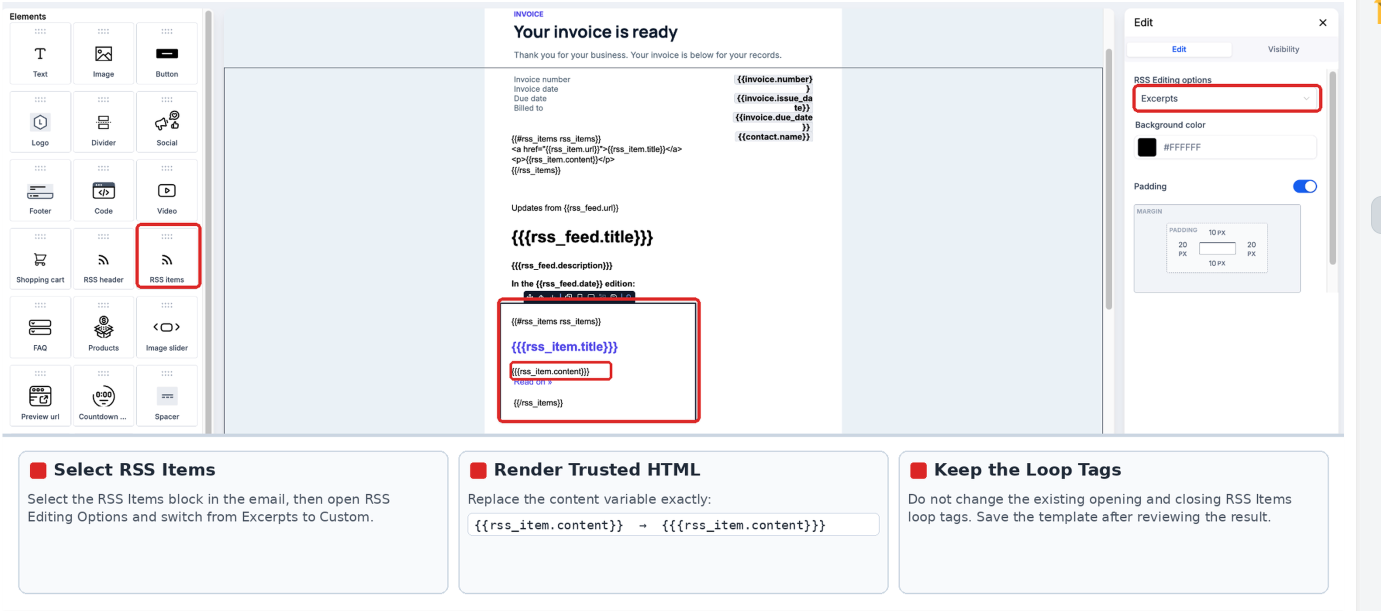
This setting lives inside the Design Editor. Open the email template, select an RSS Items block, and pick the Custom option under RSS Editing Options. The custom layout contains the variable that you edit.
When the variable uses triple braces, supported HTML such as paragraphs and links renders in the recipient’s inbox, while unsupported tags may still be altered by the email client.
03How businesses use RSS email body
- Digital marketing agency. The agency opens a client’s RSS email template, selects the RSS Items block, and switches {{rss_item.content}} to {{{rss_item.content}}}. This lets the client’s blog excerpts appear with proper formatting in the campaign.
- Online magazine. The magazine updates its weekly newsletter template, editing the description variable to triple braces so article snippets retain paragraph breaks and anchor tags when sent to subscribers.
- Small ecommerce store. The store modifies the RSS product feed email, changing the content placeholder to triple braces so product descriptions with bold or link tags display correctly in promotional blasts.
04How to set up and use RSS email body in HighLevel
Fix HTML tags in RSS email body
- Navigate to Marketing > Emails > Templates and open the targeted email in the Design Editor.
- Click the RSS Items block and select Custom under RSS Editing Options.
- Locate the description variable and replace {{rss_item.content}} with {{{rss_item.content}}}.
- Leave the opening and closing loop tags of the RSS Items block untouched.
- Save the template.
- Important: Triple braces insert HTML without escaping it; use them only with RSS feeds you trust. Unsupported HTML or styling may still render differently across email clients.
Test the RSS HTML fix
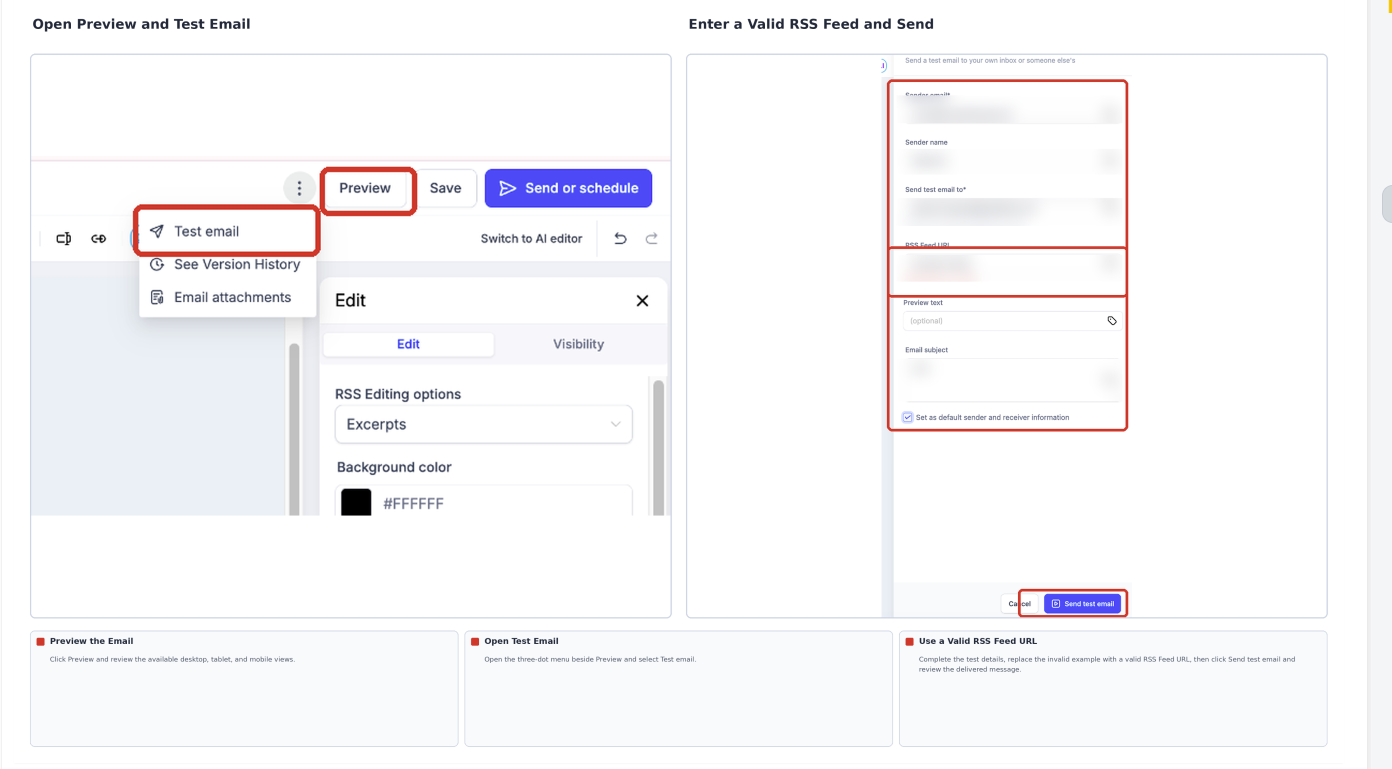
- In the Email Builder, select Preview.
- Open the three dot menu beside Preview and choose Test Email.
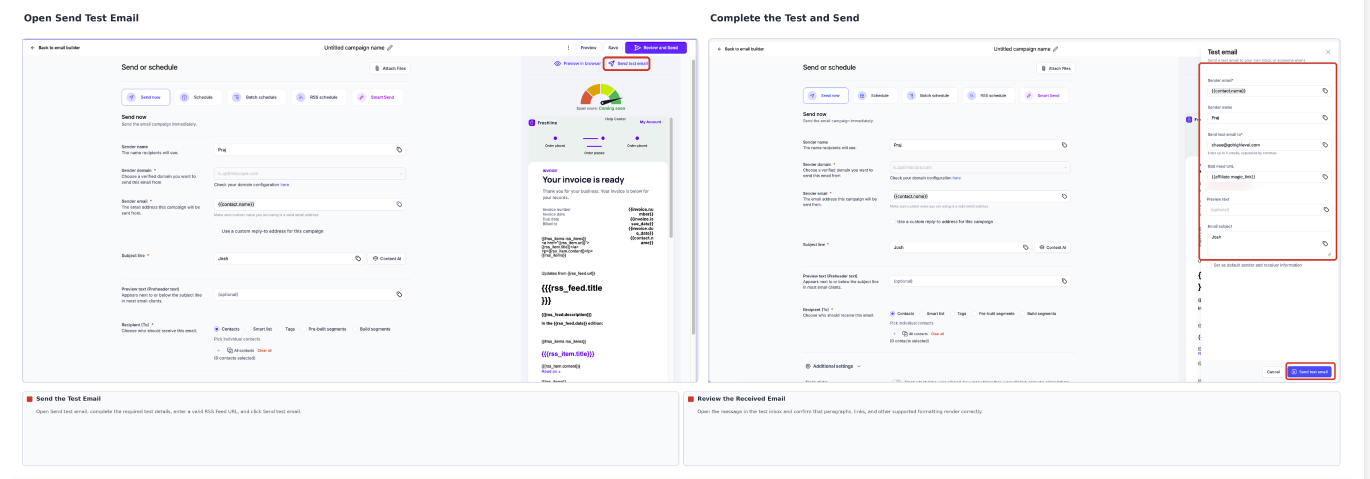
- Enter the test email details and provide a valid RSS Feed URL.
- Send the test email.
- Open the received email and verify that paragraphs, links, and other supported formatting display correctly.
05What it looks like in HighLevel
06Settings that matter
- Custom. Enables a custom layout for the RSS Items block, allowing you to edit the variables that render feed content.
- RSS Editing Options. Provides the choice between default and custom rendering modes for RSS content within an email template.
07Things to know before you rely on it
- Triple braces output HTML without escaping it; use only with RSS feeds you trust.
- Unsupported HTML or styling may still appear differently across email clients.
- The fix applies only to the description variable; other RSS variables remain unchanged.
08If something goes wrong
- HTML tags still appear. Verify the RSS Items block is set to Custom and that you edited the correct description variable. Review how the source feed includes its HTML.
- RSS content is blank. Make sure the test uses a valid RSS Feed URL. For live campaigns, schedule the RSS send rather than using a regular email send.
- Formatting looks different. Simplify the feed’s markup to use only supported tags and resend a test email.
09How it connects to the rest of HighLevel
- Set up and test RSS blocks in the email builder RSS blocks guide
- Send RSS email campaigns Send RSS campaigns
- Basic guide of RSS campaigns RSS campaign basics
Michael's take

Michael ReimerFounder of CRM Pros, HighLevel Commander and Certified Admin
Beware that triple braces bypass HTML escaping entirely.
Get More InformationOpens on HighLevelPublished November 3, 2026 · Updated November 17, 2026