
01Who this is for
- Content marketers who send weekly newsletters can reuse one design and automatically pull new blog posts.
- Small agencies managing multiple client blogs benefit from dynamic email content without manual updates.
- Ecommerce owners who announce product releases via a feed can embed the latest items in promotional emails.
02RSS blocks, explained
RSS blocks are two email elements that fetch data from an external RSS feed. The RSS Header inserts feed level fields such as title and description, while the RSS Items block repeats information for each post, like title, excerpt, image or full content. You add these blocks in the Design Editor of an email template and later schedule the campaign with an RSS Schedule, which pulls the latest feed items at the chosen frequency.
The blocks use variables such as {{rss_feed.title}} or {{rss_item.title}} that resolve when the email is sent. A custom layout can be built by arranging supported variables inside the RSS Items loop tags. The content appears only when the source feed supplies the corresponding fields, and unescaped HTML can be rendered with triple braces if the feed is trusted.
RSS blocks live under Marketing > Emails > Templates. After designing the template, you preview, test with a feed URL, and finally schedule the campaign via Send or Schedule > RSS Schedule. Standard send methods do not populate the RSS variables.
03How businesses use RSS blocks
- Blogging platform. Add an RSS Header and RSS Items block to a newsletter template. Choose a display option that matches the desired post preview. Test with the blog's RSS feed URL and schedule the email to auto populate with new posts.
- Digital marketing agency. Create a client specific email template containing the RSS Items block in Custom layout. Arrange the variables to match the client’s branding. Use the RSS Schedule to send the email weekly with the latest client blog updates.
- Online retailer. Insert an RSS Items block set to Excerpts with Image into a promotional email template. Provide the store’s product feed URL when testing. Schedule the campaign to run daily, automatically showing new product listings.
04Before you start
- An accessible RSS Feed URL must be available.
- A template must be opened or created in the Design Editor.
05How to set up and use RSS blocks in HighLevel
Set up RSS blocks
- Open a template or create a new one in Marketing > Emails > Templates and launch the Design Editor.
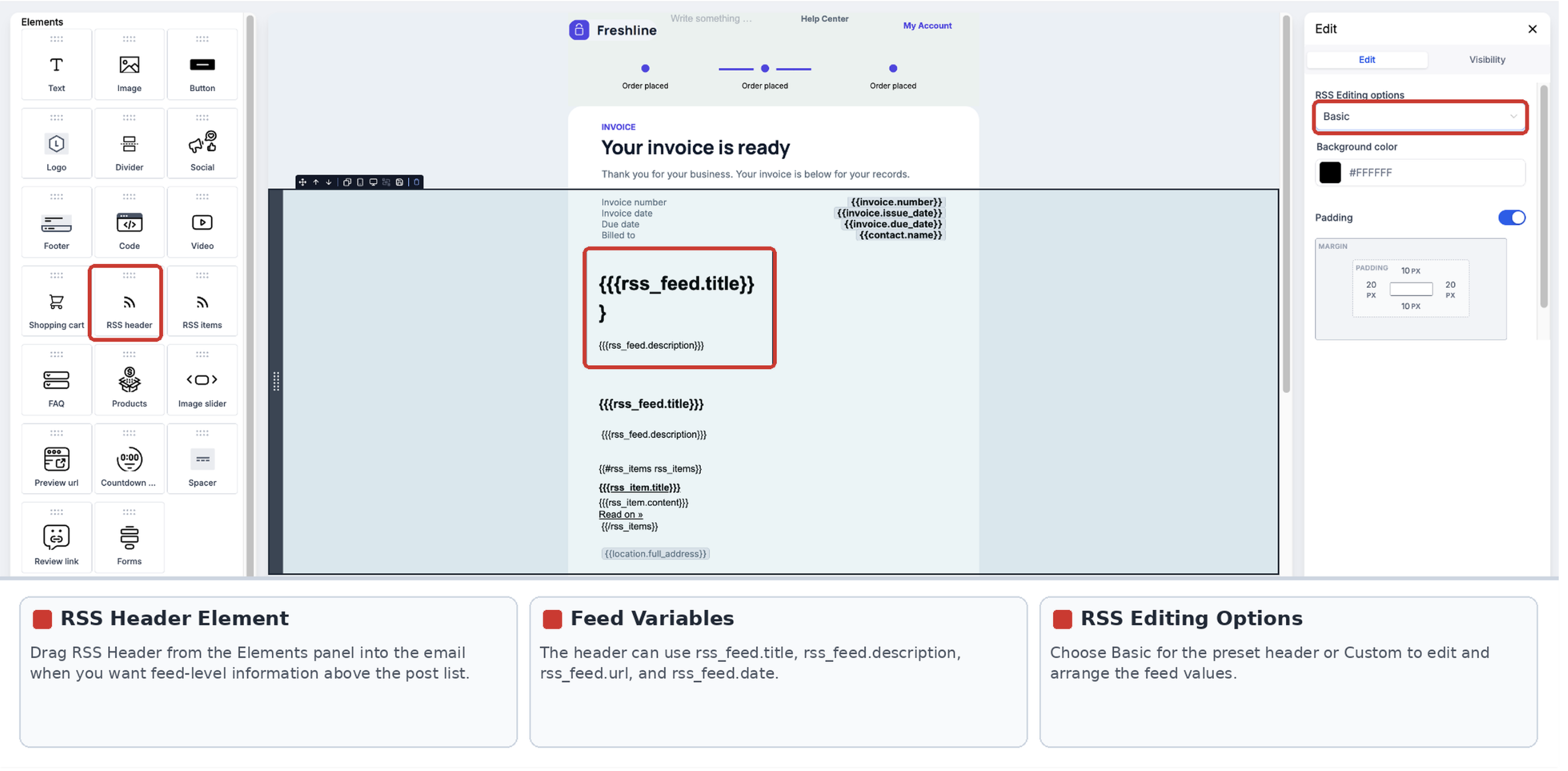
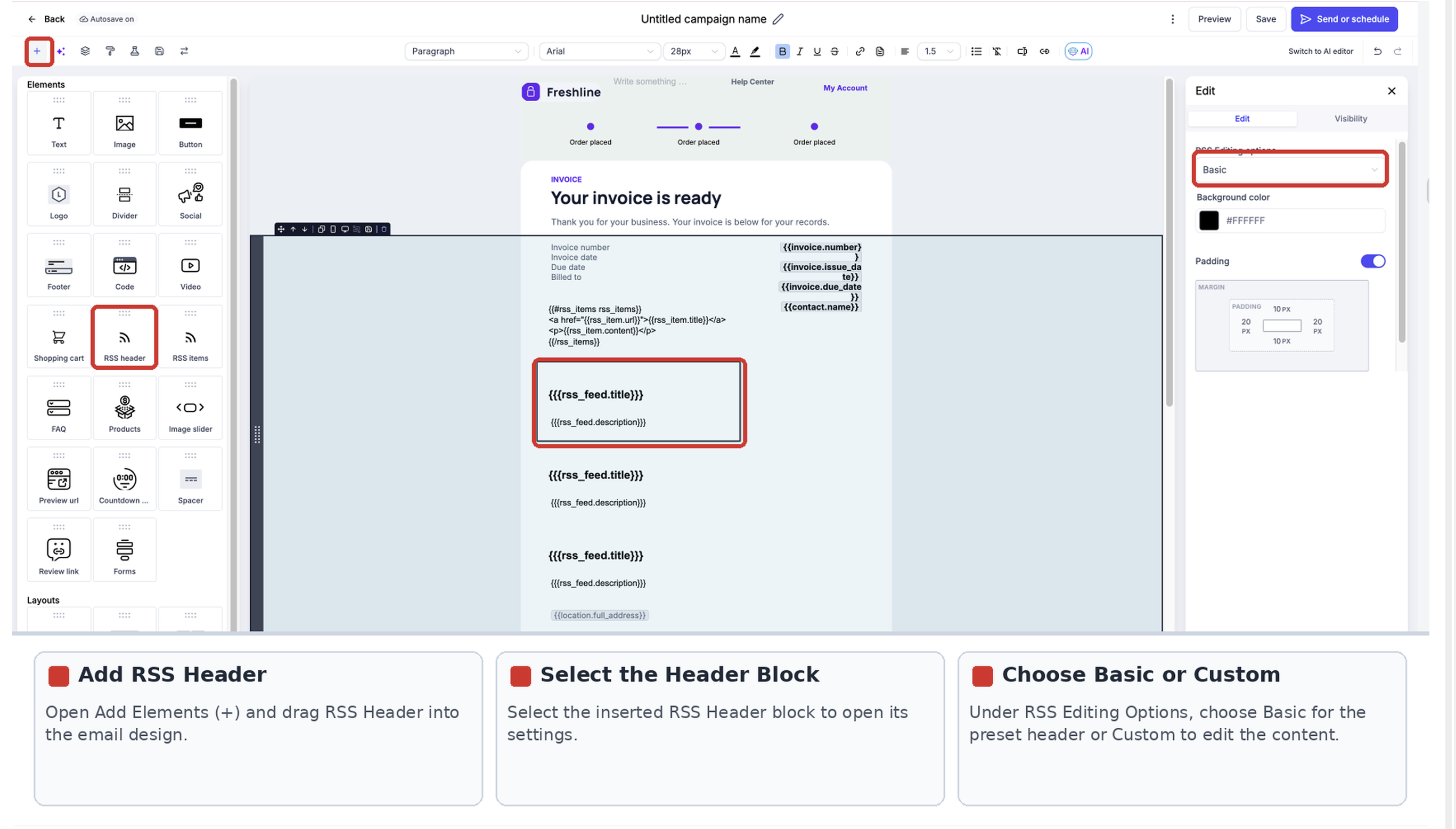
- Click Add Elements (+) and drag the RSS Header block onto the canvas.
- Select the RSS Header block and pick Basic or Custom under RSS Editing Options.
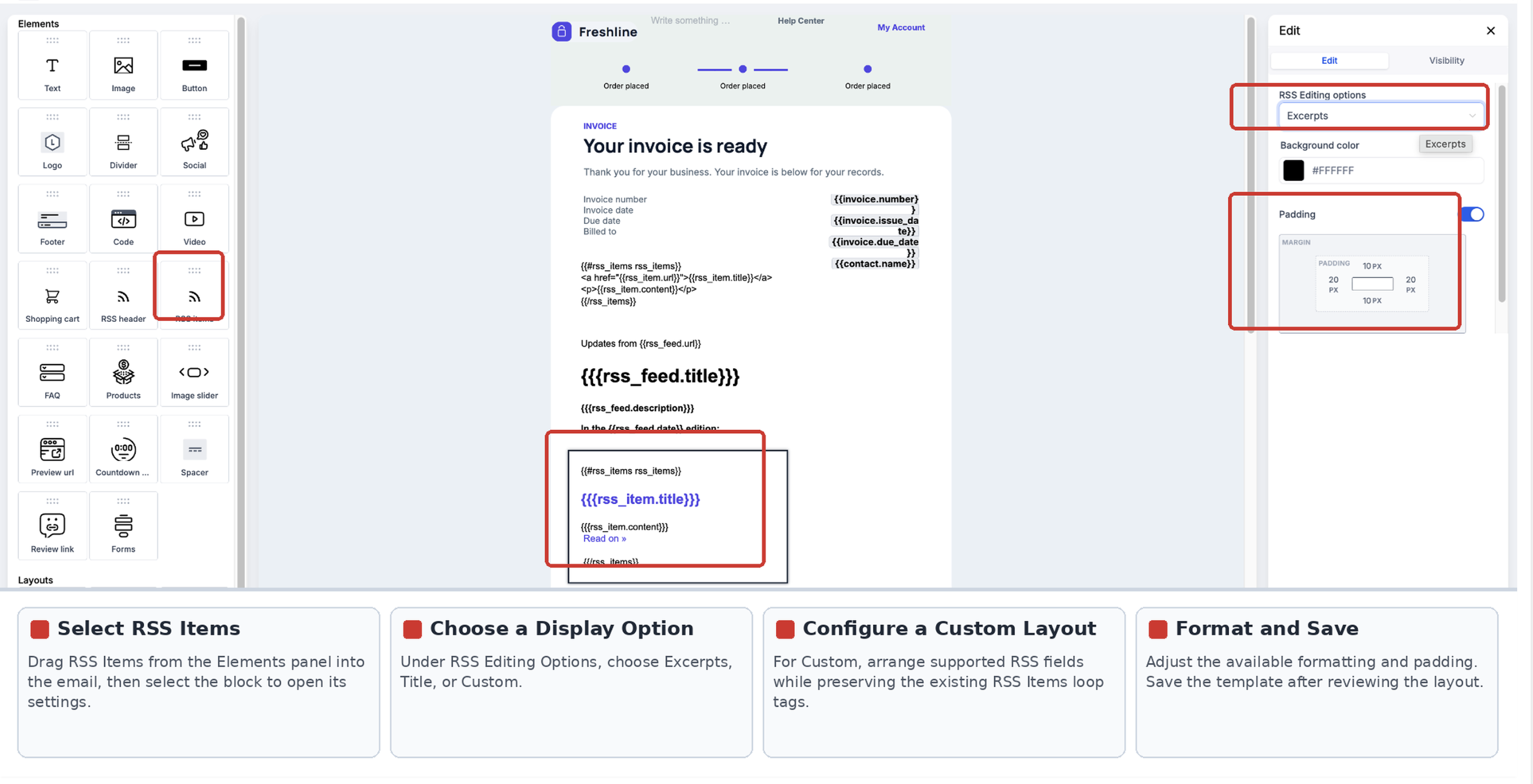
- From Add Elements (+), drag the RSS Items block below the header or use it alone.
- Select the RSS Items block and choose a display option such as Excerpts, Title, or Custom.
- If Custom is chosen, arrange the supported RSS fields and keep the existing RSS Items loop tags.
- Adjust formatting and padding as needed, then save the template.
Test and send emails with RSS blocks
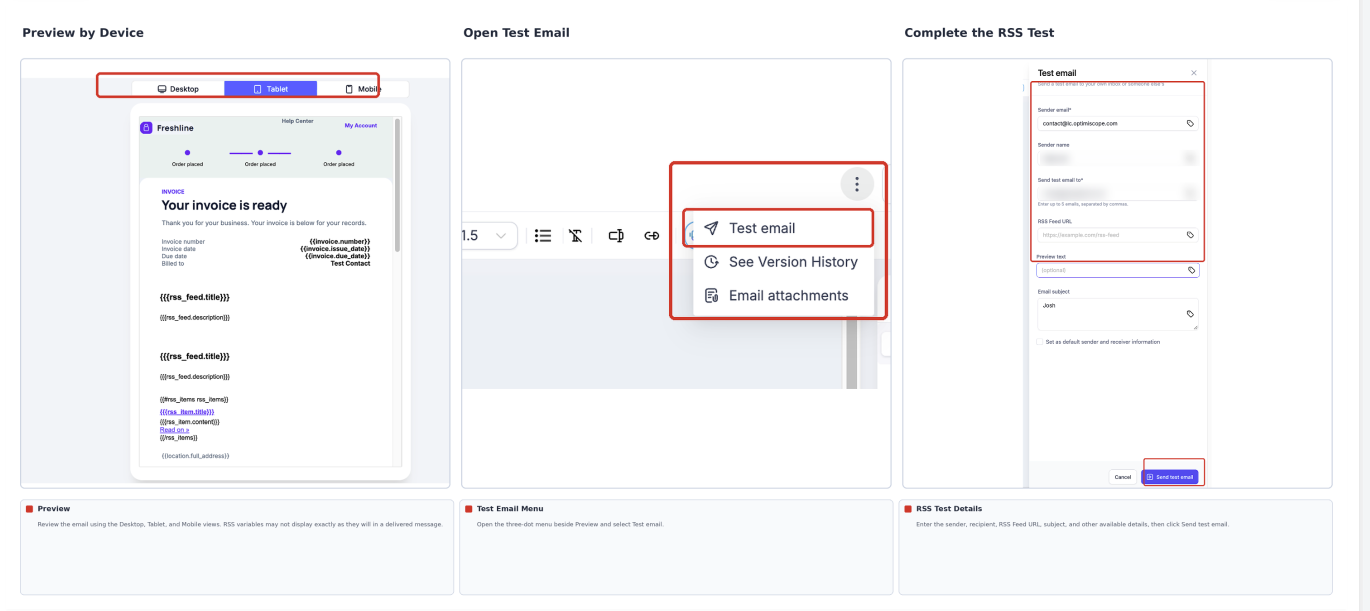
- In the editor, click Preview to view the email on desktop, tablet, and mobile.
- Open the three dot menu beside Preview and select Test Email.
- Enter a valid RSS Feed URL in the test email dialog.
- Send the test email and verify that titles, dates, images, links, and formatting appear correctly.
- Create an email campaign that uses the RSS enabled template.
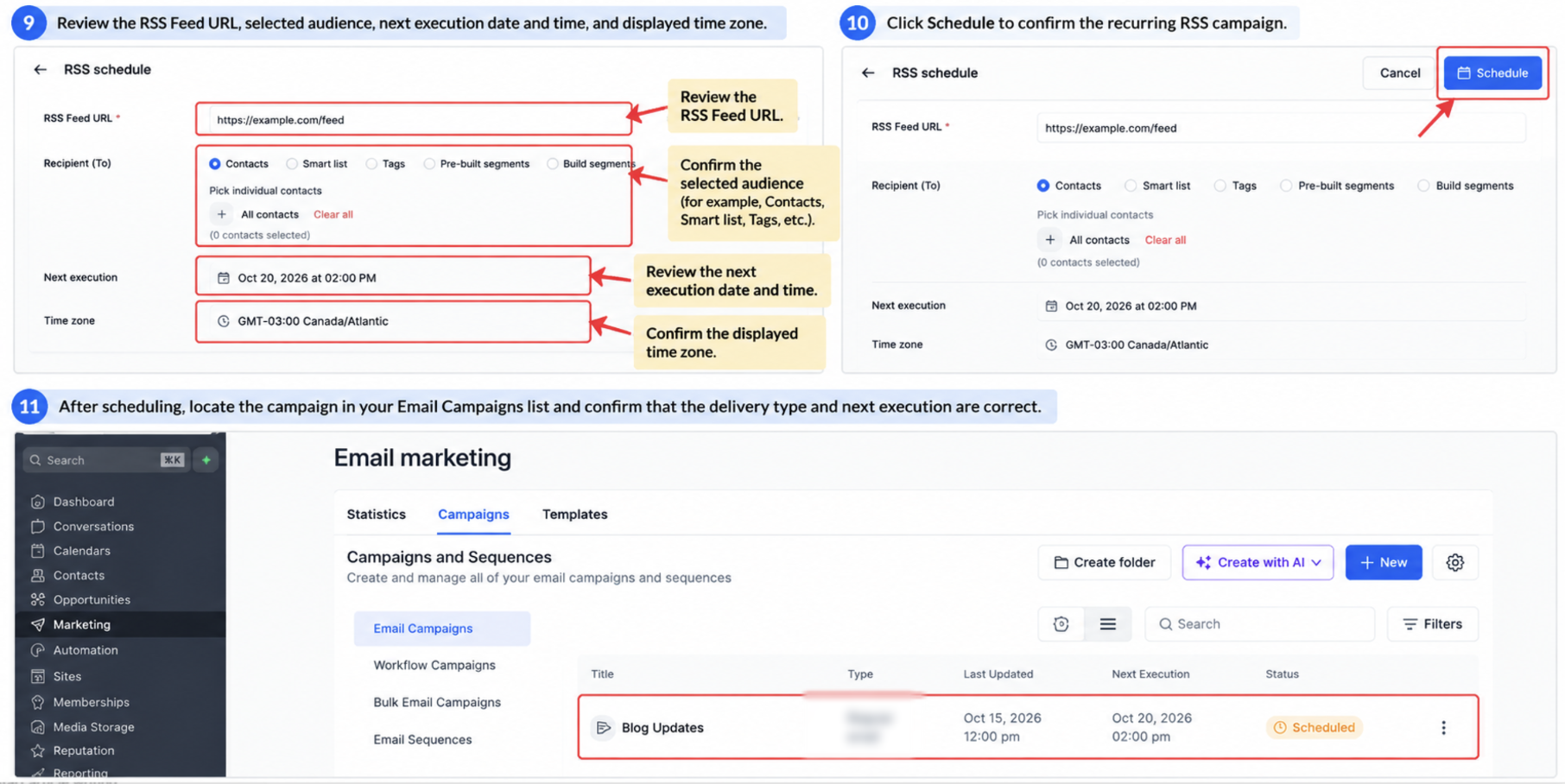
- Choose Send or Schedule > RSS Schedule, enter the RSS Feed URL, set frequency, send time, maximum items, review recipients, and schedule the send.
06What it looks like in HighLevel
07Settings that matter
- RSS Editing Options. Selects between a preset Basic layout or a Custom layout for the RSS Header block.
- Display option. Controls which post fields appear in the RSS Items block, such as Excerpts, Excerpts with Image, Title, Full Content, or Custom.
- RSS Schedule. Defines when the RSS campaign sends, its frequency, send time, and the maximum number of items to include.
- RSS Feed URL. Specifies the source address for the feed; required for test emails and live RSS schedules to populate variables.
08Things to know before you rely on it
- RSS variables render only when the source feed provides the corresponding field.
- {{rss_item.imageUrl}} returns an image URL, not a rendered image.
- Triple braces render unescaped HTML and should be used only with trusted feeds.
- If the feed URL is missing, RSS fields remain blank in test and live emails.
- HighLevel may skip an RSS send when no new feed items are available.
- Standard Send Now, ordinary Schedule, or Batch Schedule do not populate RSS variables; RSS Schedule must be used.
09If something goes wrong
- Blank RSS fields. Confirm the feed URL is entered in the test email or RSS Schedule.
- Missing post images. Check that the feed includes image data and that the selected RSS Items layout supports images.
- HTML tags appear as text. Review the feed format and use triple braces only when appropriate.
- No email sent for a cycle. Ensure the feed contains new items; otherwise HighLevel may skip the send.
10How it connects to the rest of HighLevel
- Send RSS email campaigns using the RSS schedule RSS email campaigns guide
- Automate recurring newsletters with RSS email campaigns Recurring newsletters
- Resend to unopened recipients for RSS emails Resend RSS emails
Michael's take

RSS blocks are a handy way to keep your email newsletters fresh without recreating the layout each time.
If you never run a regular blog or content feed, you can skip this feature.