
01Who this is for
- Content marketers keep their audience up to date without rebuilding each newsletter.
- Small business owners who publish weekly blog posts can automate a roundup email.
- Agencies managing multiple client blogs can reuse one template for all recurring sends.
02RSS email campaigns, explained
RSS email campaigns use a feed URL to insert fresh content into an email each time it runs. The Email Builder offers two blocks: one for feed level data (RSS Header) and another that repeats for each article (RSS Items). You set the schedule, choose how many items appear, and define the audience. The schedule checks the feed on the chosen frequency; if new entries exist the email is built, otherwise the platform skips that cycle. All design work stays in the template while the schedule drives delivery.
03How businesses use RSS email campaigns
- Real estate blog. Add an RSS Items block to the newsletter template. Paste the blog's feed URL in the schedule settings. Set the frequency to weekly and limit items to three. The platform will send a fresh roundup each week.
- Fitness studio news. Create an RSS Header block to show the studio name. Include the RSS Items block for class updates. Configure the schedule for daily sends and cap items at five. Subscribers receive the latest schedule automatically.
- SaaS product updates. Design an email with RSS Items displaying version notes. Use the RSS Feed URL of the product's changelog. Choose a monthly frequency and allow up to ten items. The system delivers an update digest each month.
04The numbers and rules that matter
- Maximum Items: Limit on how many recent feed entries appear in each email.
05Before you start
- A publicly reachable RSS or XML feed URL.
- A prepared contact list, Smart List, or other audience selection.
- A verified sending domain in the platform.
06How to set up and use RSS email campaigns in HighLevel
Set up an RSS email campaign
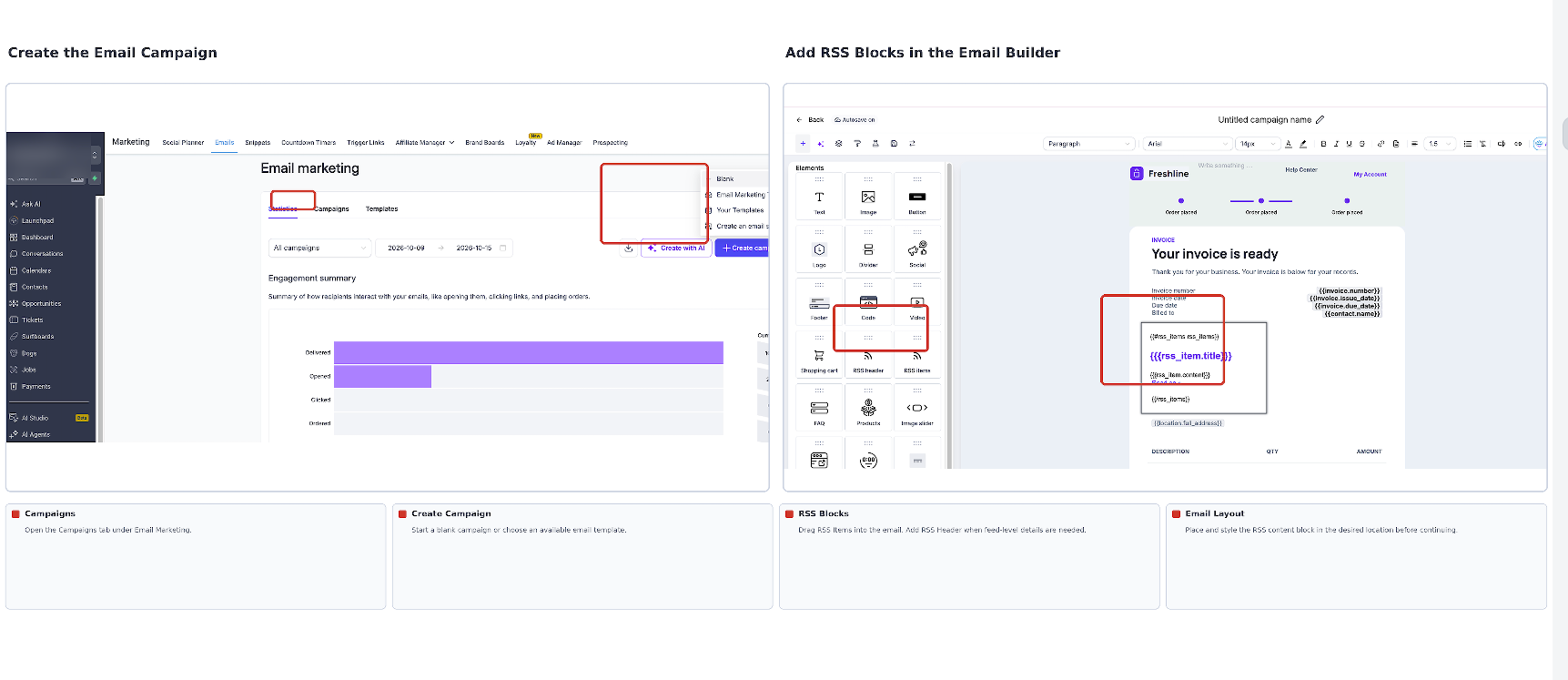
- Open Marketing > Emails > Campaigns > Email Campaigns.
- Create a new campaign and pick a template or start from a blank design.
- Launch the Email Builder.
- Insert an RSS Items block from the elements panel.
- Insert an RSS Header block if feed level information is needed.
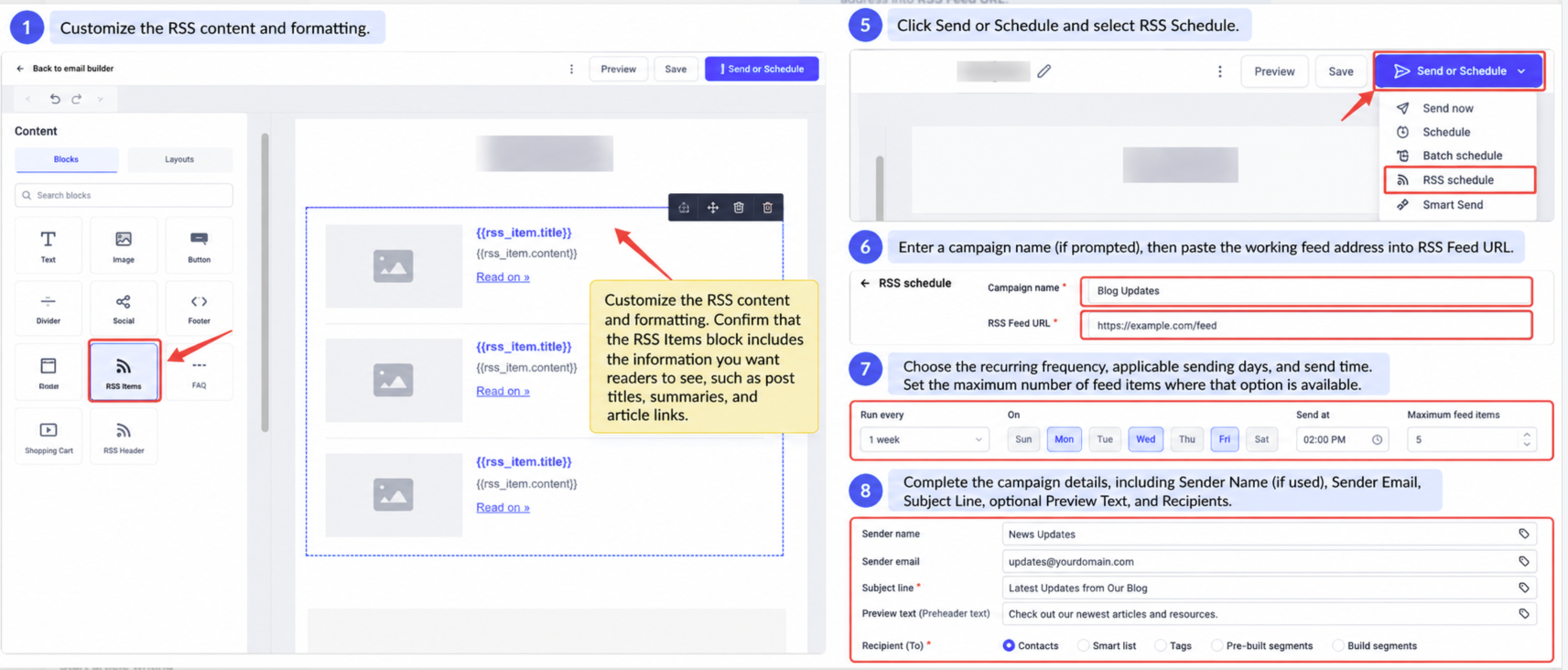
- Adjust the RSS content and formatting to match the desired look.
- Check that the RSS Items block contains the fields you want to display.
- Click Send or Schedule and select RSS Schedule.
- Enter a campaign name if requested and paste the feed address into RSS Feed URL.
- Choose the frequency, set the sending days and time, and define the maximum number of items.
- Provide sender name, sender email, subject line, optional preview text, and select the audience.
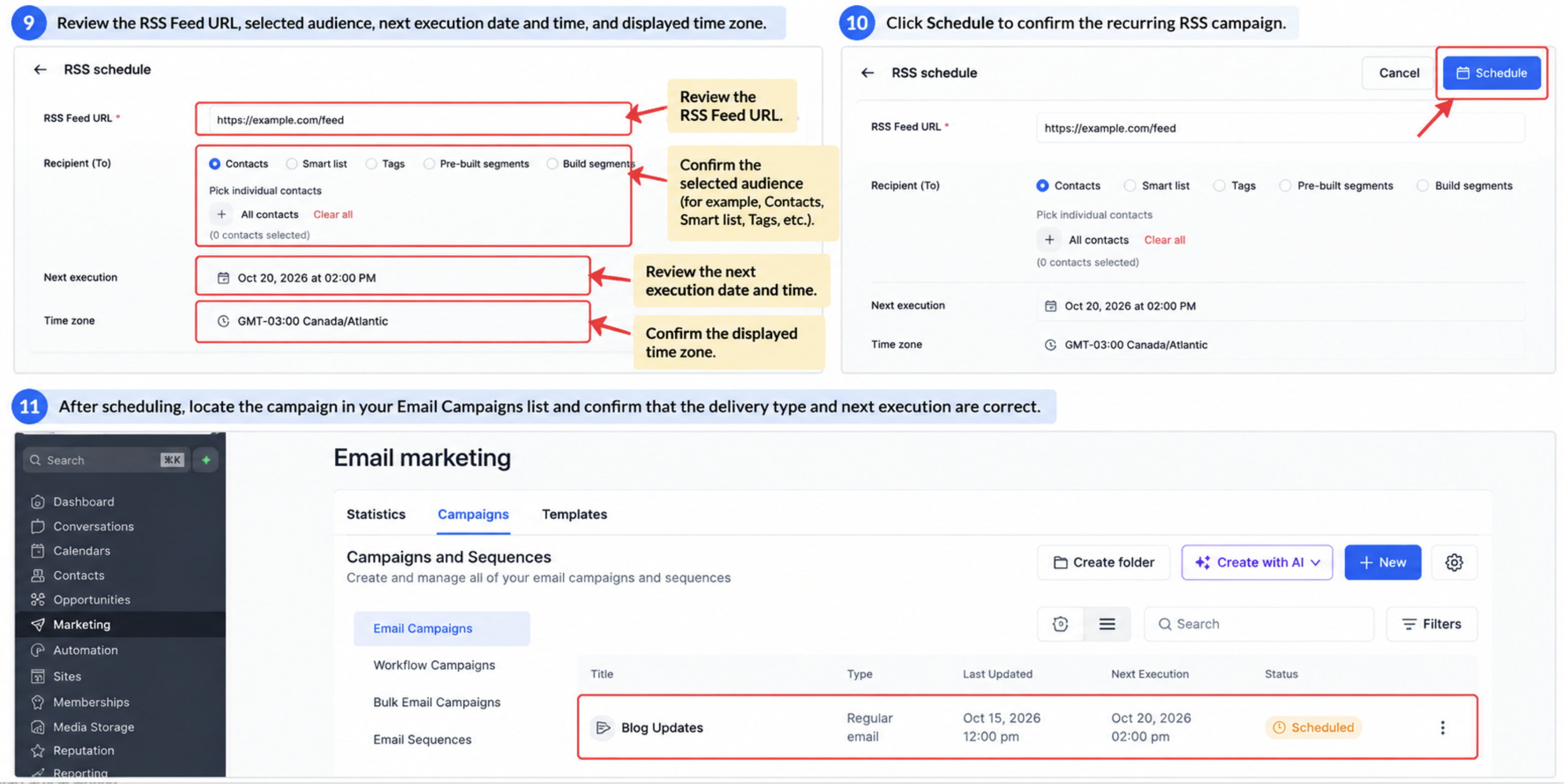
- Review the feed URL, audience, next execution time and time zone, then click Schedule.
- Important: Choose RSS Schedule for emails that contain RSS variables; using Send Now, standard Schedule, or Batch Schedule can result in empty RSS values.
Preview and test an RSS email
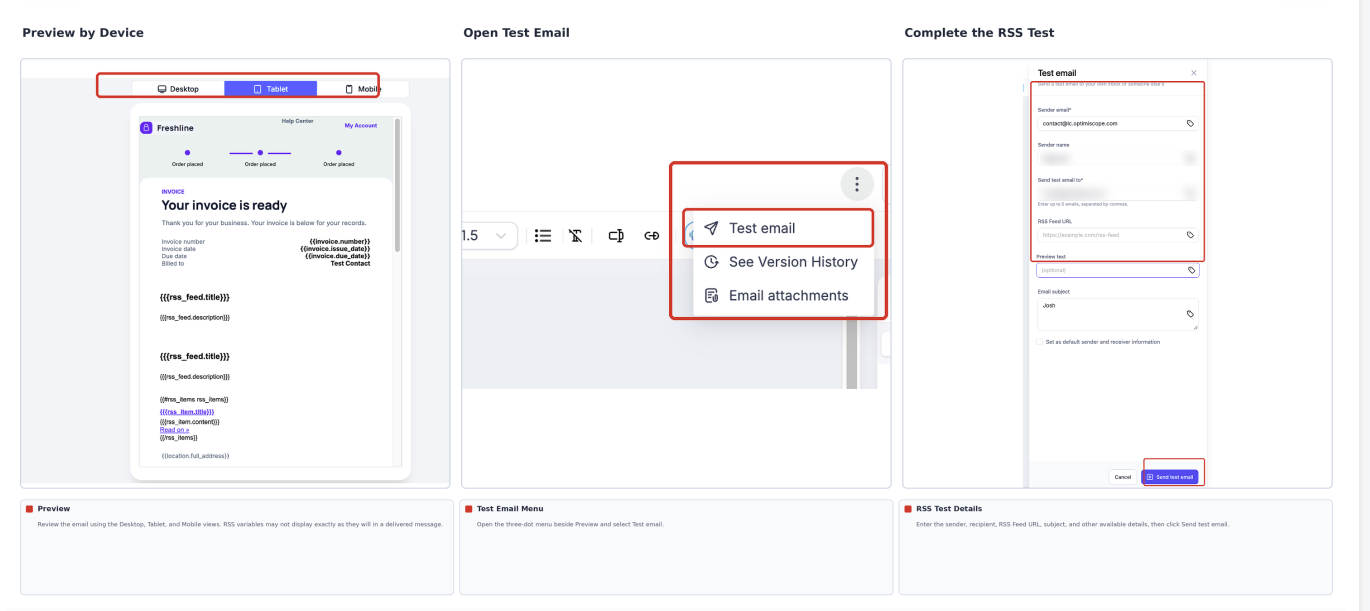
- In the Email Builder, click Preview and examine desktop, tablet, and mobile layouts.
- Open the three dot menu beside Preview and choose Test Email.
- Fill in sender, recipient, subject, and preview fields, and add the feed URL in the RSS Feed URL field.
- Click Send Test Email.
- Open the received message and verify that titles, descriptions, links and images appear correctly.
- If needed, adjust the builder, then send another test before scheduling the live campaign.
07What it looks like in HighLevel
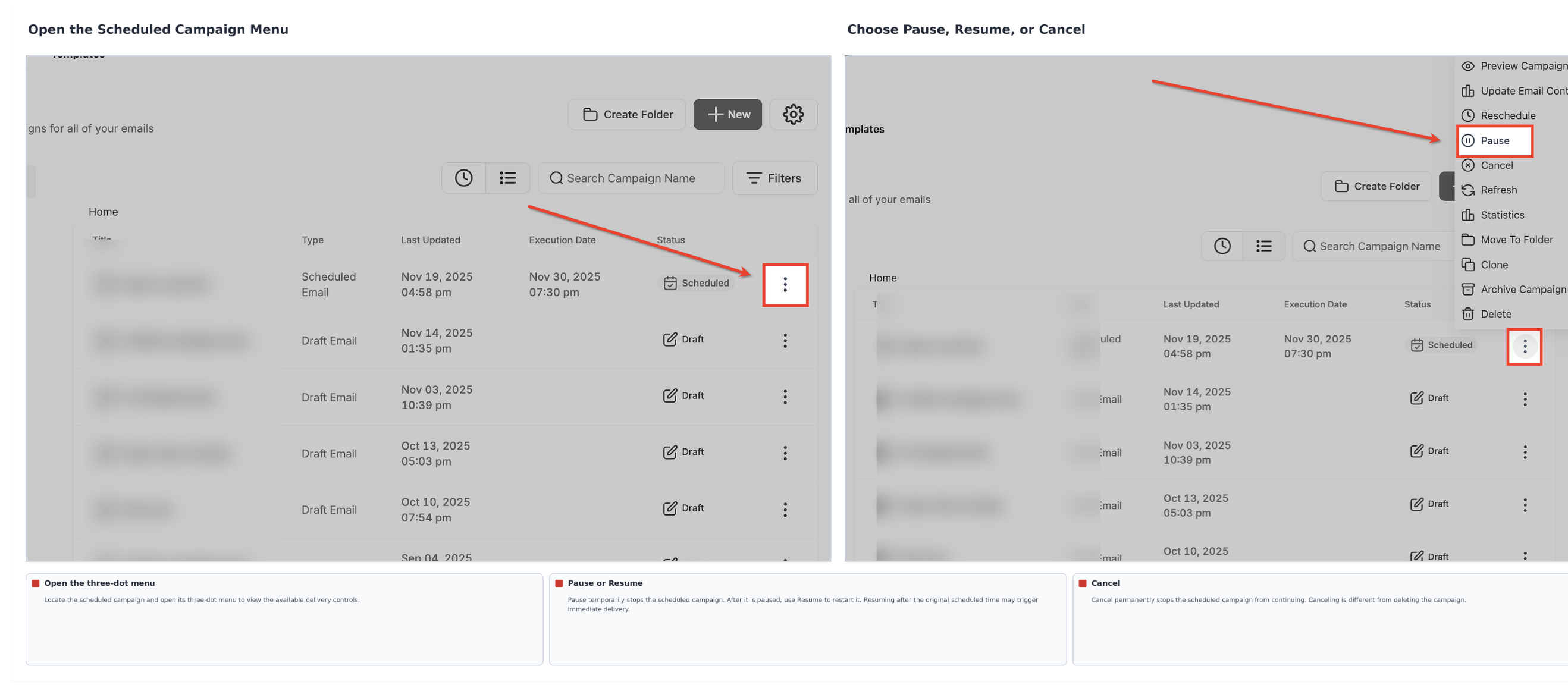
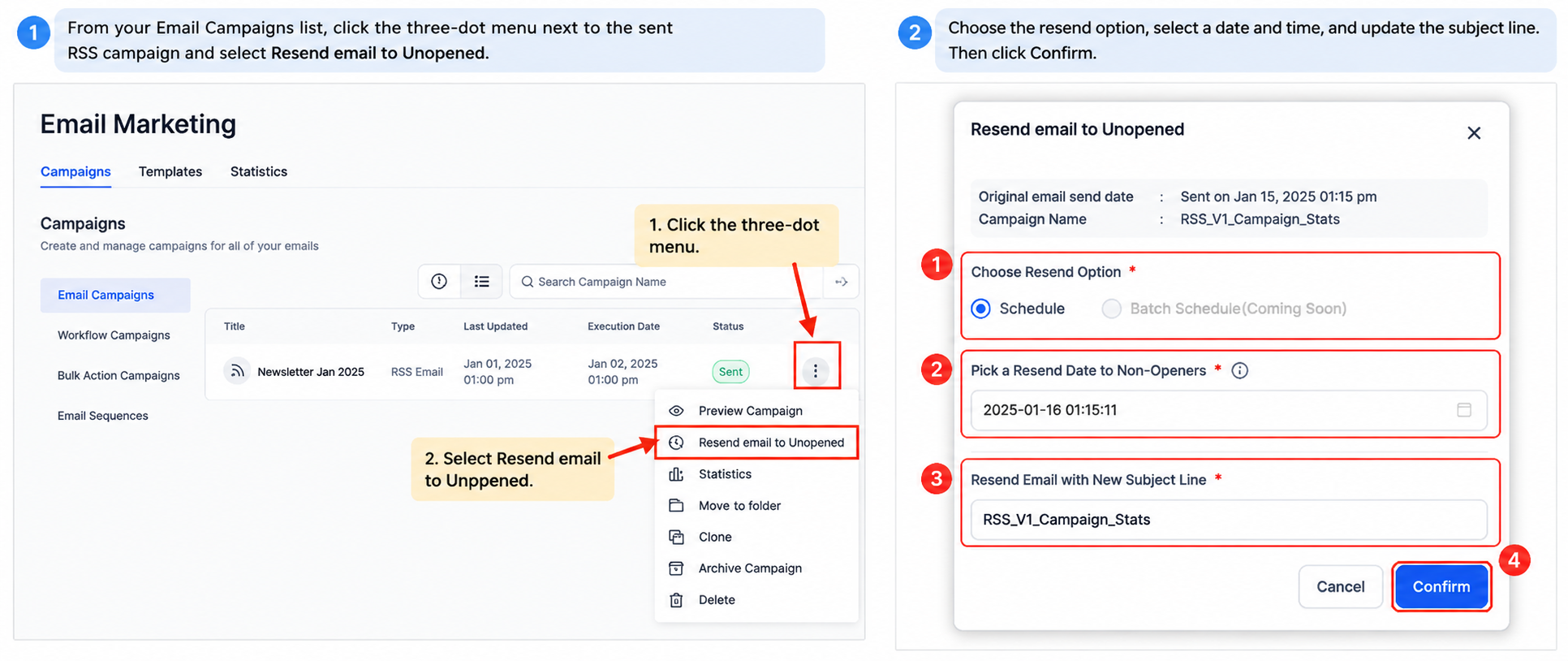
08Settings that matter
- RSS Feed URL. Specifies the address of the feed that supplies content for each send.
- Frequency. Controls how often the platform checks the feed and sends an email.
- Sending Days and Time. Defines the specific days and time of day for each scheduled delivery.
- Maximum Items. Limits the number of recent feed entries that appear in a single email.
- RSS Schedule. Activates the recurring delivery mode that uses RSS variables instead of a one time send.
09Things to know before you rely on it
- If the feed has no new entries for a scheduled cycle, the platform skips that send.
- Using Send Now, standard Schedule, or Batch Schedule with an RSS template may produce empty variables.
- The Maximum Items setting caps how many feed entries are inserted per email.
10If something goes wrong
- The RSS campaign did not send at the scheduled time. Confirm the feed contains newly published items and review the campaign’s audit information.
- RSS placeholders appear blank in a test email. Enter the correct RSS Feed URL in the test settings and verify the feed provides the referenced fields.
- HTML tags show instead of formatted text. Use the triple brace syntax {{{rss_item.content}}} in a Custom RSS Items block to render HTML content.
- Multiple entries appear for the same RSS campaign. Recognize that each recurring execution is listed separately; check the execution date and campaign type.
11How it connects to the rest of HighLevel
- Add RSS blocks to your email design RSS blocks guide
- Basic guide on RSS campaigns in HighLevel RSS campaign basics
- Set up and use the template library for reusable emails Template library
Michael's take

Michael ReimerFounder of CRM Pros, HighLevel Commander and Certified Admin
RSS email campaigns are a solid way to keep your audience up to date without rebuilding newsletters each time you publish.
Get More InformationOpens on HighLevelPublished November 2, 2026 · Updated November 16, 2026