
01Who this is for
- Content marketers who need to share blog updates without rebuilding newsletters for each post.
- Coaches who want to automatically send new article links to their training list on a set cadence.
- Agencies that manage multiple client blogs and require a repeatable email design for each client’s feed.
02RSS email campaigns, explained
RSS email campaigns let you automate newsletters by reading a website's RSS feed. The feed URL supplies post titles, excerpts, images, and links that populate RSS Items blocks inside an email template. An optional RSS Header can show feed level details such as the feed name.
The campaign schedule lives in the RSS Schedule setting. It defines how often the feed is checked, which audience receives the mail, and the maximum number of items to include. When the scheduled run finds new eligible items, HighLevel composes the email and sends it; if no new items exist, the send is skipped.
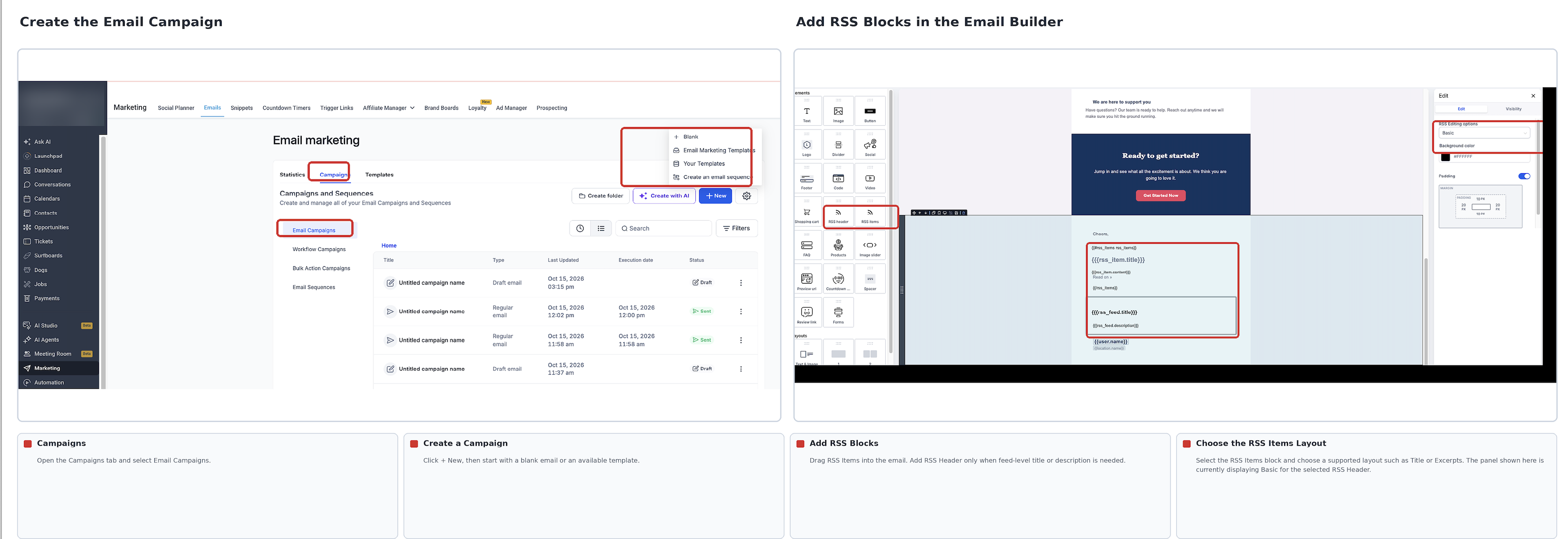
All RSS features are accessed under Marketing > Emails > Campaigns > Email Campaigns, where you create a new campaign and use the Email Builder to add RSS blocks.
03How businesses use RSS email campaigns
- Blogger. The blogger creates an email template with an RSS Items block, selects a Title layout, and sets an RSS Schedule to send the newest three posts every Monday. The platform pulls each new article from the blog’s feed and includes it in the scheduled email.
- Real estate agency. The agency adds an RSS Header to show the agency’s newsletter name, then adds an RSS Items block showing excerpts. They configure the RSS Schedule to run twice a month and limit the email to five recent property listings from their RSS feed.
- Online course platform. The platform sets up an RSS Items block with an image compatible layout, selects a maximum of two items, and schedules the campaign to run after each course module release. The email automatically includes the latest module announcements from the feed.
04The numbers and rules that matter
- Component | Purpose: RSS Feed URL supplies published posts; RSS Items displays individual posts; RSS Header optionally displays feed level information; RSS Schedule sets when the campaign checks for content, who receives it, and how many items to include.
- Maximum items setting limits how many recent eligible posts appear in each email.
05Before you start
- A functional RSS feed URL that is publicly accessible.
- An email audience list prepared in HighLevel.
06How to set up and use RSS email campaigns in HighLevel
Set up an RSS email campaign
- Navigate to Marketing > Emails > Campaigns > Email Campaigns and click New Campaign.
- Open a template or start a fresh design in the Email Builder.
- Insert an RSS Items block into the email layout.
- Optionally insert an RSS Header block for feed level information.
- Choose a supported RSS Items layout such as Title or Excerpts and adjust formatting as needed.
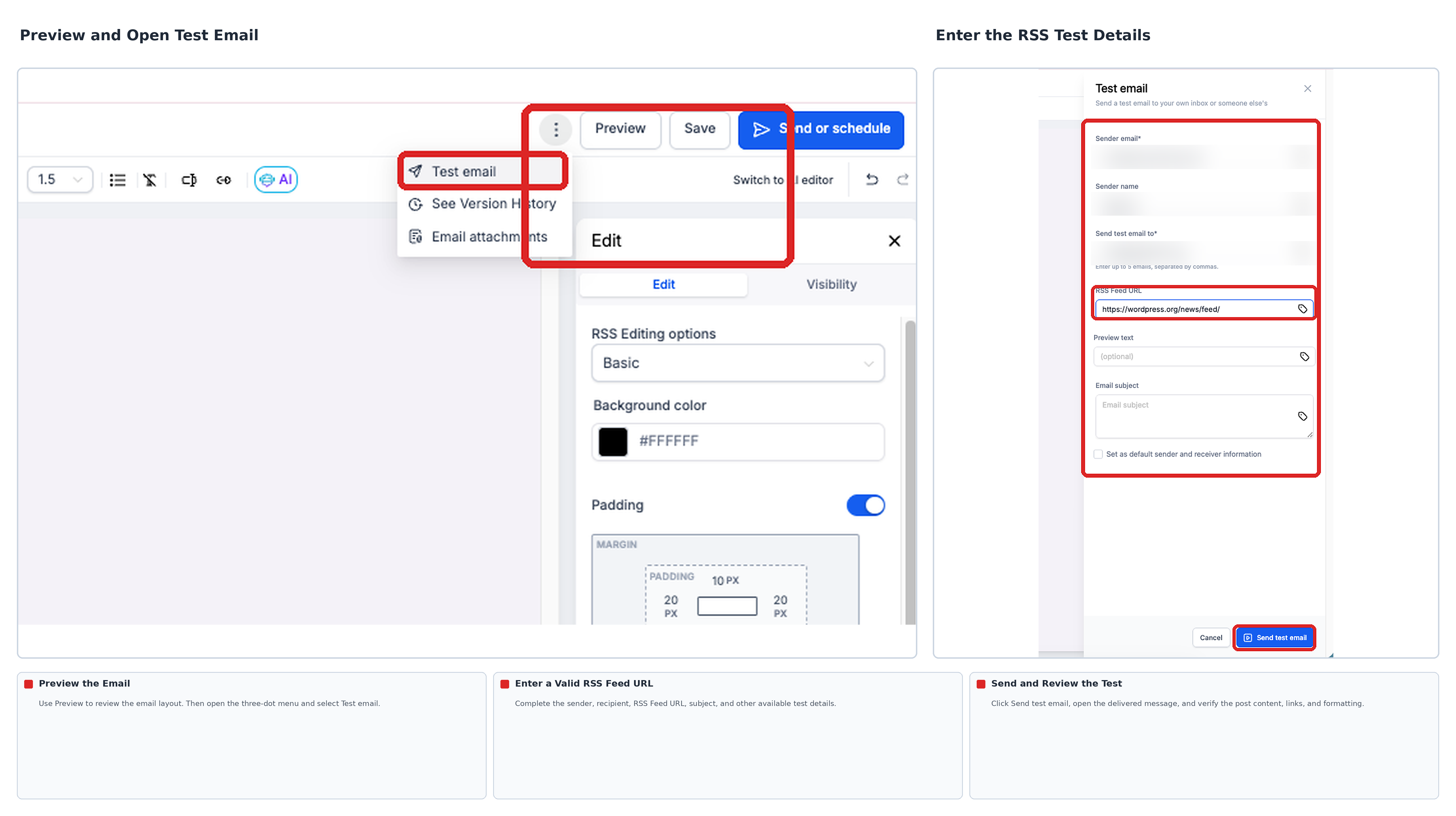
- Preview the email, then from the Preview menu select Test Email, provide a valid RSS Feed URL and required test details, and send the test.
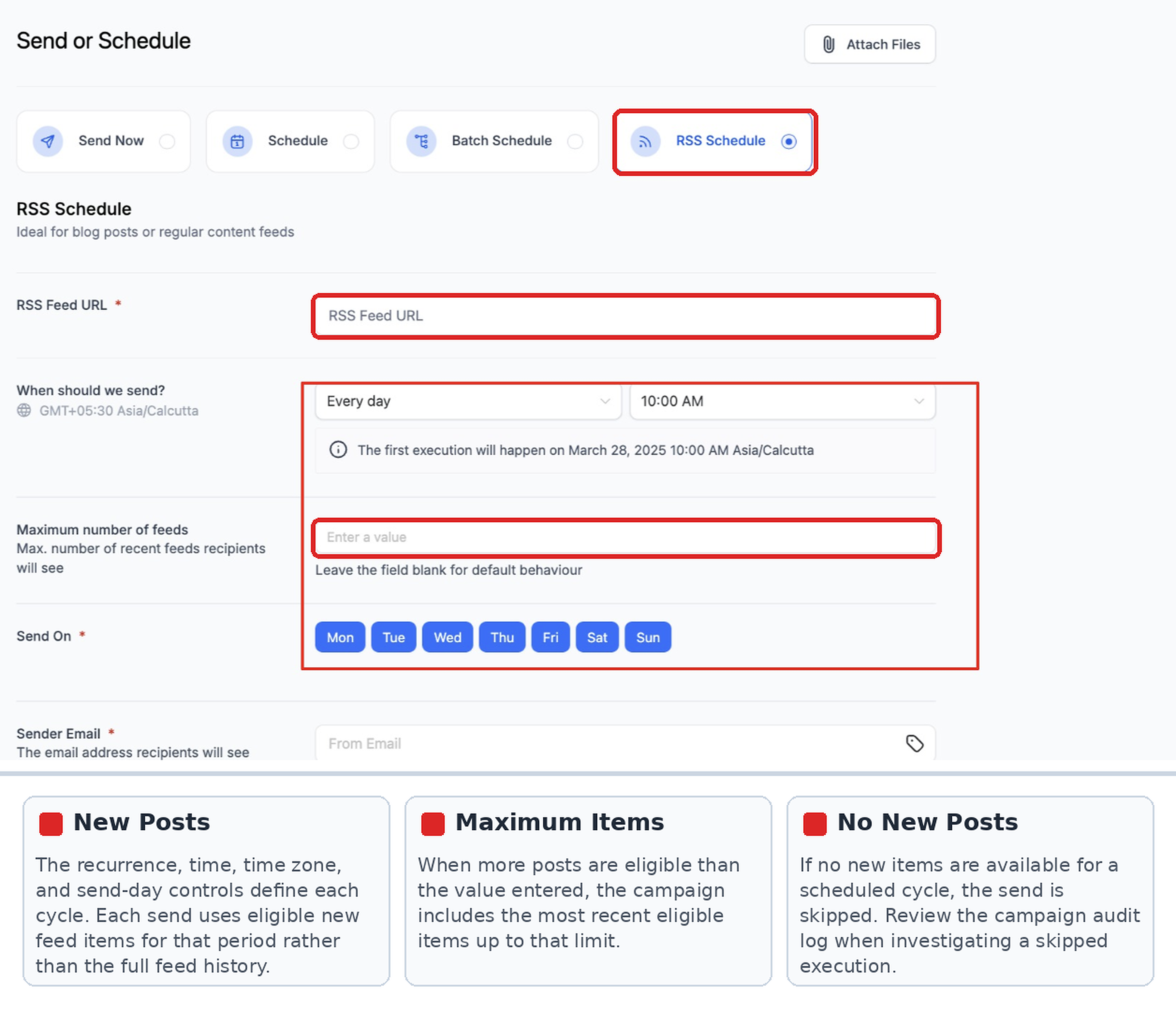
- Click Send or Schedule, select RSS Schedule, enter the feed URL, set the recurrence, send time, and the maximum number of items.
- Complete sender details, subject line, and audience selection, review the next execution time and time zone, then click Schedule to activate the campaign.
- Important: Use RSS Schedule; other send methods will leave RSS variables blank.
07What it looks like in HighLevel
08Settings that matter
- RSS Items layout. Determines which post elements (title, excerpt, image, etc.) appear in each RSS Items block.
- RSS Schedule. Controls the feed URL, how often the campaign checks for new content, send time, time zone, and the maximum number of items per email.
09Things to know before you rely on it
- Only the most recent eligible posts up to the set maximum are included; excess posts are omitted.
- If the feed has no new items for a scheduled cycle, HighLevel skips that send.
- Standard Send Now, Schedule, or Batch Schedule delivery methods will leave RSS variables blank; RSS Schedule must be used for RSS content.
10If something goes wrong
- RSS placeholders appear blank in a test email.. Verify that a valid RSS Feed URL was entered and that the feed contains the fields referenced in the email layout.
- An image is missing from an RSS post.. Check whether the source feed provides image data and ensure the RSS Items layout selected supports images.
11How it connects to the rest of HighLevel
- Detailed steps for sending RSS email campaigns Send RSS campaigns
- How to set up and test RSS blocks in the Email Builder RSS blocks guide
- Resend to unopened for RSS and batch scheduled emails Resend unopened
Michael's take

RSS email campaigns let you reuse a single email design for multiple sends.
Don’t forget to test with a real feed URL or the campaign will send blank emails.