
01Who this is for
- Marketing managers who need to collect LinkedIn audience feedback without leaving the platform.
- Social media agencies that manage multiple client accounts and require scheduled poll content.
- Small business owners who want to engage LinkedIn followers directly from HighLevel.
02LinkedIn poll posts, explained
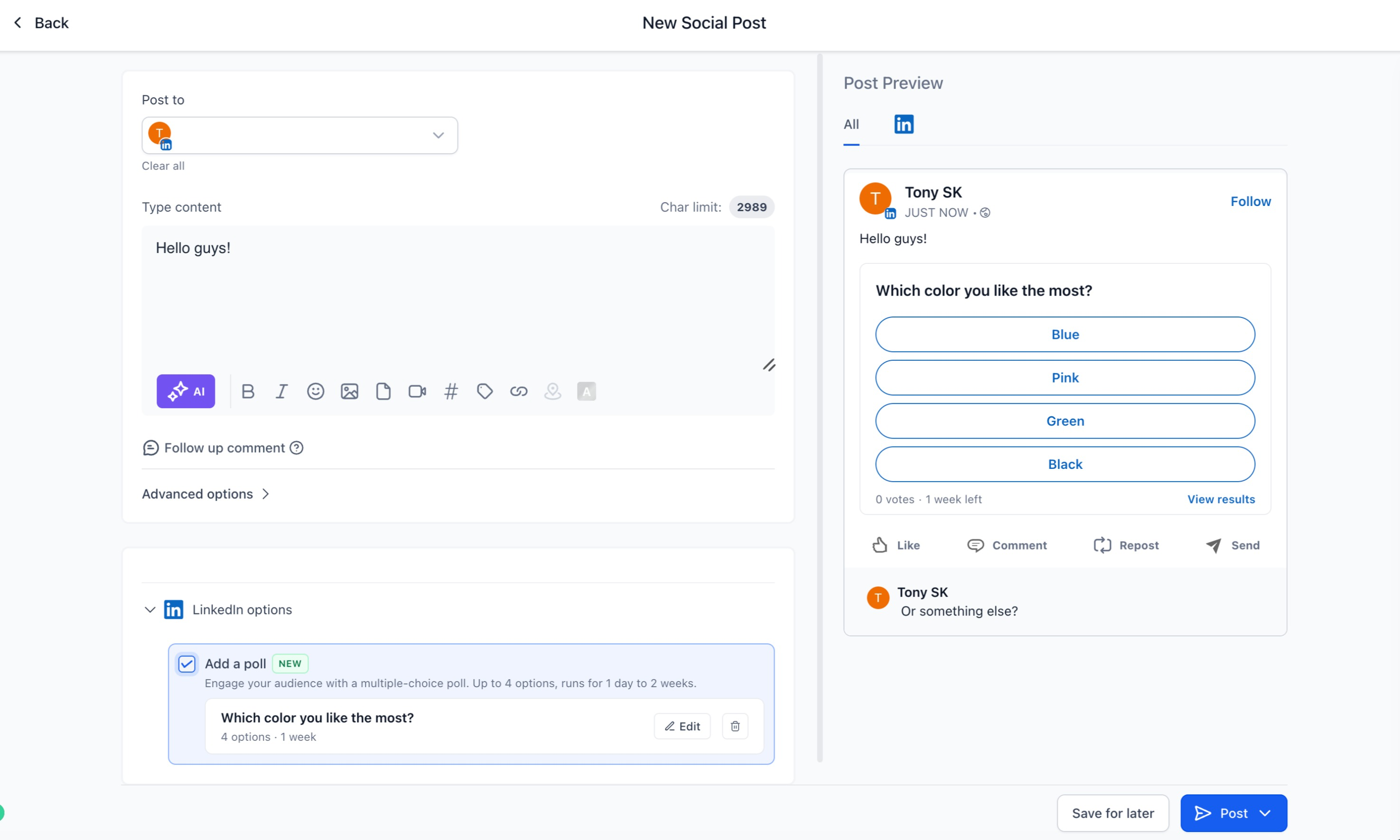
The feature adds a poll composer to the Social Planner post editor. It lets you type a poll question, add answer options, and select how long the poll stays open. The poll appears on LinkedIn as a native interactive post.
Polls can be previewed before they go live. They follow the same publishing paths as other Social Planner content, instant, scheduled, recurring, category queue, CSV bulk upload, or saved as drafts. Media cannot be attached to the LinkedIn version of the poll.
03How businesses use LinkedIn poll posts
- Real estate agency. Agents create a poll asking prospects which home feature matters most, choose three options, set a seven day duration and schedule the post to appear during open house week.
- SaaS startup. The marketing team drafts a poll on preferred product roadmap items, selects four answer choices, previews it, and adds the poll to a recurring weekly posting schedule.
- Event planning company. Planners build a poll to gauge attendee interest in event topics, set a one day duration, and upload the poll to the Category Queue for automatic publishing on the event date.
04The numbers and rules that matter
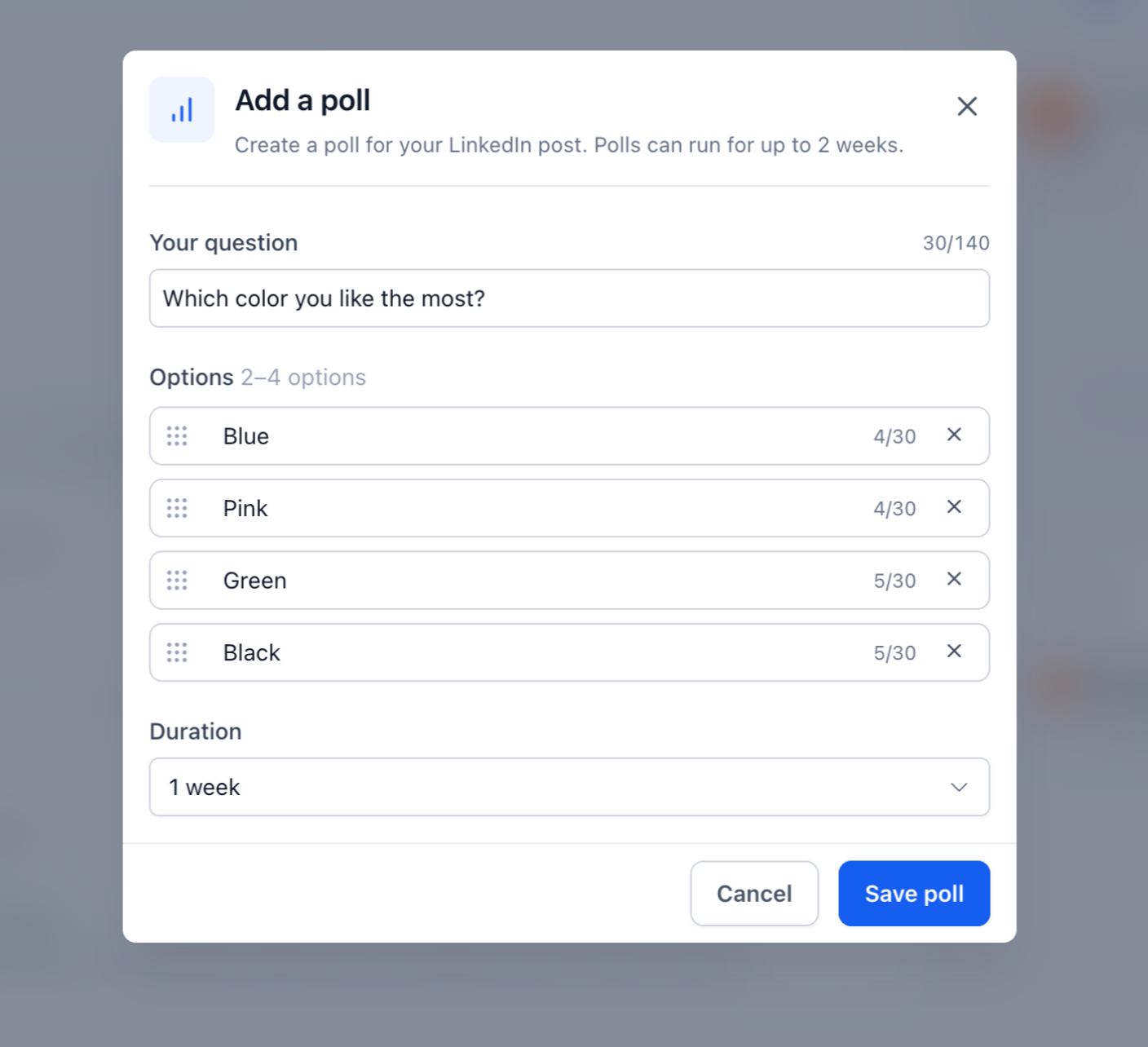
- Poll question: Up to 140 characters.
- Answer options: 2 to 4 options, up to 30 characters each.
- Poll duration: 1, 3, 7, or 14 days.
05Before you start
- A LinkedIn account must be connected to the Social Planner.
06How to set up and use LinkedIn poll posts in HighLevel
Create a LinkedIn poll
- Open Marketing > Social Planner.
- Start a new post and pick the linked LinkedIn account.
- Select Add Poll in the composer.
- Enter the poll question, add between two and four answer options, and choose a duration of 1, 3, 7, or 14 days.
- Preview the poll, then either publish immediately, schedule it, or place it in a queue.
- Do not attach images, videos, PDFs, or other media to the LinkedIn version of the poll otherwise it will not be published.
07What it looks like in HighLevel
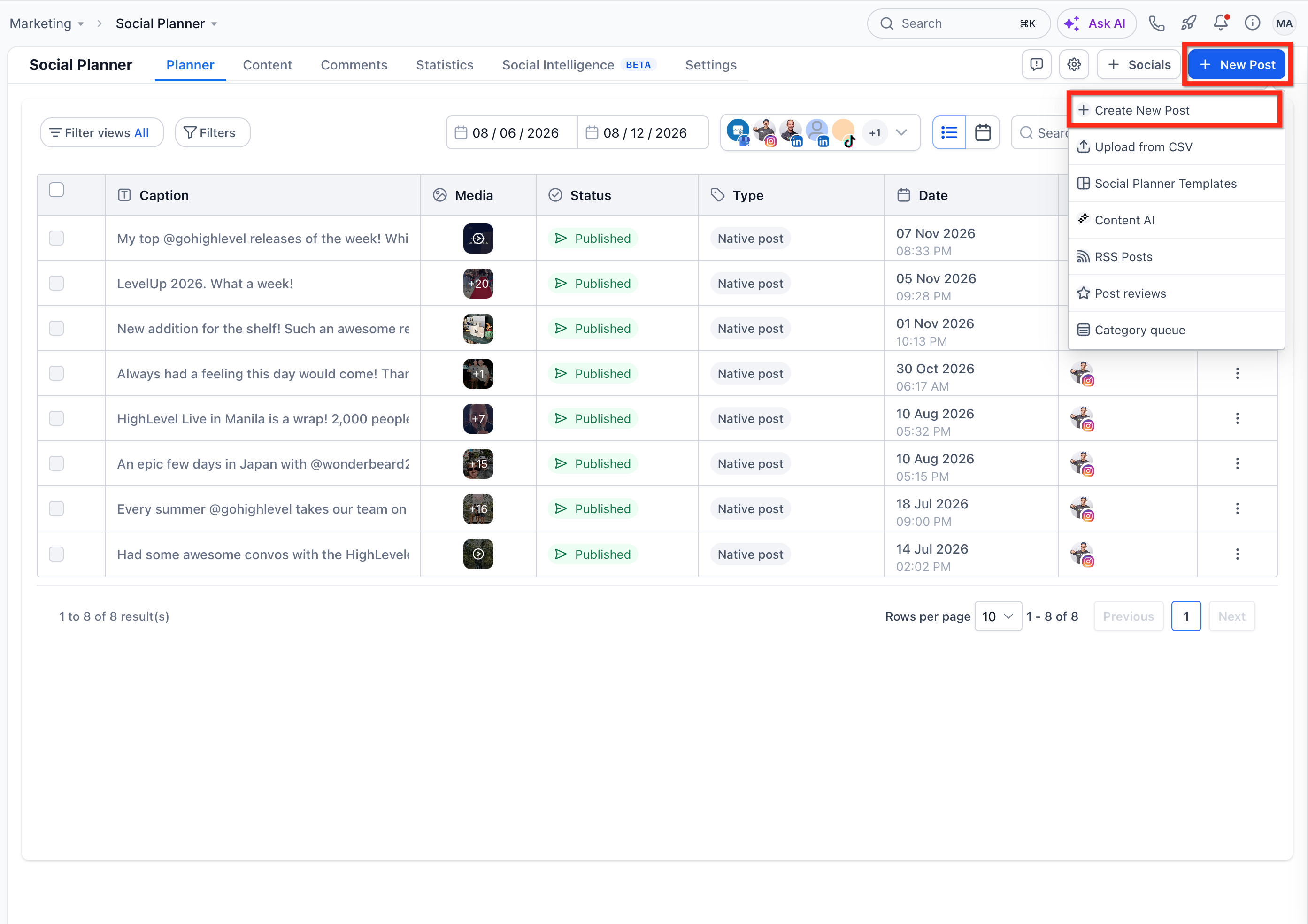
08Settings that matter
- Poll question. Controls the text of the poll, limited to 140 characters.
- Answer options. Controls the number of choices (2 to 4) and limits each option to 30 characters.
- Poll duration. Controls how long the poll stays open; only 1, 3, 7, or 14 days are allowed.
- Preview. Allows you to view the poll before it is published.
- Publishing methods. Determines whether the poll is posted right away, scheduled, added to recurring posts, placed in a Category Queue, uploaded via CSV, or saved as a draft.
09Things to know before you rely on it
- Poll questions cannot exceed 140 characters.
- Each answer option is limited to 30 characters and you can only have 2 to 4 options.
- Poll duration is restricted to 1, 3, 7, or 14 days.
- Media files such as images, videos, or PDFs cannot be attached to the LinkedIn version of a poll.
- If media is attached to the LinkedIn version, the poll will not be published.
10How it connects to the rest of HighLevel
- Connect your LinkedIn account to Social Planner LinkedIn connection guide
- Review image and video specifications for Social Planner Content guidelines
- Learn about post approvals in Social Planner Post approvals
Michael's take

Wondering if you should spend time building LinkedIn polls inside HighLevel? The feature is a quick way to get audience input without hopping over to LinkedIn each time. You type the question, set a few answers and a duration, then let the platform handle publishing or scheduling.
If I were running a campaign that needed regular feedback, I’d set up a recurring poll series right away. It lets you keep the conversation flowing while you focus on other marketing tasks.