
01Who this is for
- Marketers who need quick, message focused emails can avoid the time required for visual design.
- Business owners sending welcome or follow up messages benefit from a clean text format.
02Plain text editor, explained
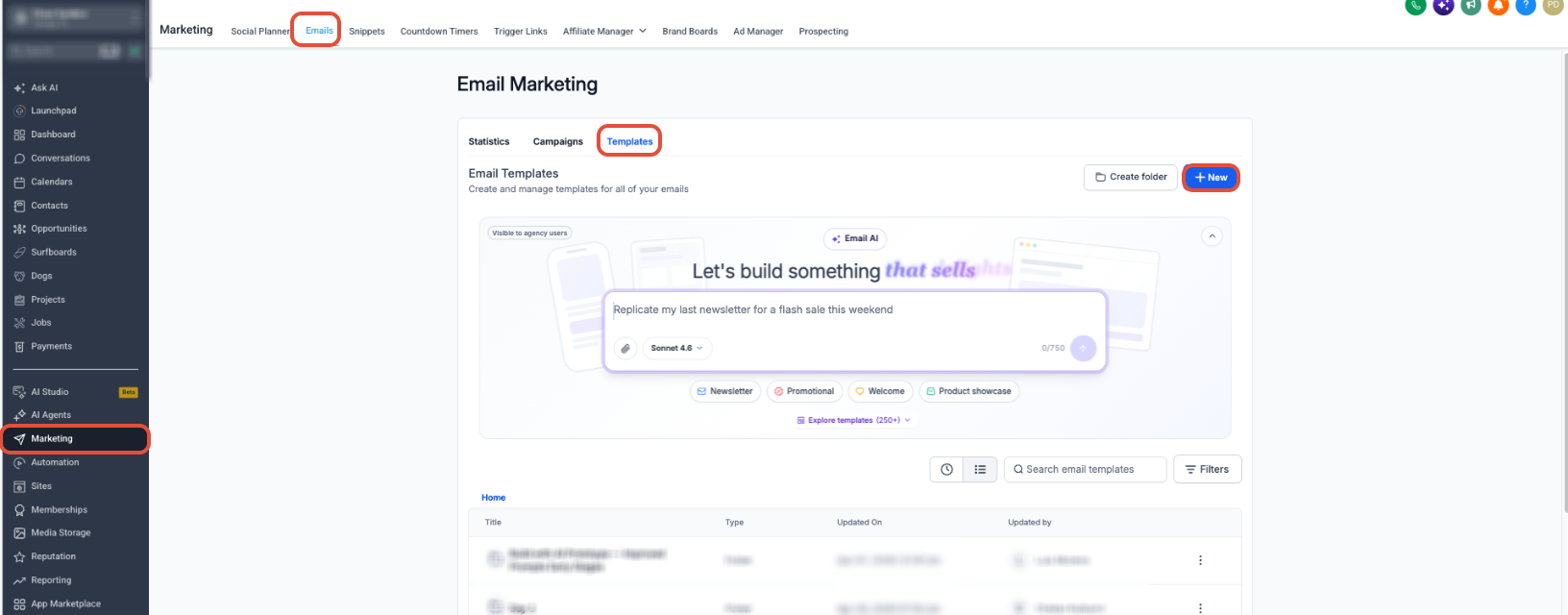
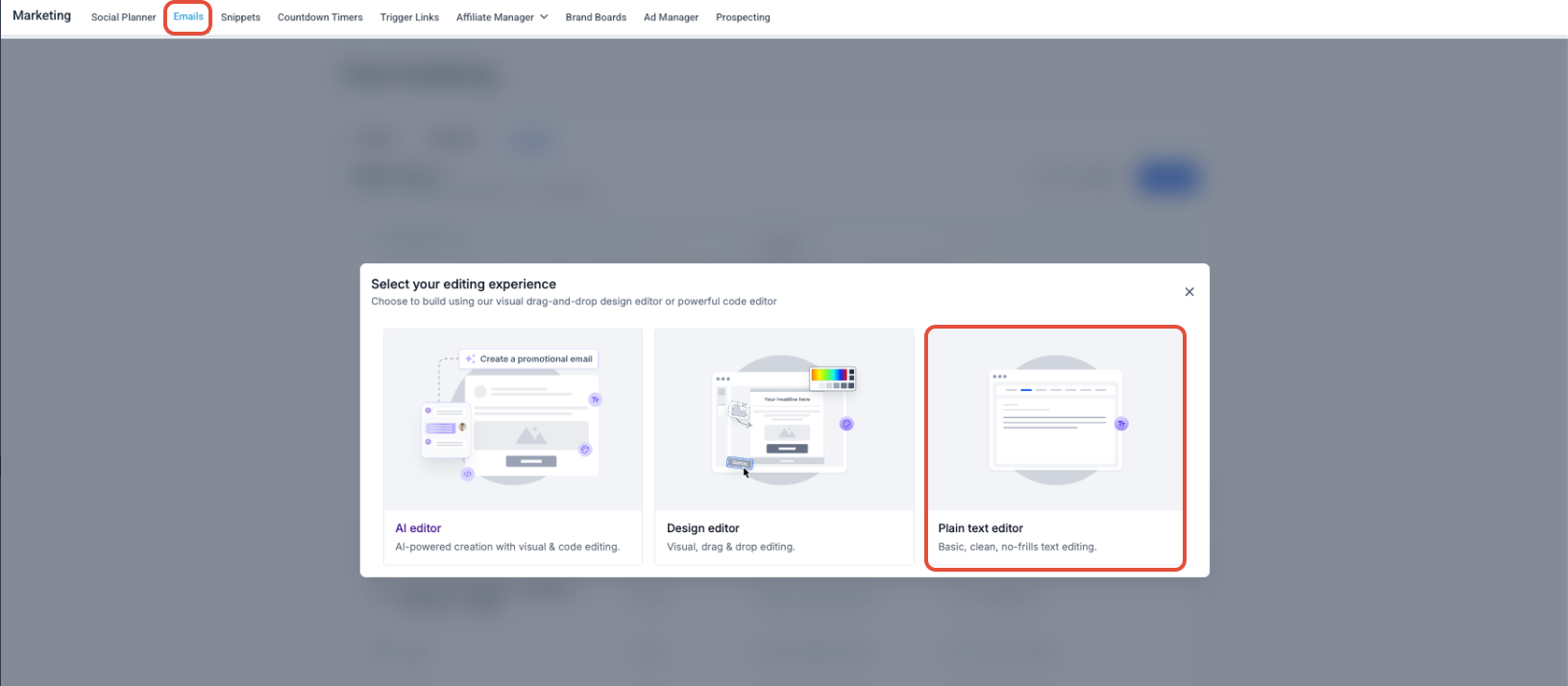
The Plain Text Editor is one of the email editing modes in HighLevel. It provides a text only workspace where you enter your copy without drag and drop blocks or HTML code. The editor is chosen when you start a new email template from the template library. You find the editor option under Marketing > Emails > Templates, then click the + New button to start a fresh template. The choice appears among other editors such as Design Editor and Code Editor.
03How businesses use plain text editor
- SaaS startup. The team creates a plain text welcome email using the editor, saves it as a template, and attaches it to an onboarding automation so new users receive a concise message without design overhead.
- Real estate agency. Agents draft a text heavy property update using the Plain Text Editor, store it as a reusable template, and schedule it in a regular email campaign to keep clients informed.
- Coaching business. A coach writes a conversational follow up email in the Plain Text mode, saves the template, and adds it to a workflow step that triggers after a client books a session.
04How to set up and use plain text editor in HighLevel
Create a plain text email template
- Navigate to Marketing > Emails > Templates.
- Click the + New button.
- Select the option to create a new template from scratch.
- When the editor selection appears, choose Plain Text.
- Enter the email copy into the text area.
- Review the content for accuracy.
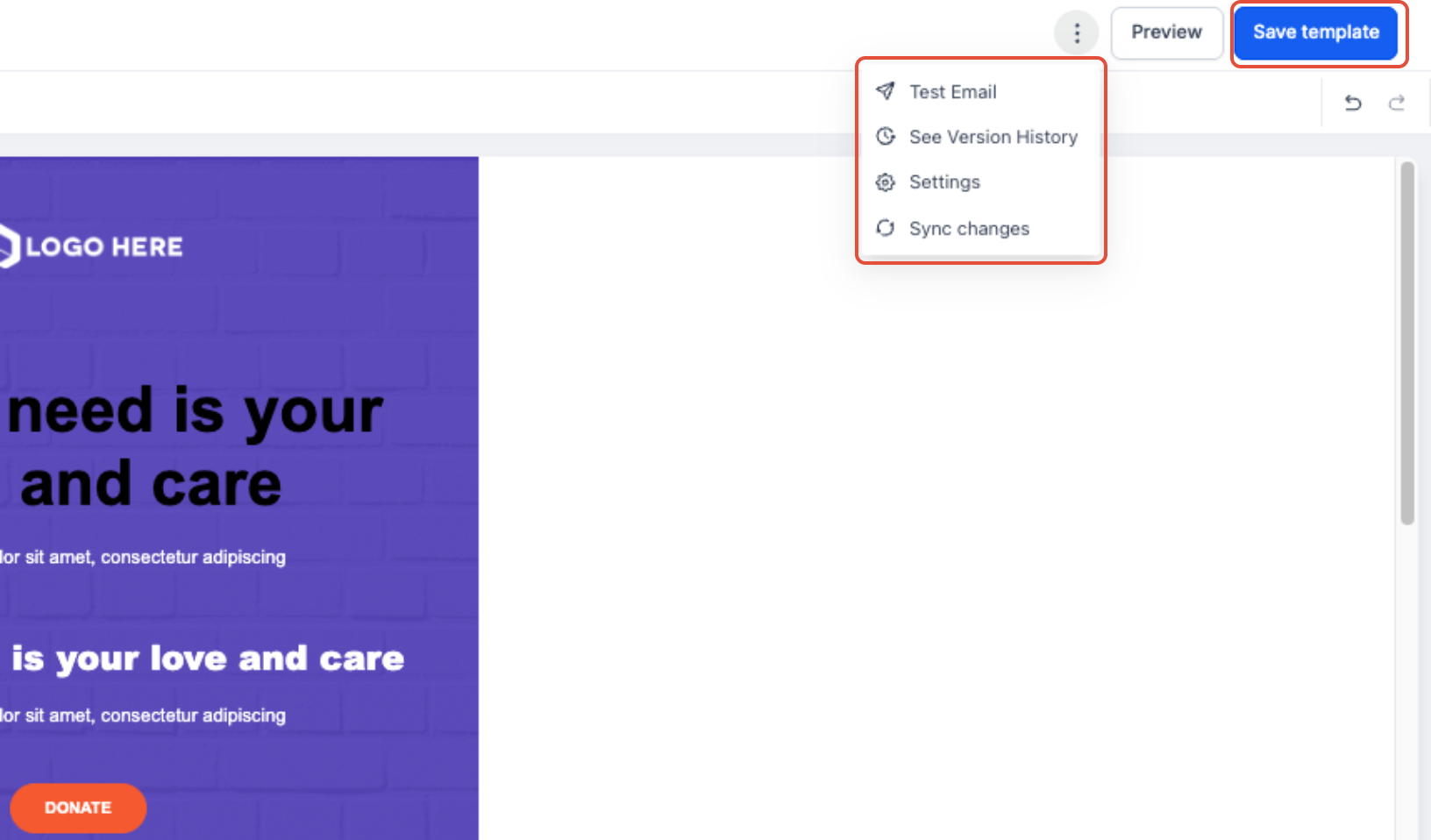
- Click Save Template to store the new plain text template.
05What it looks like in HighLevel
06Settings that matter
- Plain Text. Selects the text only editor for email creation, removing visual layout features and custom HTML options.
07Things to know before you rely on it
- Plain Text does not support drag and drop elements, images, buttons, or custom HTML.
- It is a separate option from Quick Compose and is only available through Smart Builder.
- The editor is intended for messages that prioritize written content over design.
08How it connects to the rest of HighLevel
- After saving, you can send or schedule the template in a regular email campaign. Send or schedule email campaign
- Use the preview and test tools to verify how the plain text email appears in inboxes before sending. Preview and test email
Michael's take

Michael ReimerFounder of CRM Pros, HighLevel Commander and Certified Admin
I find the plain text editor handy for sending quick, personal tone emails.
Don’t forget to preview and test the email before you launch the campaign.
Get More InformationOpens on HighLevelPublished November 2, 2026 · Updated November 17, 2026