
01Who this is for
- Founders of marketing agencies who need precise attribution of client ad spend to on platform actions.
- Ecommerce owners who want to report purchases or form submissions back to Meta for better campaign tuning.
02Ad manager conversion pixels, explained
The feature creates a conversion pixel inside the HighLevel Ad Manager. The pixel includes a generated Pixel ID and settings that identify the source of a conversion when a supported Meta Conversion API event is triggered. It does not send data on its own; a workflow must call the Meta Conversion API action.
The pixel can be used with both Funnel Events, such as form submissions, surveys, appointments, or order forms, and Lead Events like Meta lead form submissions or pipeline stage changes. When the Ad Manager connection type is chosen in the workflow, HighLevel automatically supplies the access token and lists available pixels for selection.
You find the pixel builder under Marketing > Ad Manager in any subaccount. After creation, the pixel appears on the Conversions tab and can be selected in workflow actions that report conversion data to Meta.
03How businesses use ad manager conversion pixels
- Ecommerce store. The store creates a conversion pixel, names it for purchase tracking, and selects it in a workflow that fires when an order form is submitted. The workflow then sends the purchase event to Meta via the Conversion API.
- Real estate lead generation firm. The firm builds a pixel, assigns it to a lead event, and attaches it to a workflow that triggers when a contact moves to a qualified pipeline stage. The event is reported to Meta for retargeting.
- Health clinic. The clinic adds a pixel, gives it a name related to appointment bookings, and includes it in a workflow activated by the 'Customer Booked Appointment' trigger. The booking data is sent to Meta for campaign optimisation.
04Before you start
- A HighLevel subaccount with access to the Marketing > Ad Manager area.
05How to set up and use ad manager conversion pixels in HighLevel
Set up an ad manager conversion pixel
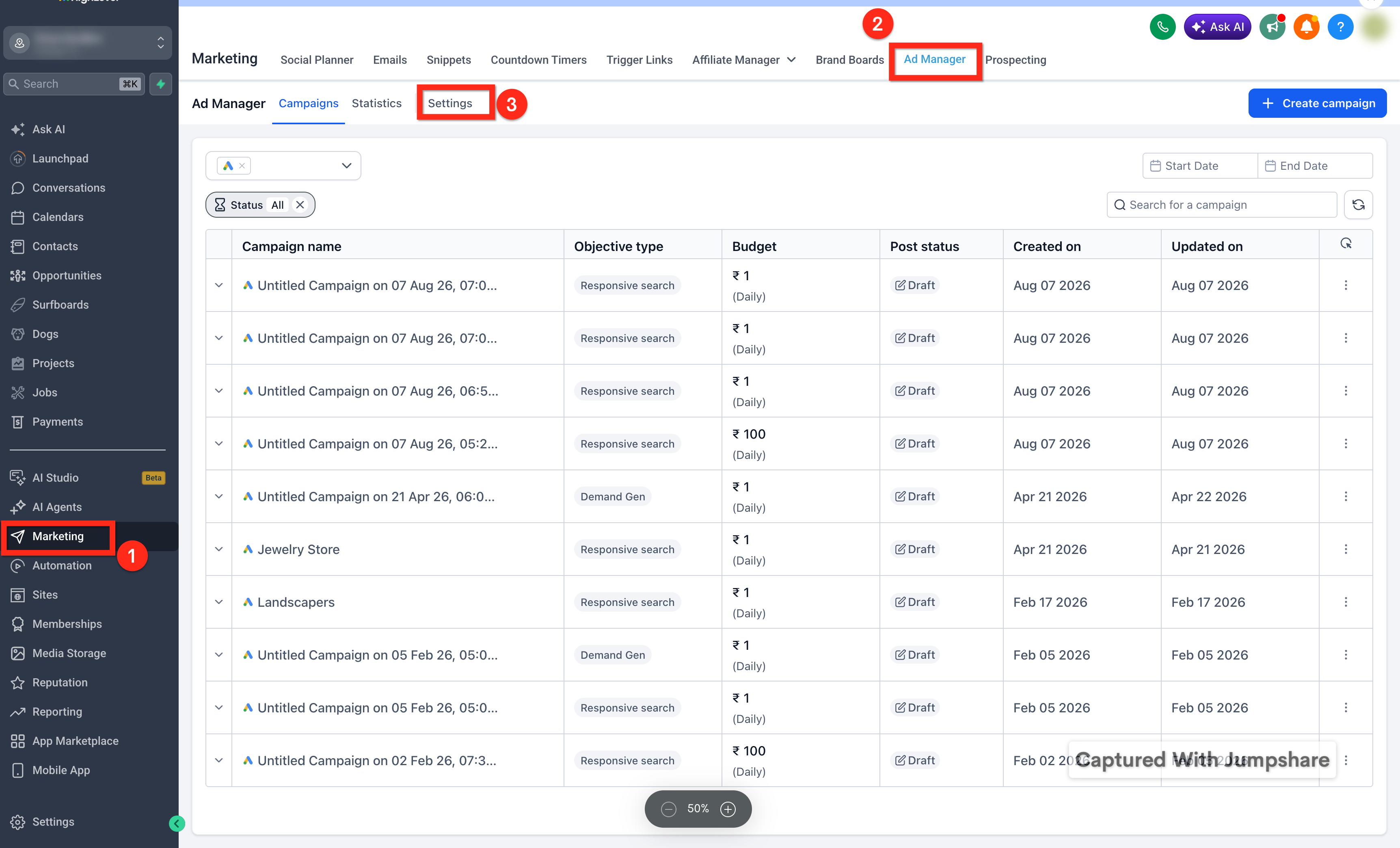
- Open Marketing > Ad Manager in your subaccount and press the Settings button to view Ad Manager Settings.
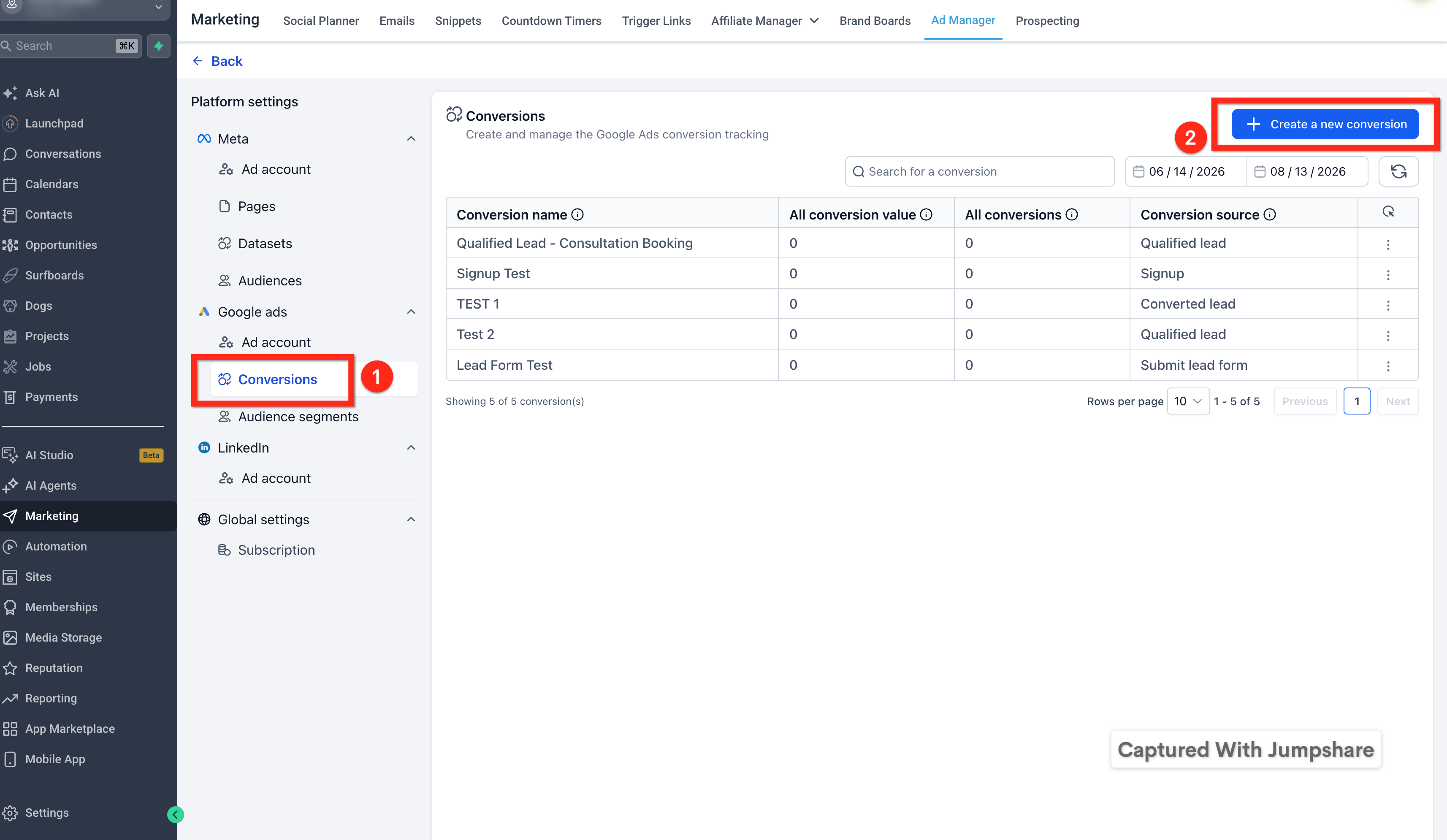
- Select the Conversions tab and click the option to create a new conversion pixel.
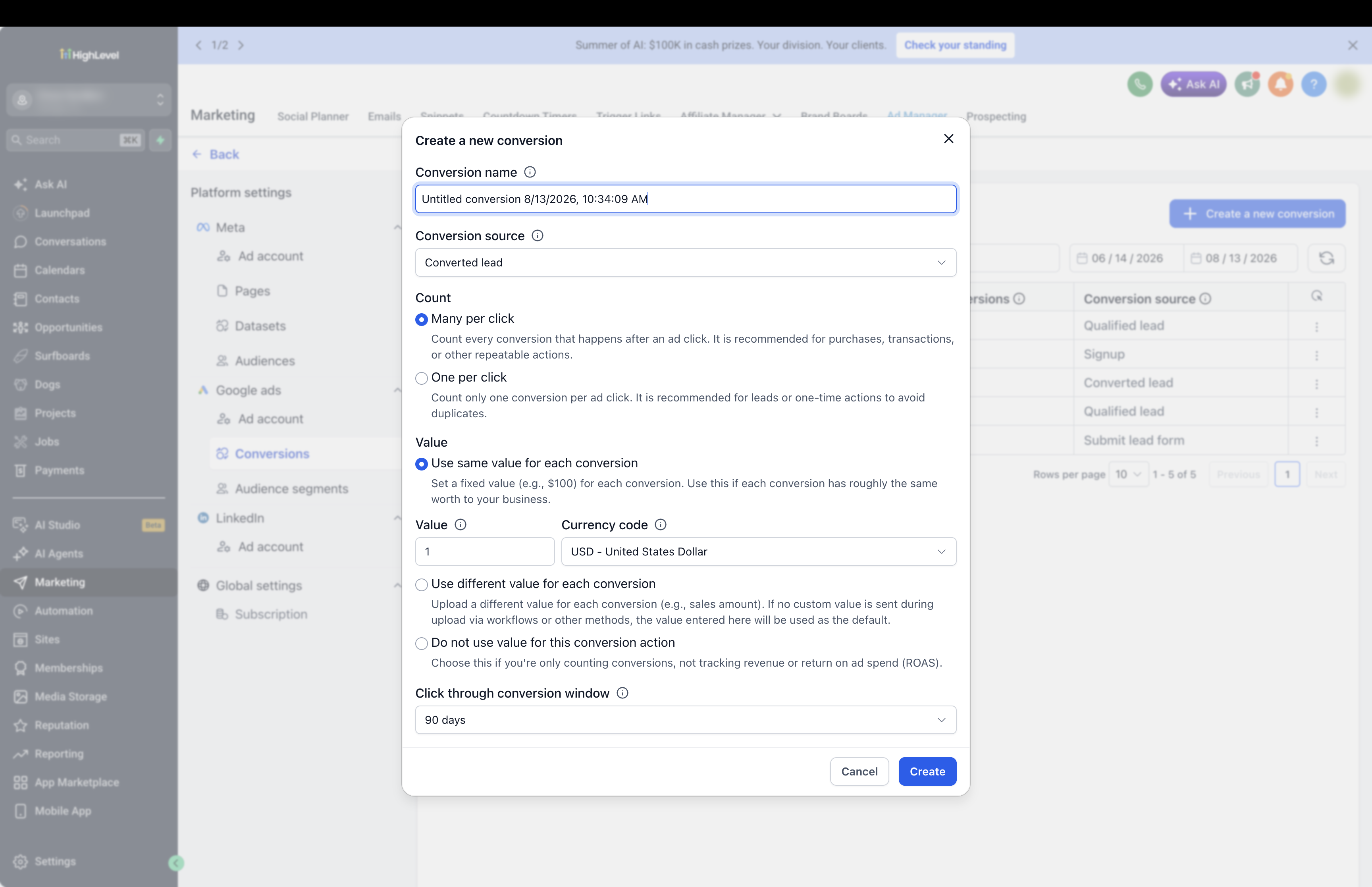
- Enter a descriptive name for the pixel and finish the creation process.
- Confirm that the new pixel now appears listed under the Conversions tab.
- Note that HighLevel will manage the access token when you later select the Ad Manager connection type in a workflow.
06What it looks like in HighLevel
07Settings that matter
- Ad Manager Settings. Opens the configuration area where conversion pixels can be created and managed.
- Conversions tab. Shows the list of existing conversion pixels and provides the button to add a new one.
- Create new conversion pixel. Initiates the workflow that asks for a pixel name and generates the Pixel ID.
08Things to know before you rely on it
- Meta imposes restrictions on custom audiences and conversions that contain prohibited or sensitive content; ensure pixel names comply.
- Custom Mapping options are available only when configuring the Meta Conversion API workflow action.
- Creating a pixel does not automatically send conversion data to Meta; a workflow must be added.
09If something goes wrong
- Conversion not appearing in Meta reports. Verify the contact record includes the required Meta tracking information such as FBCLID or Facebook Lead ID.
- Pixel creation does not result in data being sent. Add a Meta Conversion API action to a workflow that uses the created pixel.
10How it connects to the rest of HighLevel
- Learn how to configure the Meta Conversion API action for Ad Manager Meta Conversion API action guide
- Explore trigger link setup for custom values in HighLevel Trigger links overview
- Review HighLevel pricing and plan options Pricing page
Michael's take

Ad manager conversion pixels feel like a small convenience that can become a real shift for businesses that rely on paid social. Linking the exact moment a lead books a call or fills a form back to Meta gives the platform the data it needs to optimize ads around the actions that truly matter.
A local service company that runs appointment based ads will find this feature fits well. By sending the appointment booking event to Meta, you can watch the attribution reports for any missing tracking info before trusting the optimization.