
01Who this is for
- Digital advertisers who run Meta ad campaigns need reliable conversion tracking beyond browser pixels.
- Agency owners managing multiple client ad accounts benefit from pre populated pixel selection and automated token handling.
- Ecommerce operators tracking purchases can send value and currency for purchase events.
02Meta conversion API actions, explained
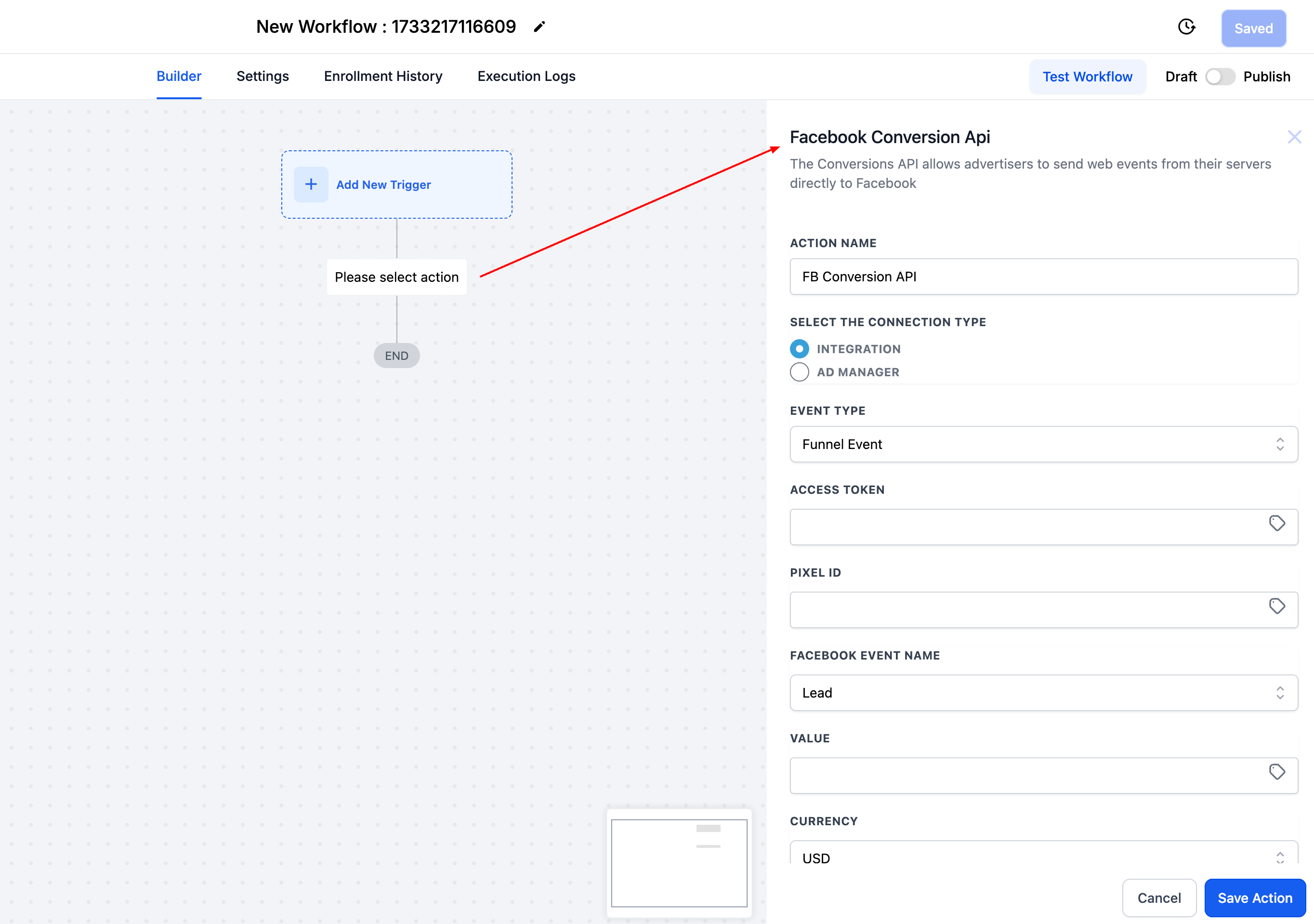
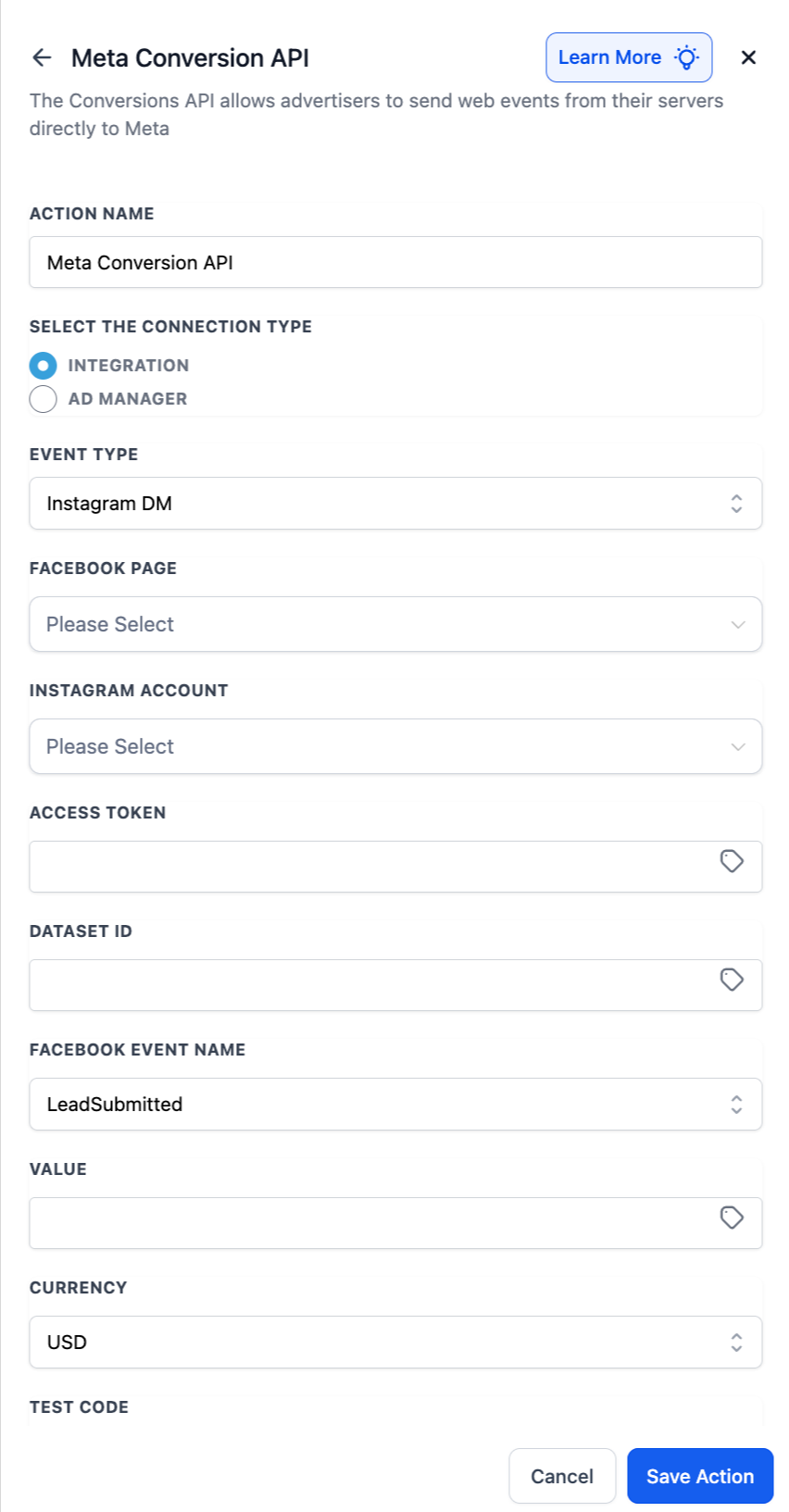
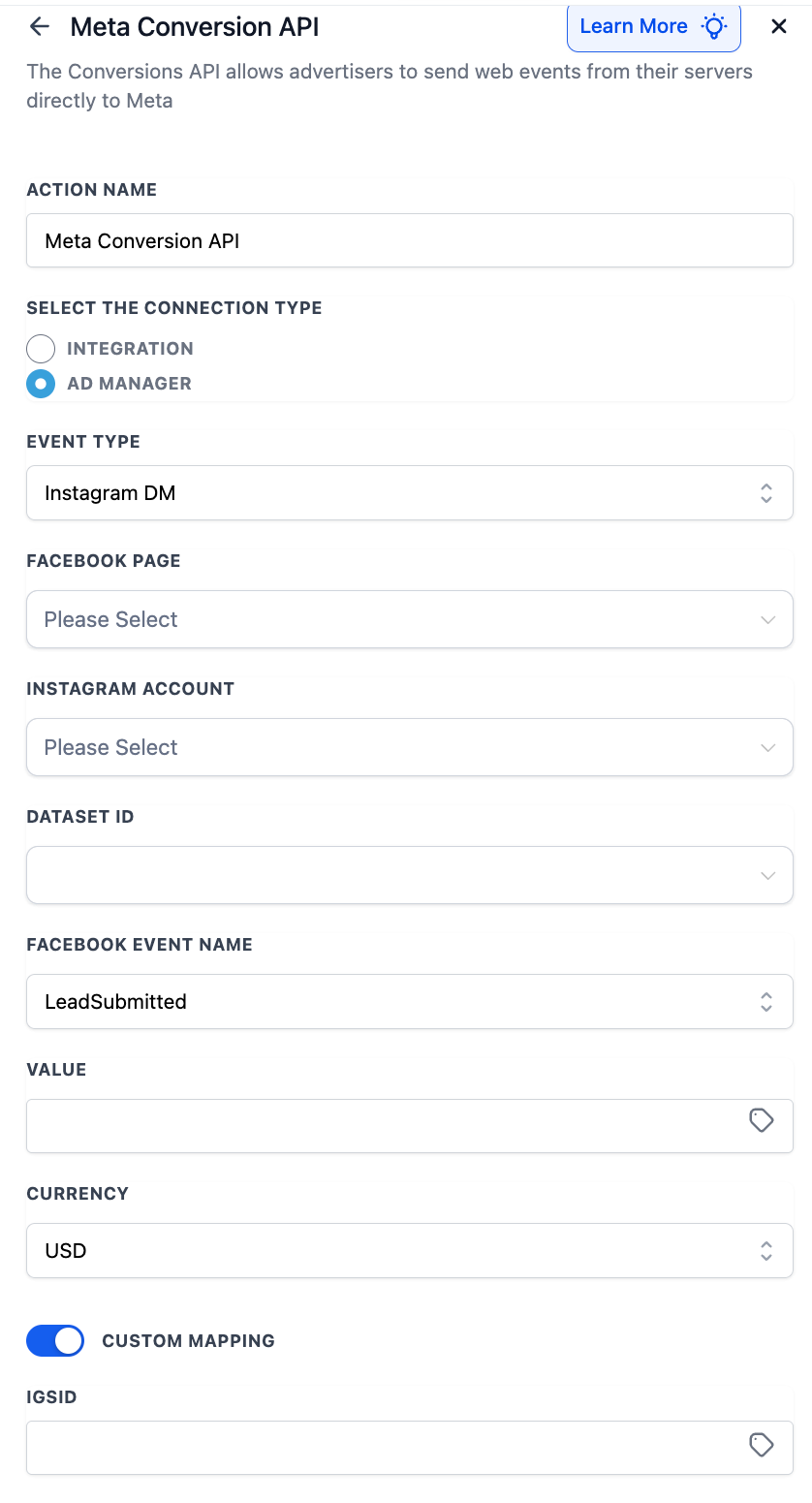
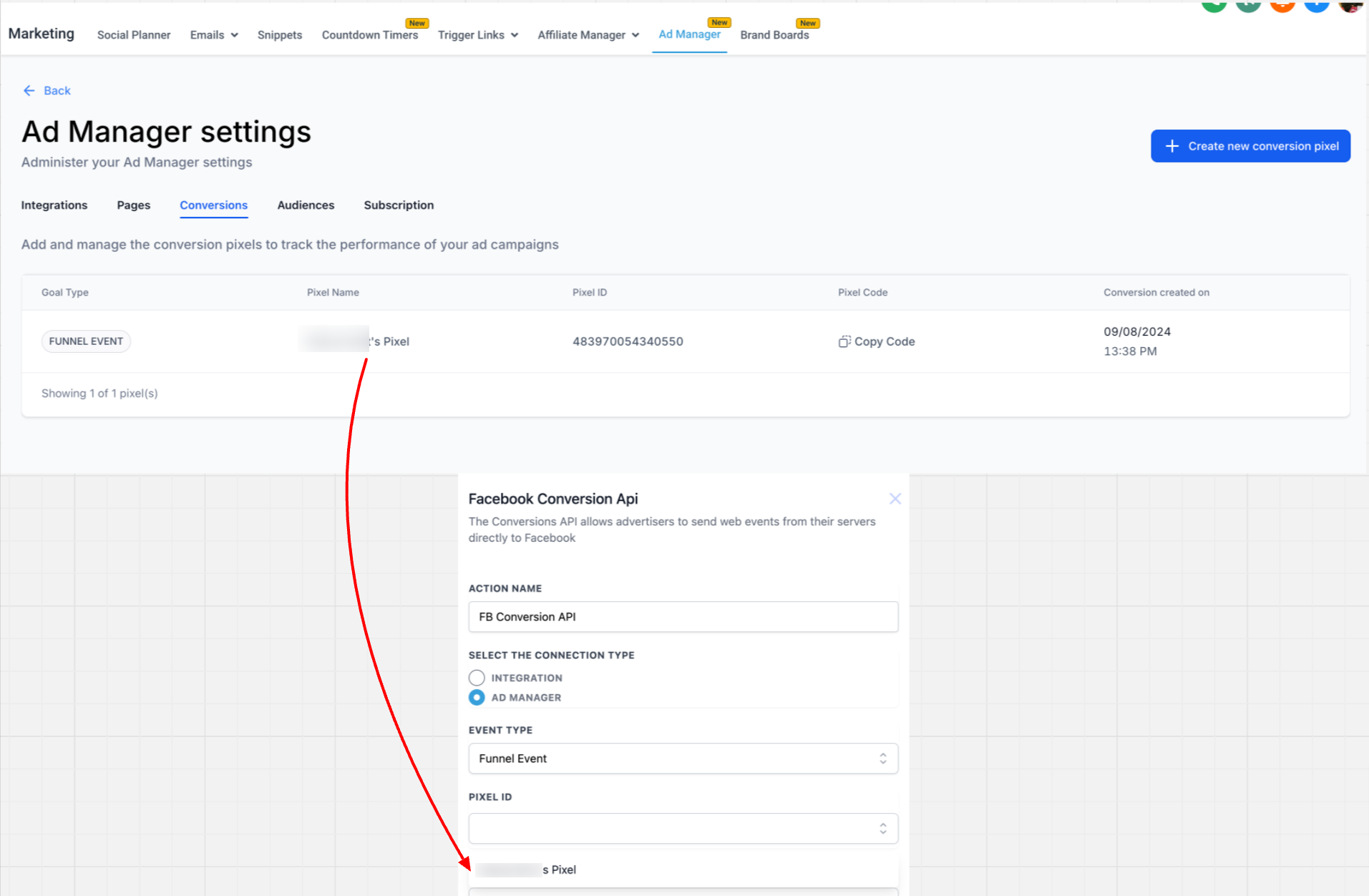
The Meta Conversion API action lives inside the Workflow builder. After adding the action, you select a connection type, either Integrations or the new Ad Manager option. The Ad Manager choice pulls in all pixels linked to your Meta ad accounts and handles the access token automatically.
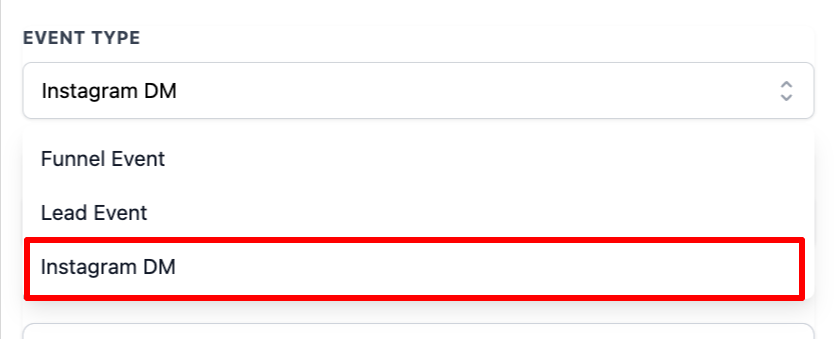
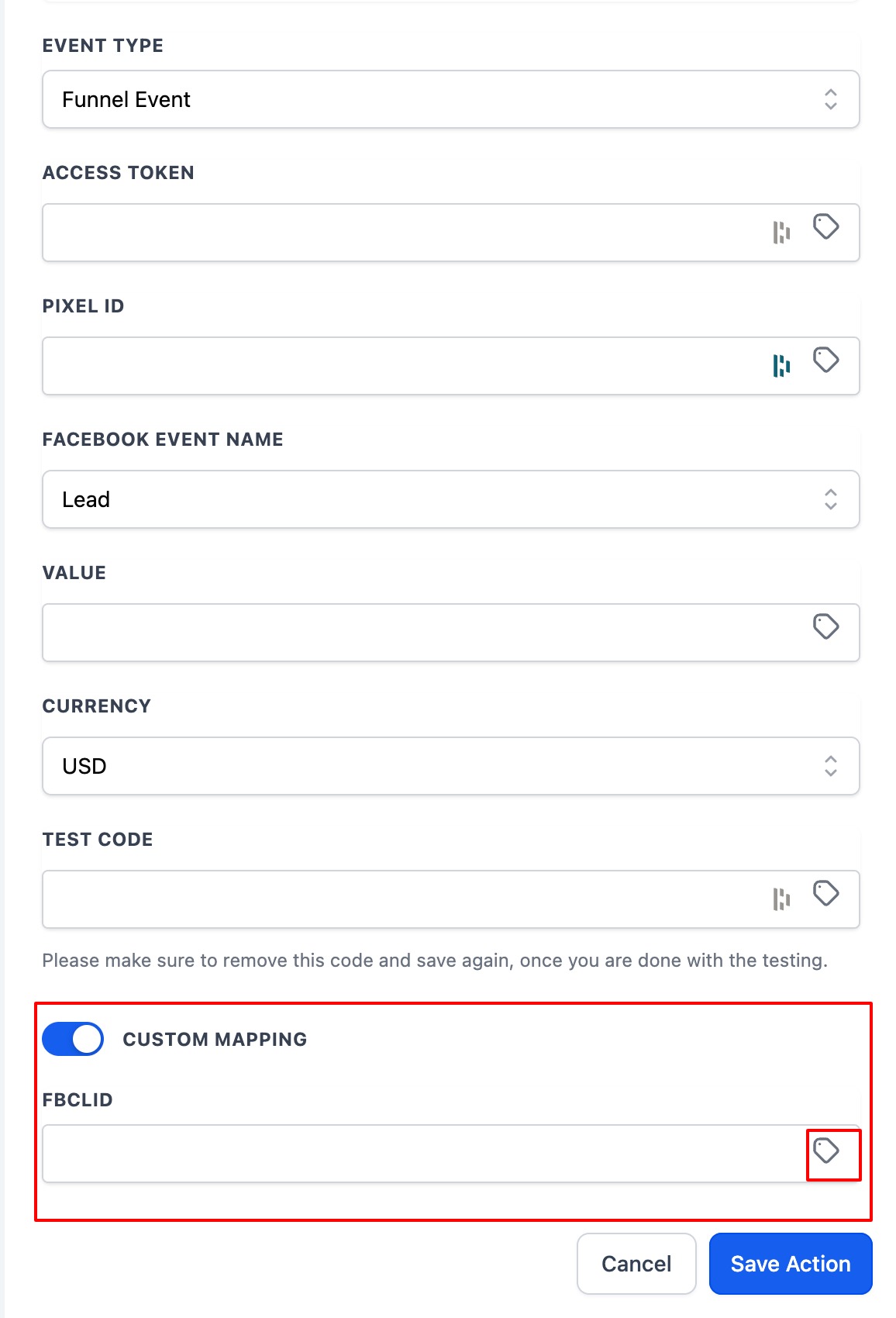
When you set the event type, you can choose Funnel, Lead, or Instagram DM events based on the campaign objective. For Lead events, specifying a Stage Name of Purchase reveals Value and Currency fields, which are included in the payload only for that stage. Custom mapping for FBCLID or Facebook Lead ID is optional and must be toggled on.
03How businesses use Meta conversion API actions
- Digital marketing agency. Create a workflow for each client, select the Ad Manager connection, choose the appropriate pixel from the dropdown, and map the Facebook Lead ID for lead generation campaigns. The workflow then sends CAPI events automatically.
- Ecommerce store. Add a Meta Conversion API action, pick the funnel event type for a website traffic campaign, and enable the Value field with a static sales amount. HighLevel includes the amount and USD currency in the CAPI payload when the purchase stage is reached.
- Service based business. Use the Lead event with the Stage Name set to Purchase, select the relevant pixel, and enable custom mapping to capture the FBCLID. When a booked appointment triggers the workflow, the server side conversion is reported back to Meta.
04Before you start
- Create the Meta ad campaign in Meta Ads Manager.
- Set up a conversion dataset (pixel) linked to the campaign.
05How to set up and use Meta conversion API actions in HighLevel
Set up a workflow that sends Meta Conversion API events via Ad Manager
- Open the Workflow builder and start a new workflow.
- Add an action and choose “Meta Conversion API”.
- Select the connection type “Ad Manager”.
- Pick the event type that matches the campaign objective (Website traffic = Funnel, Lead generation = Lead, Click to direct = Instagram DM).
- Select the desired pixel from the pre populated dropdown list.
- If using a Lead event with Stage Name “Purchase”, enter a static or custom Value and choose the Currency.
- Optionally toggle custom mapping and map FBCLID or Facebook Lead ID as needed.
- Save the workflow and activate it.
06What it looks like in HighLevel
07Settings that matter
- Event Type. Determines whether the workflow sends a funnel, lead, or Instagram DM conversion to Meta.
- Stage Name. Identifies the pipeline stage; when set to Purchase it enables value and currency fields.
- Value. Static amount or custom field sent with the CAPI payload for purchase events.
- Currency. Currency code attached to the Value; defaults to USD.
- Custom Mapping. When enabled, lets you map FBCLID for funnel events or Facebook Lead ID for lead events, overriding default system values.
08Things to know before you rely on it
- Value and Currency are sent only when Stage Name is set to Purchase; otherwise they are ignored.
- Custom mapping is disabled by default and must be turned on to use FBCLID or Facebook Lead ID overrides.
09How it connects to the rest of HighLevel
- Learn how pixels from Ad Manager are used in HighLevel. Ad manager conversion pixels
- Explore all marketing capabilities available in HighLevel. All Marketing features
- Check which HighLevel plans include workflow automation. HighLevel pricing and plans
Michael's take

Be aware that the conversion API relies on server side data, so you must have your Meta campaign and conversion dataset set up first. Without those pieces the workflow can’t send any events, and you’ll see gaps in reporting.
When everything is in place, the Ad Manager option cuts out the back and forth of copying pixel IDs and managing tokens. It streamlines the flow so you can focus on the actual event data you want to push to Meta.