
01Who this is for
- Founders who run an affiliate program and need a single place to monitor each partner’s performance.
- Marketing managers overseeing multiple campaigns who must quickly reassign affiliates or adjust referral links.
02Affiliate profiles, explained
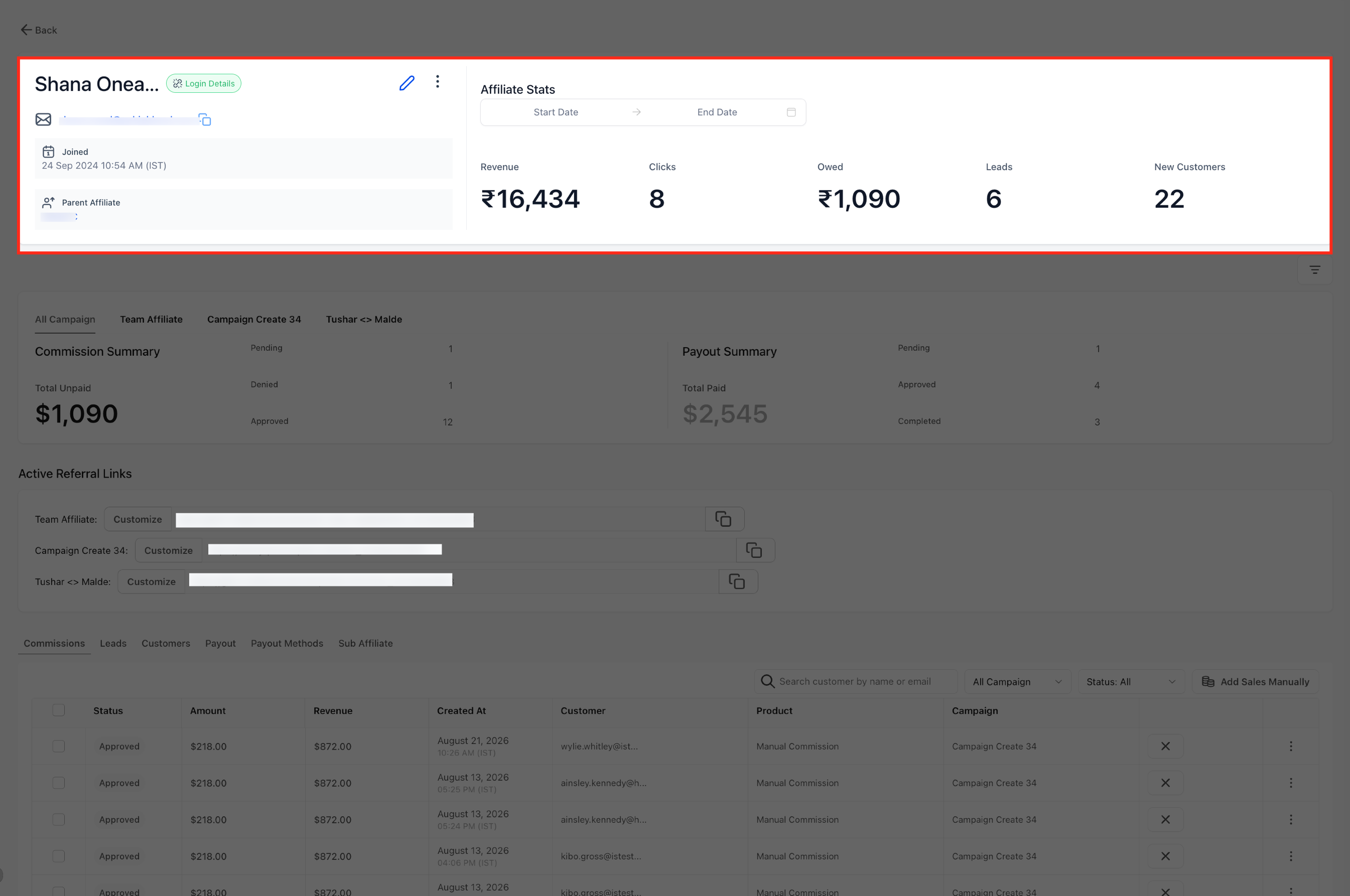
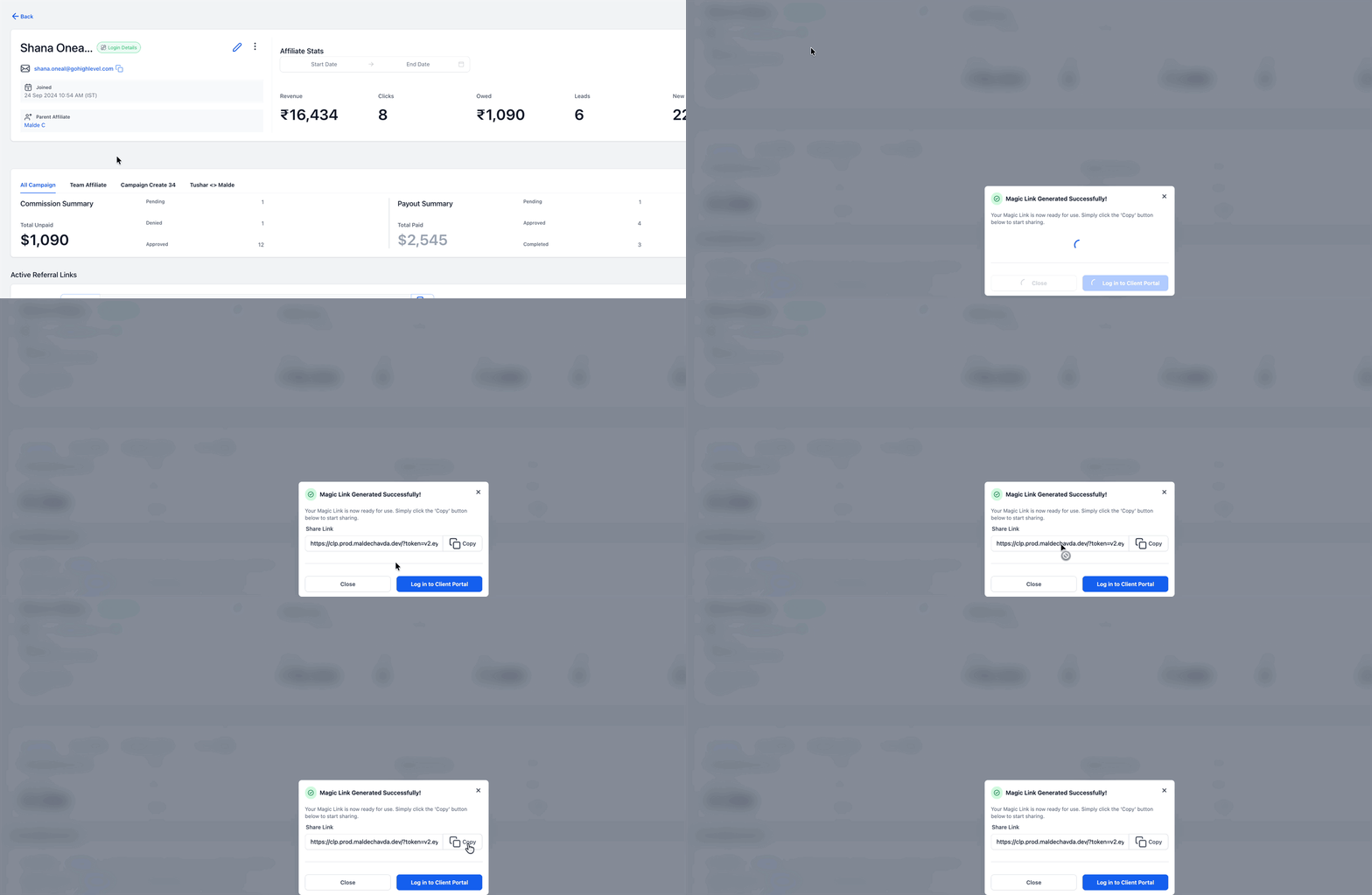
The Affiliate Profile page lives inside the Affiliate Manager component of HighLevel. From the subaccount dashboard, navigate to Marketing > Affiliate Manager and select an affiliate to view their complete record. The page shows identity information, performance metrics, campaign specific referral URLs, commission tallies, lead and customer listings, payout history and any sub affiliate hierarchy.
In addition to read only data, the profile provides actionable controls. Admins can add the affiliate to another campaign, customize the referral ID for any active link, and approve or deny commission entries directly from the interface. These tools let you manage affiliate relationships without leaving the platform.
03How businesses use the Affiliate Profile page
- SaaS startup. A SaaS Founder can open an affiliate’s profile to see the revenue generated from each campaign. They can then add the affiliate to a new launch campaign and edit the referral ID to track the promotion source separately.
- Fitness gym. The gym’s marketing lead reviews an affiliate’s leads and customers, approves commissions that meet the payout threshold, and customizes referral IDs to differentiate between class specific offers.
- Online course platform. Course administrators check affiliate driven enrollments, assign the affiliate to a seasonal promotion campaign, and change the referral ID so the tracking link aligns with the course bundle.
04The numbers and rules that matter
- HighLevel supports up to seven tiers at the campaign level for subaffiliate hierarchies.
05Before you start
- User must have admin access to the HighLevel Subaccount and be able to view Marketing > Affiliate Manager.
- Affiliates must already exist in the Affiliate list before a profile can be opened.
06How to set up and use the Affiliate Profile page in HighLevel
Open an affiliate profile
- From the HighLevel Subaccount view, click Marketing.
- Select Affiliate Manager.
- Select Affiliate.
- Find the specific affiliate in the list.
- Click the affiliate name to open its profile.
Assign an affiliate to a campaign
- Open the affiliate’s profile page.
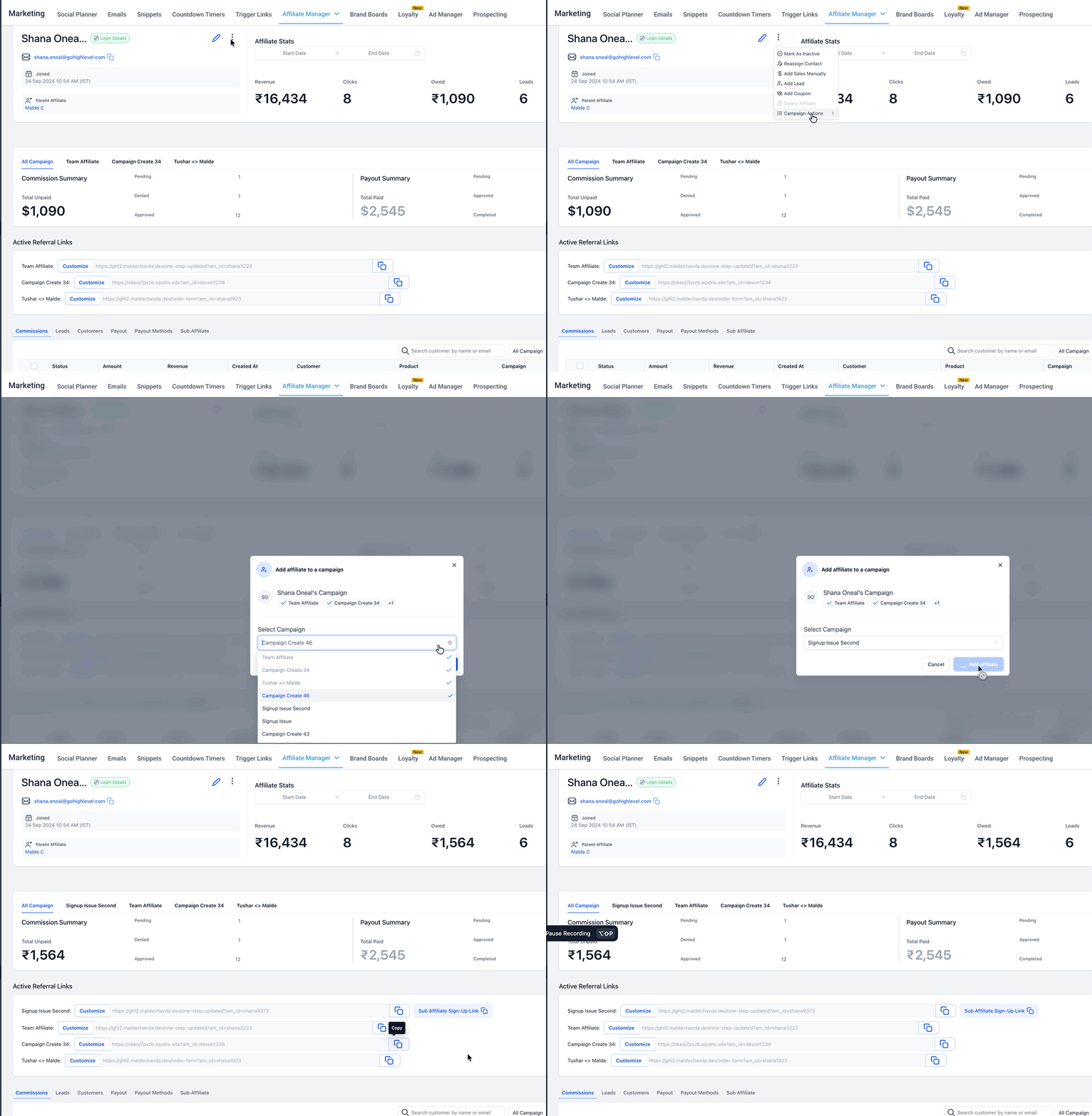
- Click the three dot menu icon.
- Choose Campaign Actions.
- Select the + Add to a Campaign button.
- Search for the required campaign.
- Select the campaign you want to associate with the affiliate.
Customize a referral ID
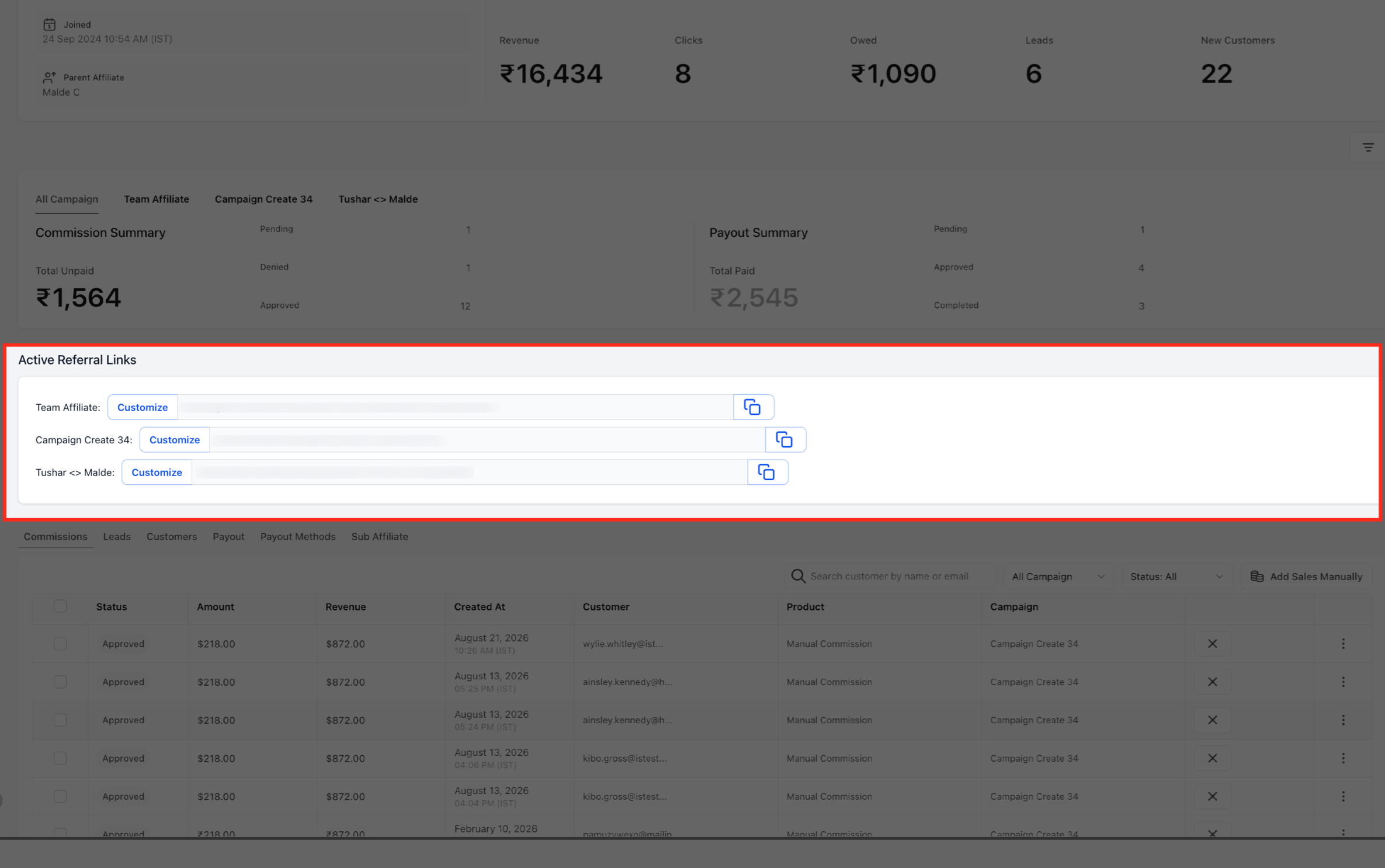
- Locate the campaign listed under Active referral links.
- Click the Customize button for that campaign.
- Open the Referral link tab.
- Edit the Referral ID field as needed.
- Review the Link preview to confirm the change.
- Press Save to store the new Referral ID.
07What it looks like in HighLevel
08Settings that matter
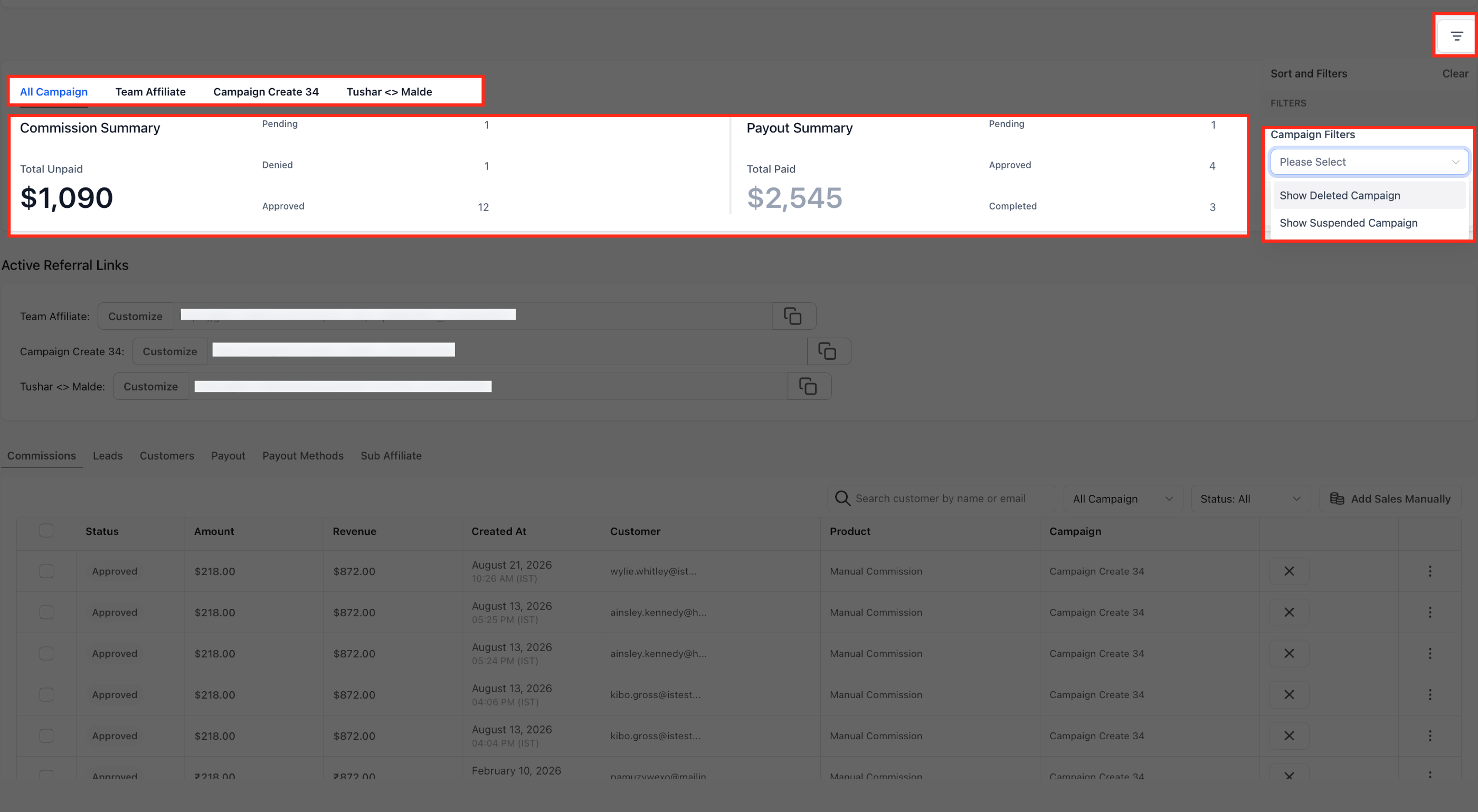
- Show Deleted Campaign. When enabled, the profile includes data from campaigns that have been removed, allowing a full historical view.
- Referral ID. Controls the unique identifier appended to a campaign’s referral URL, enabling custom tracking of affiliate traffic.
09Things to know before you rely on it
- The Sub Affiliate tab only appears for affiliates participating in a multi tier campaign that supports up to seven tiers.
- The Show Deleted Campaign toggle does not also filter out inactive campaigns.
10How it connects to the rest of HighLevel
- Use the Affiliate portal to let partners view their commissions. Affiliate portal guide
- Add new affiliates before accessing their profiles. Add affiliates
- Manage customers linked to affiliates for deeper insights. Customer management
- Set custom affiliate commissions to control payout amounts. Custom commissions
- Review pricing plans if you need to upgrade for more affiliate features. Pricing page
Michael's take

People often think the Affiliate Profile is just a static list of numbers, then they waste time clicking around for the details they actually need. I would begin with opening the profile, setting the date range for the period you care about, and then using the campaign tabs to see the exact metrics, links and commissions relevant to that campaign.
From there I’d jump straight to the Active referral links section, hit Customize and adjust the Referral ID if the affiliate wants a vanity URL. It’s a quick win that shows you’ve got control, and you can verify the change with the preview before you save.