
01Who this is for
- Marketing teams that run an affiliate program and need a simple way to add partners.
- Small businesses that already have customer contacts in HighLevel and want to convert them into affiliates.
- Coaches or consultants who prefer bulk onboarding of affiliates via a spreadsheet.
02Affiliates in affiliate manager, explained
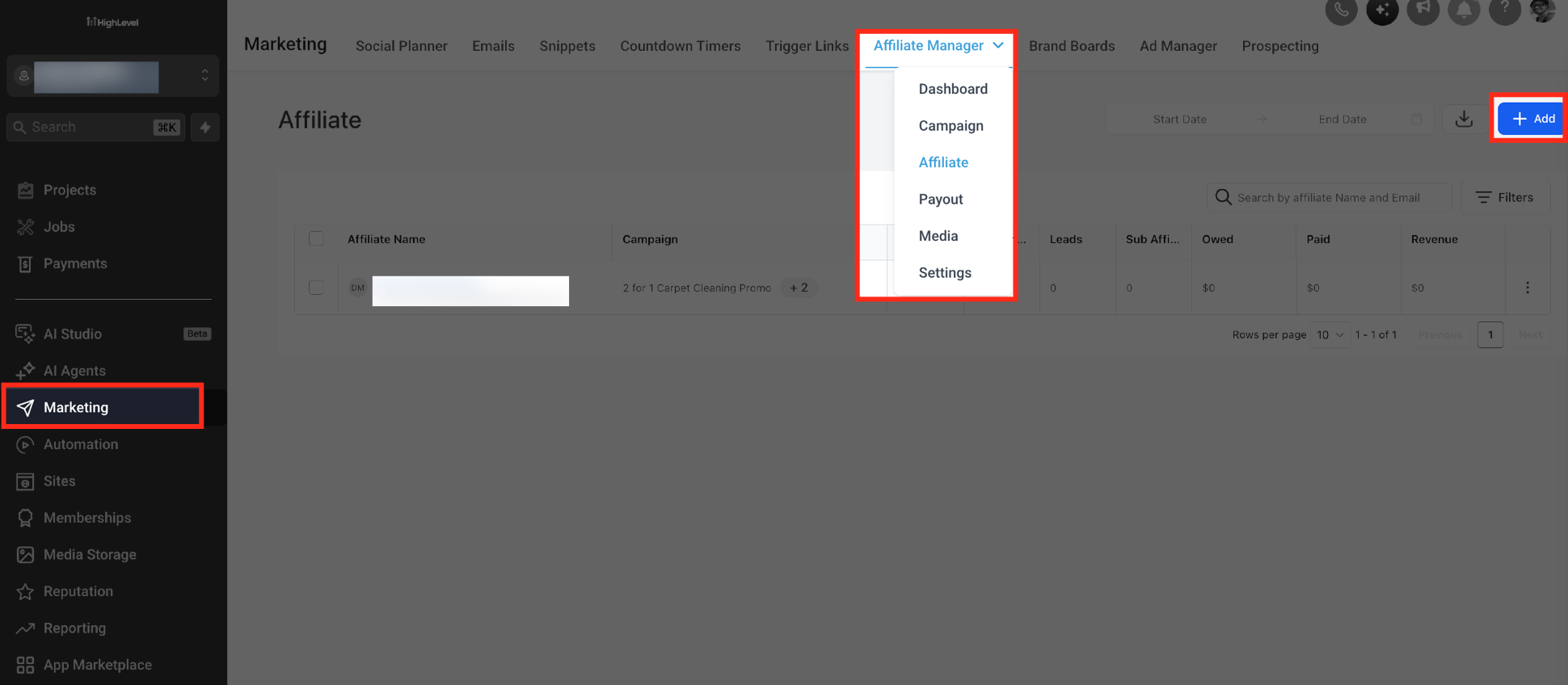
The Affiliate Manager section of HighLevel houses all tools for enrolling affiliates. From the Marketing menu you open Affiliate Manager, then use the + Add button to choose how the affiliate enters the system.
Three entry methods exist: a manual form for a single affiliate, a CSV upload for many affiliates, and an import that pulls existing HighLevel contacts. Each method collects the required fields and can place the new affiliate into a chosen campaign.
Affiliate data lives within the current subaccount, so any affiliate you add is scoped to that subaccount’s marketing activities.
03How businesses use adding affiliates in affiliate manager
- Ecommerce store. Create a CSV file with product promoters’ names and emails, upload it through the bulk import, and assign them to the store’s affiliate campaign. The upload respects the 50 MB file limit and required name and email columns.
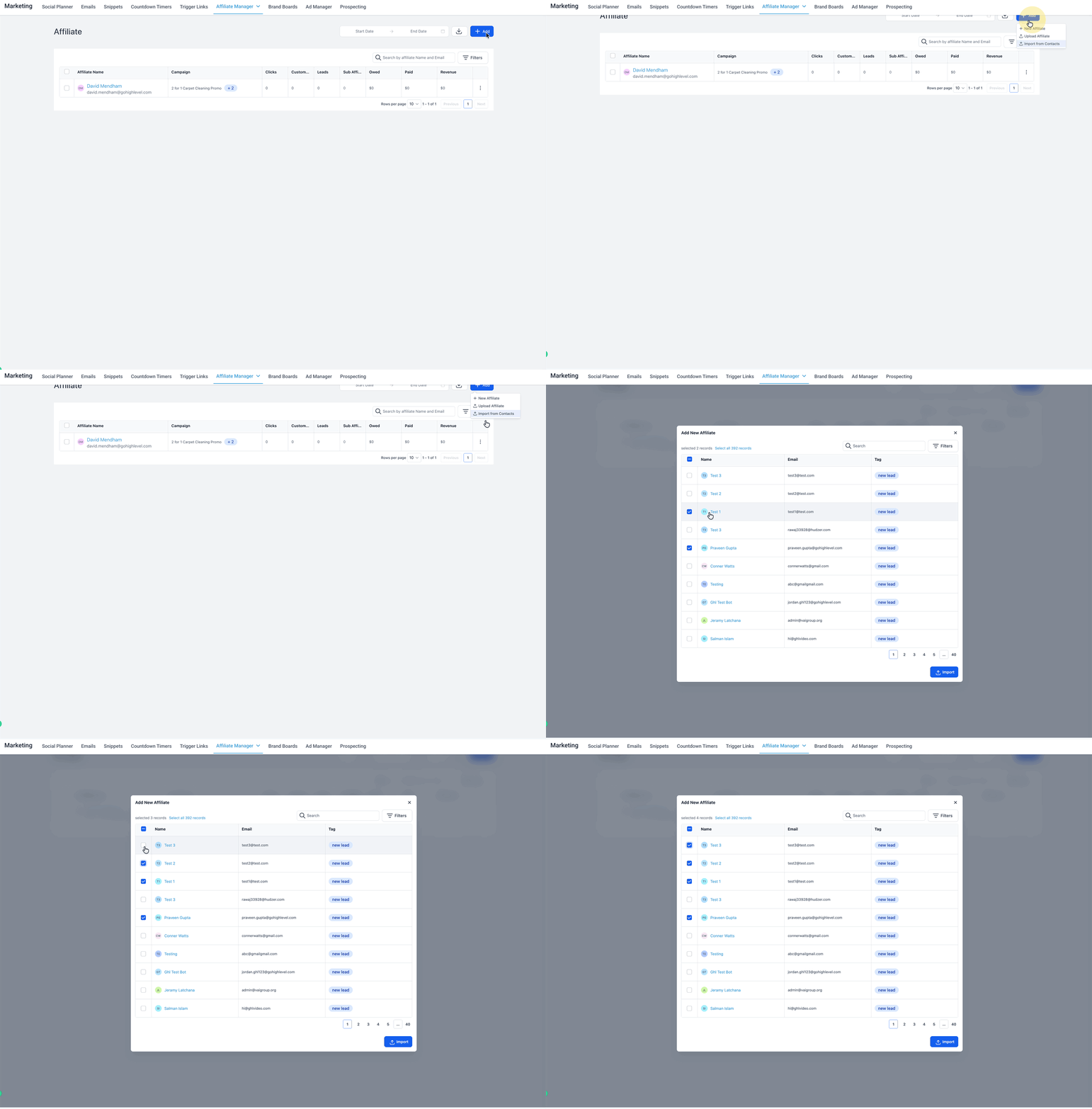
- Coaching business. Select Import from Contacts to turn existing client contacts into affiliates. The import pulls the contact’s email, first and last name and enrolls them directly in the chosen campaign.
- SaaS startup. Use the New Affiliate form to add a single strategic partner, filling in email, first name, last name and optional company, then assign the partner to a specific affiliate campaign.
04The numbers and rules that matter
- CSV file size limit is 50 MB.
05Before you start
- Create the affiliate campaign that you will assign during onboarding.
- Prepare a CSV file that includes First Name, Last Name, and Email for each affiliate if you plan to use bulk upload.
- Ensure the contacts you want to import already exist in the subaccount’s CRM.
06How to set up and use adding affiliates in affiliate manager in HighLevel
Add a new affiliate manually
- From the Subaccount view, pick Marketing.
- Choose Affiliate Manager.
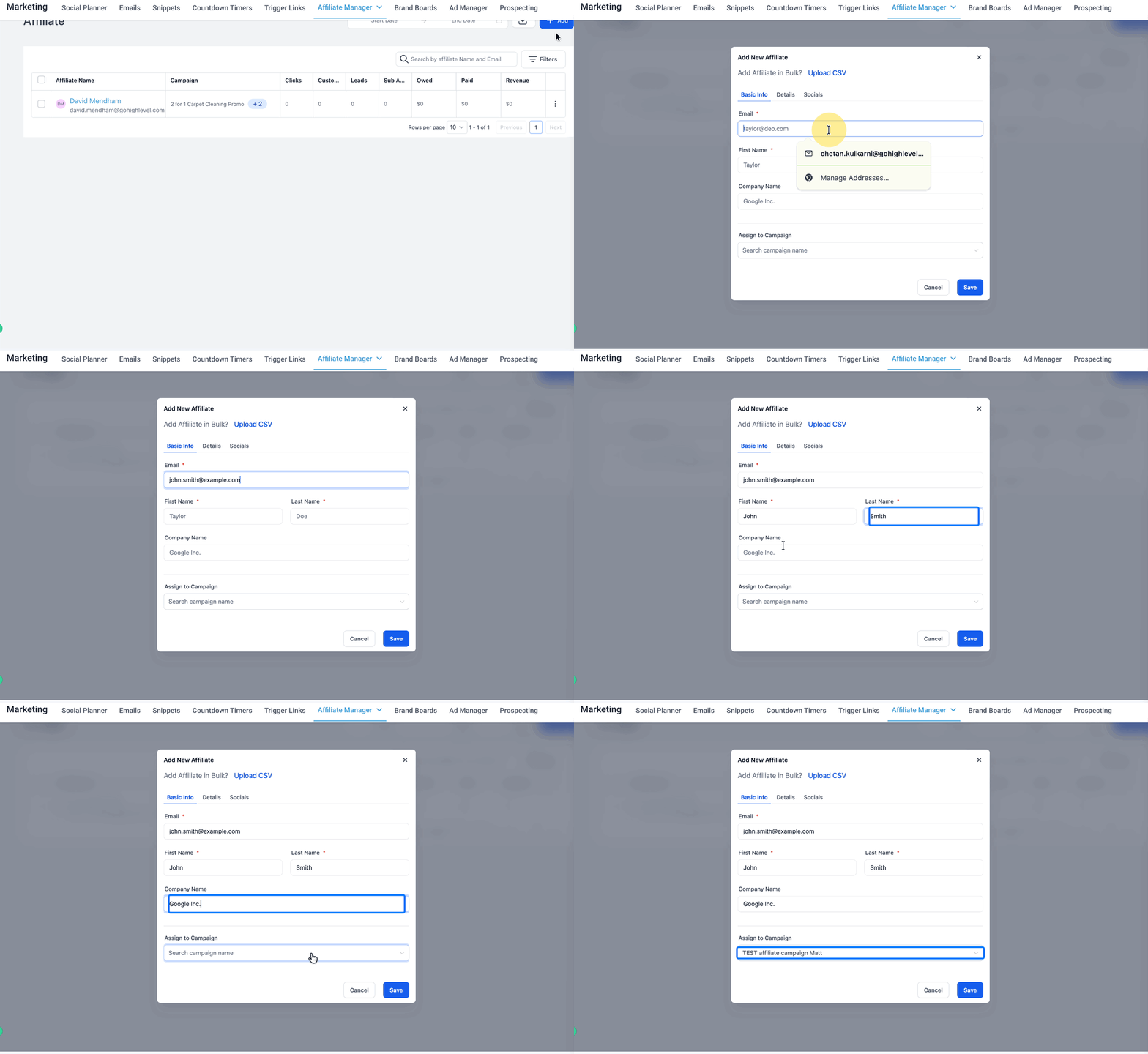
- Open the Affiliate section.
- Click the + Add button.
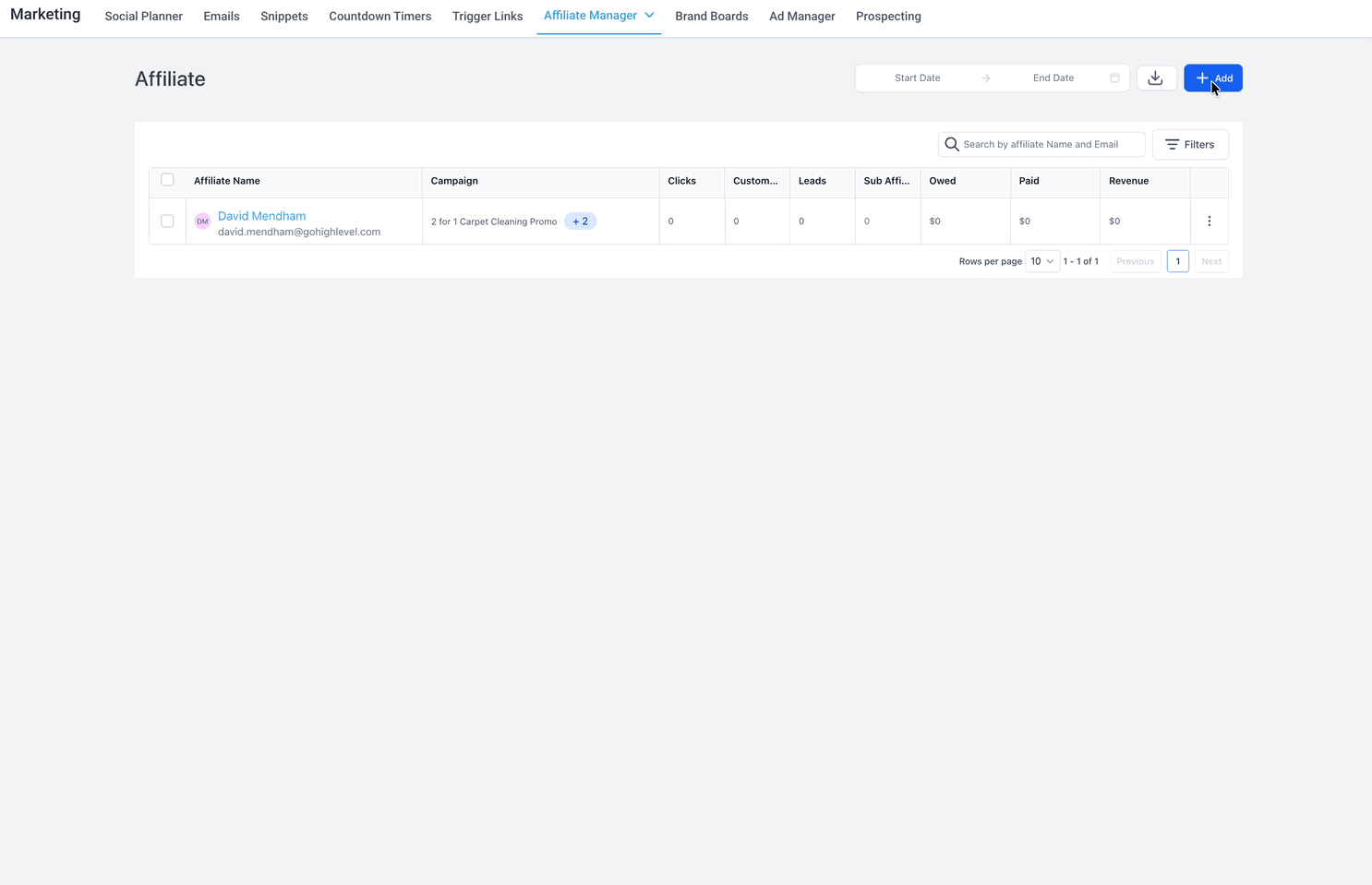
- Select New Affiliate.
- Enter the affiliate’s Email.
- Enter the affiliate’s First Name.
- Enter the affiliate’s Last Name.
- Optionally add a Company Name.
- Pick the appropriate campaign in Assign to Campaign.
- Click Save (or Save & Continue to add more details).
Upload affiliates in bulk
- From the Subaccount view, select Marketing.
- Open Affiliate Manager.
- Go to Affiliate.
- Press + Add.
- Choose Upload Affiliate.
- Click Sample File if you need the import template.
- Create a CSV file that lists each affiliate.
- Make sure each row contains First Name, Last Name and Email.
- Keep the file size under 50 MB.
- Drag the CSV file into the upload area or use the upload button.
- Press Next to continue the wizard.
- Complete the Map stage to match CSV columns, then proceed to Details to finish configuration.
- If you change your mind, select Add Affiliate Manually to return to manual entry.
Import affiliates from contacts
- From the Subaccount view, go to Marketing.
- Open Affiliate Manager.
- Access the Affiliate list.
- Hit + Add.
- Choose Import from Contacts.
07What it looks like in HighLevel
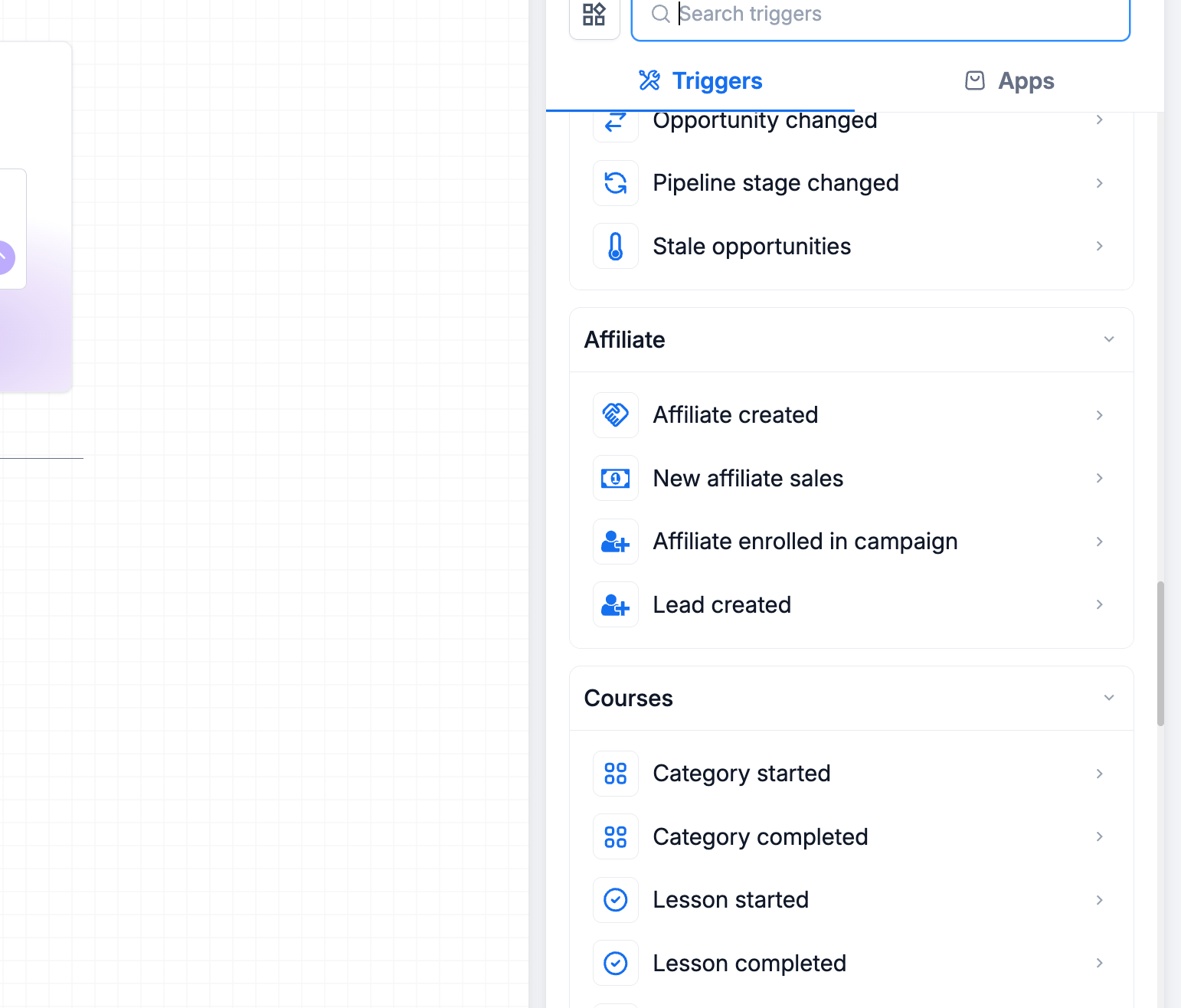
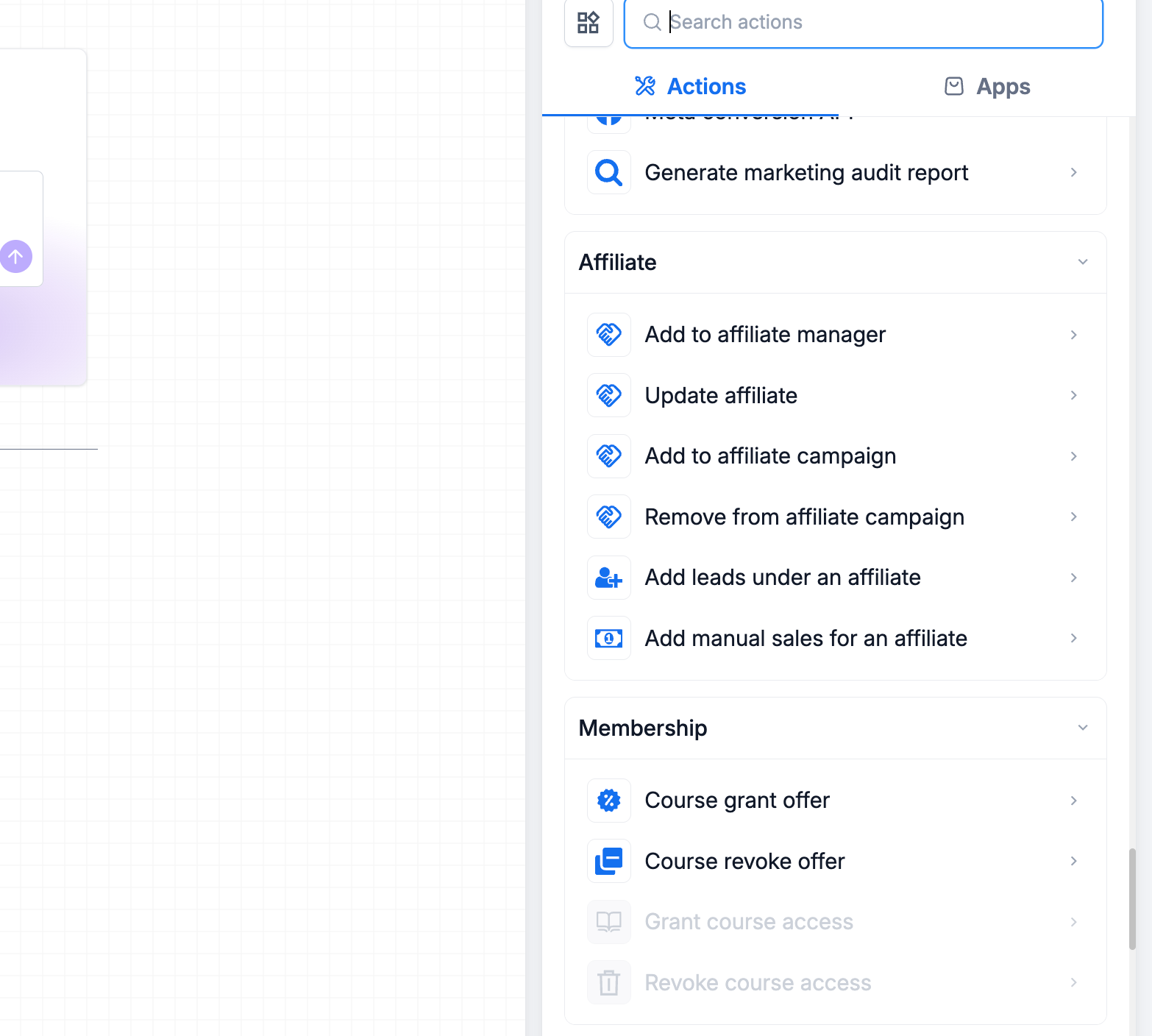
08Things to know before you rely on it
- CSV uploads cannot exceed 50 MB.
- First Name, Last Name, and Email are required fields for both manual entry and CSV upload.
- The manual form also requires the Assign to Campaign field.
09How it connects to the rest of HighLevel
- Use the Affiliate portal to manage commissions after affiliates are added. Affiliate portal guide
- Set custom commission rates for each affiliate once they are created. Custom affiliate commissions
- Review pricing options for Affiliate Manager access. HighLevel pricing
Michael's take

When I have a steady stream of partners, bulk uploading affiliates or automating enrollment can reduce the amount of repetitive data entry I have to do.
If my affiliate program is small and I rarely add new partners, manual entry and occasional CSV uploads feel sufficient, and the workflow setup can be more effort than it’s worth.