
01Who this is for
- Marketing managers who handle several social accounts can keep messages aligned with each platform’s rules.
- Small business owners can avoid creating separate posts for Facebook, Instagram, LinkedIn, and Google Business.
- Agencies managing client pages benefit from a single interface that reduces duplicate work.
02Customize for each post, explained
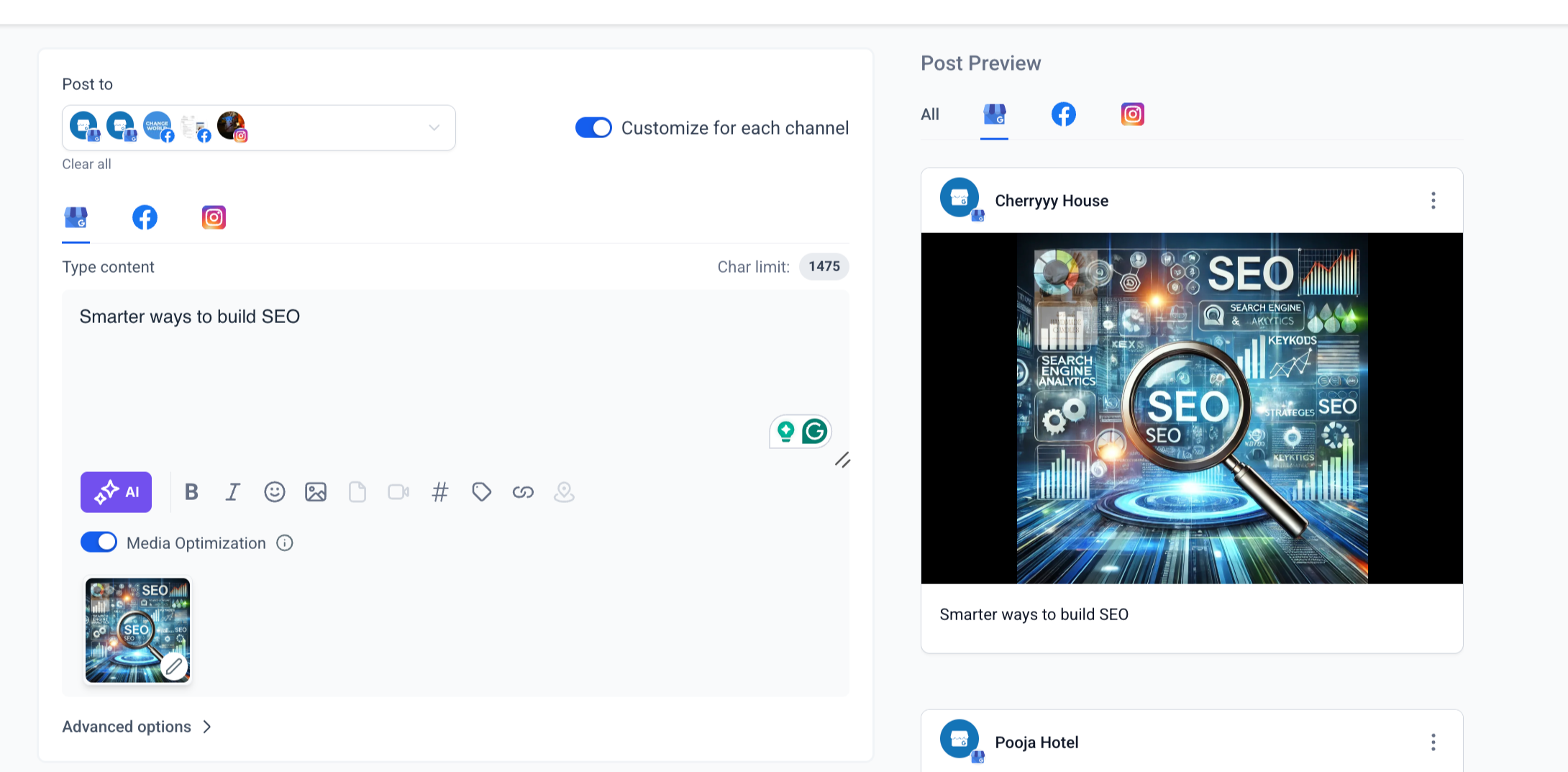
The feature lives in the Social Planner module. When you create a new post, selecting two or more connected social accounts reveals a toggle. Turning the toggle on opens separate text boxes for each channel. You can write a short LinkedIn caption and a longer Facebook caption in the same workflow. Media can be added per channel, and Content AI can generate or resize copy up to 900 words.
The platform enforces each channel’s character limit. If the text exceeds the limit, the planner warns you and requires adjustment. Once the content is ready, you can post immediately or set a future time. The option to turn off customization applies the active channel’s content to all selected accounts and removes any channel specific drafts.
03How businesses use customize for each post
- Real estate agency. The agency selects its Facebook page, Instagram profile, and Google Business listing. It toggles customization, writes a concise Instagram caption, a longer Facebook description, and a brief Google Business update. After adding a property photo for each, it schedules the post for the next morning.
- Dental practice. The practice connects its LinkedIn page and Facebook group. It enables customization, crafts a professional LinkedIn announcement about a new service, and a friendly Facebook reminder. It attaches a short video to Facebook and schedules both posts for the same day.
- Fitness studio. The studio links its Instagram and Google Business profiles. It toggles the feature, writes a 2,200 character Instagram promo, and a 1,500 character Google Business post. It adds a workout image for Instagram, uses Content AI to polish the copy, and posts right away.
04The numbers and rules that matter
- Character limit for Facebook pages & groups: 5,000.
- Character limit for Instagram profiles: 2,200.
- Character limit for LinkedIn pages & profiles: 3,000.
- Character limit for GMB (Google My Business): 1,500.
- Content AI can generate up to 900 words.
05Before you start
- Connect at least two social accounts to HighLevel.
- Allow any uploaded images or videos to finish processing before switching channels or the customization toggle.
06How to set up and use customize for each post in HighLevel
Customize posts for each social channel
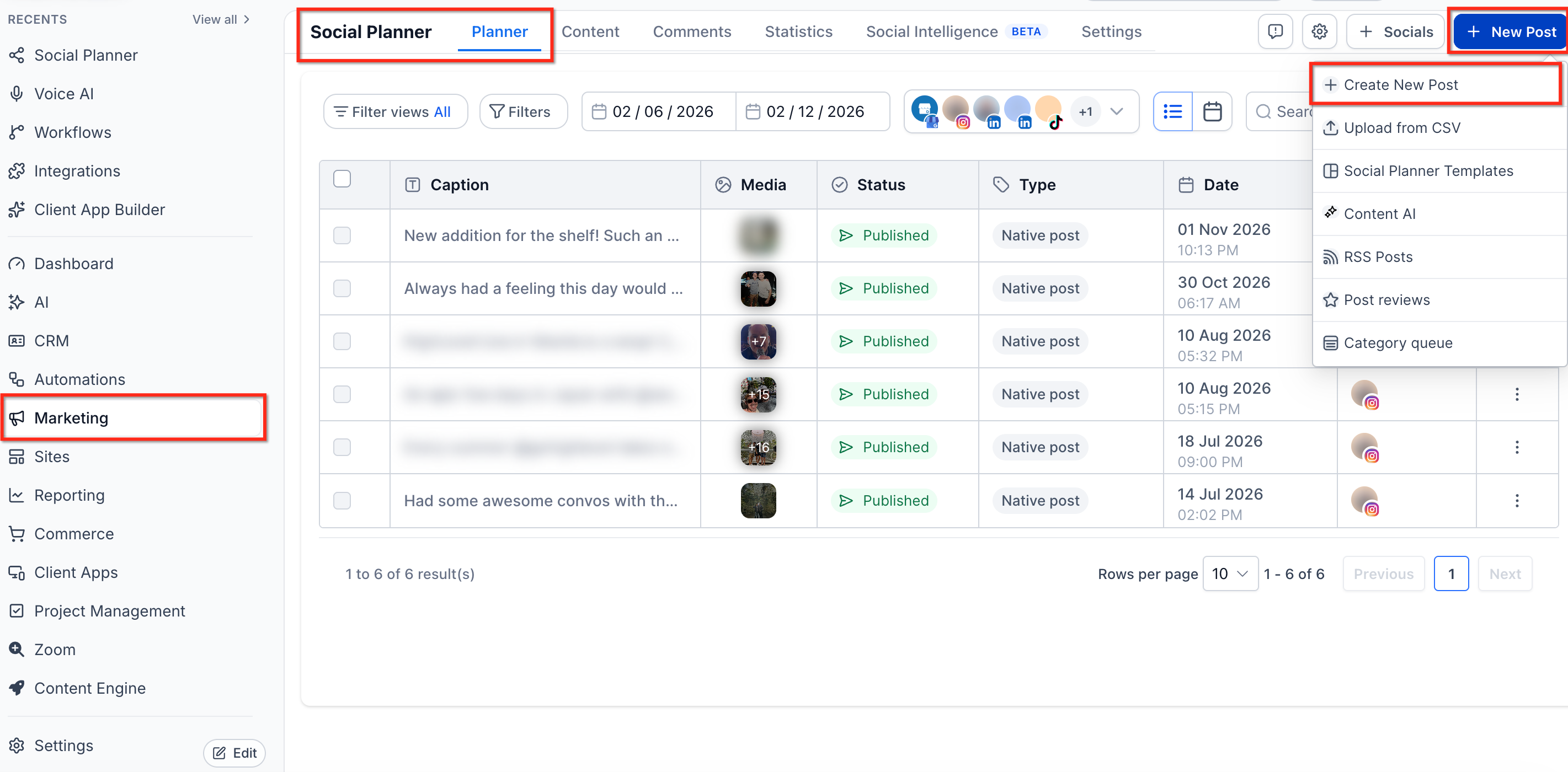
- Open Marketing > Social Planner and click + New Post > Create New Post.
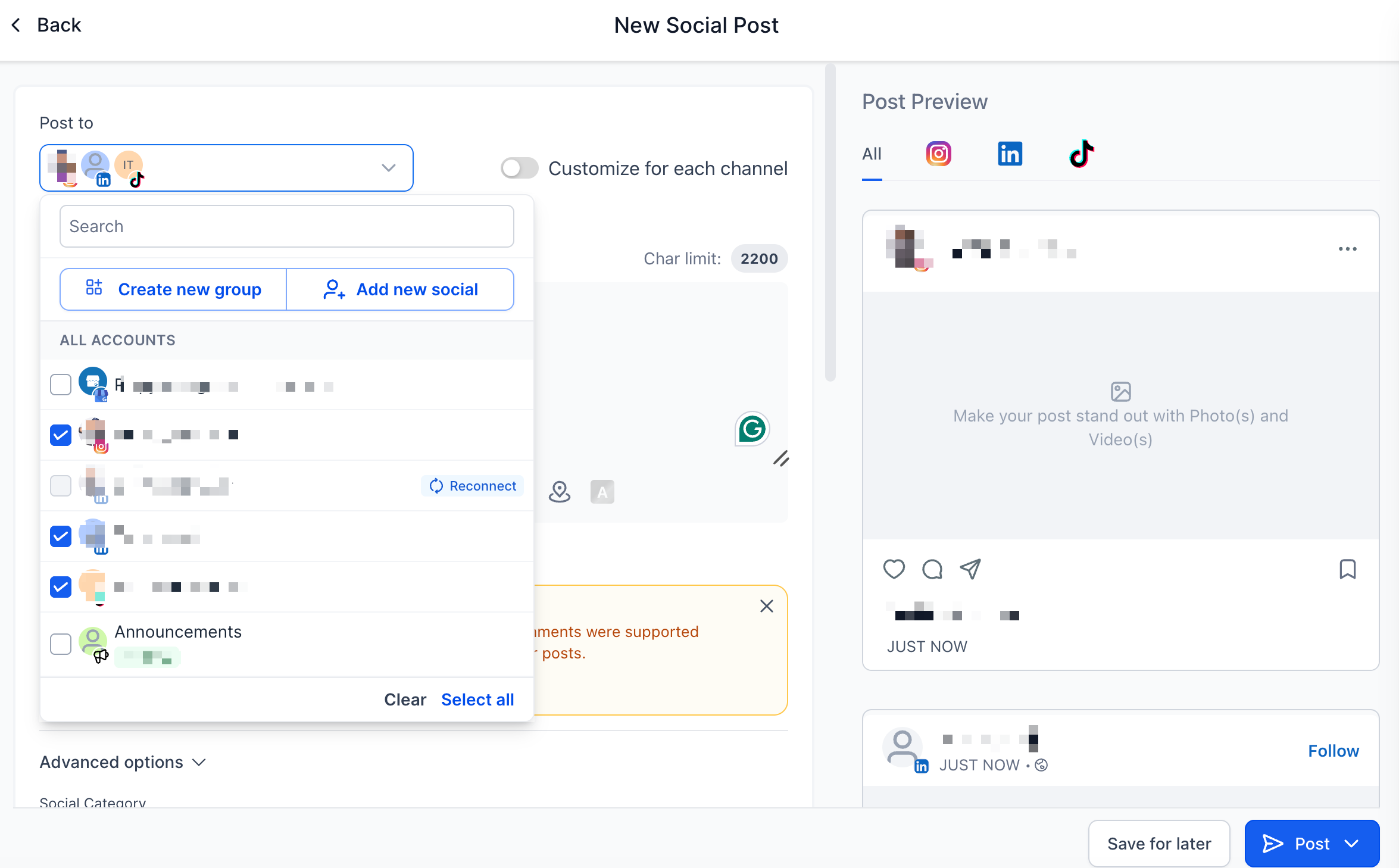
- Select two or more social accounts such as Facebook, Instagram, LinkedIn, or Google Business.
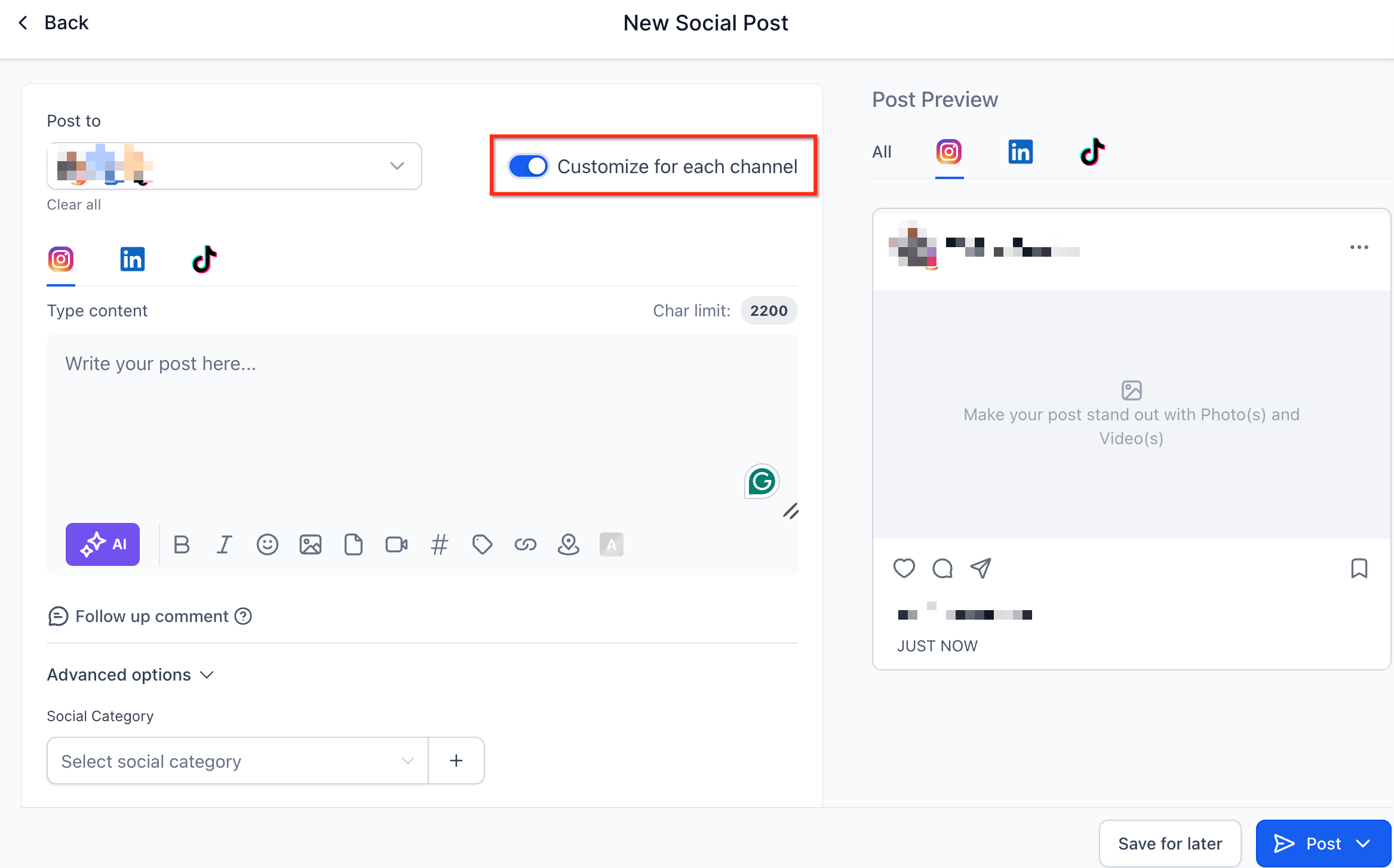
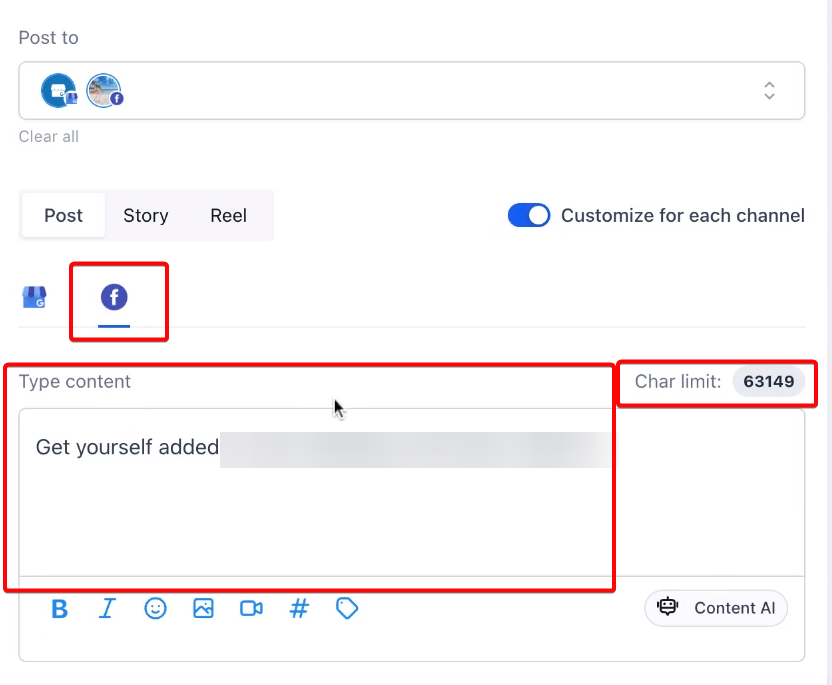
- Toggle the Customize for Each Channel switch to appear.
- Turn the toggle on to open separate content fields for each chosen platform.
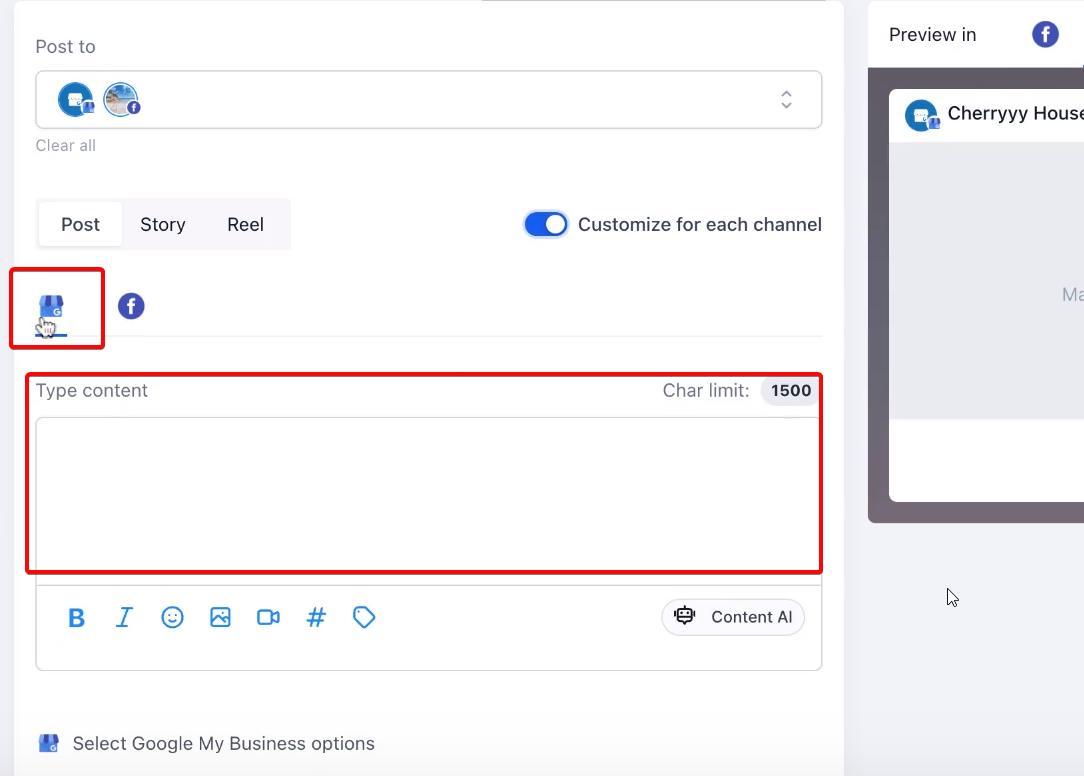
- Enter the caption for each channel, keeping within the platform's character limit.
- Add images or videos for each channel as needed.
- Optionally run Content AI to generate or adjust the text for any channel.
- Choose to post immediately or set a schedule for later publishing.
07What it looks like in HighLevel
08Settings that matter
- Customize for Each Channel toggle. Controls whether the post uses a single shared caption or separate captions and media for each selected social account.
- Content AI. Generates or rewrites text up to 900 words, allowing adaptation of size for small, medium, or large content needs per platform.
- Scheduling. Determines whether the post publishes at once or at a future date and time.
09Things to know before you rely on it
- Facebook pages and groups allow up to 5,000 characters; Instagram profiles allow up to 2,200; LinkedIn pages and profiles allow up to 3,000; Google Business allows up to 1,500.
- If media is still uploading, switching accounts or the customization toggle may discard the upload or interrupt video thumbnail processing.
- Turning off the customization toggle applies the active channel’s content to all selected accounts and removes any channel specific drafts.
10If something goes wrong
- Customize for Each Channel option does not appear. Select at least two social accounts while creating the post.
- Turning off customization removes channel specific content. Confirm that you want to apply the active channel’s content to all accounts before disabling the toggle.
- Content exceeds a platform’s character limit. Edit the text to fit within the displayed limit; the planner will show a warning if the limit is exceeded.
11How it connects to the rest of HighLevel
- Review image and video specifications for each platform Image and video specs
- Learn how Instagram connects through Facebook or directly Instagram connection
- Find out how to add @mentions and tag profiles in posts Mentions and tags
- Start a 30 day HighLevel trial Free trial
Michael's take

A useful feature for anyone who wants to keep a single workflow while respecting each platform’s quirks. Skip it if you only ever post the exact same copy to every channel.
It’s best for agencies or solo marketers juggling multiple accounts who need to stay efficient without sacrificing platform specific messaging.